Repository navigation
Sharing and presenting
Share your screen, a window, or live content in calls and meetings, as in Teams.
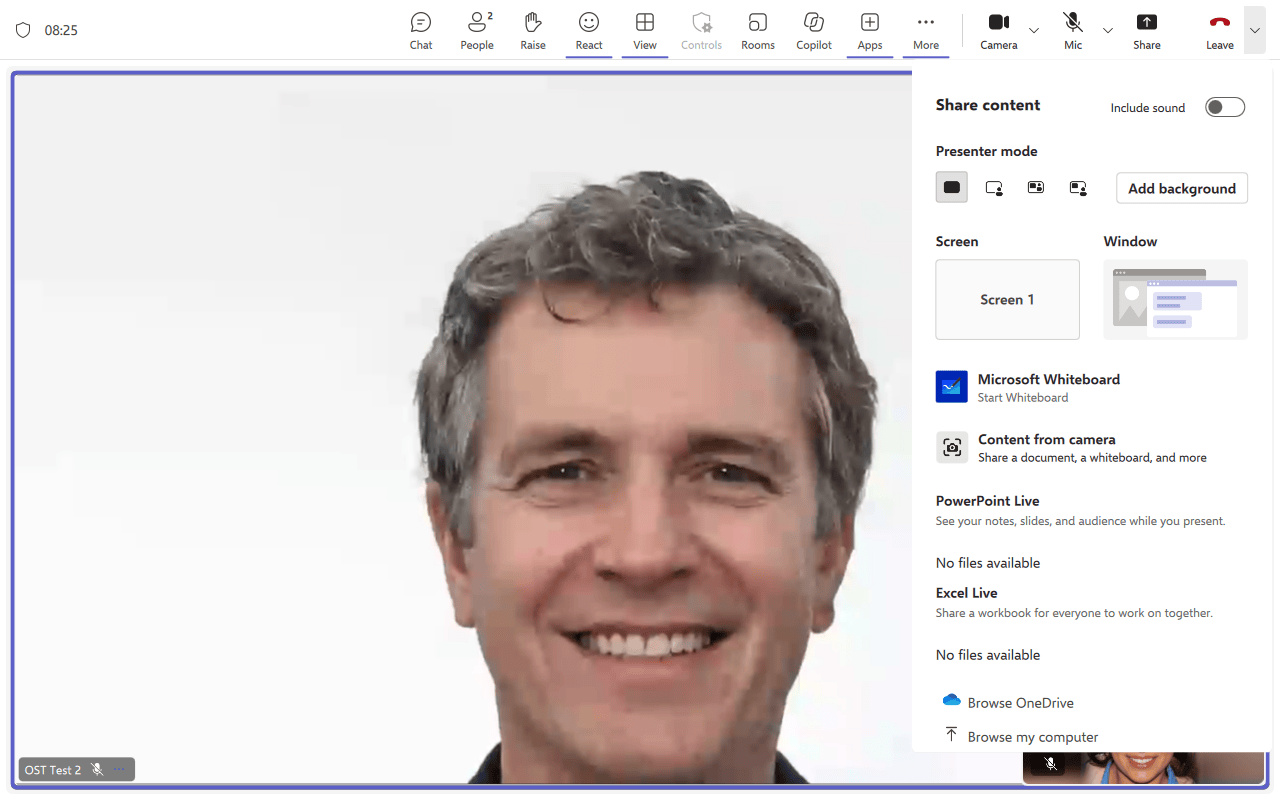
Share in the call toolbar opens Teams' share tray:
- Include sound: share your computer's sound too.
- Presenter mode: Content only, Standout (you in front of your content), Reporter (the content beside you, news style) and Side-by-side; the camera-based modes need your camera on. Add background picks the backdrop behind you in Standout.
- Screen and Window: pick what to share.
- Share content: PowerPoint Live, Excel Live, Microsoft Whiteboard, Content from camera and Video.
Screen and Window go through your desktop's screen-cast picker
(xdg-desktop-portal), where you choose the screen or window to share; it
needs xdg-desktop-portal and your desktop's backend. Starting OST with
OST_SCREENCAST_RESTORE=<file> shares the same screen or window again
without the picker.
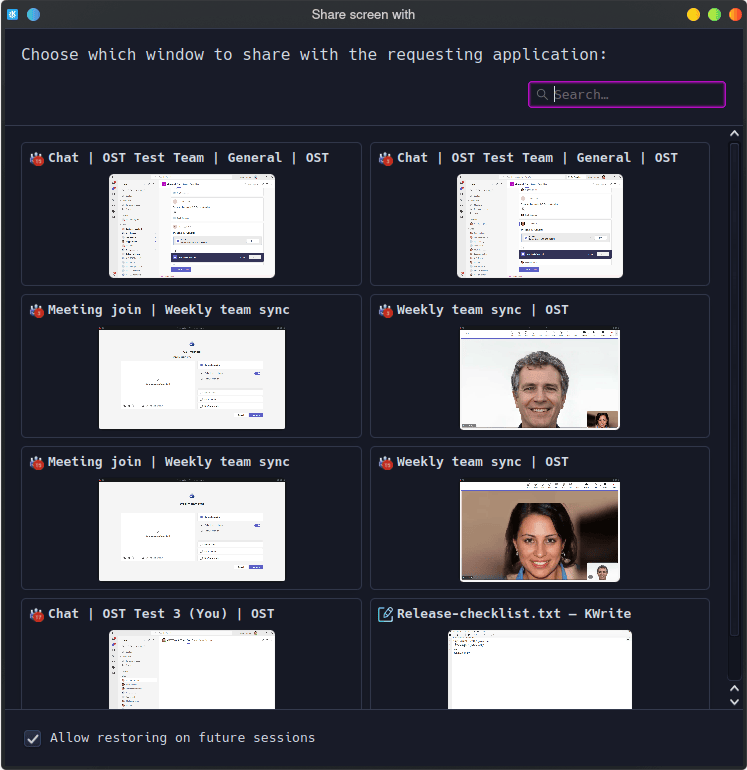
- Share in a 1:1 call works the same way (and a chat's More chat options ▸ Share screen, Ctrl+Shift+E, calls the chat and shares).
- Receiving: when someone shares, their content fills the stage with their video beside it; View ▸ Focus on content hides the videos.
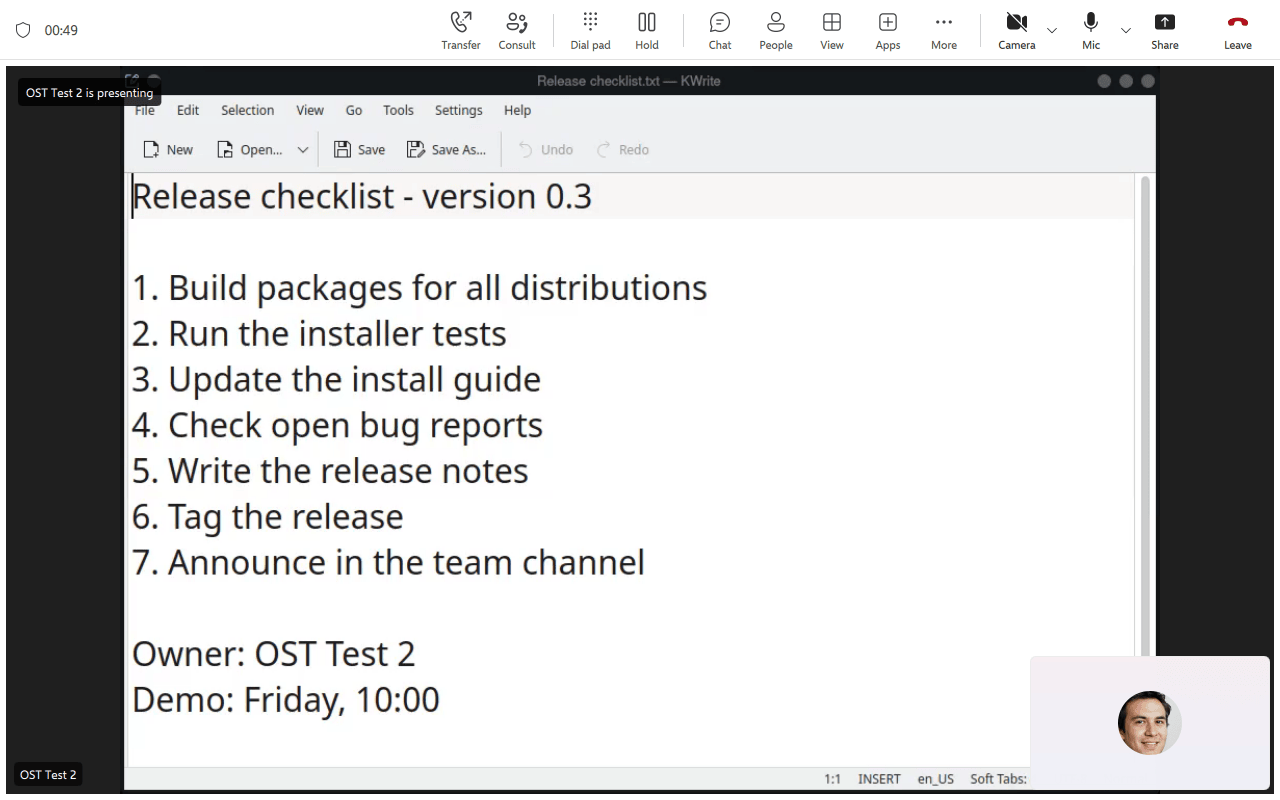
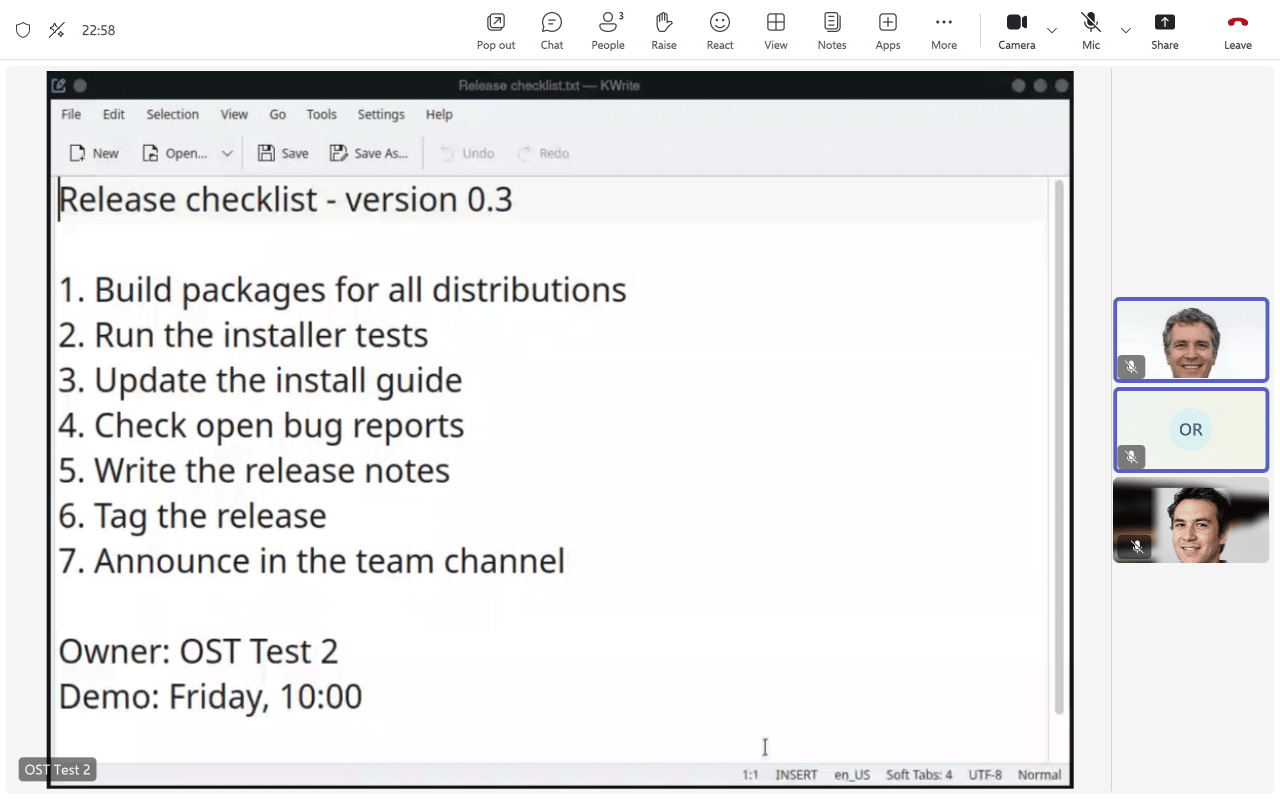
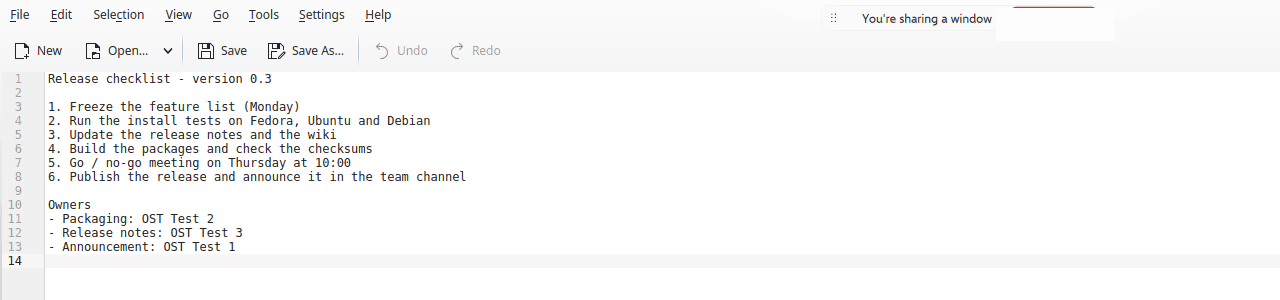
- While you share, Teams' sharing control bar sits at the top of the screen: "You're sharing your screen", Chat, People, Camera, Mic, Layout (presenter modes), Give control, Annotate, Share sound, Optimize (for video content), Pin toolbar, and Stop sharing.
- Presenter modes put you in front of or beside your content (Standout, Reporter, Side-by-side), with the background you added.
- Give control: pick someone; they can then control your shared screen until you Take back. Someone can also ask to Take control, and you Give control or Deny from the alert. When you share a single window on Wayland, OST can't find where the window is, so it answers that control isn't allowed, as Teams does when control is off.
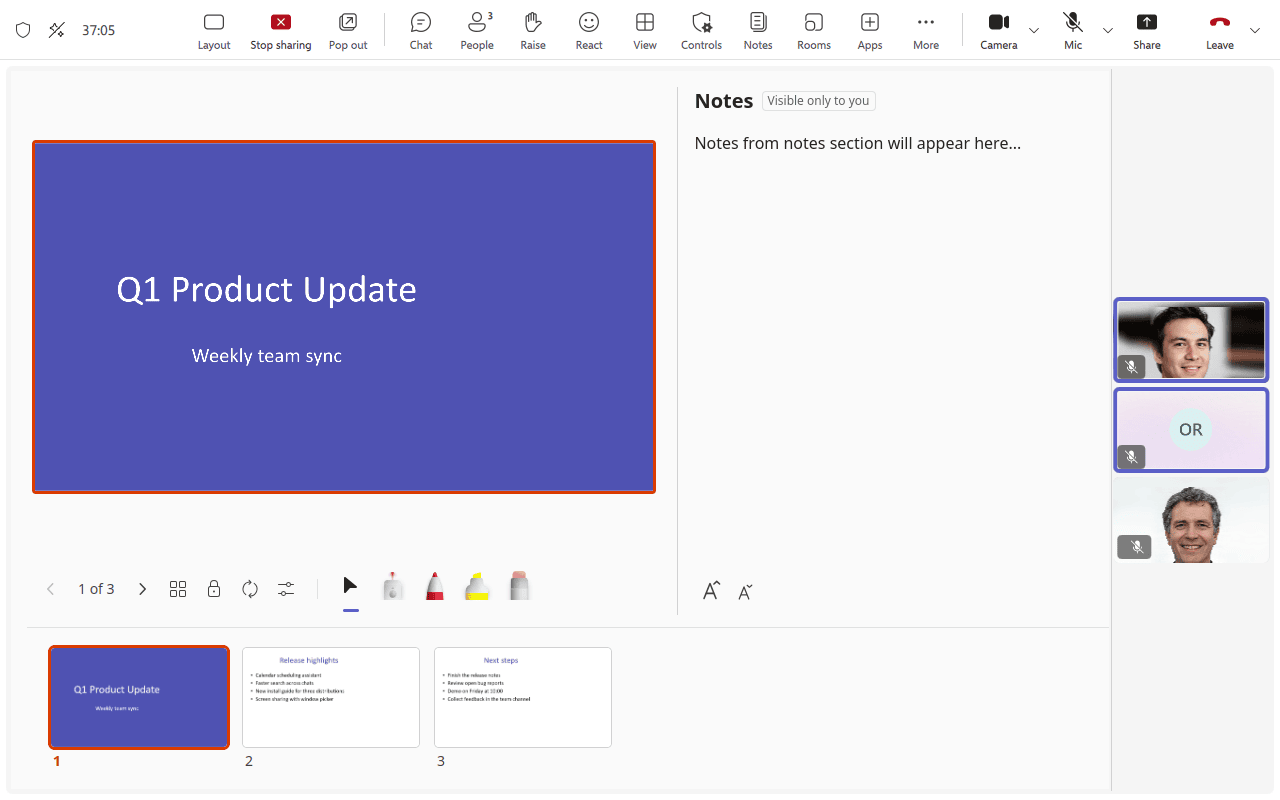
- PowerPoint Live: share a presentation from OneDrive (Browse OneDrive, Browse my computer); you see your notes, slides and the audience, others follow along (or browse on their own). Cameo puts your video into the slides.
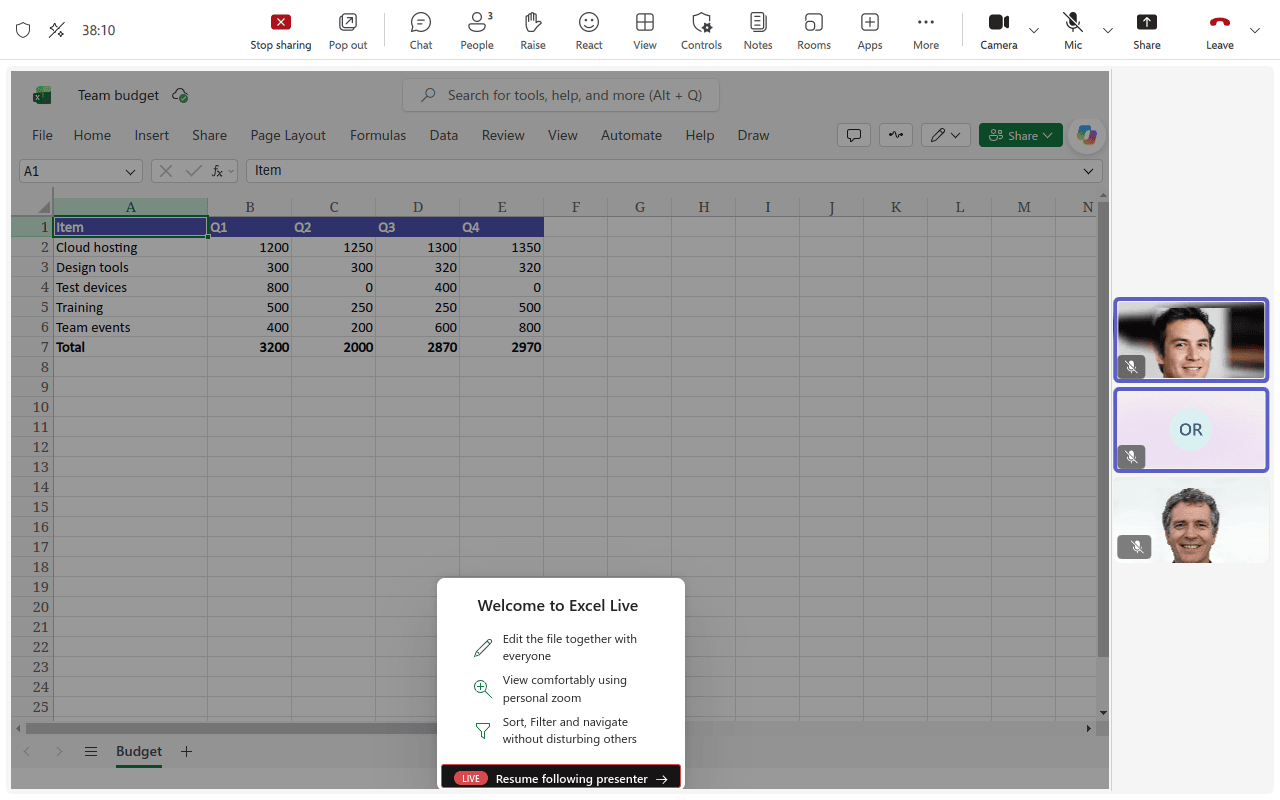
- Excel Live: share a workbook for everyone to work on together.
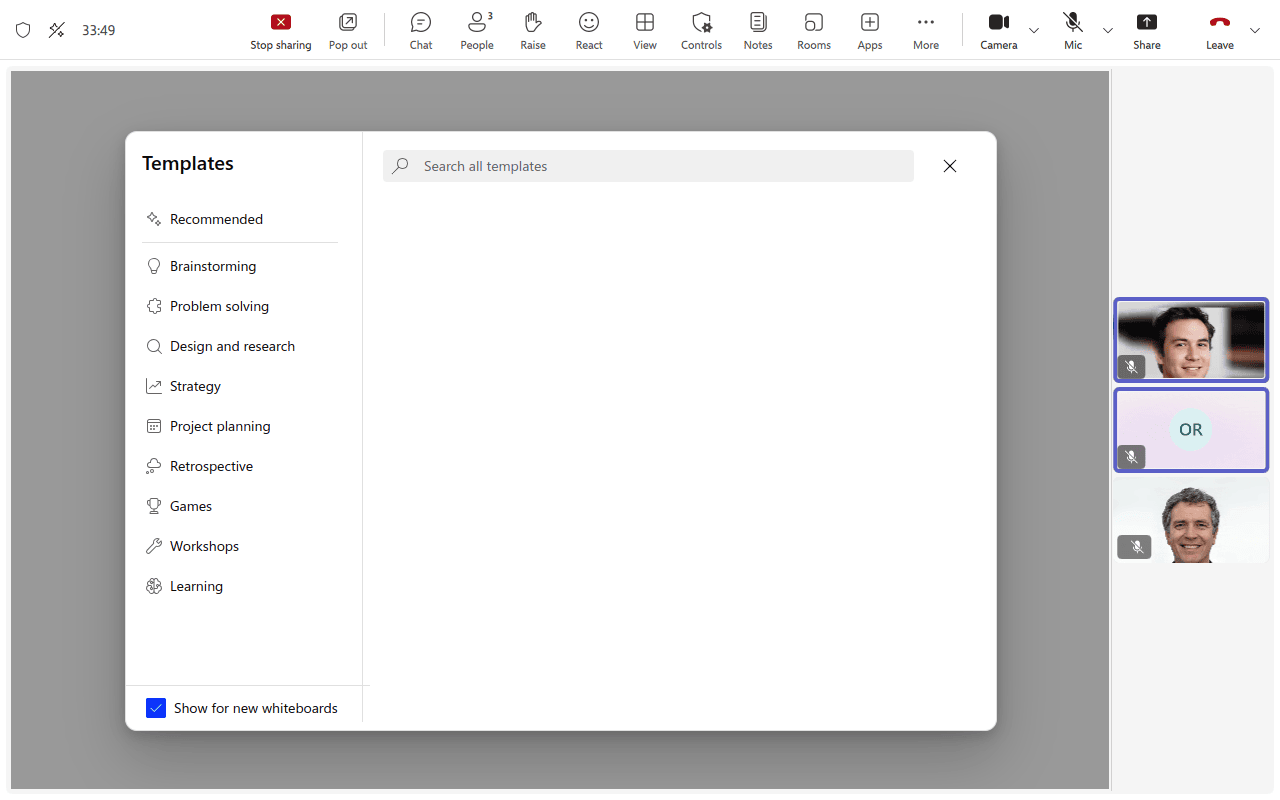
- Microsoft Whiteboard: Start Whiteboard to draw together.
- Annotate: while you share your screen, Start annotation lets everyone draw on it.
- Content from camera: share a Whiteboard or a Document through a camera (edge detection, Overlay presenter, Rotate), or live Video.