Repository navigation
Room mode
OST can run as a Teams Rooms device: a computer in a meeting room with a screen, a camera and a speakerphone, signed in as the room's resource account.
Room mode is on when the signed-in account has a Teams Rooms license. To run it with any account (for example to try it out):
ost-desktop --room
# or
OST_ROOM=1 ost-desktop
Use a separate profile for the room account (OST_PROFILE=room), see
Configuration.
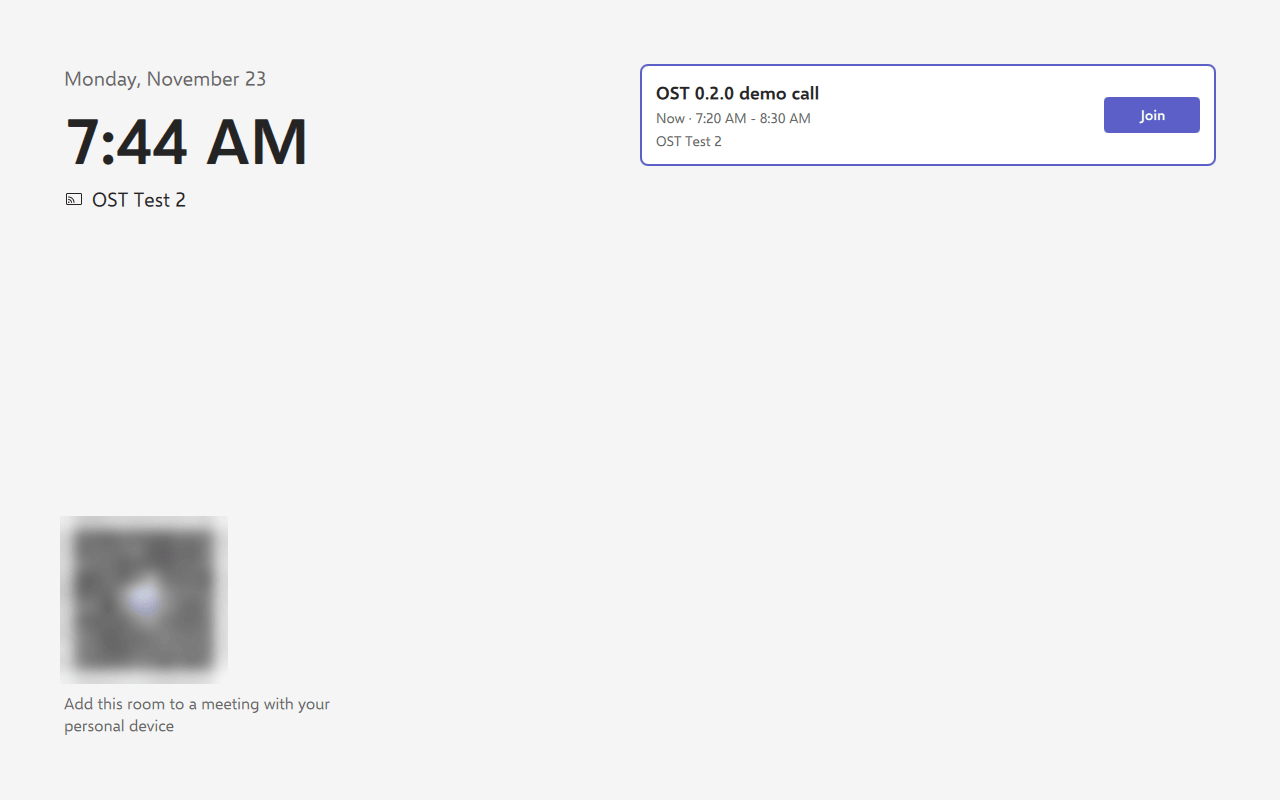
- Home screen: the date and time, the room's name and status, today's meetings from the room's calendar with Join (private meetings show as "Private Meeting"), "Add this room to a meeting with your personal device" with a QR code, and "Cast to this room with:" (Teams Cast).
- Joining: meetings join straight from the calendar, without a pre-join screen, as Teams Rooms does; the room joins as a room device with its camera, speakerphone and display.
-
Proximity: the room advertises a Bluetooth beacon, so people nearby
can add it to their meeting with Room audio ("Nearby" in their pre-join
screen), and it accepts those invitations by itself
(
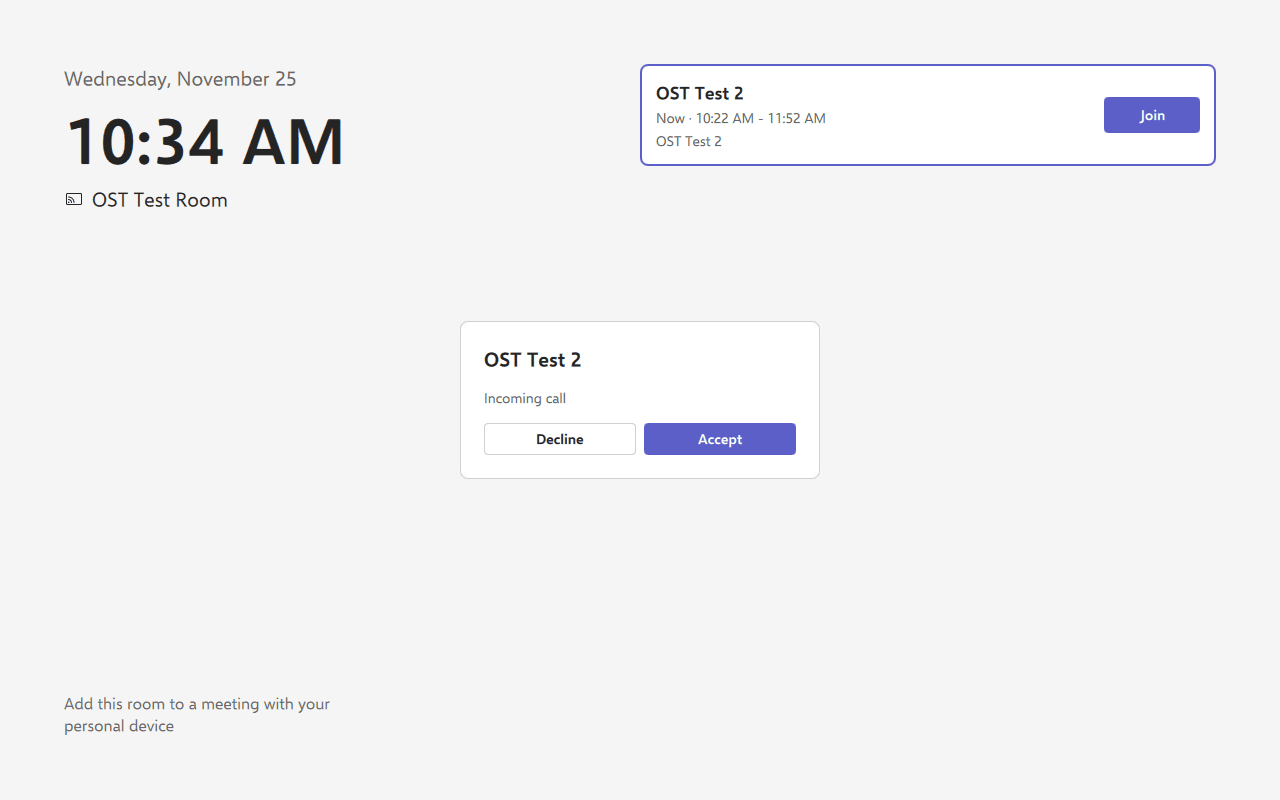
OST_ROOM_AUTO_ACCEPT, below). The home screen says "Inviting this room to a meeting" while it joins. - Incoming calls ring on the home screen ("Incoming call", Accept, Decline).
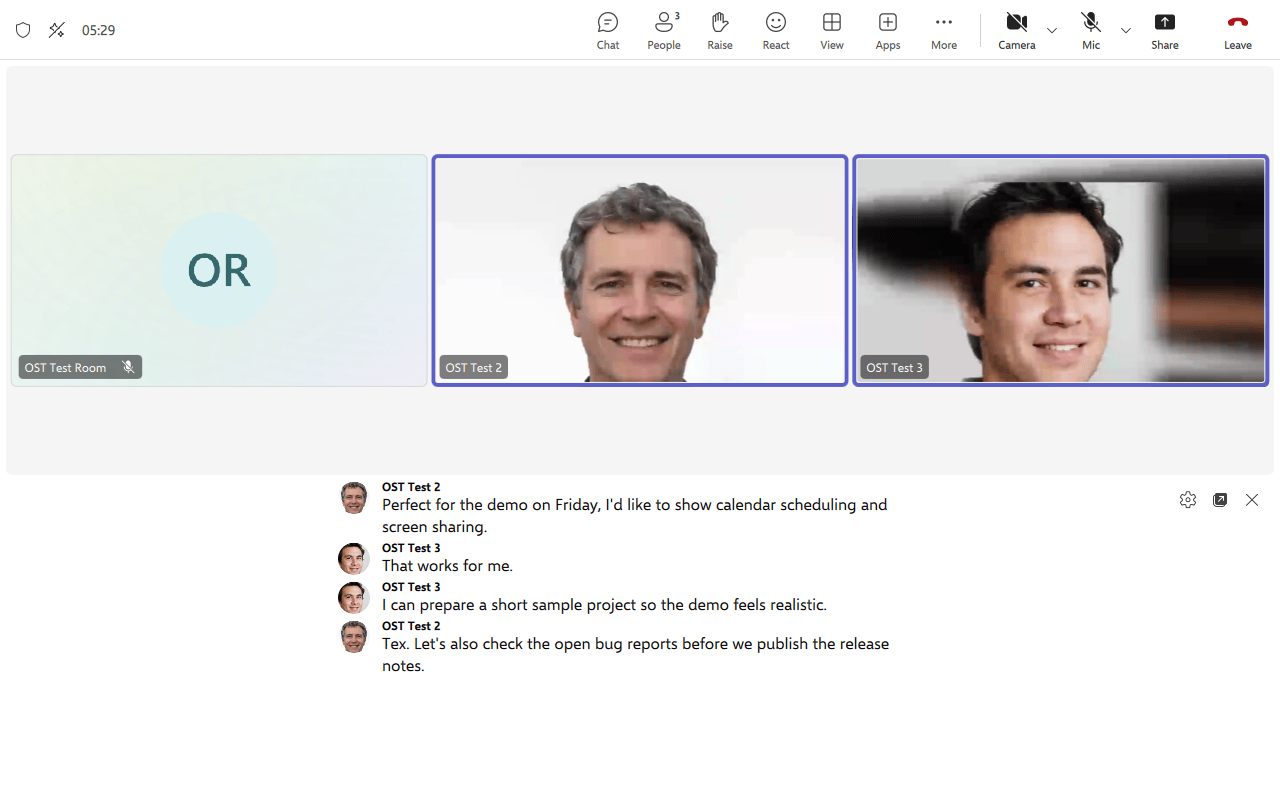
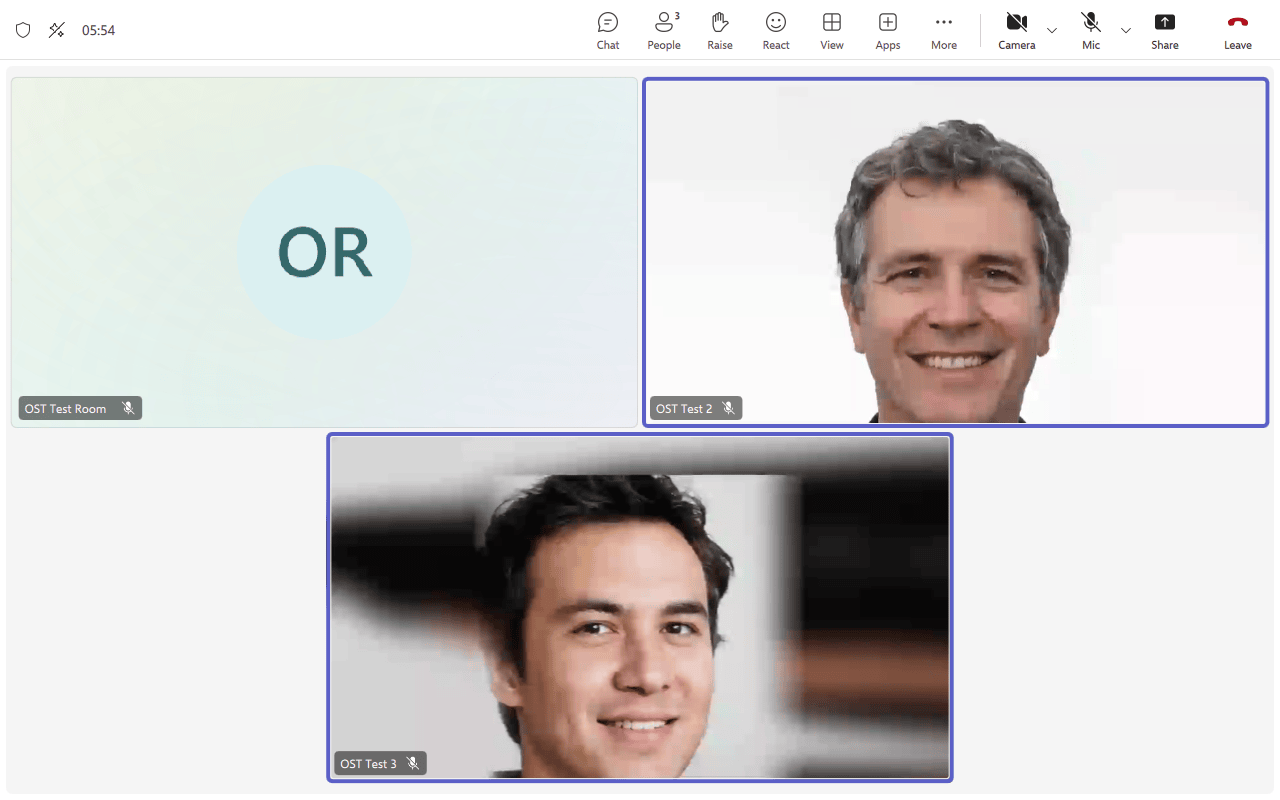
- The room's meeting window: after it accepts an invitation the room shows the meeting full screen; people in the meeting see the room's camera as its video tile.
- Captions: the room shows live captions when they're turned on from the room remote.
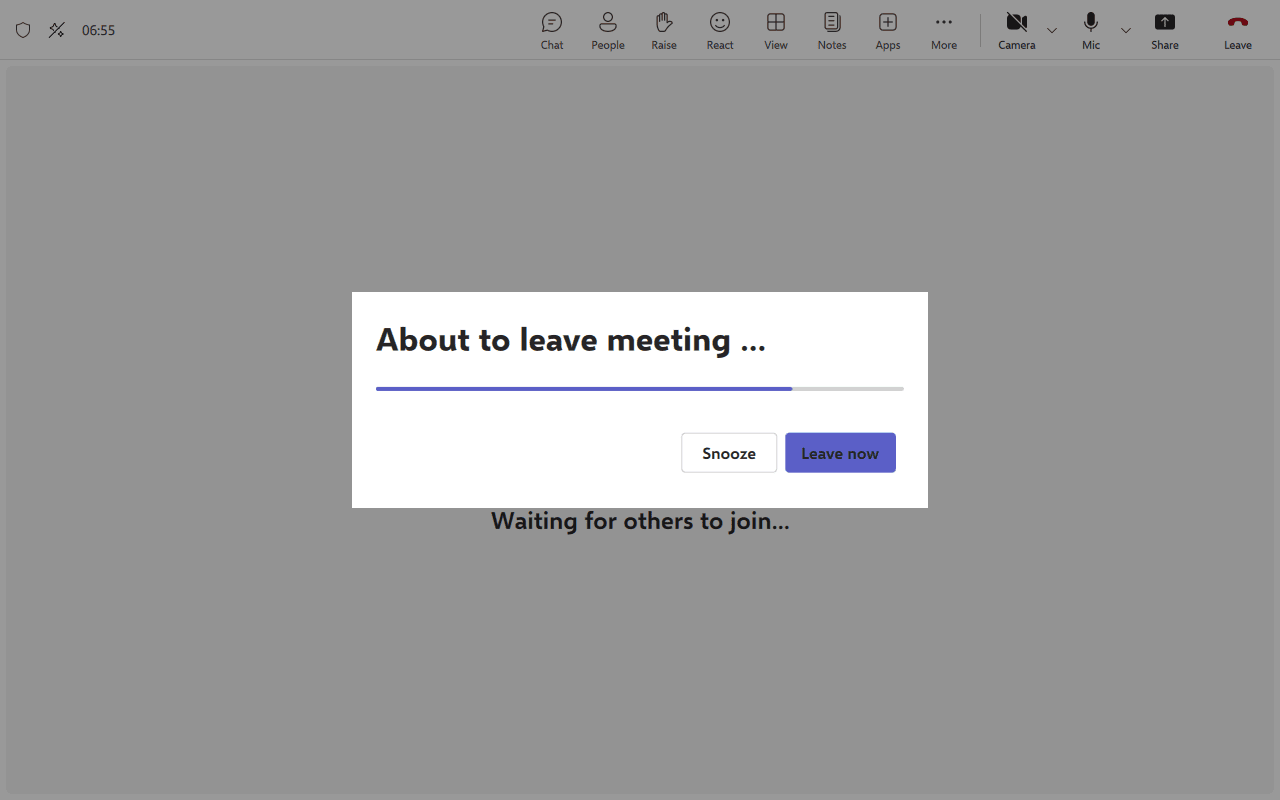
- Auto exit: when a meeting ends (or the room is alone in it), the "About to leave meeting ..." dialog counts down, with Leave now and Snooze, and the room returns to the home screen.
| Variable | Effect |
|---|---|
OST_ROOM_AUTO_ACCEPT=disabled|intenant|all |
Which proximity invitations the room accepts by itself (Teams Rooms' setting; default intenant, people in your organization) |
OST_ROOM_VIDEO=0 |
Join without the camera |
OST_BT_ADAPTER=hciN |
The Bluetooth adapter the beacon uses (default: the first) |
On a personal computer, OST works with Teams Rooms (and with OST in room mode) as Teams does.
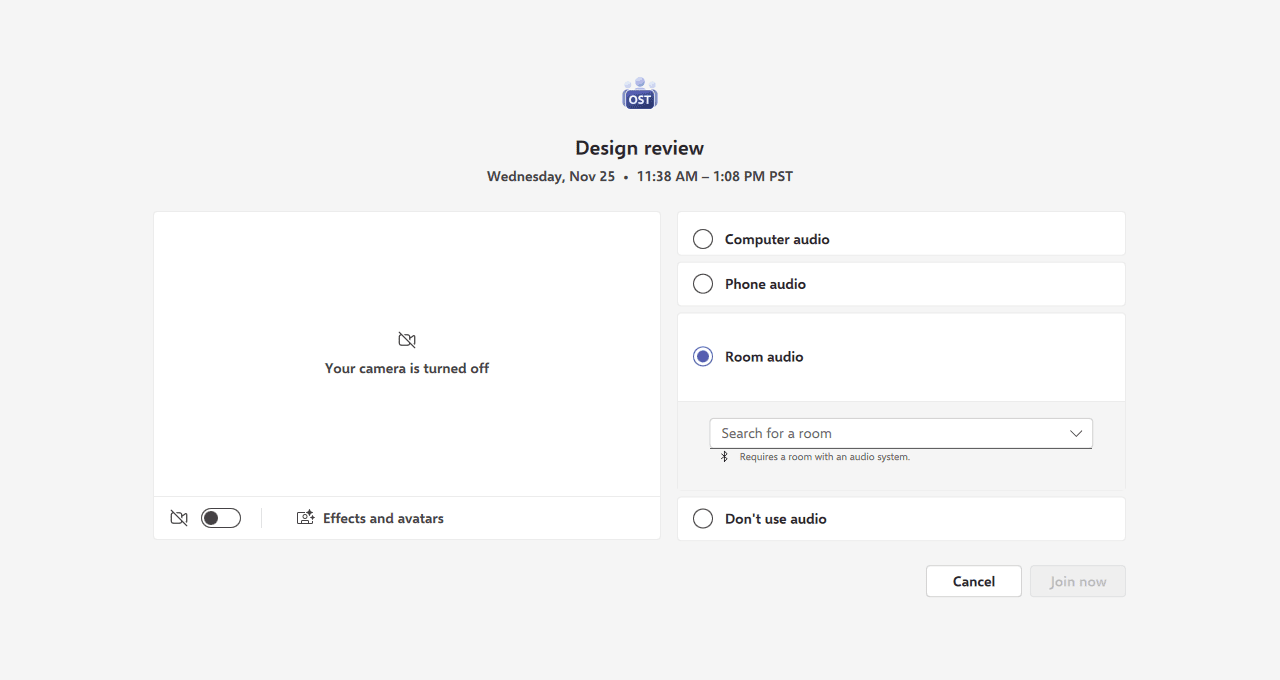
- Room audio on the pre-join screen: Search for a room among your organization's rooms, the rooms heard Nearby over Bluetooth, and Connected room devices (a USB speakerphone). The room's audio system joins the meeting with you ("We'll add the room's audio system to the meeting after you join.").
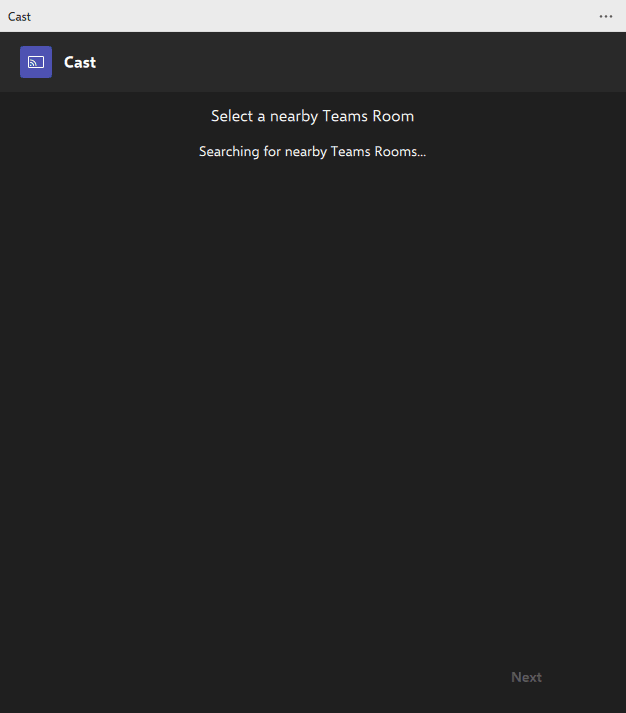
- Cast (Settings and more ▸ Cast): Select a nearby Teams Room, then What do you want to cast? (Screen, Window, PowerPoint Live, Include sound). If you're in a meeting, Cast and join your meeting? offers Cast and join or Just cast. The room shows your screen and leaves a few minutes after you stop. During a cast the Mic offers Turn audio on, as in Teams.
- Joined in a room: OST shows Teams' "Joined in room" alert, nests the people in the room under it in People, and Hide attendees takes them off the stage for the call.
- Control Room System: from the room's ··· (in People or on its video tile), the Room Remote pane: Video on / off, Mic on / off, Captions on / off, Layout (Gallery, Large Gallery, Front row, Together mode, Content + gallery, Prioritize video), volume and Disconnect room. OST works on both ends: as the room, and as the laptop controlling a Teams Room.
- Optimize for room (More ▸ Settings, or automatically with Settings ▸ Devices ▸ Automatically activate meeting room mode when in a meeting): with a room display connected, the meeting content goes to a shared display window there, and OST shows "Connected to a room device".
Settings ▸ Devices ▸ Manage devices lists connected room devices and paired Teams phones (see Devices).