Repository navigation
Settings
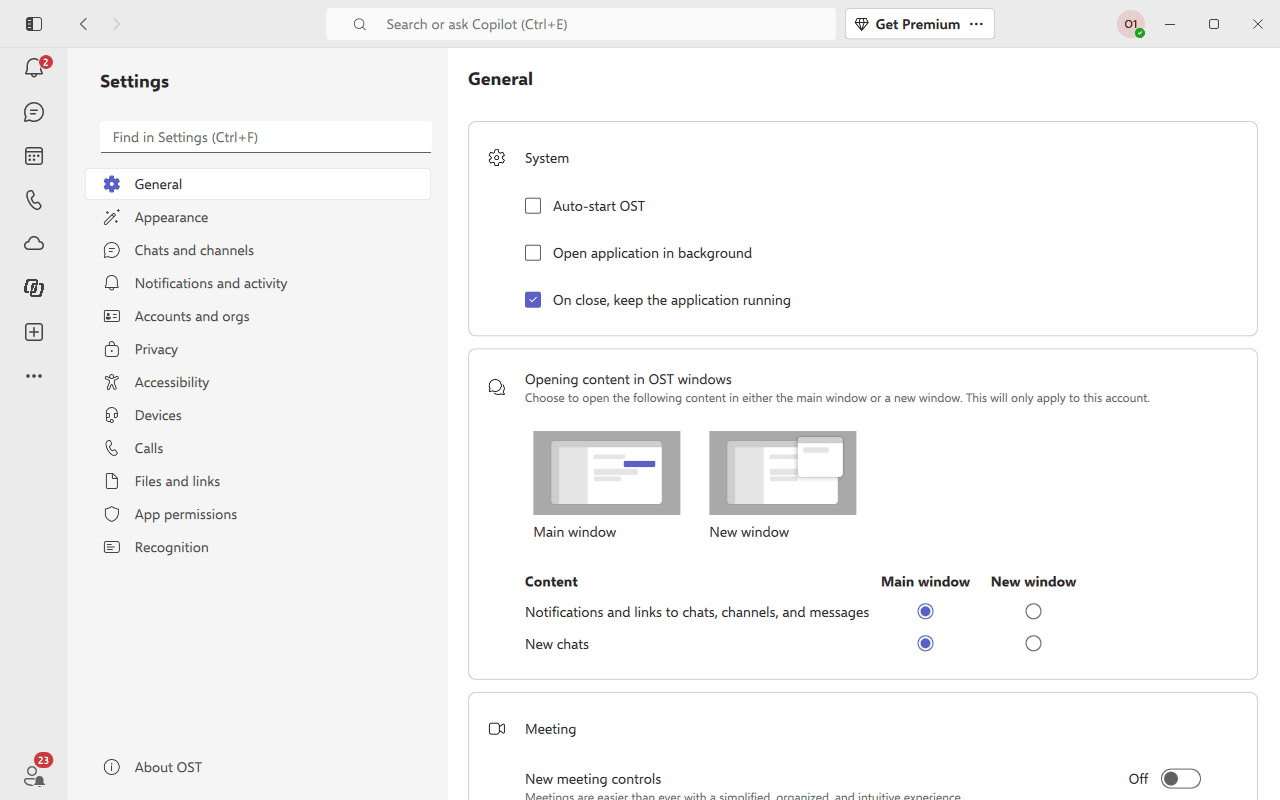
Settings and more (···) ▸ Settings (Ctrl+,) opens Teams' Settings. The page list is on the left and Find in Settings (Ctrl+F) is at the top. A setting that Teams keeps for your account is saved to the same place, so it follows you between OST and Teams. A device setting (theme, window behavior, devices, downloads) stays on this computer.
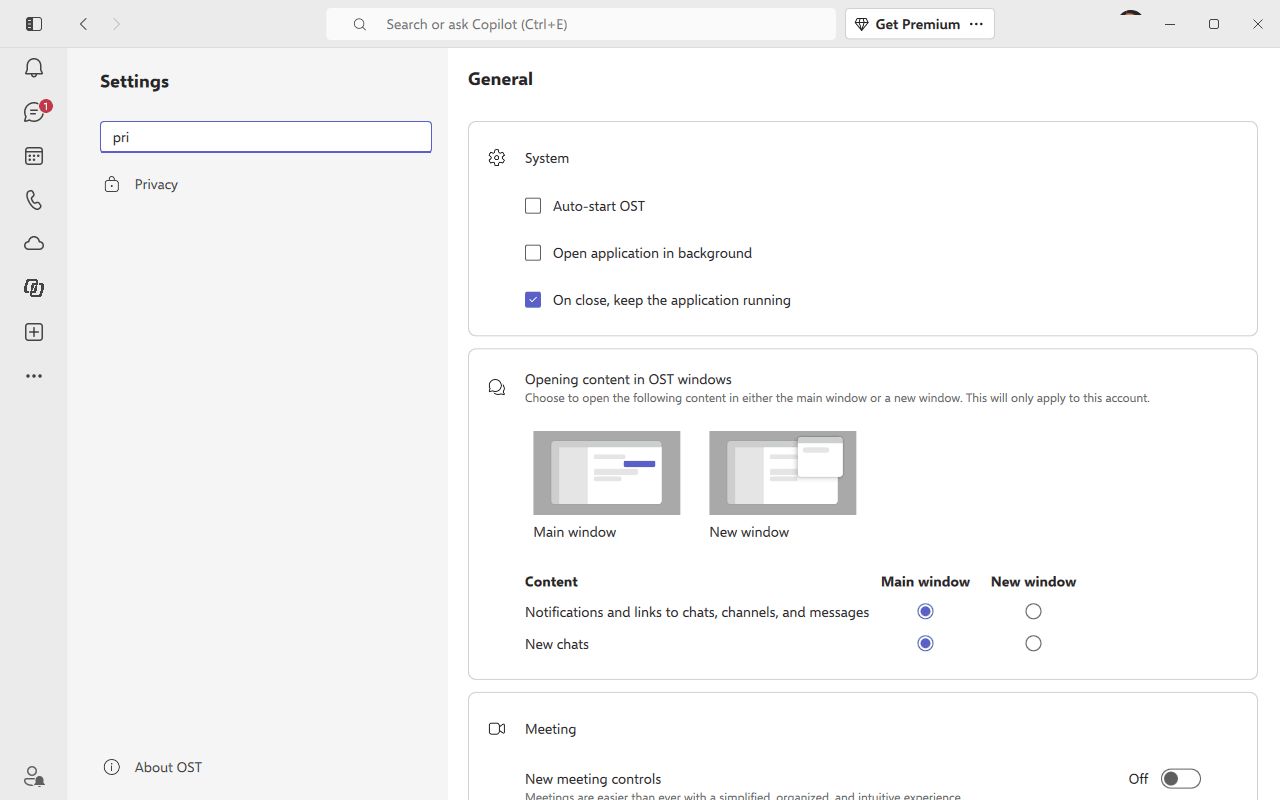
Type in Find in Settings (Ctrl+F) to narrow the page list to the pages whose names match.
Other parts of OST open Settings at the right card, as Teams does: the Do not disturb banner, Pause notifications ▸ Notifications settings, Schedule out of office, Customize app bar, the compose box's Enter hint, a notification banner's settings, the auto-follow link and settings links in messages. A sub-page shows its path in the header, for example General › Out of office.
| Page | What's there |
|---|---|
| General | Start-up, windows, meetings, language, time zone, translation, spelling, out of office, shortcuts, efficiency |
| Appearance | Theme, skin tone, app bar |
| Chats and channels | Layout, list, threads, compose, chat, read receipts, suggested replies |
| Notifications and activity | What notifies you, sounds, banners, e-mails |
| Accounts and orgs | The accounts on this computer |
| Privacy | Work location, Do not disturb, blocked contacts, diagnostics, encryption |
| Accessibility | Sign language, captions, muted notice, single pointer, TTY |
| Devices | Speaker, microphone, camera, headset buttons, room devices |
| Calls | Call handling, forwarding, voicemail, call group, delegates, ringtones |
| Files and links | Downloads, where files and links open, file previews |
| App permissions | What each app may use |
| Recognition | Voice and face profiles |
| About OST | Version, updates, legal links |
System
-
Auto-start OST: start OST when you sign in to your desktop (writes
~/.config/autostart/ost-desktop.desktop). - Open application in background: start minimized to the tray.
- On close, keep the application running: closing the window leaves OST in the tray, so calls and notifications still reach you.
Opening content in OST windows: choose Main window or New window for each kind of content. This applies to this account only.
- Notifications and links to chats, channels, and messages
- New chats
Meeting
- New meeting controls: Teams' simplified meeting toolbar (see Meeting controls).
- Ask me to confirm when I leave a meeting
Language and regional formats: Follow OS settings (on by default), or turn it off to pick an App language, a Date format and a Time format. Save and restart applies a new language; date and time formats apply at once. See Translations.
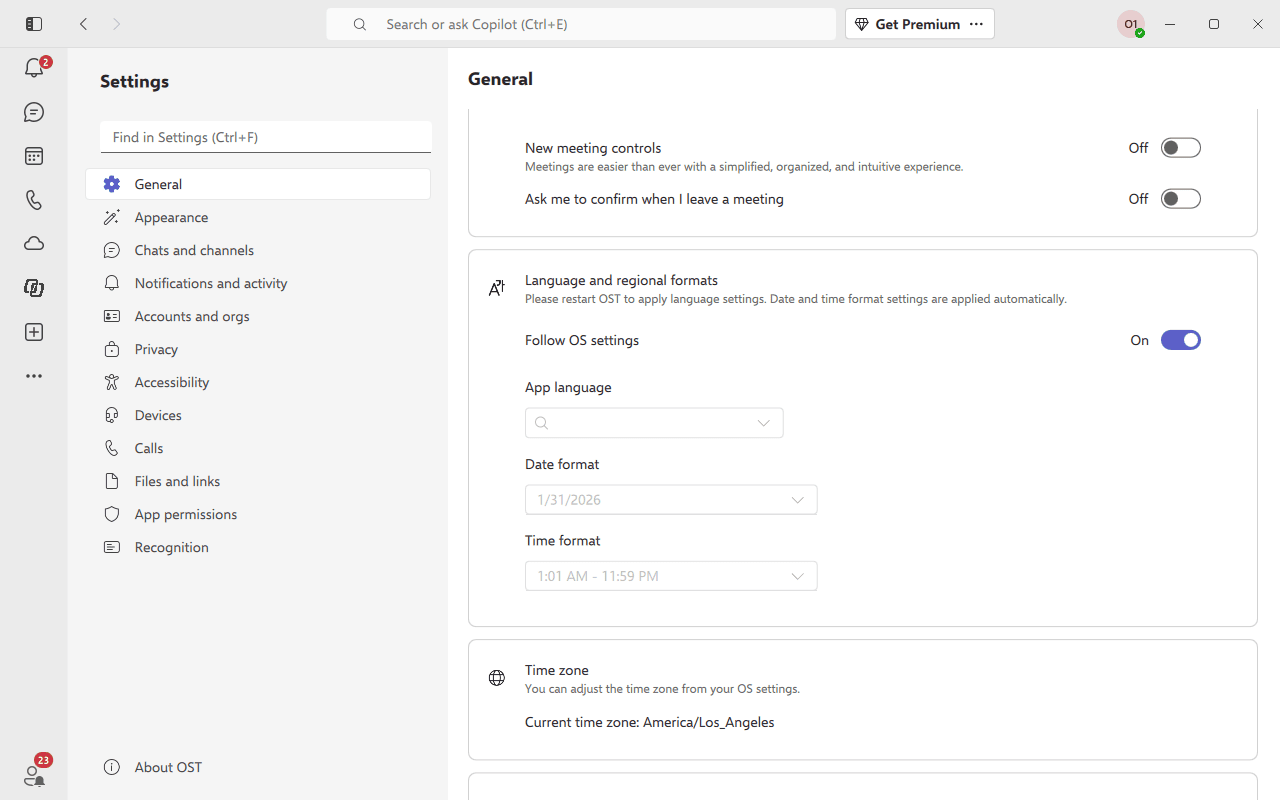
Time zone: shows Current time zone (your desktop's). Manage OS settings opens your desktop's settings; OST follows them.
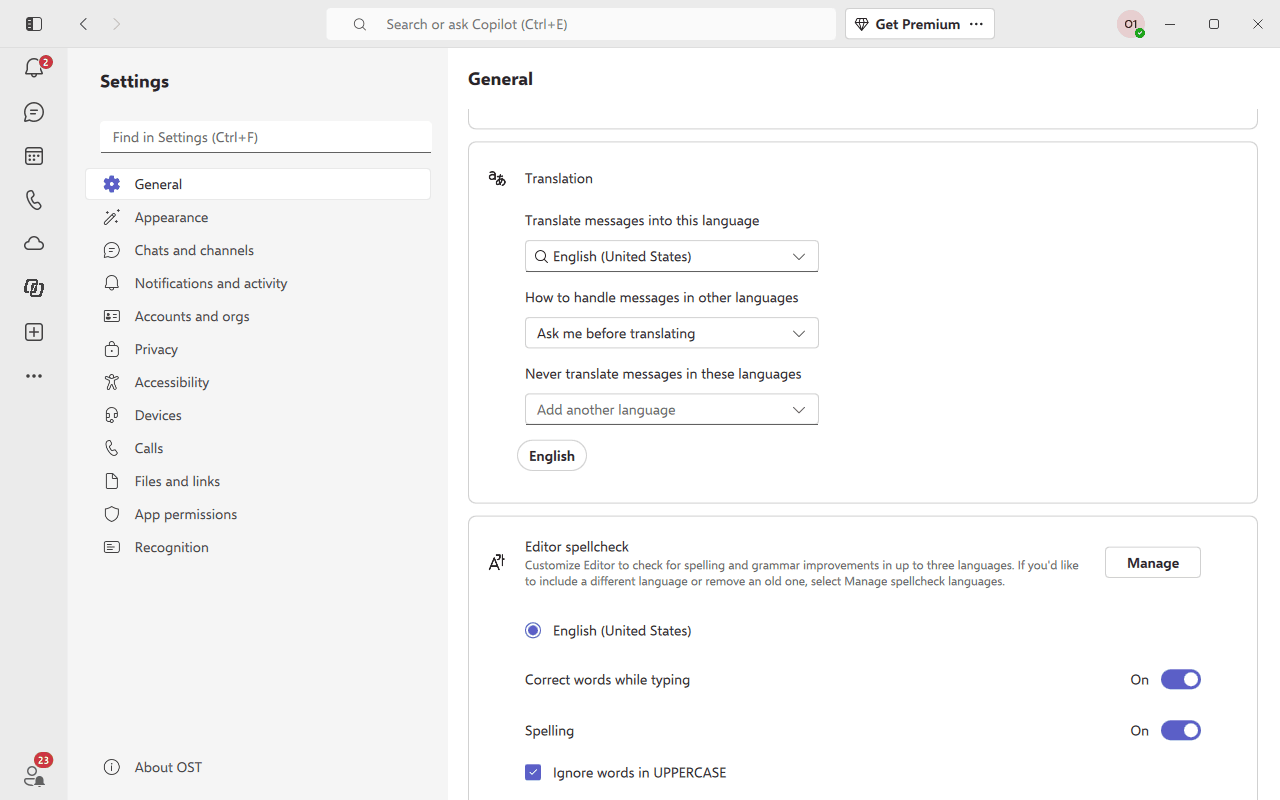
Translation
- Translate messages into this language
- How to handle messages in other languages: Ask me before translating, Auto-translate all messages or Never Translate.
- Never translate messages in these languages, with Add another language and a remove button per language.
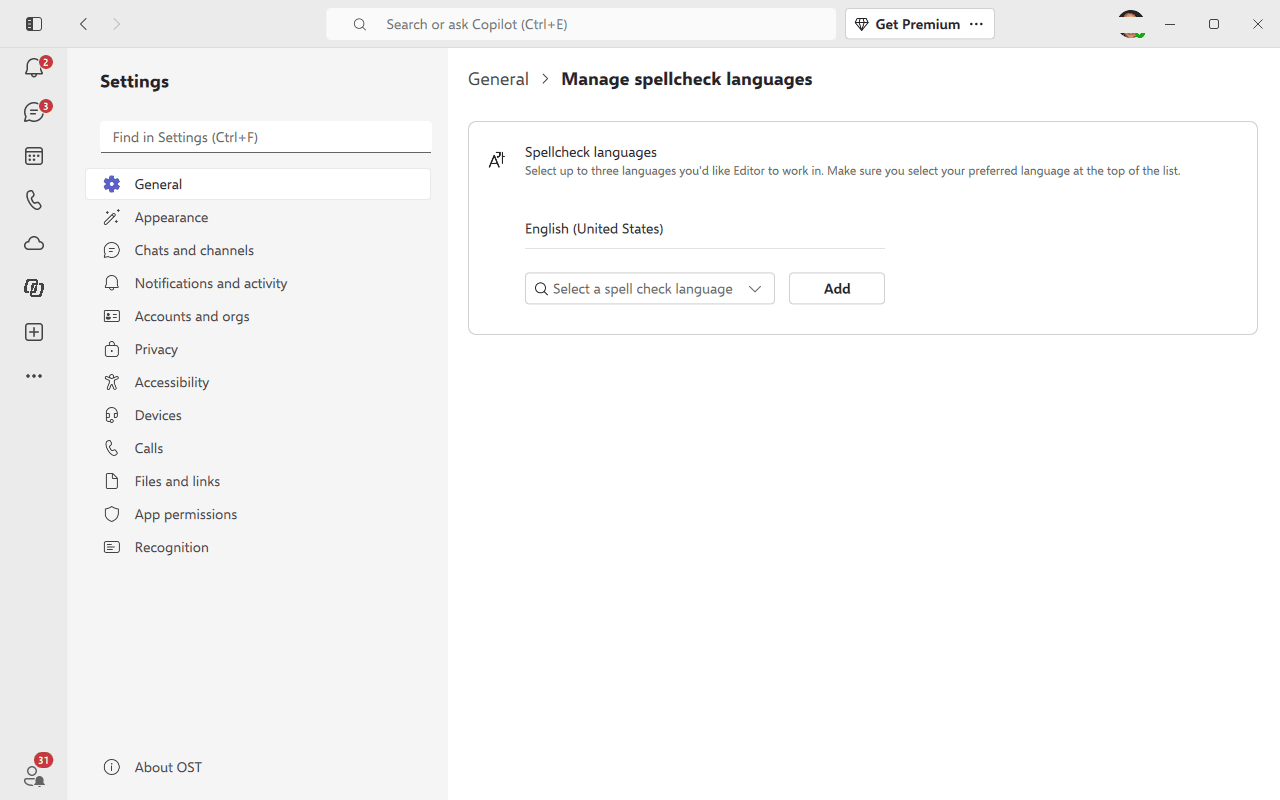
Editor spellcheck: Microsoft Editor checks spelling and grammar in the compose box in up to three languages. Correct words while typing switches autocorrect. Manage opens Spellcheck languages: add a language (Select a spell check language, Add), and each language's More options has Move up, Move down and Remove. Put your preferred language at the top.
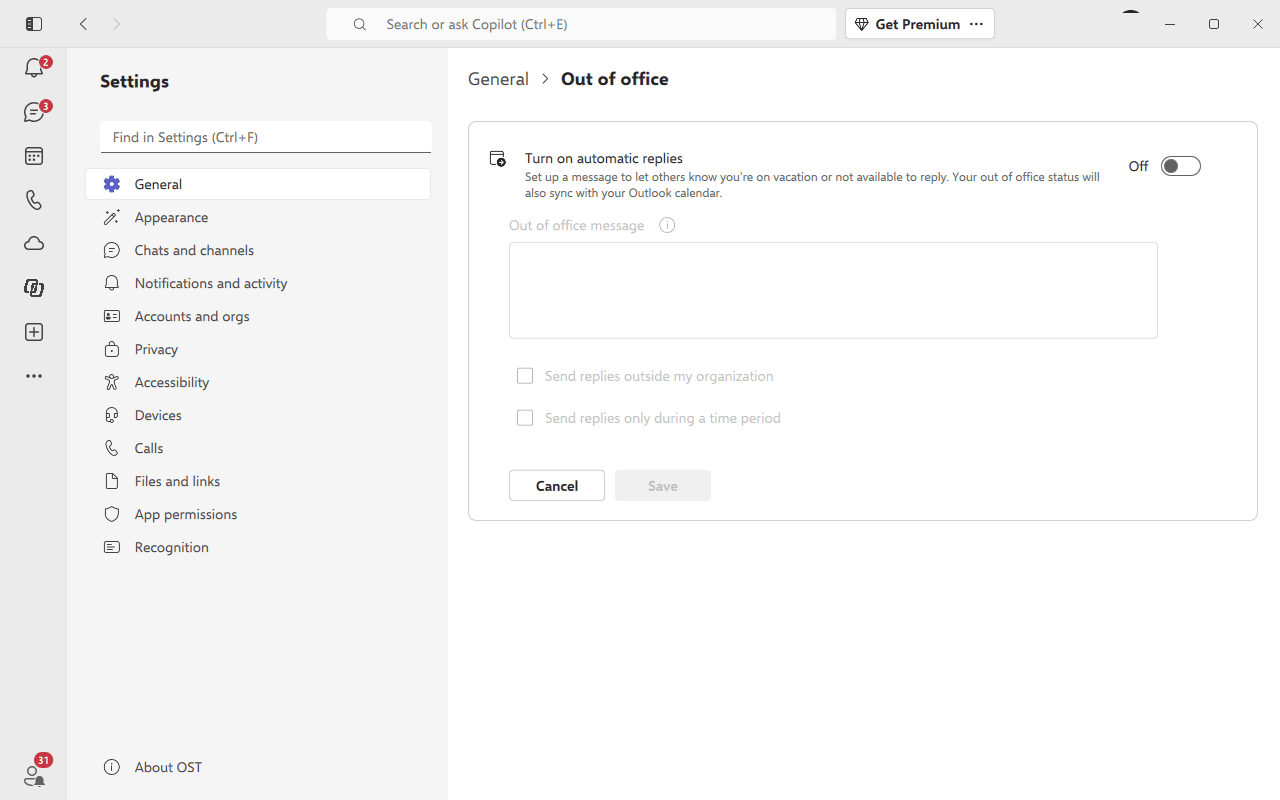
Out of office: Schedule opens the out of office page: Turn on automatic replies, the Out of office message, Send replies outside my organization (Only to my contacts or All external senders, with its own message), and Send replies only during a time period (start and end date and time). The message shows when people contact you in OST or open your profile, and Outlook sends it as an automatic reply.
Keyboard shortcuts: OST only (default), OST + Slack shortcuts, OST + Zoom shortcuts or OST + combined shortcuts; See available keyboard shortcuts opens the list (see Keyboard shortcuts).
Use Enter or Spacebar to show content: in a list (Activity, @mentions, chats, channels) the arrow keys move the selection; with this on, Enter or Spacebar opens the item.
Efficiency mode
- Use only when resources are low (Default): OST treats a computer with fewer than 4 processors or under about 7.5 GB of memory as low on resources.
- Never use efficiency mode
- Always use efficiency mode: less processor, memory and network use, for example a lower camera resolution.
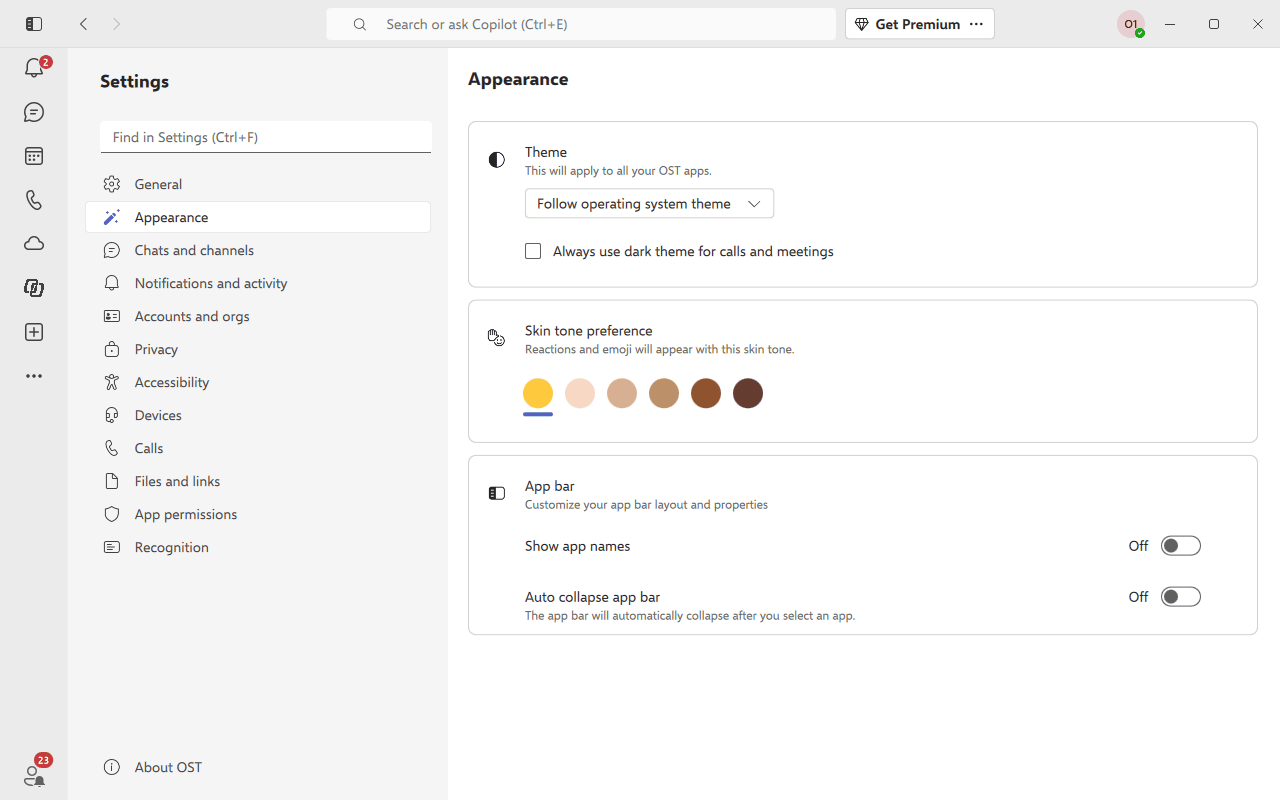
- Theme: Follow operating system theme, Light, Dark, Classic or High contrast (see Themes). Always use dark theme for calls and meetings is offered in the light theme.
- Skin tone preference: the skin tone of reactions and emoji (None, Light, Medium light, Medium, Medium dark, Dark).
- App bar: Show app names under the icons, and Auto collapse app bar after you select an app.
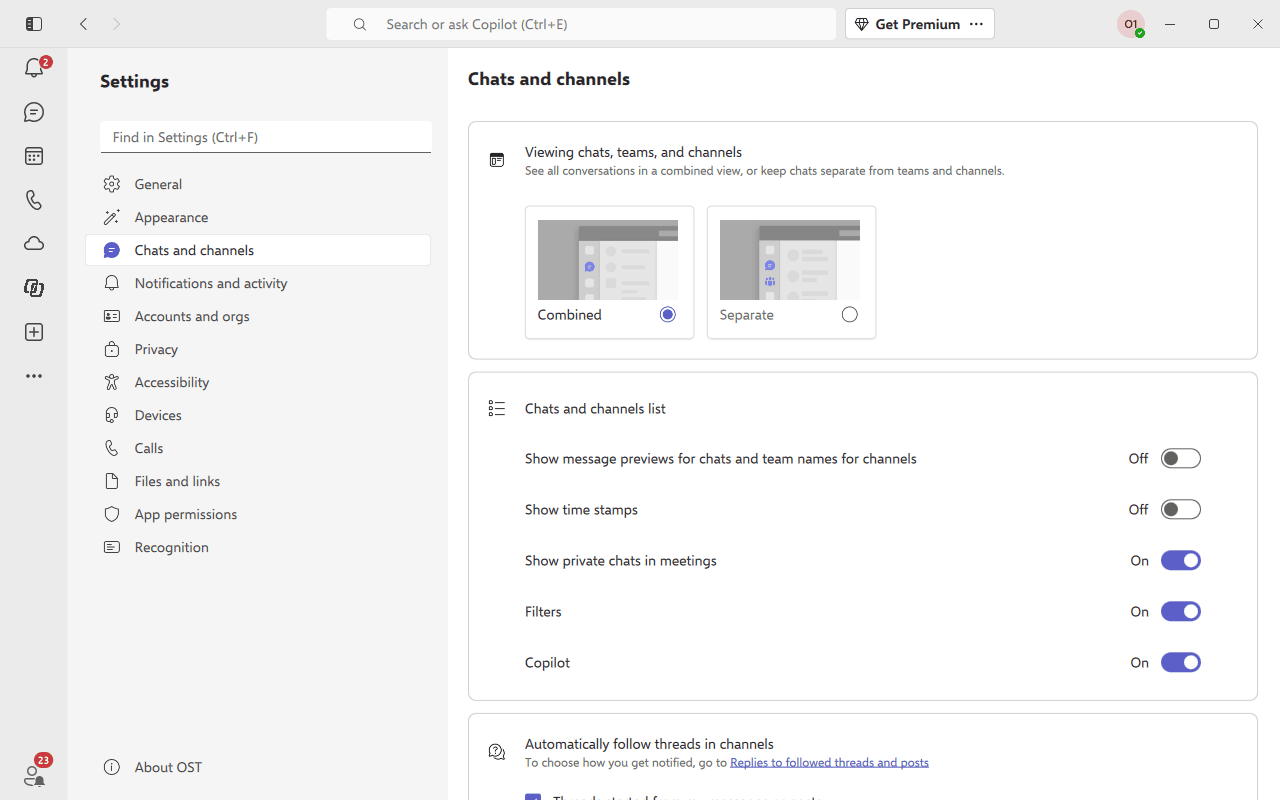
- Viewing chats, teams, and channels: Combined (chats, teams and channels in one list, the default) or Separate (teams and channels in their own Teams app).
-
Chats and channels list:
- Show message previews for chats and team names for channels
- Show time stamps
- Show private chats in meetings
- Filters (the filter pills at the top of the list)
- Copilot (the Copilot row; with a Copilot license and app)
- Automatically follow threads in channels: Threads started from my messages or posts, Threads I reply to and Threads where I'm @mentioned, for threads and posts channels. How you're notified is set under Replies to followed threads and posts.
- Compose: When writing a message, press Enter to Send the message or Start a new line (then Ctrl+Enter sends). It doesn't apply while the formatting bar is open.
- Chat: Message density (Comfy or Compact) and When I open a chat, take me to the Last read message or the Newest message.
- Read receipts: let people know when you've seen their messages, and see when they've seen yours.
- In post channels, show recent activity: At the top or At the bottom.
- Suggested replies: Show suggested replies in chat.
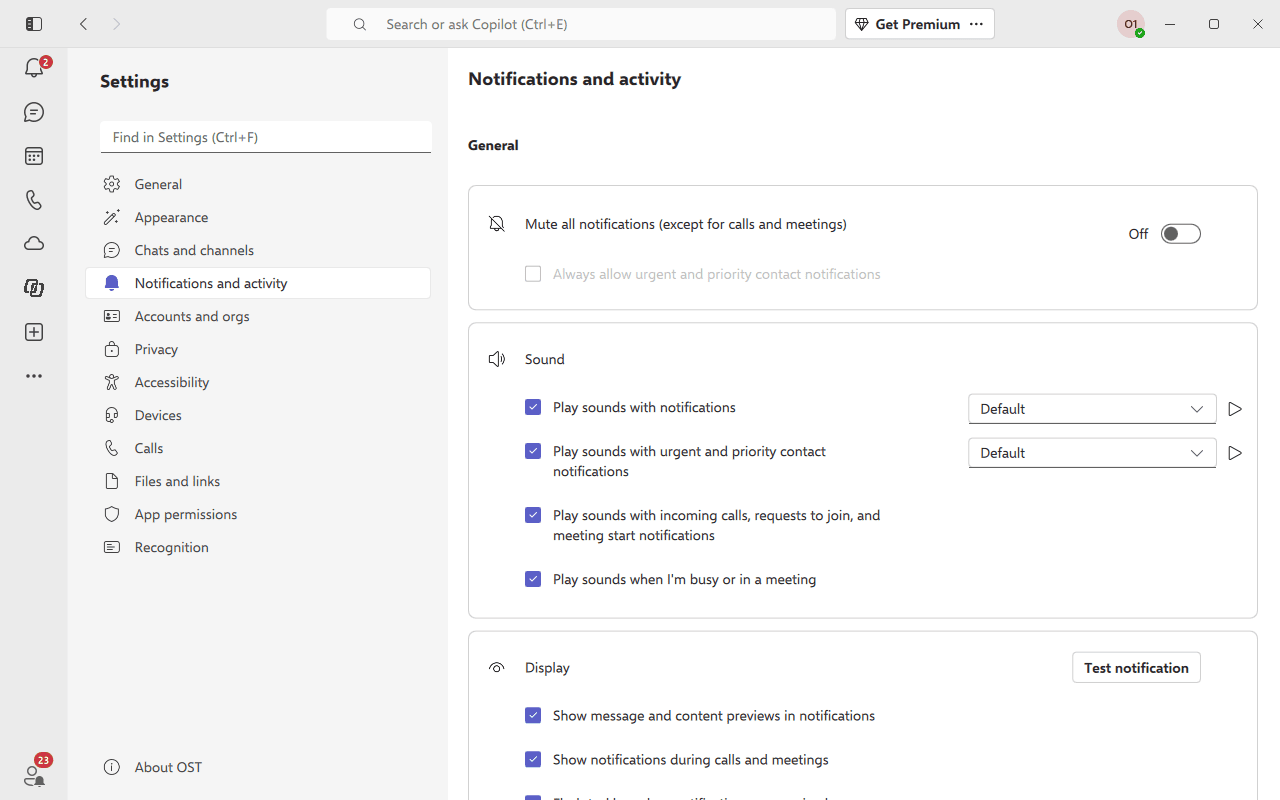
Most kinds of activity offer three choices: Show in Activity and banner, Show in Activity or Off.
General
- Mute all notifications (except for calls and meetings), with Always allow urgent and priority contact notifications.
- Sound: Play sounds with notifications (Default, Vibe, Nudge, Tap, Flick, Pluck, Summon, Ping, or Off), Play sounds with urgent and priority contact notifications (Default, Prioritize, Escalate, Alarm), Play sounds with incoming calls, requests to join, and meeting start notifications, and Play sounds when I'm busy or in a meeting. Each sound has a preview.
- Display: Show message and content previews in notifications, Show notifications during calls and meetings, Dismiss notifications after this amount of time, Position on the screen (Bottom right, Top right, Bottom left, Top left), Size (Comfy, Compact) and Test notification.
- Missed activity emails: As soon as possible, Once every 10 mins, Once every hour, Once every 8 hours, Daily or Off.
Chats and channels
- Chat message notifications
- Personal @mentions, Channel and team @mentions, Tag @mentions, Everyone in chat @mentions
- Replies to followed threads and posts, Likes and reactions, Reminders
- Posts in all shown channels
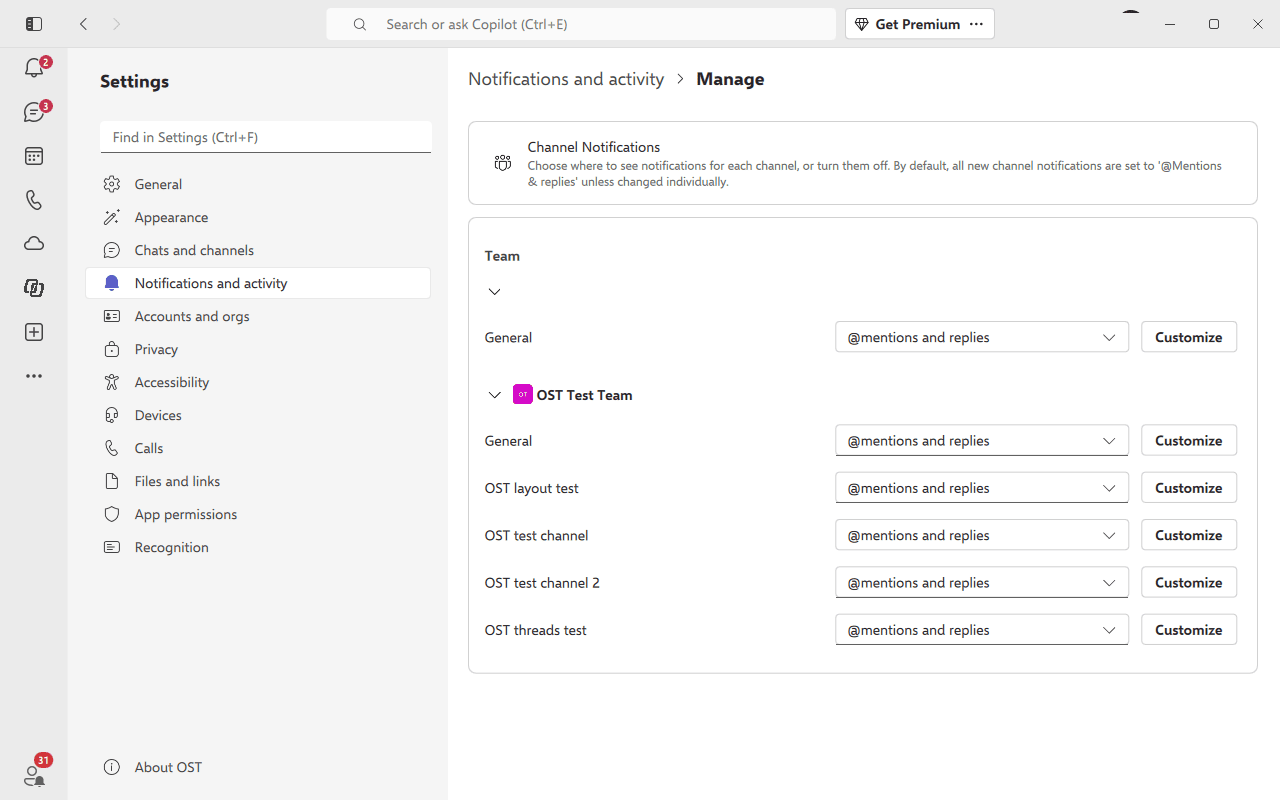
- Channel Notifications ▸ Manage: each of your teams with its shown channels; set a channel to All new messages, All @mentions and replies to followed threads or Mute (personal mentions and replies to followed threads still notify).
Meetings: Meeting start notifications, Show meeting join bar, Meeting chat notifications for meetings I've accepted and Meeting chat notifications for meetings marked as tentative or no response (Mute, Unmute or Mute until I join or send a message), and Meet now start notifications.
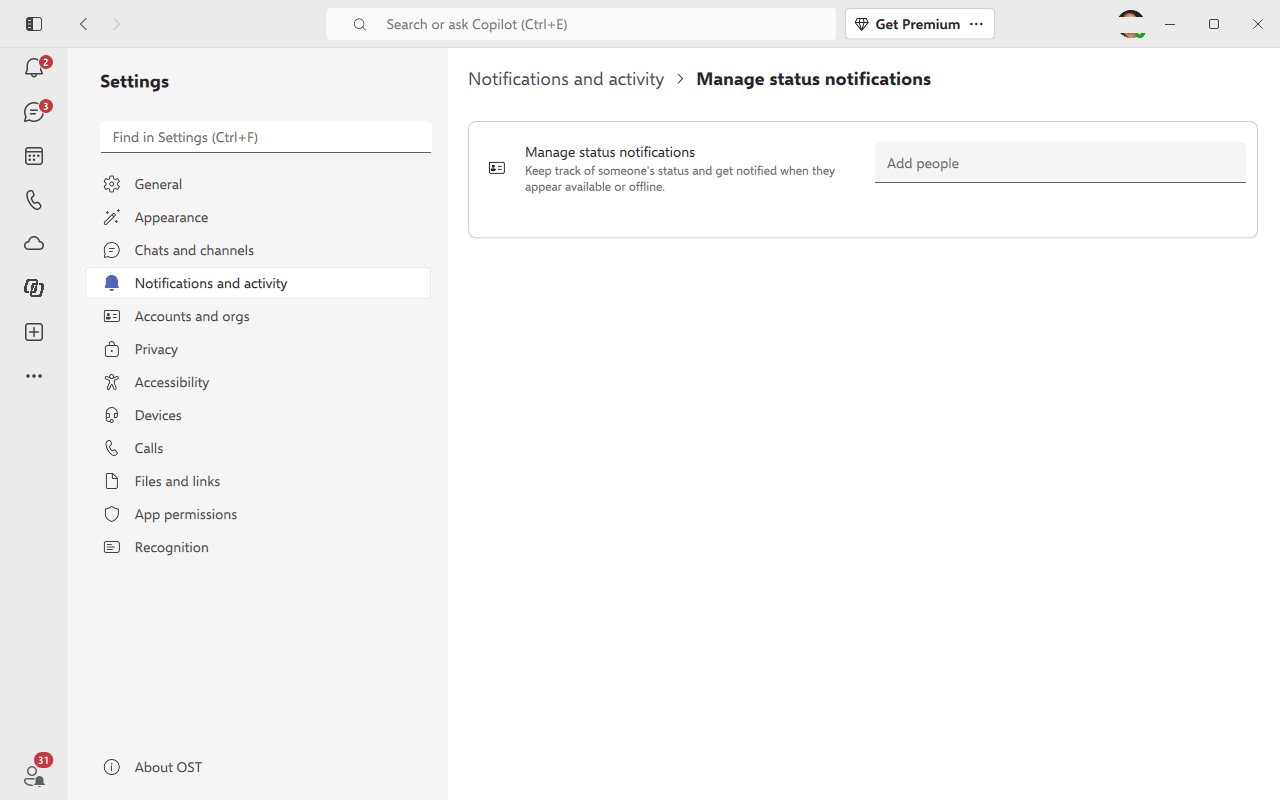
Presence: Manage notifications opens Manage status notifications: Add people whose status you want to follow; OST tells you when they appear available or offline.
Calendar: New invites, updates and cancellations sent to me and When people forward meetings I've organized.
Apps: each app that sends activity, with a switch and its Notification panel listing the app's activity types.
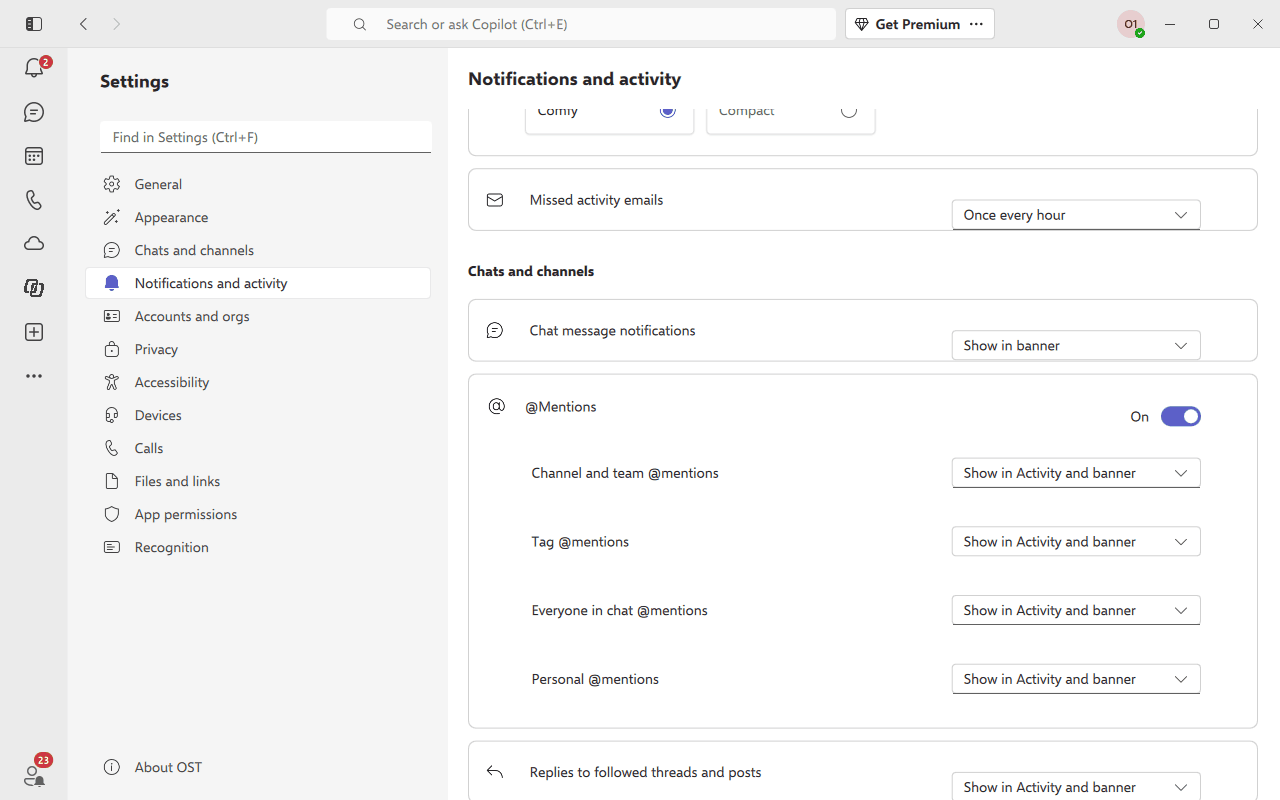
See Notifications for how banners look and behave.
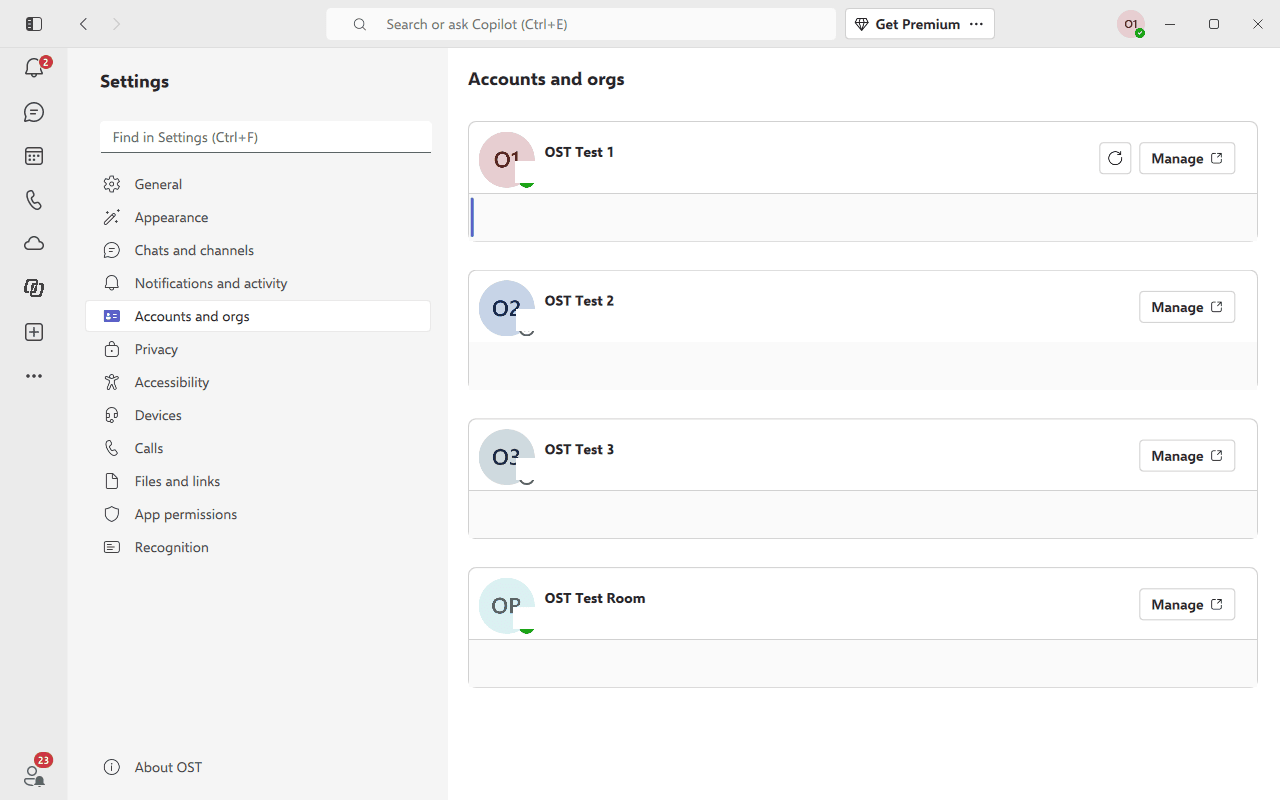
Every account on this computer, in the order added, with its organization. Your current account has Refresh license and restart and Manage (your Microsoft account page in the browser). In OST each account is a profile that runs in its own window; add one from your picture ▸ Add another account (see Configuration).
When OST can't keep your sign-in in the system keyring, an OST card here
says so. "Your sign-in isn't saved" means there's no working keyring, so
you'll sign in again the next time OST starts; start and unlock a keyring
such as GNOME Keyring or KWallet, then restart OST. Its switch, Stay
signed in without a keyring, keeps the sign-in in a file readable only by
you instead, which is less secure than a keyring ("Your sign-in is saved in
a file"); OST moves it to the keyring once one is available. With
OST_NO_KEYRING=1 set, the card says so and has no switch. See
Sign-in storage.
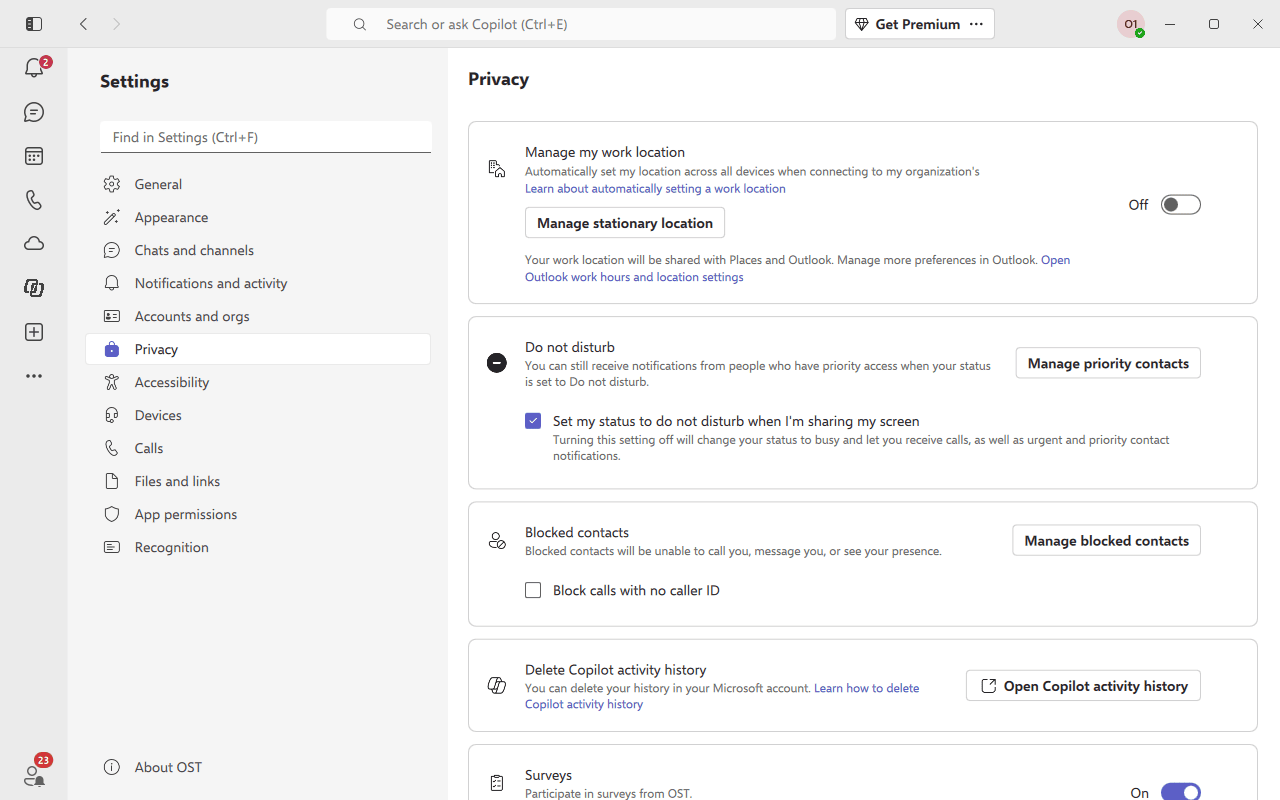
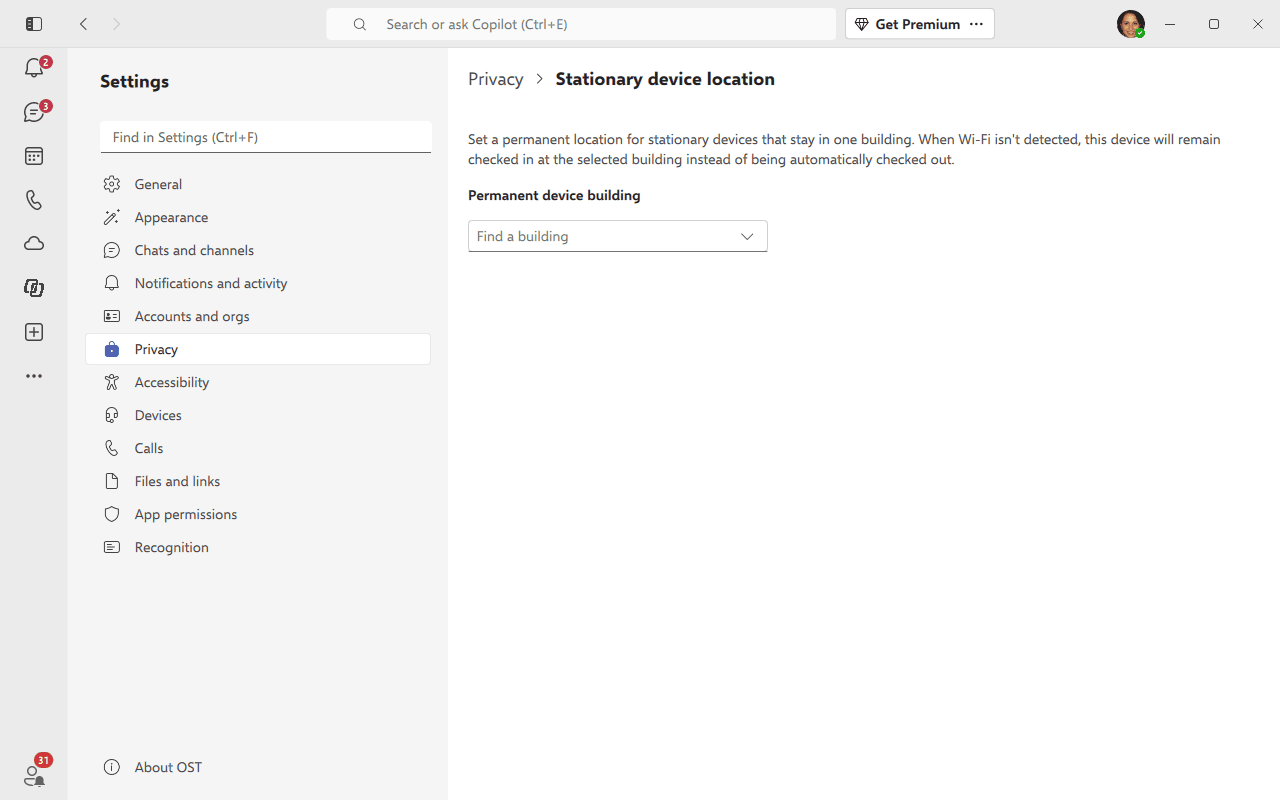
- Manage my work location: Automatically set my location across all devices when connecting to my organization's networks and devices (Enabled or Disabled; your IT department may have turned it off). Your work location is shared with Places and Outlook. Manage stationary location opens Stationary device location: a Permanent device building (Find a building, Suggested, All buildings) for a computer that stays in one building, so it stays checked in when Wi-Fi isn't detected.
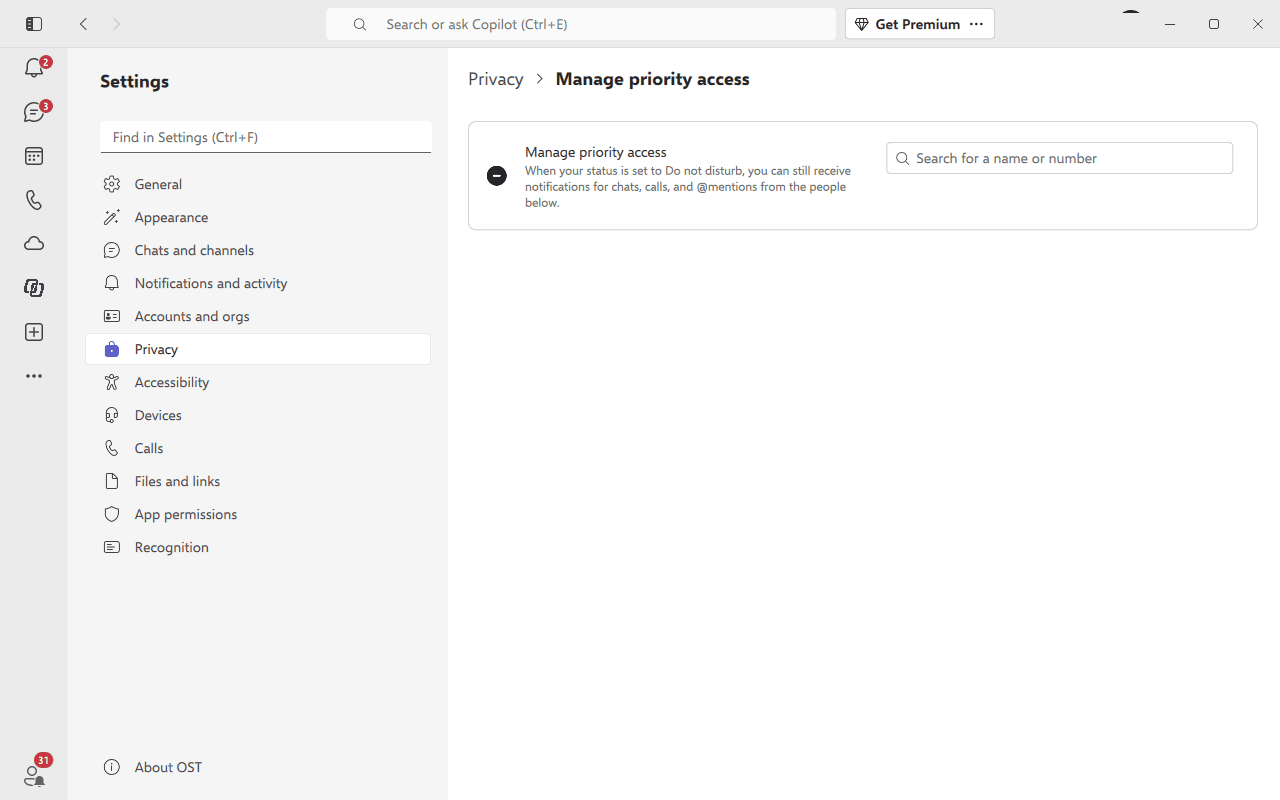
- Do not disturb: Manage priority contacts opens Manage priority access, the people whose chats, calls and @mentions still reach you in Do not disturb (search, add, remove). Set my status to do not disturb when I'm sharing my screen.
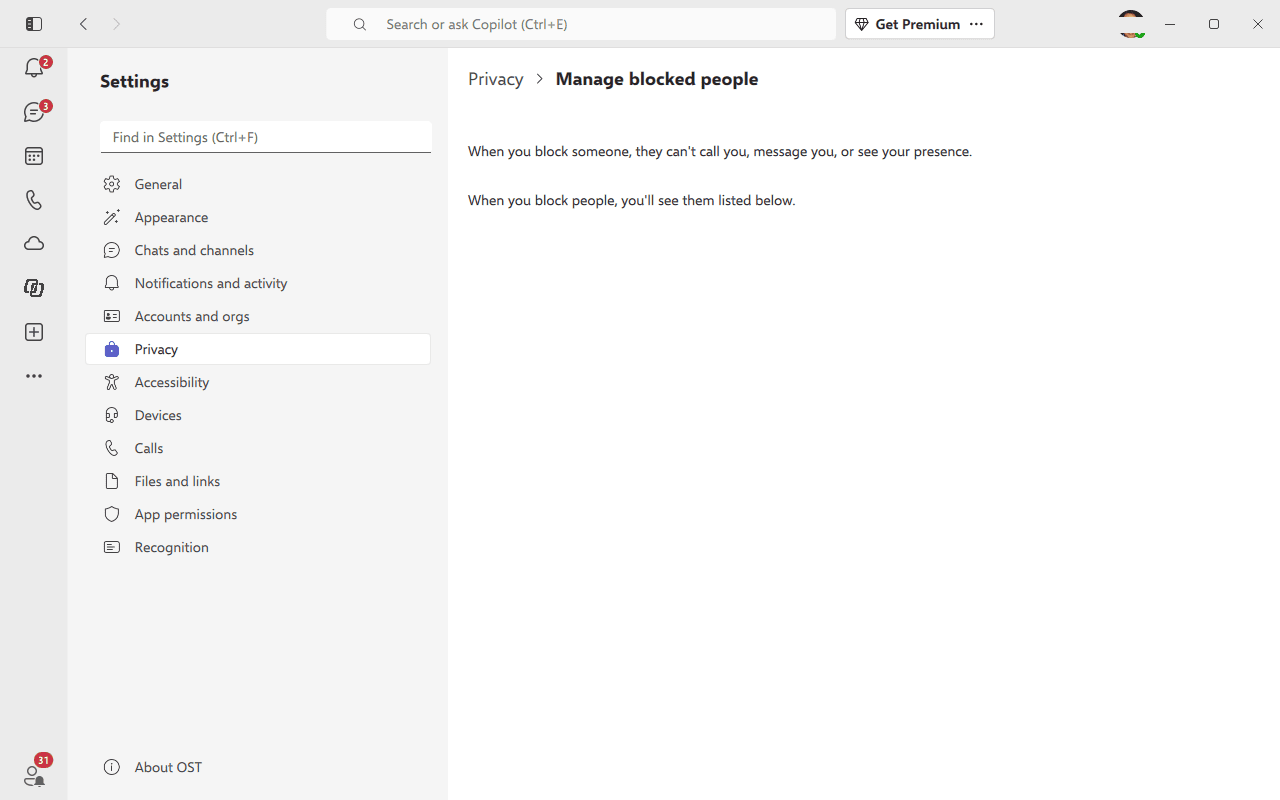
- Blocked contacts: Manage blocked contacts lists the people you blocked (Unblock); blocked people can't call you, message you or see your presence. Block calls with no caller ID.
- Delete Copilot activity history (with Copilot): Open Copilot activity history in your Microsoft account.
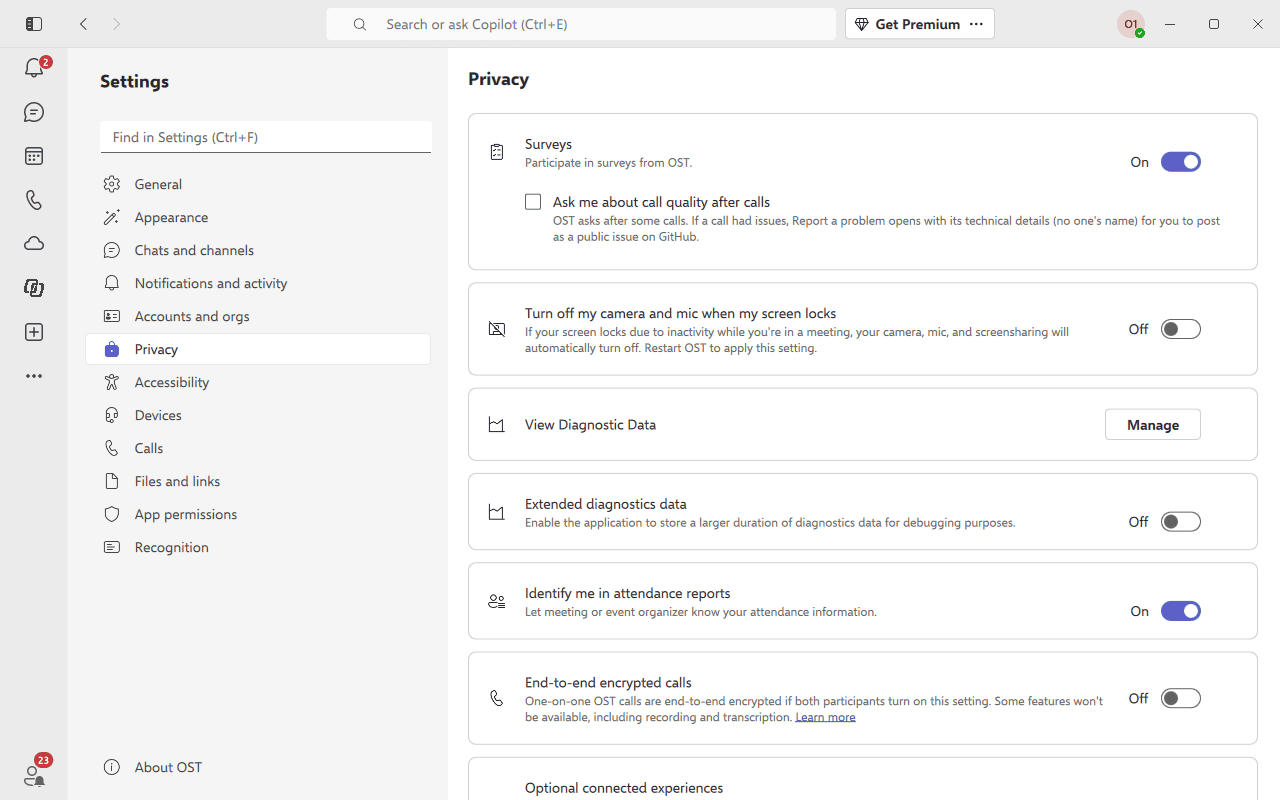
- Surveys: Ask me about call quality after calls (off by default). OST asks after some calls; if a call had issues, Report a problem opens with its technical details for you to post on GitHub.
- Turn off my camera and mic when my screen locks: if the screen locks during a meeting, your camera, mic and screen sharing turn off (OST follows the Linux session lock). Restart OST to apply.
-
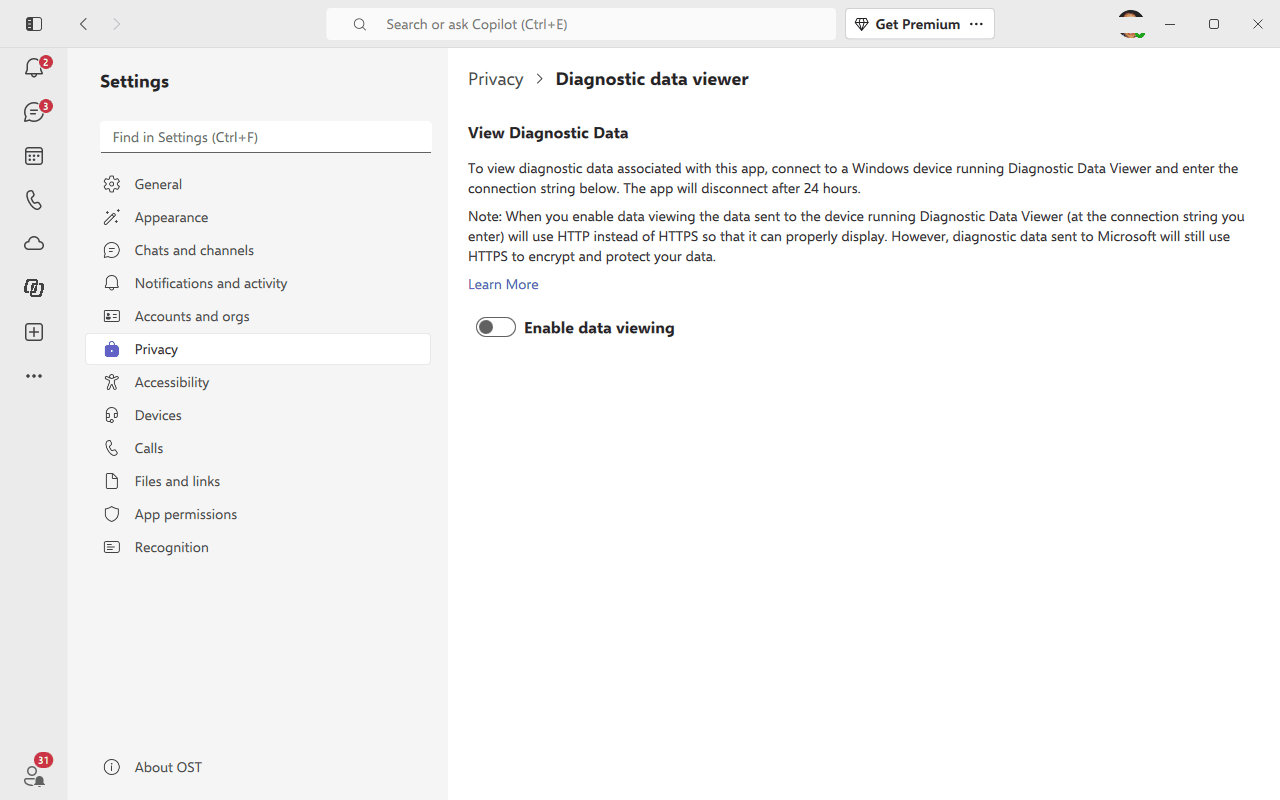
View Diagnostic Data: Manage opens the Diagnostic data
viewer page: Enable data viewing, a Diagnostic data viewer
connection string and Connect. OST sends Microsoft no telemetry;
the viewer lists the few calls OST makes on its own (update check, Report
a problem, suggested-reply feedback). It streams over plain HTTP only to
this device (a loopback address such as
127.0.0.1); a viewer on another device needs anhttps://address or an SSH tunnel (see Privacy and data). - Extended diagnostics data: keep a longer log for debugging.
- Identify me in attendance reports: let a meeting or event organizer see your attendance.
- End-to-end encrypted calls: one-on-one calls are end-to-end encrypted when both people turn this on. Recording and transcription aren't available in those calls.
- Optional connected experiences: cloud-backed extras such as Giphy and link previews.
- Keyboard shortcut to unmute: press and hold Ctrl+Spacebar to unmute for a moment during a meeting.
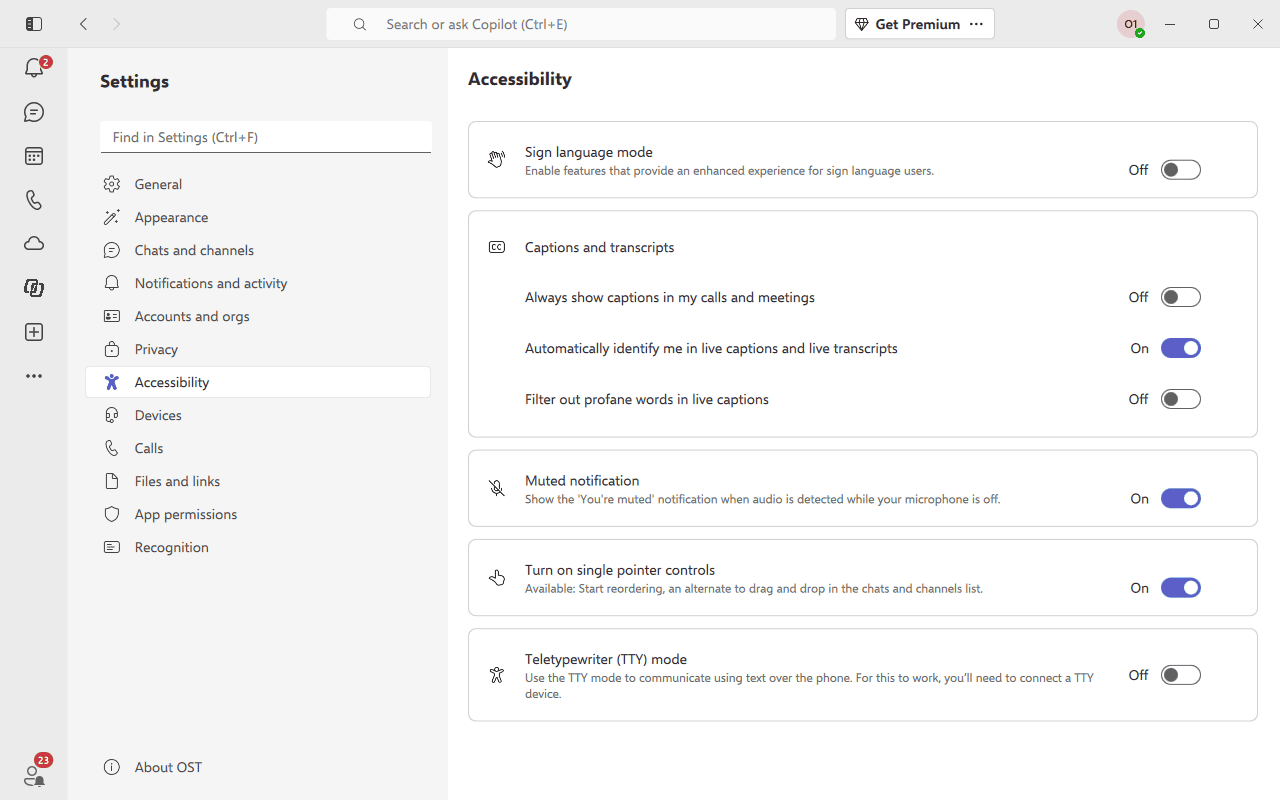
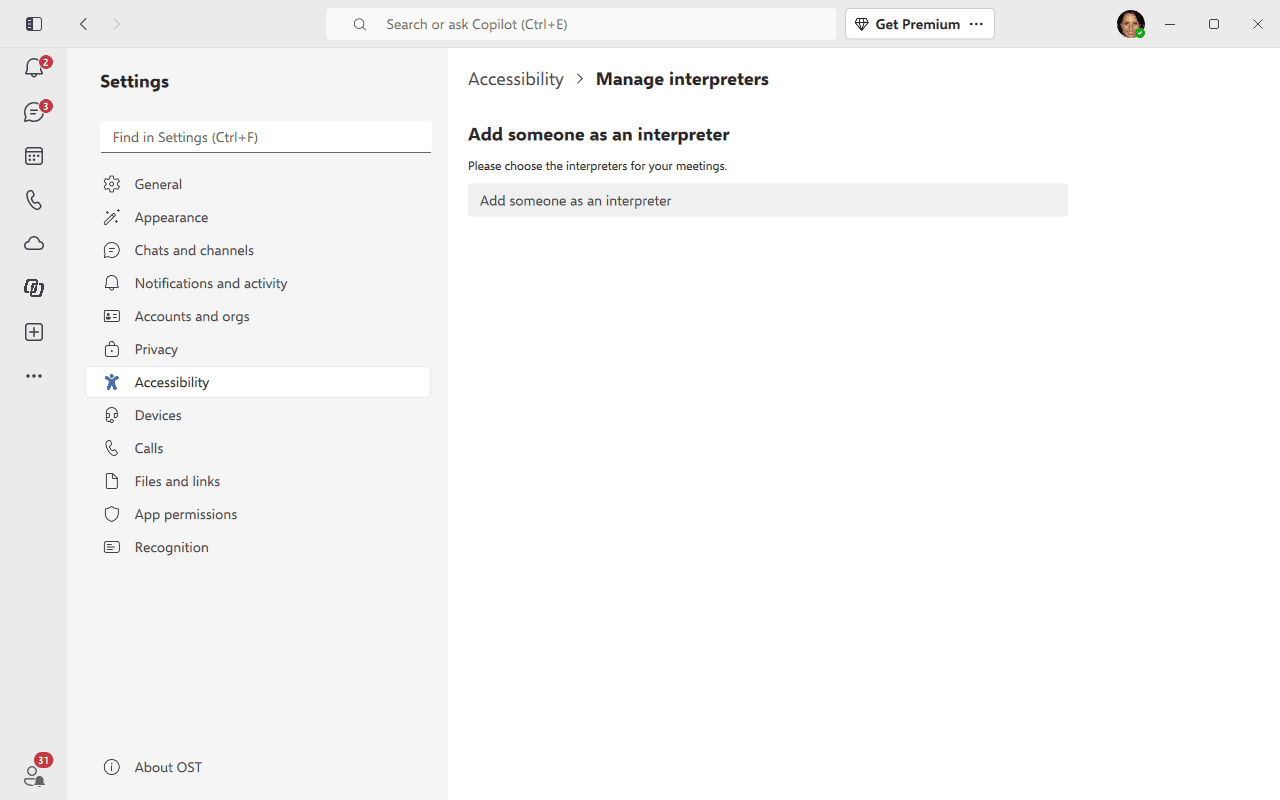
- Sign language mode: features for sign language users. Choose I am a Signer (a Deaf or hard-of-hearing participant who uses sign language) or I am a Sign Language Interpreter, and Show my signer status to others using Sign language mode. Manage interpreters opens a page to Add someone as an interpreter for your meetings, or remove one.
- Captions and transcripts: Always show captions in my calls and meetings, Automatically identify me in live captions and live transcripts, Filter out profane words in live captions.
- Muted notification: show the "You're muted" notice when OST hears you while your microphone is off.
- Turn on single pointer controls: adds Start reordering to the chat list, an alternative to drag and drop.
- Teletypewriter (TTY) mode: communicate by text over the phone with a connected TTY device. Applies from your next call.
See Accessibility.
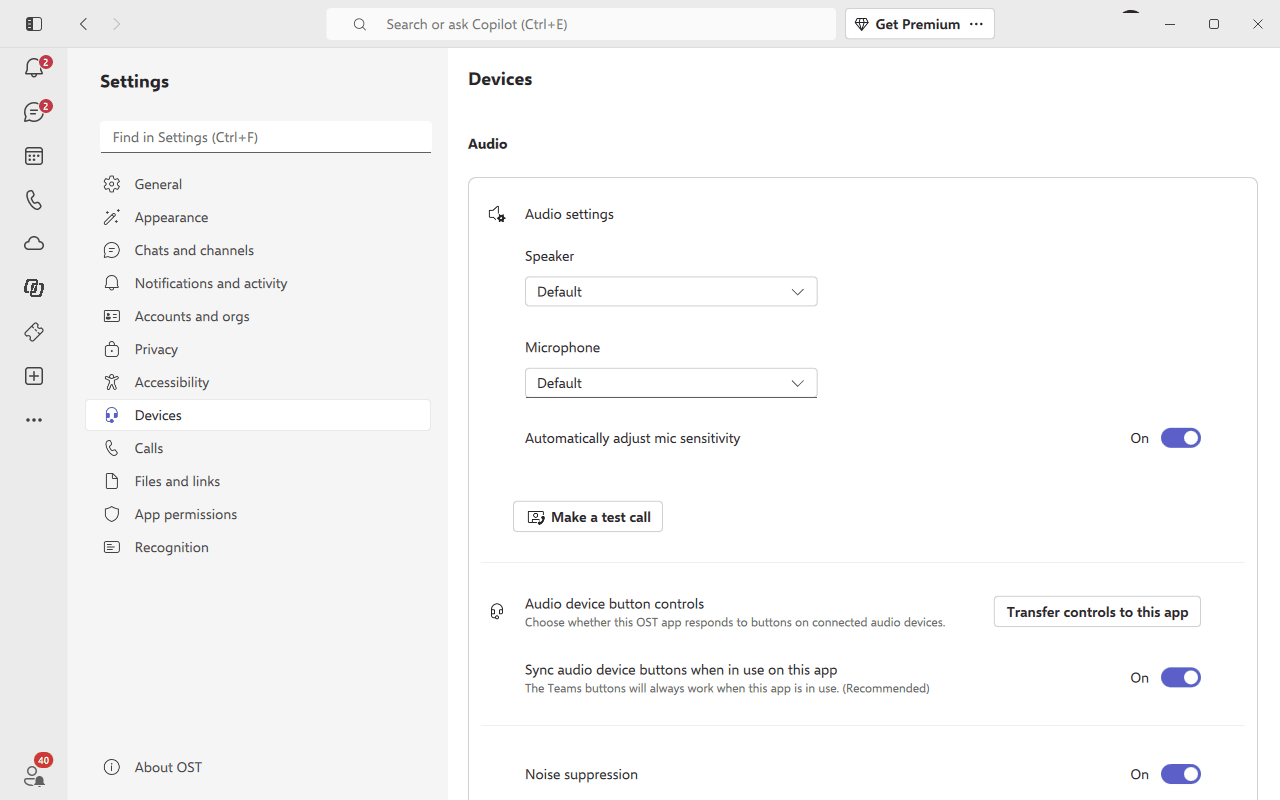
Audio settings
- Speaker and Microphone, each with a live meter, and Automatically adjust mic sensitivity.
- Make a test call: calls Teams' echo service (see Calls and voicemail).
- Audio device button controls: whether this OST responds to the buttons on a headset or speakerphone. Transfer controls to this app takes them over from another app; Sync audio device buttons when in use on this app keeps them working while OST is in use.
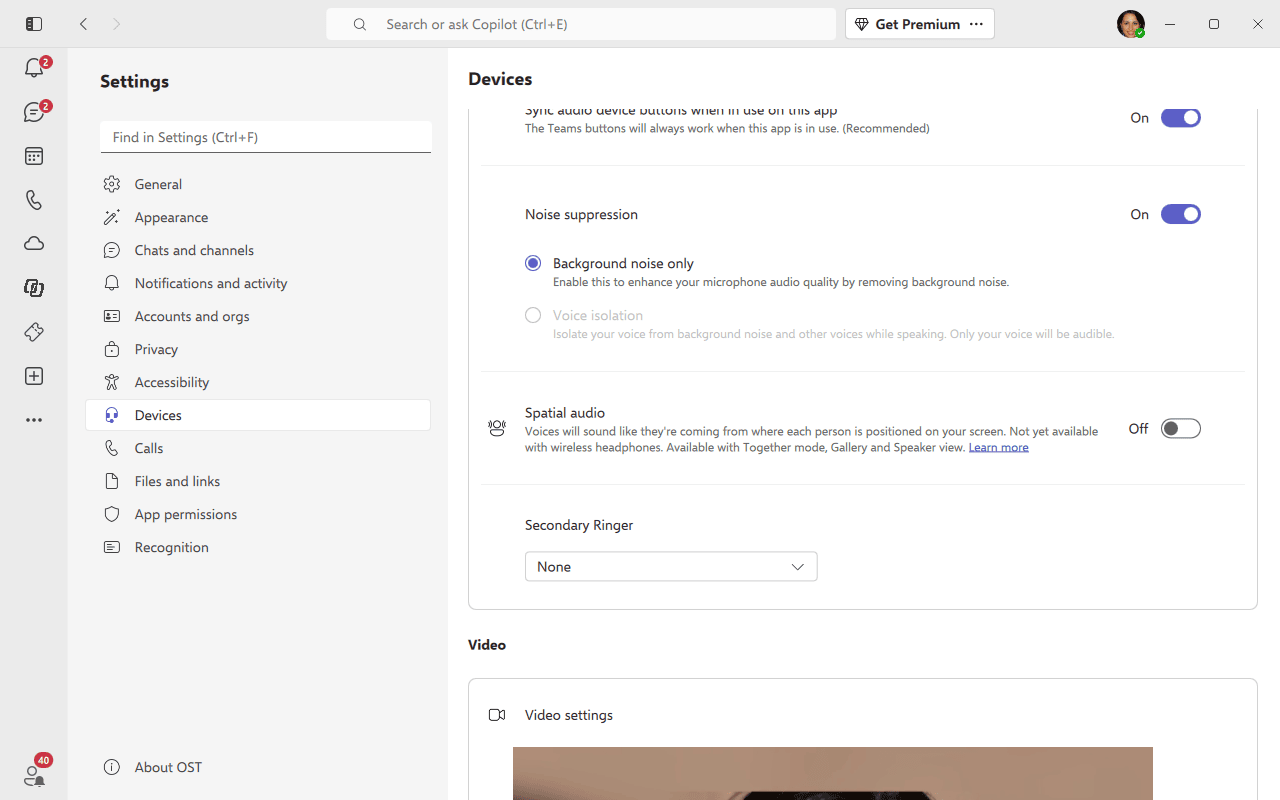
- Noise suppression: Background noise only, or Voice isolation (only your voice is heard; needs a voice profile, see Recognition).
- Spatial audio: voices come from where each person is on your screen (Gallery and Speaker view; not with wireless headphones).
- Secondary Ringer: a second device that rings for incoming calls, or None.
Video settings
- Camera and its Preview. The list has PipeWire's cameras (USB webcams, libcamera cameras such as Intel IPU6 built-in cameras, virtual cameras) and V4L2 devices PipeWire doesn't offer, each once; see Devices.
- Automatically adjust camera controls, and Open camera settings for the camera's brightness, contrast and other controls (some cameras don't offer all of them; libcamera cameras and cameras through the Flatpak's camera portal offer none).
- Green Screen (with What is your background color?), Mirror my video, Adjust brightness and Soft focus.
Connected devices: Automatically activate meeting room mode when in a meeting (room displays show only the meeting content), and Manage devices, which lists connected room devices and paired Teams phones with Disconnect.
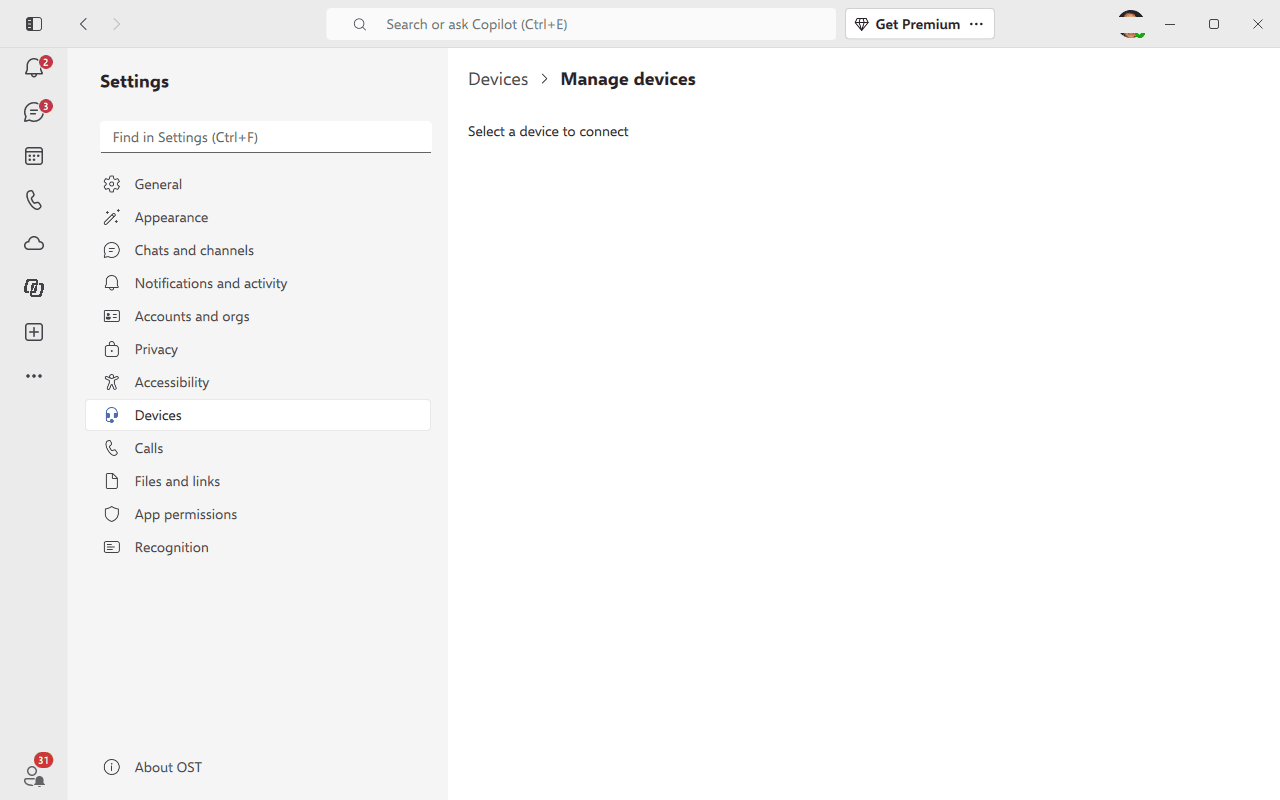
See Devices.
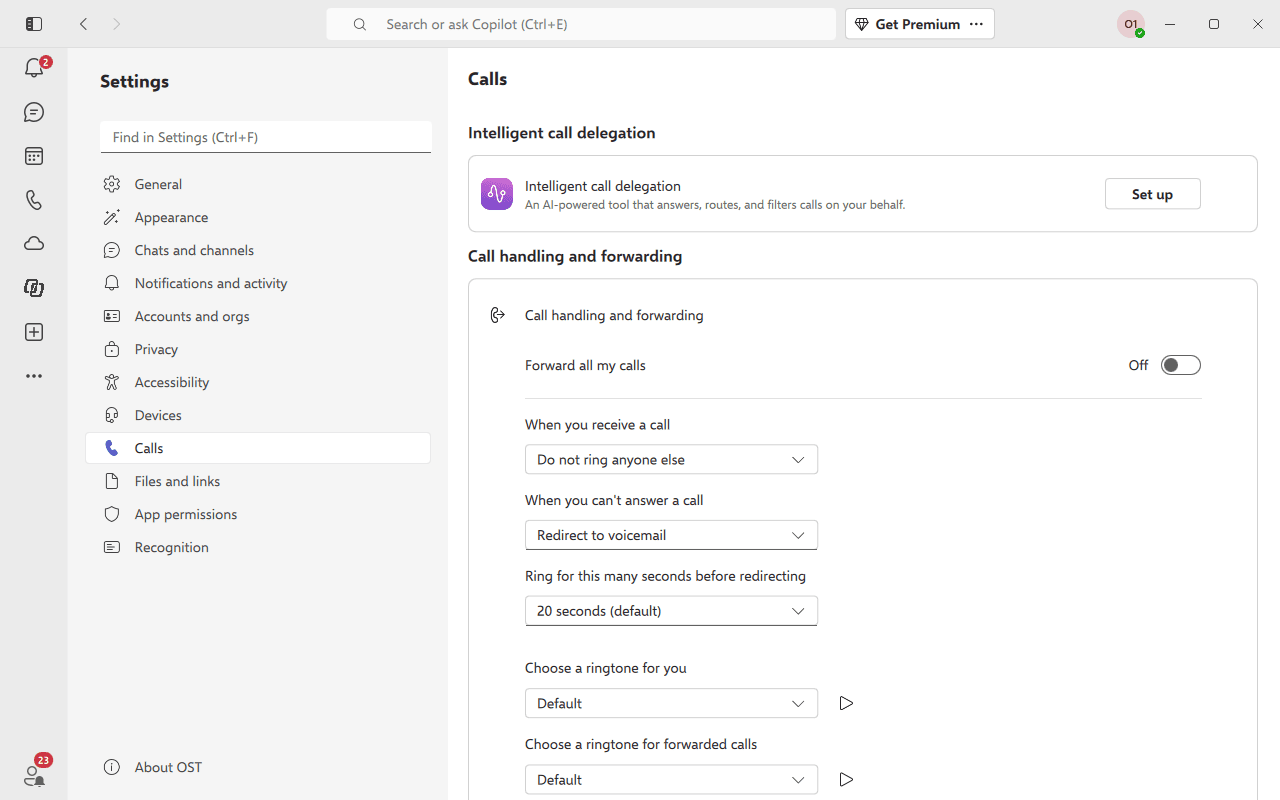
- Intelligent call delegation (where licensed): an AI delegate that answers, routes and filters calls for you; Manage or Set up opens its page (see Calls and voicemail).
-
Call handling and forwarding:
- Forward all my calls (on): Choose how all your calls will be forwarded: to voicemail, a new number or contact, a call group or your delegates.
- Off: When you receive a call: Do not ring anyone else, or also ring a new number or contact, a call group or your delegates, with Delay for this many seconds before ringing.
- When you can't answer a call: Do not redirect calls, or redirect to voicemail, a new number or contact, a call group or your delegates, after Ring for this many seconds before redirecting.
- Forward all calls to voicemail.
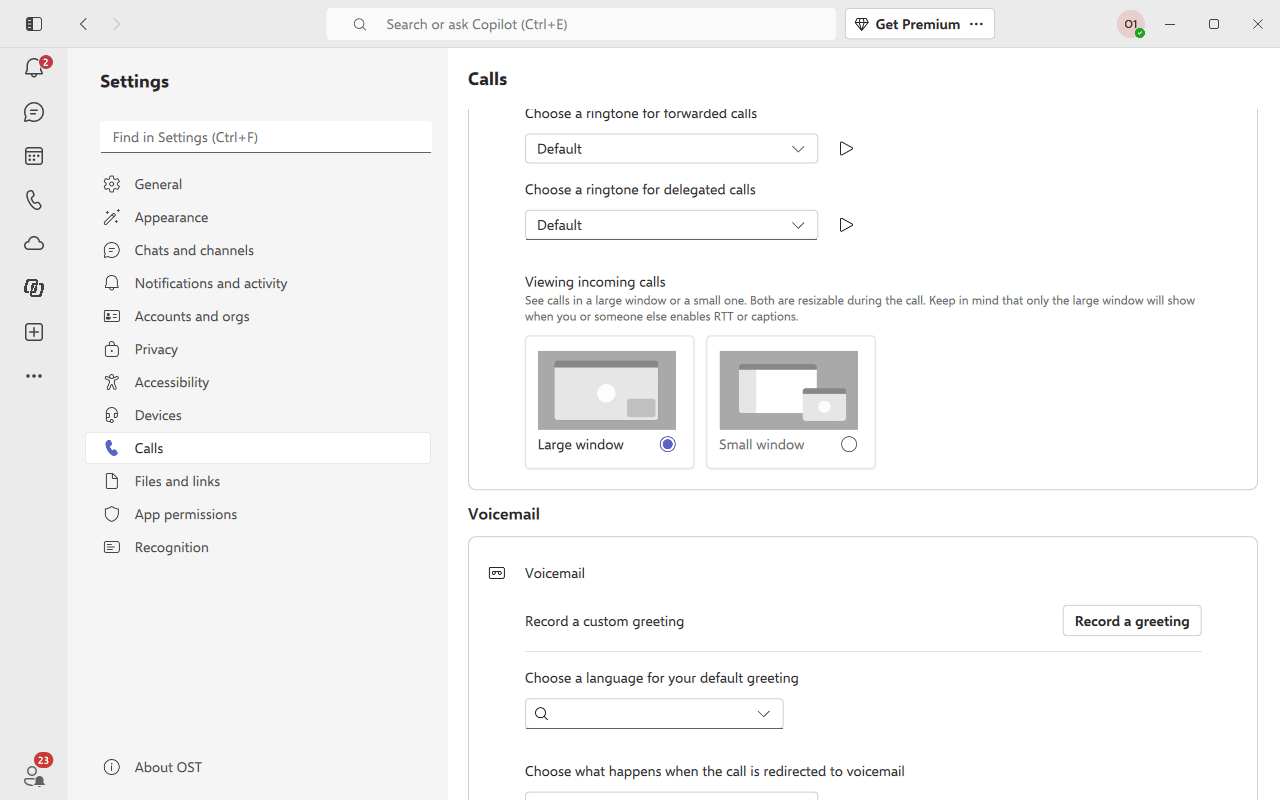
- Voicemail: Record a custom greeting (Record a greeting), Choose a language for your default greeting, Choose what happens when the call is redirected to voicemail (Let the caller record a message, Let the caller record a message or be transferred to someone else, Play your greeting and end the call, Play greeting then transfer the call to someone else, End the call without playing your greeting), and Set up text-to-speech customized greeting option (Write a custom greeting; a recorded greeting overrides it).
- Out-of-office voicemail: When should your greeting play (All the time or When Outlook automatic replies are on) and Your custom greeting.
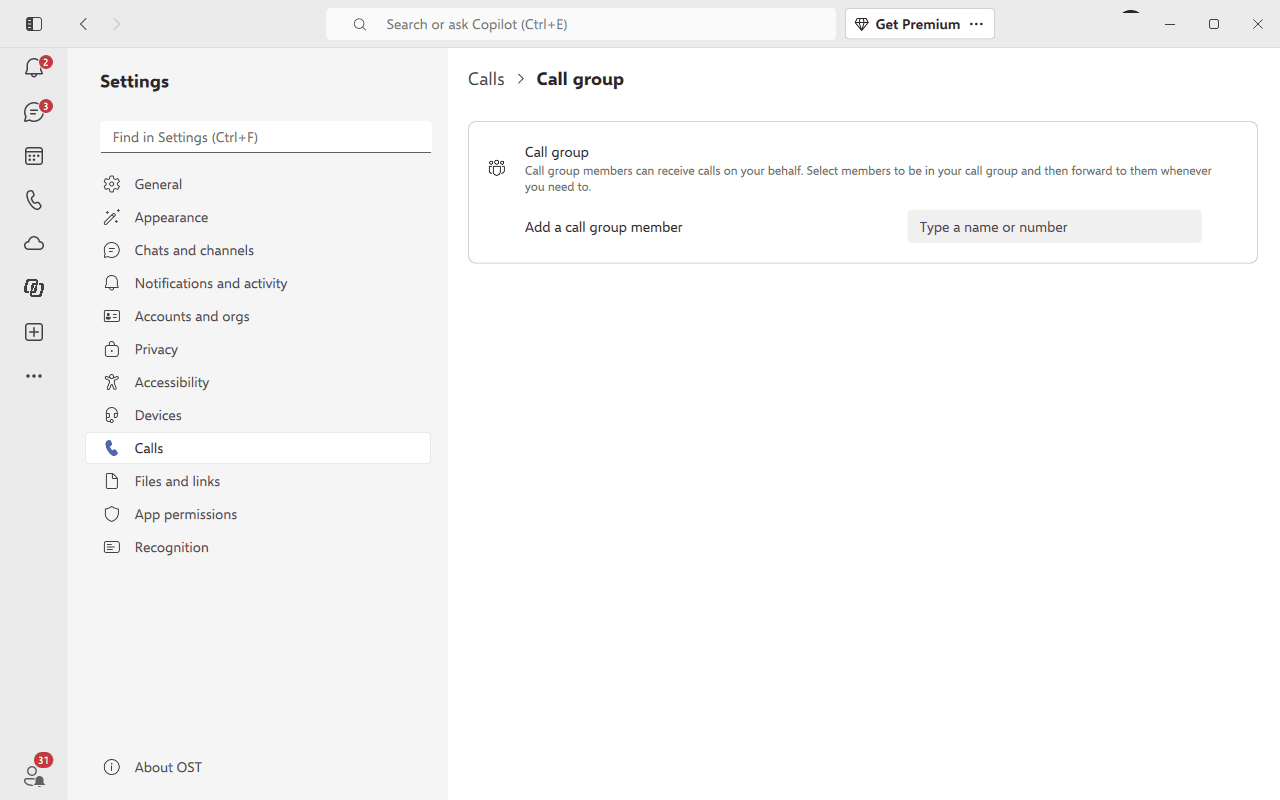
- Call group (where your policy allows): Manage opens Call group: Add a call group member and pick the Ring order (Everyone at once or In the order below).
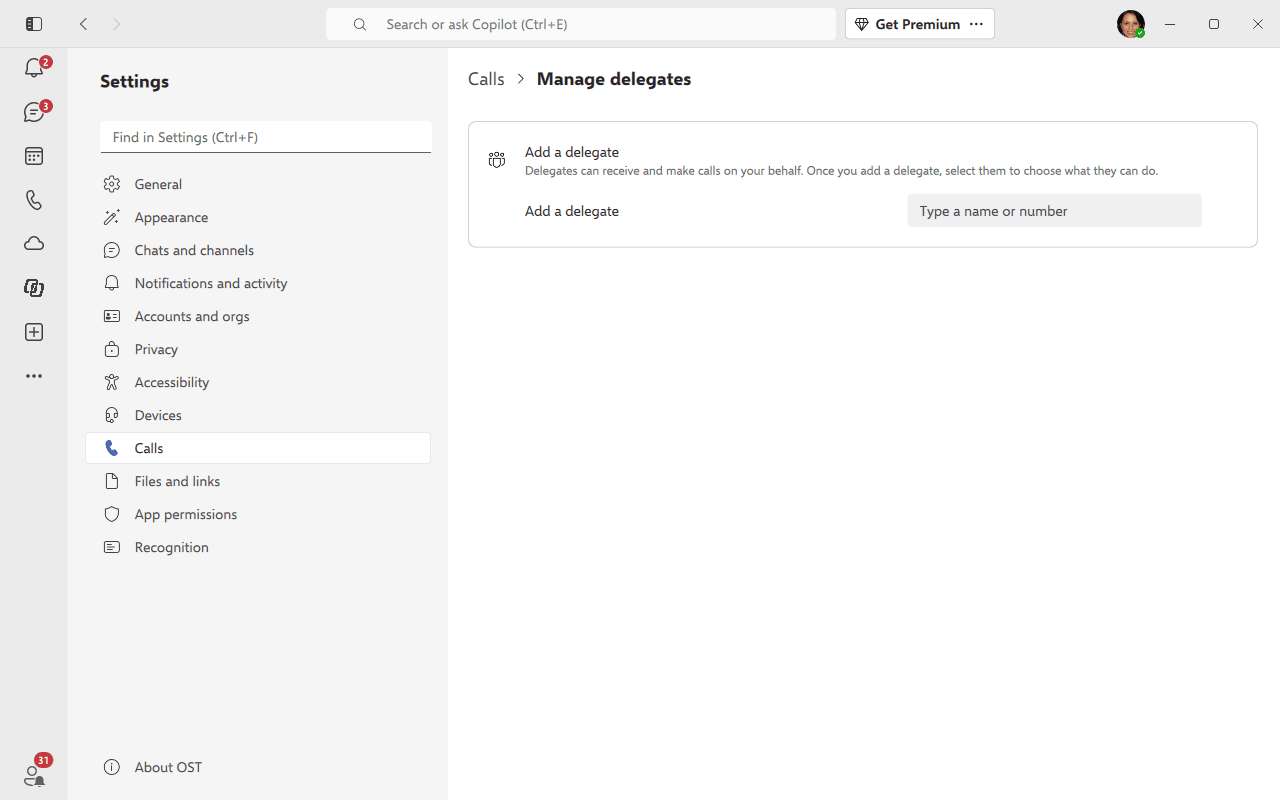
- Delegates (where your policy allows): Manage opens Manage delegates: Add a delegate, then choose what each may do (Make calls, Receive calls, Change call and delegate settings, Pick up held calls, Join active calls), and Announce when delegates join the call.
- Choose a ringtone for you, for forwarded calls and for delegated calls: Default, Beep, Bop, Bounce, Bubbles, Bubbles (Loud), Drip Drop, Eureka, Flutter, High Score, Next Level, Plink, Remix, Ring Ring, Ripple, Spacetime, Wish Granted or Wobble, with Preview ringtone.
- Viewing incoming calls: Large window or Small window for the incoming call notice (only the large one shows with RTT or captions on).
-
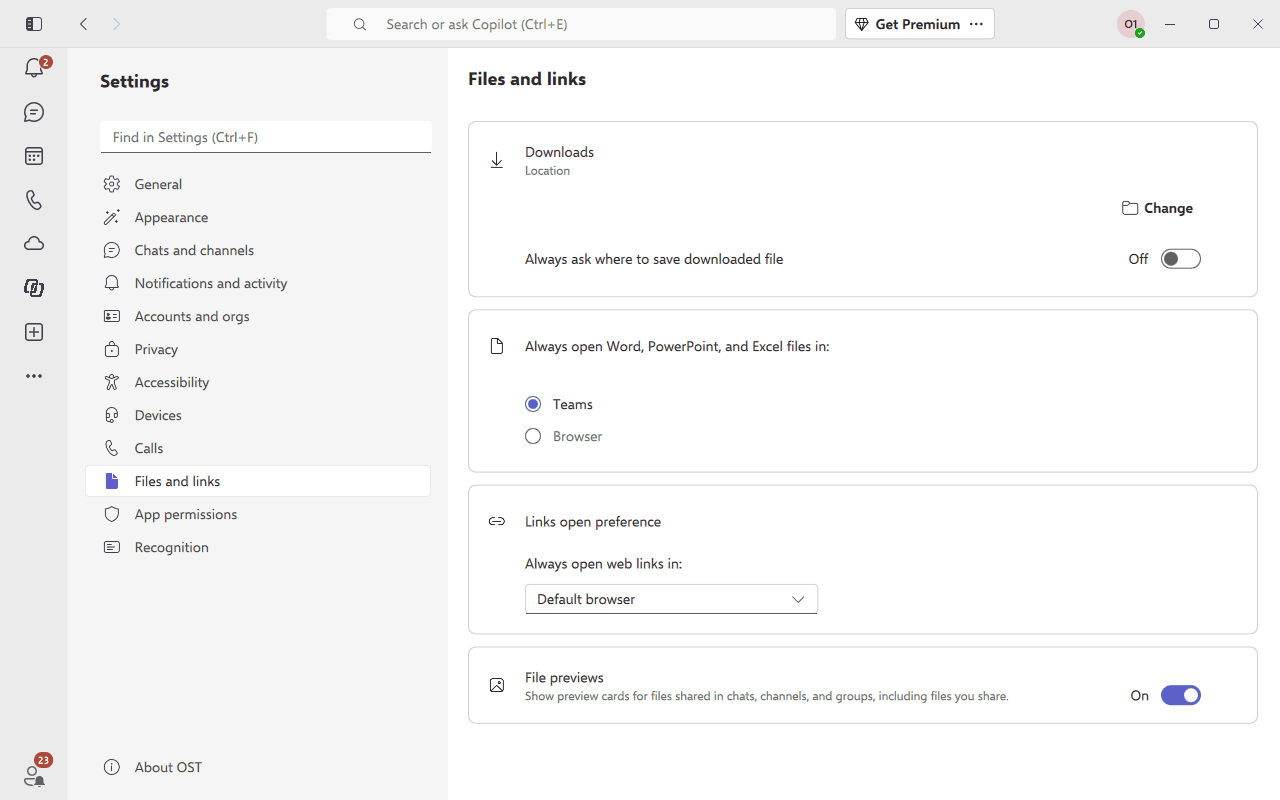
Downloads: the download Location (Change;
~/Downloadsor$XDG_DOWNLOAD_DIRby default) and Always ask where to save downloaded file. - Always open Word, PowerPoint, and Excel files in: Teams (Office for the web inside OST, the default), Desktop app (a downloaded copy in your desktop's app for that file type) or Browser.
- Links open preference: Always open web links in: one of the web browsers installed on this computer, or the default browser.
- File previews: show preview cards for files shared in chats, channels and groups.
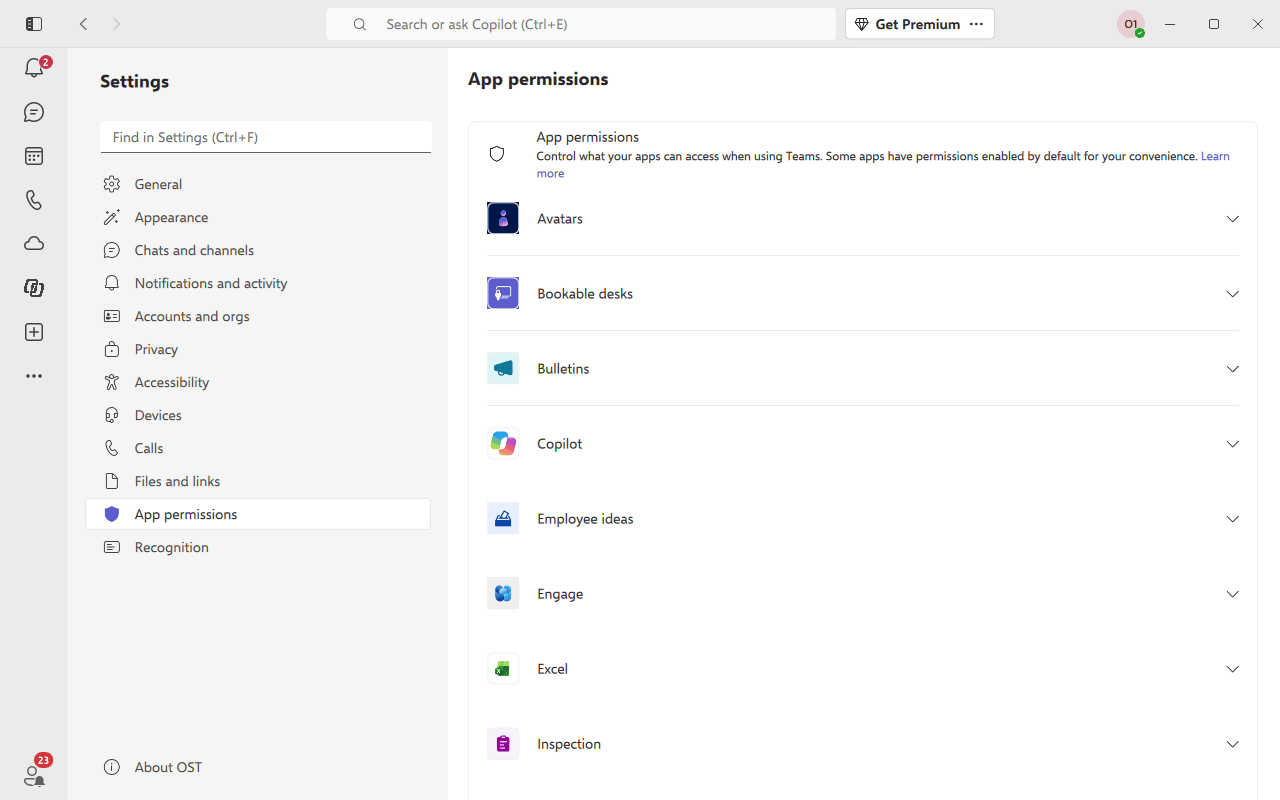
Each installed app, expanded to the permissions its manifest asks for (notifications, camera and microphone, location and others), each with a switch. Changes apply the next time you open or refresh the app.
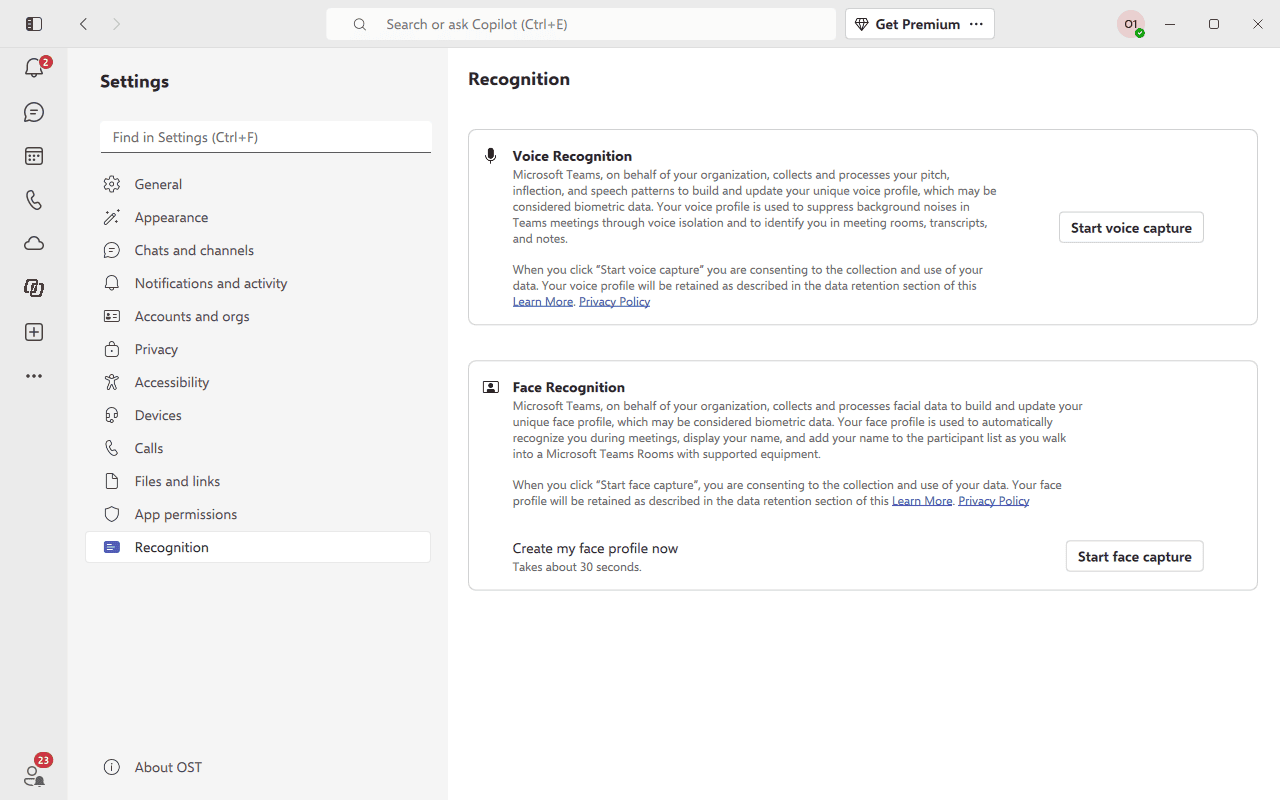
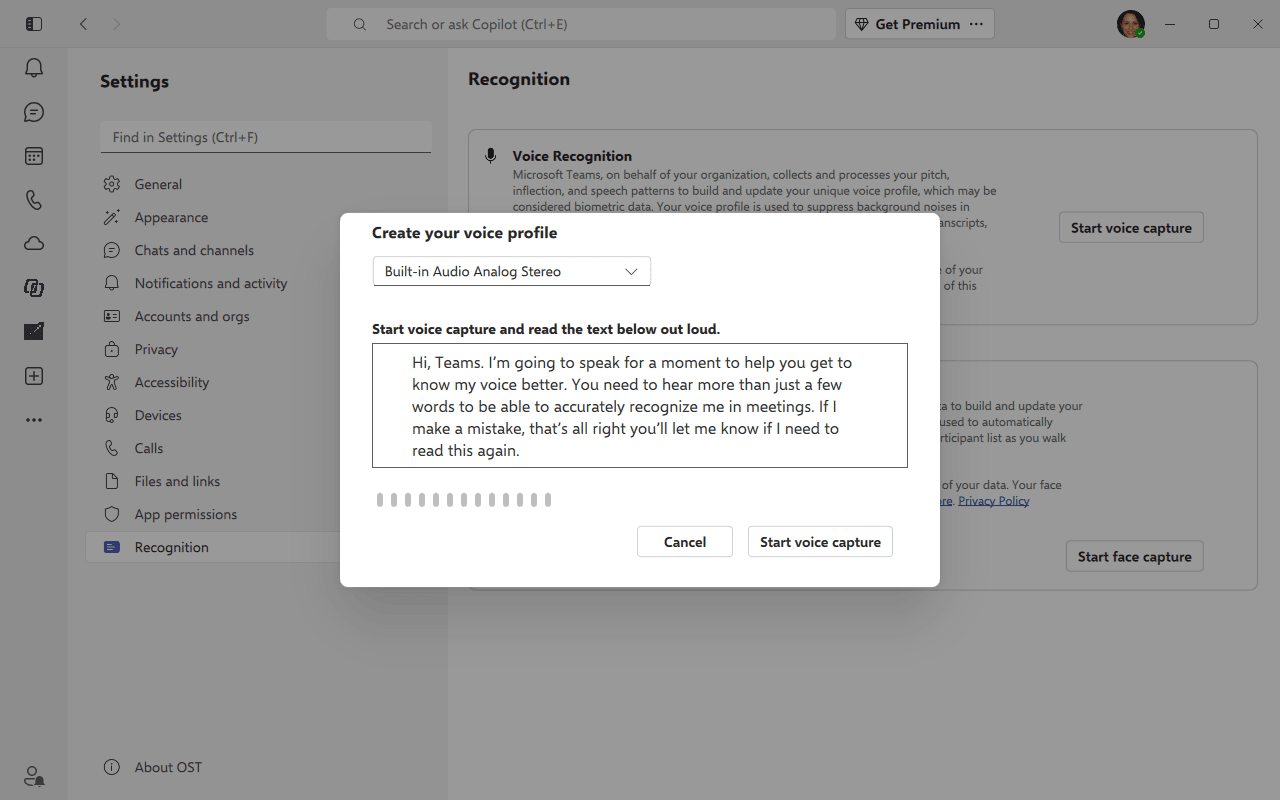
- Voice Recognition: your voice profile powers voice isolation and identifies you in meeting rooms, transcripts and notes. Create my voice profile now (or Update my voice profile now) opens the voice capture: Start voice capture, read the text aloud, and OST builds the profile with Microsoft's service. Opt in to keep my voice profile up to date automatically; Export; Opt out removes the profile.
- Face Recognition: your face profile lets a Teams Room with supported equipment recognize you. Create my face profile now opens the face capture (Start face capture, then turn your head as asked); Export, Update and Opt out as for voice.
You can't change a profile while you're in a meeting.
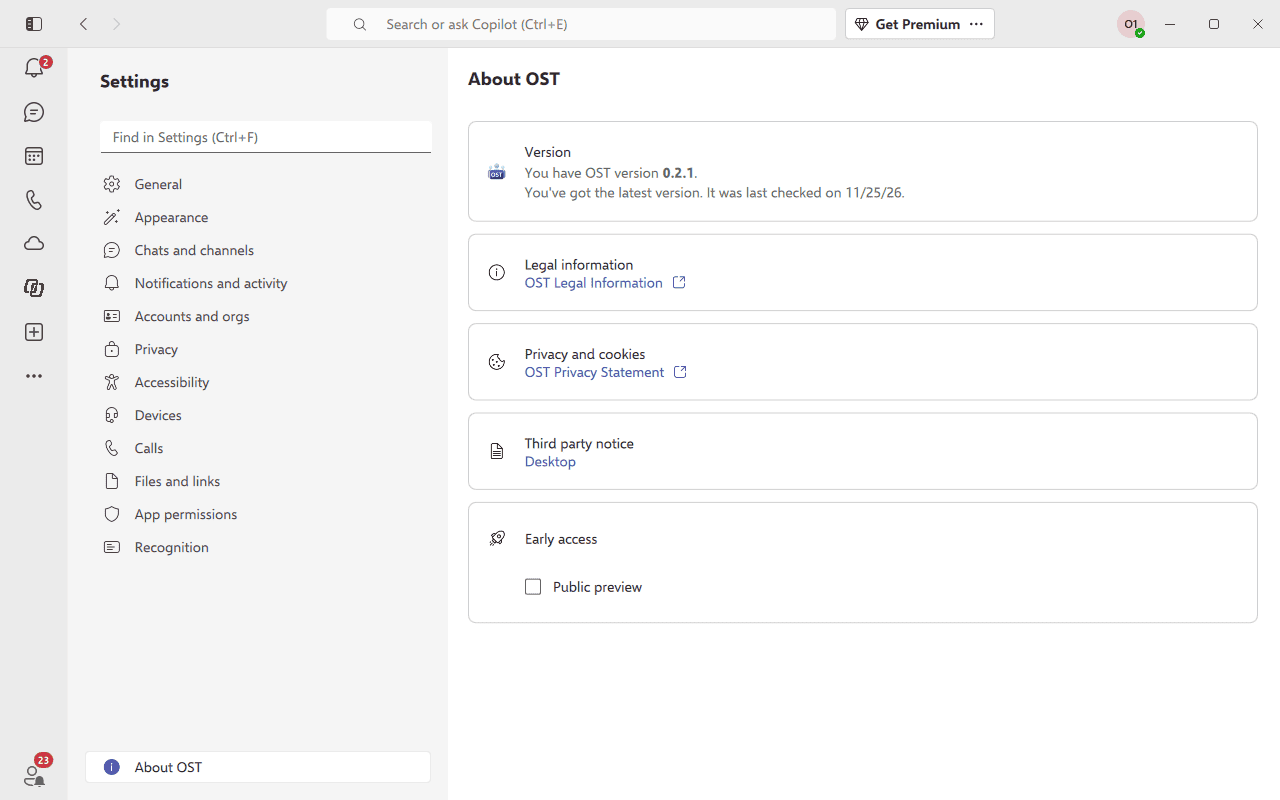
- Version: "You have OST version …". OST checks OST's GitHub releases and says You've got the latest version or An update is available with Update now, which opens the release page.
- Legal information, Privacy and cookies and Third party notice.
- Public preview (Early access): Teams' early-access features.
Your status, status message, work location and accounts are under your picture, not in Settings; see Presence and status.