Repository navigation
Keyboard shortcuts
OST uses Teams' keyboard shortcuts. Press Ctrl+. (period), or Settings and more ▸ Keyboard shortcuts, to see them all.
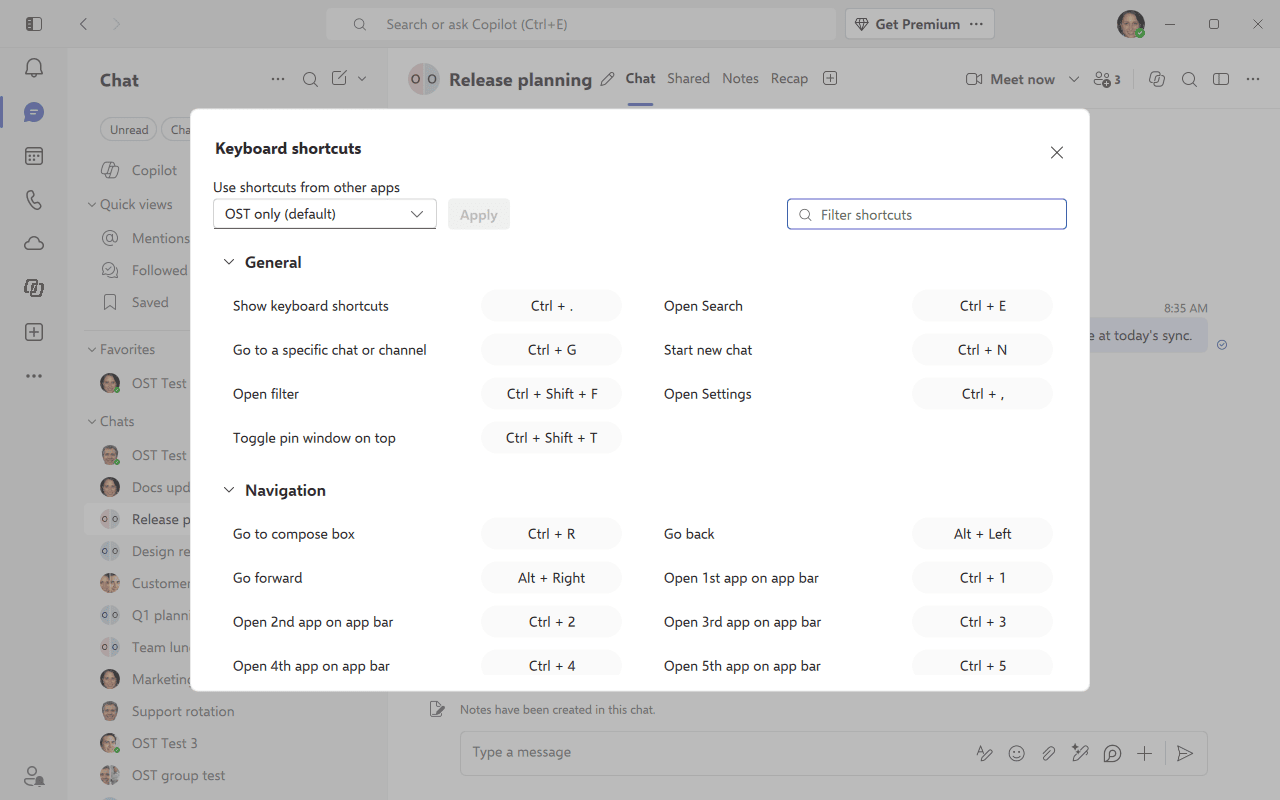
- Filter shortcuts narrows the list by name or key; each section (General, Navigation, Compose, Messaging, Meetings, Calls and Calendar) folds open and closed.
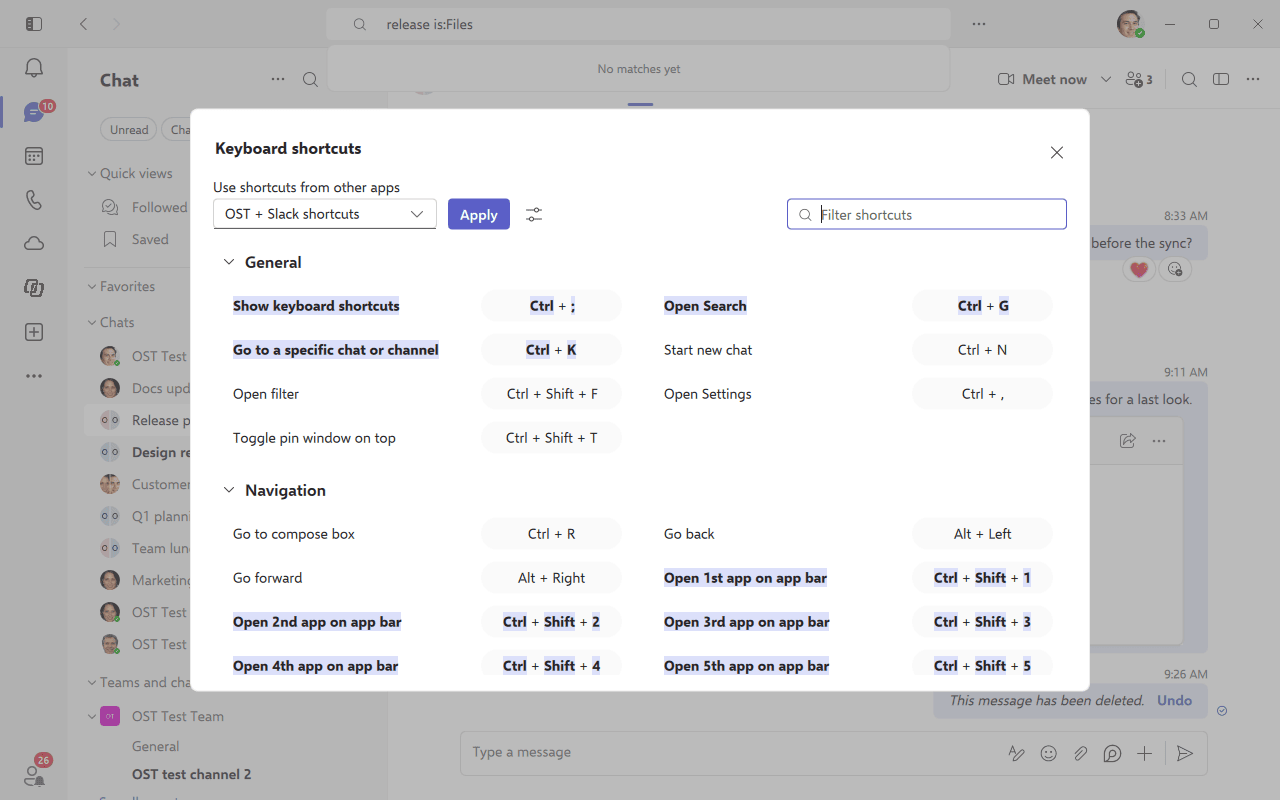
- Use shortcuts from other apps: OST only (default), OST + Slack shortcuts, OST + Zoom shortcuts or OST + combined shortcuts, with a preview of what changes; Apply saves it (also in Settings ▸ General ▸ Keyboard shortcuts). View options: Highlight shortcuts from other apps and Bring shortcuts from other apps to top.
| Action | Keys |
|---|---|
| Show keyboard shortcuts | Ctrl+. |
| Open Search | Ctrl+E |
| Go to a specific chat or channel | Ctrl+G |
| Start new chat | Ctrl+N |
| Open filter | Ctrl+Shift+F |
| Open Settings | Ctrl+, |
| Toggle pin window on top | Ctrl+Shift+T |
| Action | Keys |
|---|---|
| Go to compose box | Ctrl+R |
| Go back | Alt+Left |
| Go forward | Alt+Right |
| Open 1st to 5th app on app bar |
Ctrl+1 to Ctrl+5
|
| Action | Keys |
|---|---|
| Start new line | Shift+Enter |
| Attach file | Alt+Shift+O |
| Apply bold style | Ctrl+B |
| Apply italic style | Ctrl+I |
| Apply underline style | Ctrl+U |
| Apply strikethrough style | Ctrl+Alt+X |
| Undo / Redo |
Ctrl+Z / Ctrl+Y
|
| Cut / Copy / Paste |
Ctrl+X / Ctrl+C / Ctrl+V
|
| Select all | Ctrl+A |
Whether Enter sends or starts a new line is set in Settings ▸ Chats
and channels ▸ Compose; with Start a new line, Ctrl+Enter sends.
| Action | Keys |
|---|---|
| Find in current chat or channel | Ctrl+F |
| React to the last message | Ctrl+Alt+R |
| Jump to last read or newest message | Ctrl+J |
| Mark all as read (asks first) | Shift+Esc |
| Collapse all sections | Alt+Q |
| Clear all filters | Ctrl+Alt+Z |
| See all chat conversations | Ctrl+Alt+C |
| See all channel conversations | Ctrl+Alt+A |
| See all unread items | Ctrl+Alt+U |
| Toggle details pane | Alt+P |
| Open 1st to 5th tab on chat header |
Alt+1 to Alt+5
|
| Open in new window (a chat) | Ctrl+O |
| Share screen (a chat) | Ctrl+Shift+E |
| Open Copilot (with Copilot) | Alt+C |
With a message's ··· menu open, single keys pick its items, as in
Teams: Q Reply with quote, E Edit, F Forward, S Save, P Pin, U
Mark as unread, Del Delete.
| Action | Keys |
|---|---|
| Toggle mute | Ctrl+Shift+M |
| Toggle video | Ctrl+Shift+O |
| Leave meeting or call | Ctrl+Shift+H |
| Announce active speaker (screen reader) | Ctrl+Alt+Shift+S |
| Start audio call | Alt+Shift+A |
| Accept audio call | Ctrl+Shift+S |
| Accept video call | Ctrl+Shift+A |
| Decline call | Ctrl+Shift+D |
| Schedule a meeting | Alt+N |
| Unmute for a moment (hold) |
Ctrl+Spacebar (Settings ▸ Privacy ▸ Keyboard shortcut to unmute) |
These are in Settings and more rather than in the dialog, as in Teams:
| Action | Keys |
|---|---|
| Zoom in / Zoom out / Reset zoom |
Ctrl+= / Ctrl+- / Ctrl+0
|
| Pin window on top | Ctrl+Shift+T |
| Settings | Ctrl+, |
| Help | F1 |
| Report a problem | Ctrl+Alt+Shift+R |
| Find in Settings (in Settings) | Ctrl+F |
What the other profiles change:
| Action | OST + Slack | OST + Zoom |
|---|---|---|
| Show keyboard shortcuts | Ctrl+; |
|
| Open Search | Ctrl+G |
|
| Go to a specific chat or channel | Ctrl+K |
|
| Toggle details pane | Ctrl+. |
|
| React to the last message | Ctrl+Shift+\ |
|
| See all unread items | Ctrl+Alt+A |
|
| See all channel conversations | Ctrl+Alt+U |
|
| Open 1st to 5th app on app bar |
Ctrl+Shift+1 to Ctrl+Shift+5
|
|
| Accept video call | Ctrl+Shift+V |
|
| Accept audio call | Ctrl+Shift+A |
|
| Toggle mute | Alt+A |
|
| Toggle video | Alt+V |
|
| Announce active speaker | Ctrl+2 |
|
| Leave meeting or call | Alt+Q |
OST + combined shortcuts applies both columns.
Every shortcut is tested as a real key press in OST's test harness, in each profile.
For the terminal client's keys, see Terminal client.