Repository navigation
People and profile cards
Point at someone's name or picture (in a chat, the chat list, search, a meeting roster) for their profile card; click it to keep it open.
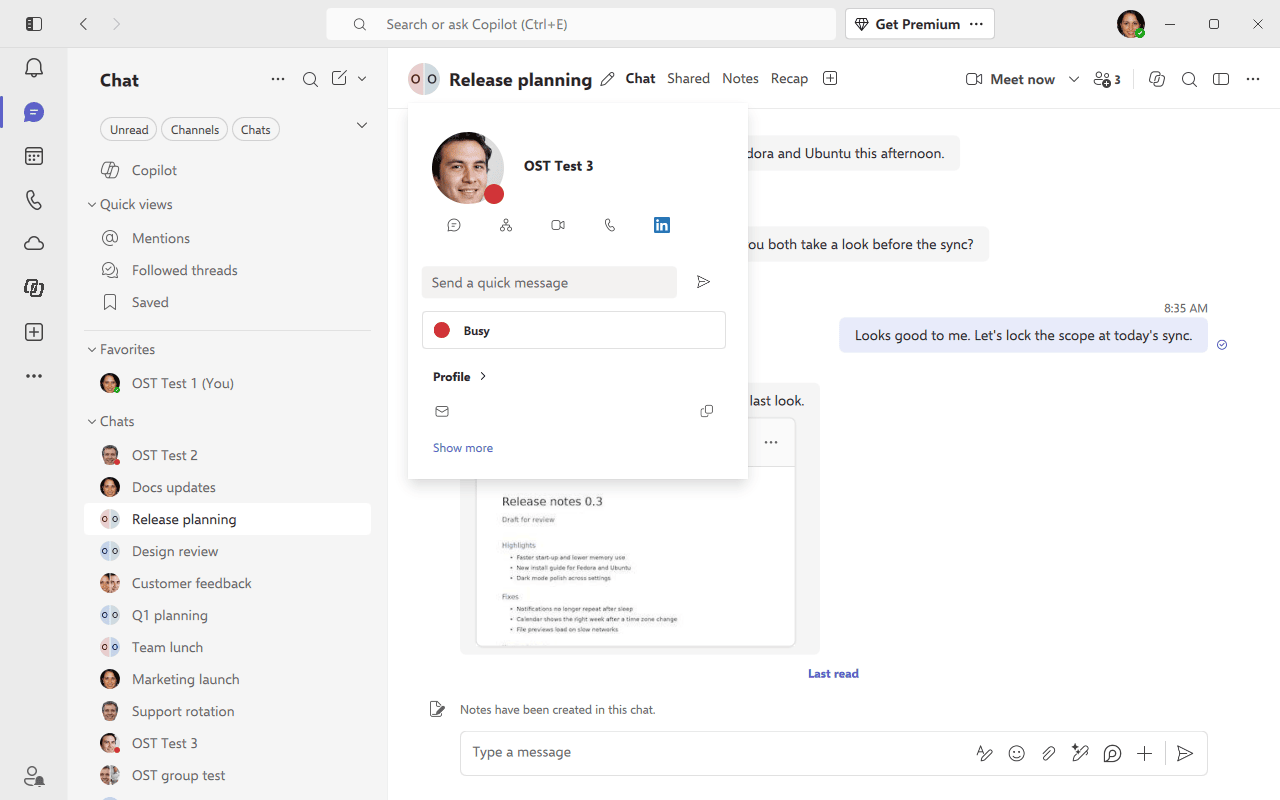
The card shows:
- Their picture with presence, name, job title and department.
- Their status: Available, Busy, Do not disturb, Be right back, Away, Offline, or Out of office, with "Last seen …" or "Free at …" where Teams has it, their status message, their work location (In the office, Working remotely) and Work hours ("Same time zone as you" or their local time).
- Send a quick message: type and Send without leaving where you are.
- Actions: Start a chat, Start a video call, Start an audio call, Copy email, Show more (contact details) and Show organization.
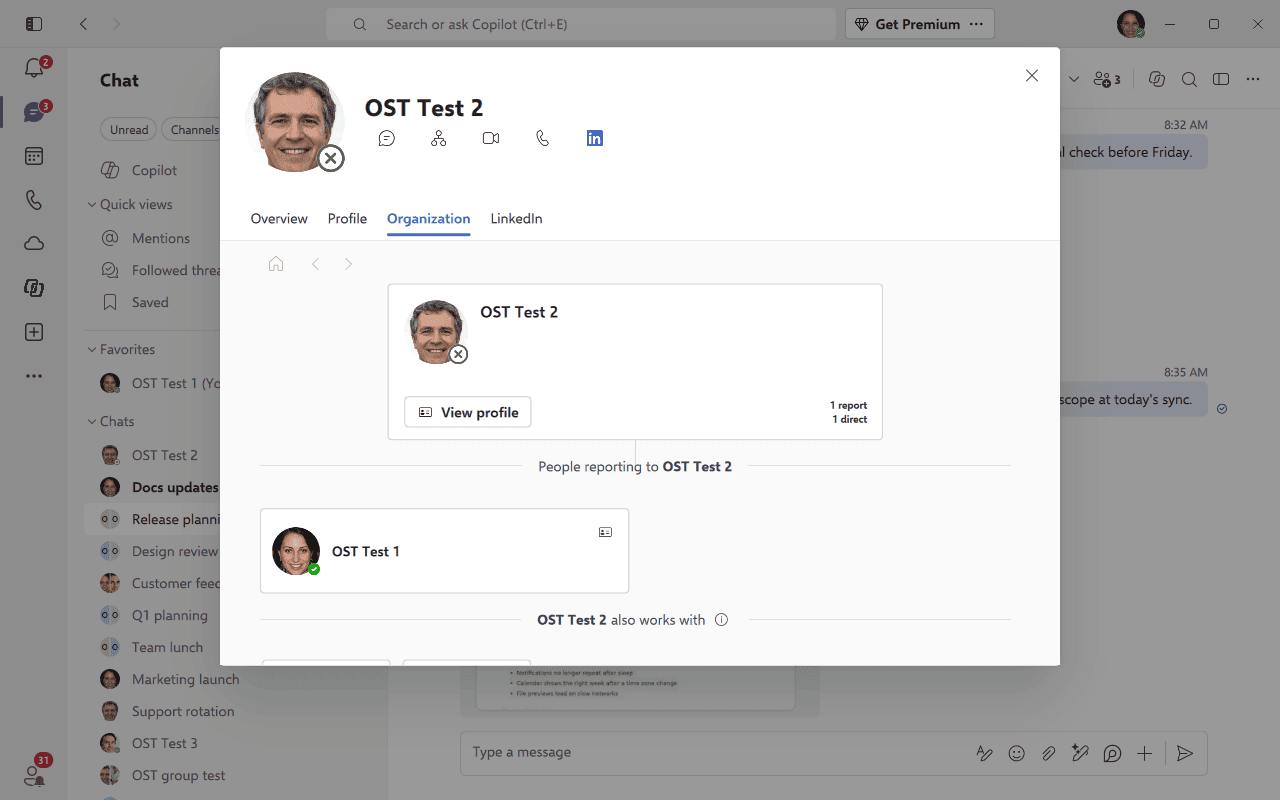
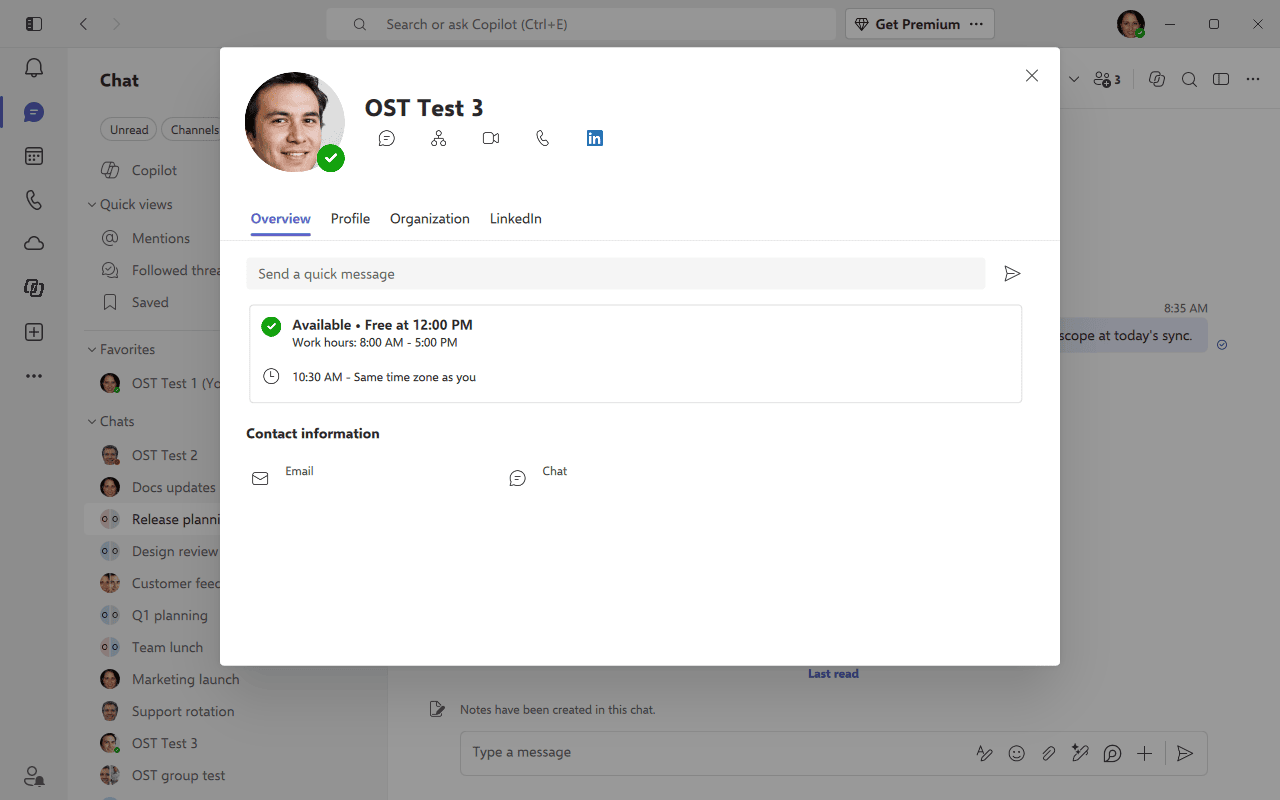
Profile (or View profile) opens the full card:
- Overview: contact information, the people they work with, their manager.
- Contact information: Email, Work phone, Mobile, Office location, Business address, Company, with Show more contact information.
- Organization: their org chart, Reports to, People reporting to them, and their peers; select anyone to move through the chart (Back to previous profile).
- LinkedIn: their LinkedIn profile where they share it (or Connect your account).
In a 1:1 chat, the other person's status message (and out of office note) shows under their name in the chat header.
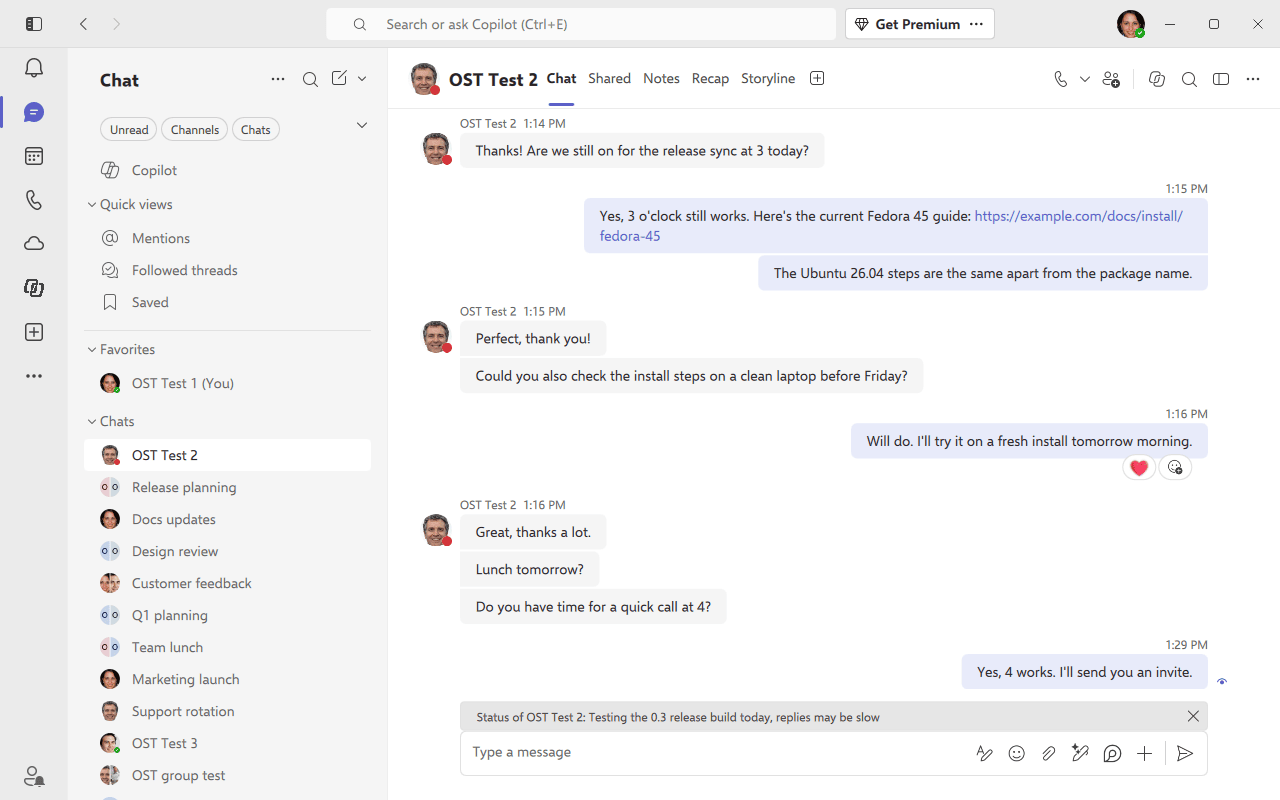
Everyone's profile photo comes from Microsoft 365, refreshed daily (cached
in ~/.cache/ost/photos/). Someone without a photo gets their initials on
a colored circle, in the same color Teams gives them. Presence shows as a
badge on the picture.
People (in View more apps) is your Outlook contacts:
- All contacts, Favorites and Categories.
- Add contact: First name, Last name, Email, Mobile, Phone, Company, Job title.
- A contact's ···: Add to favorites / Remove from favorites, Copy email, Delete contact.
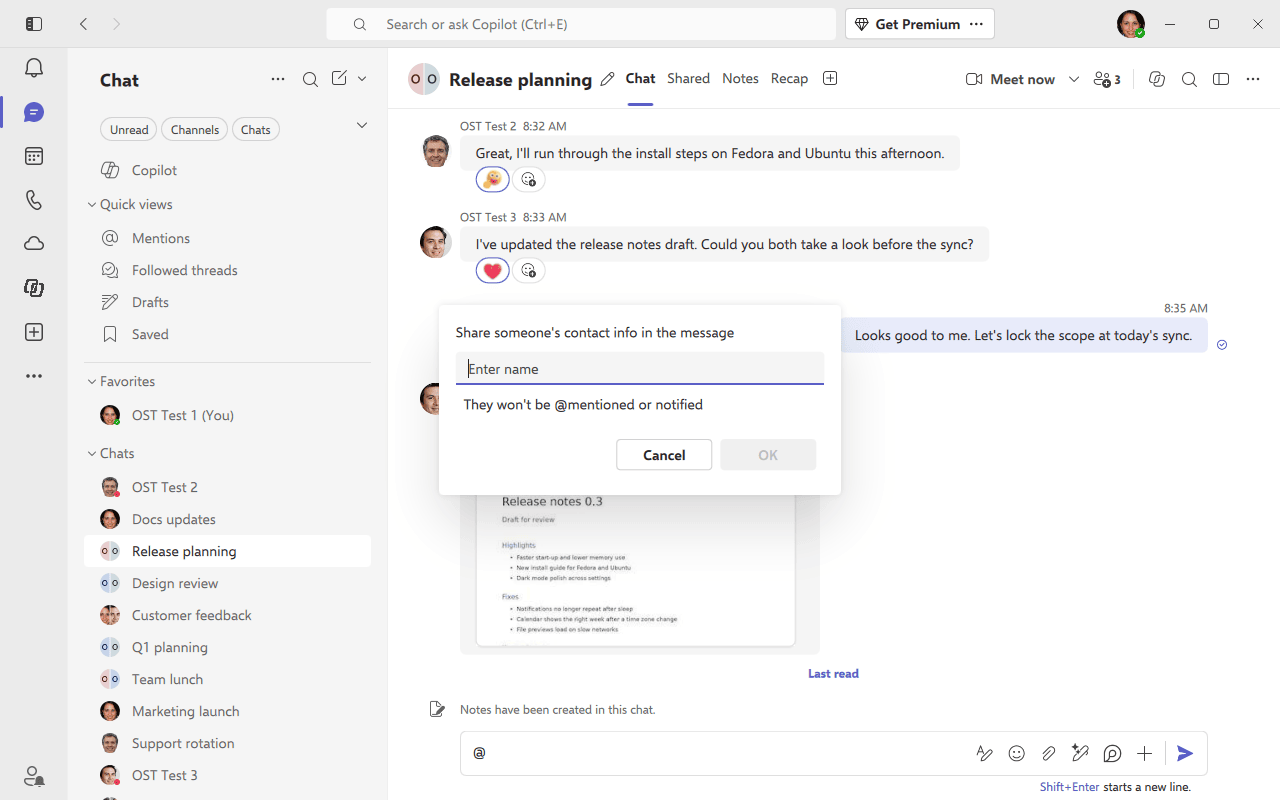
Share contact: from the compose box's +, Share someone's contact info puts a person's contact card into your message. They won't be @mentioned or notified.