Repository navigation
Devices
OST uses PipeWire for audio and for cameras (the way Chromium, and so Teams on the web, gets its cameras), with V4L2 for cameras PipeWire doesn't offer. Pick devices in Settings ▸ Devices (see Settings), on the pre-join screen, or during a call.
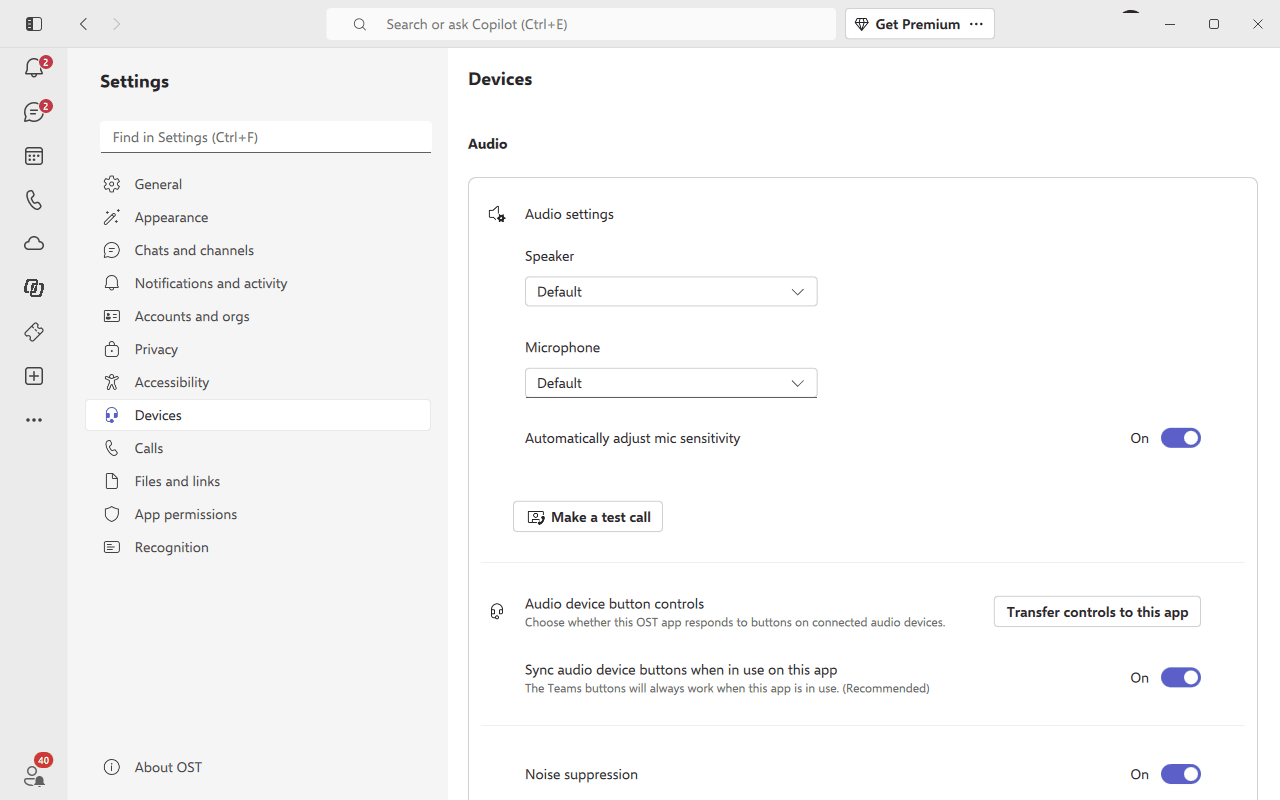
- Speaker and Microphone: every PipeWire output and input, with Default following your desktop's choice. Each has a live meter, and Make a test call tries them (see Calls and voicemail).
- During a call: Mic ▾ in the toolbar, or More ▸ Settings ▸ Audio settings, switches the speaker and microphone without leaving the call.
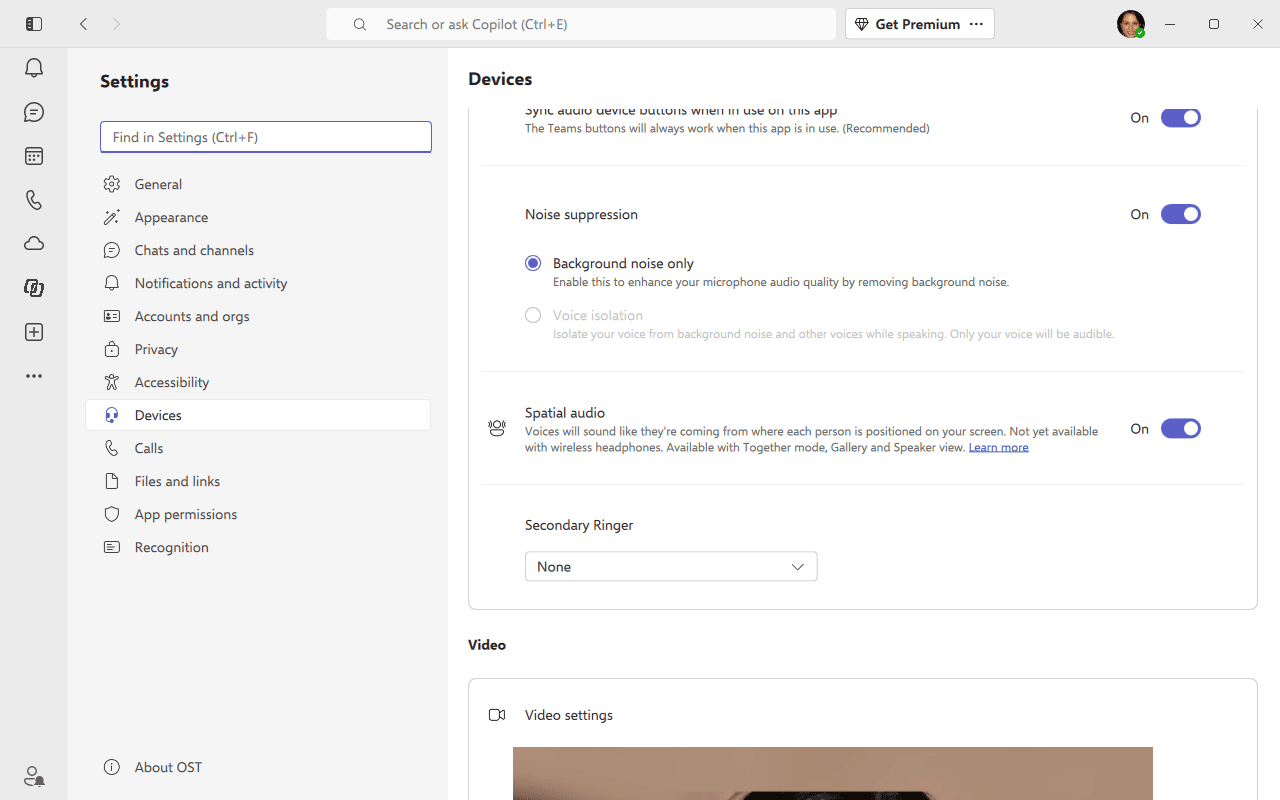
- Noise suppression: OST's audio pipeline does echo cancellation, noise suppression and gain control, as Teams' does. Background noise only removes background noise; Voice isolation (with a voice profile, see Settings ▸ Recognition) also fades other voices, so only yours is heard. OST uses an open speaker model in place of Teams' Windows-only one, downloaded on first use and checked against a pinned hash. In a meeting with others nearby (a room), Teams turns voice isolation off, and so does OST. The in-call Audio settings also have Enable echo cancellation and High fidelity music mode.
- Spatial audio: with stereo output and two or more others in a meeting, each voice comes from the person's tile on your screen, even when several talk at once. It's off by default, not for Bluetooth or 1:1 calls, and switches on or off mid-meeting.
-
OST_MIC_DEVICEandOST_SPEAKER_DEVICEpick this instance's devices from the environment (see Configuration).
-
Camera with its Preview. The list comes from PipeWire's cameras, with their proper names:
- USB (UVC) webcams;
- cameras only libcamera can drive, such as the built-in cameras of laptops with Intel IPU6;
- virtual cameras that PipeWire offers as cameras.
V4L2 devices that PipeWire doesn't offer are listed too, such as a v4l2loopback device while something writes to it (with
exclusive_caps=0, always), or the cameras of a system without PipeWire. Raw device nodes that can't deliver a picture by themselves (an IPU6's dozens of "ipu6" nodes, metadata, output-only and converter nodes) aren't listed, and a camera that PipeWire offers both through V4L2 and libcamera, or also as a V4L2 node, appears once. Built-in and USB cameras come before virtual ones, so the default camera is the real one. A camera saved as/dev/videoNthat PipeWire now offers resolves to that PipeWire camera, so your choice is kept. -
In the Flatpak (or with
OST_CAMERA_PORTAL=1), the cameras come through the desktop's camera portal, which asks you once and then offers only the cameras; OST lists and opens nothing else. A v4l2loopback device that PipeWire doesn't offer isn't seen there. -
Pre-join to call: the camera you turned on in the pre-join screen is handed to the call when you join, and turning it off and straight on again works too, without "Device or resource busy" or a lingering "Your camera failed".
-
A camera another app holds can't be opened; close the other app.
OST_CAMERA_DEVICE=/dev/videoNorpipewire:<node name>picks this instance's camera (see Configuration). -
Automatically adjust camera controls drives the camera's own automatic exposure, white balance, focus and gain (V4L2). Turned off, Open camera settings opens OST's Camera settings dialog: sliders and Auto boxes for the controls the camera offers, and Restore defaults. A PipeWire camera uses the controls of the V4L2 device behind it; libcamera cameras, and cameras through the camera portal, have no such controls.
If a camera is missing, see Troubleshooting.
- USB headset buttons (not in the Flatpak, see Installation): OST reads the headset's telephony buttons and lights as Teams does. Known headsets answer (off-hook), hang up (on-hook), reject and mute; unknown vendors get mute, or full call control when the headset says it's a headset. Settings ▸ Devices ▸ Audio device button controls ▸ Sync audio device buttons when in use on this app keeps them working while OST is in use.
- Transfer controls to this app: when another app (or another OST window) has the headset's buttons, this takes them over.
- Bluetooth headsets: see Bluetooth headsets.
- Better Together: a Teams phone (desk phone) nearby can pair with OST. The phone's request shows Teams' "Connection request"; once paired it shows in Settings ▸ Devices ▸ Manage devices with Disconnect.
A USB speakerphone or room audio system plugged in shows on the pre-join screen under Room audio ▸ Connected room devices ("We've detected a room device."); picking it switches the speaker, microphone and its camera. In the call OST shows "Connected to a room device". With Automatically activate meeting room mode when in a meeting on, a room display gets a shared display window with only the meeting content ("Your gallery appears on the display. Controls and private data stay on this device."). See Room mode.