Repository navigation
Privacy and data
OST is a Microsoft Teams client. It talks to the same services Teams does, for your signed-in account only, and only to do what you ask. Your organization's Microsoft 365 policies apply as they do in Teams. The full statement is in PRIVACY.md.
- No telemetry, no analytics, no crash reporting. OST sends nothing to the OST project. The few things it fetches from outside Microsoft are listed below.
- Microsoft's services, over HTTPS: Microsoft Teams and Skype's services, Microsoft's sign-in, Microsoft Graph, Microsoft 365 (Substrate search, Outlook, your organization's SharePoint and OneDrive, the Office viewers, Loop, Whiteboard and Copilot), Microsoft's content networks for Teams' own resources (backgrounds, emoji, Teams' translated strings), and the media relays and servers Teams' services hand out for each call.
- The Microsoft 365 web apps that OST shows inside its window, as Teams does, run Microsoft's own web code, which can send Microsoft its usual web-app telemetry. OST neither adds to it nor blocks it.
-
Update check: 20 seconds after it starts, and then once a day, OST
asks GitHub (
api.github.com) whether a newer OST release exists, as Teams checks for updates. GitHub sees your IP address and OST's version (in the request's user agent,ost/<version>); nothing else is sent. See Installation. -
Giphy: GIF search goes through Teams' service, but the GIF pictures
load straight from Giphy (
media*.giphy.com) while the GIF picker is open or a message shows a GIF, as in Teams. With Settings ▸ Privacy ▸ Optional connected experiences off, the picker has no GIFs and link previews are off too. -
Models: two models download the first time you use the feature that
needs them, and are checked against a pinned SHA-256 hash: sign language
detection from Hugging Face (
huggingface.co, when you turn it on in a meeting) and Voice isolation from GitHub (github.com, once you have a voice profile). The background effects model is part of OST. - Translations: the first time you use a language, OST downloads Teams' string files from Microsoft's content network, as Teams on the web does. See Translations.
- The Diagnostic Data Viewer, only when you turn it on (see below).
Links to other sites (LinkedIn, Clipchamp, app publishers' pages) open in your browser.
OST keeps your sign-in tokens (access, refresh, Skype, Graph and calling
tokens) only in your desktop keyring, through the Secret Service (GNOME
Keyring, KWallet, KeePassXC): one entry with the service name ost and the
account teams-tokens (teams-tokens:<profile> for another account,
with @io.github.RandyNorthrup.ost added in the Flatpak). Any app of yours
that can unlock the keyring can read it, as with any Secret Service secret.
- Without a working keyring, OST keeps the tokens in memory only: you stay signed in until OST quits, and it asks you to sign in again the next time it starts. Settings ▸ Accounts and orgs then shows "Your sign-in isn't saved" and how to fix it: start and unlock a keyring such as GNOME Keyring or KWallet, then restart OST.
-
Stay signed in without a keyring: that card's switch, or starting
OST with
OST_NO_KEYRING=1, stores the tokens in~/.config/teams-cli/config.tomlinstead. The file is readable only by you (mode 0600) but not encrypted, so this is weaker than a keyring. The switch applies only while there's no keyring;OST_NO_KEYRING=1skips the keyring altogether. -
Tokens from older versions: OST 0.2.1 and earlier wrote the tokens to
config.tomlwhenever the keyring failed. OST now moves them to the keyring; without one, and without the opt-in, it keeps them in memory for that run and removes them from the file.
OST sends a token only over HTTPS and only to the Microsoft service it is for. Pictures from other sites (in cards and link previews) load without any sign-in, and never over plain HTTP.
Signing in also leaves Microsoft's sign-in cookies in OST's web
profile, which the embedded Microsoft 365 apps (Loop, Planner,
Whiteboard and others) use too: ~/.local/share/OST/QtWebEngine/ost-apps
and ~/.cache/OST/QtWebEngine/ost-apps, or ost-apps-<profile> for each
other account (OST_PROFILE). Each account has its own; two accounts
never share cookies or site data.
Your picture ▸ Sign out deletes the account's tokens, removes the account from OST's account list, and restarts OST. Before the web profile opens again, OST deletes that account's web profile (cookies, local storage, IndexedDB, cache and service workers of the sign-in page, the embedded apps, Loop and the file viewers), so the next sign-in starts fresh. Sign-out leaves the caches, the drafts and the log on your computer; delete the folders below to remove them.
Everything is in your home folder, and readable only by you where the content is personal:
| Where | What |
|---|---|
~/.config/teams-cli/ |
config.toml (your tenant, name, sign-in address, service endpoints and licenses; the tokens only if you opted in), accounts.json (your signed-in accounts), hub.json and hub-pins.json (each account's unread counts and recent chats, for the account switcher), calling-endpoint-id (a random ID for this device's calls). Other accounts are in profiles/<name>/. |
~/.config/ost/ |
desktop.json (OST's settings), ddv.json (Diagnostic Data Viewer). |
~/.config/autostart/ost-desktop.desktop |
Only while Auto-start OST is on. |
~/.local/state/ost/ |
The log (ost-desktop.log), unsent drafts and messages (drafts.json, outbox.json), and the list of files you downloaded with OST (downloads.json). |
~/.cache/ost/ |
Message images, profile pictures, video clips, recordings, file thumbnails and previews, emoji, Teams' translated strings and feature settings, call backgrounds, downloaded models, and feedback reports. Safe to delete; OST fetches what it needs again. |
~/.local/share/ost/backgrounds/uploads/ |
Call backgrounds you added. |
~/.local/share/ost/hfp-calls/ |
Only after the Bluetooth headset setup: what it changed, for --uninstall. |
~/.local/share/OST/QtWebEngine/ost-apps[-<profile>], ~/.cache/OST/QtWebEngine/ost-apps[-<profile>]
|
The web profile: cookies, site storage and cache of the sign-in and the embedded Microsoft 365 apps. Removed when you sign out. |
| Your Downloads folder | Files you download (Settings can change the folder). |
The Configuration page lists every file.
The research variables OST_TROUTER_DUMP_DIR and OST_DUMP_RTP write
message contents or call data to disk when you set them; they're for
protocol research on test accounts only (see
Configuration).
The log records what OST does at the info level (sign-in and call
states, the services it called, errors). It keeps to shapes and states,
not message text, and it never holds tokens: tokens, cookies and token,
code and signature parameters in addresses are removed from every line
before it is written, in the desktop app's log file and on stderr, and in
teams-cli. It is rewritten each time OST starts (with Extended
diagnostics data on, it keeps up to 64 MB across starts). Help ▸
Collect Support Files copies it to a folder on your Desktop as it is;
feedback that shares log lines also masks names, addresses, ids and
message text (see Feedback). Look through the log before you
send it to anyone.
To remove everything: delete the folders above and the ost entry in your
keyring (Seahorse, KWalletManager or your keyring's app). In the Flatpak,
the same folders are under ~/.var/app/io.github.RandyNorthrup.ost/.
The Flatpak asks only for what OST uses; each permission is explained in
its manifest
(desktop/packaging/flatpak/io.github.RandyNorthrup.ost.yml):
- Network: Teams' services, calls and the embedded web apps.
- Wayland, or X11 where there's no Wayland session.
- The GPU only. Cameras come through the desktop's camera portal, which asks you once and then shows OST only the cameras (PipeWire's); no other devices are visible. USB headsets' call buttons, lights and ring (HID) would need access to all devices, so they aren't available in the Flatpak: use the .deb, .rpm or AppImage for them.
- PipeWire and PulseAudio: microphones, speakers, ringtones and the screen-share streams the desktop's portal hands over.
- The Downloads folder only: downloaded files go there, as in Teams. Nothing else in your home folder is visible to it.
- Session bus names: notifications, the keyring (Secret Service), the tray icon and launcher badge, and KDE's KWin (keeping OST's own windows out of screen shares).
- System bus names, to read: logind (away when the screen locks), NetworkManager (work location from the Wi-Fi network's name), BlueZ (a Bluetooth scan for nearby Teams Rooms while the pre-join screen looks for them; nothing is paired or changed).
Screen sharing, opening links and picking files go through the desktop portals, which ask you each time.
OST's packages install their files under /usr like any package and change
nothing else. Only one optional setup changes your system: the
Bluetooth headset answer and hang-up buttons on stock
PipeWire (install-hfp-calls.sh). Before it changes anything it lists
every change and asks; --dry-run only lists them:
-
~/.config/wireplumber/wireplumber.conf.d/ost-hfp-calls.conf: PipeWire's Bluetooth gateway hands a headset's answer and hang-up to OST's calls (never to a real modem's). WirePlumber is restarted. -
/etc/dbus-1/system.d/ost-hfp-calls.conf(withsudo): your user may own ModemManager's name on the system bus, where OST offers its calls to PipeWire. Nobody else gains anything. - ModemManager, only if it runs without a modem and only with your
separate yes (or
--disable-modemmanager): it's stopped and disabled, so OST can take its name. A modem plugged in later isn't detected until it's enabled again. With a modem, ModemManager is never touched.
--uninstall puts everything back as it was: files it replaced are
restored, the ones it added removed, and ModemManager enabled and started
again if it was. The headset's mute button works without any of this.
Report a problem and Give a compliment open a public issue on OST's GitHub in your browser. The issue form holds only what you typed and your answer to May we contact you about your feedback?; OST doesn't post anything itself, and nothing else leaves your device when the form opens. You review it and decide whether to submit it under your own GitHub account. Replies come on the issue. Your e-mail address is never added.
Everything else stays in a folder on your device that OST opens for you
(~/.cache/ost/feedback/<time>/, readable only by you), for you to review
and attach yourself if you want to:
- OST report details.txt: OST's version, your operating system, where in OST you sent the feedback from, and the names of the screenshots and files you added.
- If you answer Yes, share: the most recent lines of OST's log, in the same file. Names, e-mail addresses, phone numbers, ids, chat and message text, addresses' query parameters and tokens are masked first.
- Your screenshots and files.
Feedback on suggested replies works the same way: the issue form holds your comment (or the reasons you picked), and the details, including the message the suggestions were for when you choose to attach it, are saved in a file for you to review and attach.
The call quality survey is off by default (Settings ▸ Privacy ▸ Surveys); when on, Good sends nothing and Had issues opens Report a problem with the call's technical details (no one's name) in the details file. See Help and feedback.
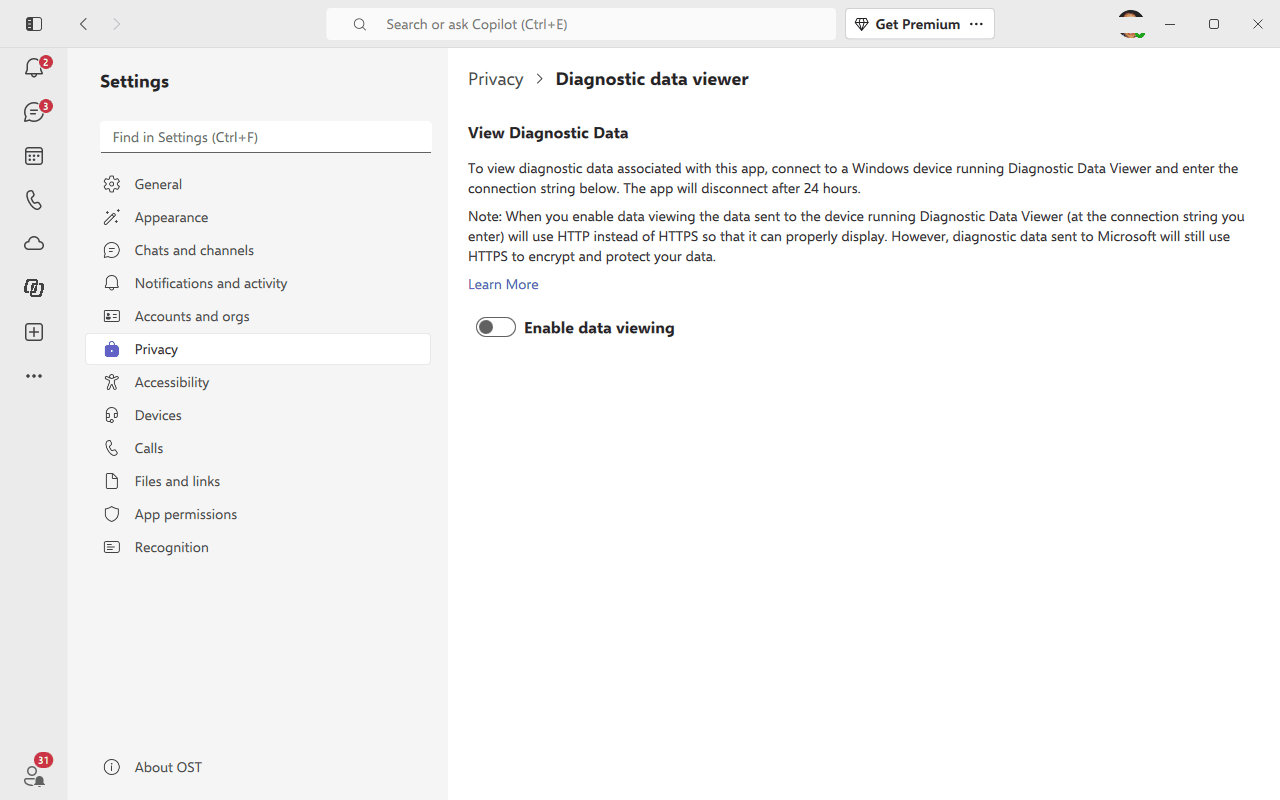
Settings ▸ Privacy ▸ View Diagnostic Data (Manage) lists what OST
has sent on its own (the update checks and feedback), as Teams' viewer
lists its telemetry. With Enable data viewing on and a connection
string entered, it also streams those events to Microsoft's Diagnostic
Data Viewer for 24 hours. Unlike Teams, OST streams over plain HTTP only to
this device (a loopback address such as 127.0.0.1:7070). A viewer on
another device needs an https:// address, or a port forwarded to it over
SSH, for example ssh -L 7070:localhost:7070 <viewer's host>, then
127.0.0.1:7070 as the address.
With Settings ▸ Privacy ▸ End-to-end encrypted calls on for both people, 1:1 calls are end-to-end encrypted, with the same verification numbers Teams shows. All calls are encrypted in transit (SRTP) either way. See Calls and voicemail.