Repository navigation
Notifications
OST draws Teams' own notification banners: chat messages (with Send a quick reply and a quick reaction), @mentions, meetings that started, incoming calls, and the test notification. What notifies you is set in Settings ▸ Notifications and activity (see Settings).
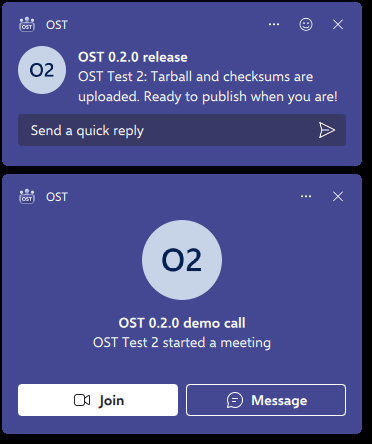
- Chat messages: the sender's picture, the chat and the message (unless Show message and content previews in notifications is off). Point at it for Send a quick reply (type and press Enter; the reply goes to the chat without opening OST) and Send reaction (a quick like). More options has Go to Notification settings; Dismiss closes it. Select the banner to open the chat.
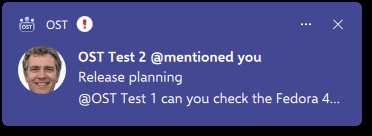
- @mentions: the same banner, marked as a mention, for personal, channel, team, tag and Everyone mentions.
- Meeting started: the meeting's title with Join and Chat.
- Incoming calls: "Name is calling you" with Accept with video, Accept with audio and Decline call. Settings ▸ Calls ▸ Viewing incoming calls picks the Large window (Comfy) or the Small window (Compact) banner.
- Test notification (Settings ▸ Notifications and activity ▸ Display) shows a sample banner.
How banners behave:
- Up to three show at once, queued and timed as in Teams; pointing at a banner keeps it on screen.
- Settings ▸ Notifications and activity ▸ Display sets the corner (Bottom right, Top right, Bottom left, Top left), the Size (Comfy or Compact) and Dismiss notifications after this amount of time.
- Show notifications during calls and meetings decides whether they pop up while you're in a call.
- What notifies you (chats, @mentions, replies, reactions, channel posts, meetings, apps) is set per kind: Show in Activity and banner, Show in Activity or Off. Channel posts notify only when they mention you, unless you change a channel's notifications.
| Desktop | Banners |
|---|---|
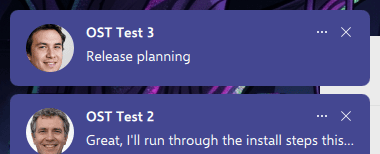
| KDE Plasma, Hyprland, sway and other wlroots desktops (Wayland) | Teams' banners, as a layer-shell surface (needs LayerShellQt: layer-shell-qt) |
| Any X11 desktop | Teams' banners, placed by OST |
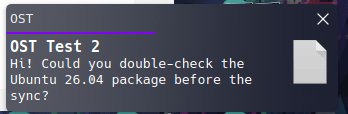
| GNOME on Wayland, or without LayerShellQt | Your desktop's own notifications |
OST_SYSTEM_NOTIFICATIONS=1 always uses your desktop's notifications.
They carry the same text, and a quick reply where the desktop supports
it.
Sounds follow Teams' choices (Settings ▸ Notifications and activity ▸ Sound): a sound for notifications (Default, Vibe, Nudge, Tap, Flick, Pluck, Summon, Ping) and one for urgent and priority contacts (Default, Prioritize, Escalate, Alarm), each with a preview, and whether incoming calls, join requests and meeting starts play a sound, also while you're busy. Calls ring with the ringtone from Settings ▸ Calls (see Settings). OST plays Teams' own sound files.
- Do not disturb silences banners and sounds, except from your priority access contacts (Settings ▸ Privacy ▸ Manage priority contacts), and urgent messages when Always allow urgent and priority contact notifications is on.
- Mute all notifications (except for calls and meetings) in Settings turns banners off altogether.
- Pause notifications (your picture ▸ Pause notifications) holds banners until the time you set, then resumes them (see Presence and status).
- A chat's ··· has Mute (1:1 chats) or Manage notifications ▸ (group chats: All new messages, Mute, Customize).
- A channel's ··· ▸ Manage notifications has All new messages, @mentions and replies, Mute and Customize (see Teams and channels).
- Settings ▸ Notifications and activity ▸ Channel Notifications ▸ Manage sets every channel at once.
- OST's tray icon menu sets your status and has Help ▸ Collect Support Files and Quit OST.
- The unread count is drawn on the window icon and sent as a launcher badge (KDE and GNOME docks), as Teams overlays its taskbar button. See Presence and status.