Repository navigation
Calendar
Calendar is your Outlook calendar, drawn as Teams desktop draws it.
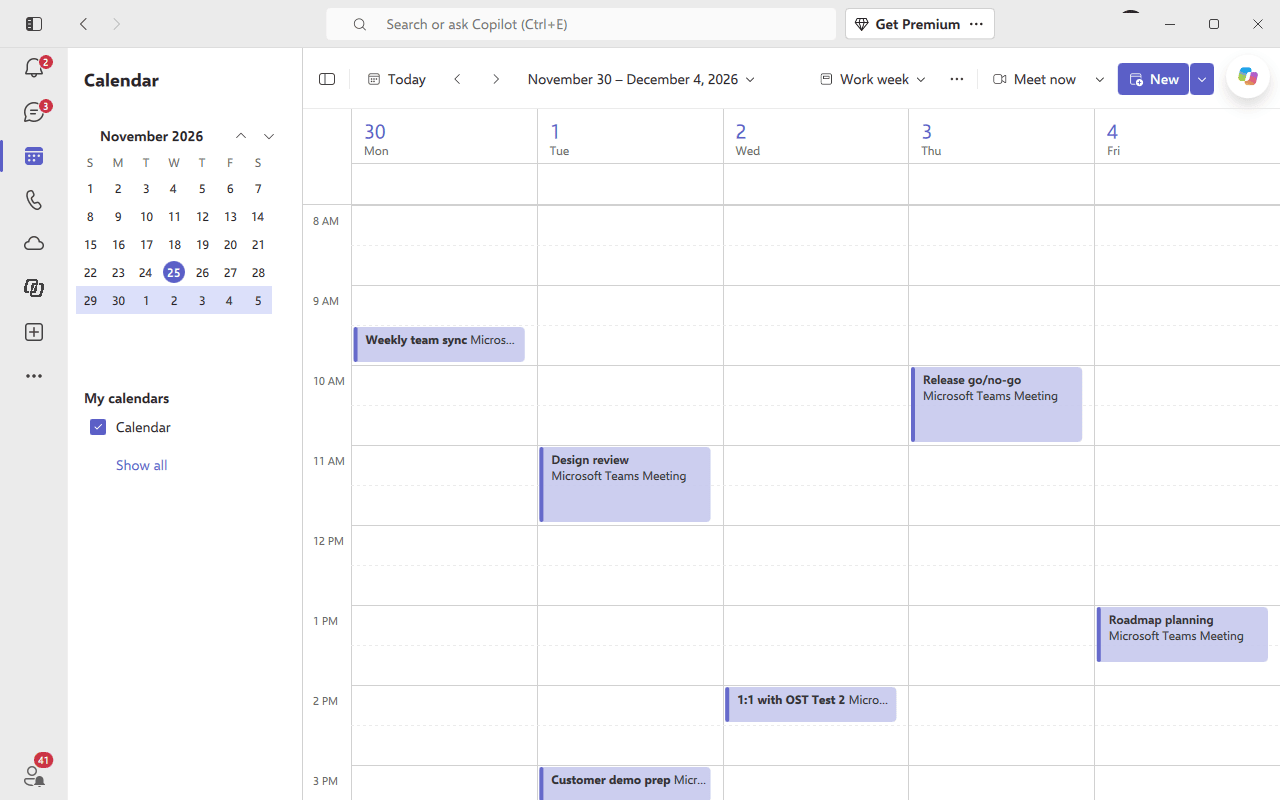
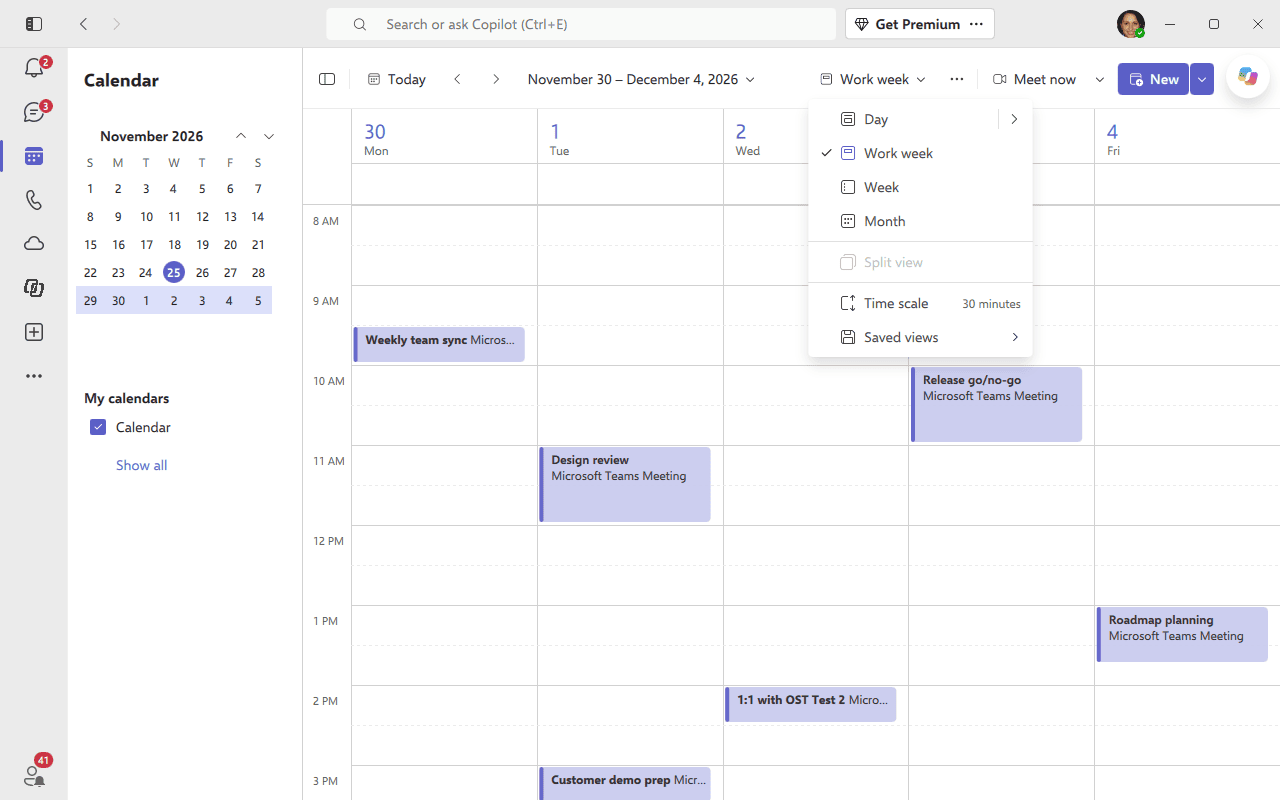
- Day, Work week, Week and Month, from the view menu next to the date range. The same menu has Split view (several days side by side), the time scale (5 minutes - Most space for details to 60 minutes - Least space for details) and Saved views (Save current view, Edit view, Delete view).
- Today (Go to today), ‹ › (previous and next day, week or month), and the date range, which jumps to a date.
- The navigation pane on the left (Show navigation pane / Hide navigation pane): a mini month, My calendars and your other calendars and groups, with Show all.
- Month shows each day's events; a day with more than fit has a "+N" button that lists them all.
- All-day events sit in a strip above the hours. Overlapping events share the day side by side, and an event that crosses midnight continues on the next day.
- Busy, tentative, out of office, free and unanswered events are drawn with Teams' colors and patterns.
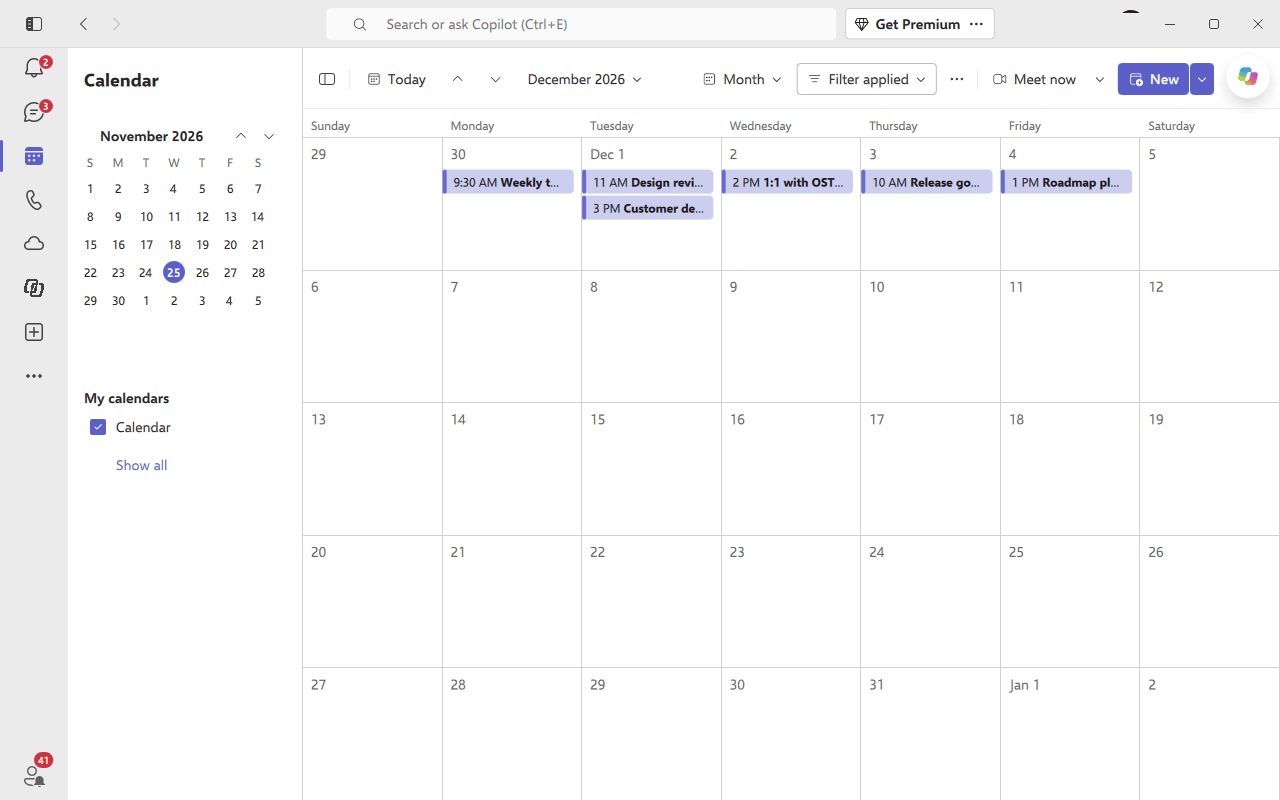
Filter (Apply or remove calendar event filters): Meetings, Appointments, I'm the organizer, I'm an attendee, Show as (Free, Tentative, Busy, Away, Out of office), categories and channel meetings. While a filter is on, the calendar shows Filter applied with Clear filters.
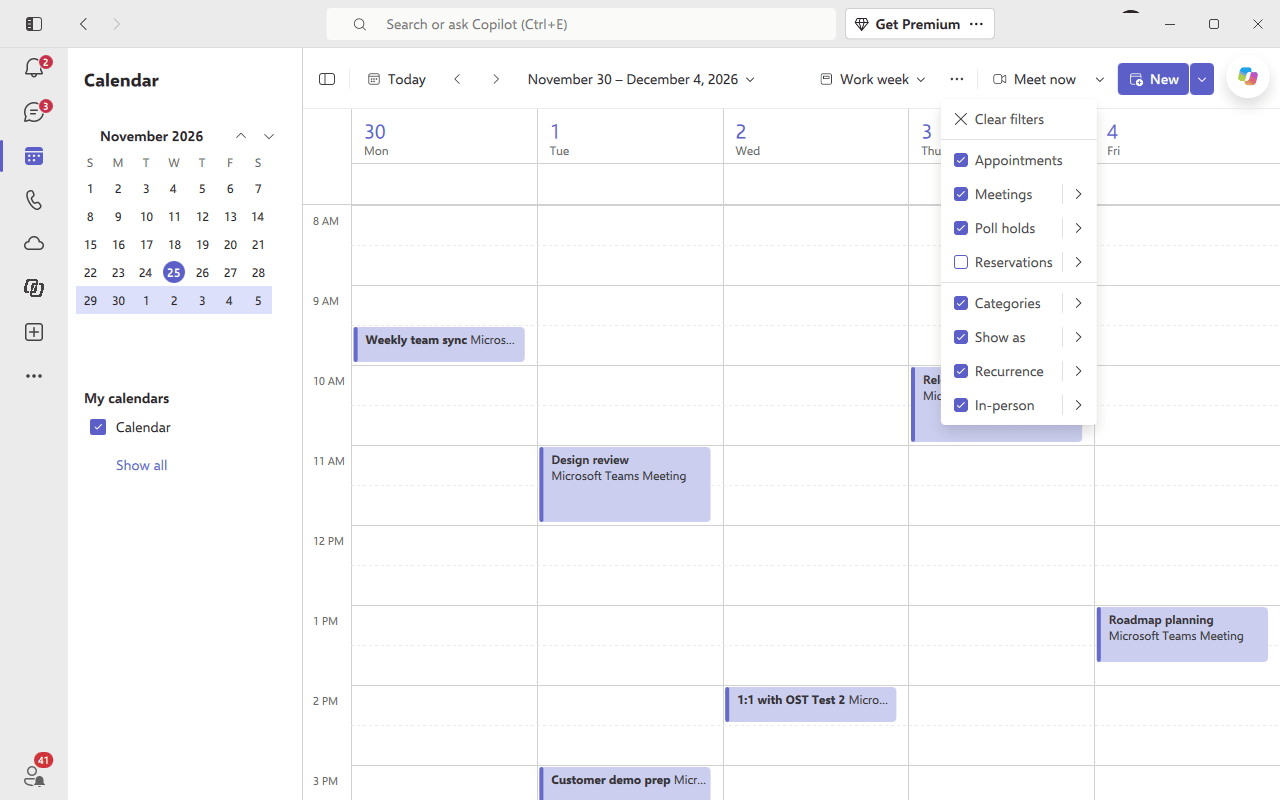
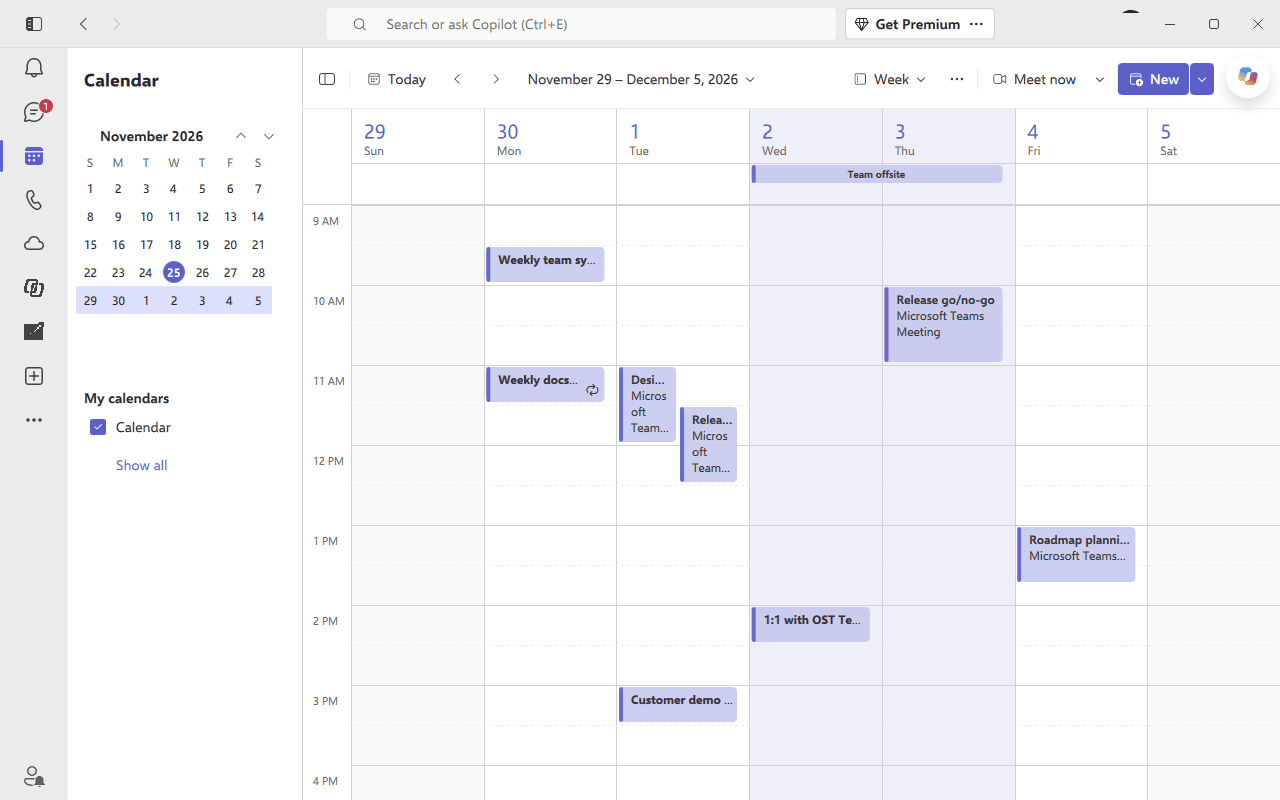
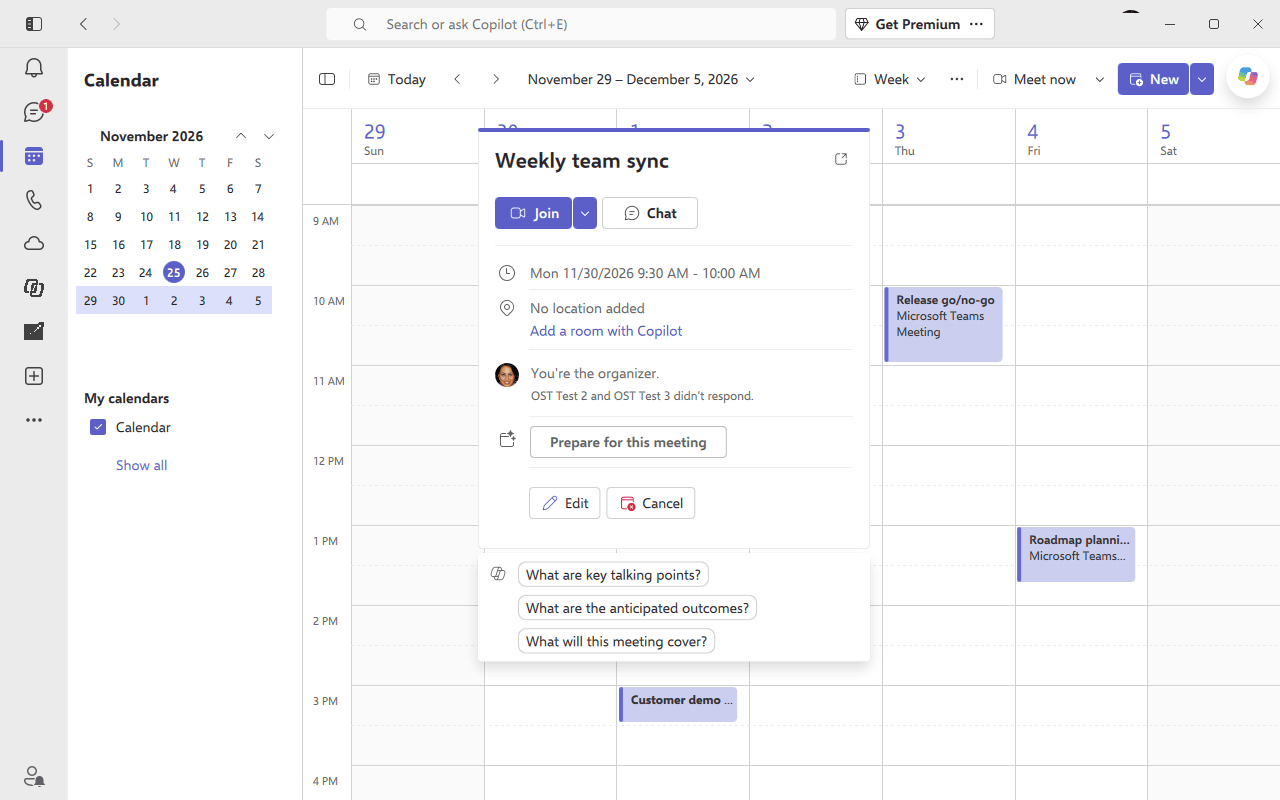
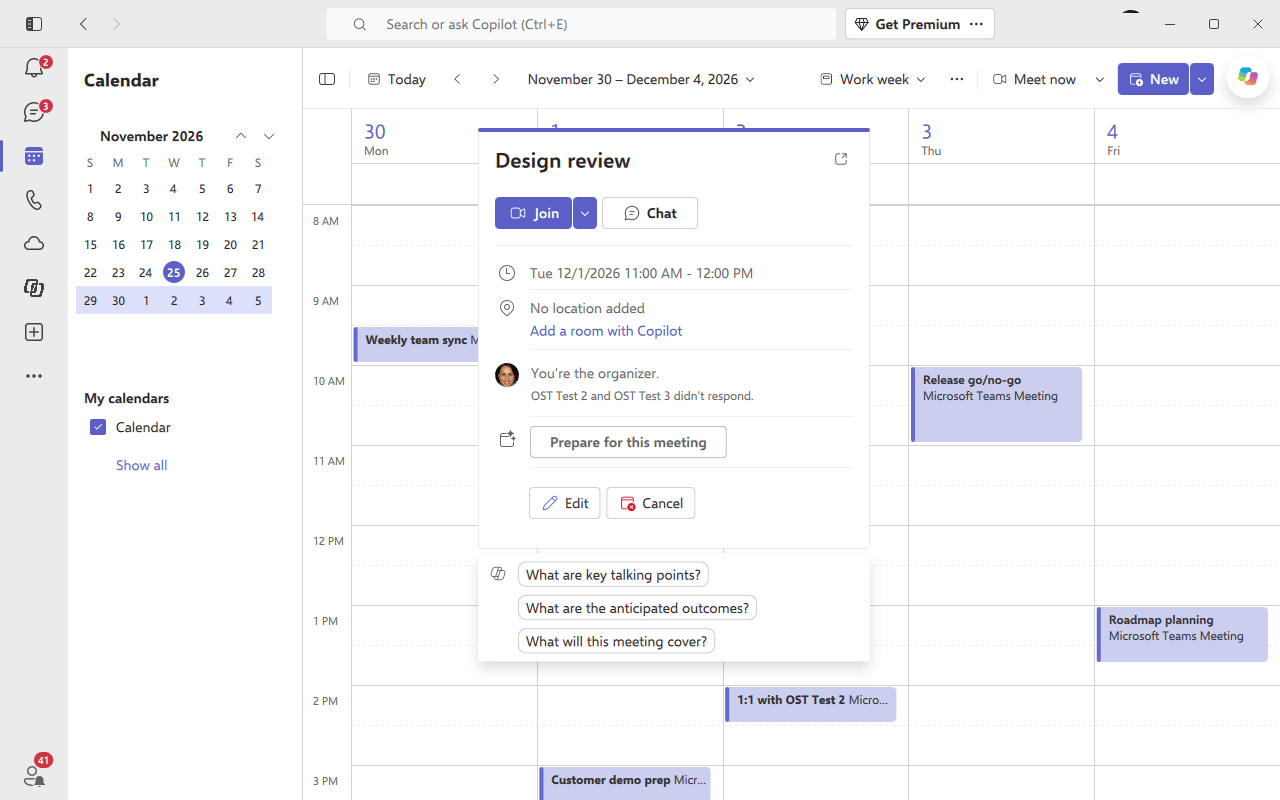
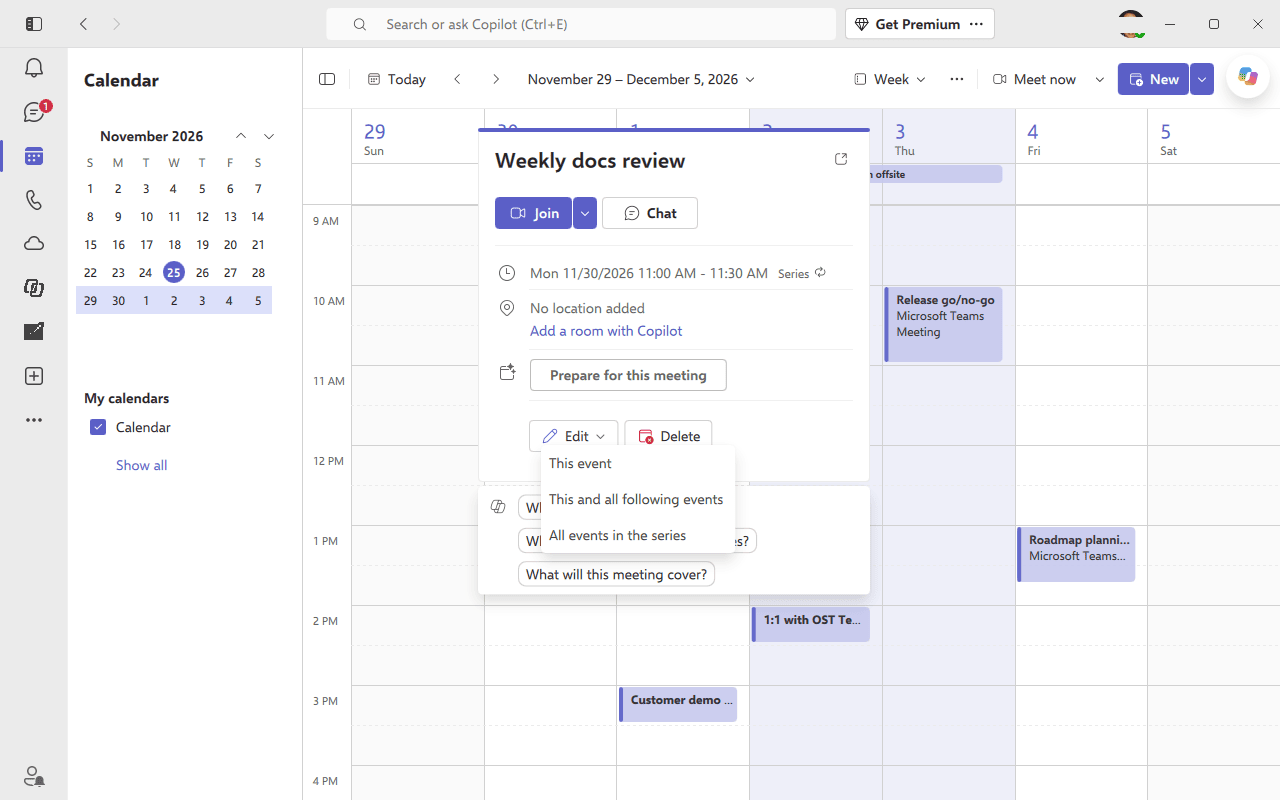
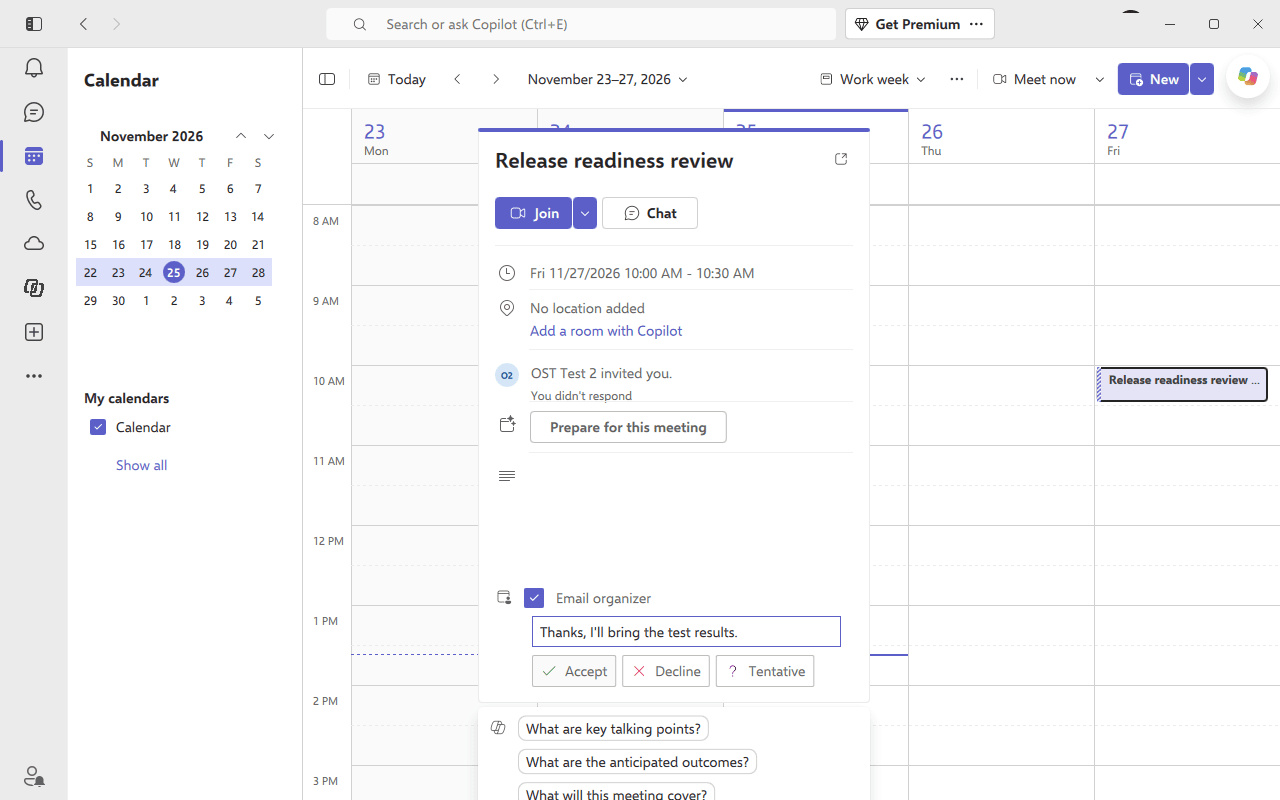
Select an event for its card:
- The title, time, recurrence, location and the organizer.
- For Teams meetings: Join (with More join options), Copy join link, and Chat (Chat with participants).
- The response row: Accept, Tentative and Decline, each with a message if you like (Add a message (optional)), Follow (keep it on your calendar without attending), and Propose new time. For a series, each answers this event or All events in the series.
- Attendees' answers ("Name accepted.", "… didn't respond.").
- On your own events: Edit ▾ and Cancel ▾. For a series both offer this event, this and all following events, or all events in the series; Cancel lets you add a message to the attendees ("Cancel event and notify attendees"). A non-meeting appointment has Delete.
- View event opens the event page (below).
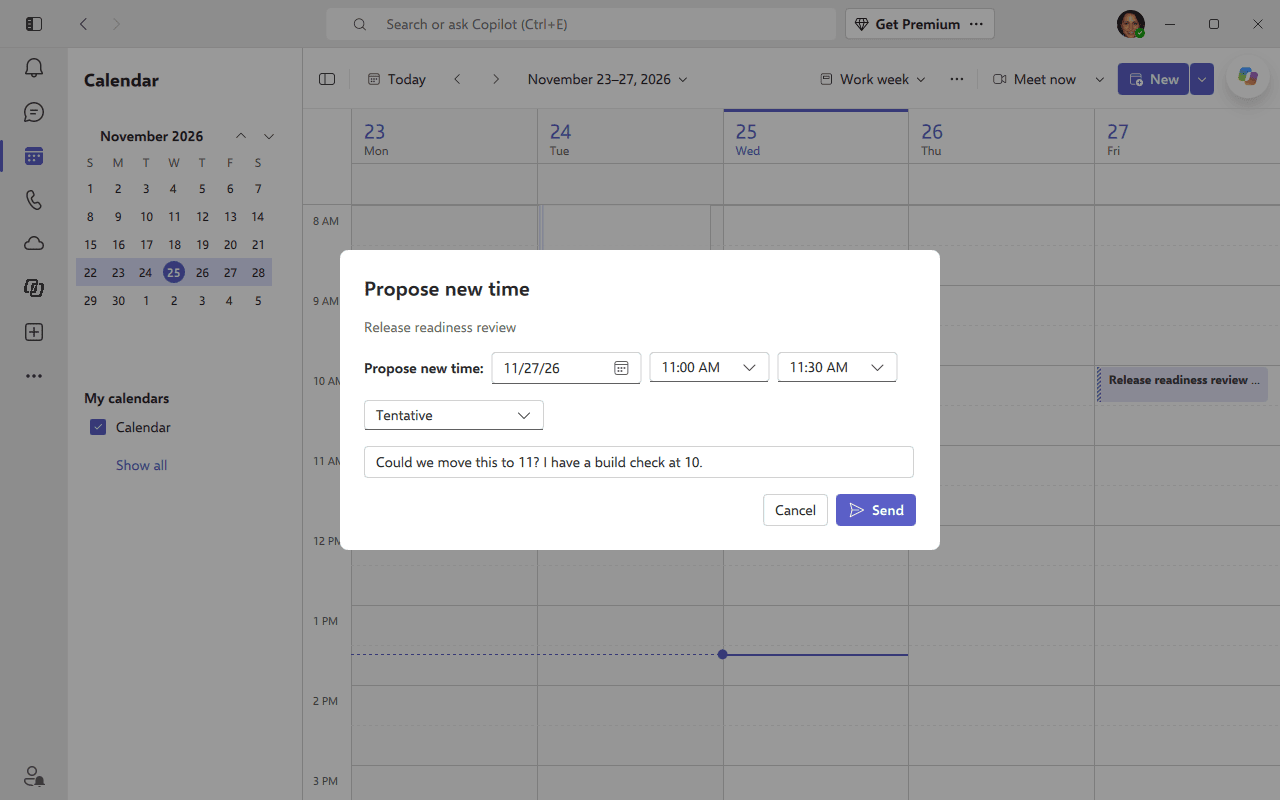
Propose new time picks a new start and end with a message; the organizer sees "Name proposed new time" with Accept the proposed time.
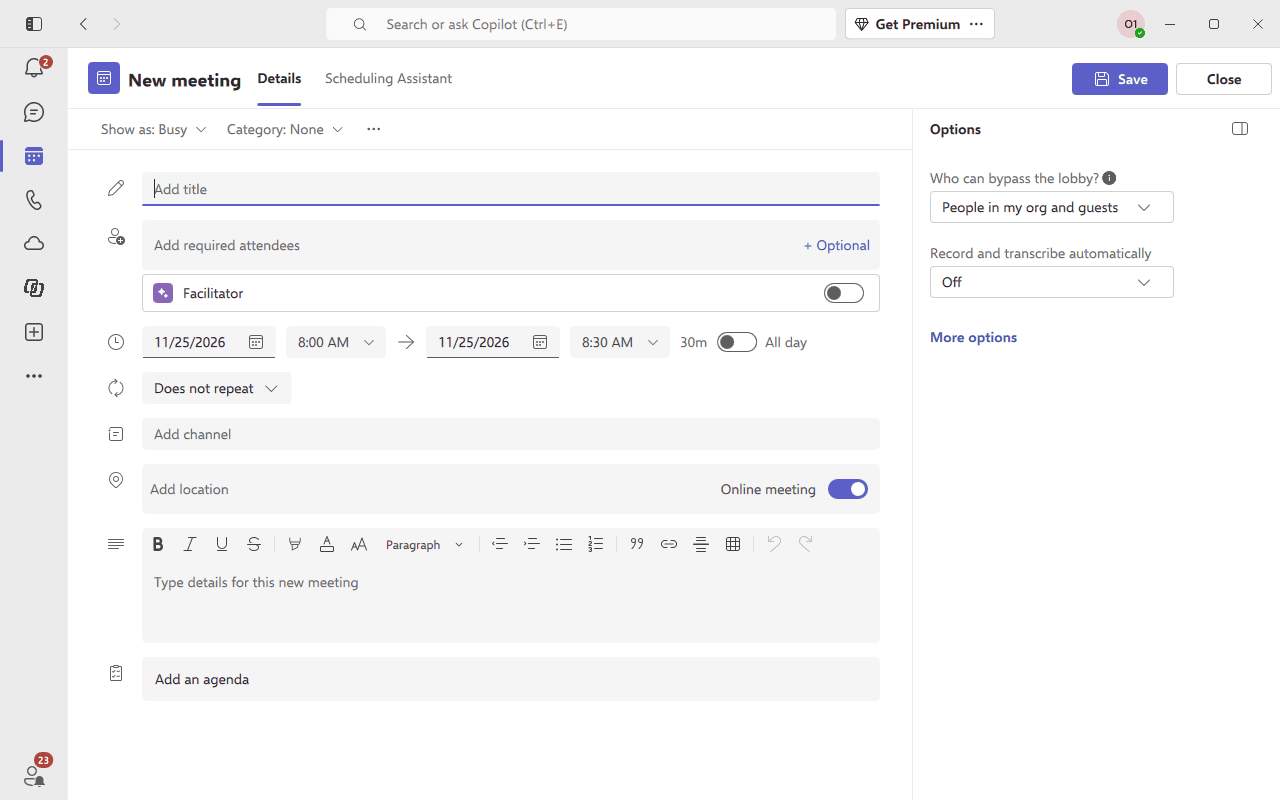
- New (Alt+N) opens Teams' scheduling form: Add title, Add required attendees and Add optional attendees (with their availability), start and end with date and time pickers, All day, Repeat (Does not repeat, Daily, Every weekday (Mon - Fri), Weekly, Monthly, Yearly, Custom), Add channel, Add location, the details with formatting, and the Teams meeting toggle. Save or Send sends the invitation.
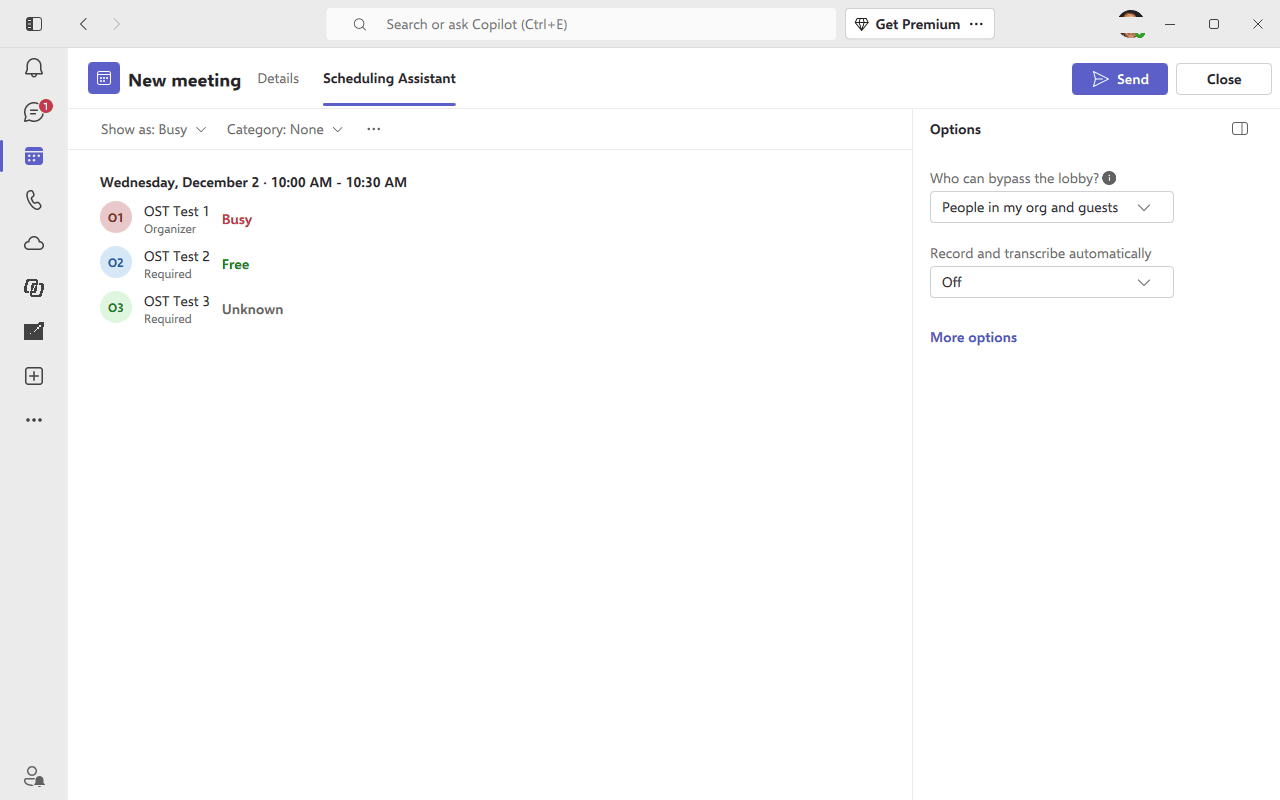
- Scheduling Assistant shows everyone's busy times side by side and suggests free times.
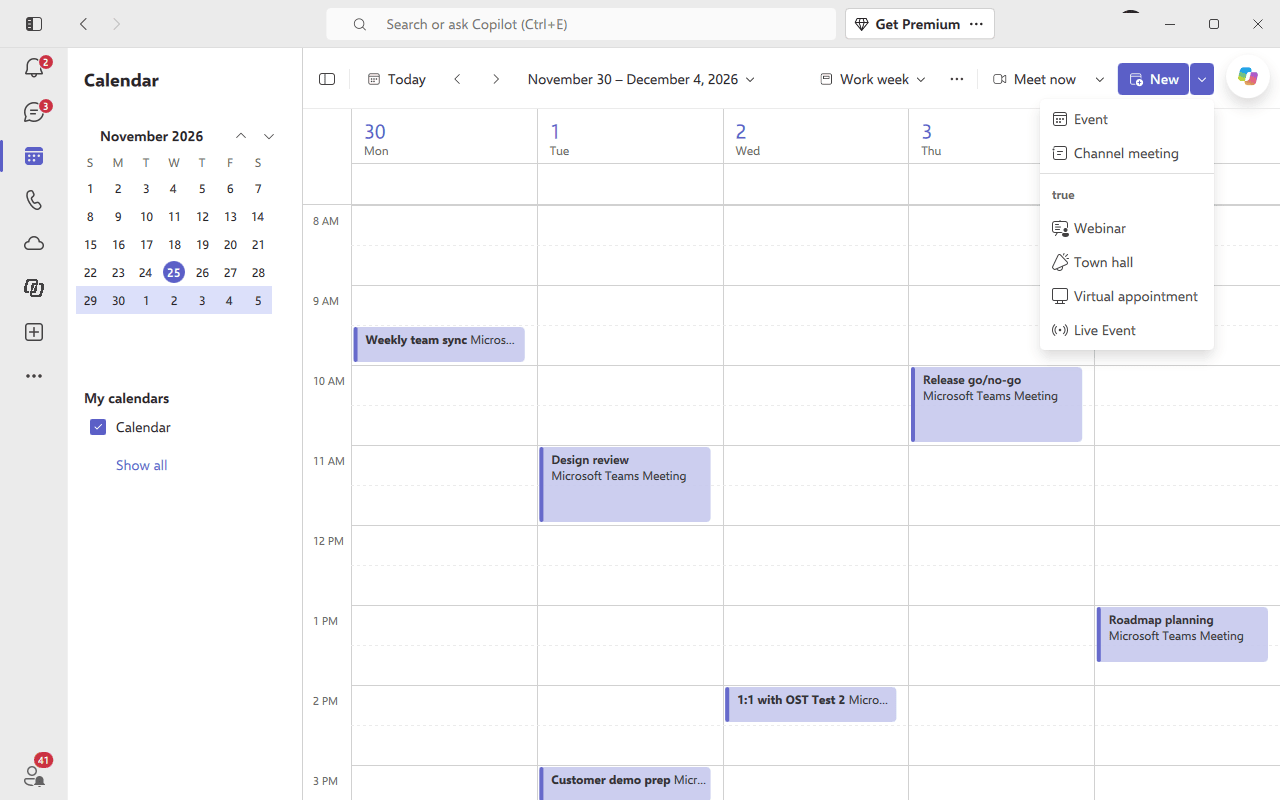
- New ▾ ▸ Event creates a town hall or webinar draft in the Events app (see Town halls and webinars).
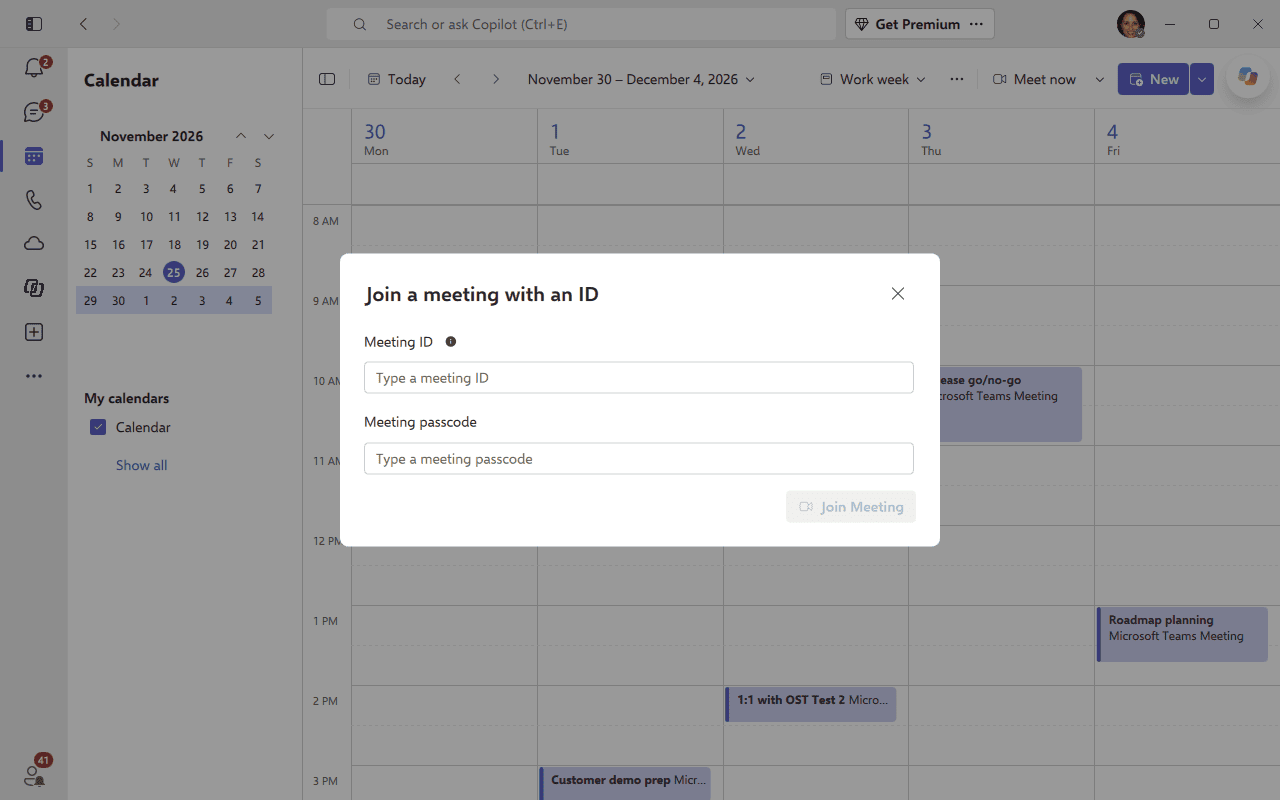
- Meet now ▾: Start meeting (an instant meeting, with Get a link to share) or Join with an ID (Meeting ID and Meeting passcode).
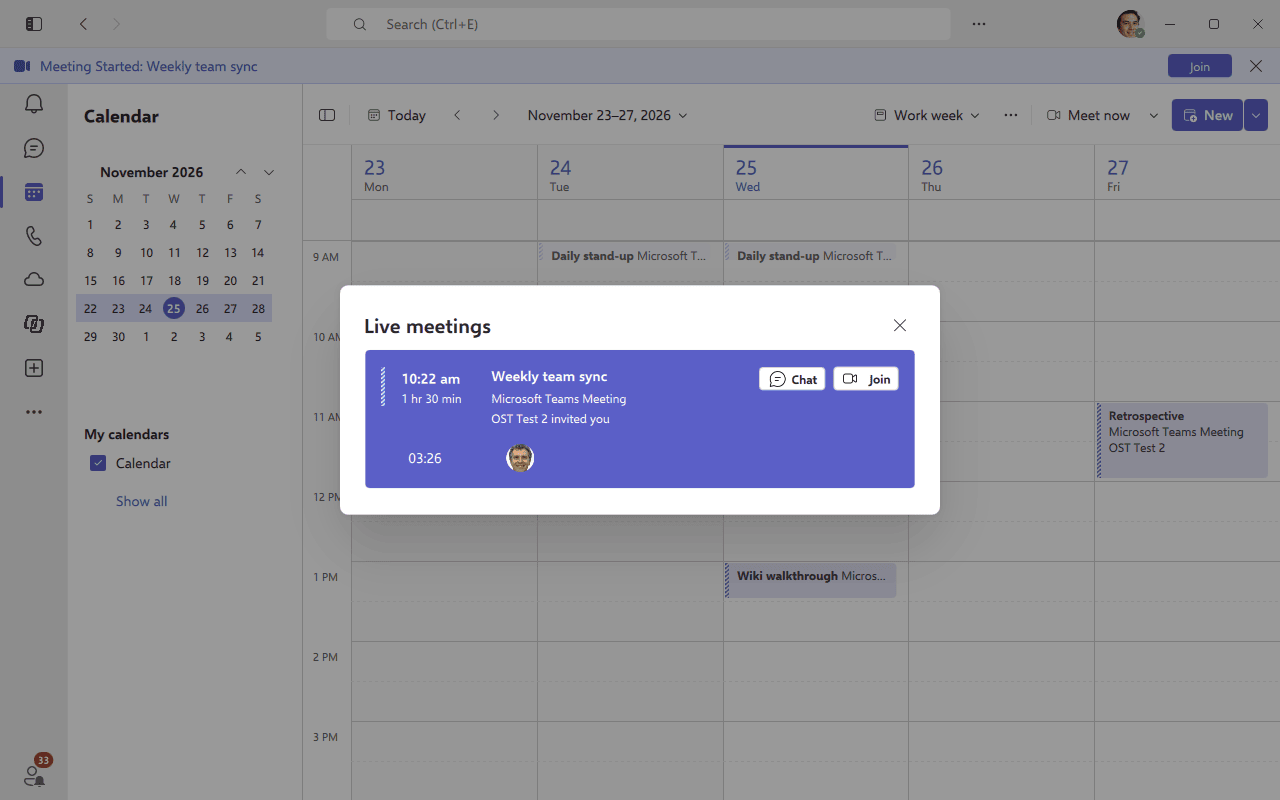
- Live meetings lists meetings that are going on now that you're invited to, with Join and Chat.
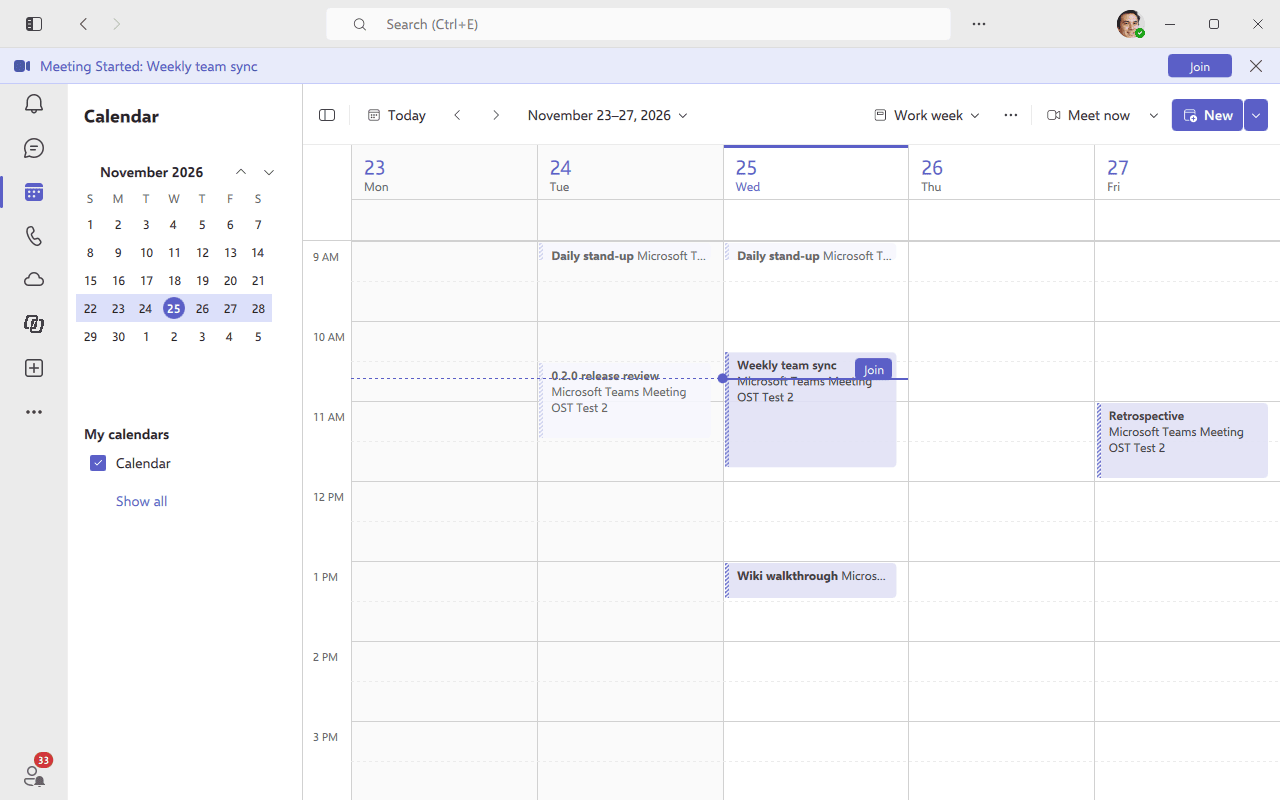
- A meeting that's on now shows Teams' "Meeting started" bar at the top of the calendar, with Join, and a banner (see Notifications).
- A channel's Schedule a meeting schedules a channel meeting.
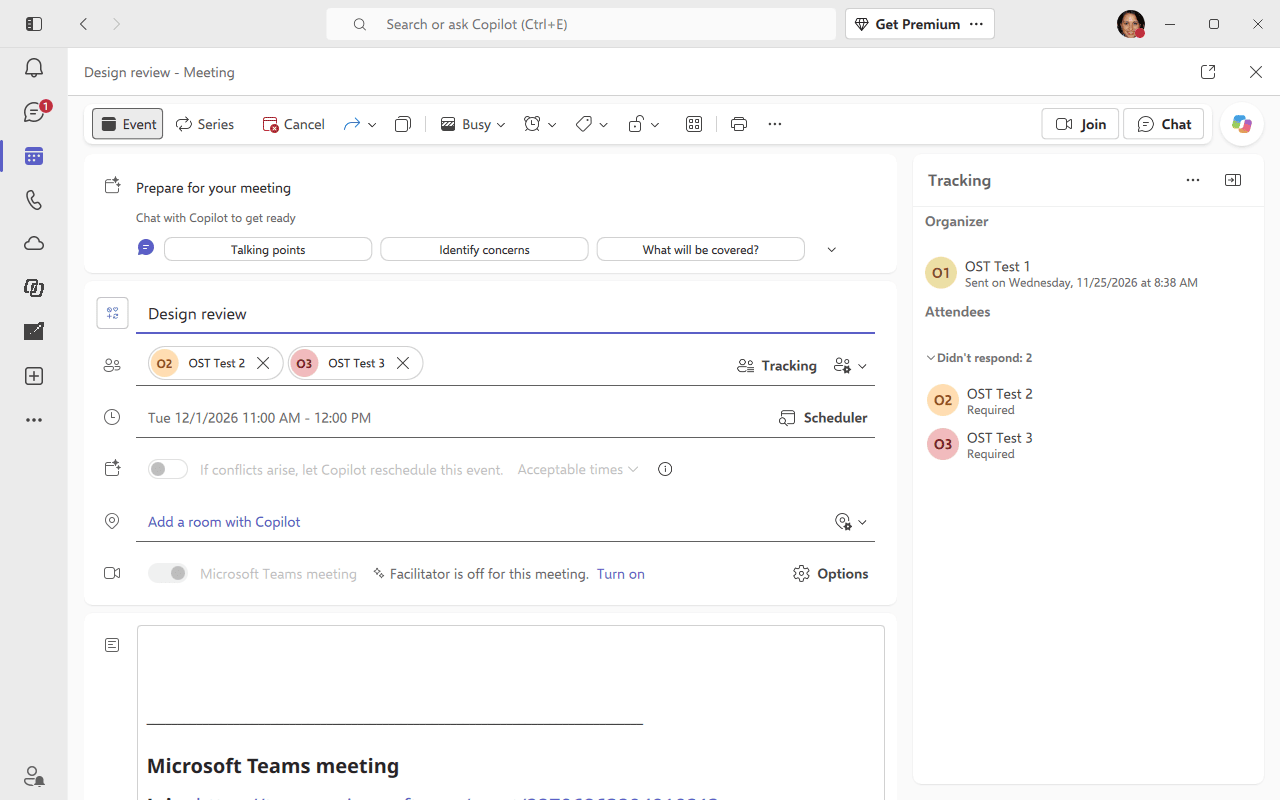
View event opens the event's page as Teams desktop shows it: Outlook's event form.
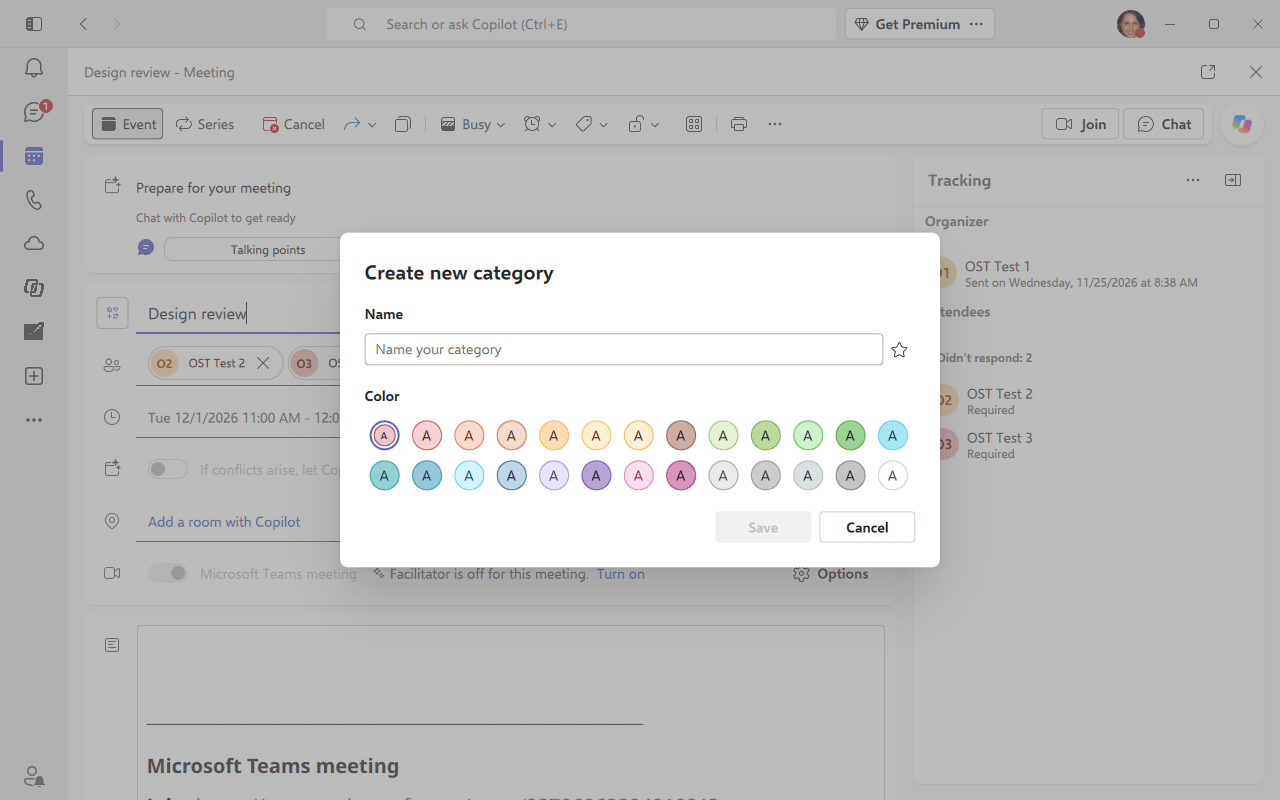
- Command bar: Cancel (Cancel meeting, with a cancellation note), Share (Forward this event), Duplicate event, Show as, Reminder, Categories (with Create new category: name, color and favorite), Private, Print, and Save as .ics.
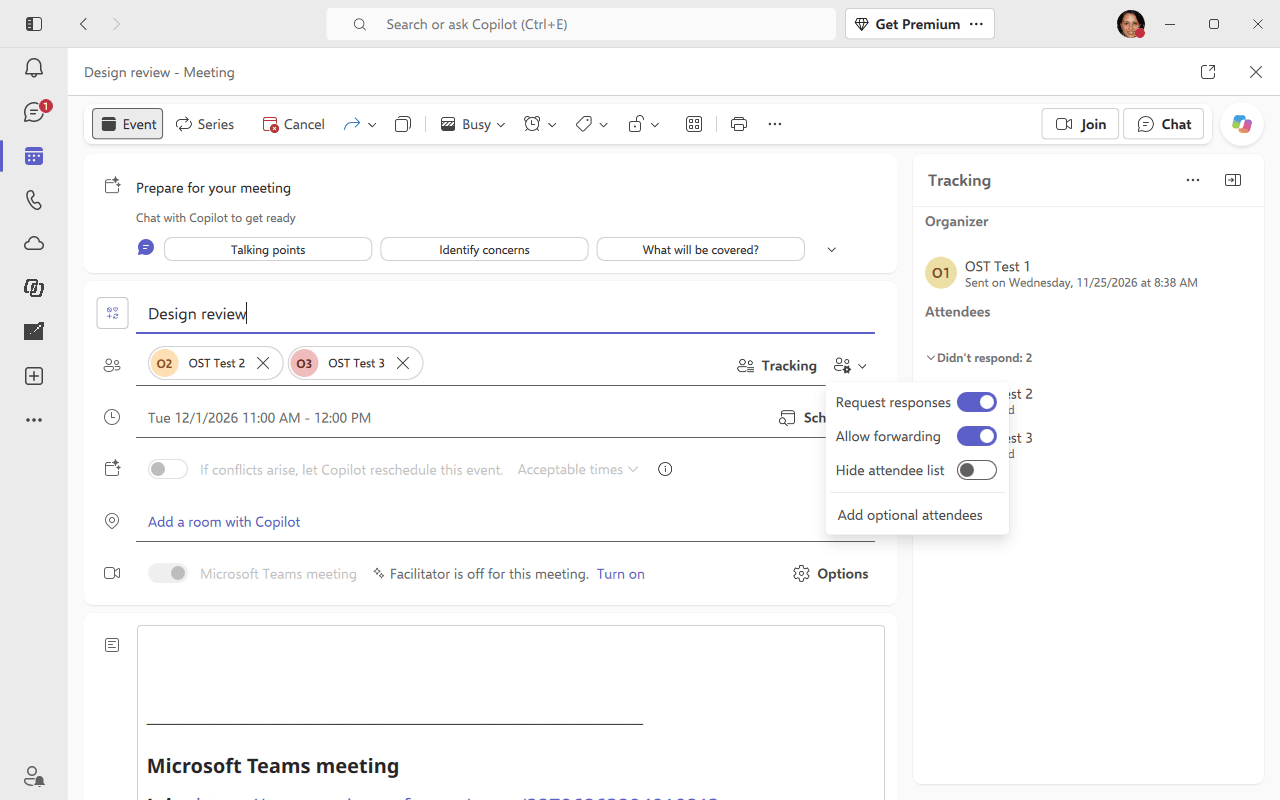
- Attendees: required and optional, each with their response; Tracking (attendee tracking) and Response options (Request responses, Allow forwarding, Hide attendee list).
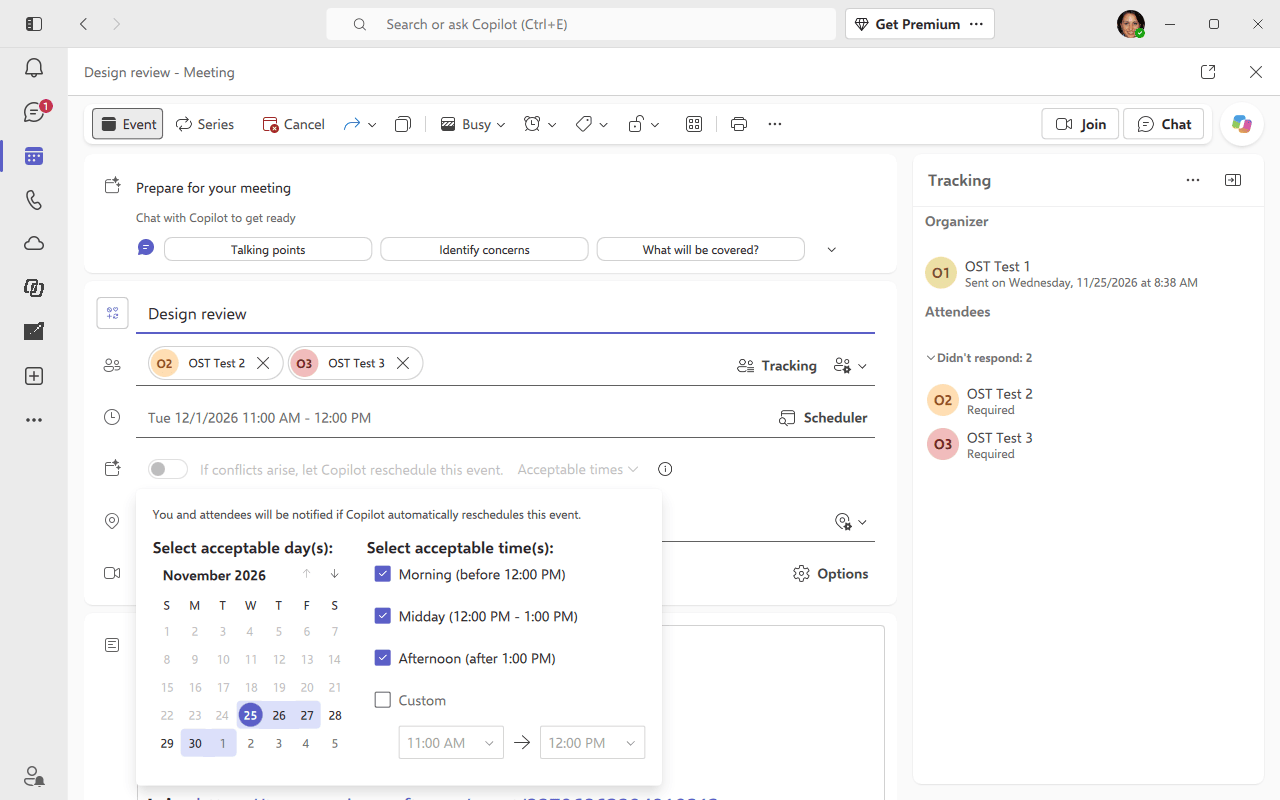
- Time: start, end, All day, Make recurring; Time suggestions (free times for everyone) and the Scheduler. Acceptable times (with Copilot) sets the days and times (Morning, Midday, Afternoon, Custom) when Copilot may reschedule the event if conflicts come up.
- Location: a place or Add a room (rooms with their availability; Add a room with Copilot where licensed).
- Teams meeting switch, with Facilitator and the meeting options.
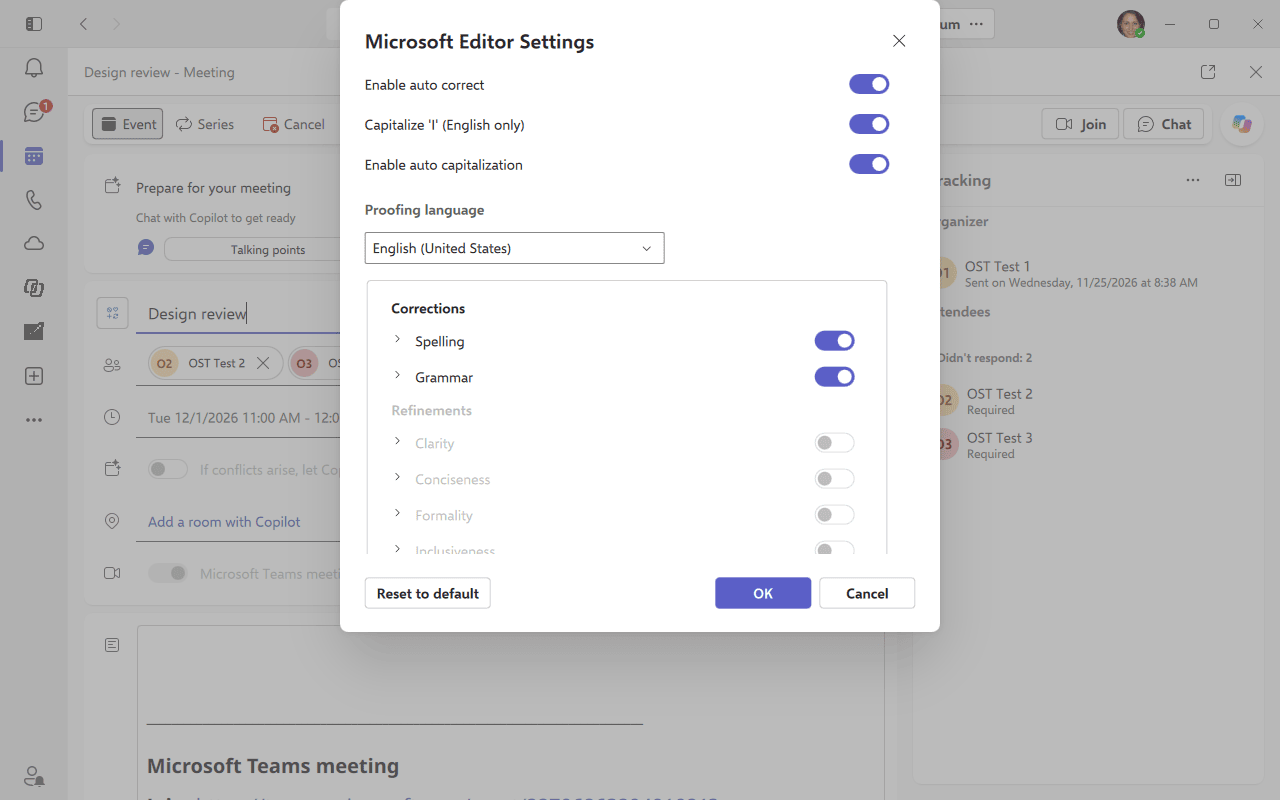
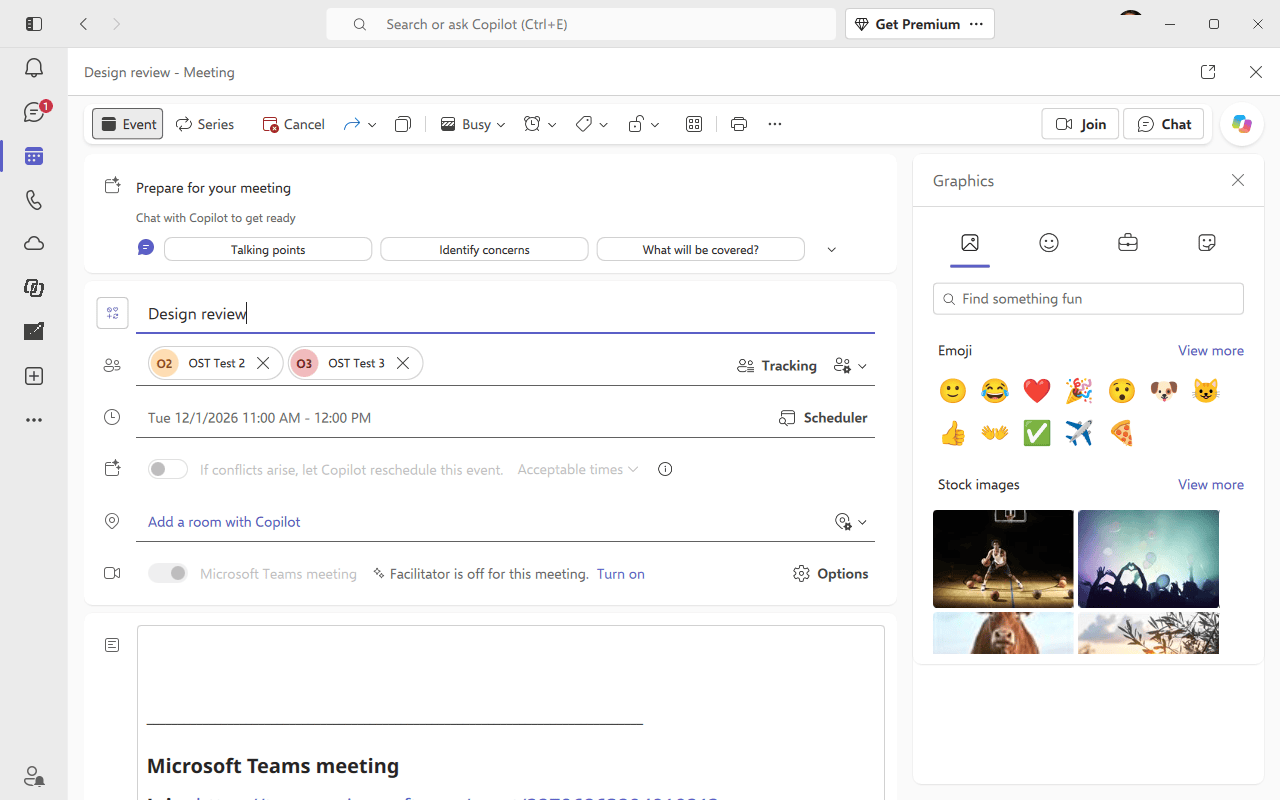
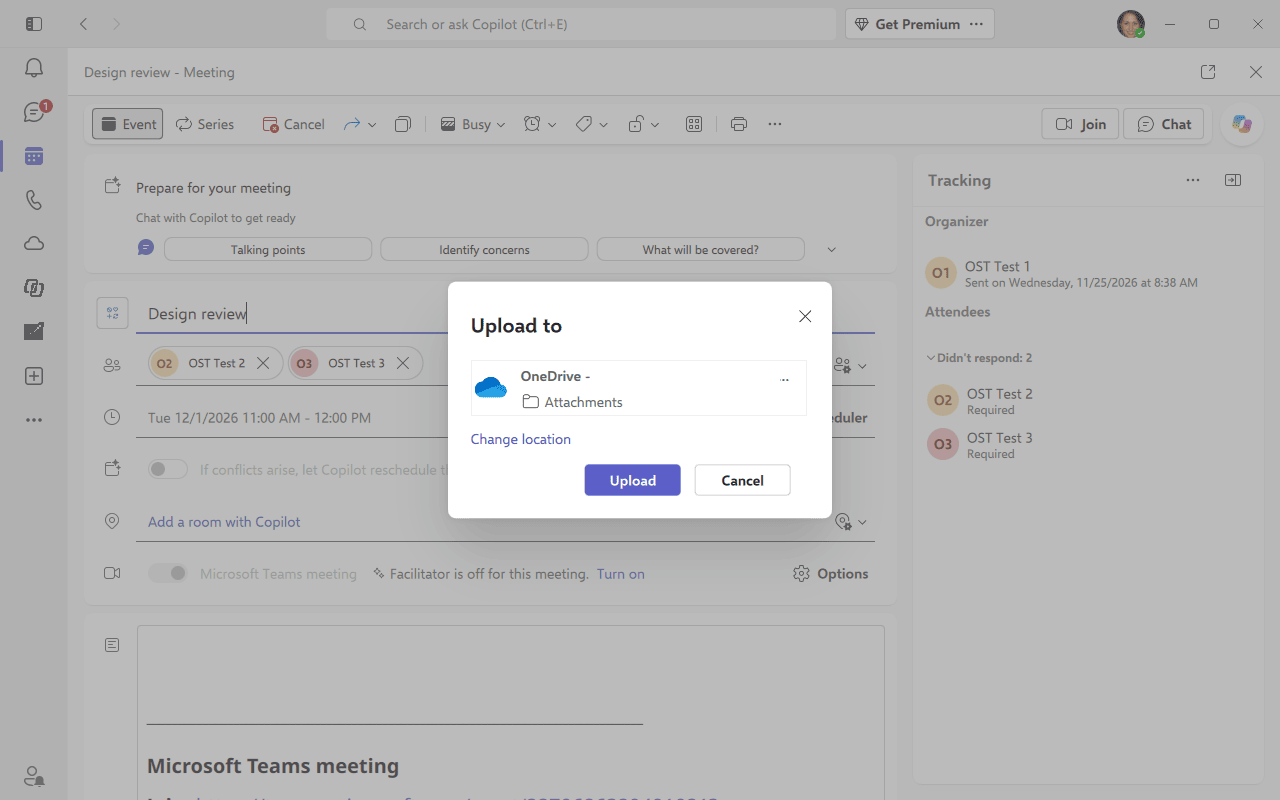
- Description in Outlook's editor: formatting, tables, links, Insert emoji, images and stickers (the Graphics pane with emoji and stock images), Insert Loop component, Attach files as links (Share link, or upload to a OneDrive folder you pick in Upload to), and spelling with Microsoft Editor (Microsoft Editor Settings: proofing language, Spelling, Grammar, Refinements).
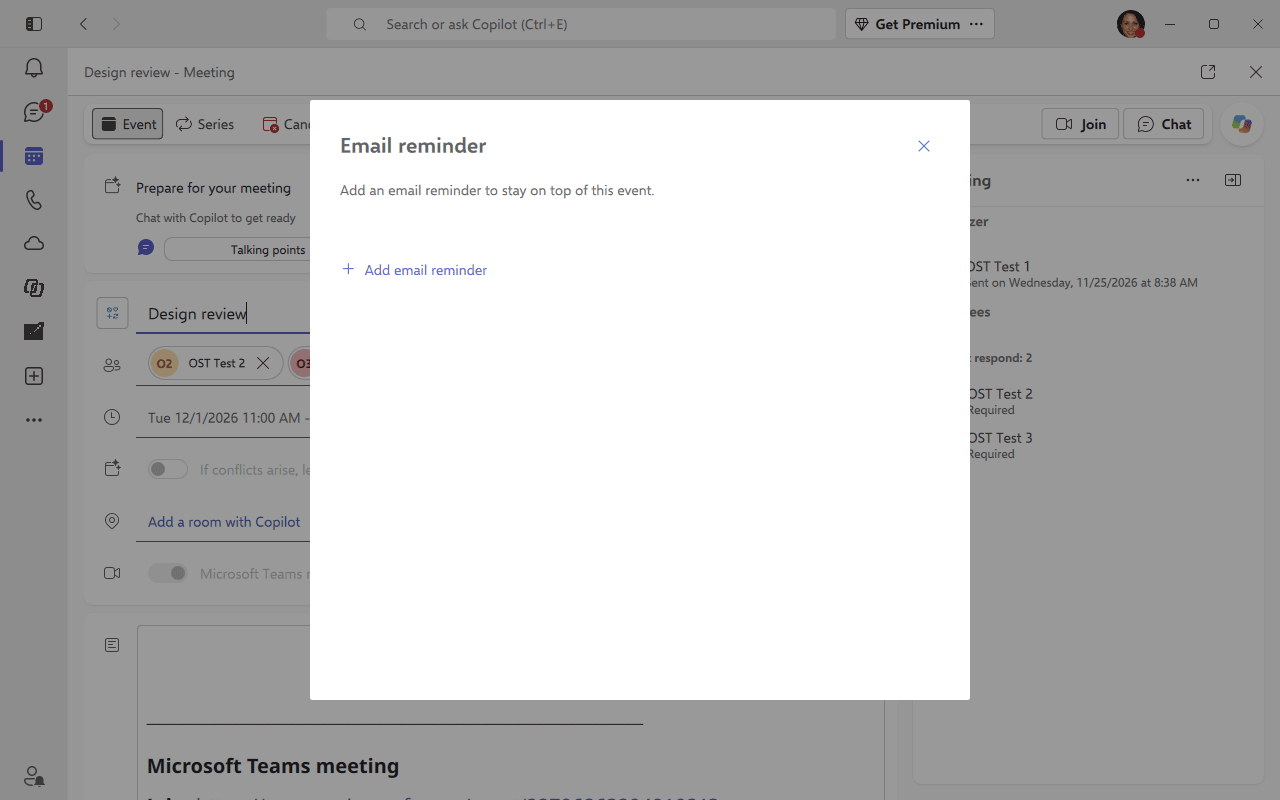
- Add email reminder: send a custom e-mail to yourself or Send to attendees at a time before the event, with a message.
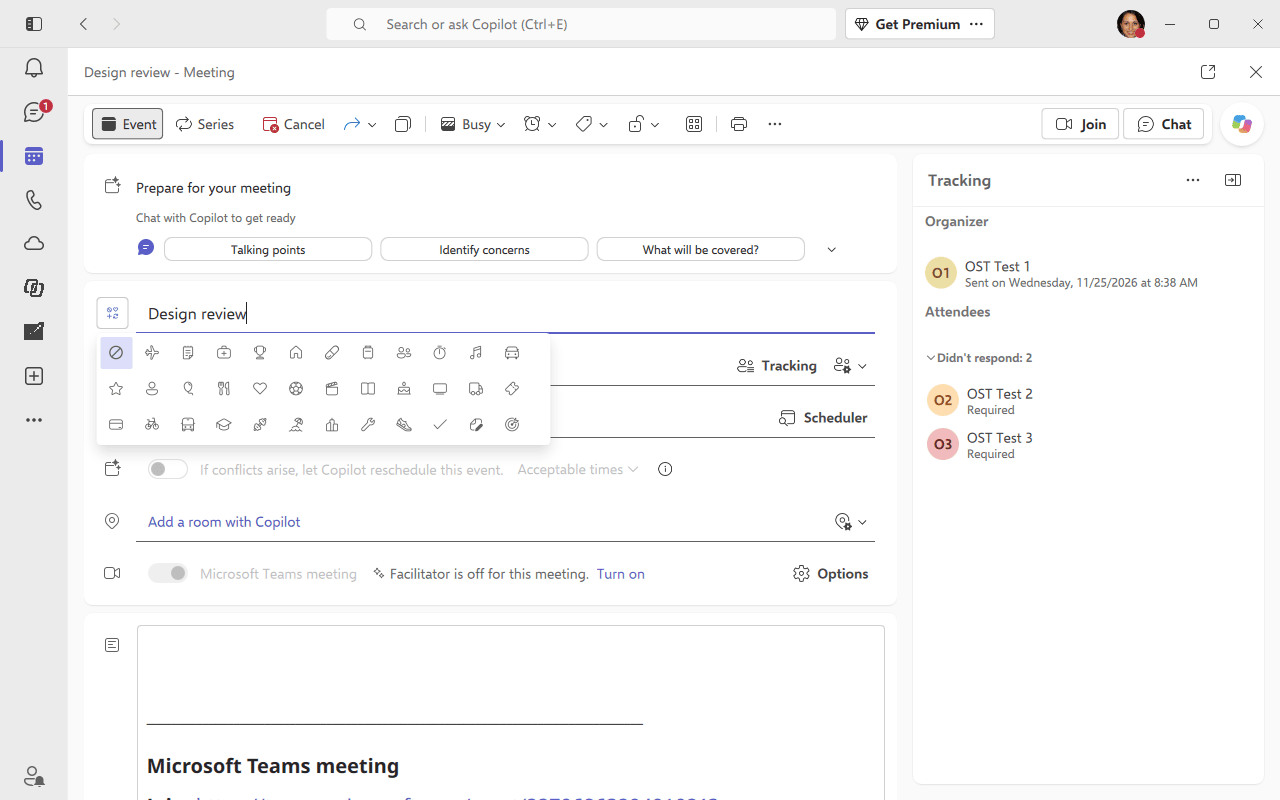
- Event charm: an icon for the event (Balloon, Bike, Books, Cake, Plane and others).
- Send sends the update (Send update on a non-meeting event with attendees); a series edits as one event, this and the following events, or the whole series (Edit series).
- Open in new window moves the page into its own window.
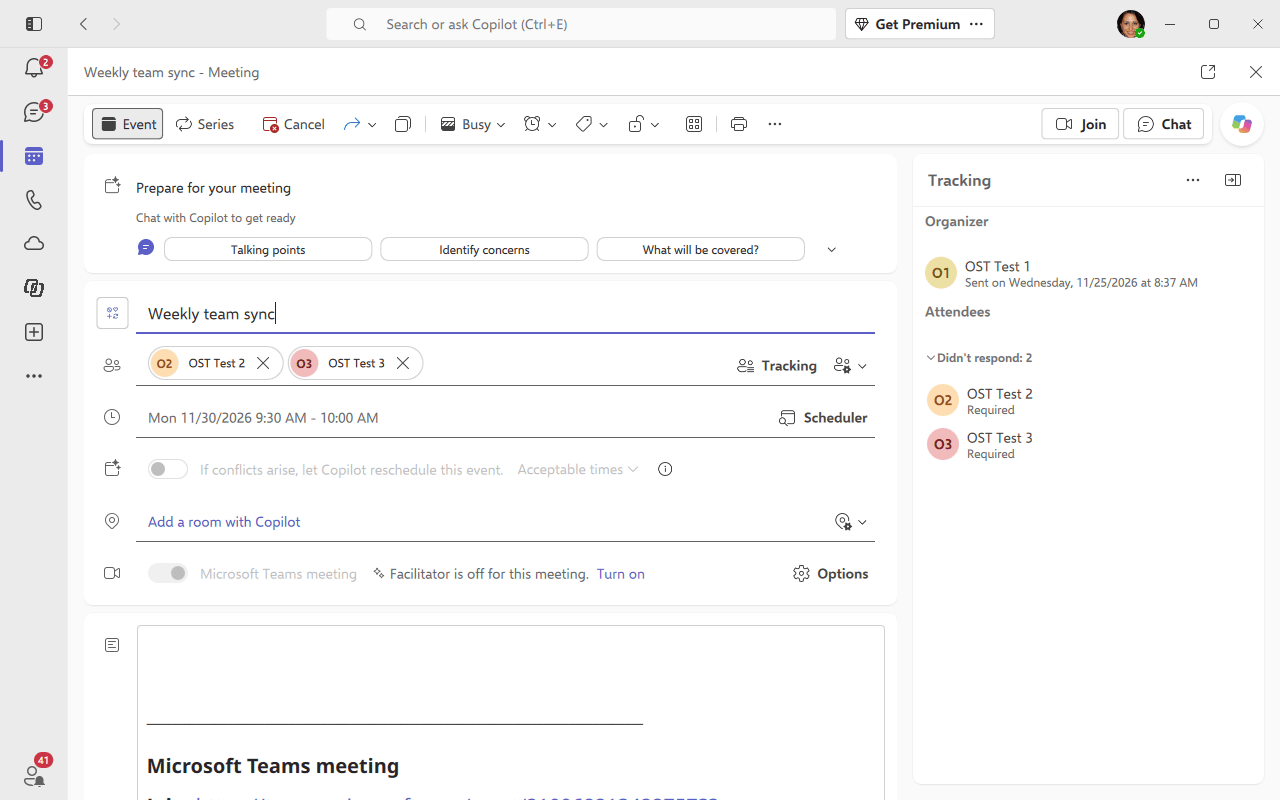
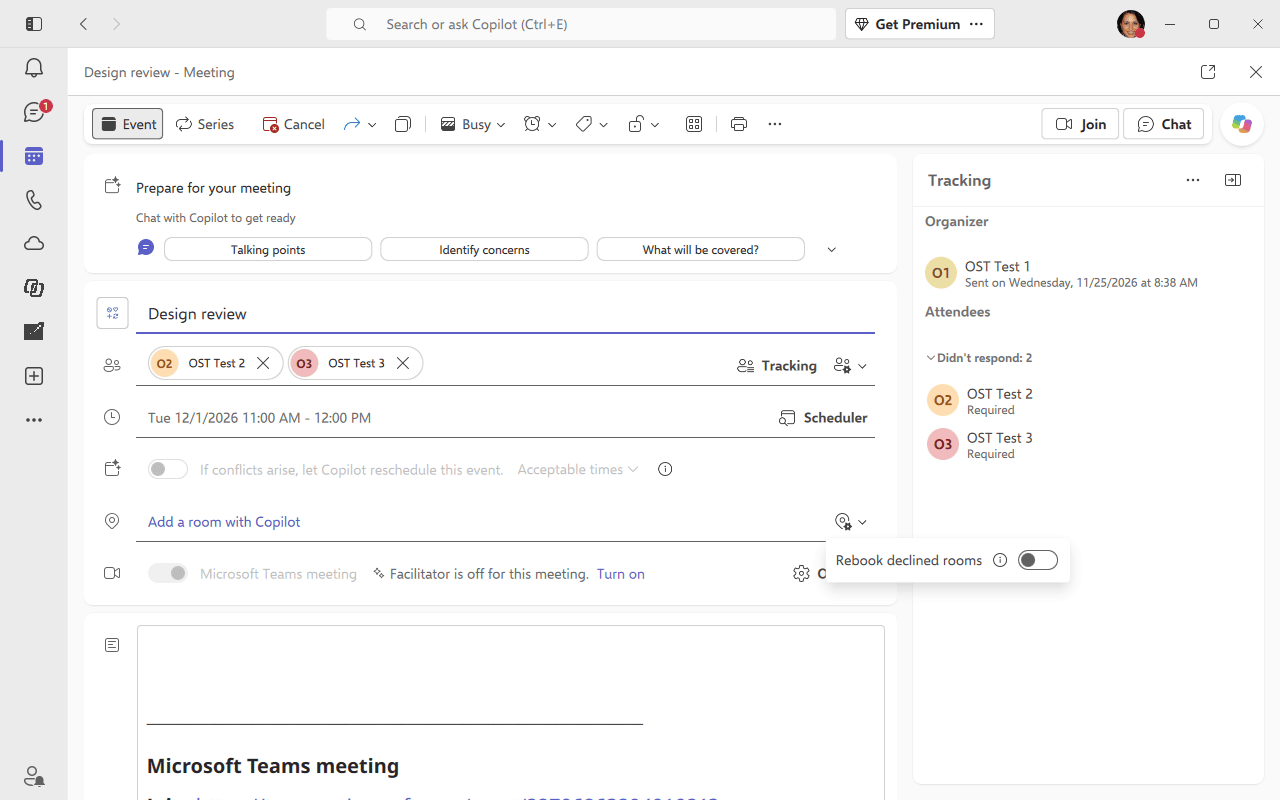
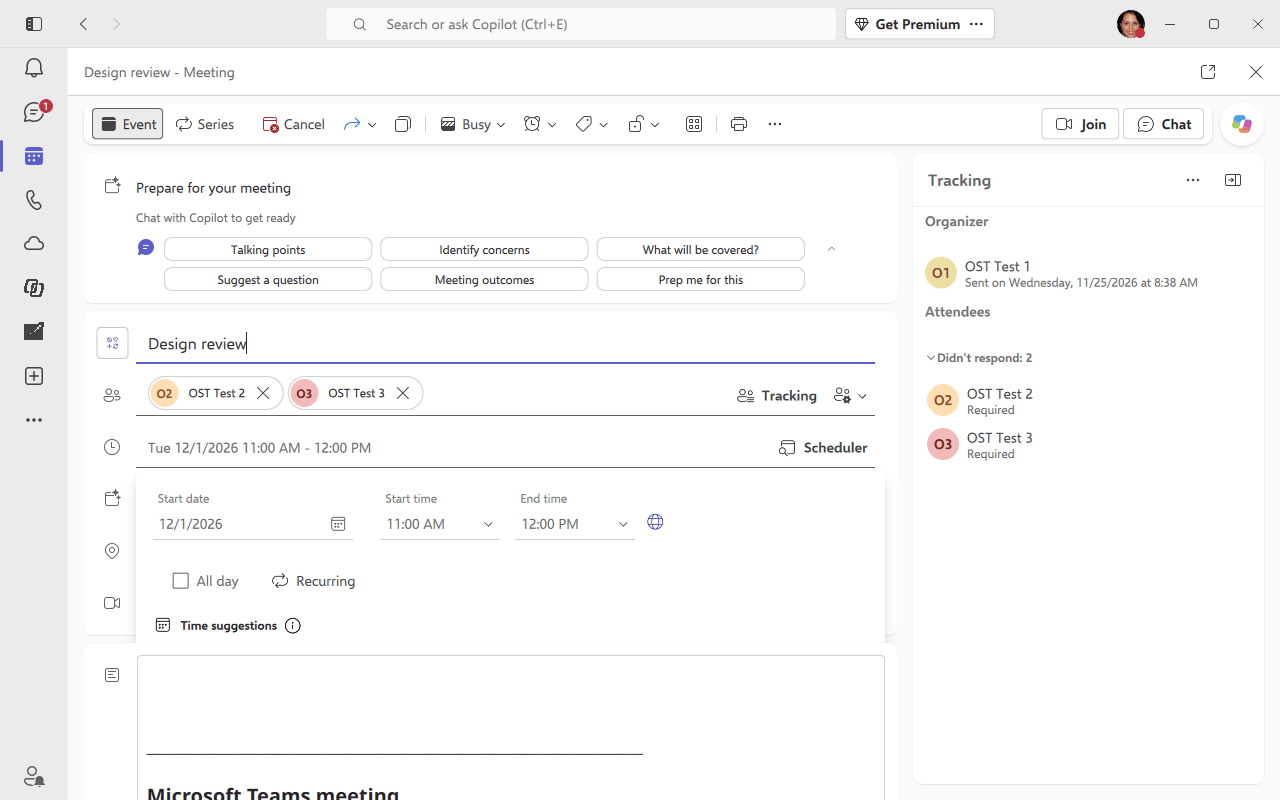
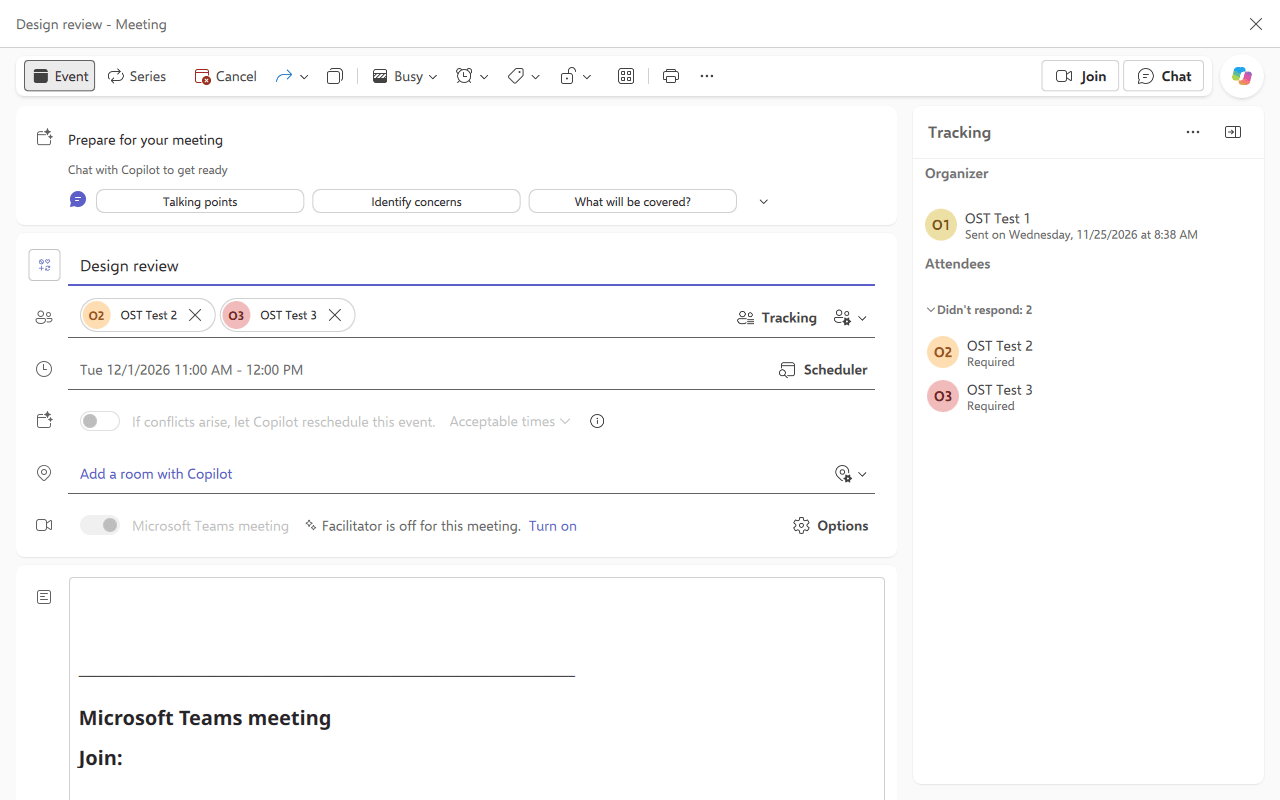
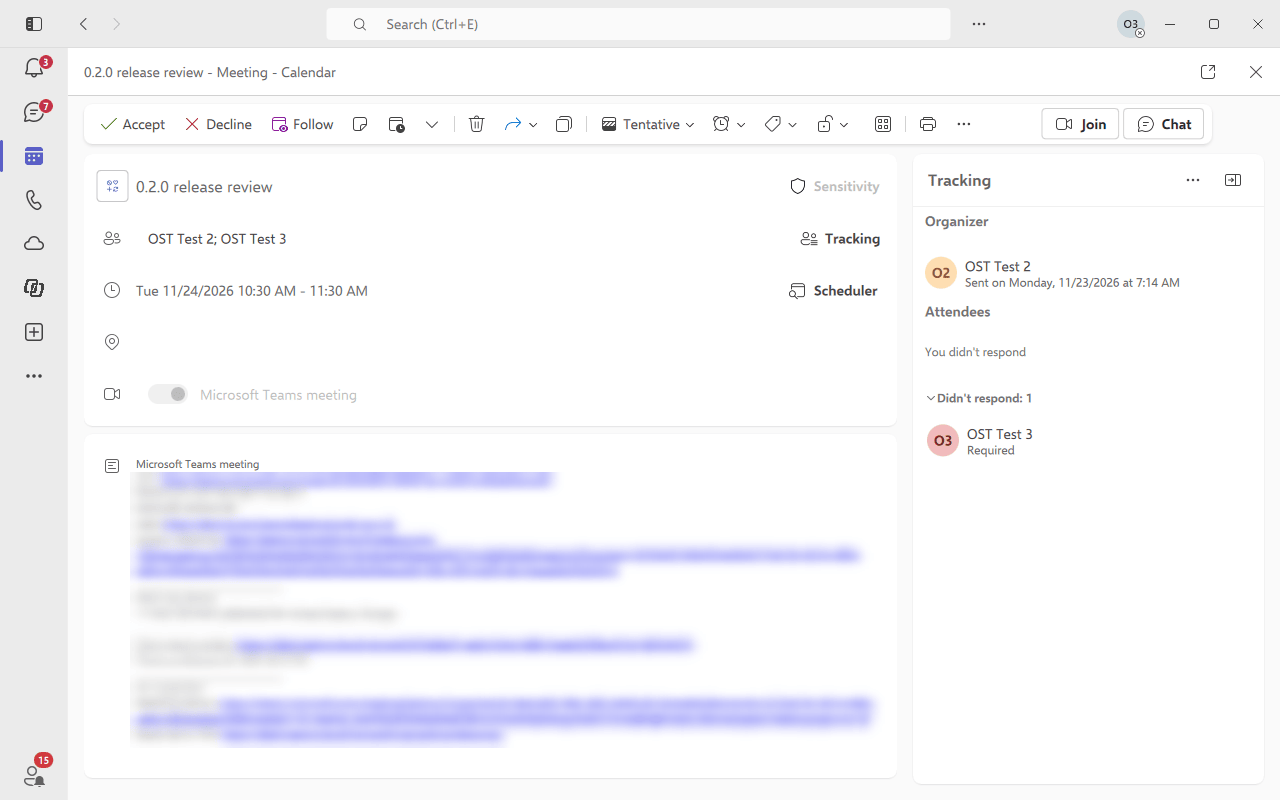
Tracking lists every attendee with their response (Accepted, Declined, Tentative, Didn't respond) and counts, with search and sorting, Copy attendee names, Copy all tracking information and Download as CSV.
An invitation's page has Accept, Tentative, Decline (each with a note), Follow and Propose new time, with the event's details read-only.
With a Microsoft 365 Copilot license, an upcoming meeting's page shows Prepare for this meeting (Chat with Copilot to get ready), and the calendar's Copilot (Chat with Copilot) answers questions such as "Show me meetings I haven't responded to next week" or "Schedule 1 hour of focus time". See Copilot.
See Meetings for joining and the meeting window.