Repository navigation
Breakout rooms
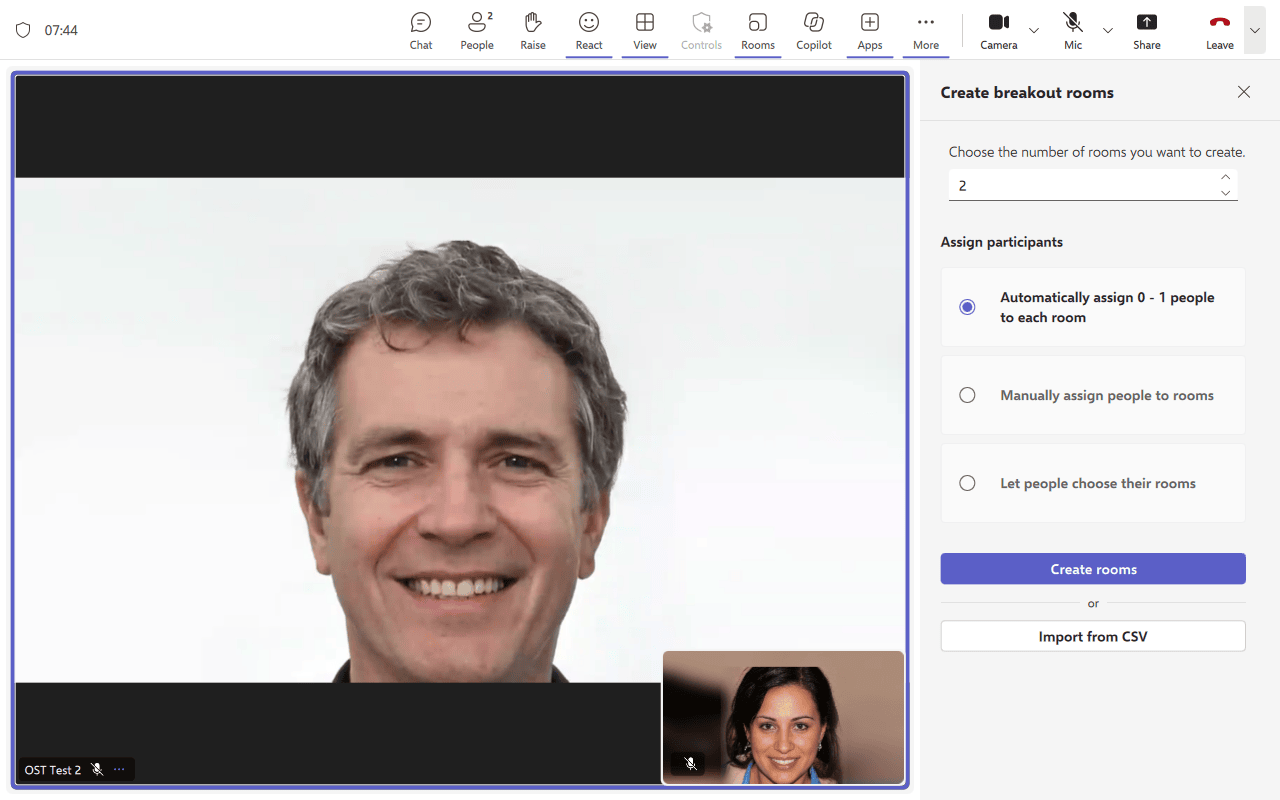
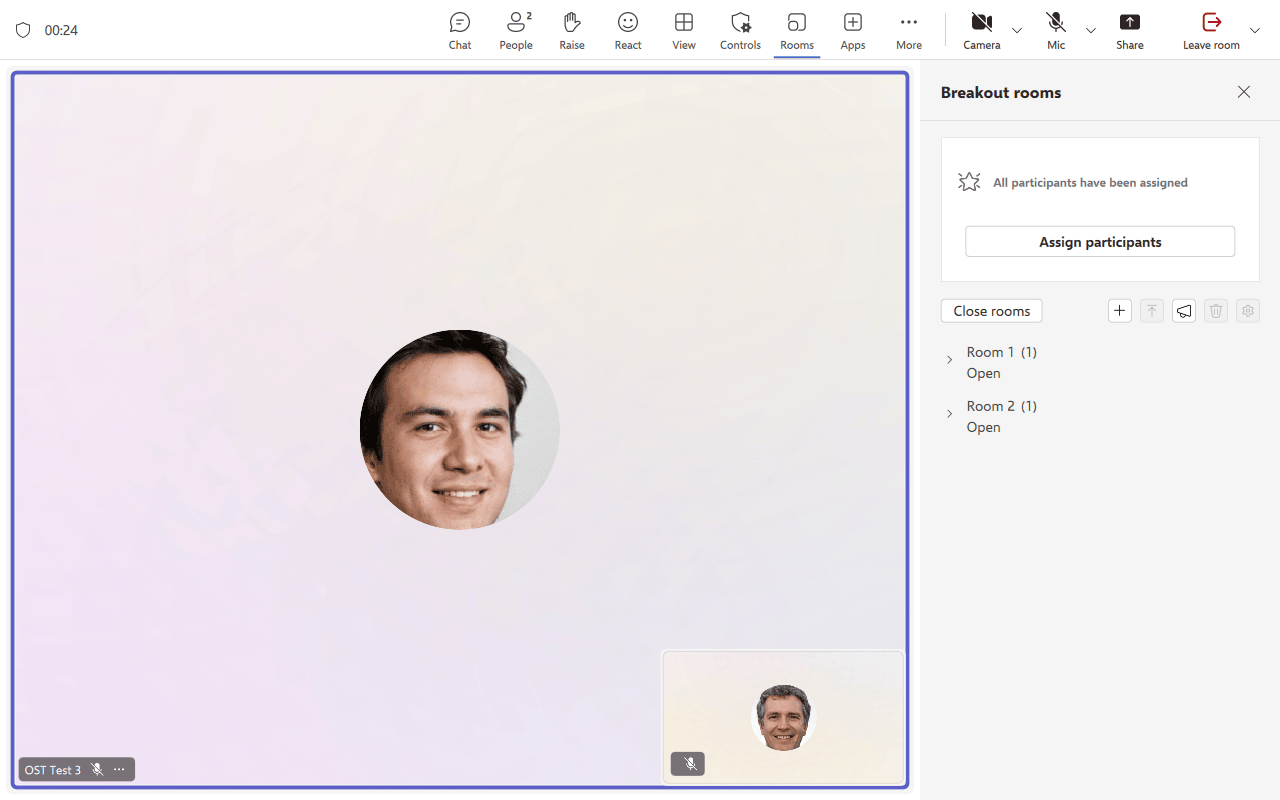
Organizers split a meeting into smaller rooms and bring everyone back, as in Teams. More ▸ Rooms (or Rooms on the toolbar) opens the Breakout rooms pane.
- Create breakout rooms: choose the number of rooms, and Automatically assign people (N people to each room), Manually assign people to rooms, or Let people choose their own rooms; then Create rooms.
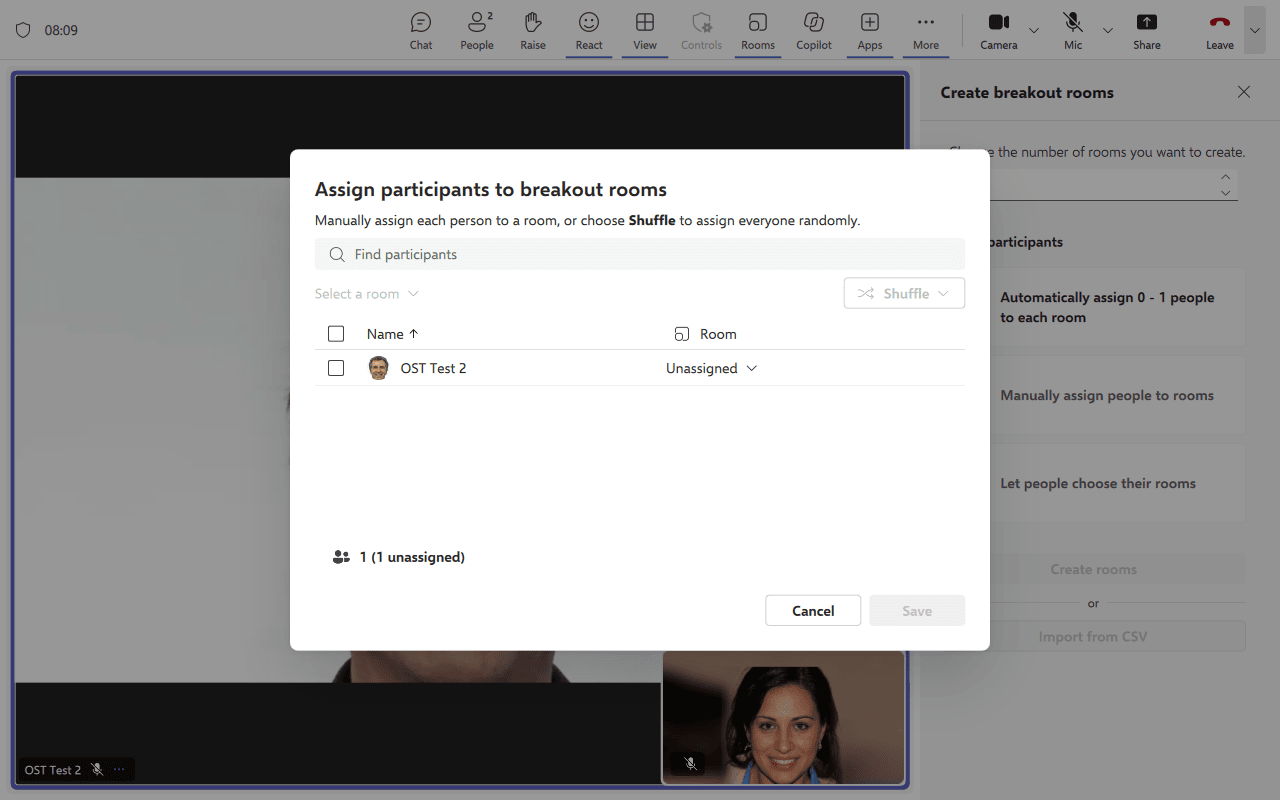
- Assign participants: Assign participants to breakout rooms lists everyone (Everyone or Only unassigned people) with a room picker per person, Select all and Shuffle.
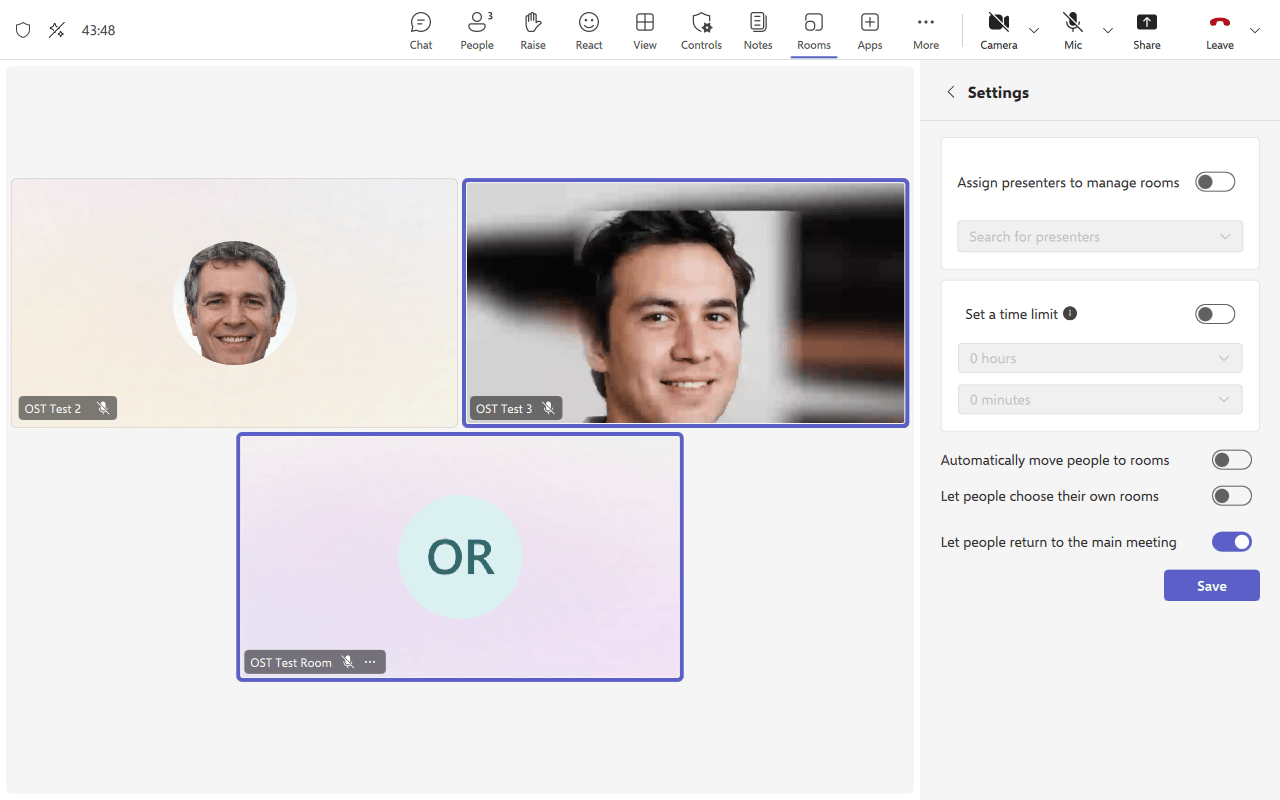
- Rooms settings: Assign presenters to manage rooms, Automatically move people to rooms, Let people return to the main meeting, and Set a time limit ("We'll move everyone back to the main meeting when the time expires.").
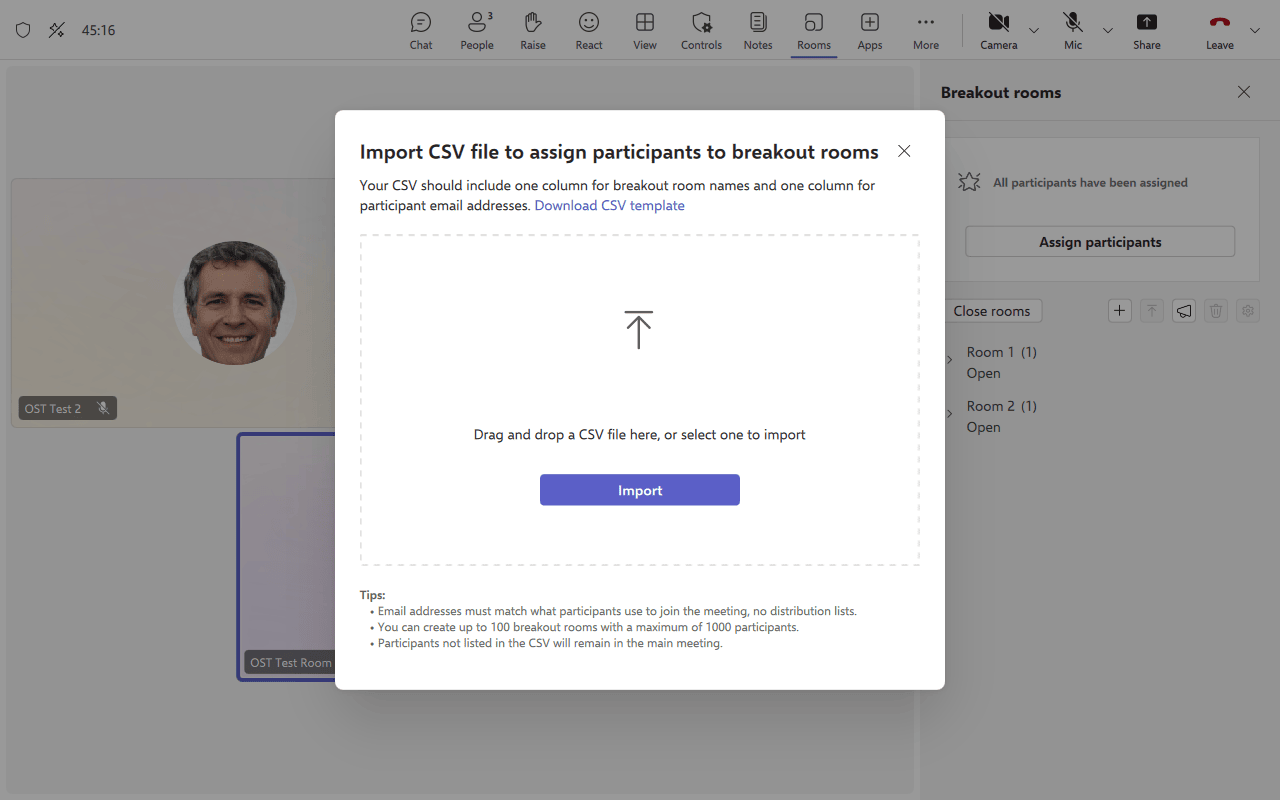
- Import from CSV: one column for room names and one for participants' e-mail addresses (Download CSV template); people not listed stay in the main meeting.
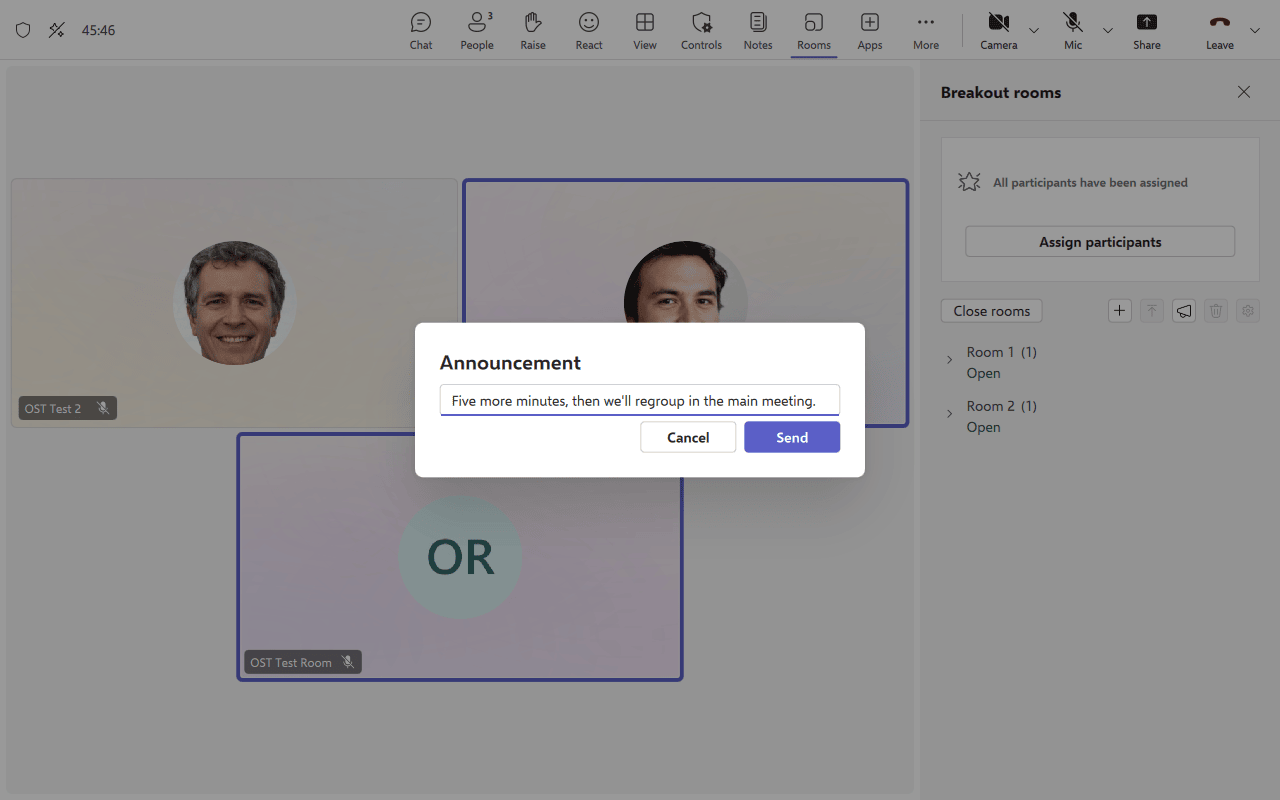
- A room's ··· (Open room options): Open, Close, Join, Rename, Delete. Make an announcement sends a message to every room. Add room, Remove rooms.
- Open rooms / Close rooms: opening moves (or invites) people into their rooms; closing brings everyone back.
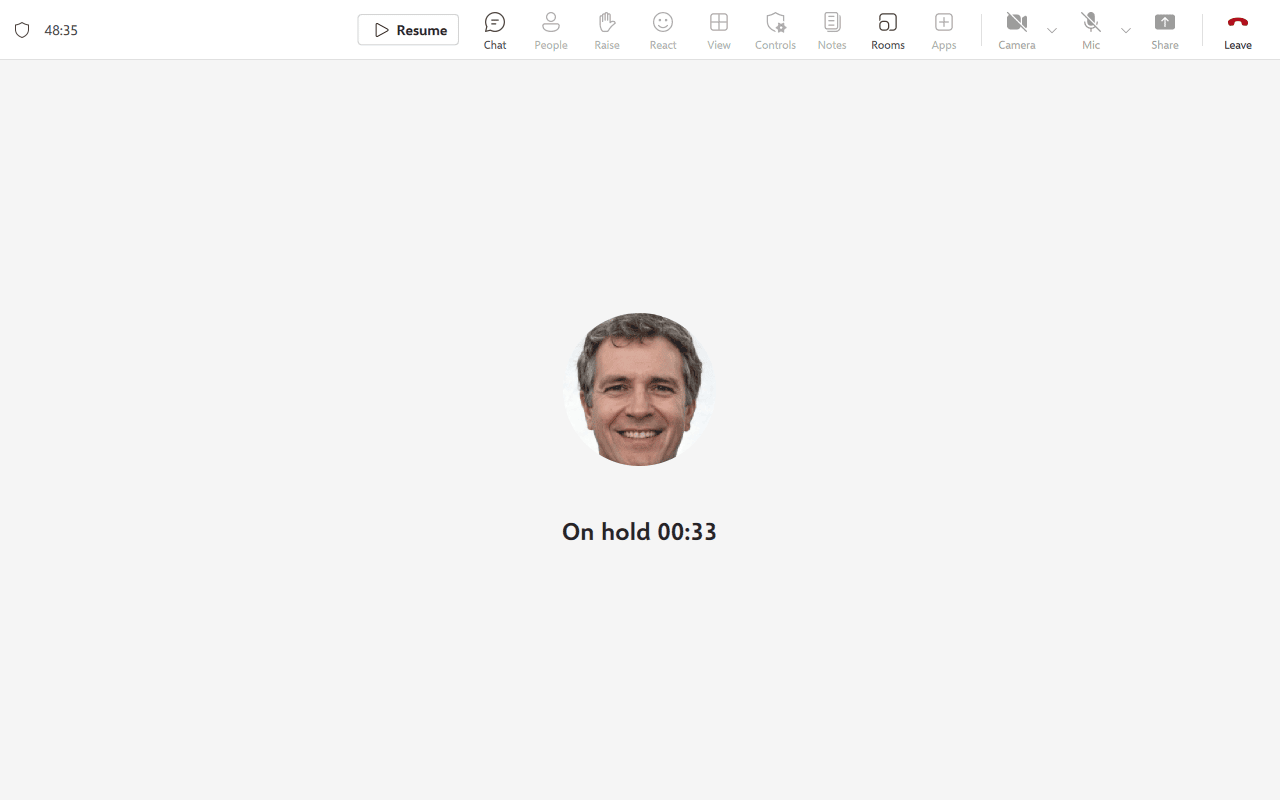
- Joining a room as the organizer puts the main meeting on hold in a small held window, as Teams does; leaving the room resumes it.
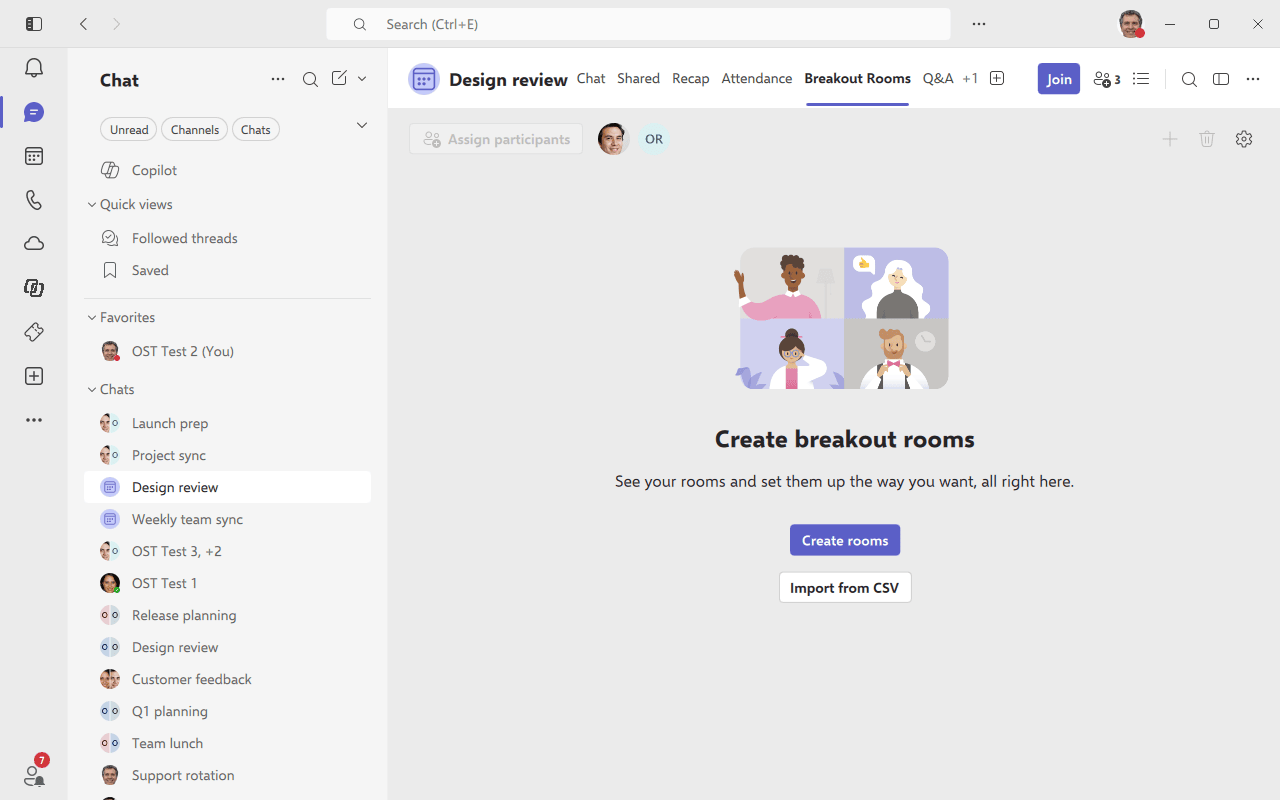
- Before the meeting: the meeting chat's Breakout Rooms tab sets up rooms in advance ("How many rooms do you need?", assign, settings, CSV).
- When rooms open you see "You've been assigned to room" (Join breakout room? with Join room or Later), or OST moves you automatically, as the organizer set. Teams' "We'll move you" alerts count down first.
- If you join the meeting after rooms are open, OST offers your room as soon as you're in.
- Return takes you back to the main meeting when the organizer allows it; when rooms close you're moved back.
- If a room can't be joined ("The room isn't open yet, or you might have been assigned to a different one."), OST shows Teams' retry screen with Rejoin.
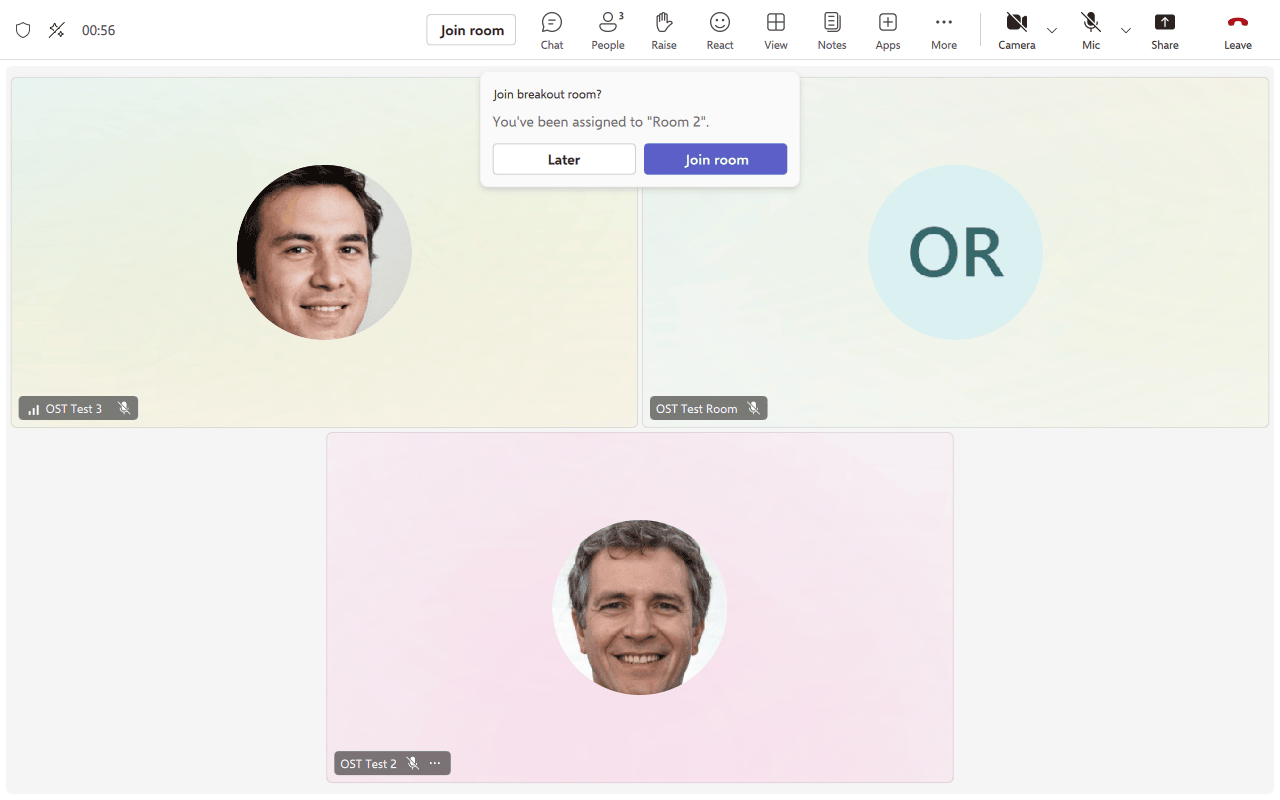
Teams moves its own participants into rooms with a server invite. OST receives the room assignment and shows Teams' "We'll move you" alerts itself. See Differences from Teams.