Repository navigation
Search
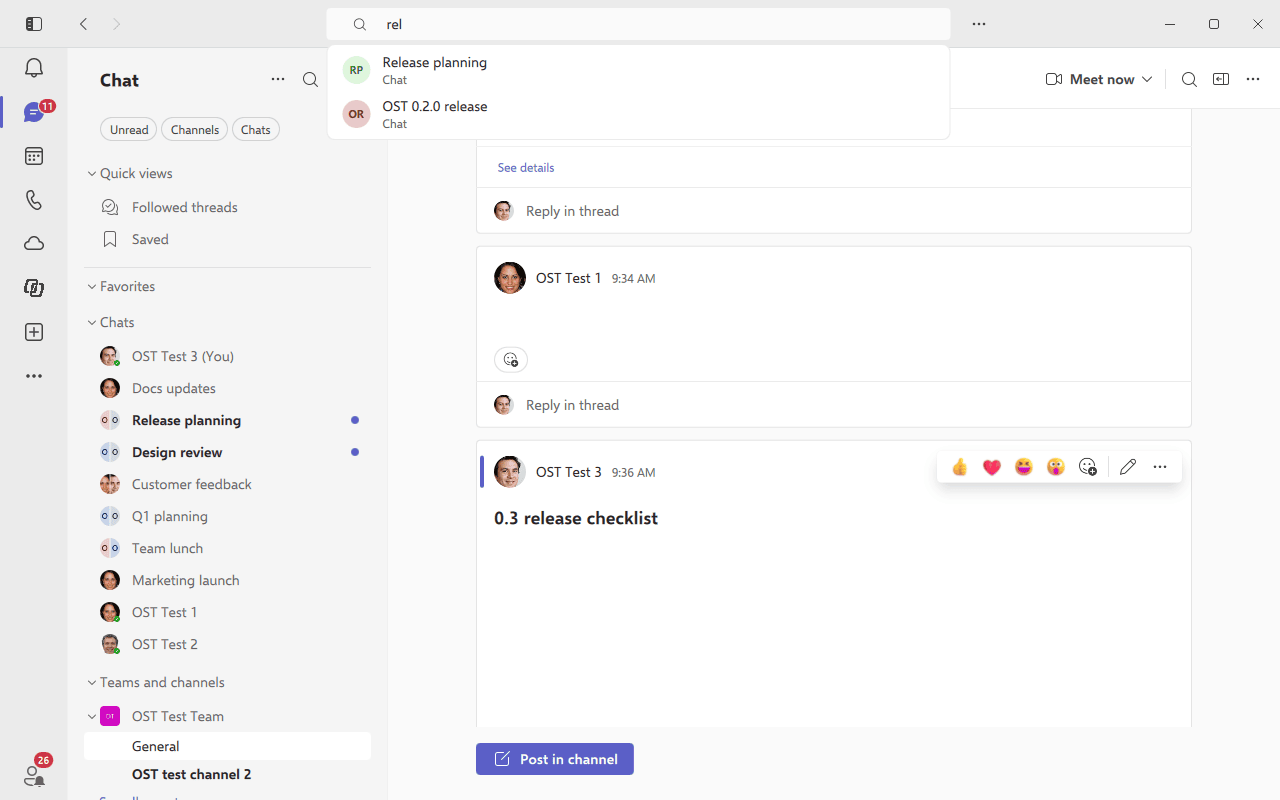
The search box in the middle of the title bar (Ctrl+E, or Ctrl+G) searches people, chats, channels, messages and files, as Teams does. With a Copilot license it reads Search or ask Copilot (Ctrl+E) and can also send your question to Copilot.
As you type, suggestions drop down: people, chats and channels whose names match, files, and recent searches. Select a suggestion to open it, or press Enter for the full results. Without Copilot, the focused box reads "Press Ctrl+G to go right to a chat or channel": type a name and pick the chat or channel from the suggestions.
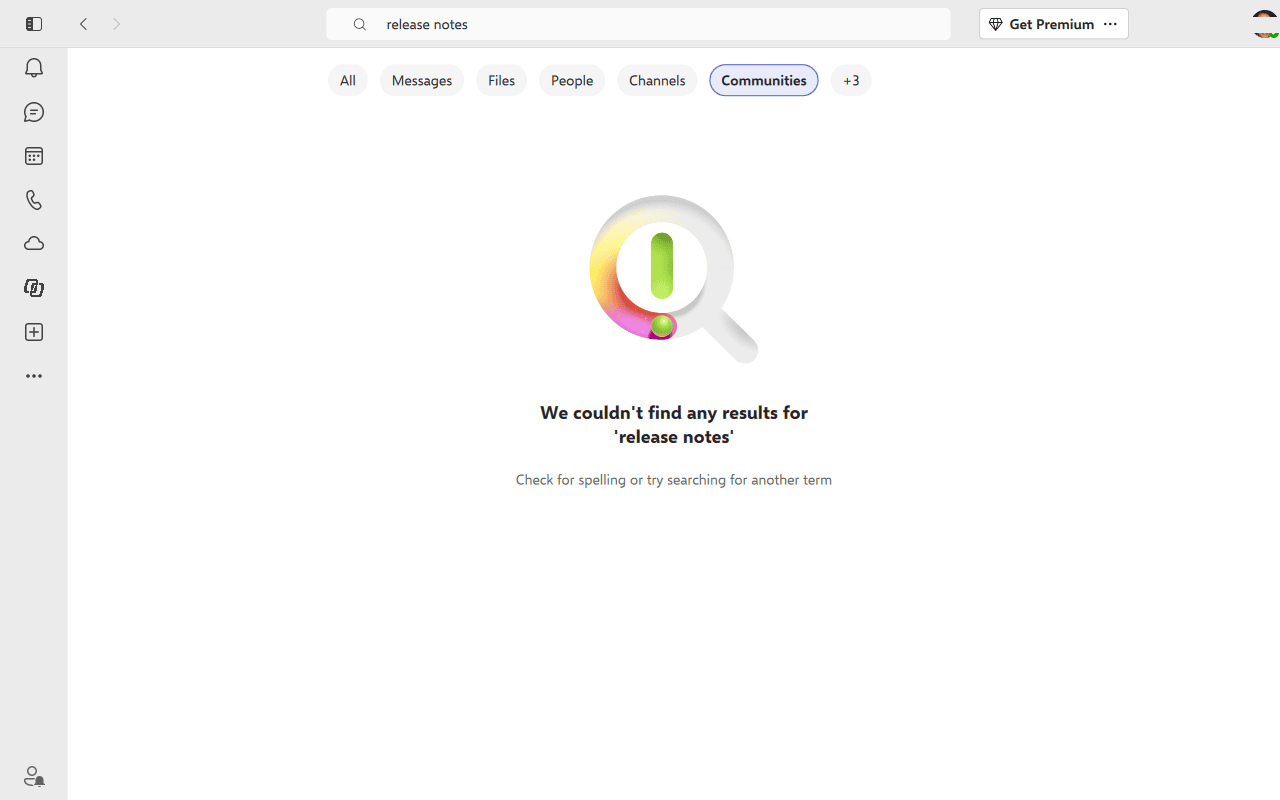
Results open in place of the conversation, with tabs: All, Messages, Files, People, Channels, Group chats, Meetings, Images and, where your organization uses Viva Engage, Communities. Tabs that don't fit fold into "+N".
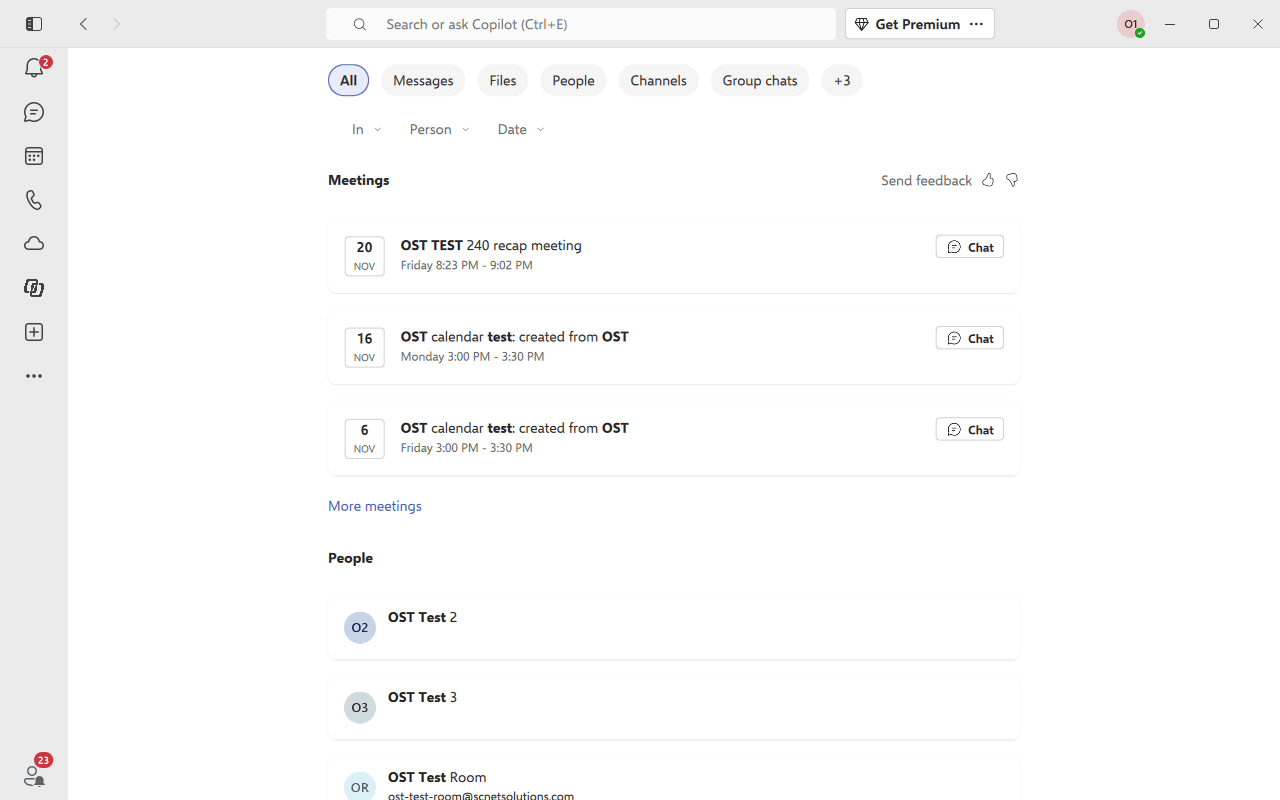
- All shows Top results and the best few of each kind, with More messages, More people, More files and so on.
- Messages: each result shows the sender, where it was sent and when. Select one for a preview pane with the message in its conversation, Go to chat or Go to channel, Open in new window, Copy link and Mark as unread.
- Filters on Messages: From (a person), In (Filter by Group chats, Teams and Channels), Date (Today, Yesterday, This week, This month, or Select a date), Has attachment and @mentions me; Clear all removes them.
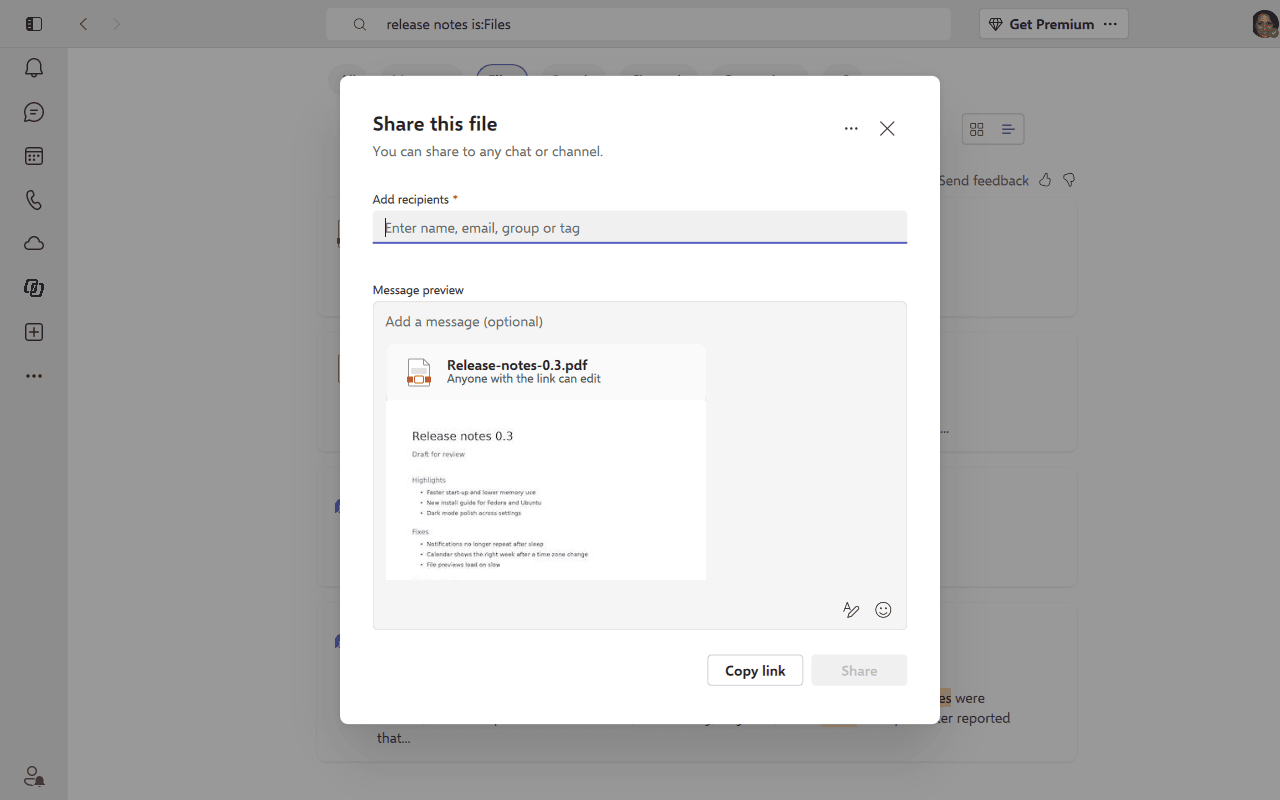
- Files: Grid view or List view; each file shows who shared it and where (team › channel, or the chat), with Download, Copy link, Open in Browser and Share (Share this file: send it to people, chats or channels with a message and link settings, or Share outside Teams). The File Type filter narrows by kind.
- People: open a profile card, chat, or Shows all results related to a person.
- Send feedback at the end of the results: This was helpful or Didn't help opens a public issue on OST's GitHub for you to submit.
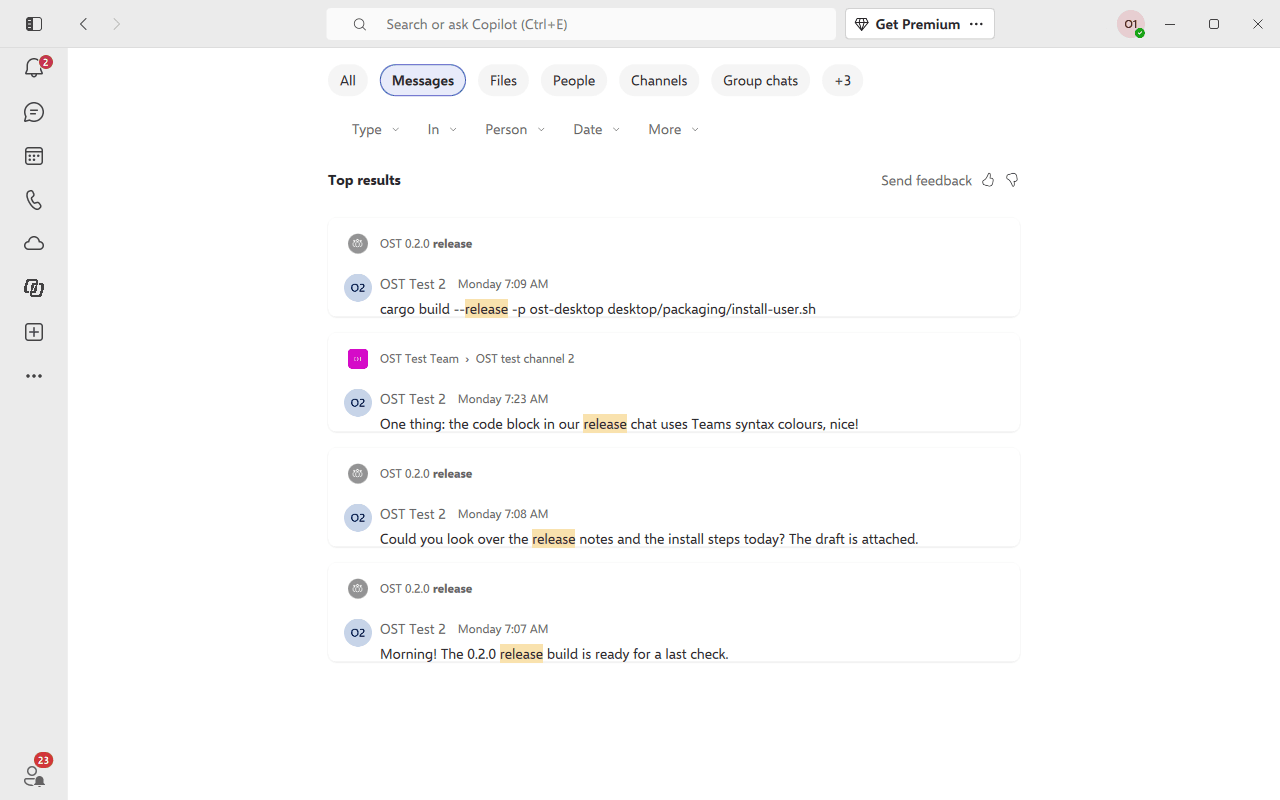
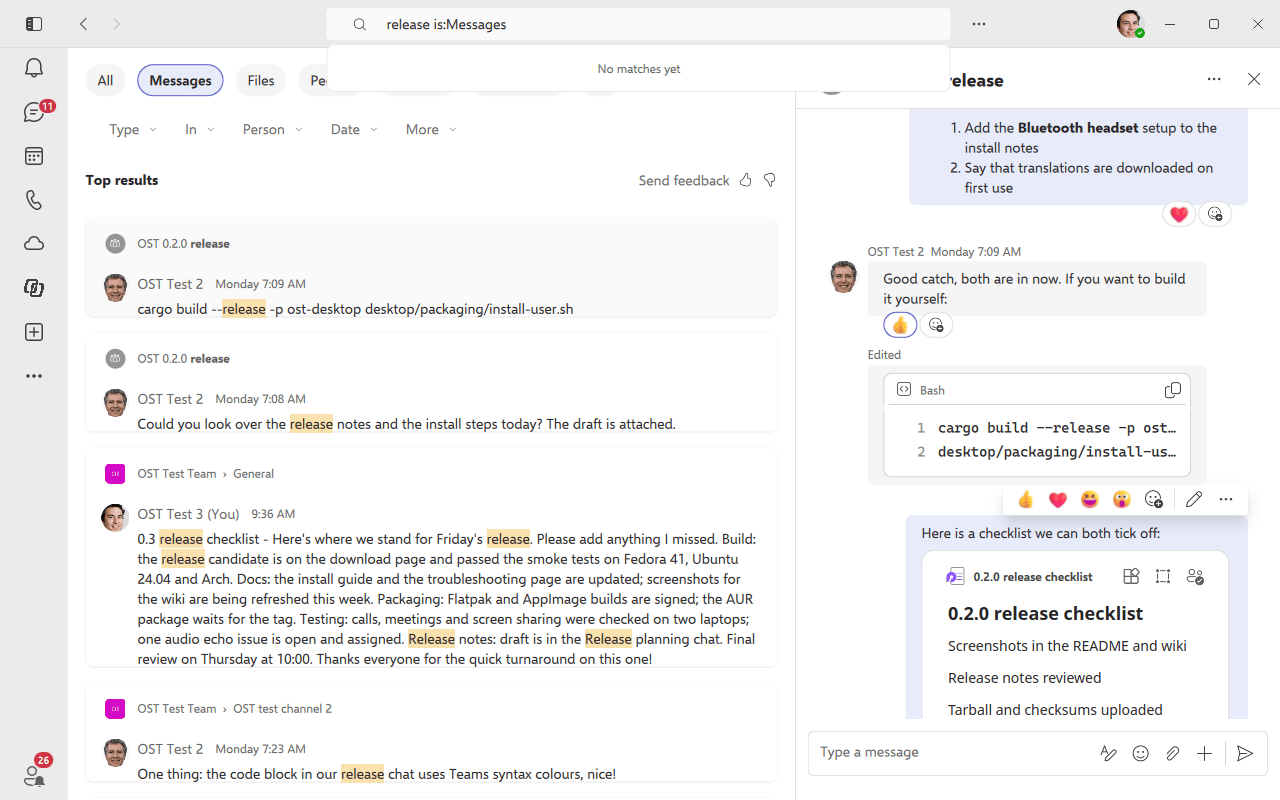
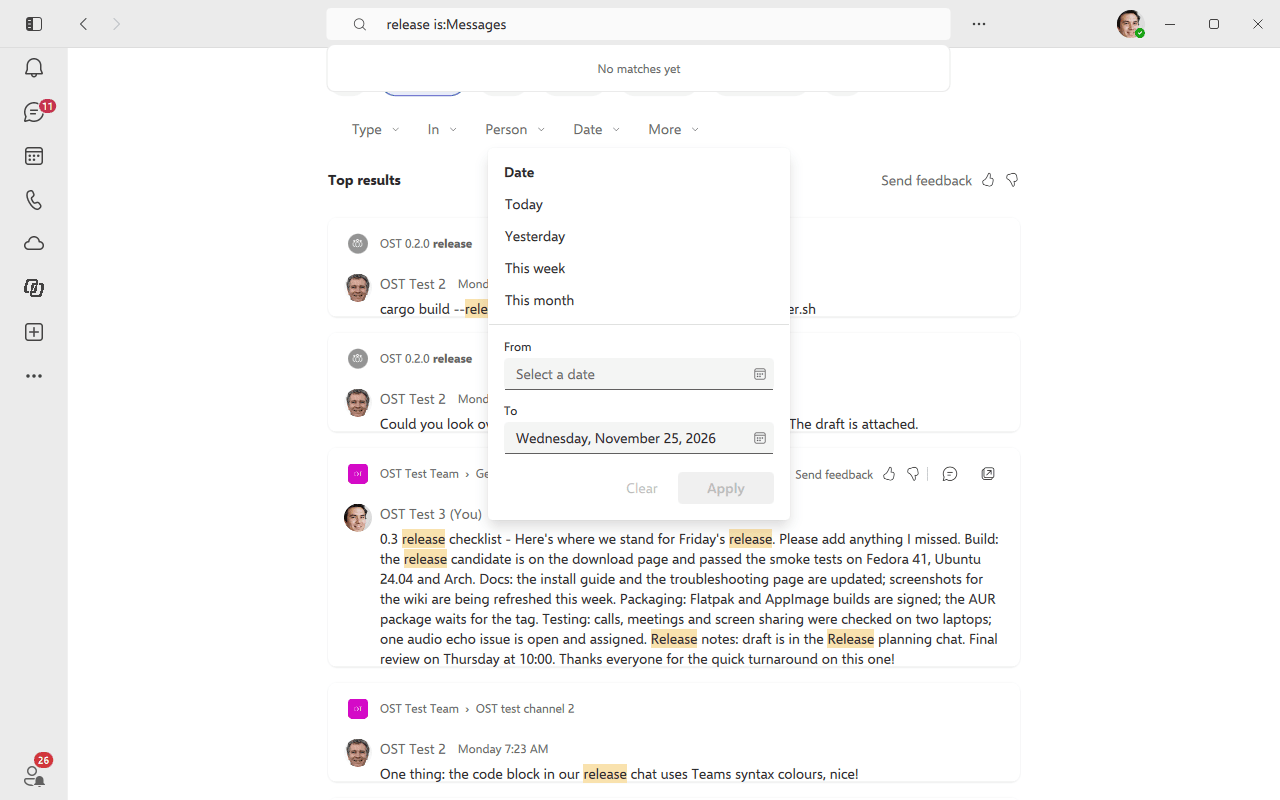
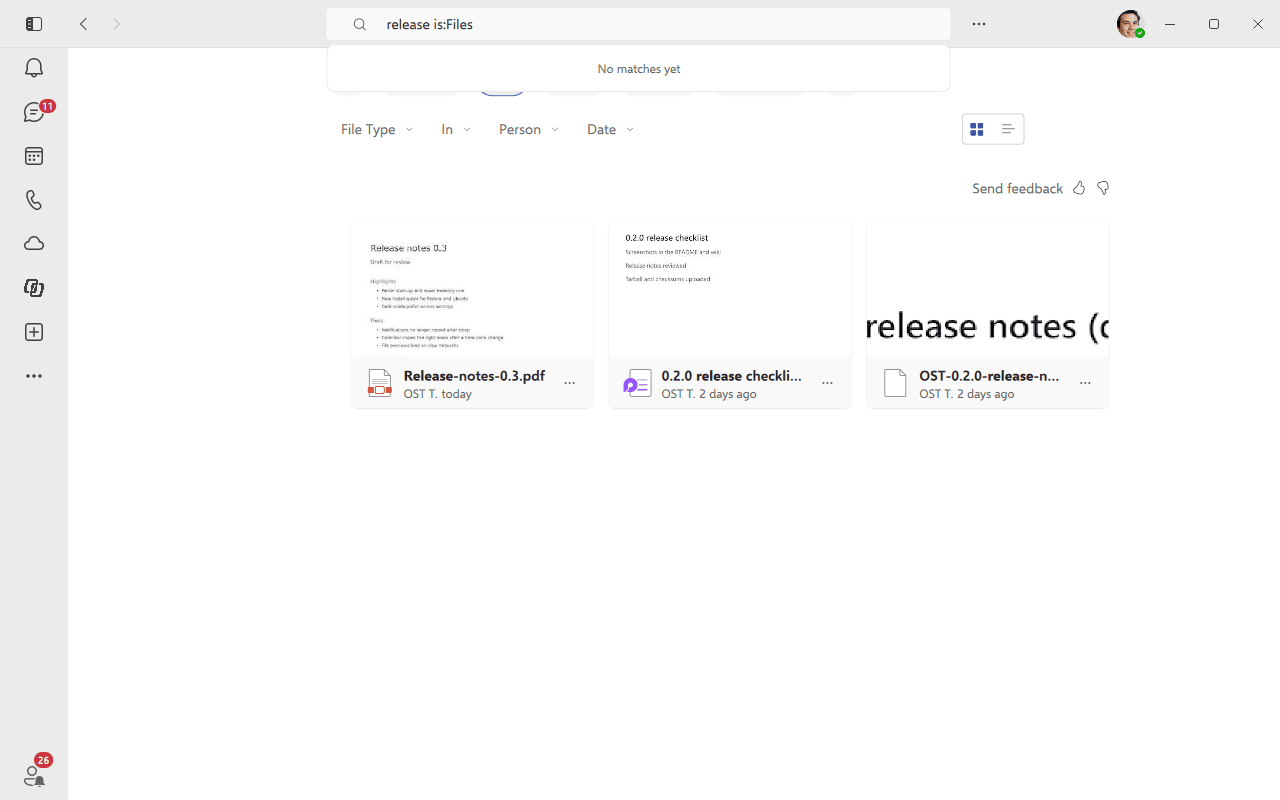
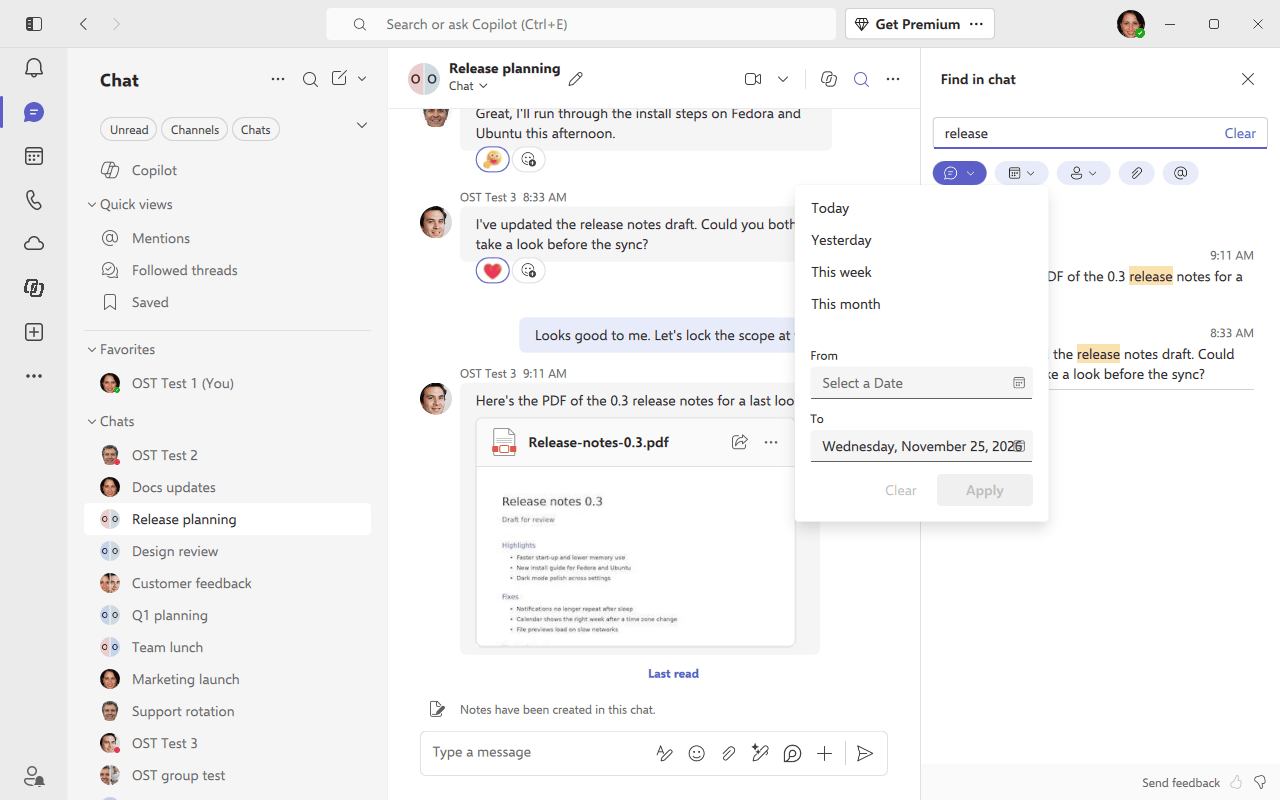
Find in chat (Ctrl+F, or the magnifier in a chat's header) opens a pane on the right: Enter a search keyword... to find messages, files and links shared in that chat.
- Tabs Messages, Files and Mentions.
- Filters: Date (Today, Yesterday, This week, This month, Last month, Older, or a date range), From (Filter by person), and on Files File Type (Word, Excel, PowerPoint, PDF, OneNote, Loop, Images, Text file).
- Select a result to jump to the message; Escape goes back to the results.
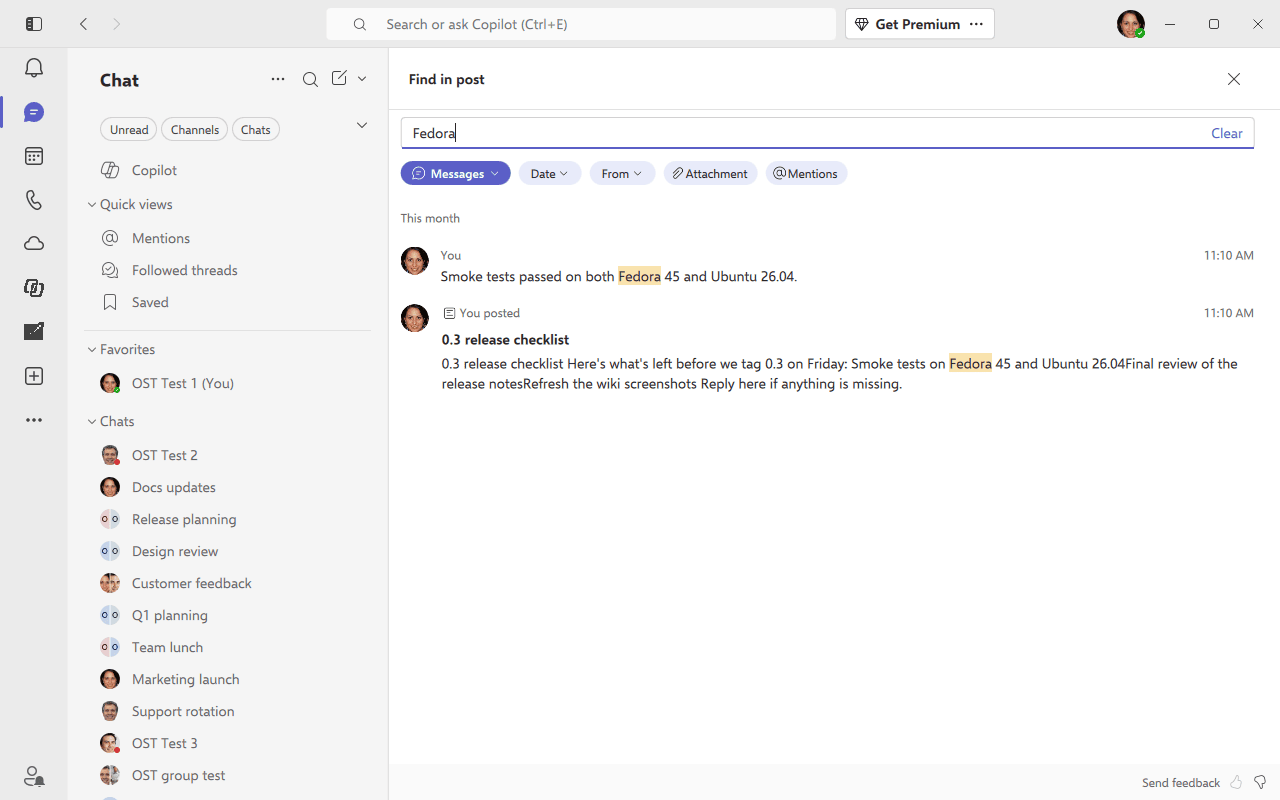
- Channels have Find in channel; a post opened on its own (or in its own window) has Find in post in its ···.