Repository navigation
Video effects and clips
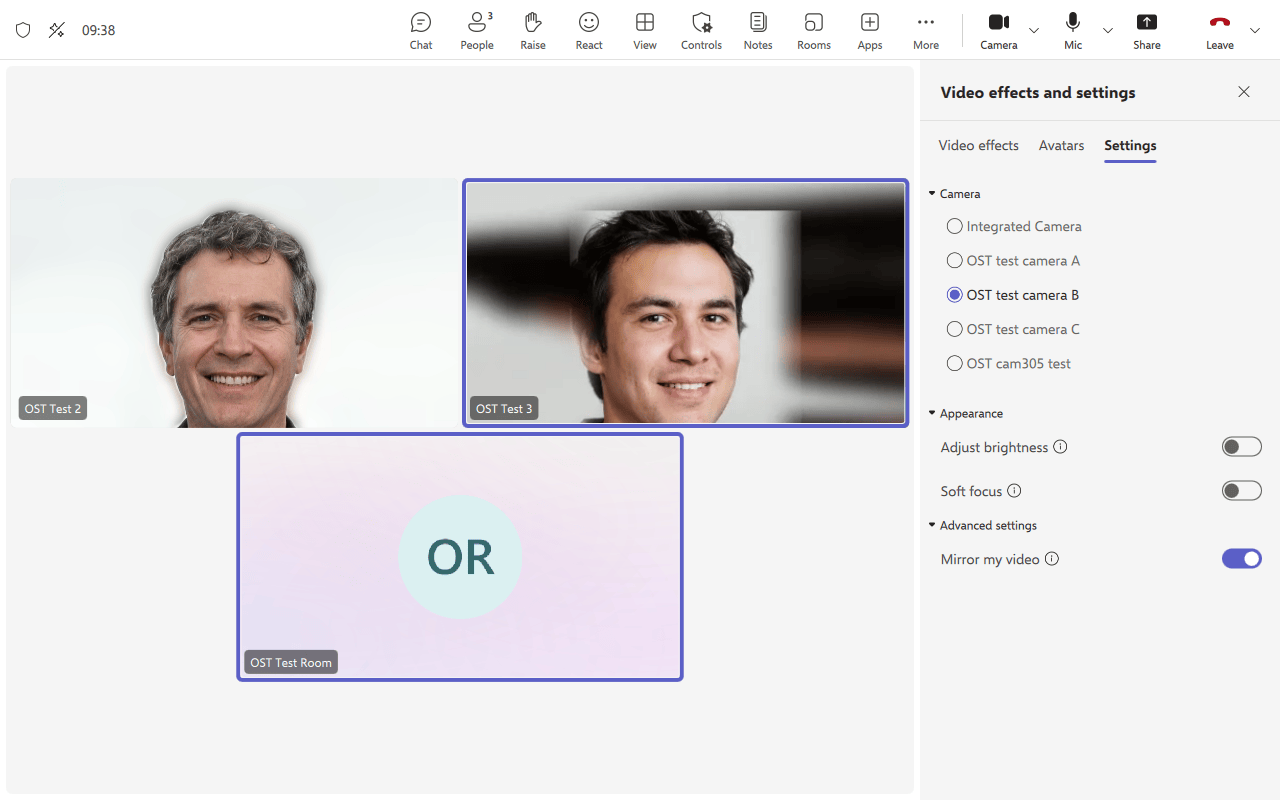
Teams' video effects run on your camera in OST: in the pre-join screen (Effects and avatars), the call toolbar's Camera ▾, and More ▸ Settings ▸ Video effects and settings.
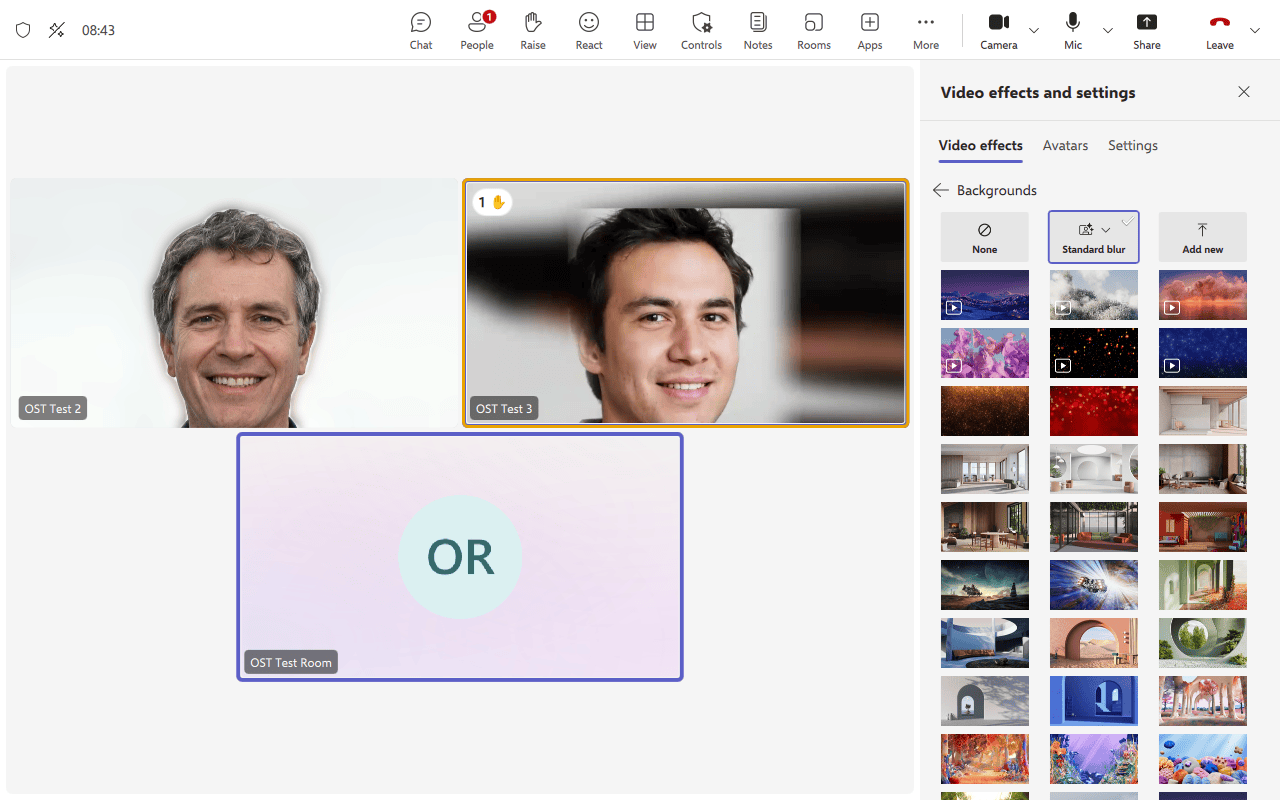
- Backgrounds: None, Blur (standard and portrait), and Teams' background images (downloaded when you pick one). Show all lists them all; Add new adds your own picture (JPEG, PNG or BMP, 360 × 360 to 2048 × 2048 pixels).
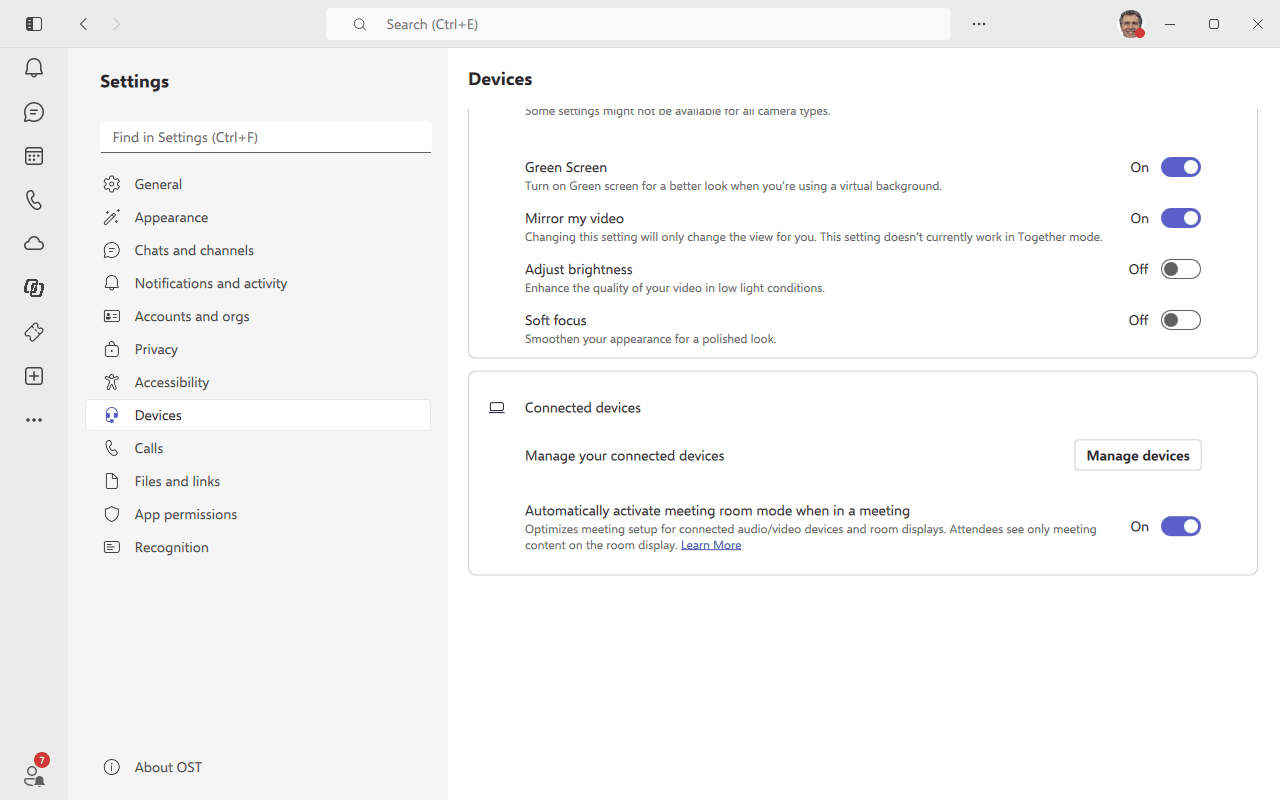
- Adjust brightness (for low light), Soft focus, and Mirror my video (only you see it mirrored).
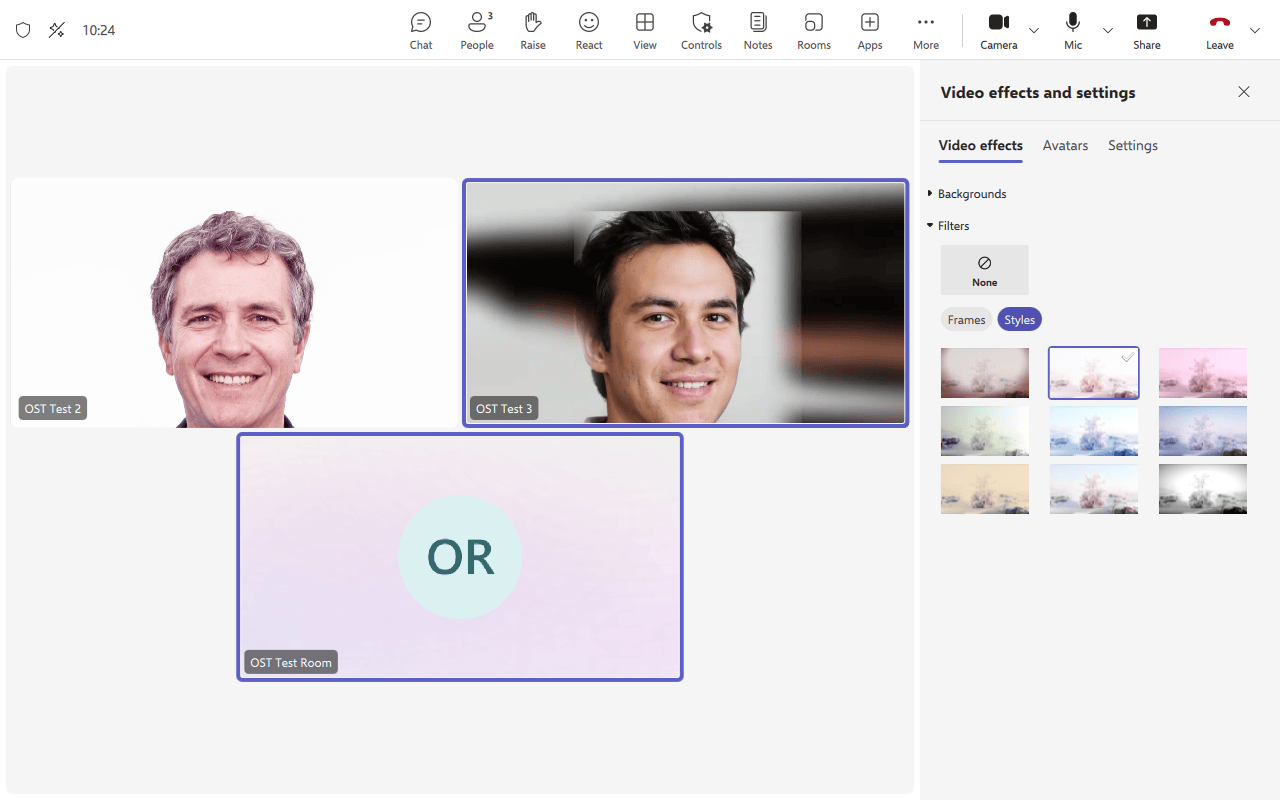
- Filters: Frames and Styles, as Teams offers them.
- Green screen: with a plain background behind you, Green screen settings pick its color for a sharper virtual background.
- Preview shows the effect before others see it (Apply and turn on video).
Avatars (in the effects pane, and the Avatars app): join as your avatar instead of your camera. Select an avatar, Preview and Apply avatars; Create your avatar builds one in Teams' Avatars app.
Teams can upscale incoming video on capable hardware. OST's CPU-only version is too slow, so OST behaves as a device without the capability and hides the option, as Teams does on such devices.
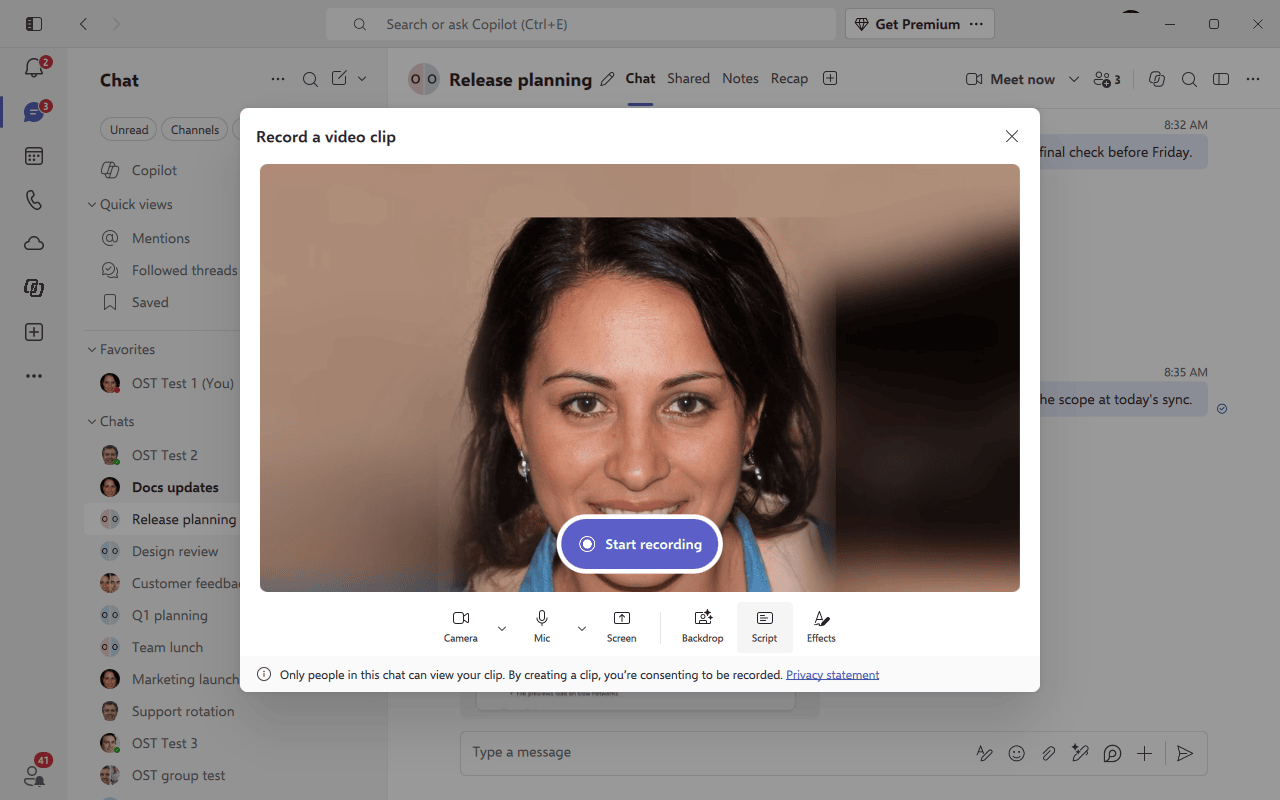
Record video clip (from the compose box's +, or Reply with a video clip) opens Teams' recorder:
- Camera or Screen (the desktop's picker asks which screen or window), with the camera and mic pickers, and up to 5:00 of recording. Start recording, Pause, Resume, Stop and review.
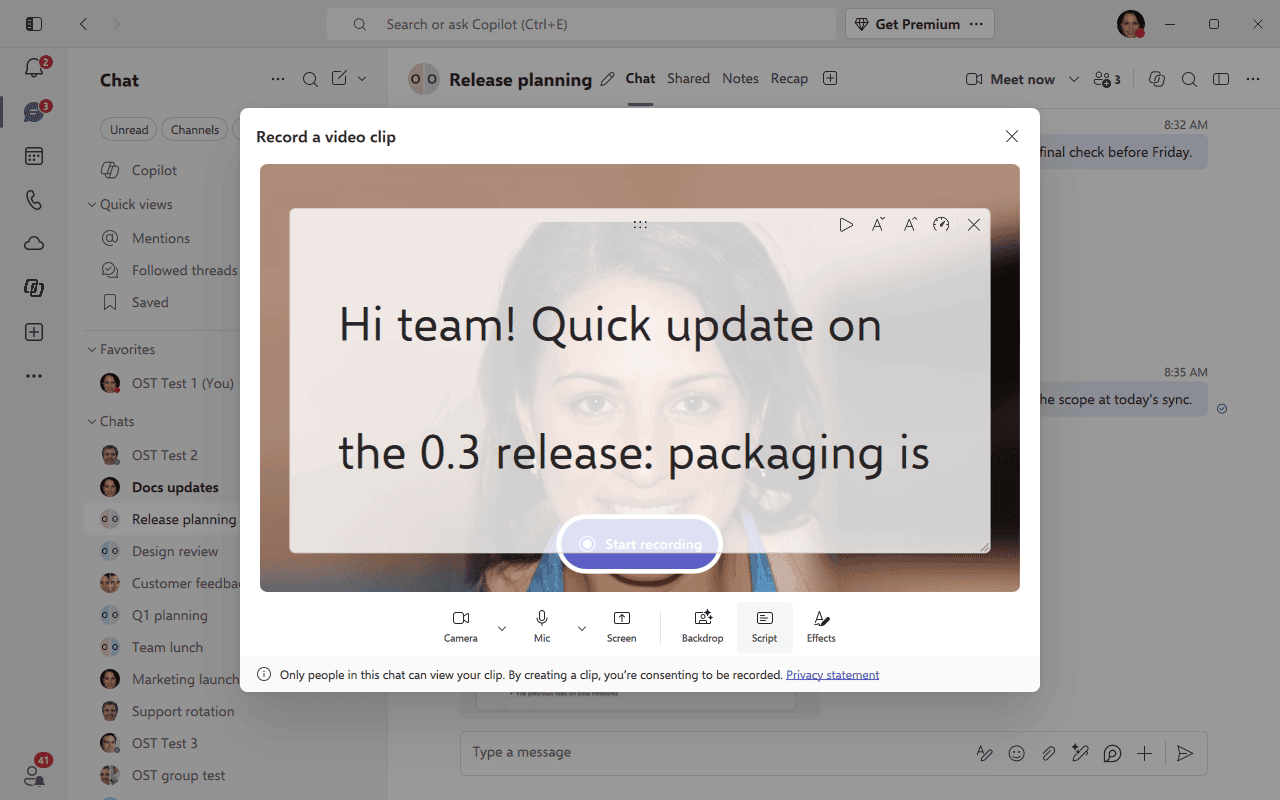
- Script: a teleprompter over the preview (Type or paste your script here, scroll speed, font size).
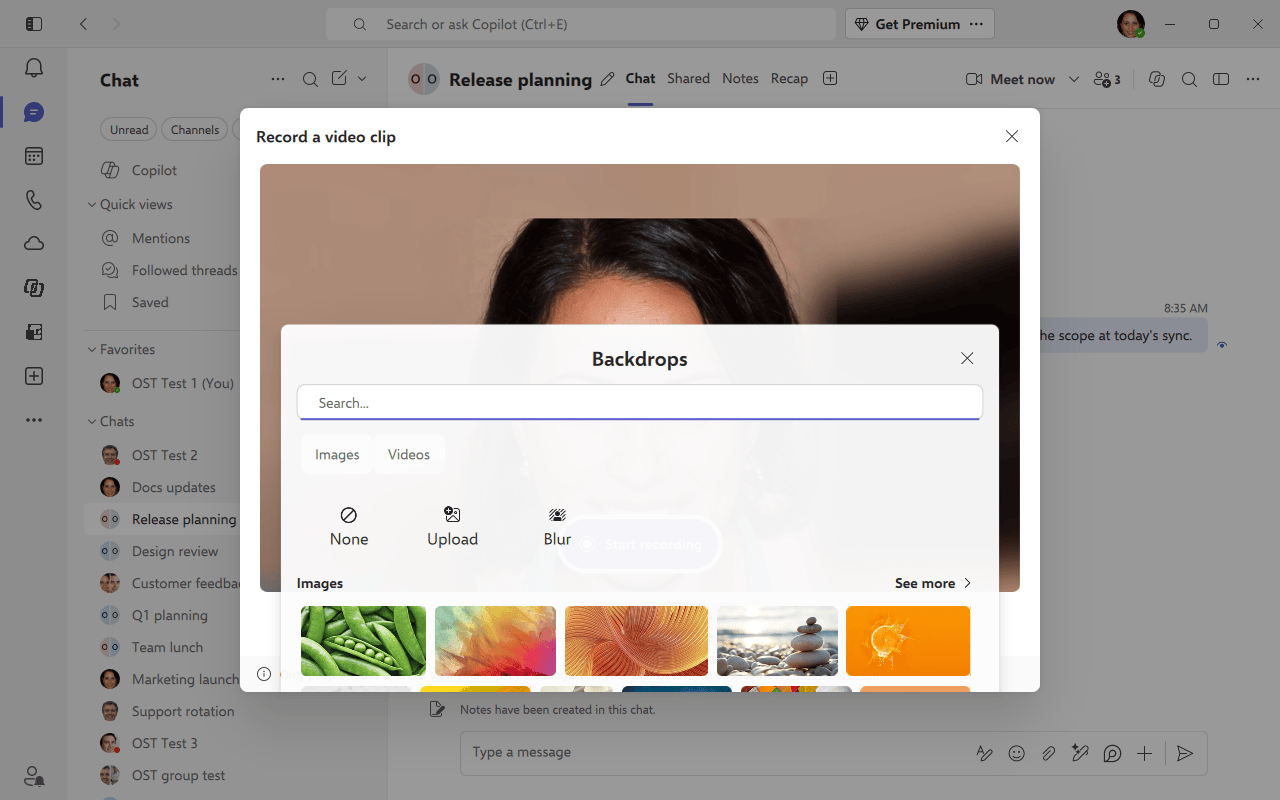
- Backdrop: None, Upload your own, Blur, or Teams' library.
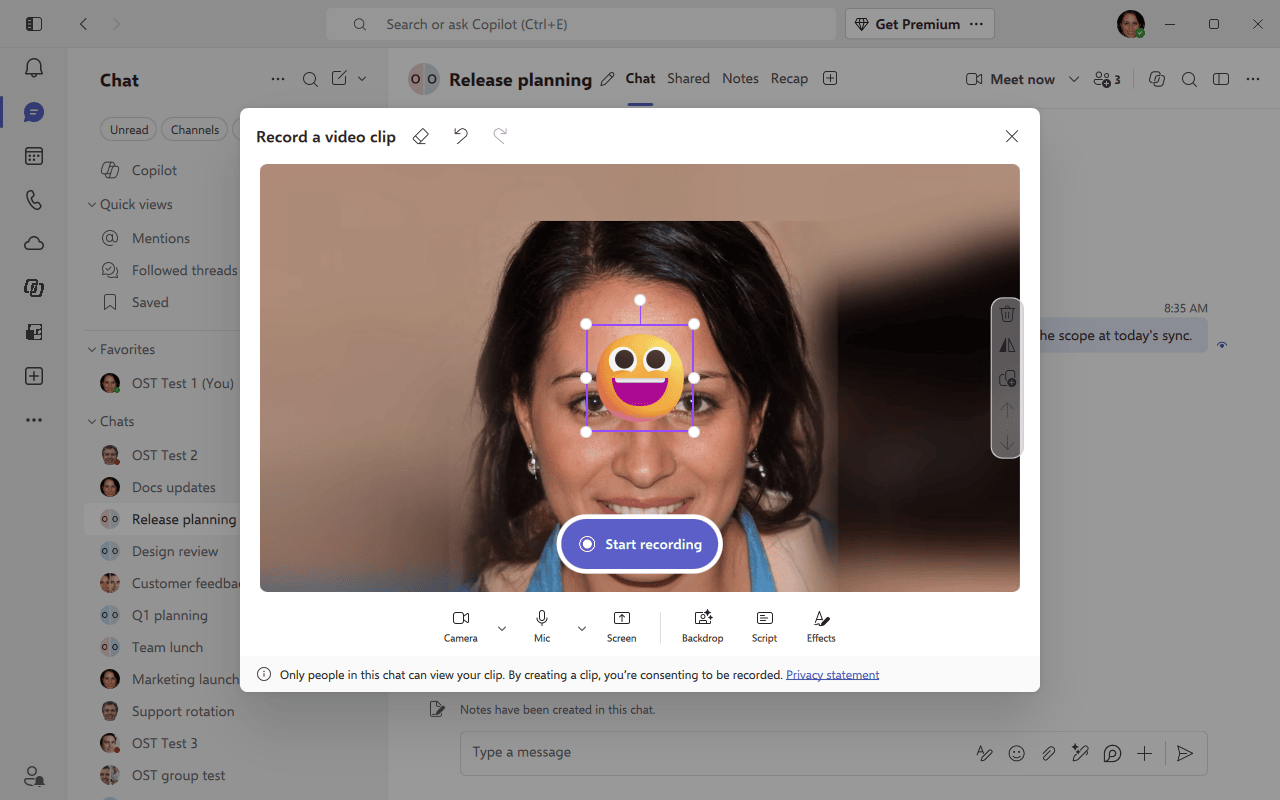
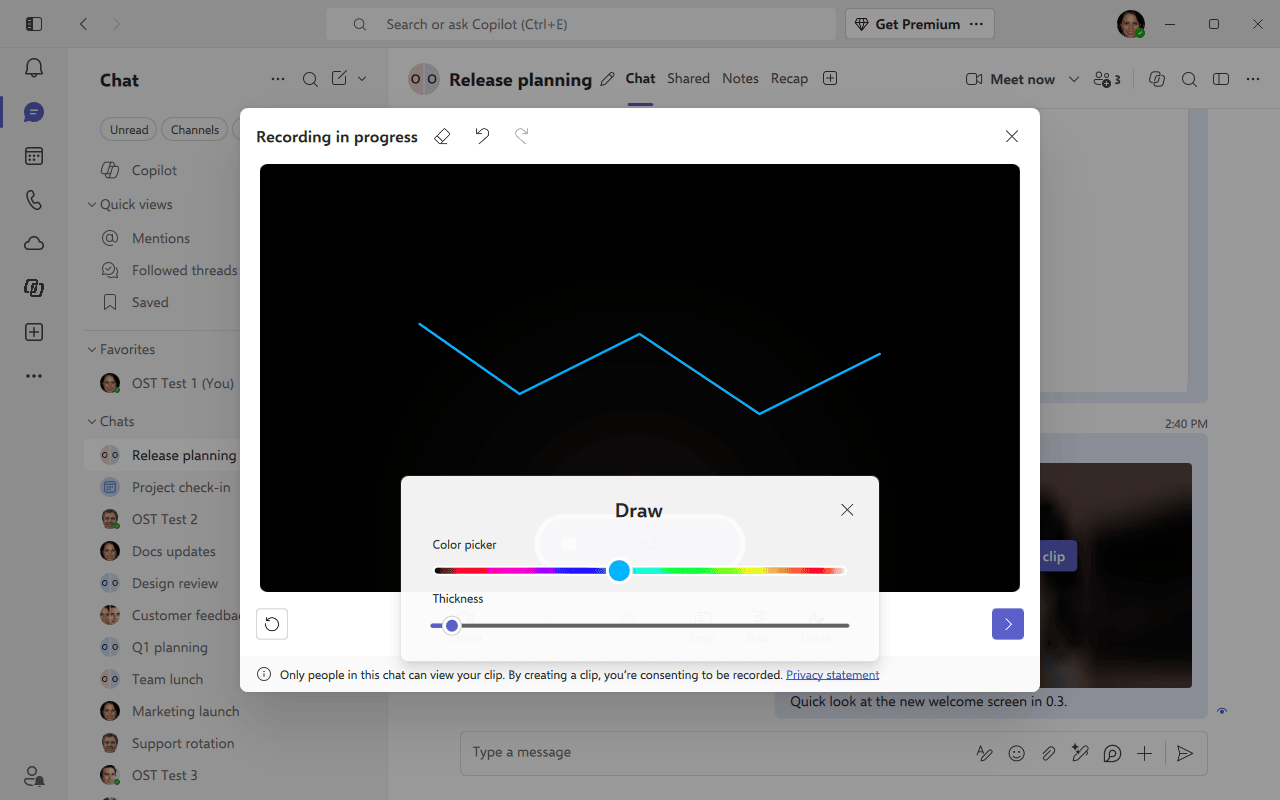
- Effects: Text, Draw, Stickers, Filter, Frame, Board and Photo, each with its options (fonts, colors, sticker categories, upload).
- Draw works while screen recording too.
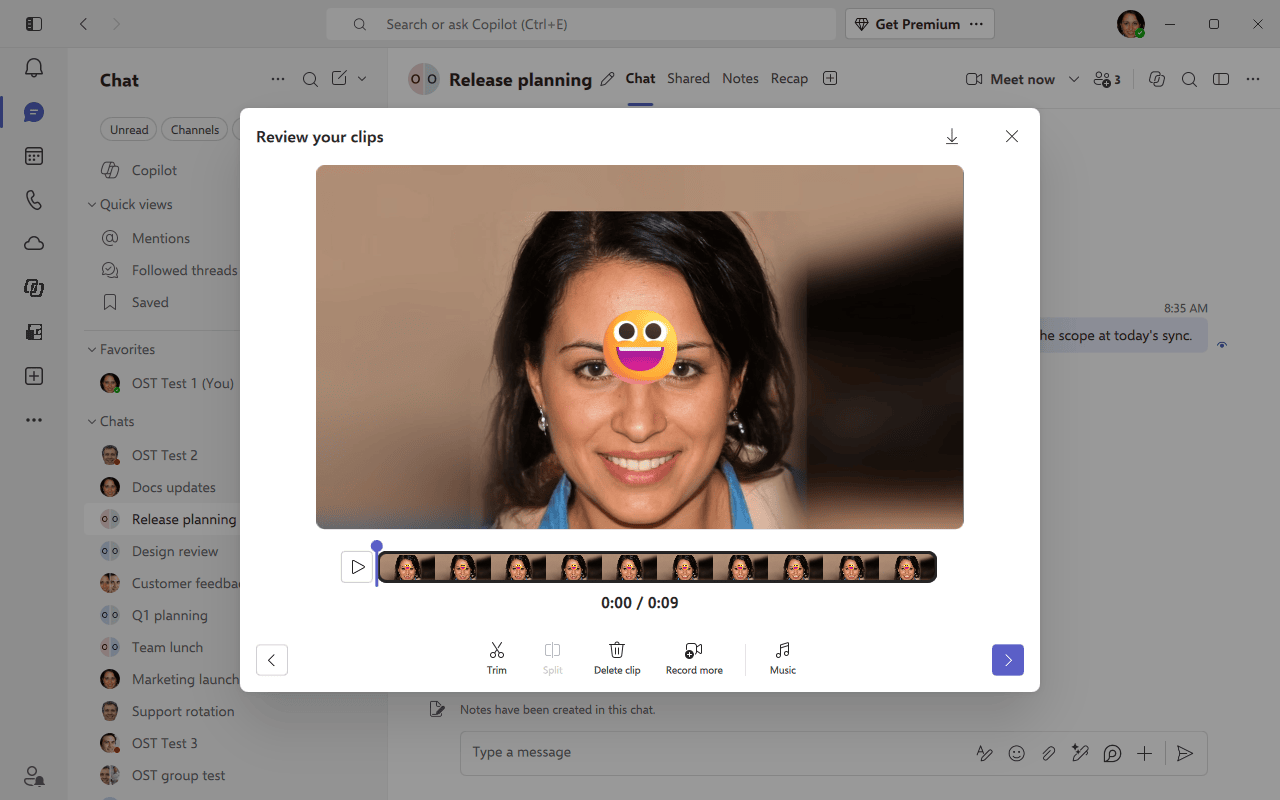
- Review your clips: Trim, Split, Rearrange, Record more, Music (Chill, Energetic, Fun, High Tech, Inspiring), Download recording, then send. "Only people in this chat can view your clip."
Sent clips play inline in the chat; see Chat messages.
Teams offers the Snapchat and Maybelline third-party filter apps; OST doesn't.