Repository navigation
Terminal client
teams-cli is OST's original terminal client: a full-screen terminal
interface (TUI) for teams, channels and chats, plus commands for scripts.
It shares the engine, the account profiles and the sign-in storage with
the desktop app. It is English only.
The OST AppImage includes it: ./OST-<version>-x86_64.AppImage teams-cli <command>,
or link the AppImage as teams-cli (ln -s ~/.local/bin/ost-desktop ~/.local/bin/teams-cli).
Or build it (see the end of this page).
teams-cli login            # Microsoft's device-code sign-in: open the address it shows, enter the code
teams-cli login --force    # sign in again even with a saved sign-in
teams-cli status           # token expiry
teams-cli whoami           # check the sign-in works
teams-cli logout
teams-cli login signs in with a device code. If the profile signs in
through OST desktop's browser sign-in (which the desktop's embedded apps
need), login doesn't switch it: it says so and exits with an error. Run
ost-desktop to sign in again, or run teams-cli login --device-code to
switch the profile to a device-code sign-in. teams-cli logout signs the
account out but keeps the profile's sign-in method.
If the desktop app is already signed in with the same profile, teams-cli
uses that sign-in. OST_PROFILE=<name> picks another account, as in the
desktop app.
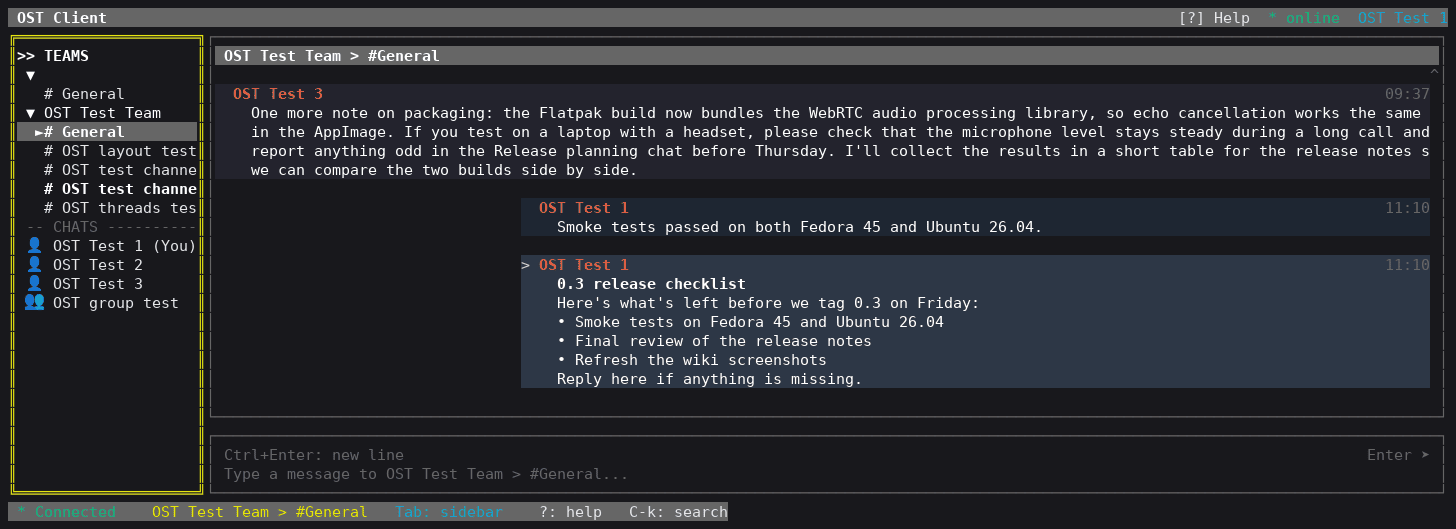
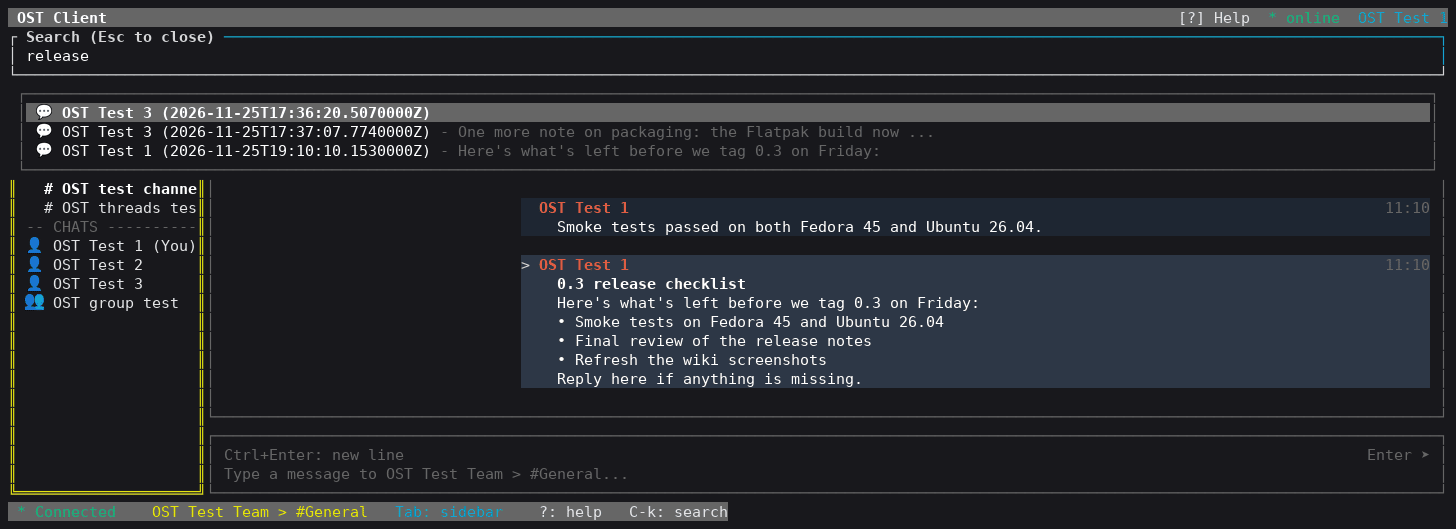
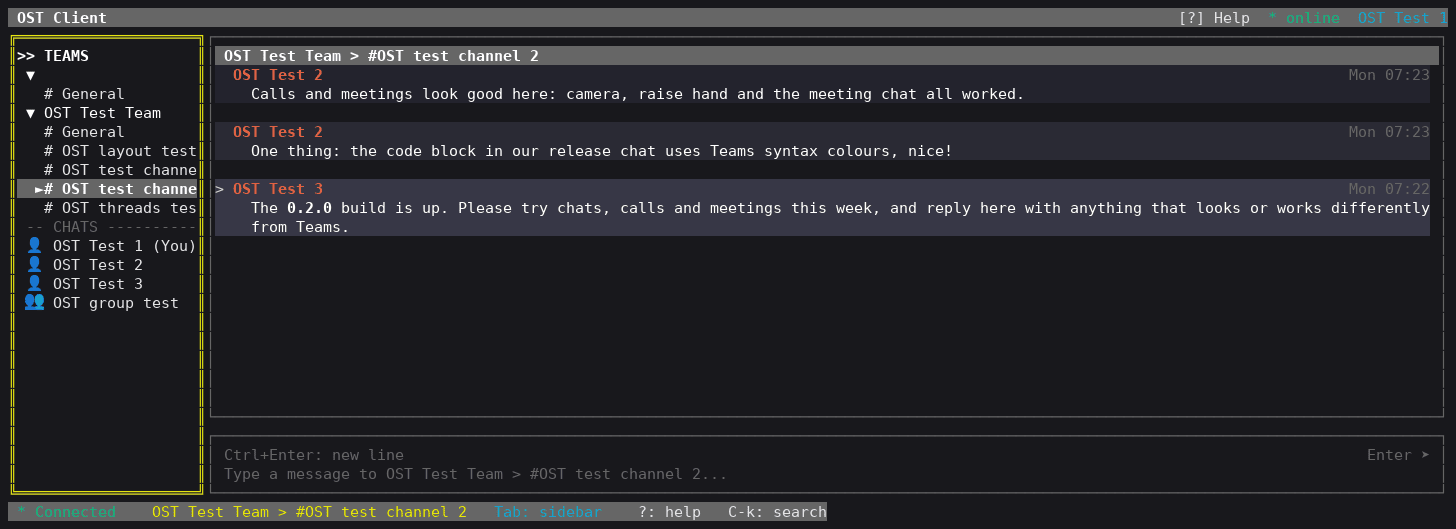
teams-cli tui- Layout: a header, a status bar with hints at the bottom, and three panes: teams and chats on the left, messages on the right and the compose box below them. The focused pane has a highlighted border.
- Teams and chats: your teams (each collapsible, Enter expands it to its channels) and your chats, with unread counts.
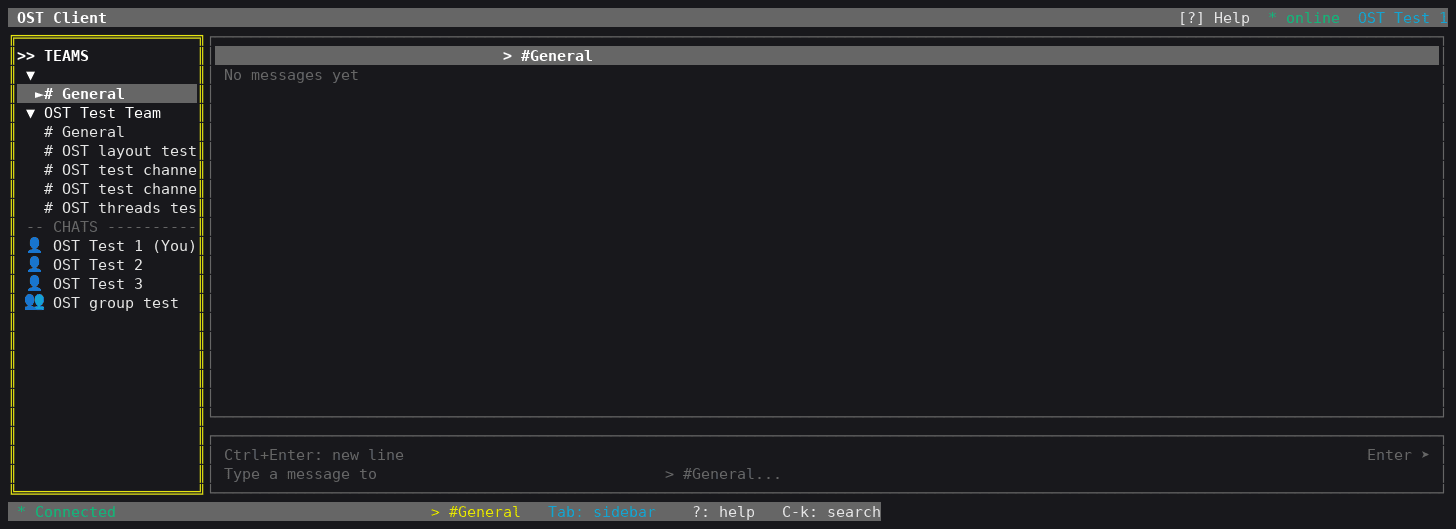
- Messages: the selected chat or channel, with threads (Enter shows or hides a thread's replies), reactions, attachments, emoji, @mentions, subjects, rich formatting (bold, italic, code, links, lists) and meeting events. Each person gets their own color, and your own messages are right-aligned. An empty channel says so.
- Live: new messages arrive over Teams' push service; older messages load as you scroll up.
- Compose: type and press Enter to send, with a toolbar line of hints.
-
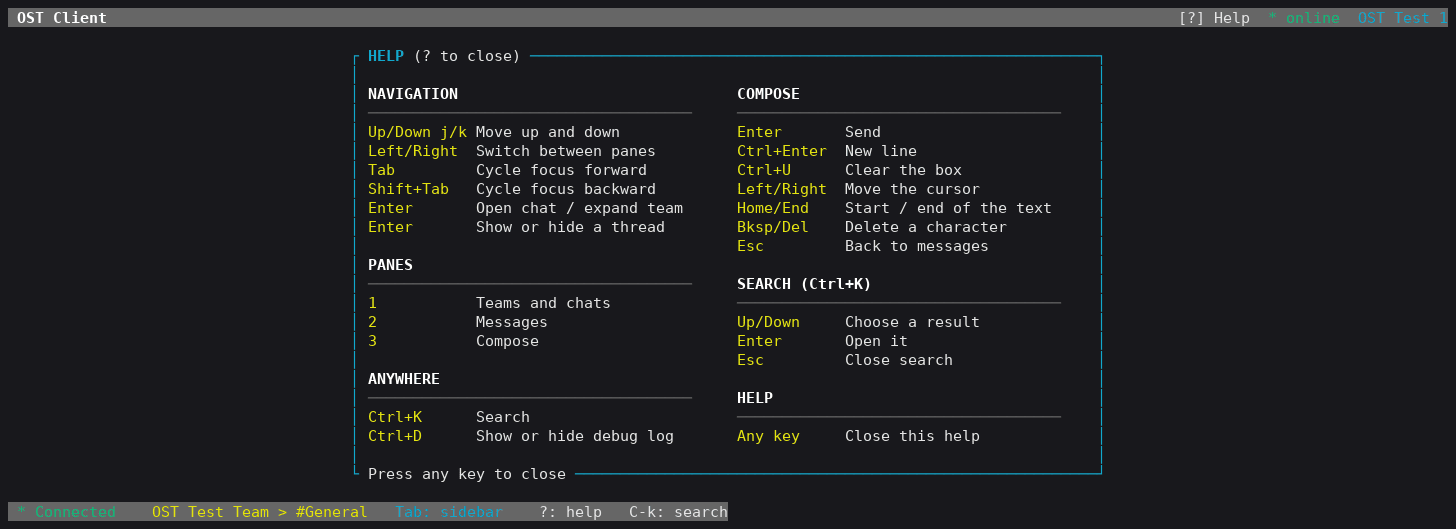
Help (
?): a popup with every key. - Search (Ctrl+K): search across channels, chats and loaded messages, then open a result.
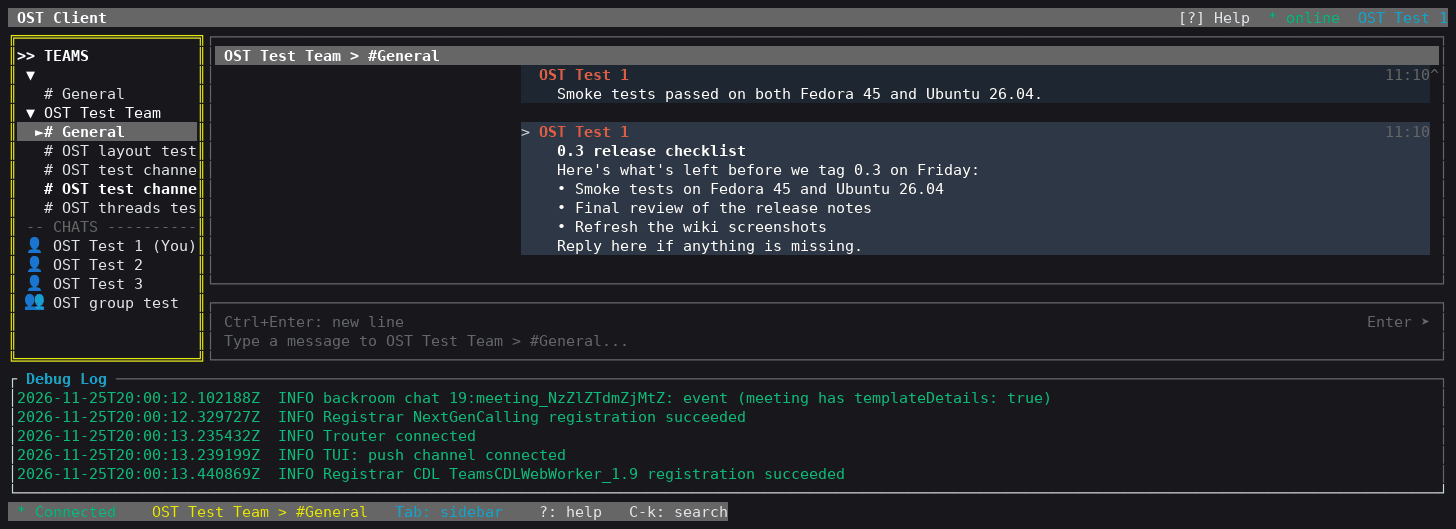
- Debug log (Ctrl+D): a pane with the client's log, scrolled with PgUp and PgDn.
- Desktop notifications: a message that @mentions you raises a desktop notification.
| Area | Keys | What they do |
|---|---|---|
| Navigation | Up / Down, j / k | Move up and down |
| Left / Right | Switch between panes | |
| Tab / Shift+Tab | Cycle focus forward / backward | |
| Enter | Open a chat, expand a team, show or hide a thread | |
| Panes | 1 / 2 / 3 | Teams and chats / Messages / Compose |
| Anywhere | Ctrl+K | Search |
| Ctrl+D | Show or hide the debug log | |
| PgUp / PgDn | Scroll the debug log | |
| ? | Show or hide help | |
| q | Quit (outside compose) | |
| Compose | Enter | Send |
| Ctrl+Enter | New line | |
| Ctrl+U | Clear the box | |
| Left / Right | Move the cursor | |
| Home / End | Start / end of the text | |
| Backspace / Delete | Delete a character | |
| Esc | Back to messages | |
| Search | Up / Down | Choose a result |
| Enter | Open it | |
| Esc | Close search | |
| Help | Any key | Close the help |
| Command | What it does |
|---|---|
teams-cli login [-f/--force] [--device-code] |
Sign in with a device code (see above) |
teams-cli logout |
Sign out and clear the saved tokens; the profile keeps its sign-in method |
teams-cli status |
Show the sign-in status and token expiry |
teams-cli whoami |
Show your user info (checks the sign-in works) |
teams-cli chats [-l/--limit N] |
List recent chats with their ids (default 20) |
teams-cli read <chat-id> [-l/--limit N] |
Read a chat's messages (default 20) |
teams-cli send -t/--to <chat-id> "message" |
Send a message |
teams-cli teams |
List your teams and their channels |
teams-cli presence [-s/--set STATUS] |
Show your presence, or set it: available, busy, dnd, away, offline
|
teams-cli trouter |
Connect to Teams' push service and print what arrives |
teams-cli call-test |
Place a test call (audio builds; see below) |
teams-cli mic-test |
Record 3 seconds from the microphone and play it back (audio builds) |
teams-cli cam-test |
Record 3 seconds from the camera and play it back in a window (video-capture builds) |
teams-cli tui |
Start the terminal interface |
call-test options:
| Option | Effect |
|---|---|
--echo |
Call Teams' Echo (call quality tester) bot |
--thread <id> |
Call the other person in this 1:1 chat |
-d/--duration <s> |
Keep the call up this long (default 15) |
--record |
Record the call (recorder bot) |
--tone |
Send a 1 kHz test tone instead of the microphone |
--camera |
Send video from the camera (video-capture builds) |
--display |
Show received video in a window (video-capture builds) |
-v / --verbose turns on debug logging for any command.
teams-cli --help and teams-cli <command> --help list every option.
teams-cli chats --limit 5
teams-cli read "19:…@thread.v2" --limit 10
teams-cli send --to "19:…@thread.v2" "Hello"
teams-cli presence --set busy
teams-cli call-test --echo --duration 20cargo build --release --bin teams-cli # target/release/teams-cli
cargo build --release --bin teams-cli --features audio # with microphone and speaker (PipeWire)The video-capture feature adds cam-test and an SDL2 video window for
call-test (needs SDL2's development files).