Repository navigation
Meetings
OST joins Teams meetings with its own media engine, with Teams' pre-join screen, lobby, meeting window and controls. For the toolbar and its menus see Meeting controls; for calls see Calls and voicemail.
- Select Join on a meeting in Calendar (its card, or the Meeting started bar), in the meeting's chat, or on its "meeting started" banner. A channel meeting's post has Join too.
- Join with an ID (Calendar ▸ Meet now ▾) joins with a Meeting ID and Meeting passcode.
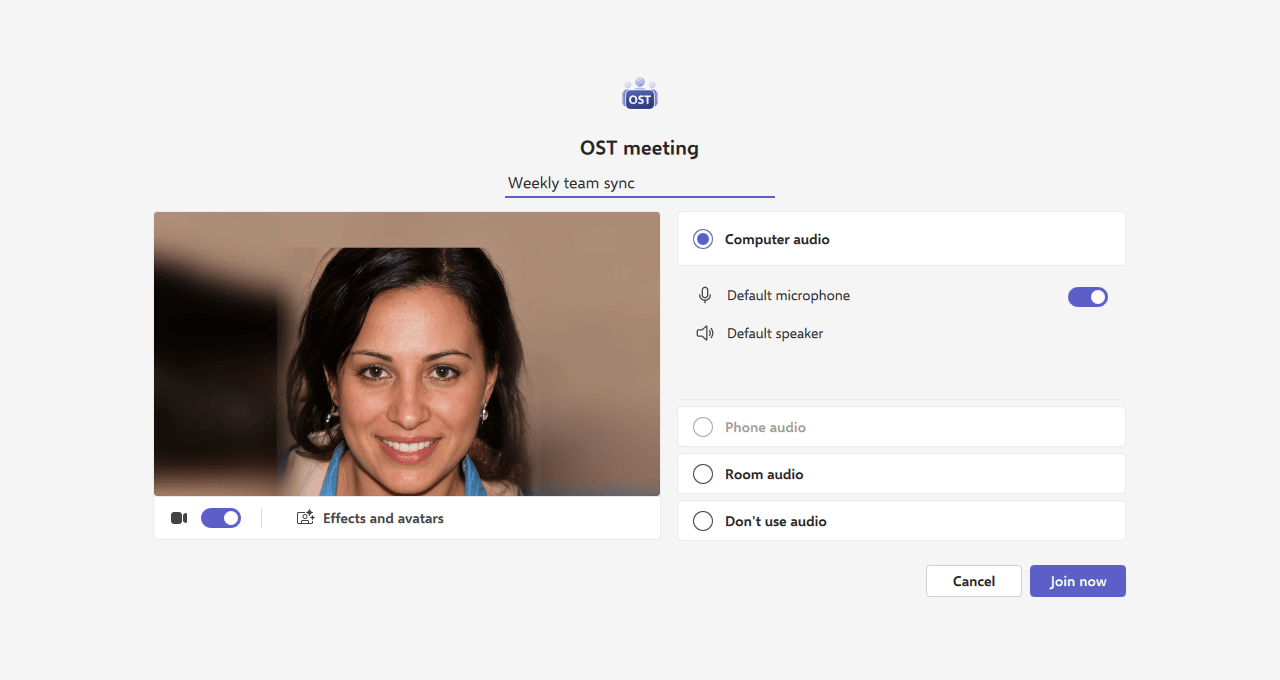
Teams' pre-join screen ("Meeting join | title") shows your camera preview and lets you set up before Join now:
- Camera on or off, and Effects and avatars (the quick picker of backgrounds, filters and avatars; see Video effects and clips). With the camera on, Join now hands the preview's camera to the call, so it stays on without "Device or resource busy". The cameras listed are those in Devices.
- Microphone on or off, with the speaker and microphone choice.
- The audio choice: Computer audio, Phone audio ("We'll give you a number to call after you join, or we can call you."), Room audio (rooms in your organization, rooms Nearby over Bluetooth, and connected room devices; see Room mode) or Don't use audio.
- Organizers and presenters of events get Join as Organizer, Join as Presenter and Preview as Attendee in More join options.
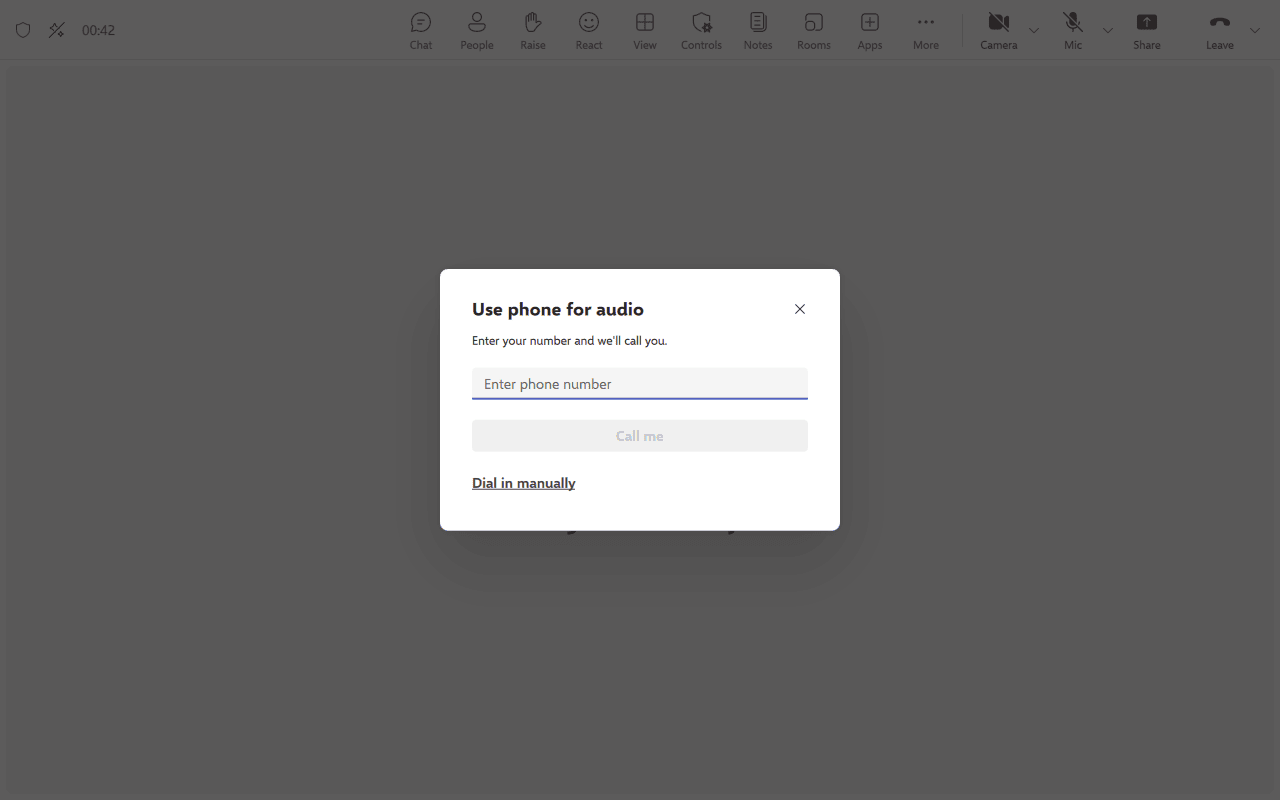
Phone audio: after you join, the Meeting audio dialog offers Call me (enter your number and OST has the meeting call your phone) or Dial in manually with the meeting's numbers (Toll and Toll-Free, Get local numbers) and the conference ID. Your organization needs Audio Conferencing for this.
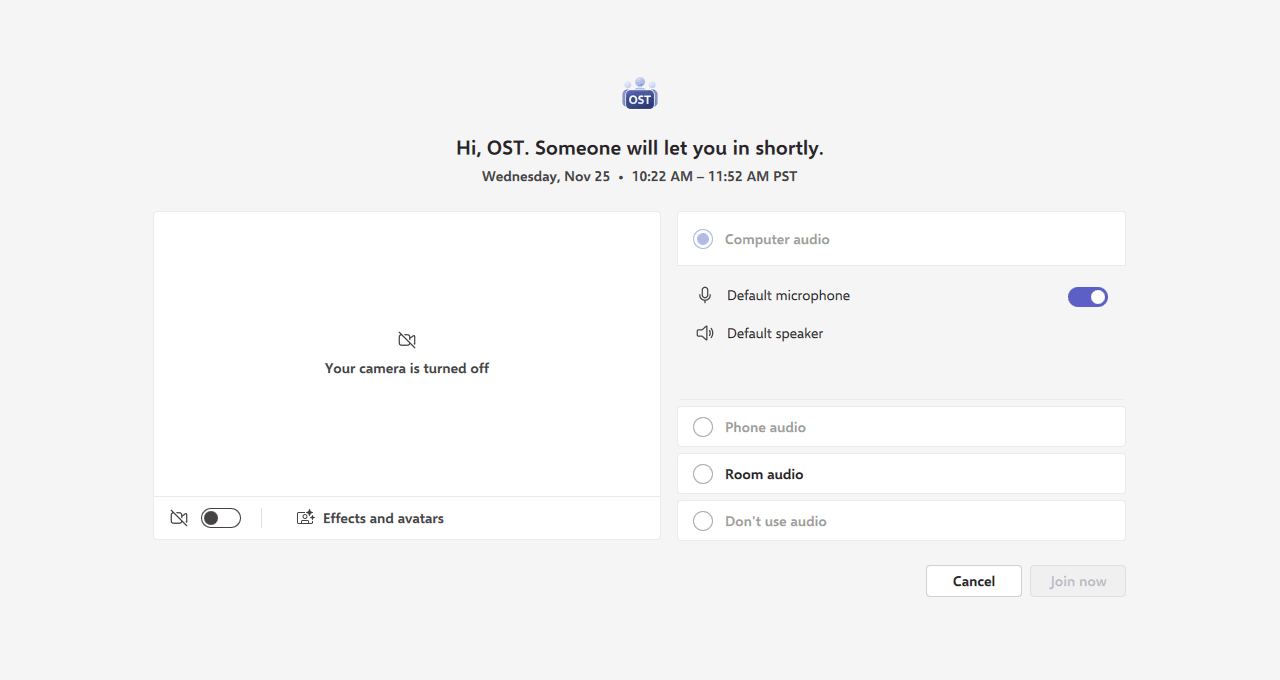
- If the organizer holds you in the lobby, OST waits there ("Hi, name. Someone will let you in shortly.") until someone lets you in.
- Lobby chat: people waiting can chat with the organizers ("Only organizers and people in the lobby can view these messages.").
- Organizers see the Waiting in the lobby toast with Admit, Deny and View Lobby; People lists Waiting in lobby with Admit all. Mute these notifications silences lobby toasts for the rest of the meeting. Organizers can Send message to lobby participants in the lobby chat.
- An external bot that the join shield flags shows as Unverified under Suspected threats; Admit asks Admit this unverified bot? ("External bots might record or transcribe your meeting…"), with This isn't a bot.
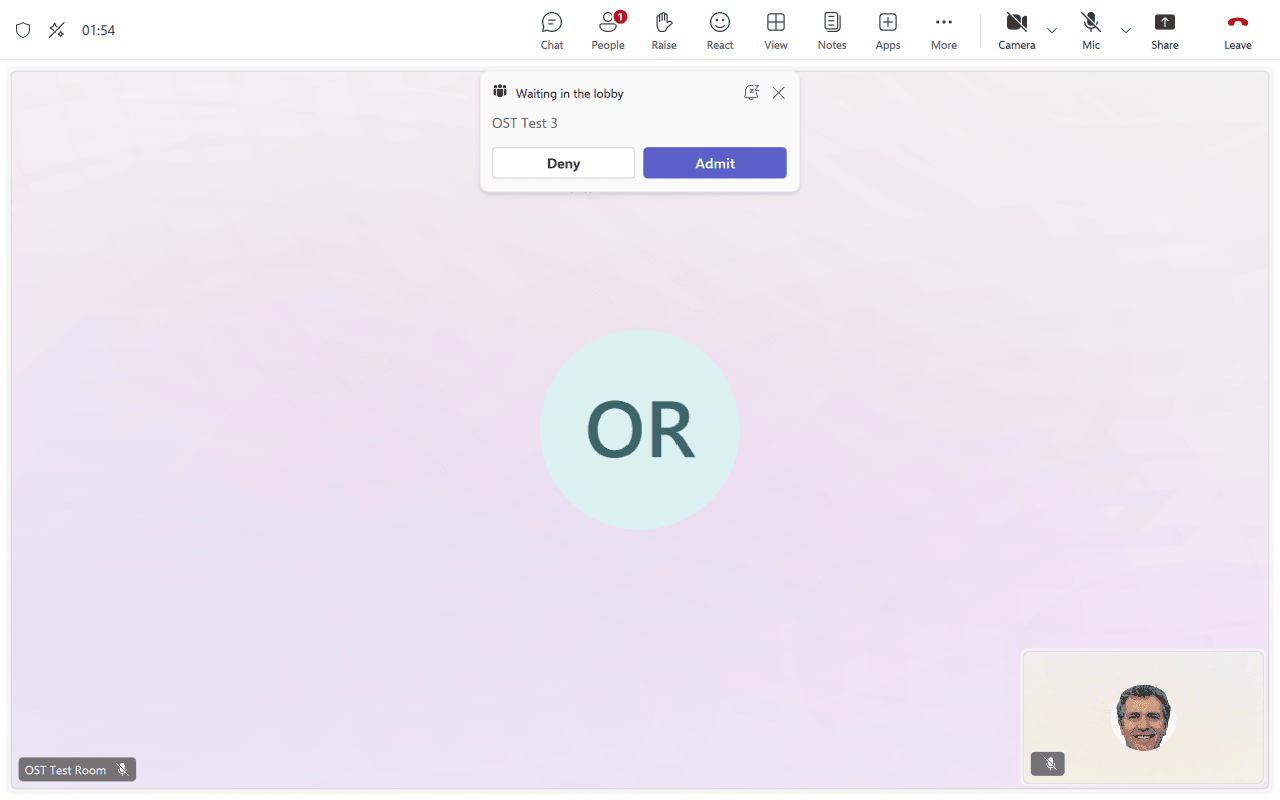
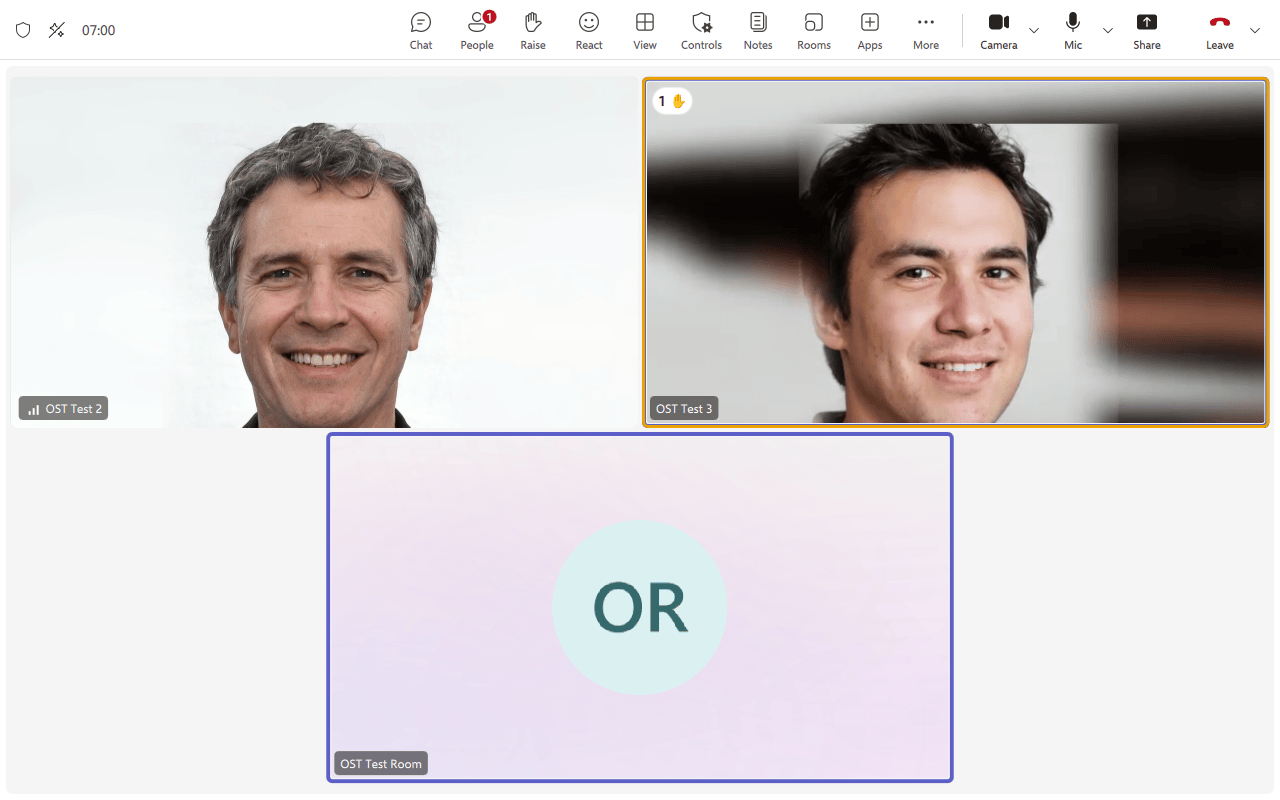
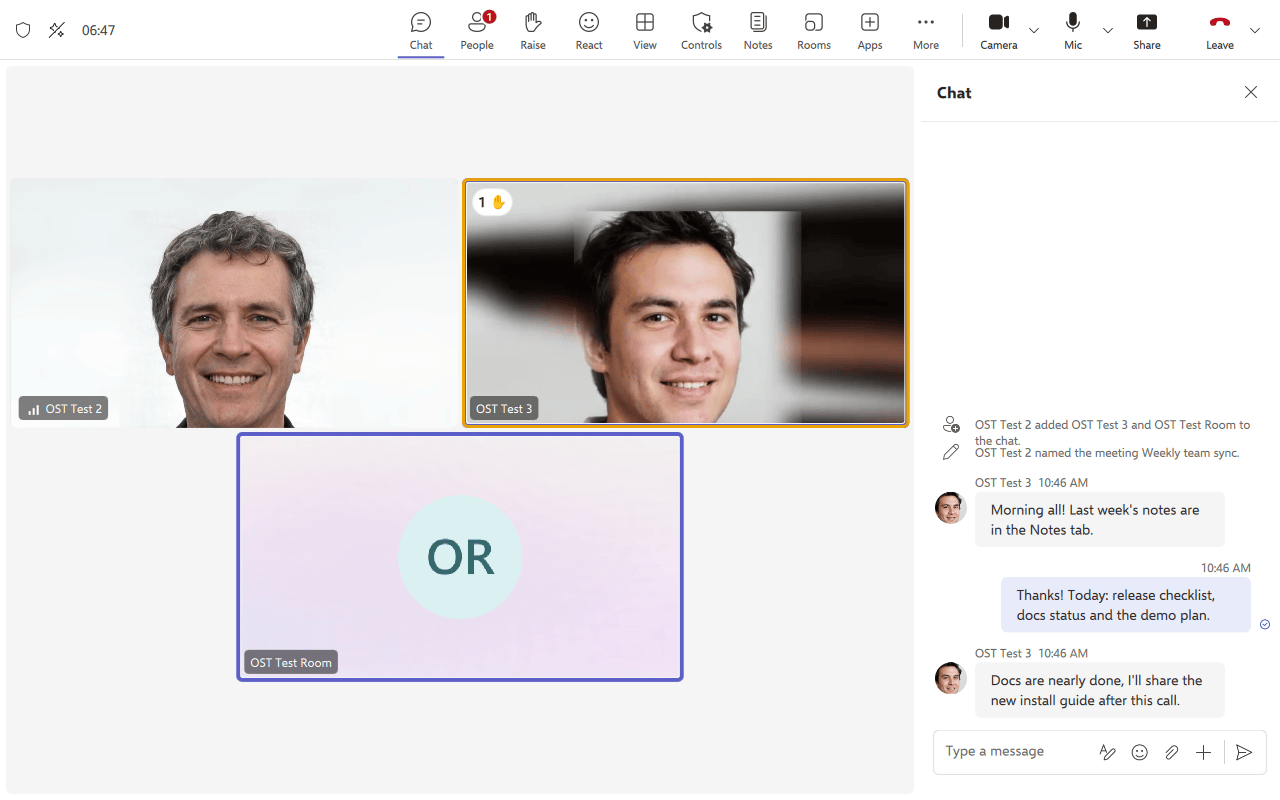
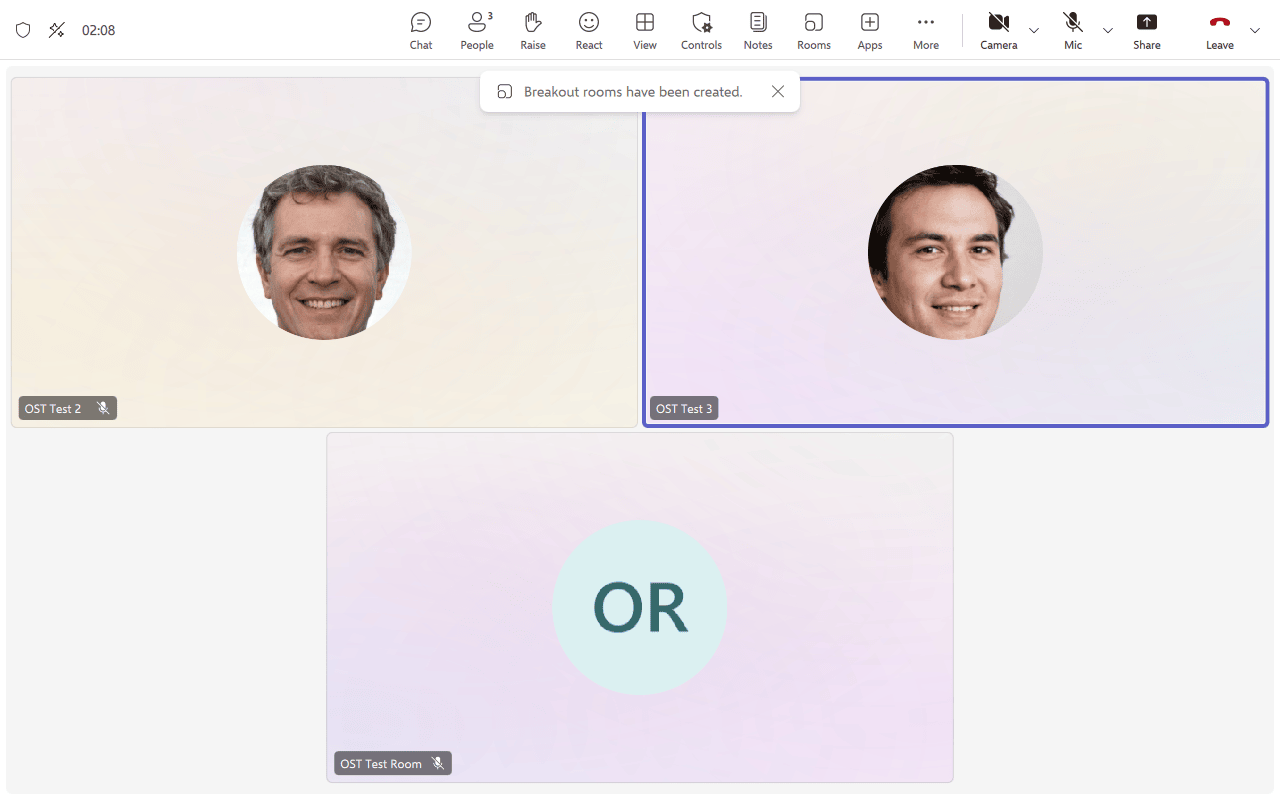
- The stage: a gallery of video tiles (names, mute state, raised hands, speaking outline) with your self view, or a speaker or content layout (see Meeting controls ▸ View).
- Chat: the meeting chat beside the stage, with the meeting's tabs (Q&A where the organizer added it, Breakout Rooms, Meeting Whiteboard, apps).
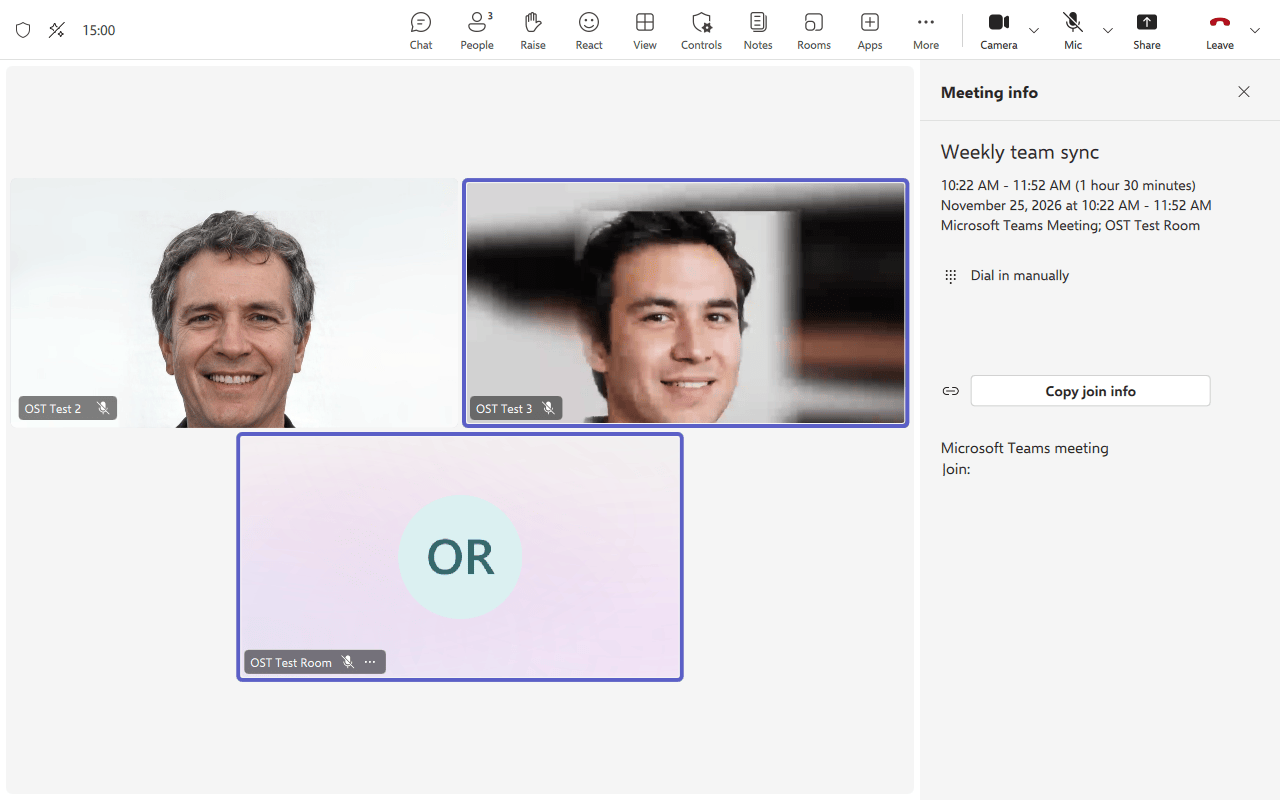
- Meeting info (More ▸ Meeting info): the join link (Copy join info), dial-in numbers and conference ID.
- Alerts in the call window: someone joined or left, the recording started, you're the only one here, and others, as Teams shows them.
- "You've been muted": when an organizer mutes you, a callout says so, with Unmute.
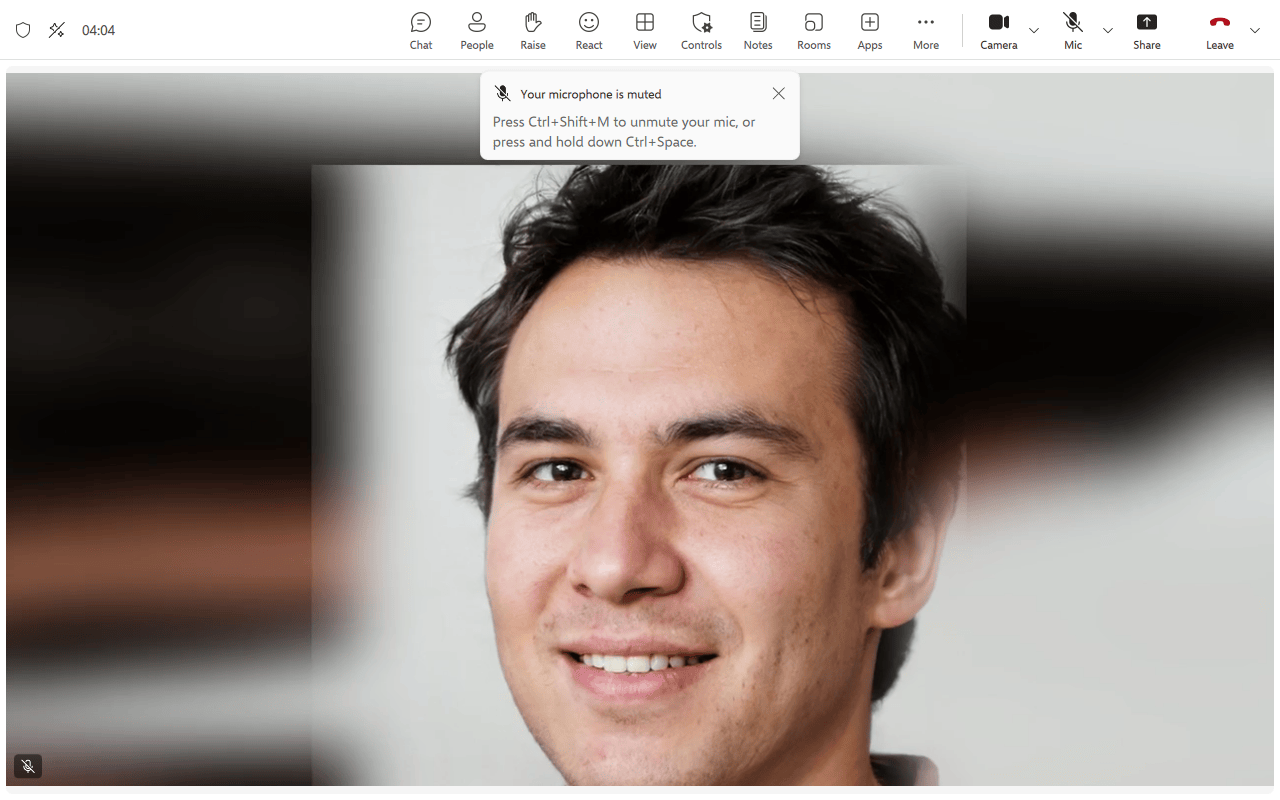
- "You're muted": when OST hears you speaking while your mic is off (Settings ▸ Accessibility ▸ Muted notification).
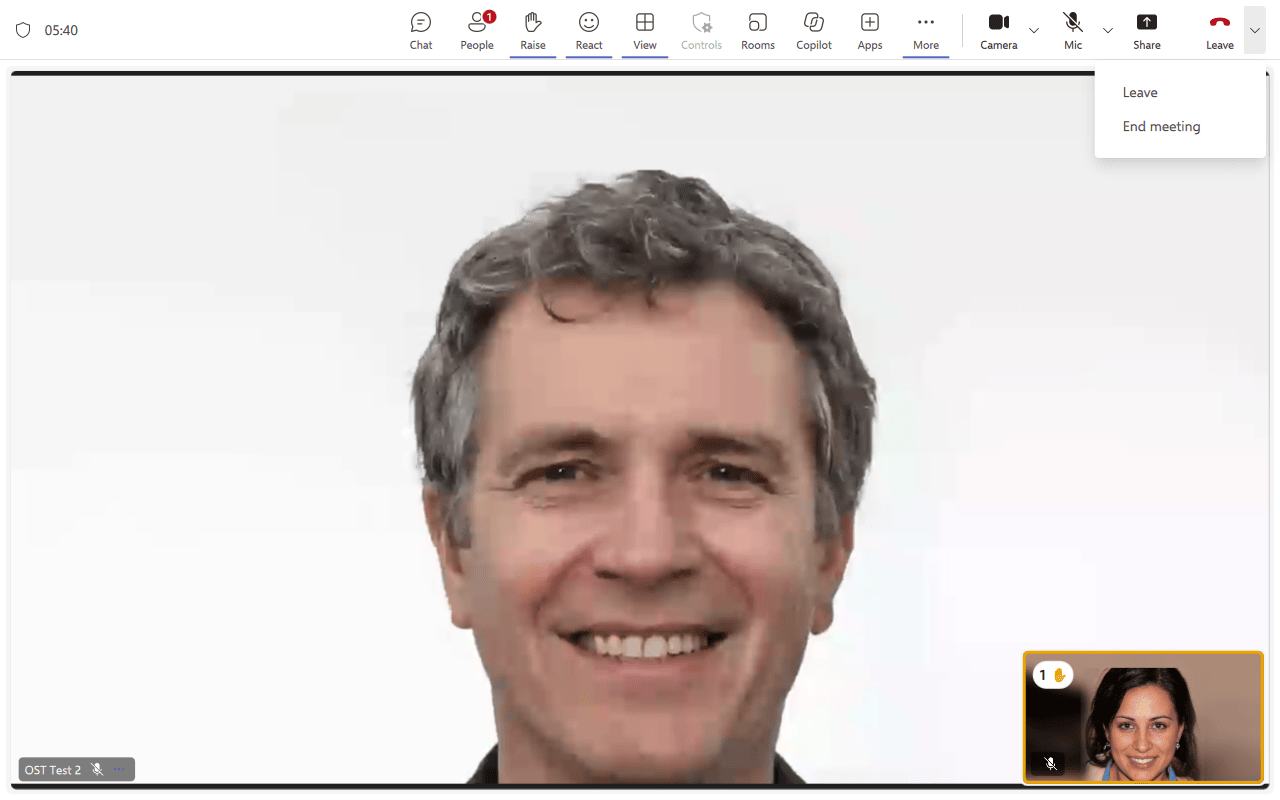
- Leave (Ctrl+Shift+H) leaves the meeting. Its ▾ has Leave on all my devices and, for organizers, End meeting (ends it for everyone, after asking).
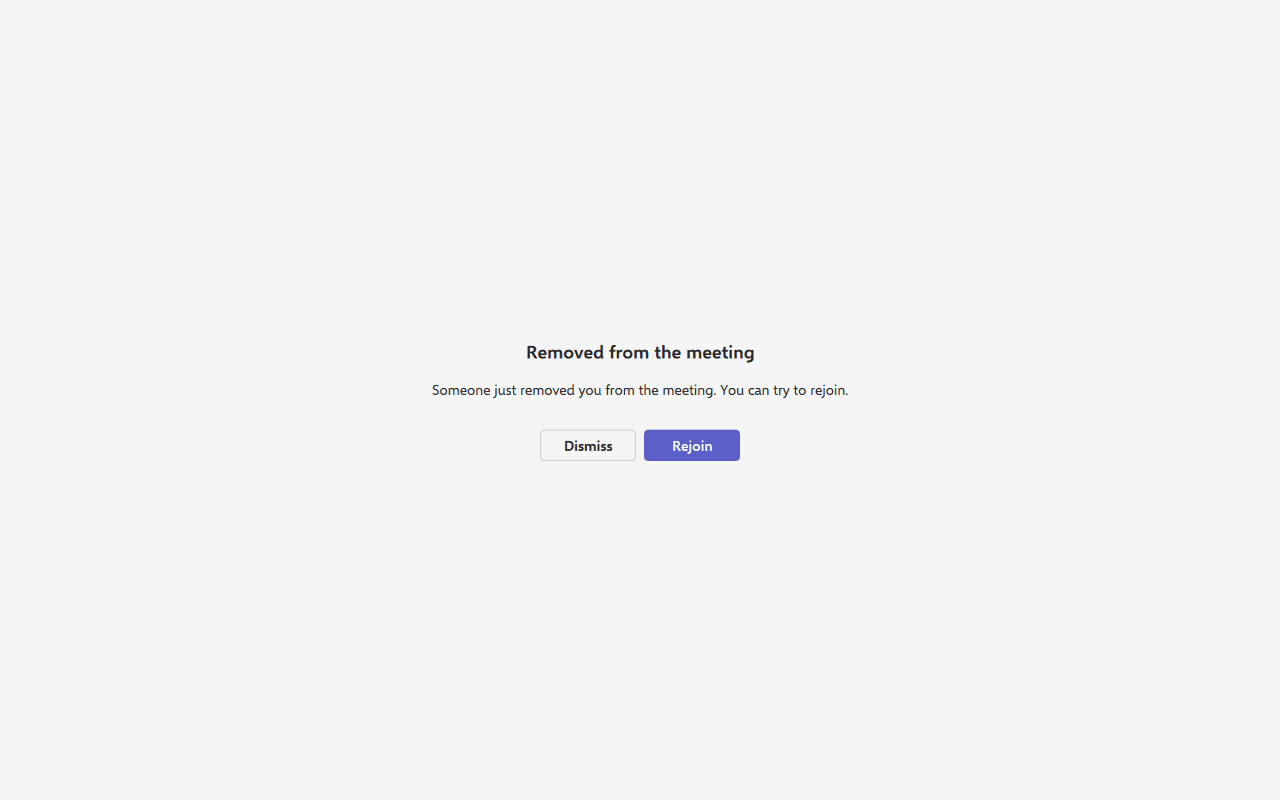
- If you're denied entry, not let in in time, or removed, OST shows Teams' call-ended screen ("Sorry, but you were denied access to the meeting.", "Sorry, no one has responded to your request to join.", "Removed from the meeting") with Rejoin or Dismiss.
- Meeting controls: the toolbar, People, View, More, organizer controls, timer, call health.
- Sharing and presenting
- Captions and transcripts
- Breakout rooms
- Town halls and webinars
- Meeting recaps
- Video effects and clips
- Loop, Notes and Whiteboard