Repository navigation
Chat
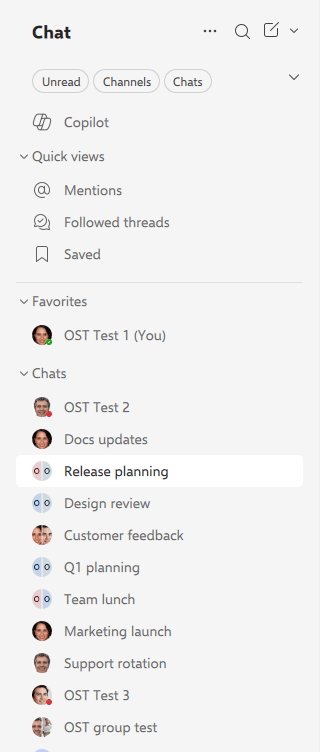
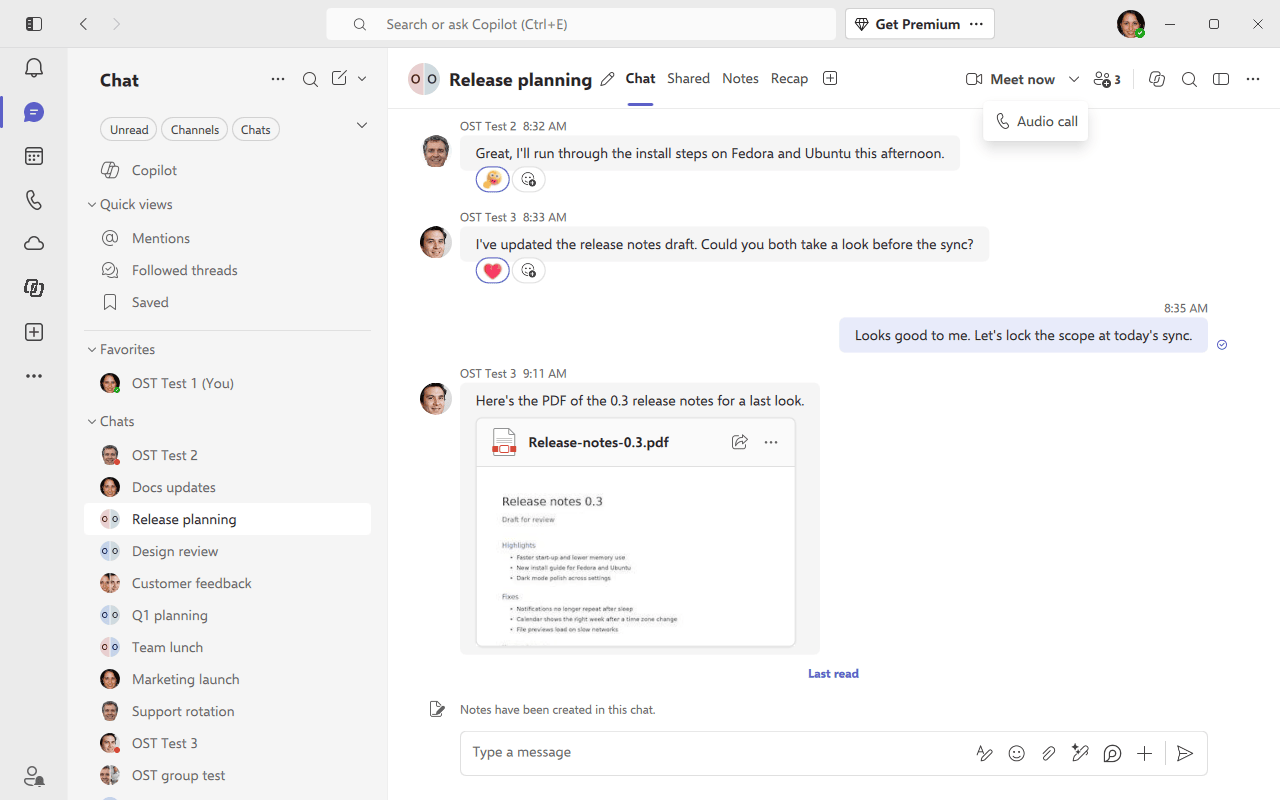
Chat in the app bar holds your 1:1 and group chats, meeting chats, your own notes chat, and (in the combined view) your teams and channels, as in Teams. The list is on the left and the open conversation on the right.
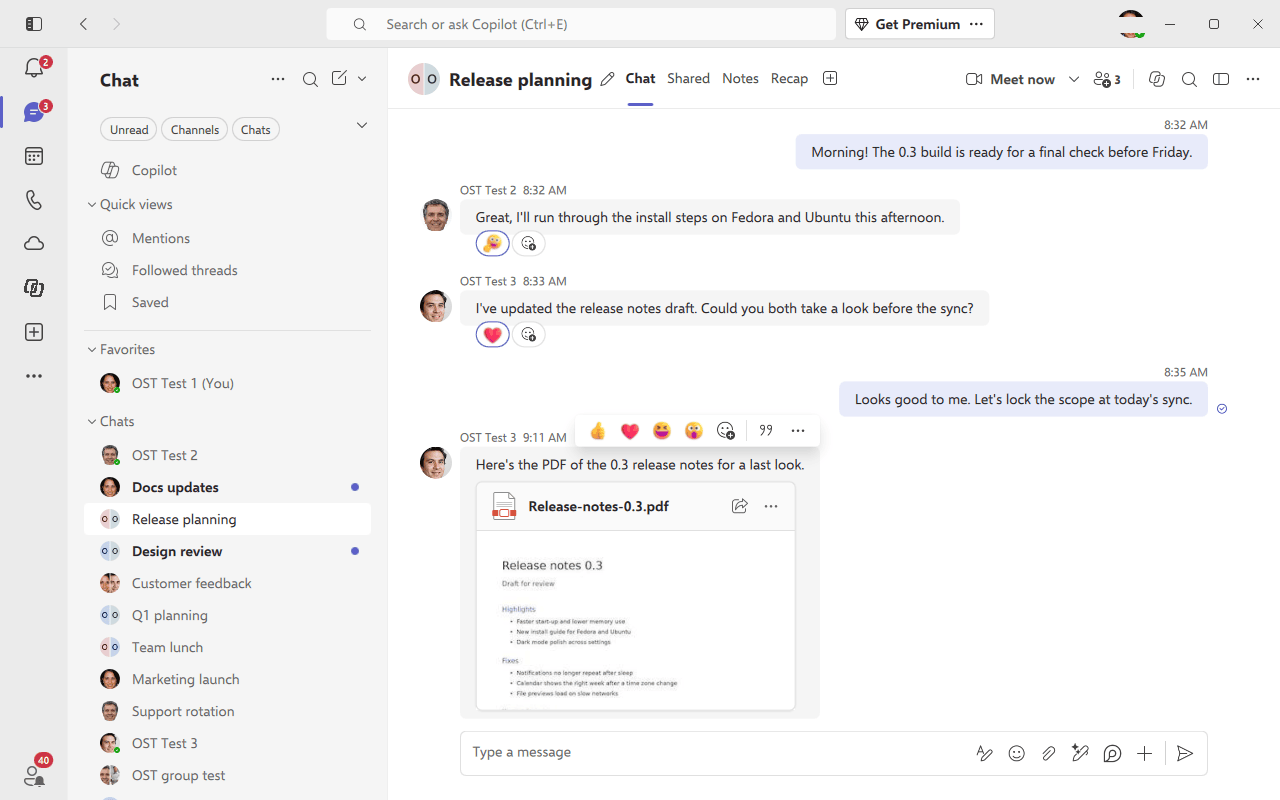
This page covers the chat list, starting chats and the chat header. For reading and writing messages see Chat messages; for channels see Teams and channels.
From the top:
- Copilot (with a Microsoft 365 Copilot license): opens the Copilot app (see Copilot). Settings ▸ Chats and channels ▸ Copilot hides it.
-
Quick views:
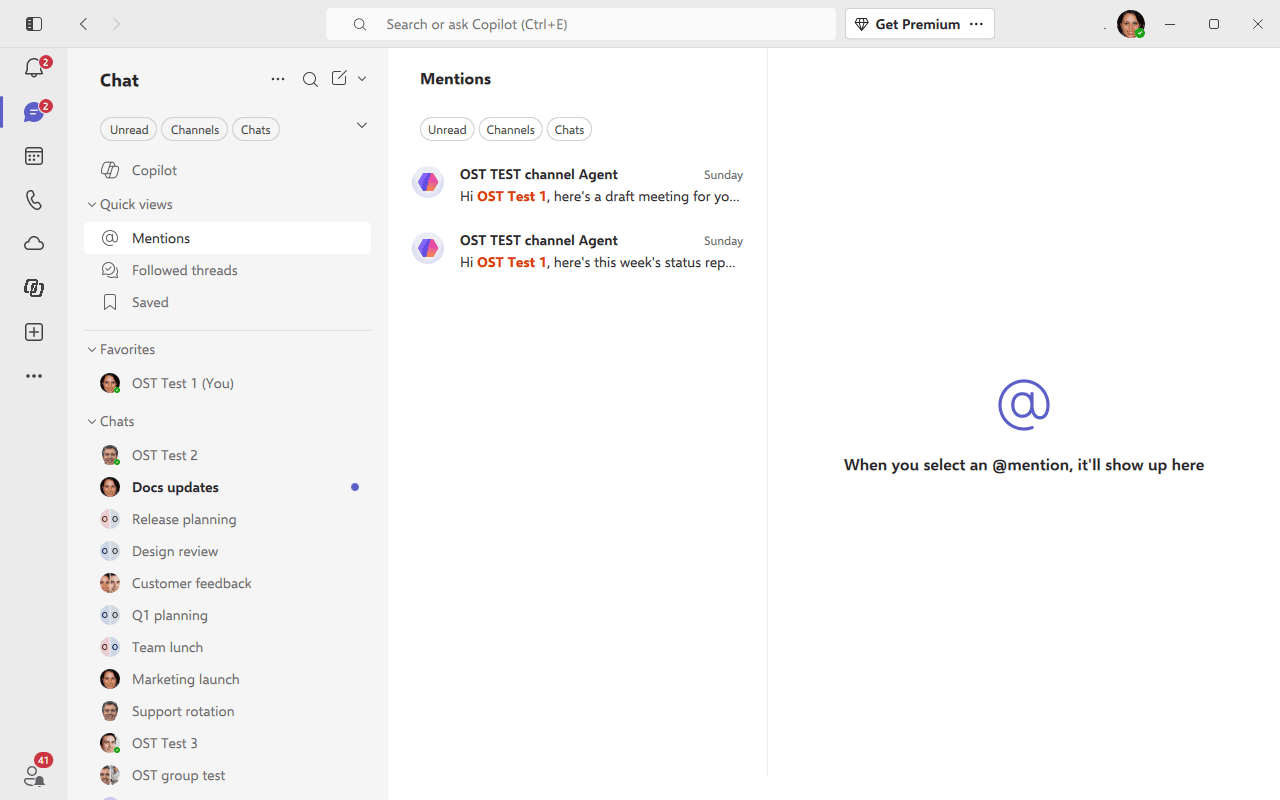
- Mentions: messages that @mention you, newest first.
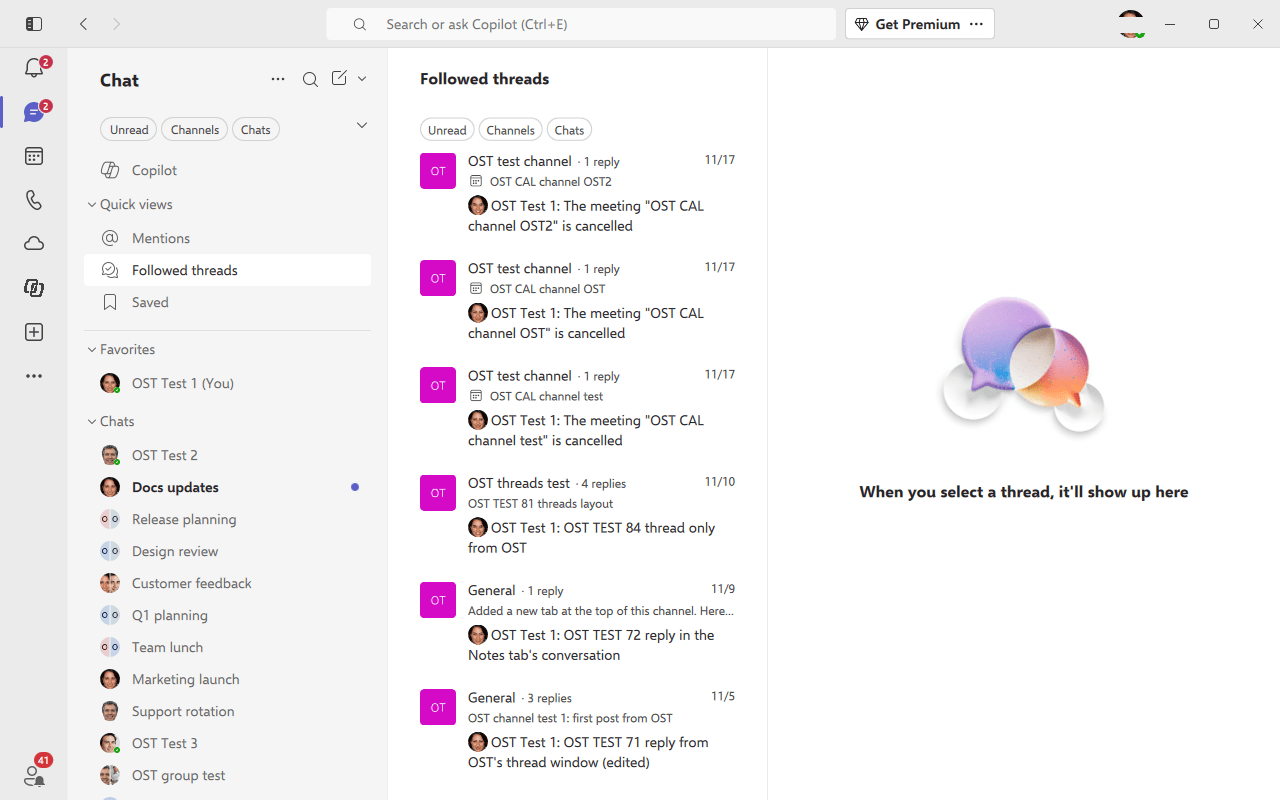
- Followed threads: the channel threads and posts you follow. Select one to read it beside the list, meeting posts included.
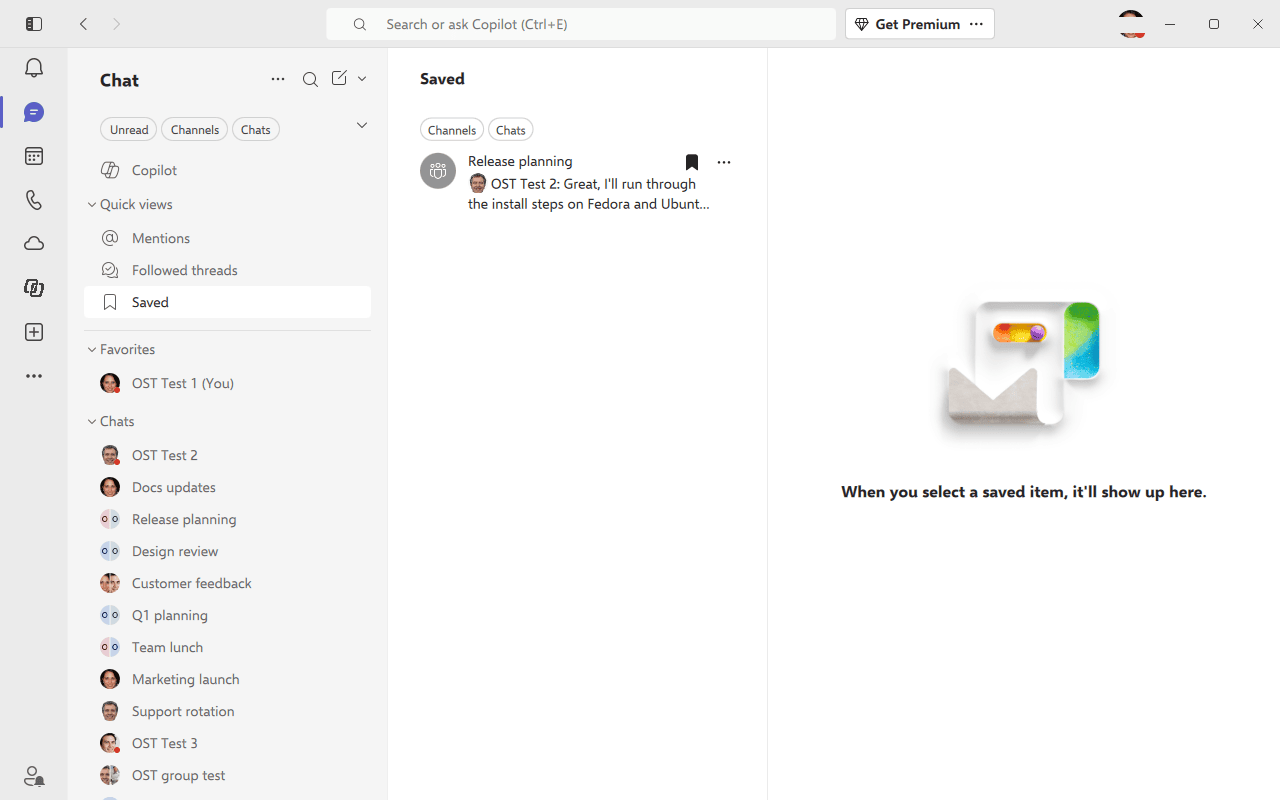
- Saved: messages you saved.
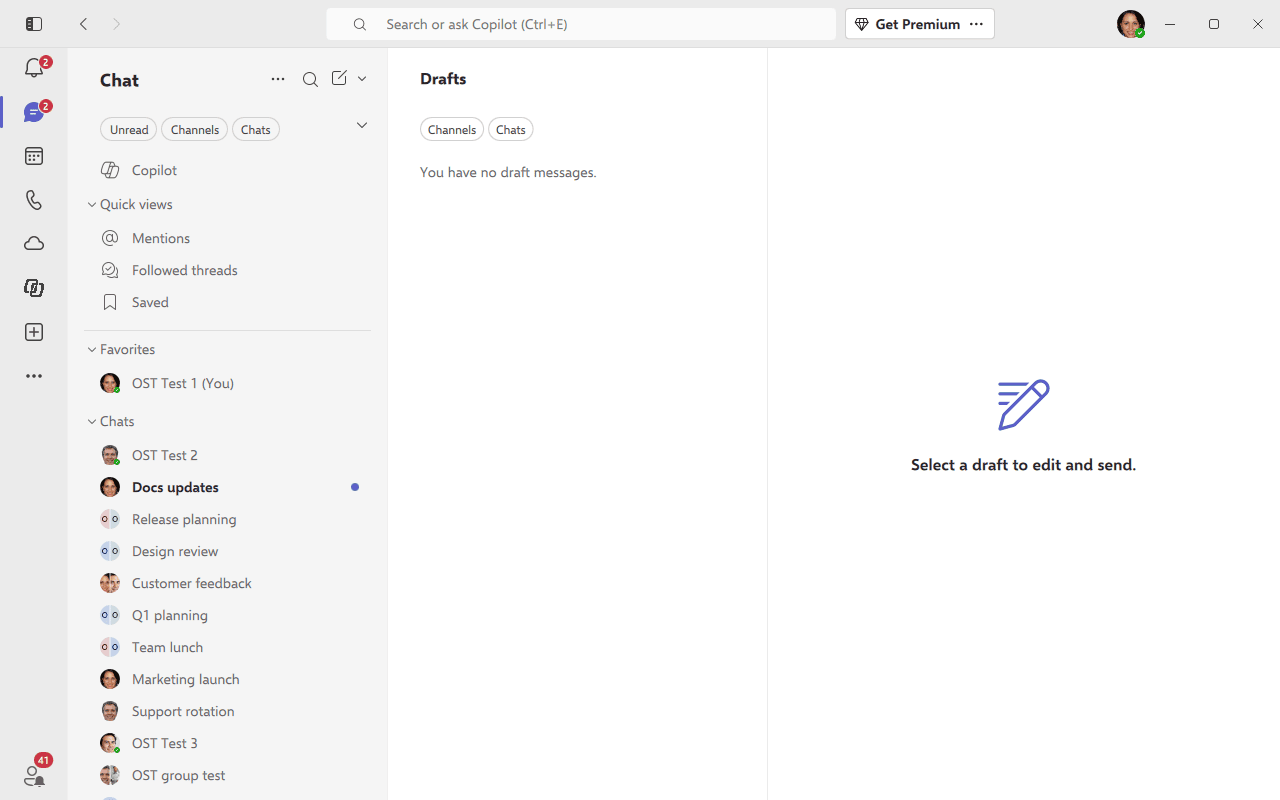
- Drafts: every chat and channel with an unsent draft.
- Favorites, with your own notes chat, "Your name (You)": a chat with yourself for notes, files and links.
- Your own sections, then Chats and Teams and channels.
What each row shows:
- Profile photos for 1:1 chats and team pictures for teams. A group chat without a picture shows up to its first members in a split circle.
- A group chat without a name gets Teams' generated name: the first three other members by first name, then "+N" for the rest.
- Unread chats, channels and teams are bold, with a count for @mentions.
- OST lists the same chats Teams does, in the same order (most recent activity first): chats with no messages yet are listed, but empty 1:1 chats, lobby chats and breakout room chats are not.
- The filter pills Unread, Channels, Chats and Meeting chats (More filters shows them all; Clear filters, Ctrl+Alt+Z, removes them). Ctrl+Alt+U, Ctrl+Alt+C and Ctrl+Alt+A jump to Unread, Chats and Channels. Settings ▸ Chats and channels ▸ Filters hides the pills.
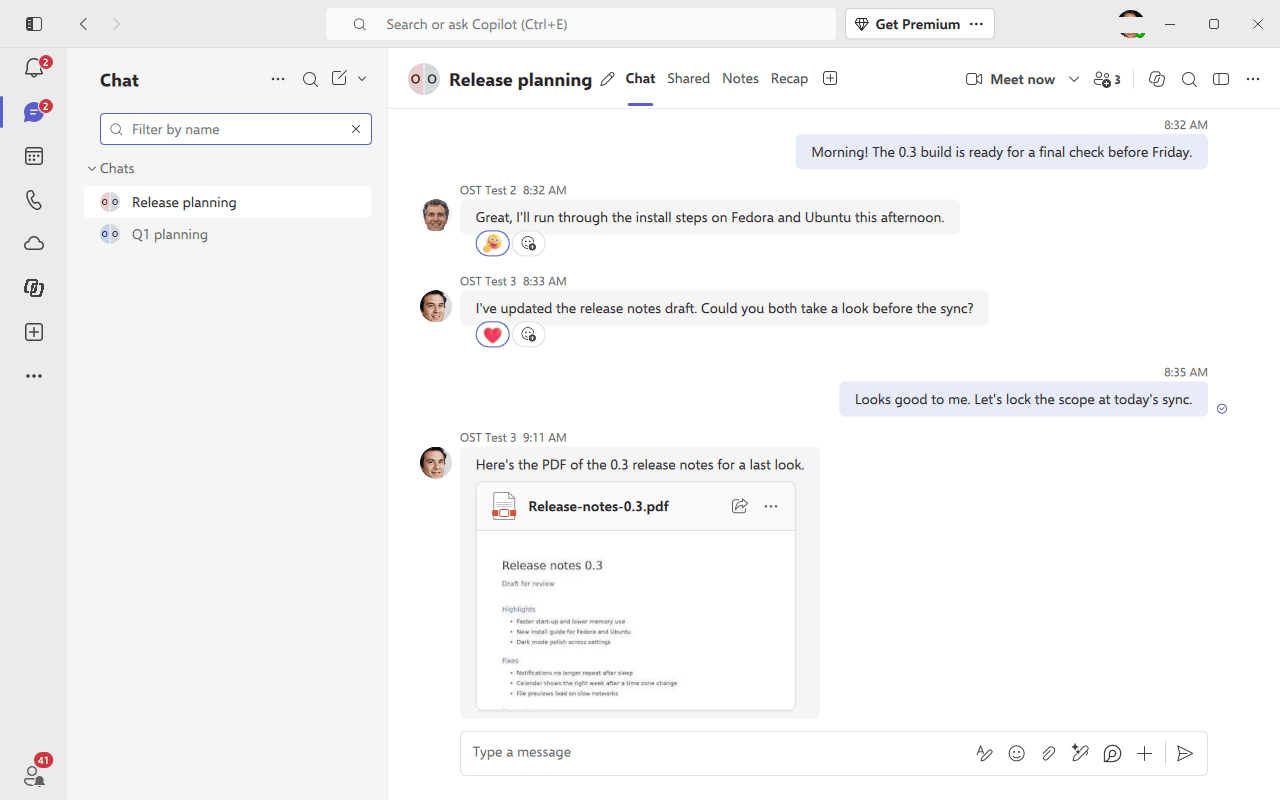
- Filter by name (Ctrl+Shift+F, or the funnel) narrows the list as you type.
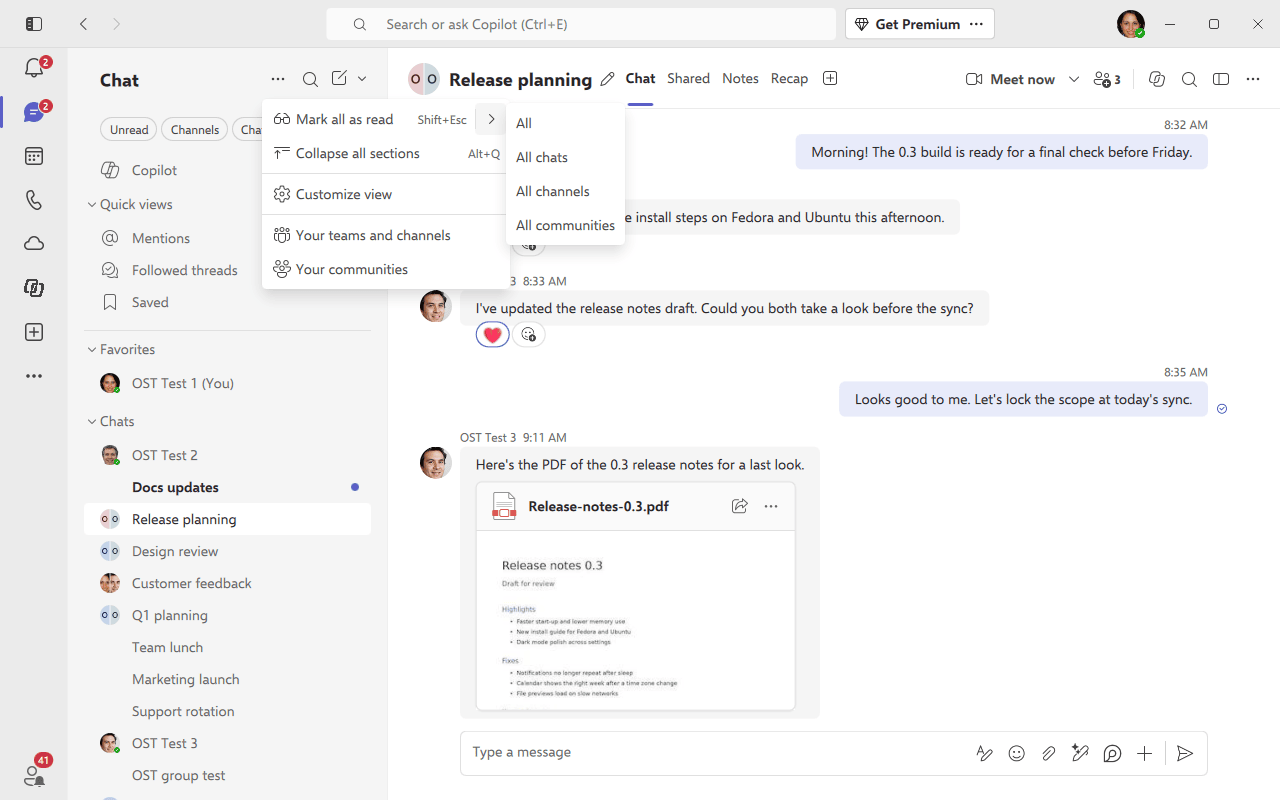
More list options (···) at the top of the list:
- Mark all as read (Shift+Esc): asks first. In the combined list it is split into All, All chats and All channels.
- Collapse all sections (Alt+Q).
- Customize view: opens Settings ▸ Chats and channels.
The list is resizable: drag its right edge (280 to 400 pixels wide).
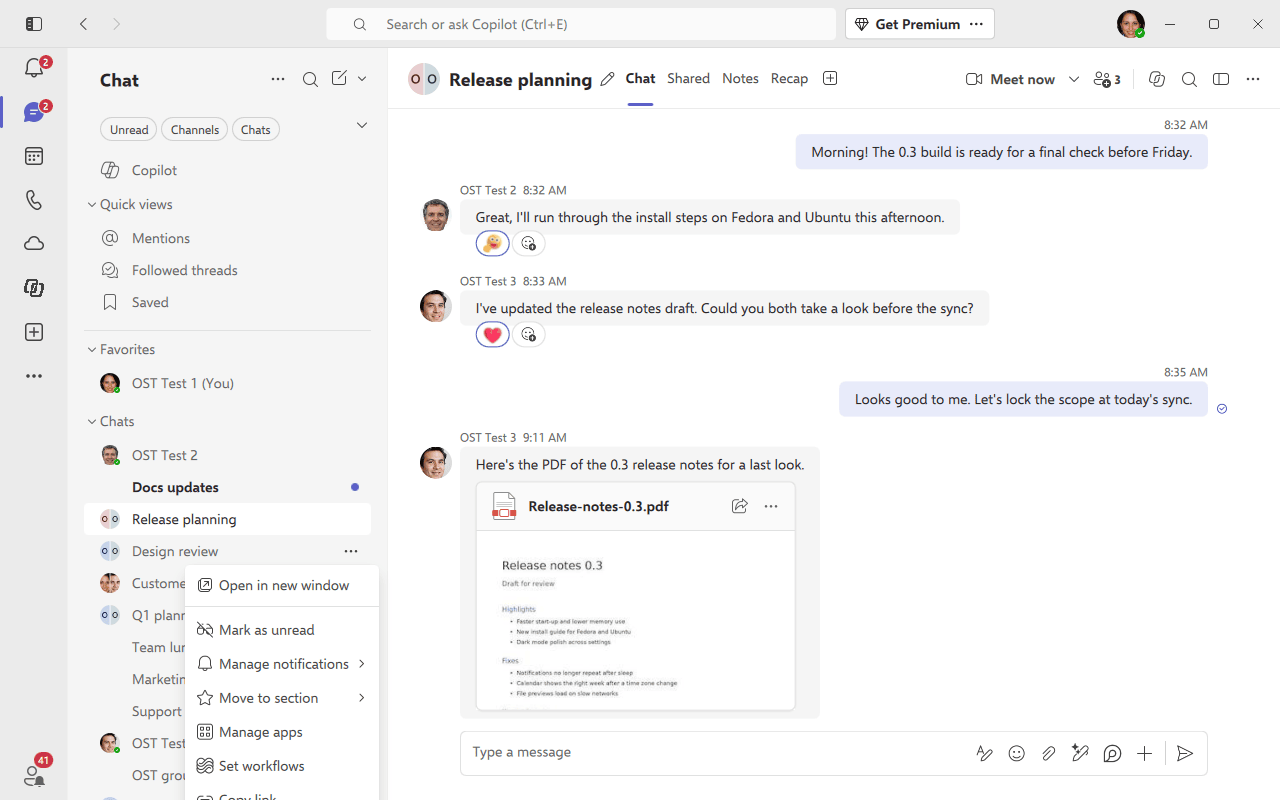
Point at a chat and select ···, or right-click it:
- Open in new window
- Start reordering (with single pointer controls on)
- Mark as read / Mark as unread
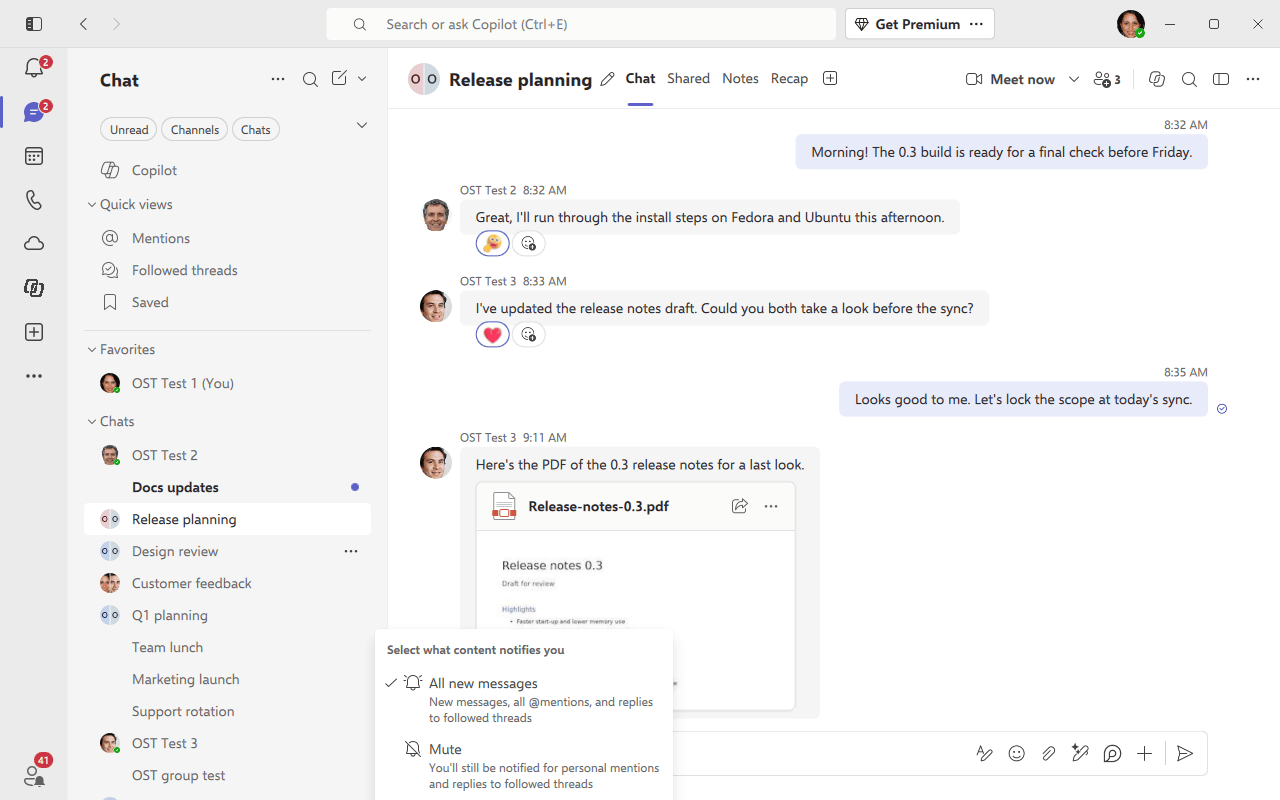
- Manage notifications ▸ (group chats): Select what content notifies you: All new messages or Mute, and Customize. "Customized" shows when you changed its parts.
- Move to section ▸: Favorites, your sections, or New section.
- Remove from section
- Mute / Unmute (1:1 chats)
- Notify when available (1:1 chats): OST tells you when the person becomes available; Turn off notifications stops it.
- Manage apps, Set workflows, Copy link
- Remove chat history (1:1 and small chats), Leave (group chats of three or more), Hide / Unhide
- Report a concern (meeting chats)
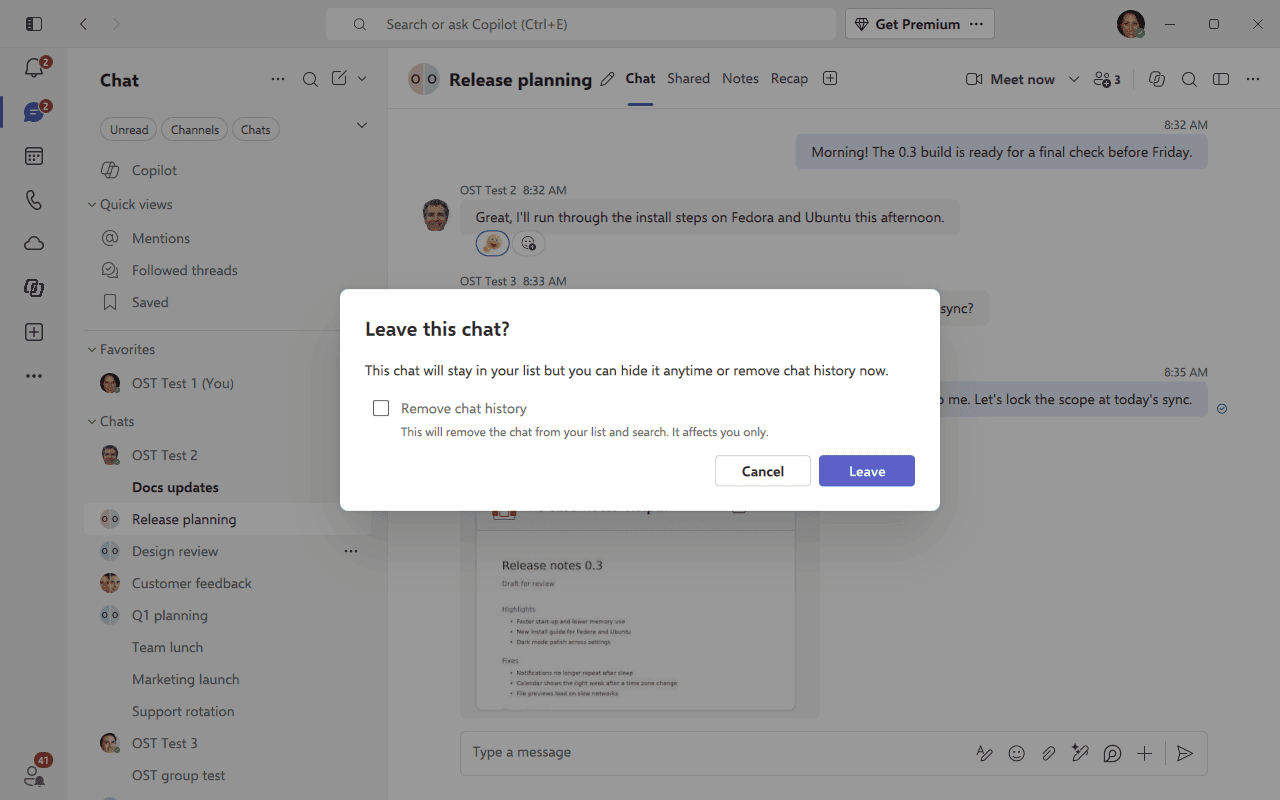
Hide takes the chat out of the list until someone posts in it again. Leave asks Leave this chat?: you can also Remove chat history, which takes the chat out of your list and search (it affects only you). The others see that you left.
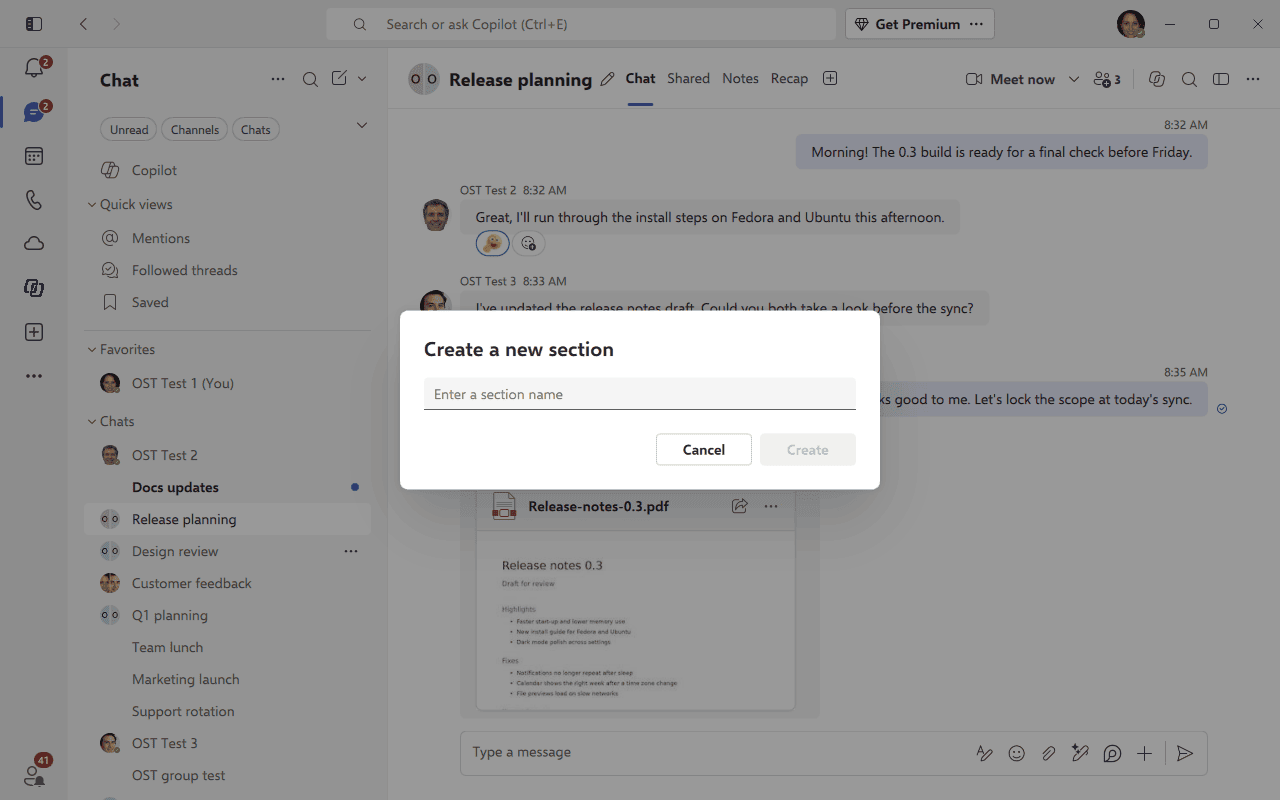
- Move to section ▸ New section opens Create a new section. A section's own ··· has Rename section, Remove section, Move Up and Move Down. Sections are shared with Teams.
- Drag chats, sections, teams and channels to reorder them. With Settings ▸ Accessibility ▸ Turn on single pointer controls, a chat's menu has Start reordering, which moves it with the arrow keys instead.
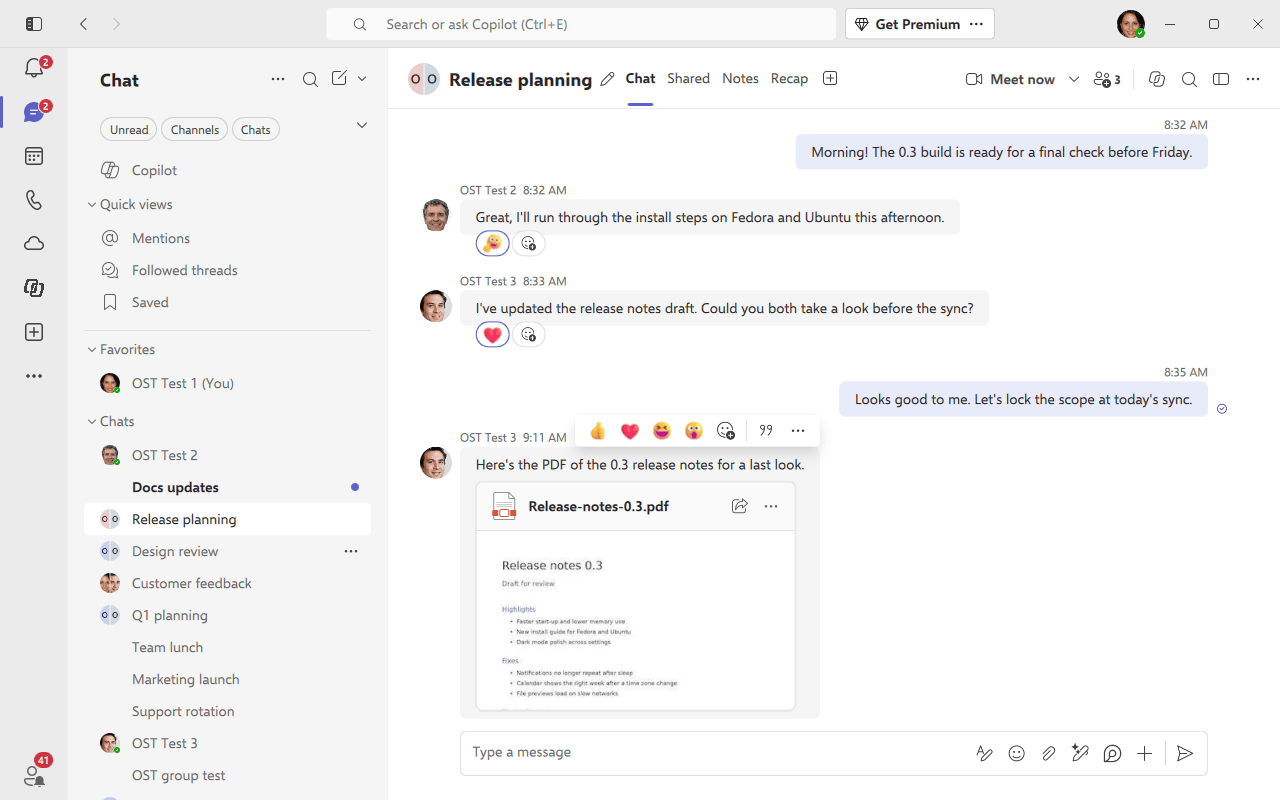
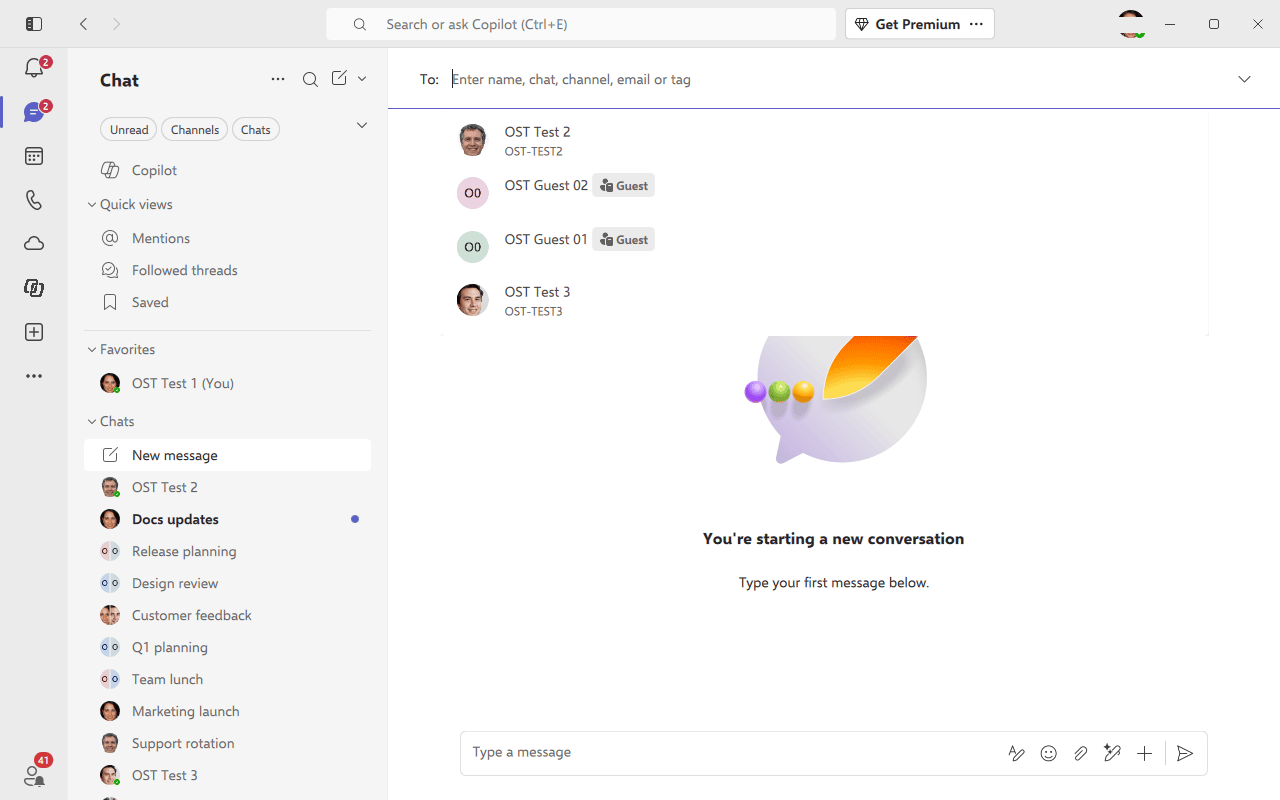
New chat (the pen at the top of the list, Ctrl+N) opens the new chat form in the conversation area: "You're starting a new conversation".
- To: type names, e-mail addresses or tags; suggestions appear as you type. Add two or more people for a group chat, and expand the arrow to give it a Group name.
- Type the first message below and send. The compose box has the usual attach, formatting, emoji and delivery options (Important, Urgent).
- Adding people to an existing 1:1 starts a new group chat; adding to a group chat asks how much history to include (Don't include chat history, Include history from the past number of days, Include all chat history).
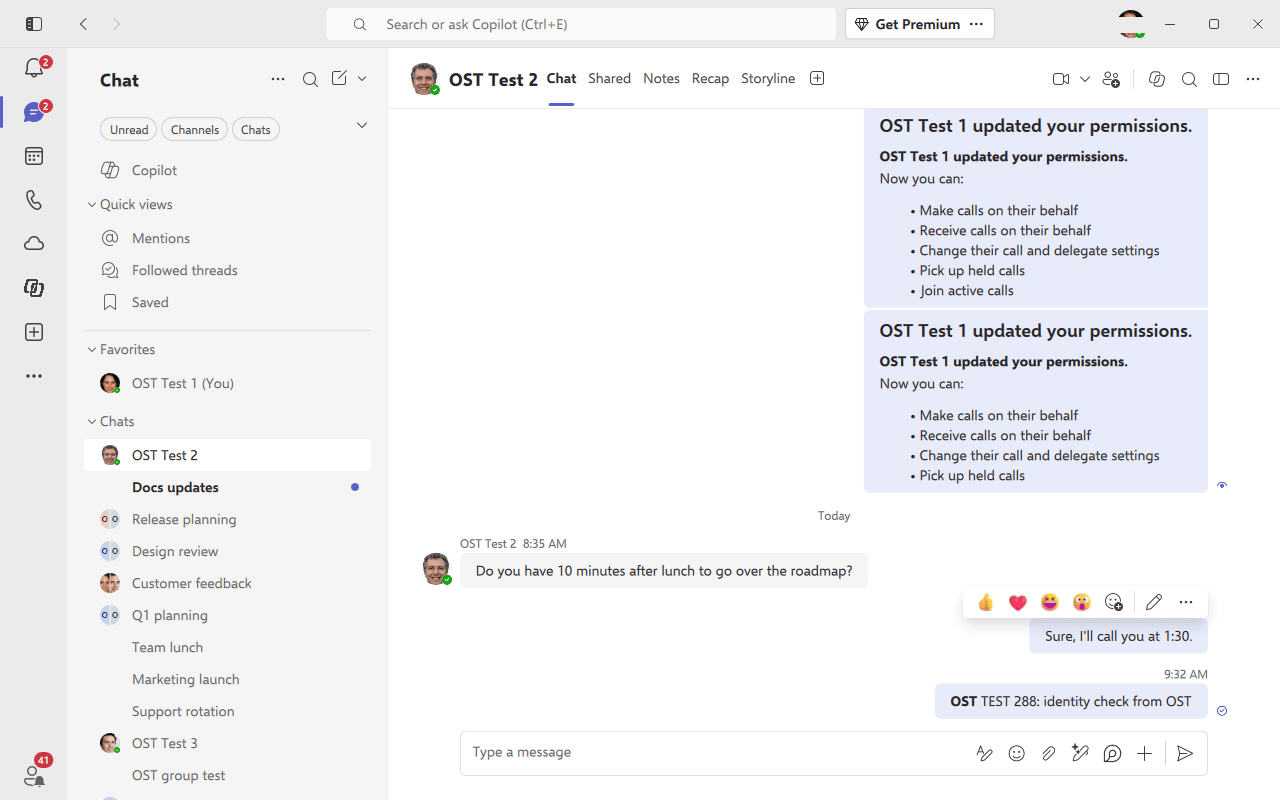
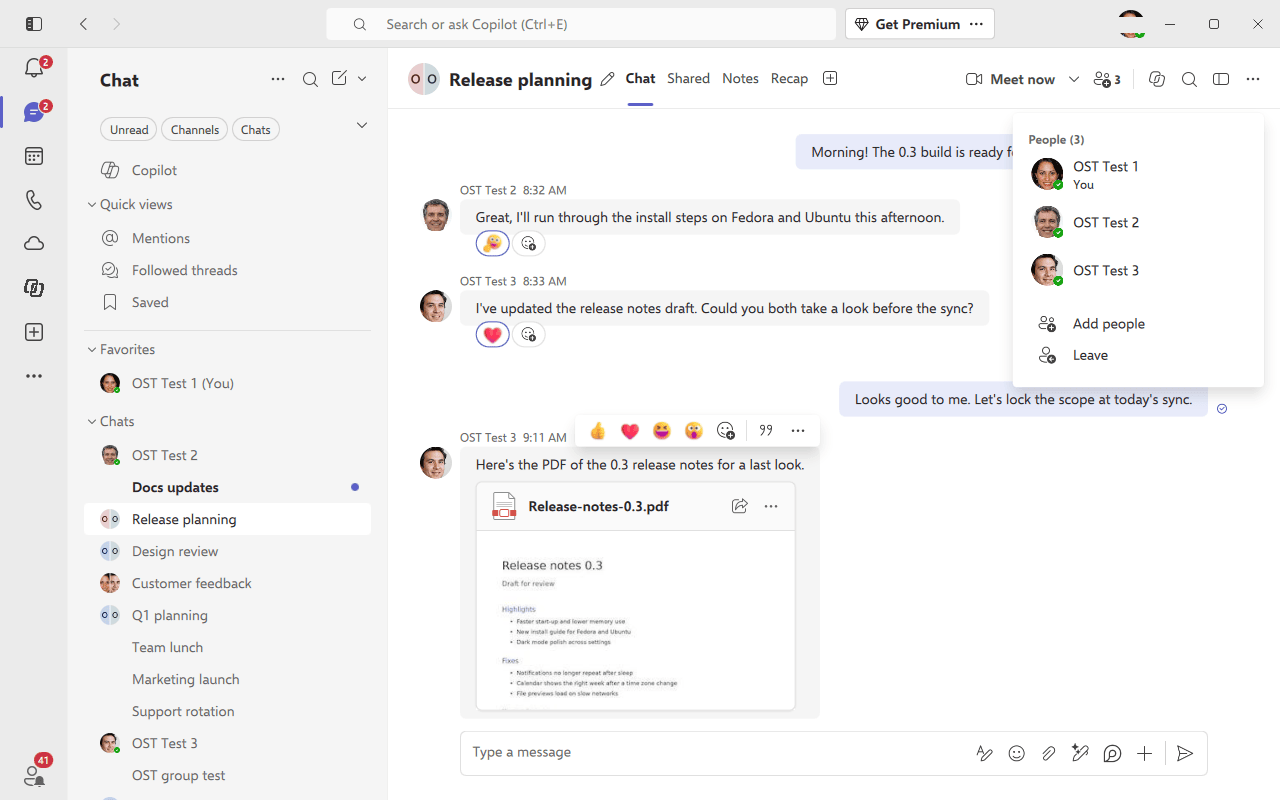
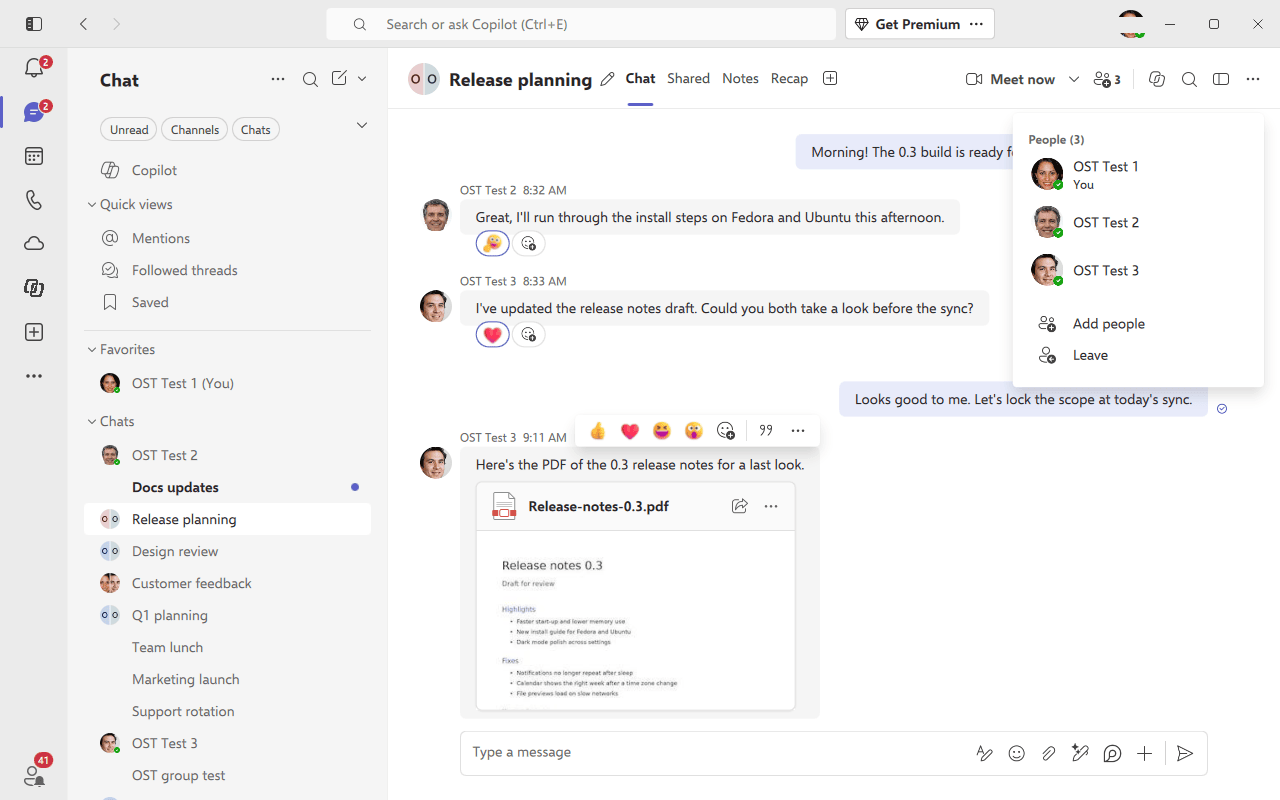
- Calls: a 1:1 chat has Video call with Audio call in its split button. A group chat has Meet now ▾ (start a meeting in the chat, or schedule one). While a call runs in a group chat, the header shows the people in it and Join.
- People: the roster count (View and add participants) opens the participants flyout: everyone in the chat, Add people, and Remove on others in a group chat.
- Rename: select the pencil next to a group chat's name (Name group chat).
-
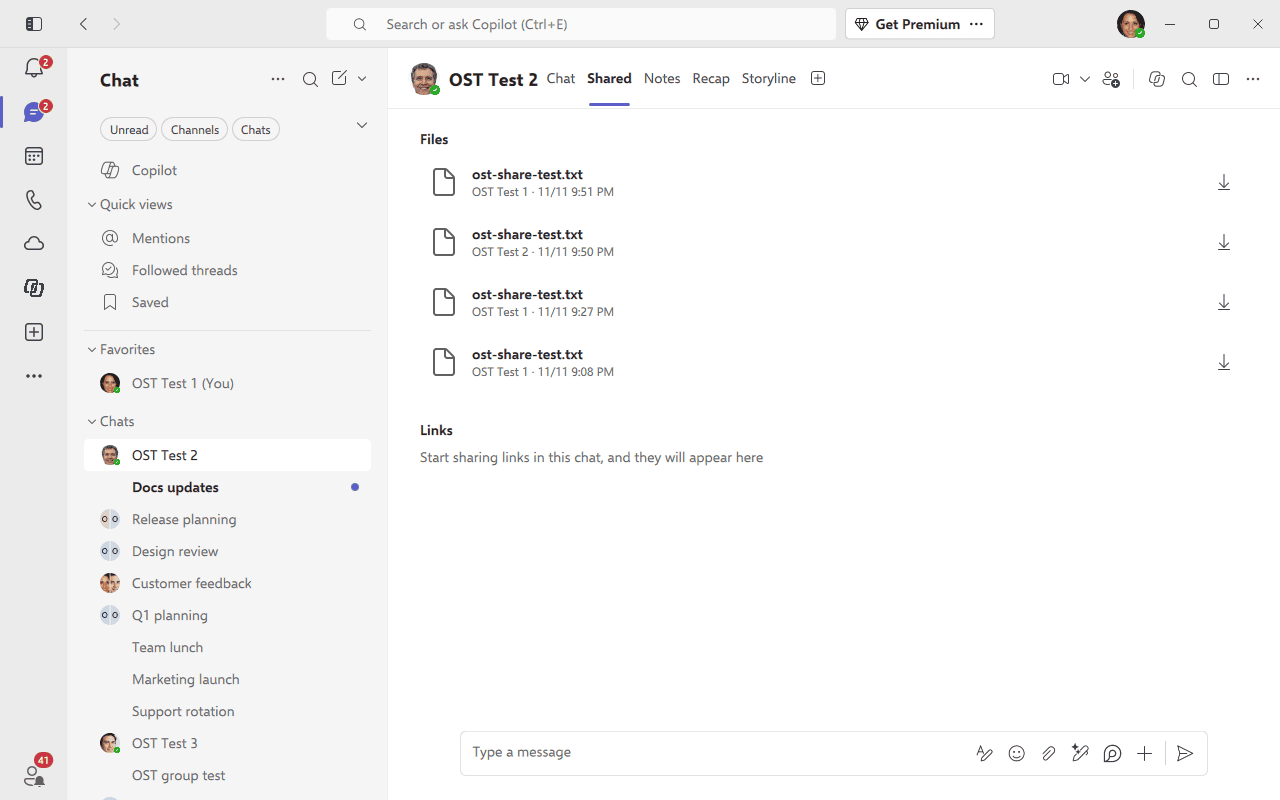
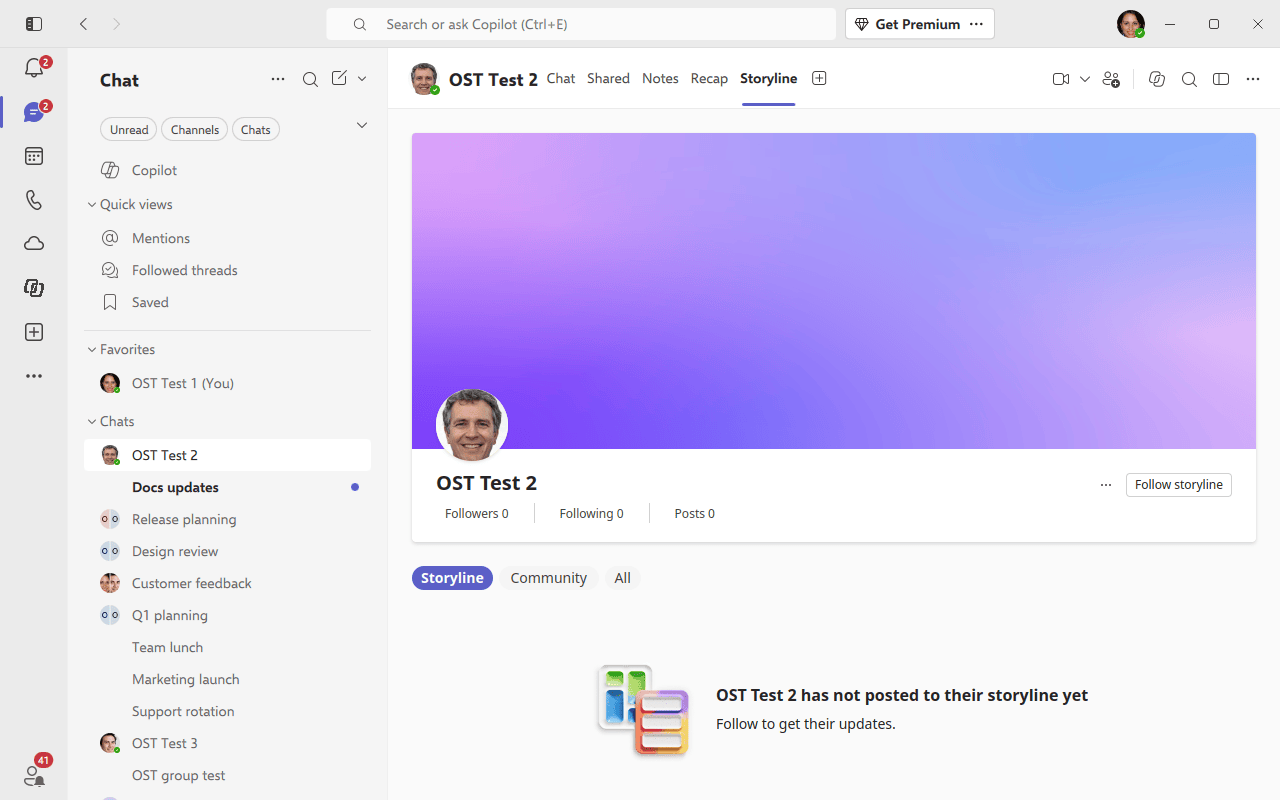
Tabs, as Teams lists them: a group chat has Chat, Shared,
Notes and Recap; a 1:1 chat also has Storyline; your notes
chat has Chat, Shared, Notes and Storyline; a meeting chat has Chat,
Shared, Recap and its meeting tabs (see Meetings). Apps you
added follow, then + (Add a tab). When the header is narrow the
tabs collapse into a dropdown ("+N"). Alt+1 to Alt+5 select tabs.
- Shared lists the files and links shared in the chat (see Files).
- Notes is the chat's Loop page (see Loop, Notes and Whiteboard).
- Recap holds meeting recaps (see Meeting recaps).
- Storyline shows the person's Viva Engage storyline (yours in your notes chat), where your organization uses Viva Engage.
- Find in chat (Ctrl+F, see Search).
- Open chat details (Alt+P): the details pane with the people, files and settings of the chat.
- Open Copilot (Alt+C, with Copilot, see Copilot).
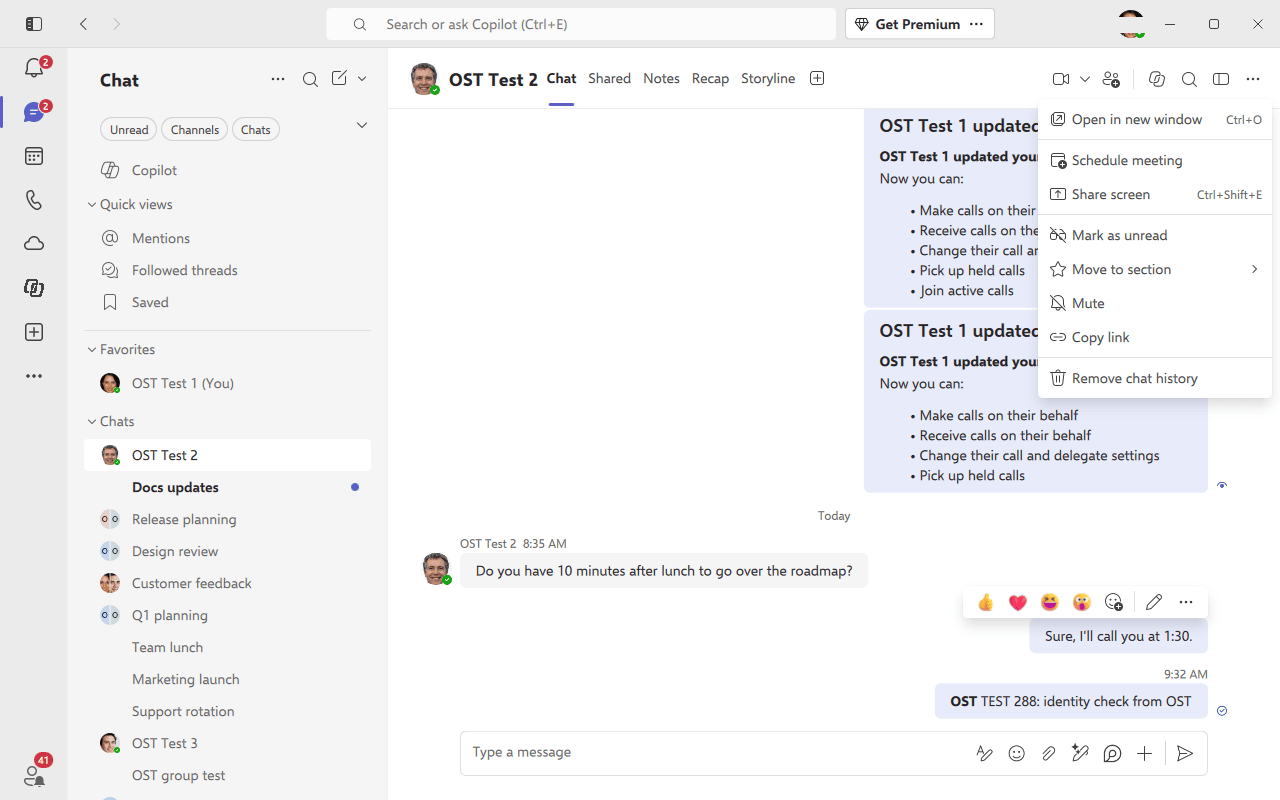
More chat options (···) at the right of the header. What didn't fit in a narrow header comes first (Find in chat, In this chat, Participants, Meeting details), then:
- Open in new window (Ctrl+O)
- Schedule meeting, Share screen (Ctrl+Shift+E: calls the chat and shares once it connects)
- Mark as unread, Move to section ▸, Remove from section, Mute / Unmute, Copy link
- Remove chat history, or Report a concern in a meeting chat
A chat with a bot shows the bot's cards and suggested actions. When the bot's app is on the app bar, its menu (right-click the icon) has Block bot conversation, which stops the bot messaging you; Unblock bot conversation undoes it (see Apps).
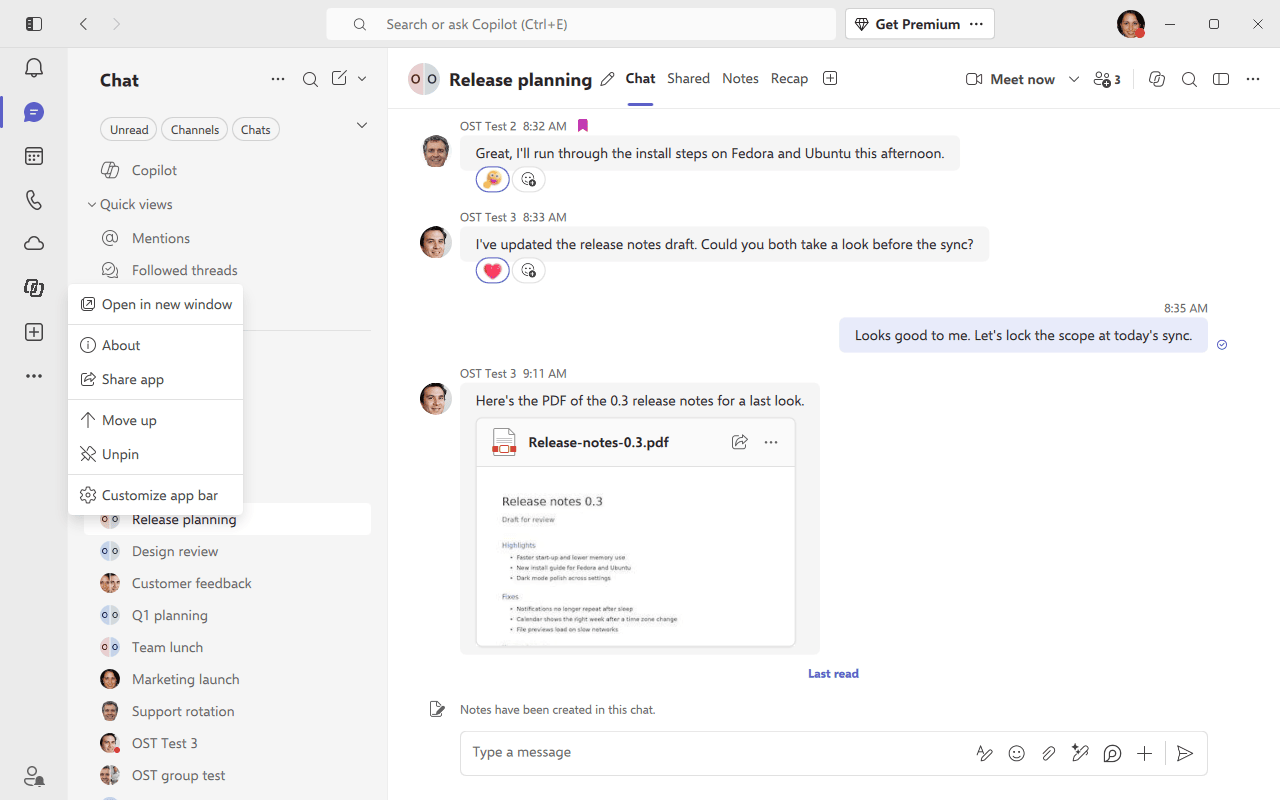
Open in new window moves a chat into its own window, with its own title bar, header, messages and compose box, as Teams does. The main window keeps working; close the pop-out when you're done.