Repository navigation
Files
OneDrive in the app bar is Teams' OneDrive app:
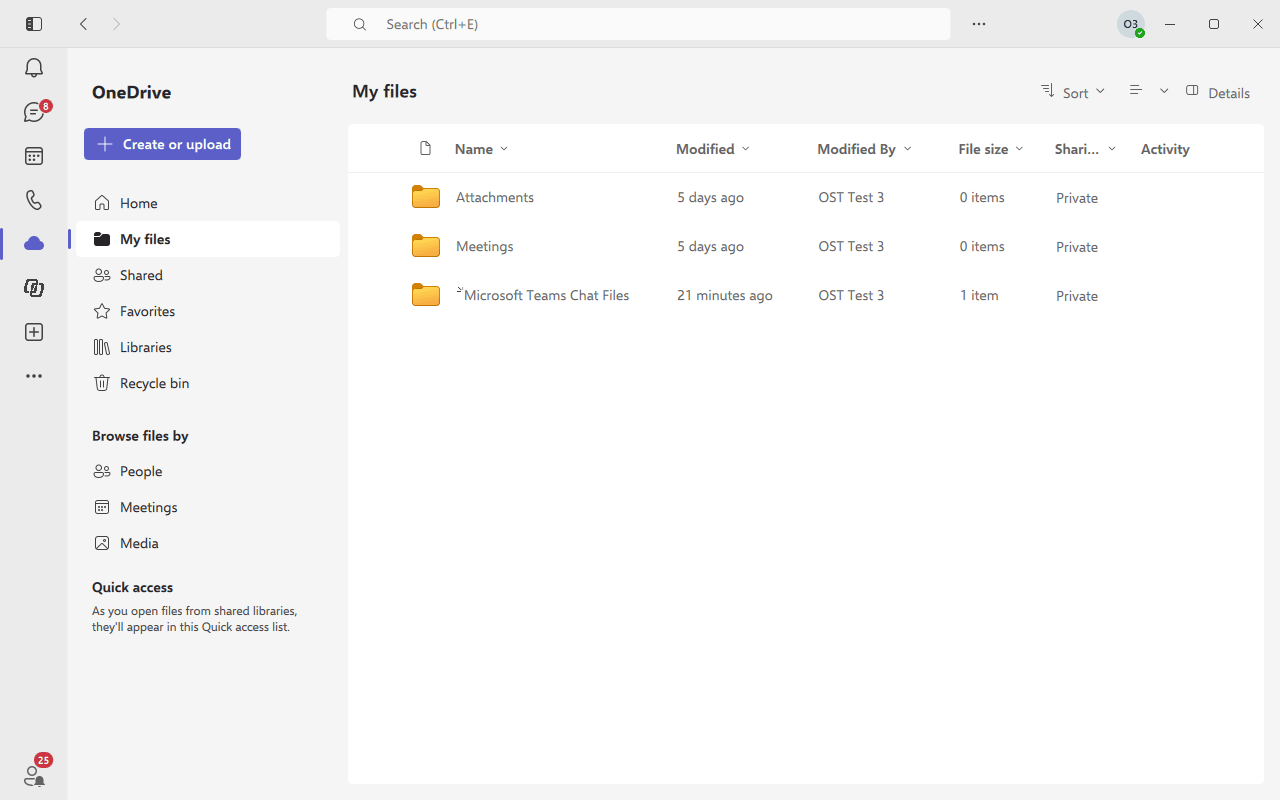
- Home (recent files), My files, Shared (with you and by you), Favorites, Libraries (your teams' SharePoint document libraries) and the Recycle bin (Restore, Delete permanently).
- Browse files by People, Meetings (recordings) and Media (photos and videos), and Quick access to libraries you've opened.
- Create or upload: folders, files and Office documents.
- Each file's menu: Open (in the browser, in OST, or in your desktop's app), Preview, Share and Copy link (with Teams' sharing dialog and link settings), Download, Rename (with suggested names), Move to, Copy to, Add to favorites, Add shortcut to OneDrive, Version history, Details, Delete.
- Column headers sort and filter (Filter by Modified By and Modified), columns resize, and List, Compact List and Tiles views are there.
- Selecting several files gives Teams' selection bar; folders download as a zip.
- A chat's Shared tab lists every file and link shared in it; a channel's Shared tab is the channel's folder in the team's SharePoint library (breadcrumb, Share, Copy link, Add shortcut to OneDrive, Create or upload, open and delete).
- File cards in messages open a preview (pictures, PDFs, video, text and Office files) with comments, Share and Download.
- Word, Excel and PowerPoint files open in Office for the web inside OST (Settings ▸ Files and links ▸ Teams, the default), or in your browser or desktop app, as you choose there.
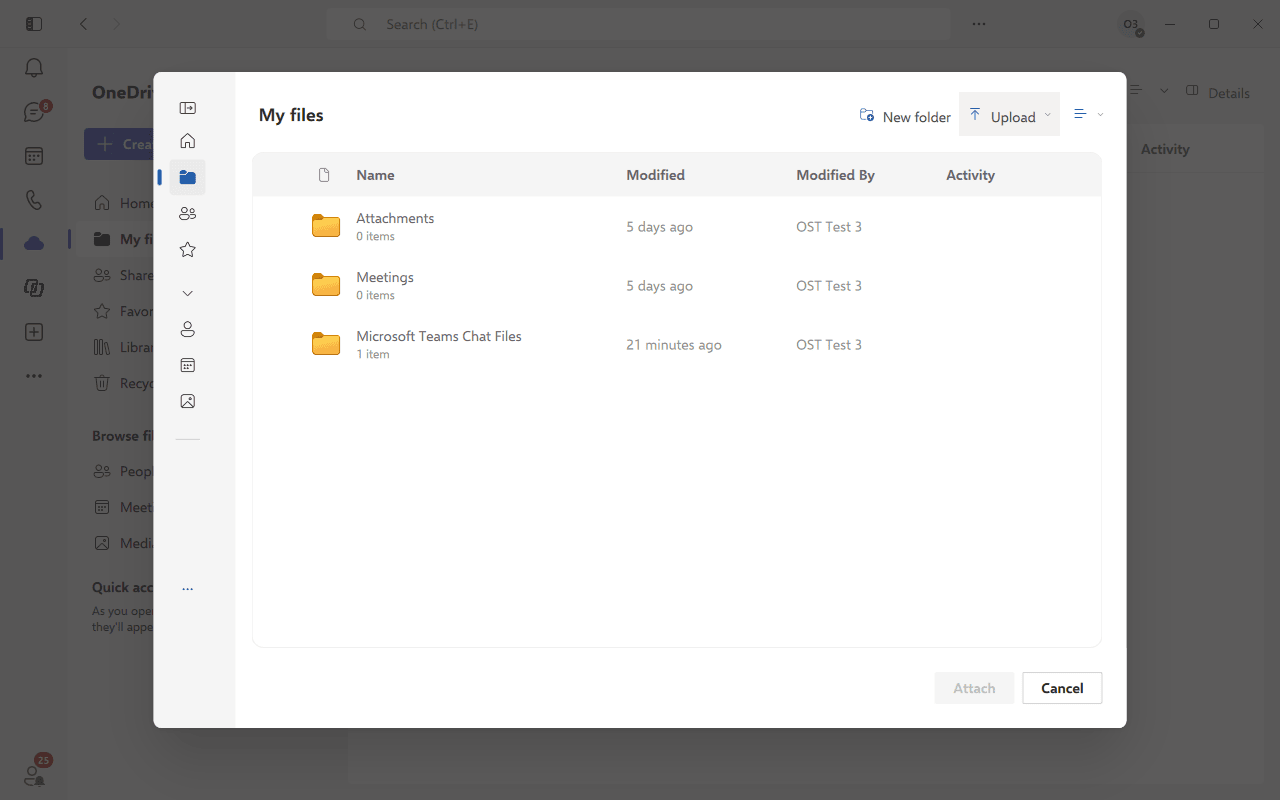
Attach under the message box shows recent cloud files, a search, Attach cloud files, Browse Teams and Channels and Upload from this device. Attach cloud files opens Teams' cloud file picker: Home, My files, Shared, People, Meetings, Media, Quick access and your teams' libraries, with search, views and New folder. Picked files are attached as links with Link settings (who can open them).