Repository navigation
Notifications
OST draws Teams' own notification banners: chat messages (with Send a quick reply and a quick reaction), @mentions, meetings that started (Join, Message), incoming calls, and the test notification.
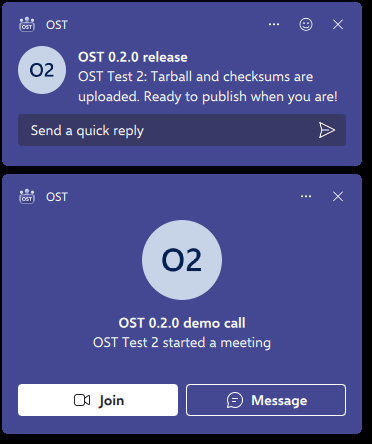
- Up to three show at once, queued and timed as in Teams; pointing at a banner keeps it on screen. Select it to open the chat.
- Settings ▸ Notifications and activity ▸ Display sets the corner (bottom right, top right, bottom left, top left), the size (Comfy or Compact) and how long they stay; Test notification shows one.
- What notifies you (chats, @mentions, replies, reactions, channel posts, meetings, apps) is set per kind: Show in Activity and banner, Show in Activity or Off. Channel posts notify only when they mention you, unless you change a channel's notifications.
- Per chat: Mute or Manage notifications in its ··· menu; per channel: ··· ▸ Manage notifications.
- Do not disturb silences banners except from priority contacts (and urgent messages if you allow them).
- Sounds follow Teams' choices (Settings ▸ Notifications ▸ Sound), and calls ring with your Teams ringtone.
| Desktop | Banners |
|---|---|
| KDE Plasma, Hyprland, sway and other wlroots desktops (Wayland) | Teams' banners, as a layer-shell surface (needs LayerShellQt: layer-shell-qt) |
| Any X11 desktop | Teams' banners, placed by OST |
| GNOME on Wayland, or without LayerShellQt | Your desktop's own notifications |
OST_SYSTEM_NOTIFICATIONS=1 always uses your desktop's notifications.
- OST's tray icon menu sets your status and has Help ▸ Collect Support Files and Quit OST.
- The unread count is drawn on the window icon and sent as a launcher badge (KDE and GNOME docks), as Teams overlays its taskbar button.