Repository navigation
Files
OST shows your files the way Teams does: the OneDrive app, the files shared in chats and channels, the cloud file picker, and Teams' file viewer.
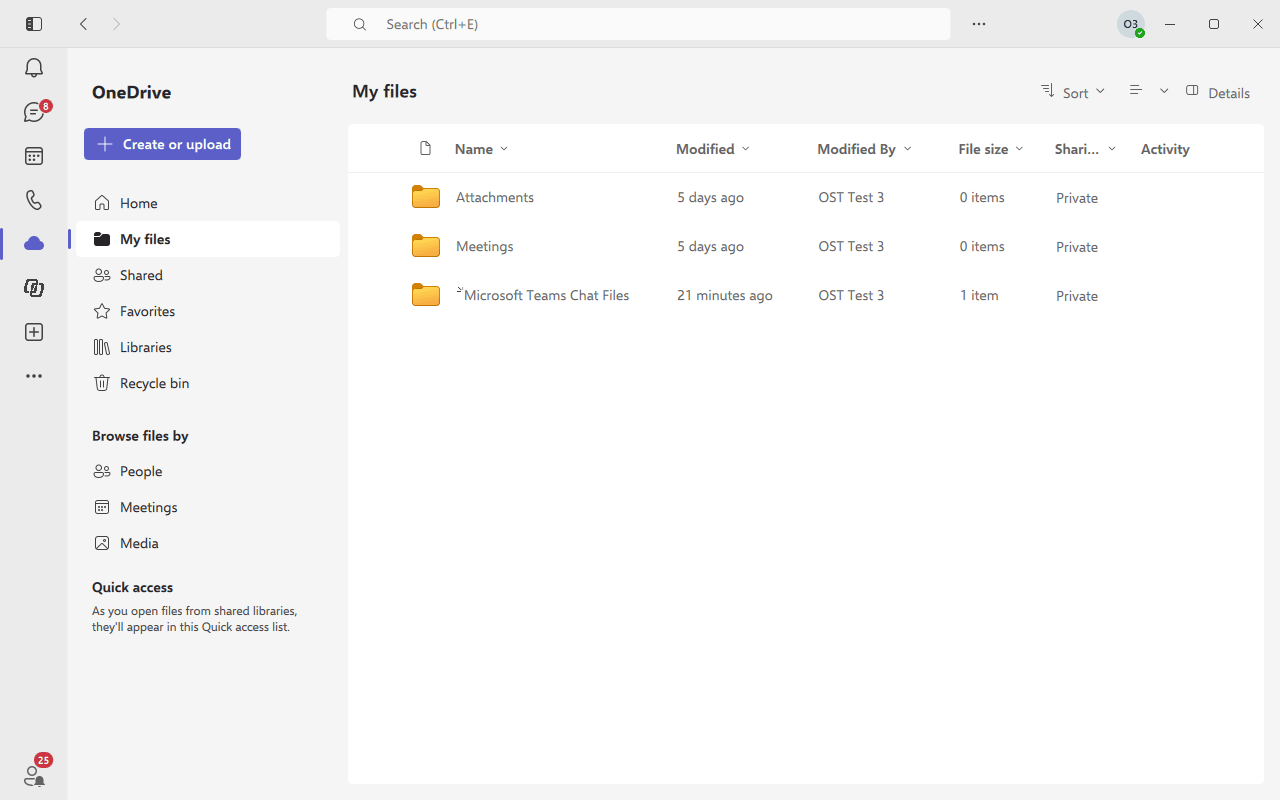
OneDrive in the app bar is Teams' OneDrive app. The left pane has Home, My files, Shared, Favorites, Libraries and Recycle bin, then Browse files by People, Meetings and Media, and Quick access.
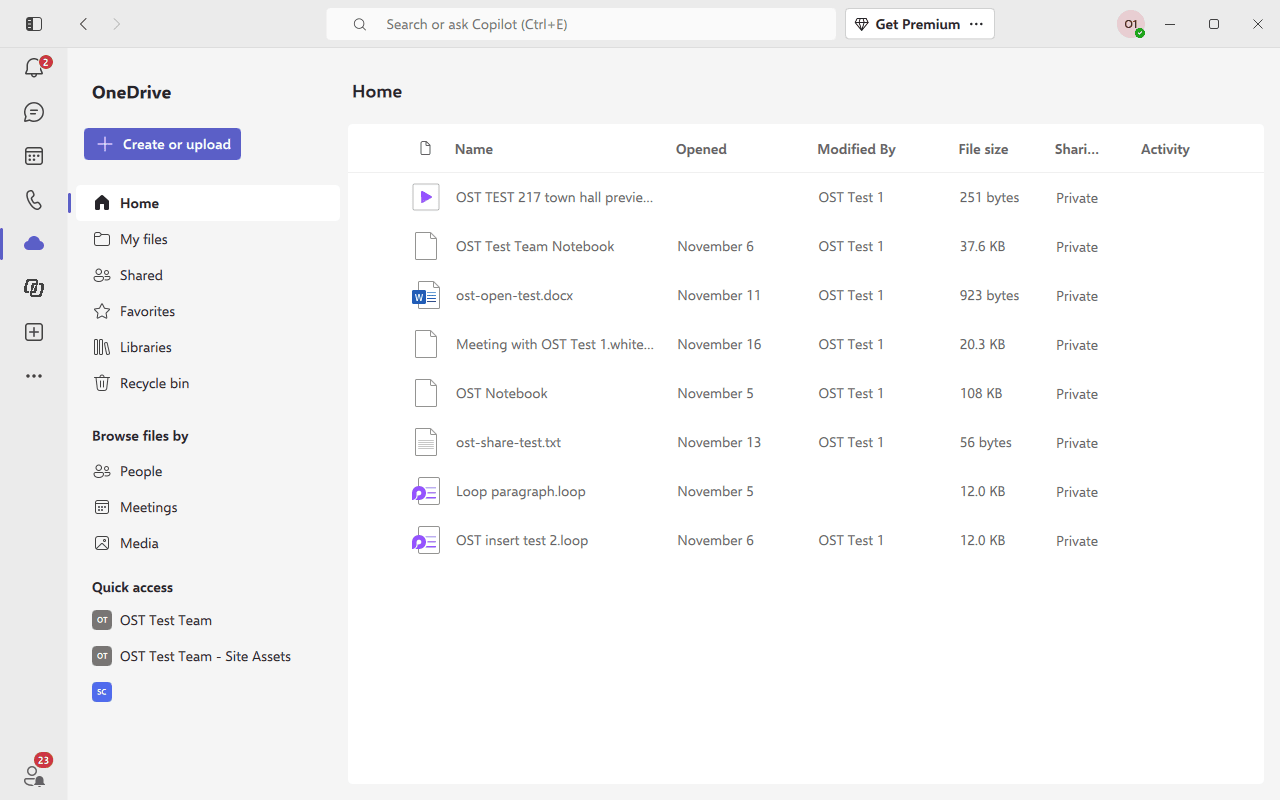
- Home: your recent files (Opened, Shared, Favorites filters).
- My files: your OneDrive. Each row has a selection circle, the file's icon and name, Share, Show more actions for this item (···), a favorite star, Modified, Modified By, File size, Sharing and Activity. Your Shortcuts to shared folders and libraries are listed with your folders.
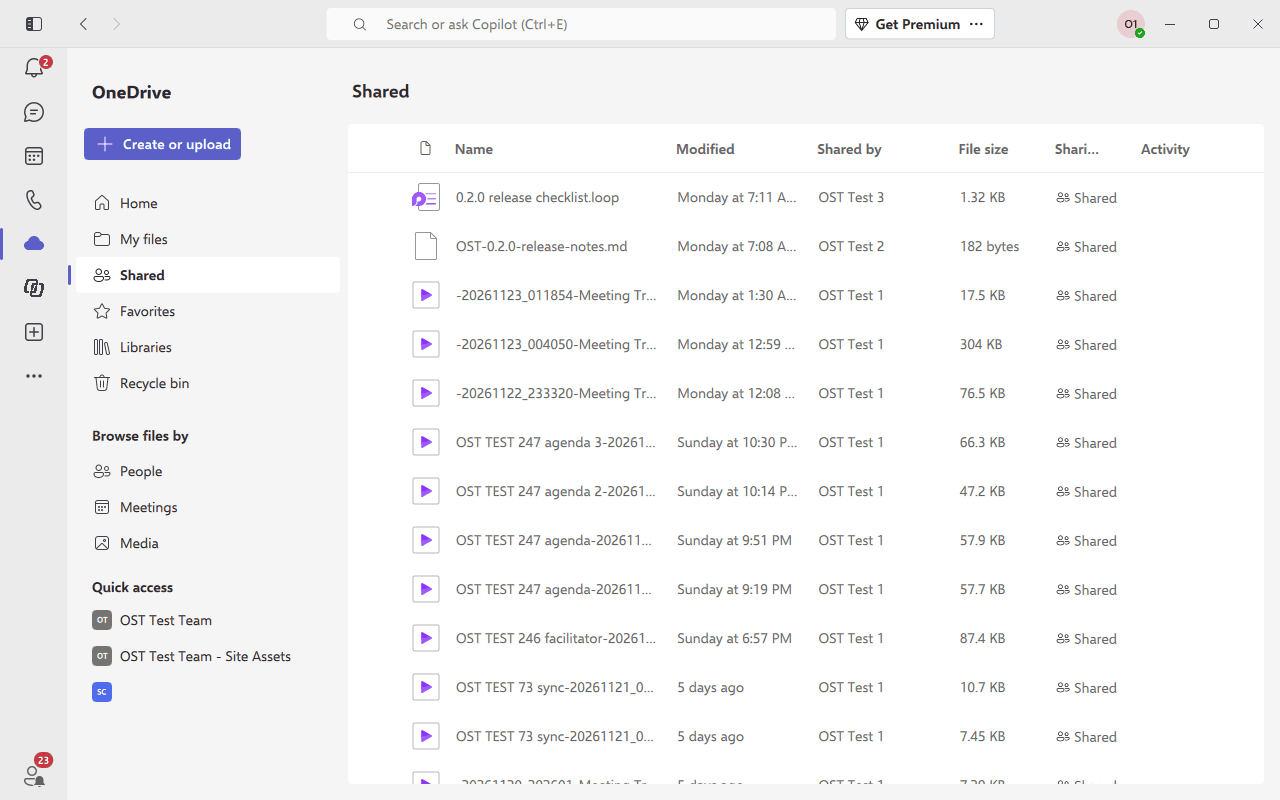
- Shared: Shared with you and shared by you.
- Favorites: files you starred.
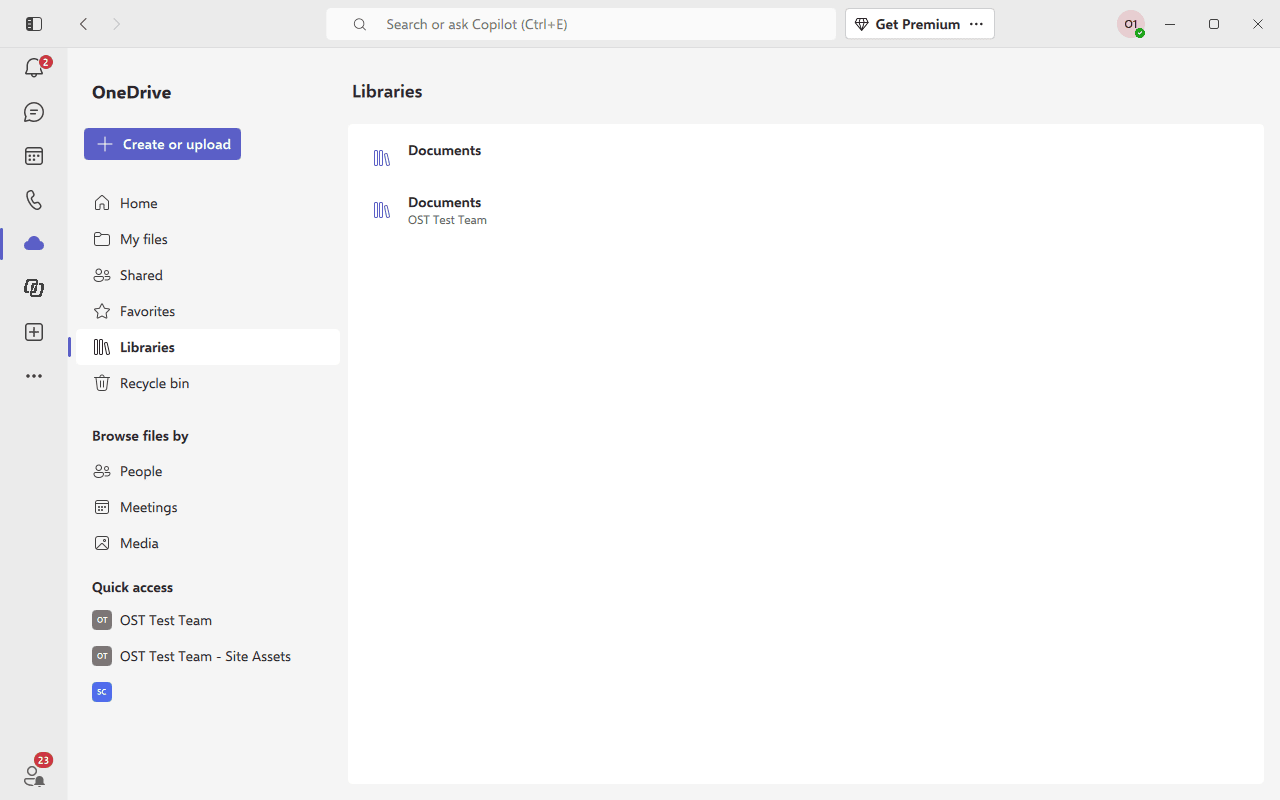
- Libraries: your teams' SharePoint document libraries; Quick access lists the libraries you opened, and Pin to Quick access keeps one there.
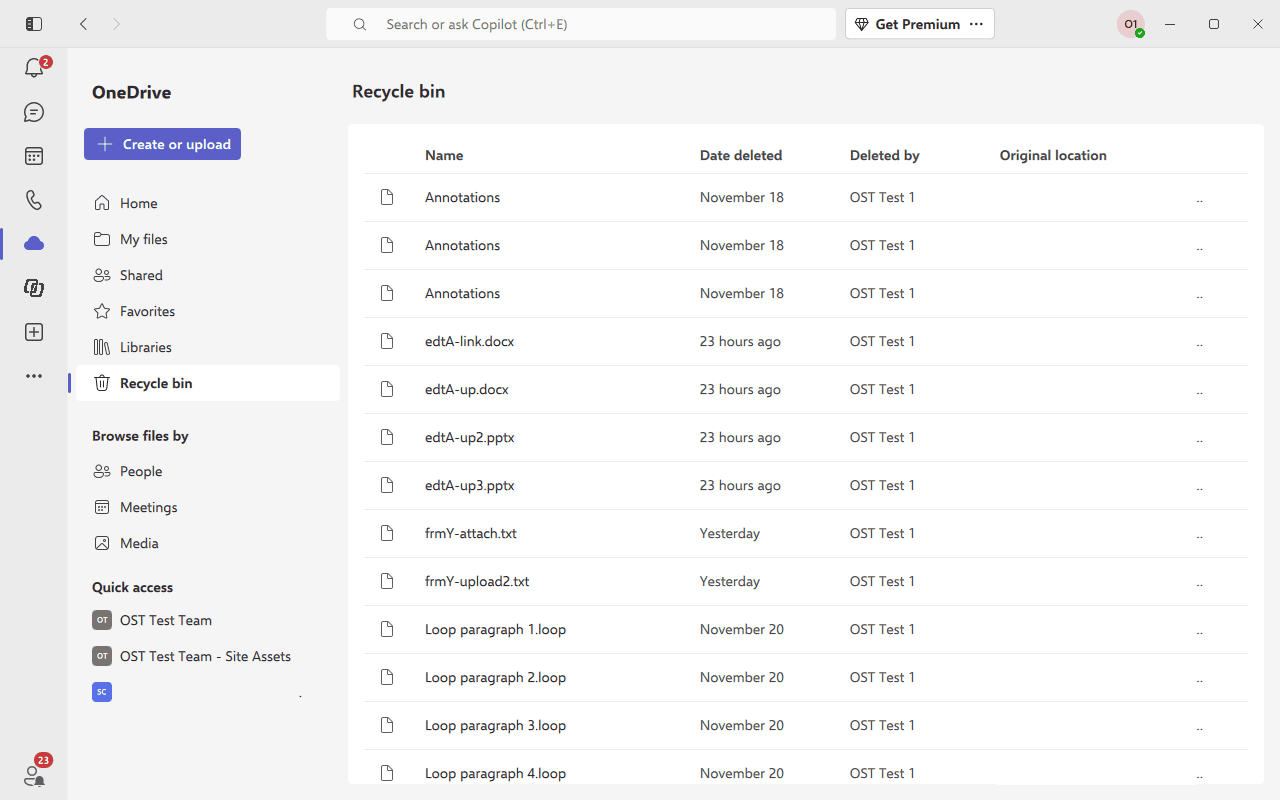
- Recycle bin: deleted files with Date deleted, Deleted by and Original location; Restore or Delete permanently.
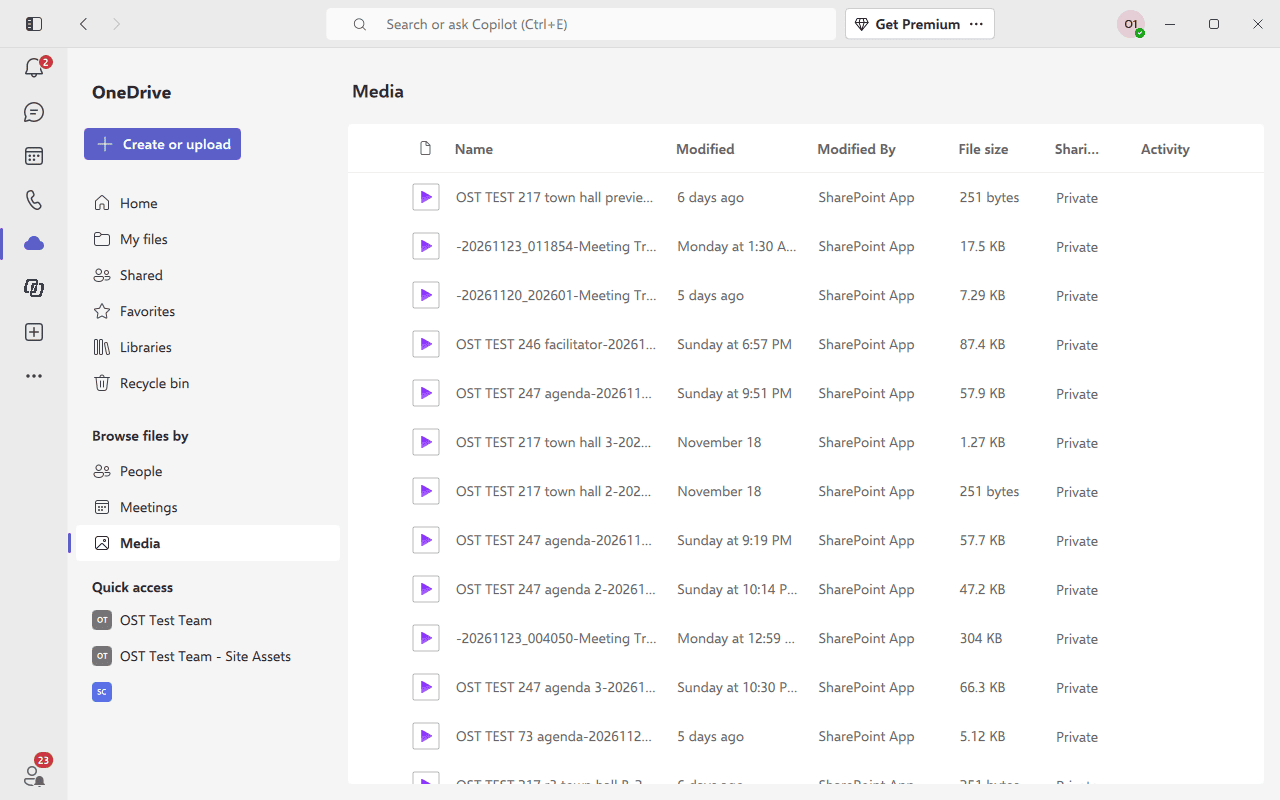
- Browse files by: People (files from a person), Meetings (files and recordings from your meetings) and Media (your photos and videos).
Home's recent files, Shared ▸ Shared with you and People come from OneDrive's own services (SharePoint's recent files, shared-with-you and collaborator lists on your OneDrive's site), the ones Teams' OneDrive app and file picker read, with OneDrive's own rules for which items to leave out. So they list the same items in the same order as Teams. Microsoft Graph's recent and shared-with-me lists, which OST used before, stop returning data after November 2026.
- Shared with you leaves out hidden files and files you shared yourself, and sorts by Date shared; each row has Date shared, Shared by and Activity.
- People groups files by who shared them (you're left out), in the order of your collaborators. A person's page also lists the files that person owns, with their Date shared and Shared by.
- The cloud file picker's Shared with you and People, and the Move to and Copy to dialogs' shared places (folders only), use the same lists.
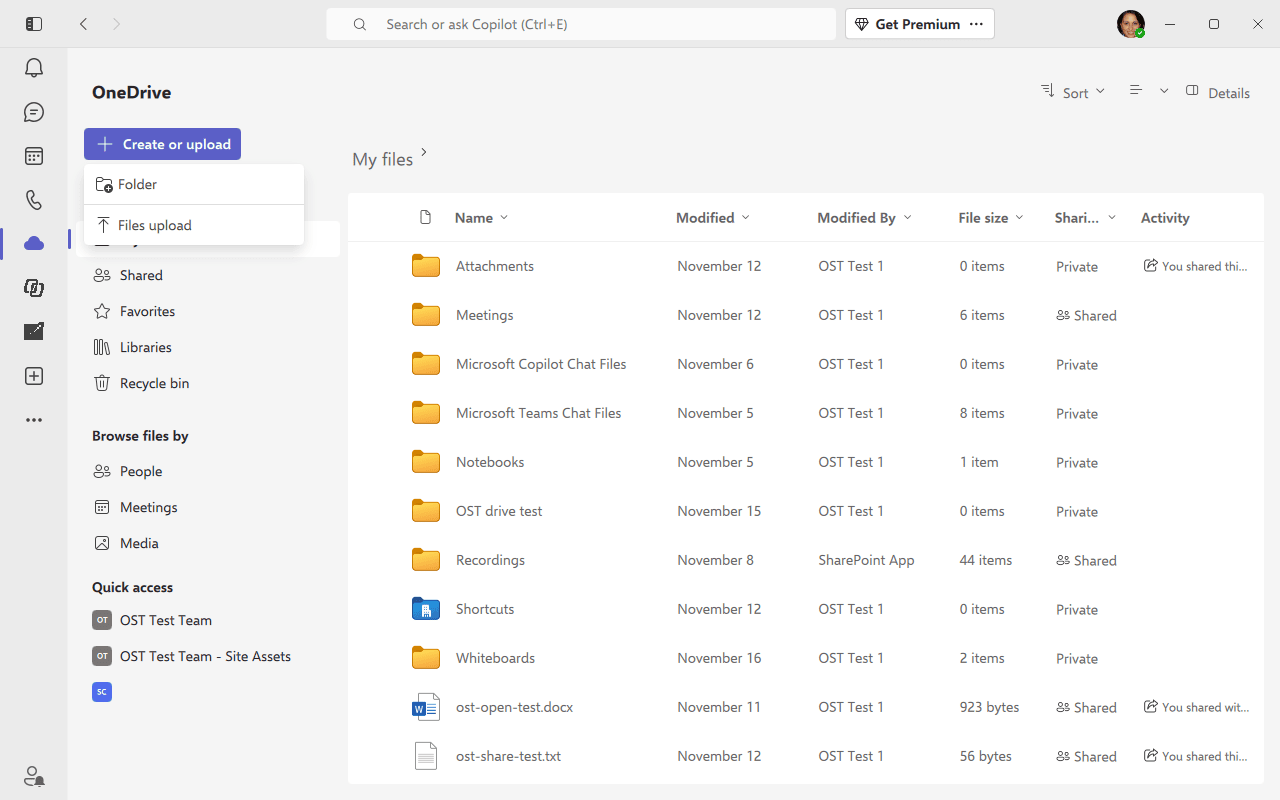
- Create or upload: Create a folder, Word, Excel and PowerPoint documents and other new files, Upload files and Files upload (folders).
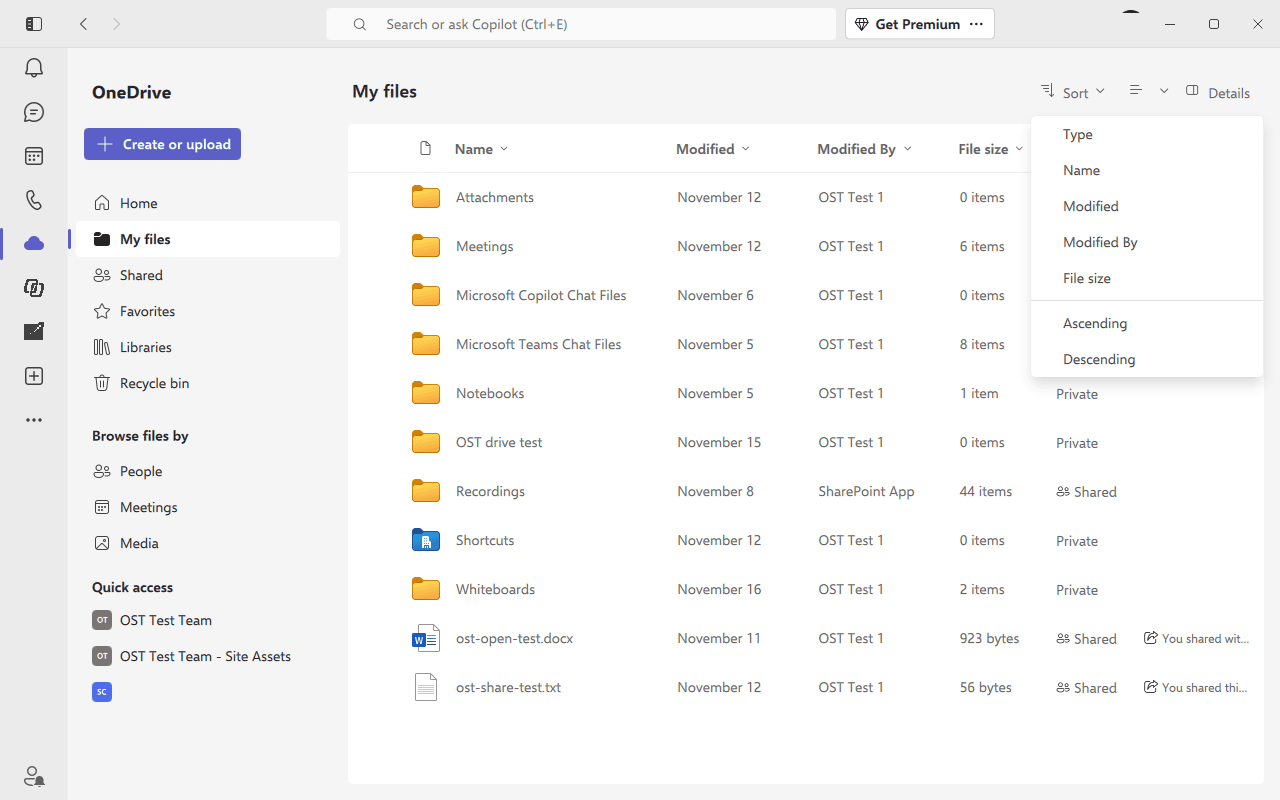
- Sort ▾: by name, modified, file size and more, Ascending or Descending.
- Switch view options: List, Compact List or Tiles.
- Details (Open the details pane).
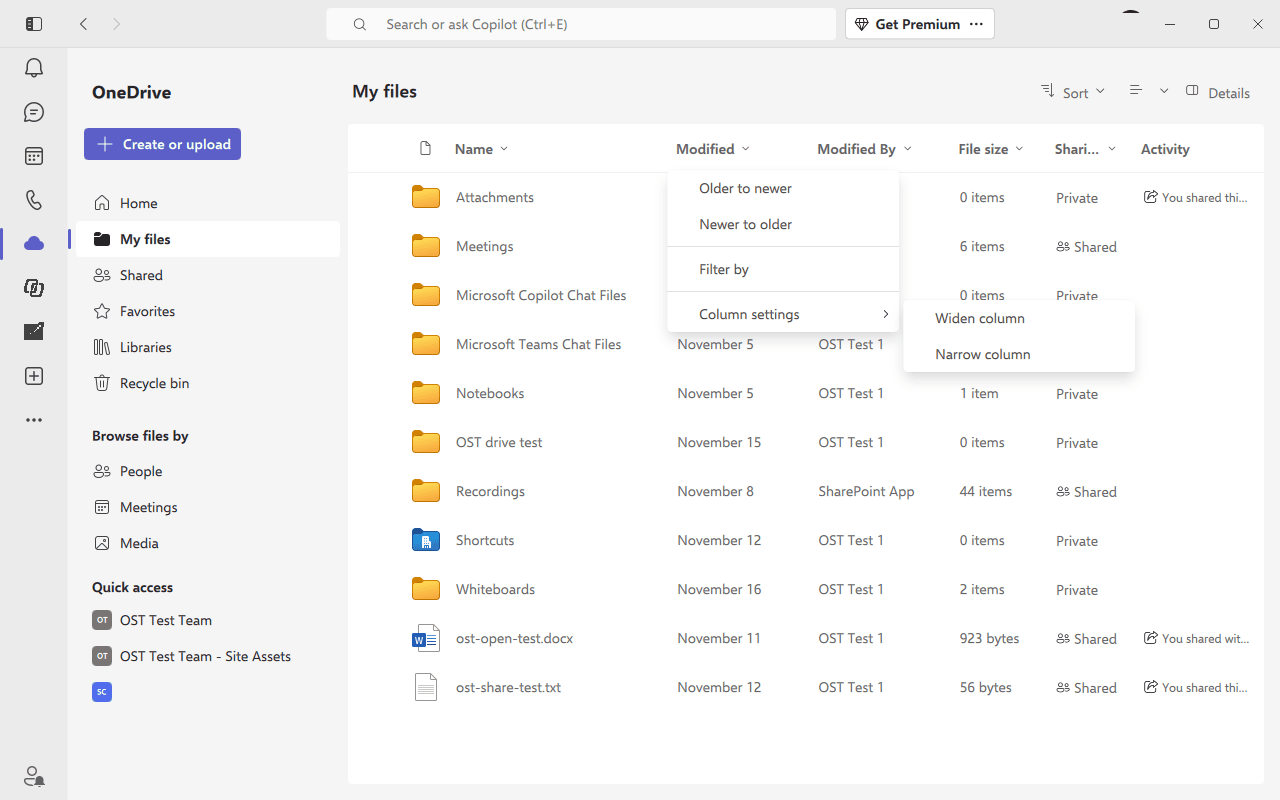
- A column header's menu sorts (A to Z, Newer to older, Smaller to larger and back), opens Filter by and Column settings (Widen column, Narrow column). Drag a header's edge to resize it.
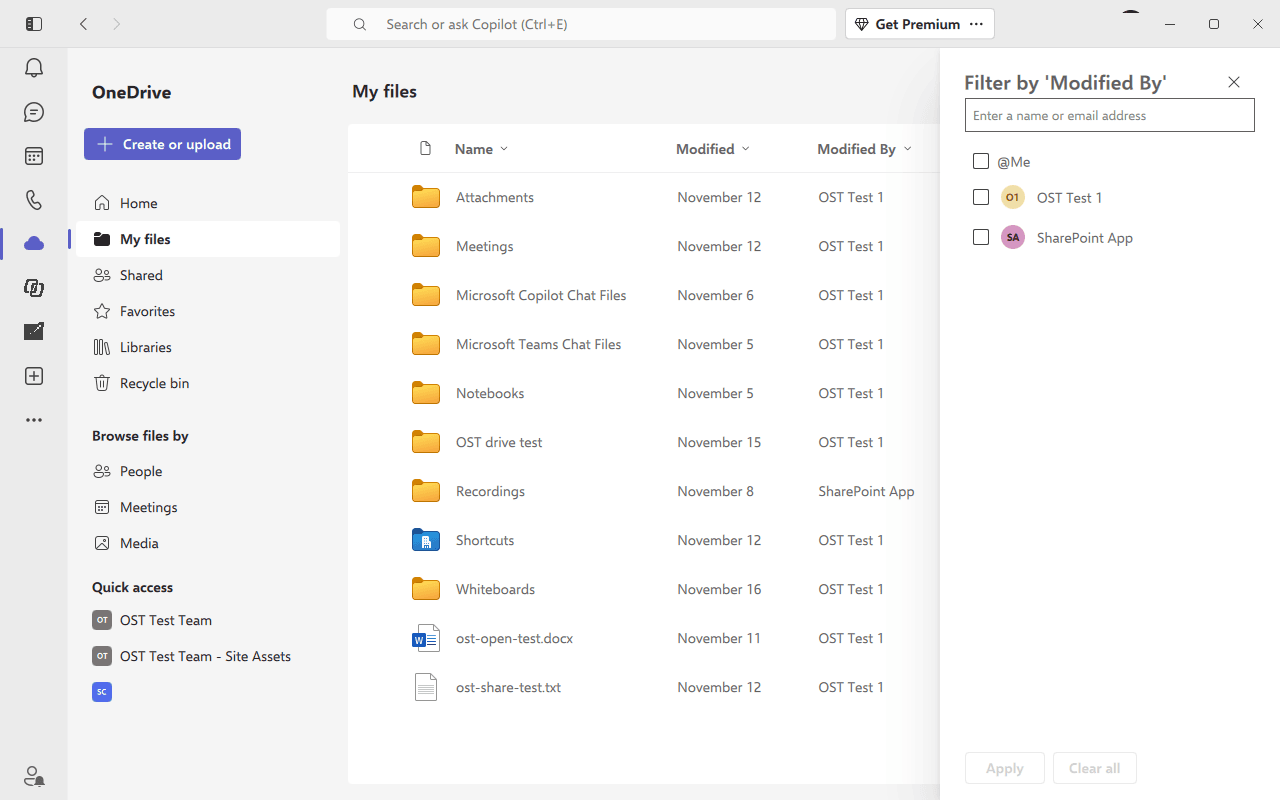
- Filter by on Modified (Today, Last 7 days, Last 30 days, Last 3 months, In the last year) and Modified By (people, with search); Clear all removes the filter.
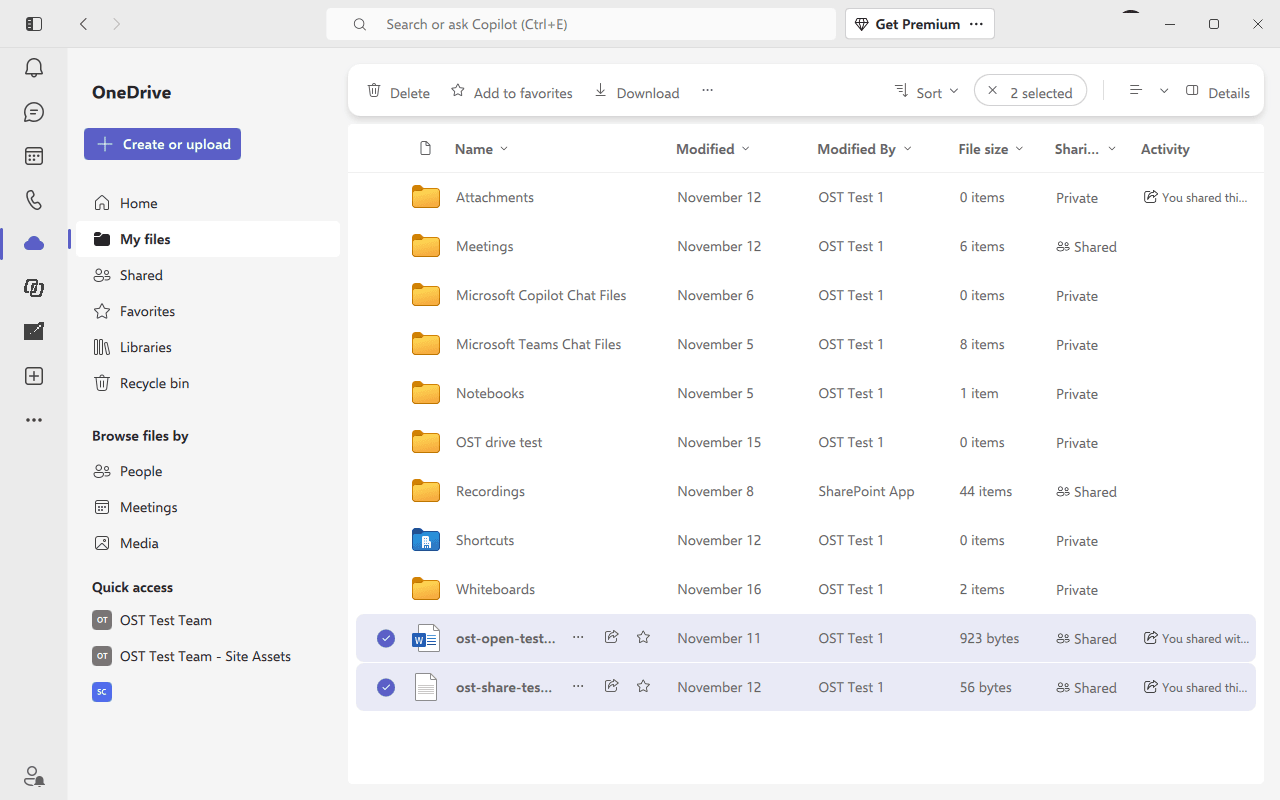
Select a row's circle (or Ctrl-click rows) for the selection bar: Share, Copy link, Download, Delete, Move to, Copy to, Rename and more for one item, fewer for several; "N selected" and Clear selection. Several items, or a folder, download as one zip file.
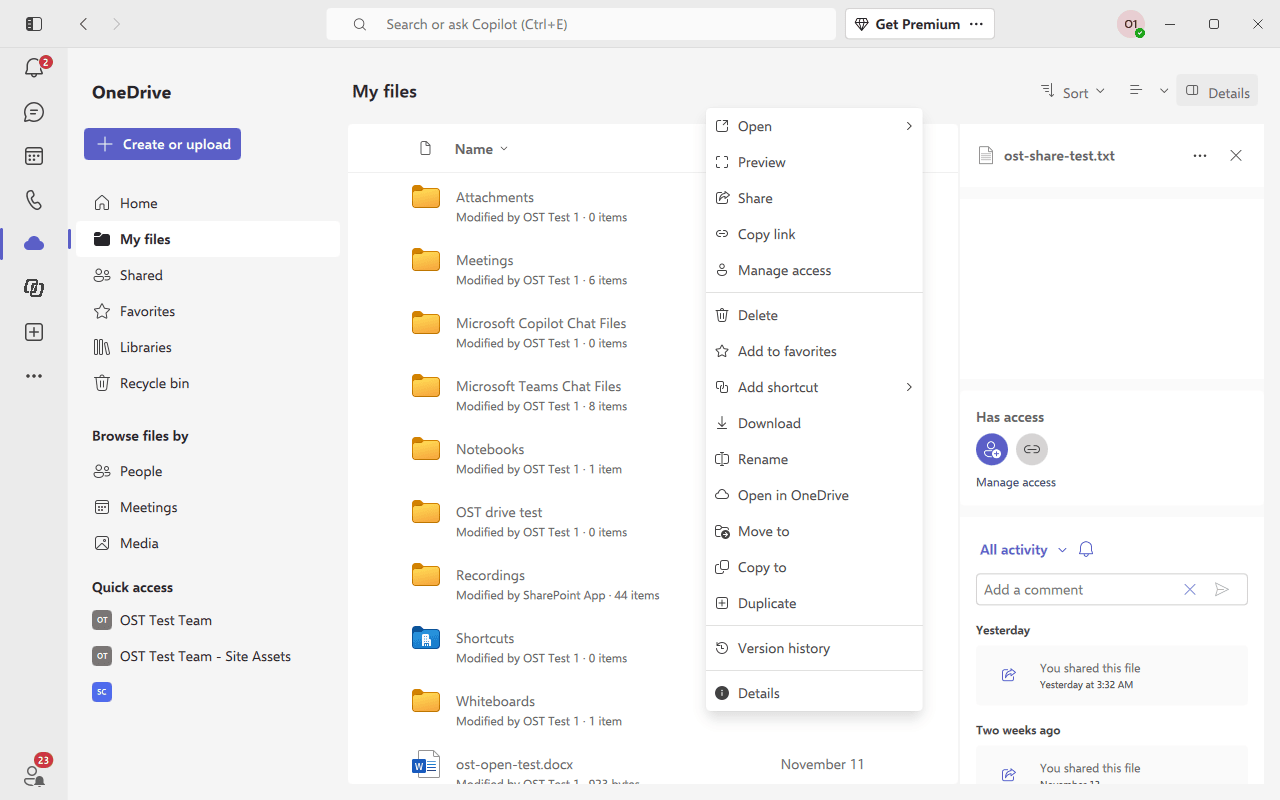
A file's ··· (or right-click):
- Open ▸ Open in browser, Open in app (your desktop's app for the file type) or in OST, and Preview
- Share and Copy link, Manage access
- Download, Delete, Rename, Move to, Copy to, Duplicate
- Add to favorites / Remove from favorites
- Add shortcut ▸ (to My files, for shared folders and library items)
- Version history, Details
- Folders: Request files and Folder color
- Videos and audio: Add to playlist
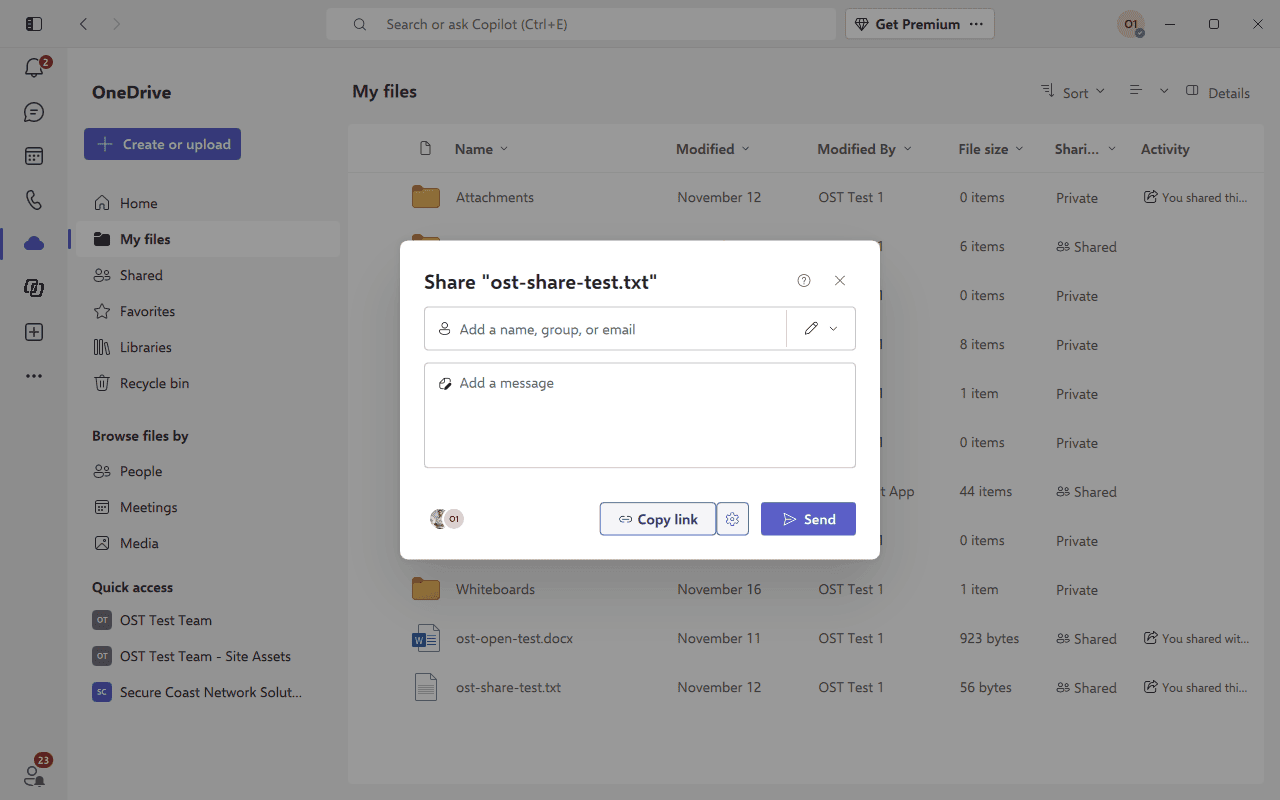
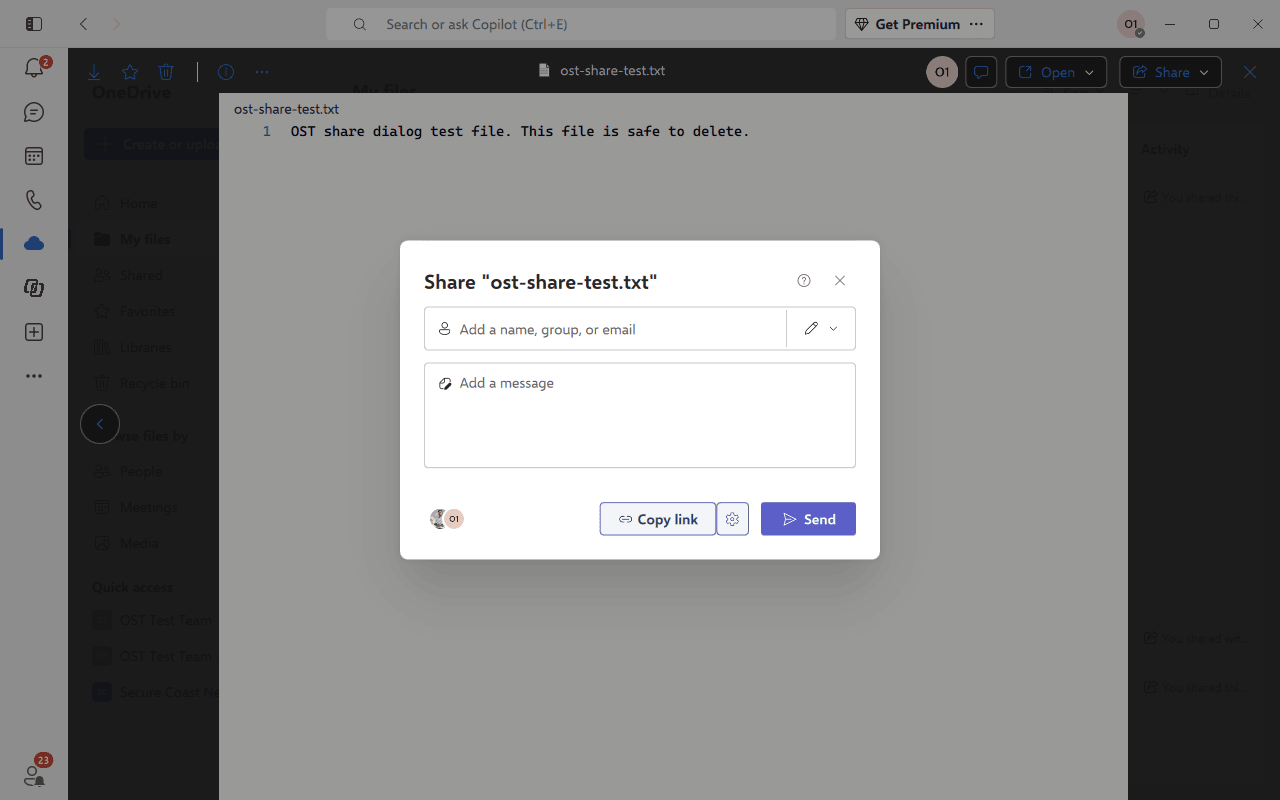
- Share opens Teams' sharing dialog: add names, groups or e-mail addresses with Can view or Can edit, Add a message, Send or Copy link. Link settings pick who the link works for (Anyone, People in your organization, People with existing access, People you choose), whether they can edit, an expiration date and a password where allowed. Manage access lists the links and people with access (Stop sharing, Remove link).
- Rename with Copilot (where licensed) shows Suggested names for the file; Get new suggestions asks again.
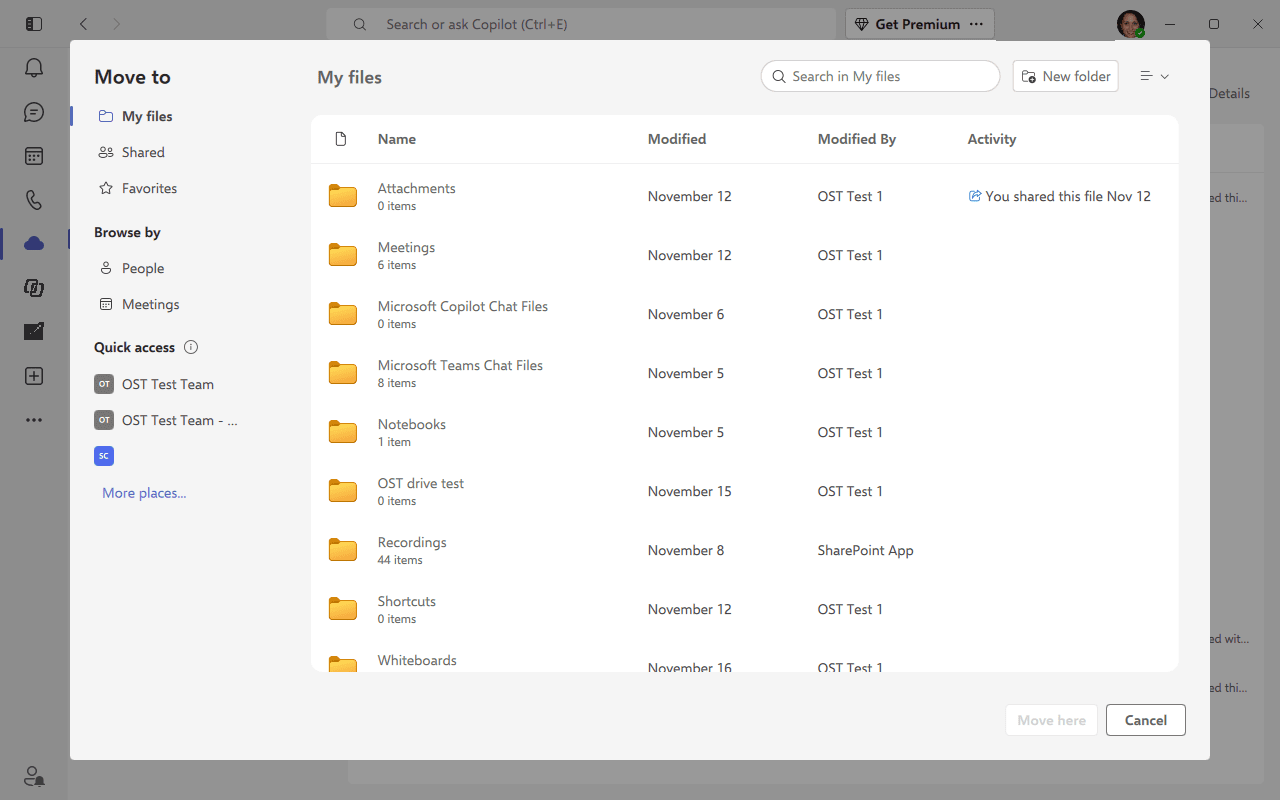
- Move to and Copy to open a folder picker: My files, Quick access, Shared libraries, More places..., search, a person filter, New folder, Pin to Quick access, then Move here or Copy here. Progress and results show as notices.
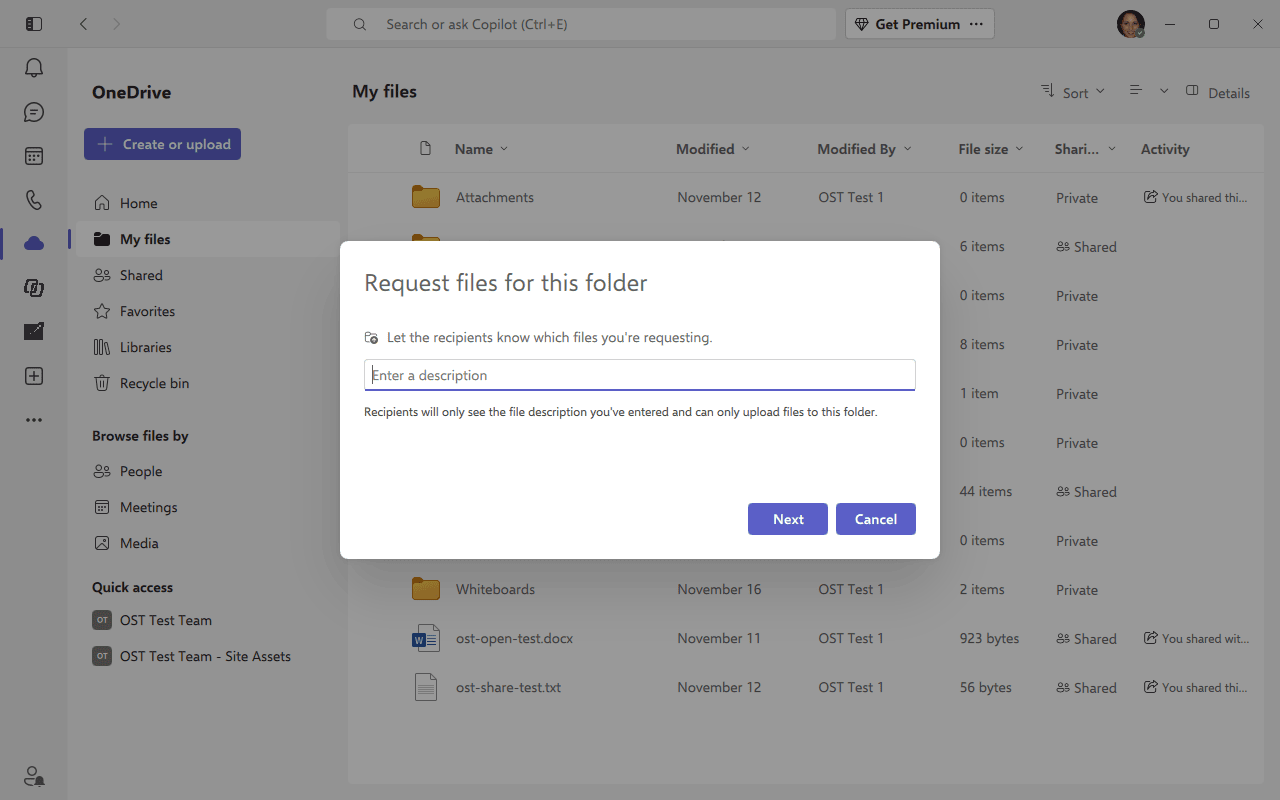
- Request files asks people to upload files to a folder: name the request, then copy the upload link or send it by e-mail.
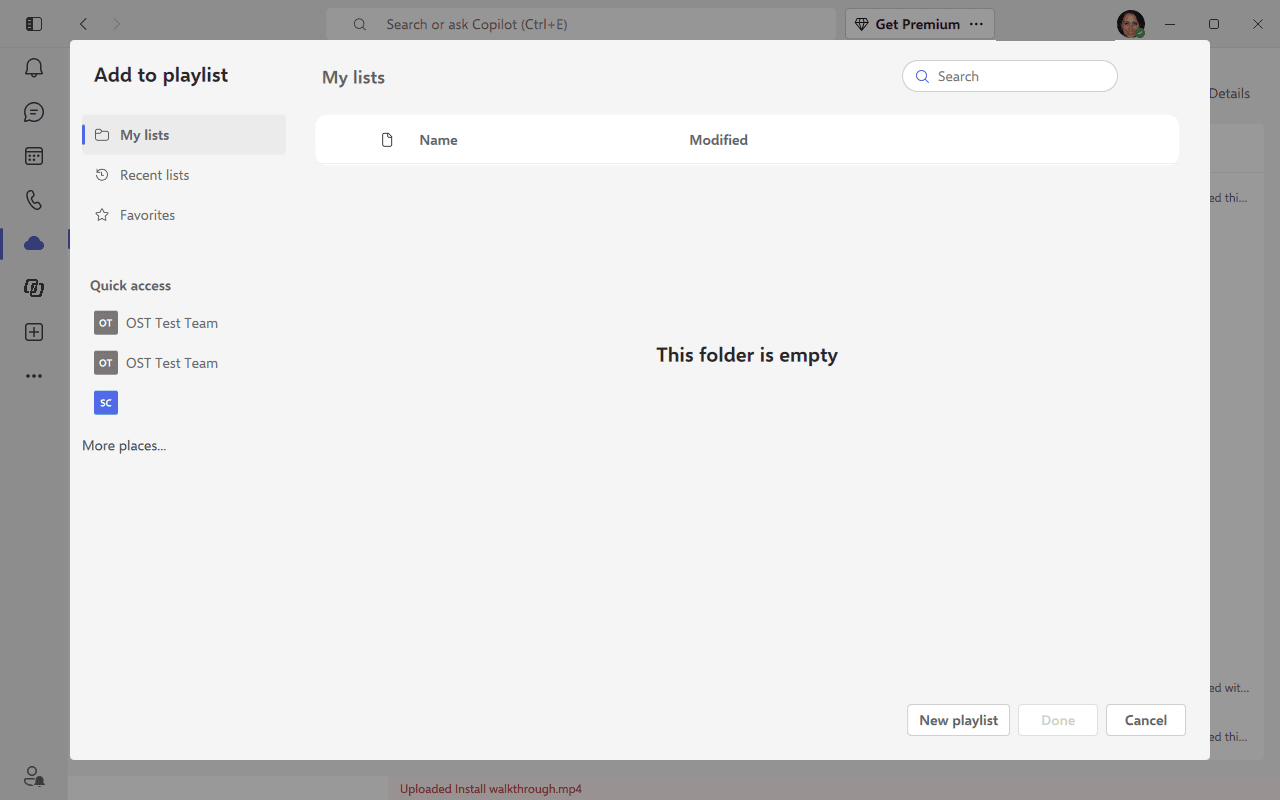
- Add to playlist adds a video to a Stream playlist (New playlist, Recent lists, My lists).
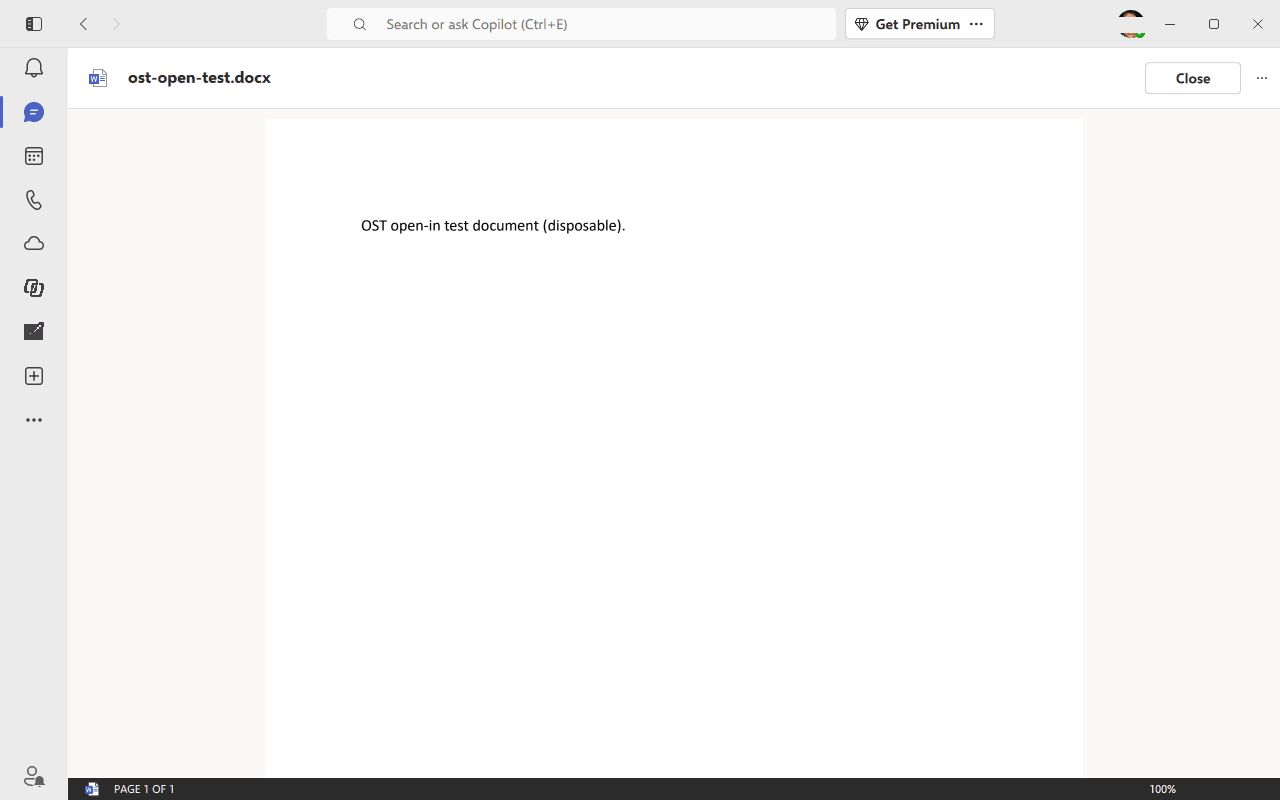
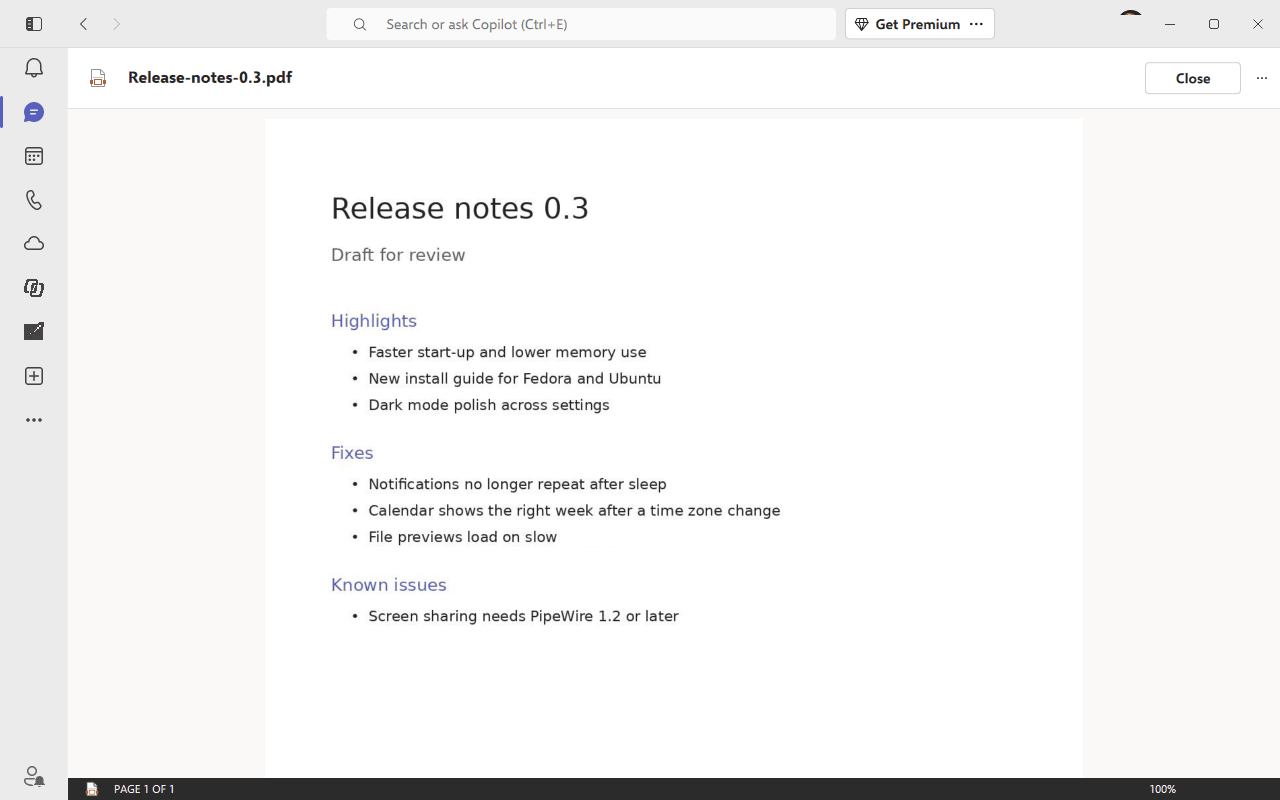
- Preview opens Teams' file viewer for pictures, PDFs, video, audio, text and Office files: Previous / Next, Show comments, Share ▾ (Share, Copy link, Manage access, Embed), Download, Favorite, Open ▾, Info and More.
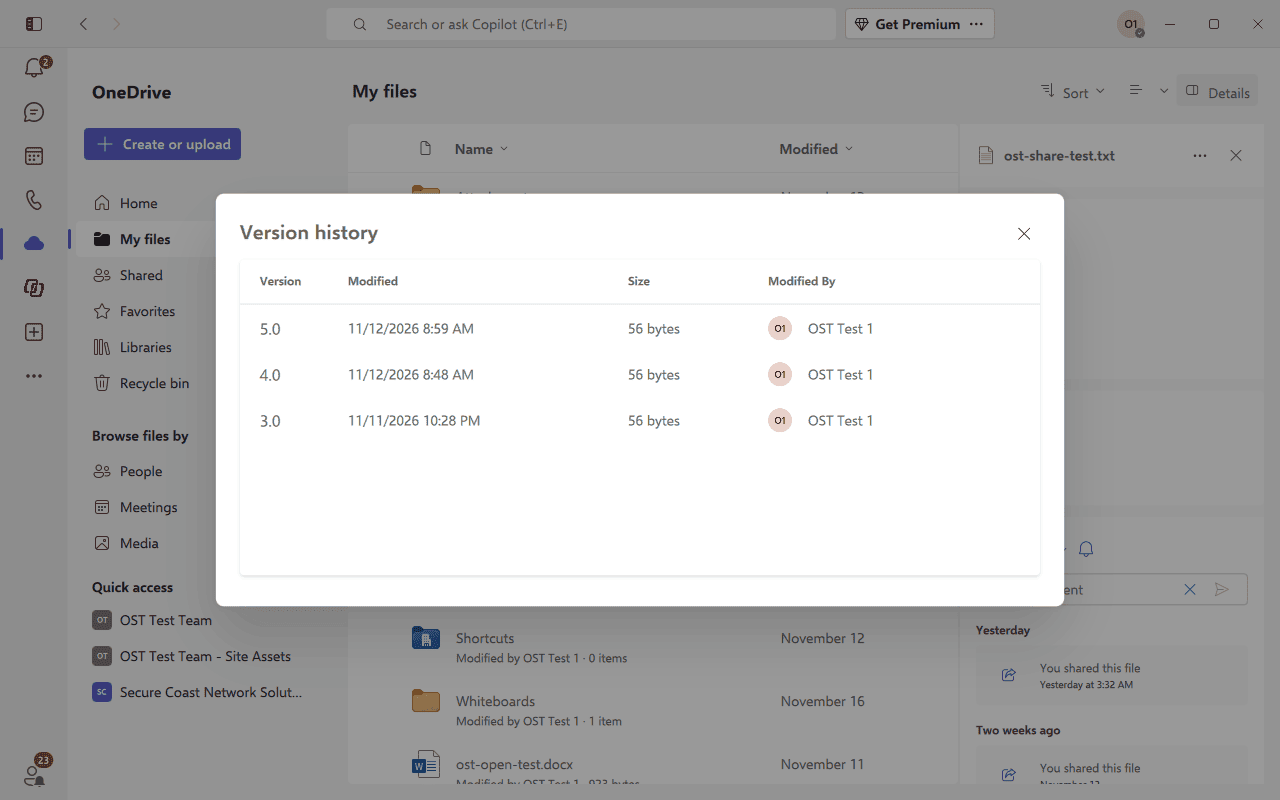
- Version history: every version with its date and author; Restore or Delete Version, and open an older one.
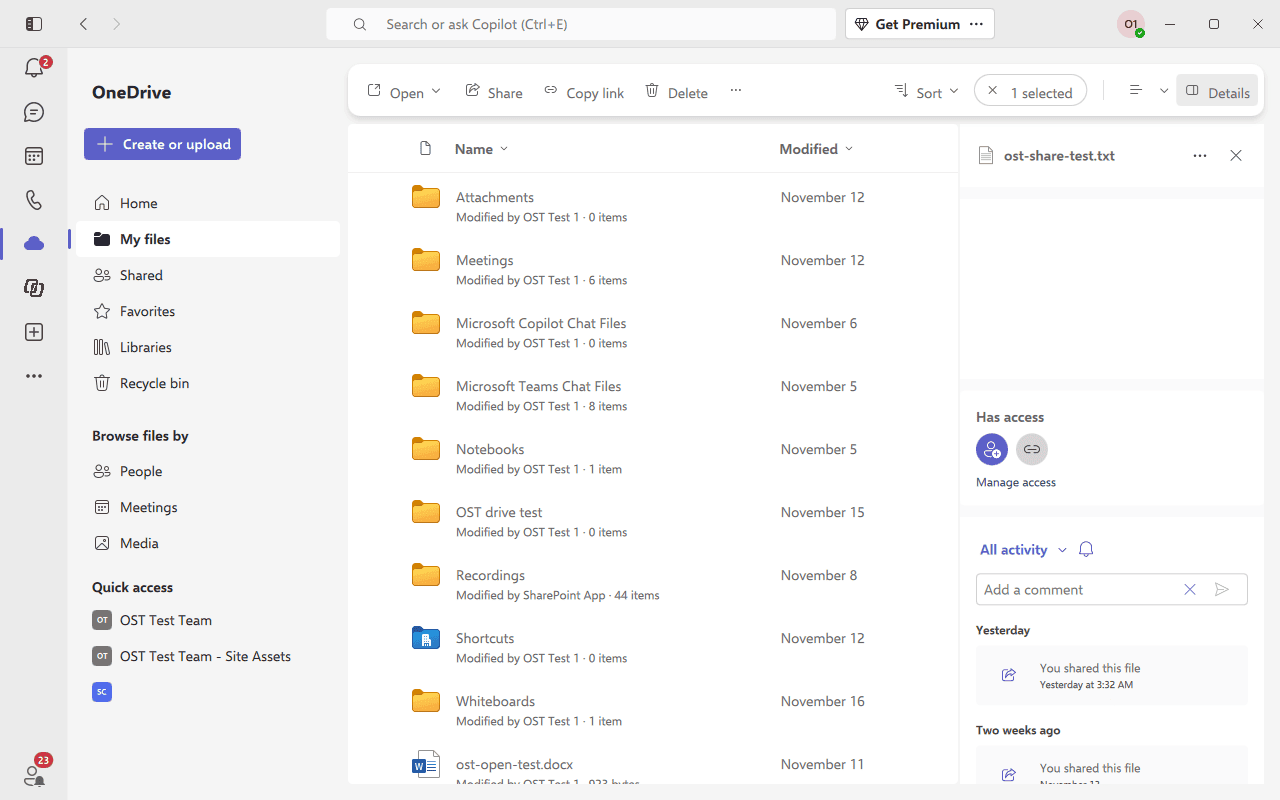
- Details: the file's type, size, path, created and modified dates, Has access with Manage access, Activity (all activity or comments) and Comments: add, Edit comment, Reply, like, @mention people, Delete comment. The bell turns notifications for the item's activity on or off.
- File cards in chats and channels open the same viewer.
- Word, Excel and PowerPoint files open in Office for the web inside OST by default (Settings ▸ Files and links ▸ Teams), or in your browser or desktop app as you choose there.
- A chat's Shared tab lists every file and link shared in it.
- A channel's Shared tab is the channel's folder in the team's SharePoint library: breadcrumb, Share, Copy link, Add shortcut to OneDrive, Create or upload, open and delete.
- Settings ▸ Files and links ▸ File previews turns file preview cards in chats and channels on or off.
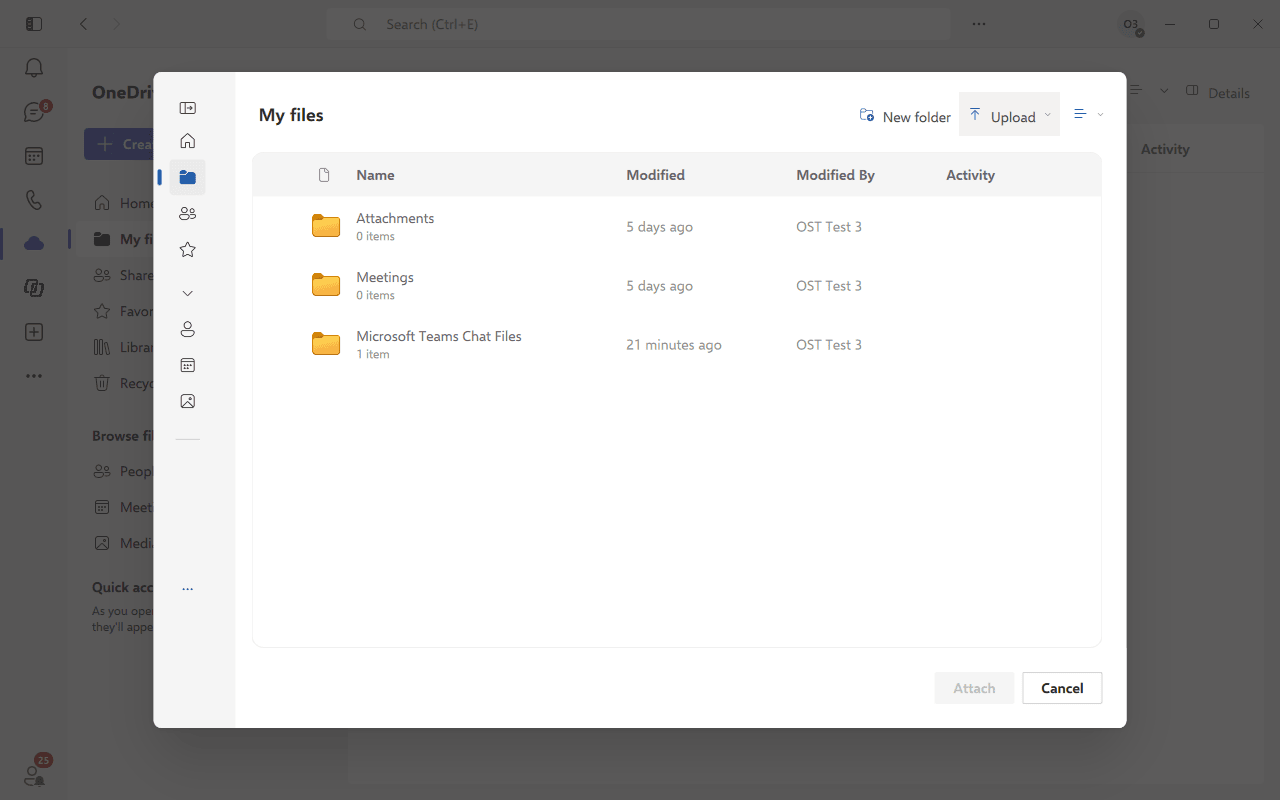
Attach files under the message box shows recent cloud files, a search, Attach cloud files, Browse Teams and Channels and Upload from this device.
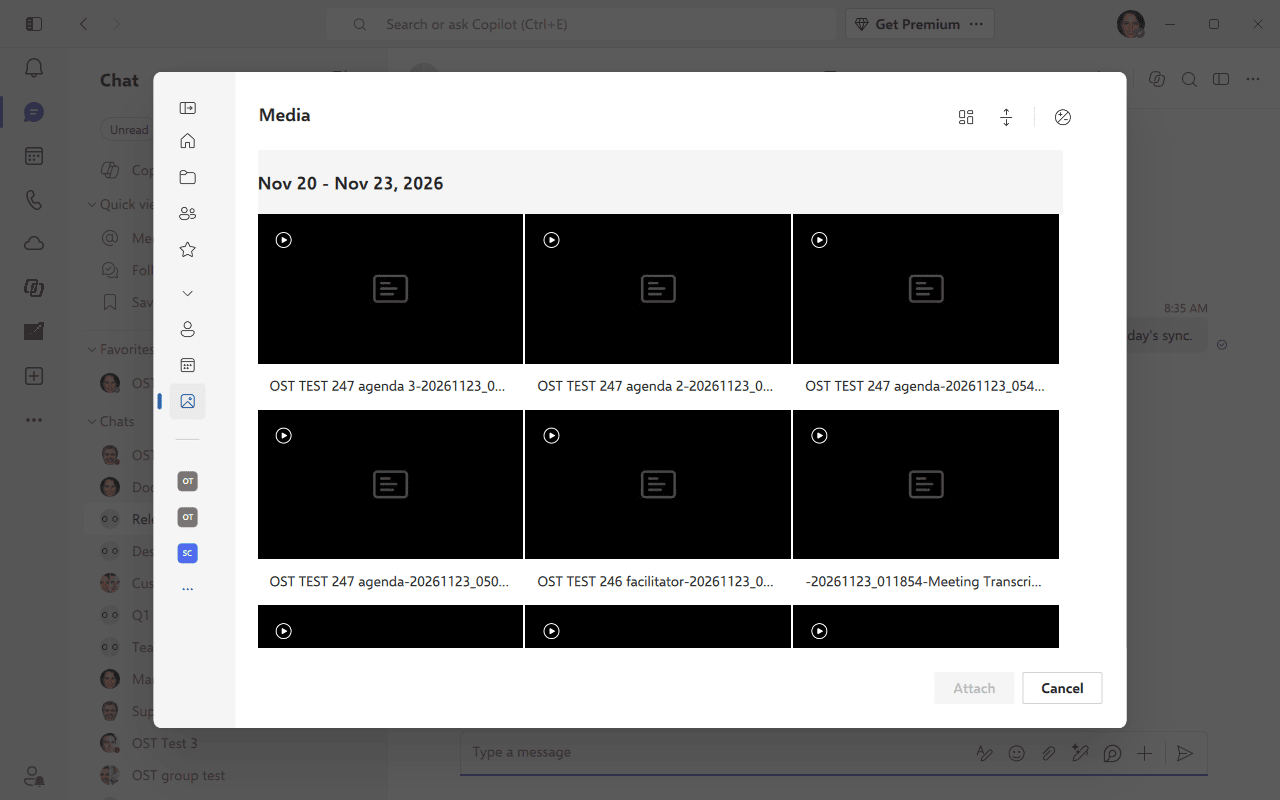
Attach cloud files opens Teams' cloud file picker: Home, My files, Shared, Favorites, People, Meetings, Media, Quick access and Shared libraries, with search, New folder, the View as menu (List, Compact List, Tiles) and Attach. Media has Teams' Timeline and Waterfall layouts with zoom. Picked files are attached as links with Link settings (who can open them).
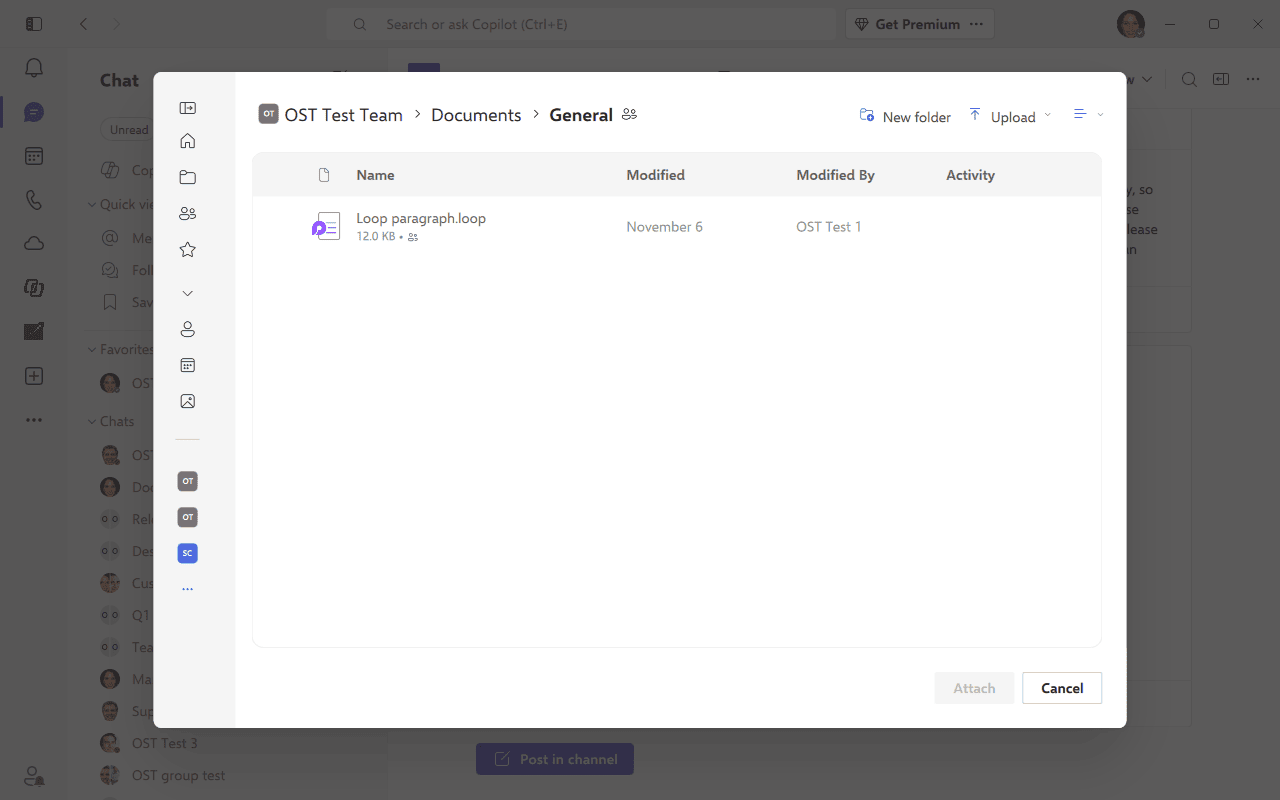
Browse Teams and Channels lists your teams and channels and opens a channel's files to attach from.
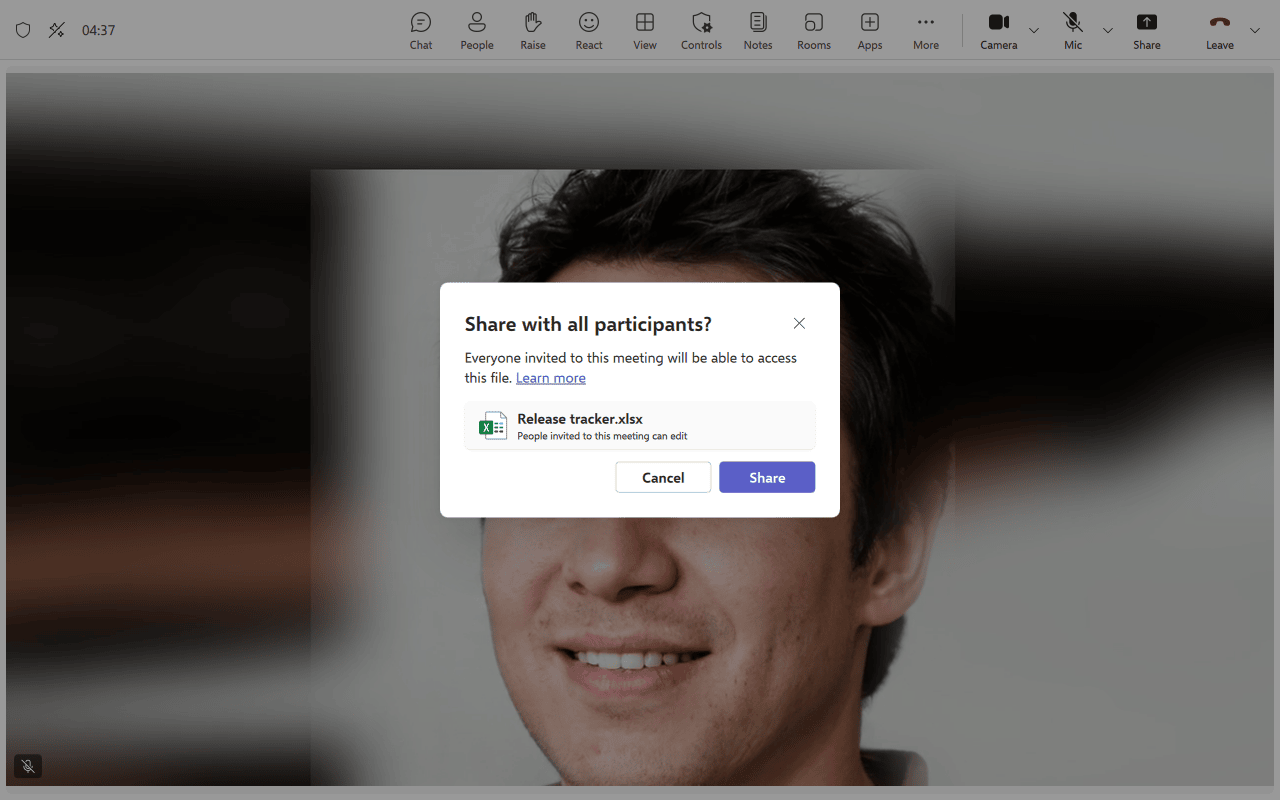
Sharing a file in a meeting's chat asks Share with all participants?: everyone invited to the meeting gets access ("People invited to this meeting can edit").
Teams can favorite folders in OneDrive; OST can favorite files only. See Differences from Teams.