Nursing Discharge
Nursing Discharge is stage 4 of the inpatient discharge workflow. It is performed by nursing staff after the room/bed has been vacated (stage 3 — Room Discharge) and before the patient physically leaves the hospital (stage 5 — Physical Discharge).
Nursing discharge records that nursing responsibilities are complete: patient education delivered, medications explained, follow-up arranged, and belongings collected.
| Stage | Step | Performed By |
|---|---|---|
| 1 | Clinical Discharge | Doctor |
| 2 | Room Discharge | Nurse / Ward Admin |
| 3 | Administrative Discharge (Final Bill) | Billing |
| 4 | Nursing Discharge | Nursing Staff |
| 5 | Physical Discharge | Ward Admin |
Before nursing discharge can be confirmed, all pending pharmacy transactions for the BHT must be resolved. The system blocks the confirmation if any of the following exist:
| Status | What It Means | How to Resolve |
|---|---|---|
| Pharmacy request not fully issued | A medicine request was raised but pharmacy has not issued all items | Pharmacy must issue or cancel the remaining request items |
| Issue not yet accepted by ward | Pharmacy issued medicines but the ward nurse has not yet accepted the issue | Ward nurse must accept the issue in Ward Pharmacy — BHT Issue/Receive |
| Ward return not yet accepted by pharmacy | Ward raised a return of medicines but pharmacy has not processed it | Pharmacy must accept the ward return |
| Direct-issue return not yet processed | A direct-issue return was submitted but not yet verified by pharmacy | Pharmacy must process the return (set checkedBy) |
If any of these are pending, the Confirm Nursing Discharge button is disabled and a warning table lists every blocking item:
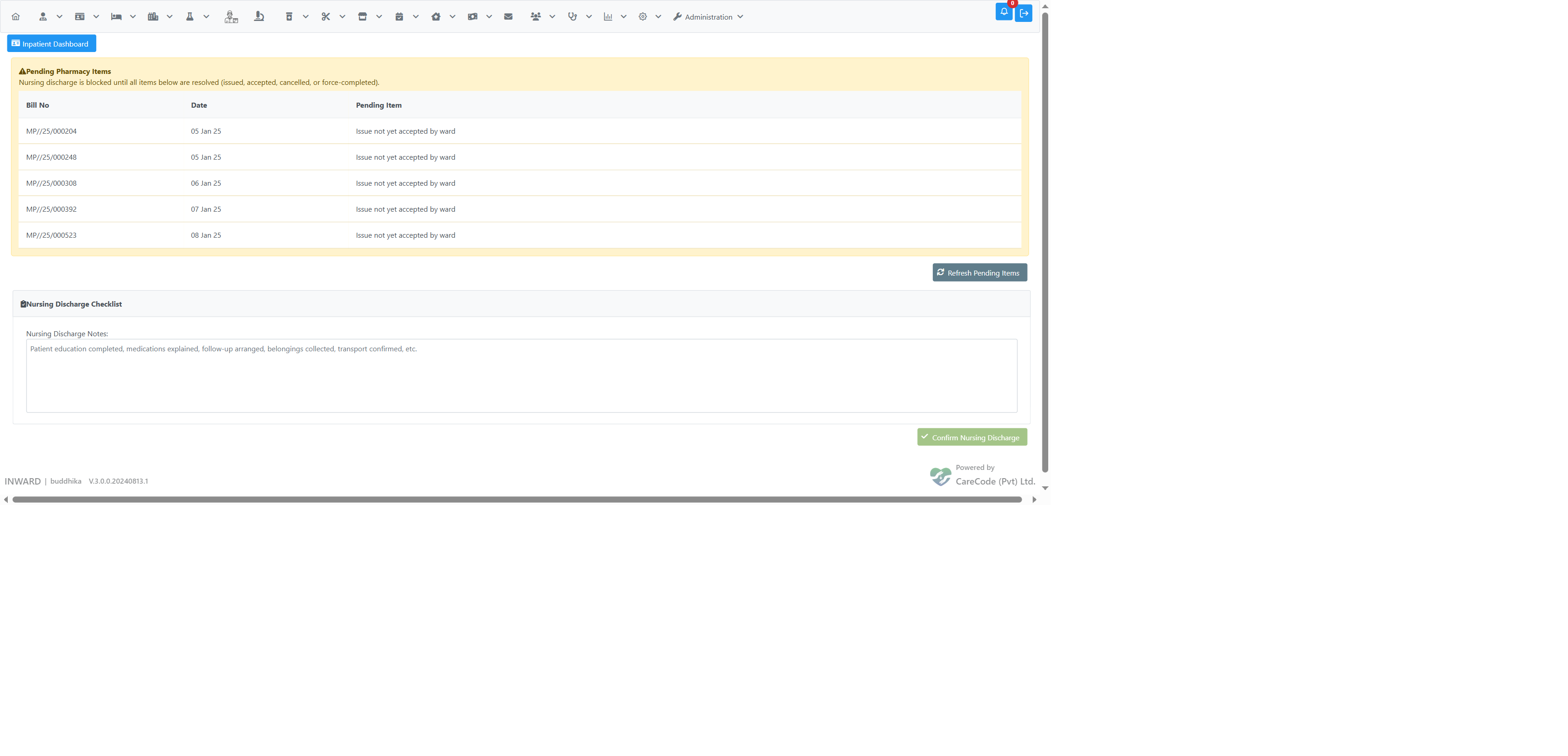
Use the Refresh Pending Items button after resolving items in the pharmacy module — the table and button state update without a full page reload.
- Navigate to the patient's Inpatient Dashboard (admission profile).
- Click Nursing Discharge from the discharge action buttons.
- Review the pending pharmacy items panel. If items appear, resolve them in the pharmacy module and click Refresh Pending Items.
- Once the pending items panel is empty, the Confirm Nursing Discharge button becomes active.
- Enter any nursing discharge notes (patient education details, follow-up instructions, transport arrangements, etc.).
- Click Confirm Nursing Discharge and confirm the dialog.
- A success banner is shown with the confirming nurse's name and timestamp.
If nursing discharge was confirmed in error and physical discharge has not yet been confirmed:
- Navigate to Nursing Discharge for the patient.
- Click Cancel Nursing Discharge and confirm the dialog.
- The record reverts to unconfirmed status, allowing corrections.
Note: If physical discharge has already been confirmed, you must cancel physical discharge first before cancelling nursing discharge.
Access to this page requires the InwardNursingDischarge privilege. Users without this privilege will see an access-denied message. Contact your system administrator to have the privilege assigned.
Confirm button is greyed out even after resolving all pharmacy items
- Click Refresh Pending Items to re-query the database — the UI does not auto-poll.
- If still blocked, ask pharmacy to double-check that all issues have an acceptance record and all returns are fully processed.
Cannot cancel nursing discharge
- Physical discharge must be cancelled first. Go to the Physical Discharge page for the patient and cancel it, then return to Nursing Discharge to cancel.