Repository navigation
Clip Extractor Exporting
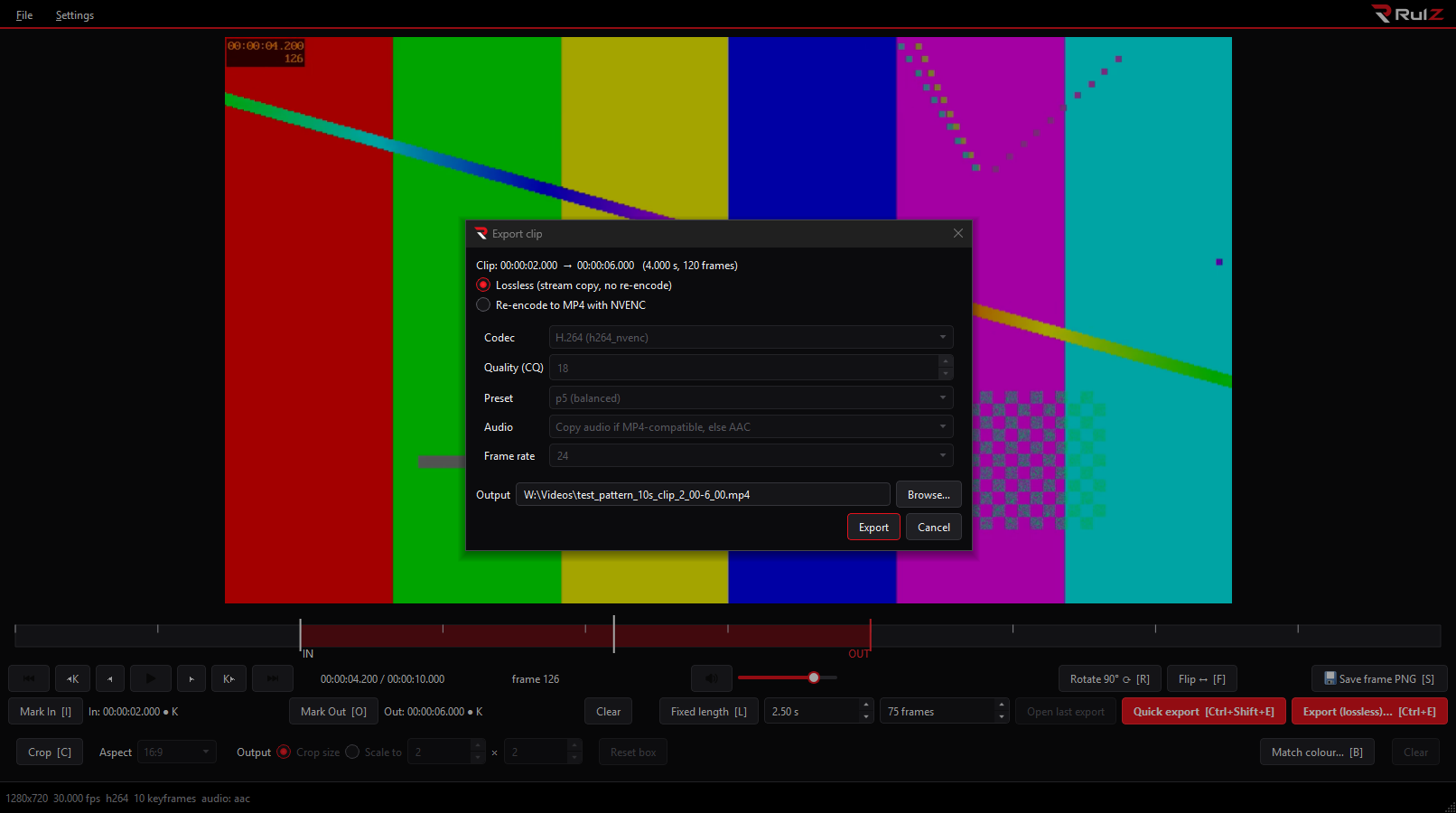
There are two ways to export a clip: the Export dialog (Ctrl+E) where you choose options, and Quick export (Ctrl+Shift+E) which uses your saved defaults with no dialog.
| Lossless | Re-encode (NVENC) | |
|---|---|---|
| How | Stream copy, no re-encoding | Re-encoded on the NVIDIA GPU |
| Quality | Identical to the source | Set by the CQ value |
| Speed | Near instant | Fast |
| Cut points | Both ends must be on keyframes | Any frame |
| Output | Same container as the source | MP4 |
Only when both the In and Out points are on keyframes (or at the very start or end of the file), and nothing needs to change the pixels. Lossless is greyed out, with the reason shown, when any of these is active:
- the cut is not on keyframes
- a crop or scale is set
- the picture is flipped
- a colour match is applied
Rotation alone does not block Lossless: it is stored as a rotation flag in the file, which every mainstream player honours. If you need the pixels themselves rotated, choose NVENC.
| Option | Notes |
|---|---|
| Codec | H.264, HEVC (H.265) or AV1 via NVENC. AV1 needs a recent NVIDIA GPU. |
| Quality (CQ) | Lower is better quality and a bigger file. 18 is the default; 18 to 24 is typical. |
| Preset | p1 (fastest) to p7 (best). Default p5. |
| Audio | Copy if MP4-compatible (otherwise AAC), always AAC, or none. |
| Frame rate | Defaults to 24. "Same as source" keeps the original. See below. |
Pick a preset or type a rate such as 48, 23.976 or 24000/1001. The clip is resampled by duplicating or dropping frames. NTSC presets use exact fractions, so "23.976" really is 24000/1001. Audio is not affected.
NVENC exports write a keyframe every second, so the clips are easy to step through and to cut again later.
Ctrl+Shift+E, or the red Quick export button.
- Exports the current selection, or the whole video when nothing is selected.
- Saves straight to the output folder, no dialog.
- Uses the codec, CQ, preset, audio and frame rate from Preferences. Out of the box that is H.264, CQ 18, preset p5, 24 fps, audio copied when possible.
- Applies the current rotation, flip, crop, scale and colour match.
- Shows progress and a Cancel button in the status bar. Cancelling removes the partial file.
Quick export can have its own settings, separate from the Export dialog, and can be told to cut losslessly when the clip qualifies. See Preferences and Themes.
Files go next to the source video, or into the folder you chose under Preferences > Output.
| Export | File name |
|---|---|
| A marked or fixed-length clip | <video>_clip_<in>-<out>.<ext> |
| The whole video (Quick export) | <video>_clip_full.mp4 |
| With a crop | the name gains _crop
|
| Name already taken |
_1, _2, ... is added; nothing is overwritten |
Use Open last export (Ctrl+Shift+O) to jump straight to the file you just made.
Audio packets do not line up exactly with video keyframes, so a lossless clip may start with a few milliseconds of audio before the first picture. Sync is preserved.
- Crop, Rotate and Flip
- Colour Matching
- Troubleshooting if an export fails or a player shows the wrong length