Repository navigation
Coding Agent Projects and Tasks
A project is a folder on your computer. Each request you send is a task: the agent works on it step by step until it's done, needs your answer, or you stop it.
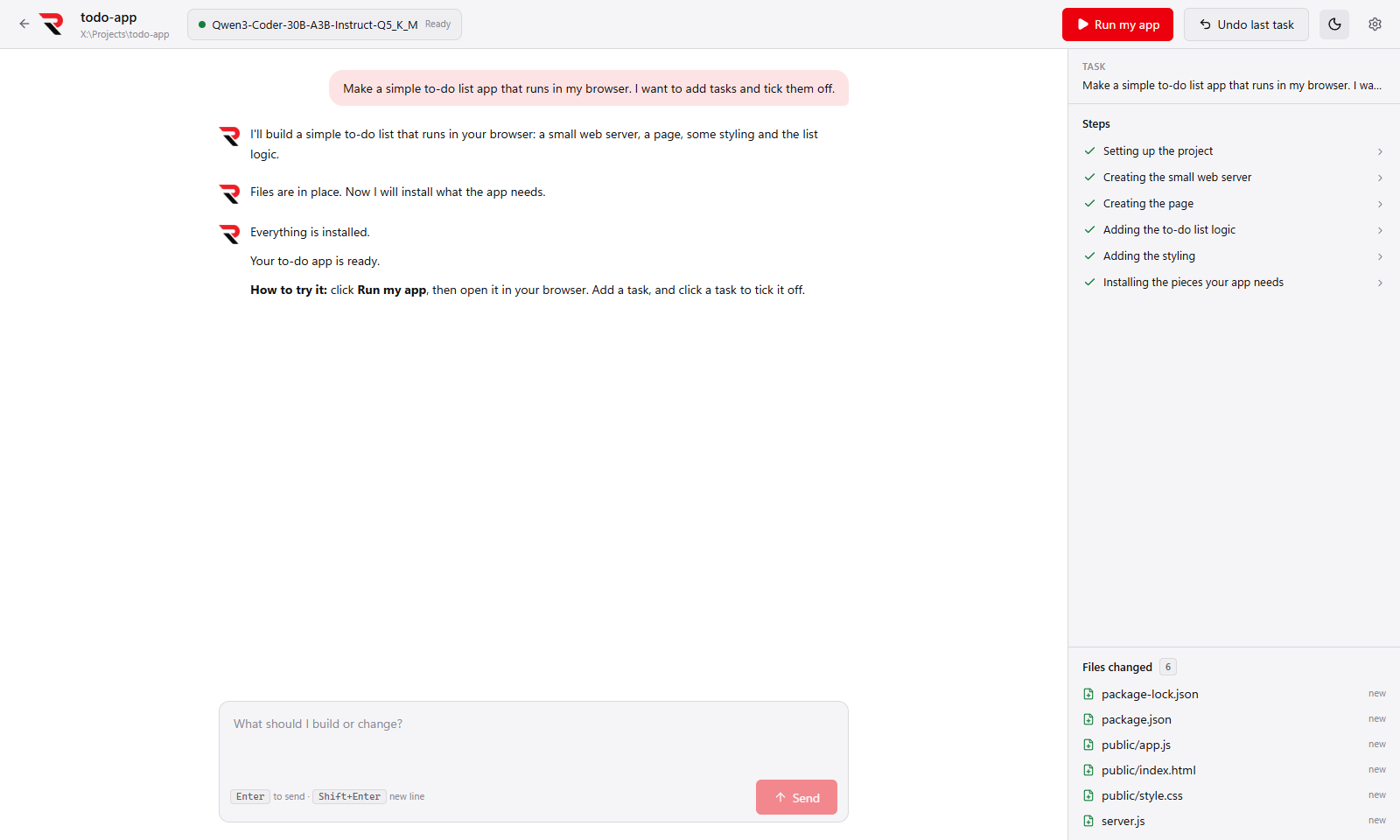
| Area | What it shows |
|---|---|
| Conversation (left) | What you asked and what the agent says, in plain words. |
| Steps (right) | Each action, such as "Installing the pieces your app needs", with a status icon. Click a step to see the exact command and its output. |
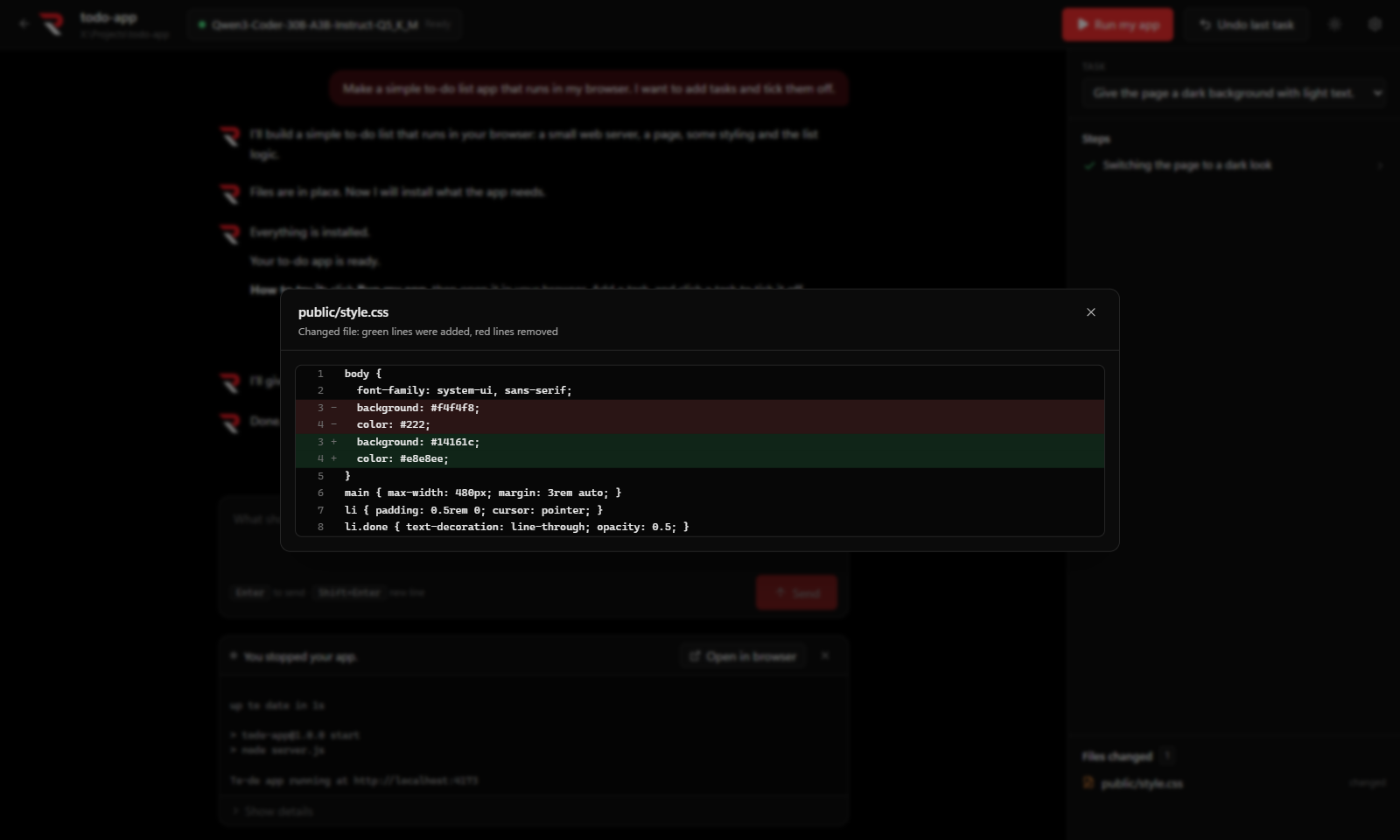
| Files changed | Every file the task created, changed or deleted. Click one to see the changes. |
| Memory (under the message box) | How full the model's context is, for example "23% of 100K", using the exact token counts RulZ reports. |
| Drafts (next to Memory) | New in 0.10.0. When the model drafts tokens ahead (a draft model or MTP): the share of drafted tokens it accepted and about how much writing time that saved. Hidden when the task didn't draft. |
| Model (top bar) | The model in use and whether it's ready. Click it to switch (Model Settings). |
New in 0.10.0. With a draft model or built-in MTP layers, the model guesses a few tokens ahead and keeps the guesses that turn out right. The Drafts readout shows that for the selected task (or the latest one): the acceptance rate, for example "94% accepted", and the time saved. Hover over it for the drafted, accepted and generated token counts and the writing time. The numbers are saved with the task.
The time saved is an estimate. Until the Coding Agent has seen this model write without drafting, it shows an upper limit ("≤ 3.1 s saved"), because the server doesn't report what drafting itself costs. Turn Speed up with a draft model off for one task and it learns the model's plain speed, after which the figure is exact and can even say "slower" when drafting doesn't pay off.
Models that reason before they answer (such as Qwen3, Gemma 4, gpt-oss or DeepSeek-R1) get a Thinking… box above each of their replies in the conversation:
- It opens and fills in live while the model thinks, so you can follow its reasoning as it works.
- It folds away once the model starts answering (or moves straight on to a step), and then reads Thought process. To leave it open instead, turn on Settings → Keep thinking open after the answer (since 0.11.0); you can still fold it by hand.
- Click it to open or close it at any time, including for earlier replies. The thinking is saved with the project's conversation.
- Models that write their thinking inline as
<think>…</think>get the same box; that text no longer appears in the reply. - Once thoughts start arriving, the box replaces the Thinking… status line, so it isn't shown twice.
- If thinking is turned off for the model, or its Thinking budget is 0, nothing is thought, and the status says Working… (thinking is off in Model settings) instead (since 0.10.0).
- The thinking is only shown to you. It is never sent back to the model, so it doesn't use up the model's memory.
Coder models usually don't think, so they show no box. To turn thinking on or off or limit how long it lasts, see Model Settings → Thinking. The Android app shows it too, since its 0.4.0.
Since 0.12.0 you can type in the message box while a task runs, for example to say "use blue" or to tell it something it is thinking about that you already know.
- Enter (or Add note) puts the note in the conversation before the agent's next step. Until then it waits above the message box, where × cancels it.
- Ctrl+Enter (or Now, or the arrow on a waiting note) also cuts the model's current reply short, so the note applies at once. The cut reply stays in the conversation, and the agent gets a quote of its thinking so far with your note, so it carries on instead of starting over.
- A command or tool that is running is never cut by a note; the note goes in as soon as it finishes. Only Stop ends a running command.
- Notes show in the conversation where the agent read them, marked Note added while I was working (or stopped my reply to add this).
- A note sent while the agent is writing its final answer makes it keep going, so it can act on the note.
- If the task ends before a note was read, a notice shows the note that wasn't sent.
When the agent asks you a question, the box answers the question instead.
Since 0.13.0, hover a message in the conversation for its buttons. They are unavailable while a task runs (except Copy).
- Copy copies the text of your request or of the agent's reply (without its thinking).
- Edit and Run again appear on your latest request. Edit lets you change the wording first. If that task changed files, they are put back first (the same as Undo last task) and a notice says so; if there is no restore point, the agent refuses instead of dropping your changes. History keeps the first try, marked as undone.
- Delete on a request removes it, the notes you added while it ran and the agent's replies from the conversation, and the agent forgets them. History still lists the task and its steps. A request whose file changes are still in your project can't be deleted: undo it first, or the agent would forget what it did to your files. Notes are deleted with their request.
- Delete on a reply removes just that reply. The steps it took stay.
Deleting asks for confirmation and can't be undone.
Stop or Esc stops the task right away, even in the middle of a command, and kills the command's whole process tree. Whatever was done so far is kept, and Undo last task can remove it.
- Undo last task puts the project back exactly as it was before the last task. Press it again to go further back.
- History lists every task in the project, newest first, with when it ran and how many files it changed. Go back to before this on any task puts the project back to how it was then. It undoes that task and every later one in a single step, after a confirmation that lists them.
The agent is told what was undone at the start of its next task.
Your own Git repositories are never touched: restore points live in a private repository in the app's data folder, not in a .git inside your project. node_modules, dist, .venv and files over 50 MB are left out.
The agent pauses and asks whether to keep going, try another way, or stop when it:
- makes the same call three times in a row,
- fails five times in a row, or
- reaches the step limit (40 by default; change it in Settings → Show details → Most steps per task).
Requests stay under about 80% of the model's context. Older tool results are shortened first. If that isn't enough, older turns are summarised. Your current task, the safety rules and your Notes are never dropped. If the model is loaded with 16K context or less, the agent says once that bigger projects need more. You can raise it in Model Settings.