Repository navigation
Image Preparer Comparing and Saving
- Add images opens a file picker (it remembers the last folder you used).
- Drag pictures or whole folders onto the window. Folders are searched all the way down, including subfolders.
- A picture that's already in the list isn't added twice.
- To remove pictures from the list, select them (hold Ctrl or Shift to select several) and press Delete, or right-click and choose Remove from list. Clear empties the whole list. Neither touches the files on your disk.
The cards on the main screen show Color noise removal and any painted shadow areas only. JPEG squares and fine detail are far too small to see at thumbnail size, so the app doesn't spend time on them there. Open a picture to judge those two. Each card lists the values it will be saved with, for example Noise 50 JPEG 30, Shadows if you painted shadow areas, or No changes.
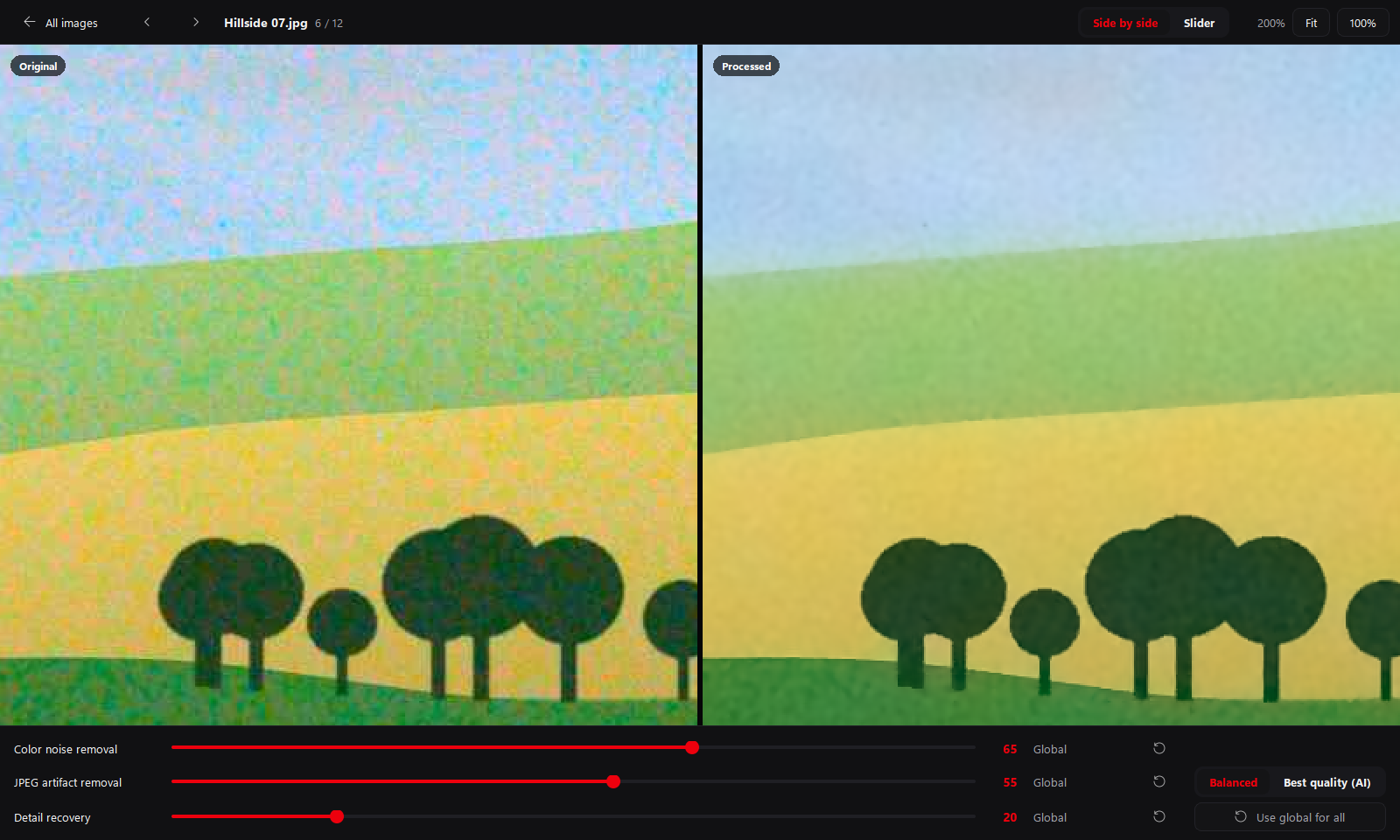
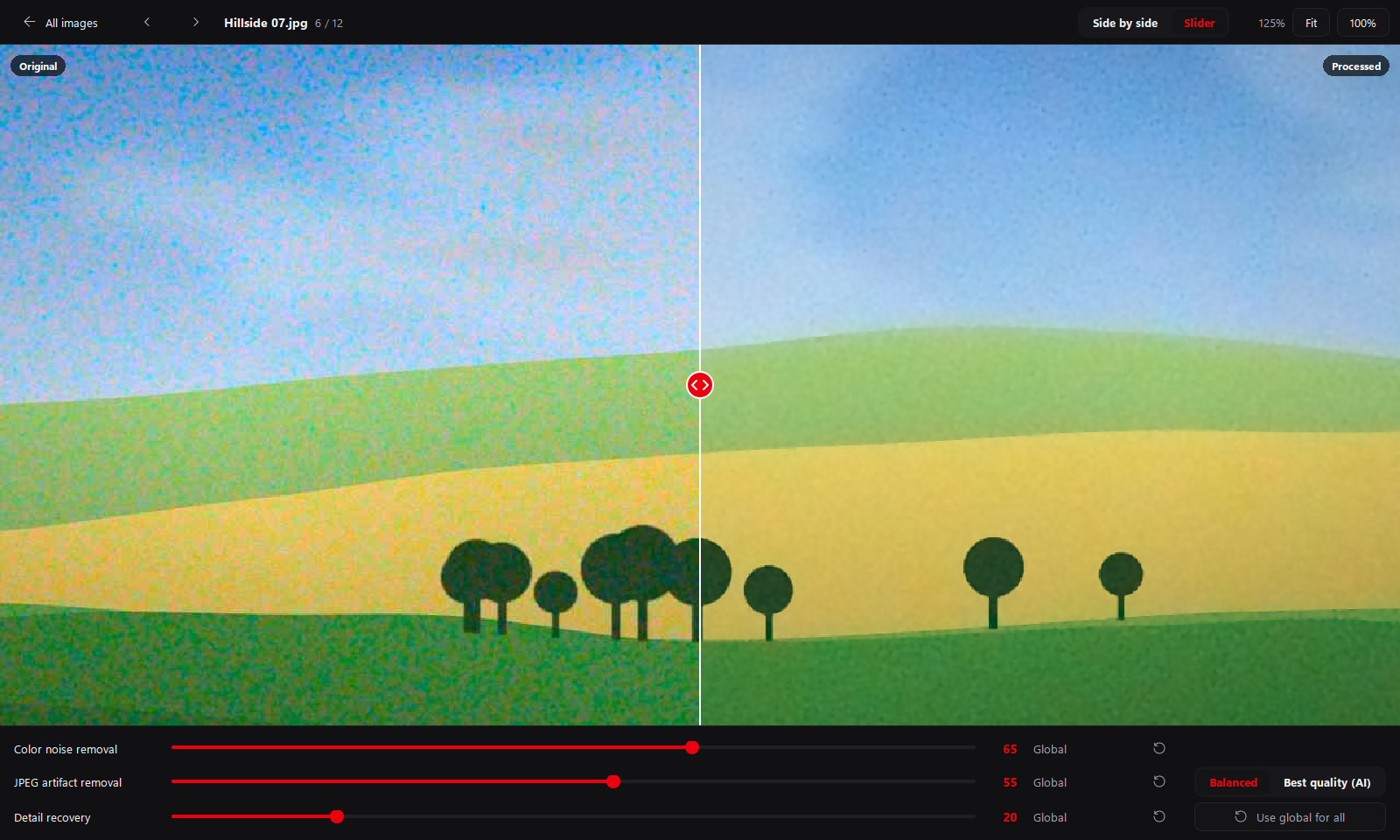
Click a picture to open it full size. The original and the cleaned version appear together:
| Do this | To |
|---|---|
| Side by side / Slider buttons, or press V | Switch between two panes and one picture with a divider you drag |
| Scroll the mouse wheel | Zoom in and out |
| Drag the picture | Move around when zoomed in |
| Double-click the picture, or Fit / 100% | Switch between the whole picture and actual pixels |
| ← / →, or the arrow buttons | Go to the previous or next picture |
| Esc, or All images | Go back to the main screen (while painting shadows, Esc stops painting first) |
| B / E, [ / ], Ctrl+Z | Paint or erase shadow areas, change the brush size, undo a stroke |
Both sides zoom and move together. Judge noise and JPEG damage at 100%: that's the only zoom where you see the real pixels. The app remembers whether you last used Side by side or Slider.
Click Save all… and pick a folder. Every picture in the list is written there with its own settings, and a progress window lets you Cancel part-way. At the end, the app tells you how many it saved, lists any that failed and offers Open folder.
-
Names are kept.
beach.jpgis saved asbeach.jpgin the folder you picked. -
Your originals are never written over. If you pick the folder the pictures came from, the copy gets
_preparedadded (beach_prepared.jpg). Two pictures with the same name from different folders becomebeach.jpgandbeach_prepared.jpg(then_prepared_2and so on). - Files already in the output folder: the app asks Replace files? before writing over them.
- Every picture is saved, including ones with no changes (No changes on the card), so the output folder holds the whole set.
- If Best quality (AI) is on and any picture uses JPEG artifact removal, the app makes sure the AI is set up before it starts.
It reads: JPG (.jpg, .jpeg, .jpe, .jfif), PNG, WebP, BMP and TIFF, in 8-bit or 16-bit, color or
black-and-white. Photos the camera marked as turned sideways are shown and saved the right way up.
It saves in the same format as the original:
| Format | How it's saved |
|---|---|
| JPG | Quality 97 (very high), 8-bit |
| PNG | Lossless; 16-bit stays 16-bit; transparency kept |
| WebP | Lossless, 8-bit; transparency kept |
| TIFF | 16-bit stays 16-bit; transparency kept |
| BMP | 8-bit |
Transparent areas are left exactly as they were; only the visible picture is cleaned.
Camera information stored inside the file (EXIF: camera model, date taken, location and so on) is not copied to the saved pictures. For training data that's usually what you want.