Repository navigation
Image Crawler Quick Start
Click Launch in the launcher (or the RulZ Image Crawler shortcut). A black console window opens and loads the AI model onto your graphics card (10 to 20 seconds; dots appear while it waits). Then the app opens in your web browser at http://127.0.0.1:8000.
Keep the console window open while you use the app. Closing it stops the app and frees your graphics card.
Under 1. What to look for, pick:
-
A website, and type its address (for example
https://example.com/gallery), or - A folder on this PC, and type its path or click Browse…. Tick Include subfolders to look inside the folders within it too.
Then describe the pictures to keep, the way you'd tell a friend: women with red hair, dogs playing in snow, mountains at sunset. Click Generate checklist.
The model turns your description into a checklist in four parts:
- SUBJECT: who or what the picture is about
- REQUIRE: what must be visible
- EXCLUDE: near-misses to reject (for example drawings)
- FALSE IF: when to say no
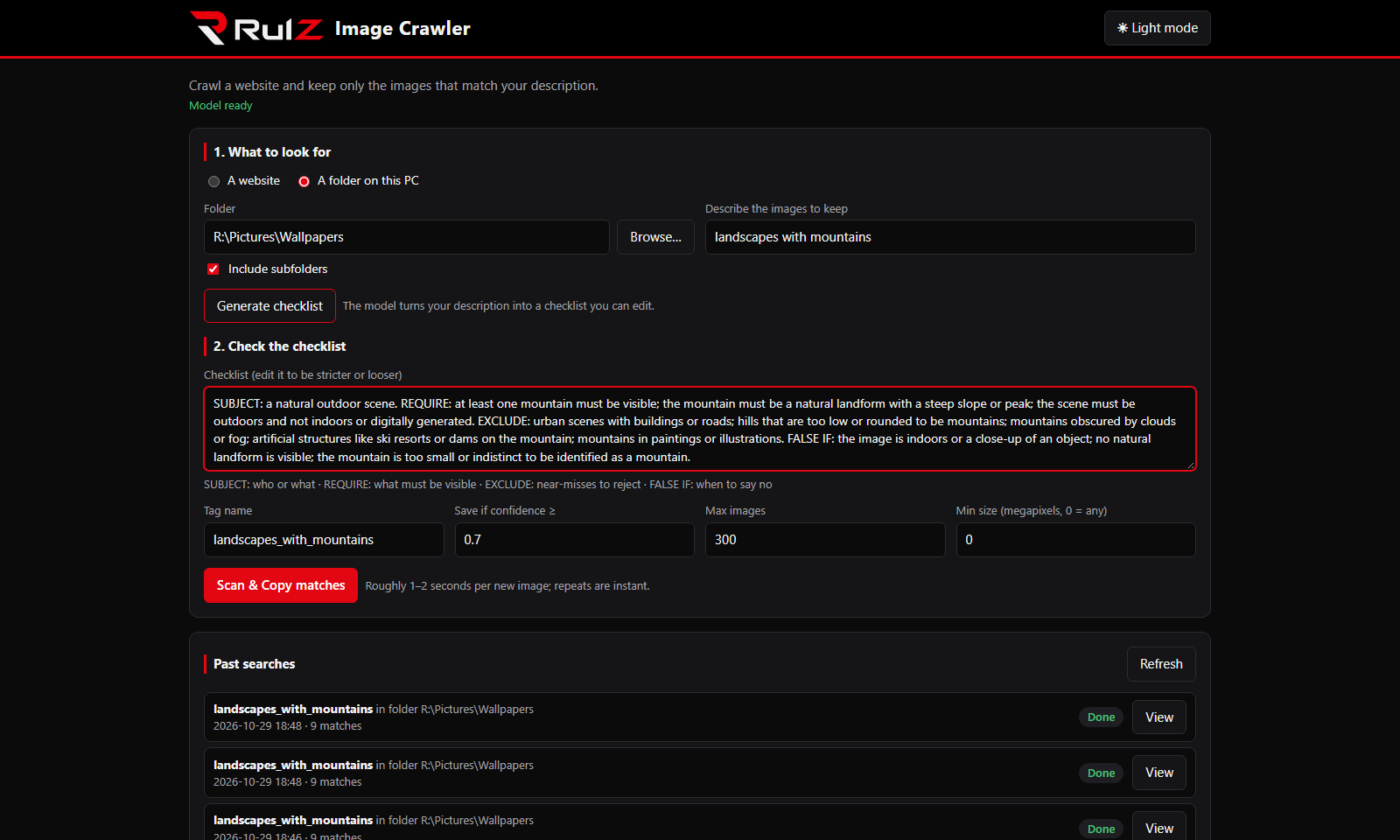
Read it and change anything you don't agree with; it's just text. Adding things to EXCLUDE is the quickest way to stop wrong matches. Leave the other settings as they are for your first search (what they do).
Click Crawl & Download (website) or Scan & Copy matches (folder). Matches appear as they're found, each with how sure the model is. You can Pause, Resume or Cancel at any time. Expect about 1 to 2 seconds per new picture; pictures it has checked before are instant.
When it's done, see Results and Past Searches for the slider, the zip download and where the files are.
Only download pictures from sites that allow it, and respect the owners' rights to their pictures.