Repository navigation
LLM Suite Settings and Data
Open it with Ctrl+5.
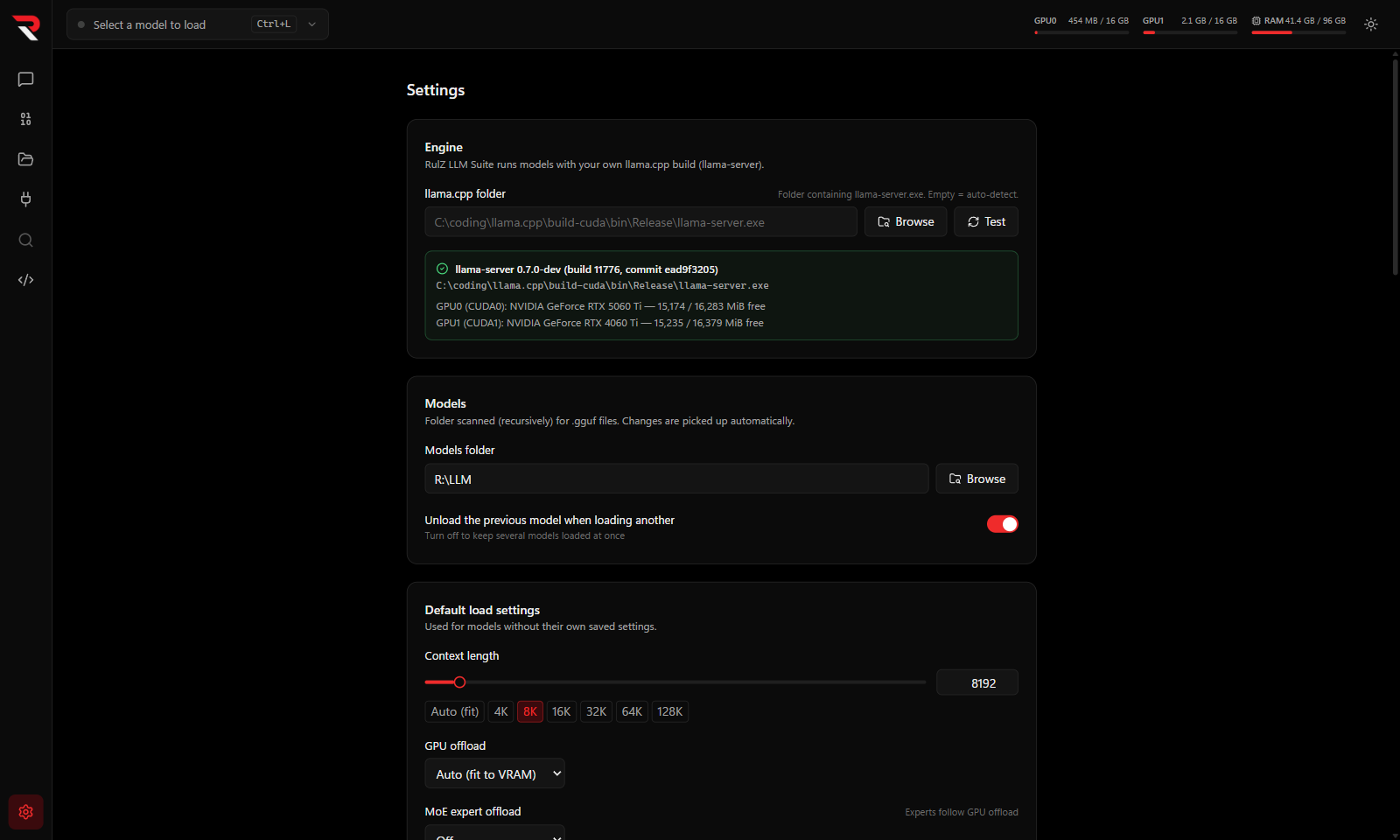
| Section | What it holds |
|---|---|
| Engine |
llama.cpp folder: the folder with llama-server.exe (empty = look in the usual places), with Browse and Test buttons, and the detected version and GPUs. See Building the Engine. |
| Models | The models folder, and whether loading a model unloads the previous one (on by default). See Model Library. |
| Default load settings | Load settings used for models that have none of their own. Press Save load defaults to apply. See Loading Models. |
| New chats | The default system prompt, sampling values (temperature, top P, top K, min P, repeat penalty) and thinking settings for new chats, whether reasoning blocks start expanded, and whether they stay open after the answer starts (Keep reasoning open after the answer, since 0.4.0). Existing chats keep their own settings. |
| Appearance | Dark, Light or System. The sun/moon button in the top bar switches between dark and light quickly. Also Minimize to system tray and Close to system tray (both off by default); see Running in the system tray. |
| Keyboard shortcuts | See Keyboard Shortcuts. |
| About | The app version and a button that opens the data folder. |
Some settings live on the page they belong to rather than here:
- MCP Tools page — tool use on or off, tool approval, tool loading mode and budget, shortening old tool results. See MCP Tools.
- Developer page — starting the server with the app, port, who can reach it, API key, CORS, idle unload, Answer any model name and the default model. See Local API Server.
- Reverse Engineering page — the model and kit folder for RE sessions, recording, which tools run without asking, tool rounds and the tool budget. See Reverse Engineering.
- Chat settings panel — system prompt, sampling, thinking, presets and structured output for the current chat, plus two app-wide choices: tool use on or off, and what to do when the context fills up. See Chat.
- Load panel and My Models — per-model load settings. See Loading Models.
Two switches under Settings → Appearance let the app keep running out of the way, with loaded models and the Local API Server still working:
- Minimize to system tray — minimizing hides the window from the taskbar and shows a RulZ LLM Suite icon in the notification area (by the clock).
- Close to system tray — the window's close button (X) hides the window to the tray instead of quitting.
While the window is hidden:
- Click the tray icon to bring the window back. The icon disappears again once the window is showing.
- Right-click it for Show RulZ LLM Suite and Quit. Quit exits the app properly and stops any running models.
- Starting the app again (for example from the Start menu) also brings the hidden window back.
- Signing out of Windows or shutting down still closes the app normally.
If you turn both switches off while the window is hidden, it comes back by itself.
Everything the app saves is in %APPDATA%\RulZ LLM Suite (usually C:\Users\<you>\AppData\Roaming\RulZ LLM Suite). Settings → About → Open takes you there.
| File or folder | Contents |
|---|---|
settings.json |
App settings, including the Developer page's API server settings and the Reverse Engineering page's options |
model-defaults.json |
Saved load settings for individual models |
presets.json |
Chat presets |
conversations\ |
One JSON file per chat |
conversations-index.json |
A summary of each chat, so the chat list opens quickly; safe to delete, it is rebuilt |
folders.json |
The names of your chat folders |
mcp.json |
MCP server configuration |
re-data\ |
Recorded Reverse Engineering sessions, one folder per chat (api-<id> for sessions from other apps) |
re-practice\ |
Work copies of practice-task programs |
re-batches.json |
Batch runs and their results (0.16.0+) |
gguf-cache.json |
Cached model metadata; safe to delete, it is rebuilt on the next scan |
running-pids.json |
Which llama-server processes the app started, so it can clean up after a crash |
Your models are not stored here; they stay in your models folder, and the app never changes them except when you choose Move to Recycle Bin.
Things to know:
- Back up by copying the folder while the app is closed.
- The API key (Developer page) and any tokens in
mcp.json(envandheaders) are stored as plain text. Don't share these files or post them in an issue. - Deleting a chat moves its file to the Recycle Bin, so a mistaken delete can be undone from Windows.
- A file that is damaged (no longer valid JSON) is kept as
<name>.corrupt-<date and time>next to it, and the app uses defaults in its place. If a file is locked by another program when the app starts, the app starts on defaults but won't overwrite that file; restart the app once the other program lets go of it. - To reset the app's settings, close it and delete
settings.json. Chats, presets and models are untouched.