Repository navigation
Image Tournament Comparing Images
| Side by Side | Split |
|---|---|
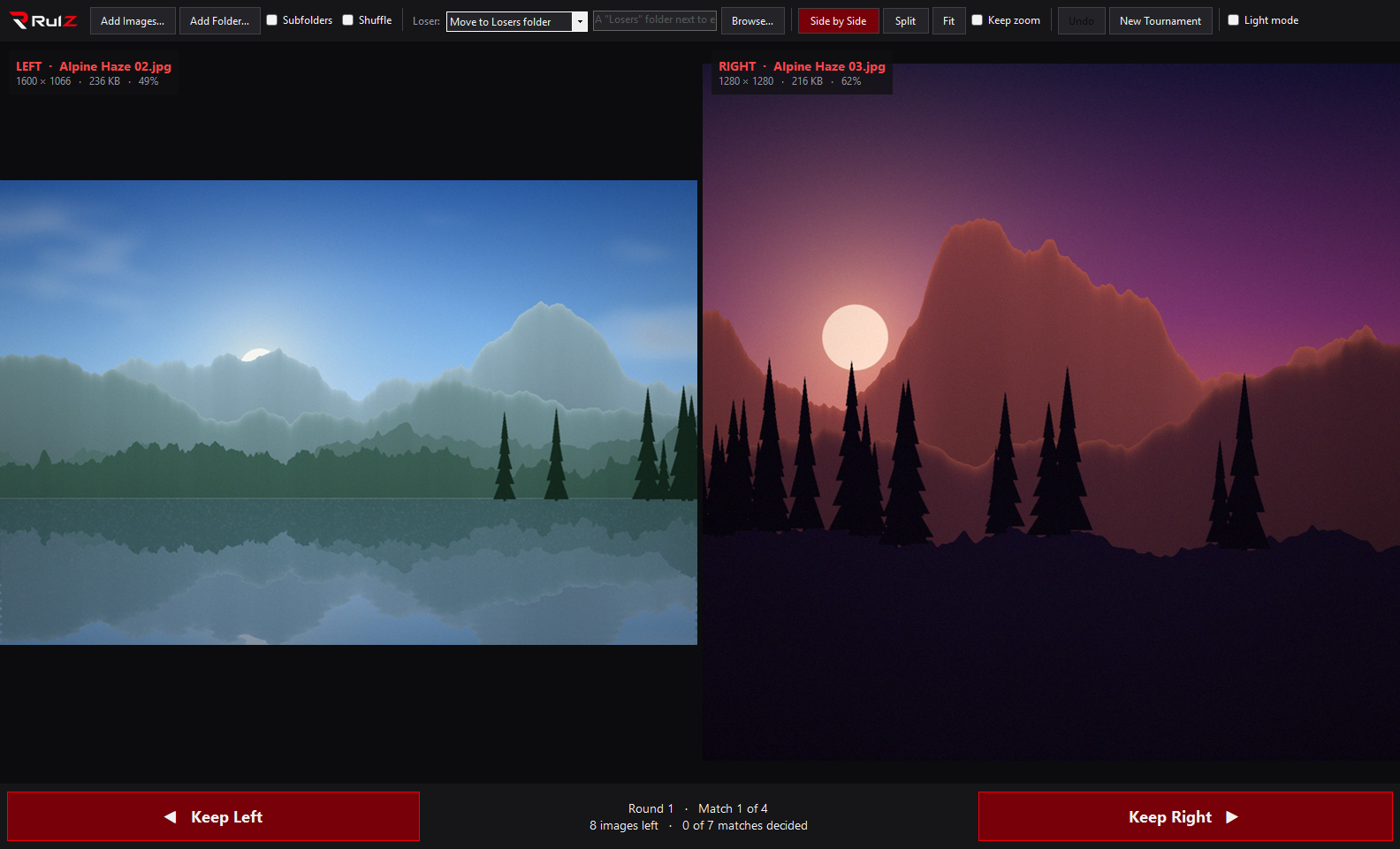 |
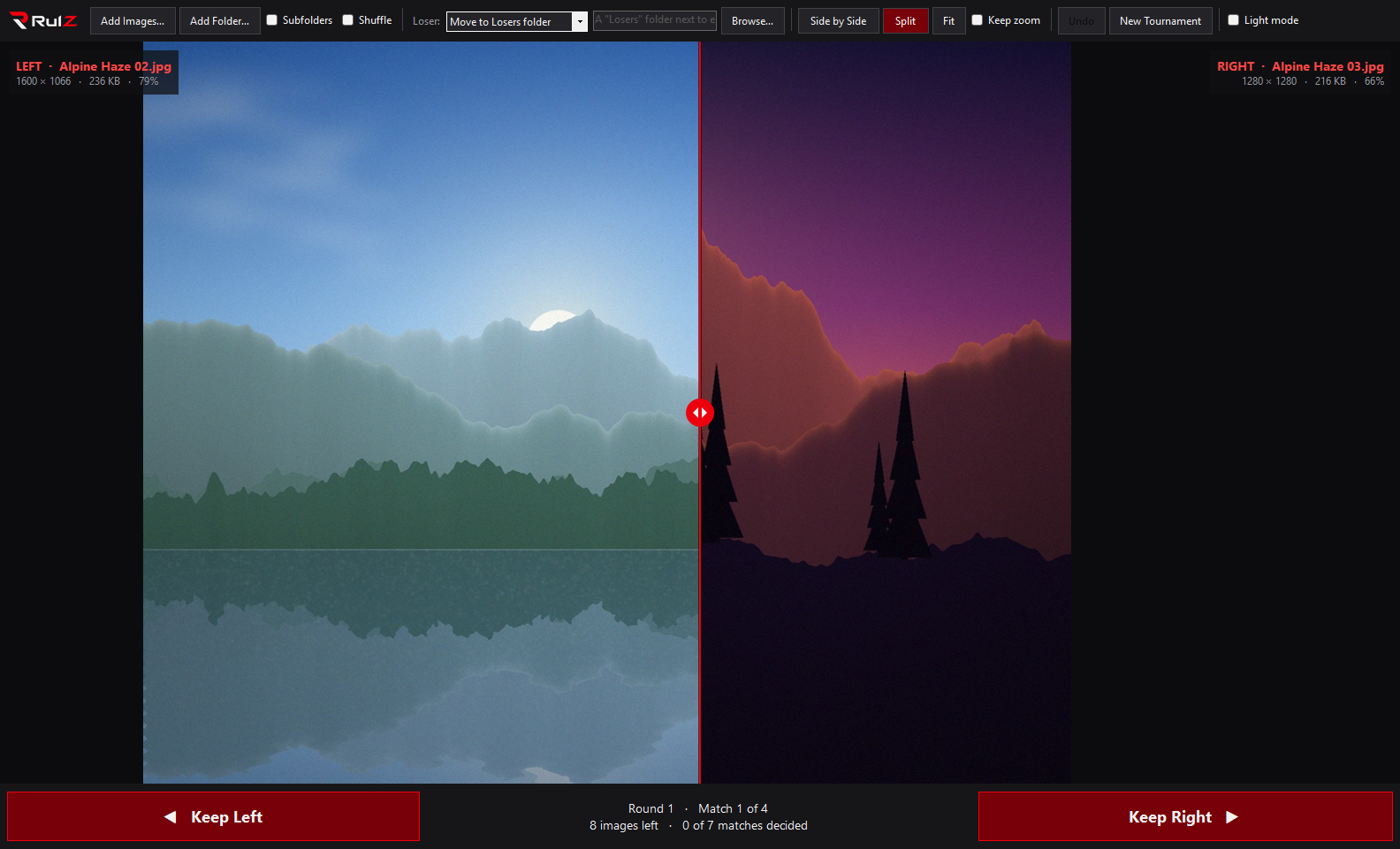 |
| The two images next to each other. | The images are laid over each other, with a divider between them. |
Switch with the Side by Side / Split buttons, or press V.
The left image shows on the left of the divider, and the right image on the right. Drag the red divider left or right to reveal more of either image. This makes small differences, such as sharpness, noise or color, easy to spot, because the same spot in both images is lined up under the divider.
- Mouse wheel zooms in and out. It zooms toward the cursor, so the spot you're pointing at stays put.
- Click and drag pans.
-
Double-click, the Fit button, or
Fresets the view. - Past 300% zoom, the true pixels are shown without smoothing, so you can judge fine detail honestly.
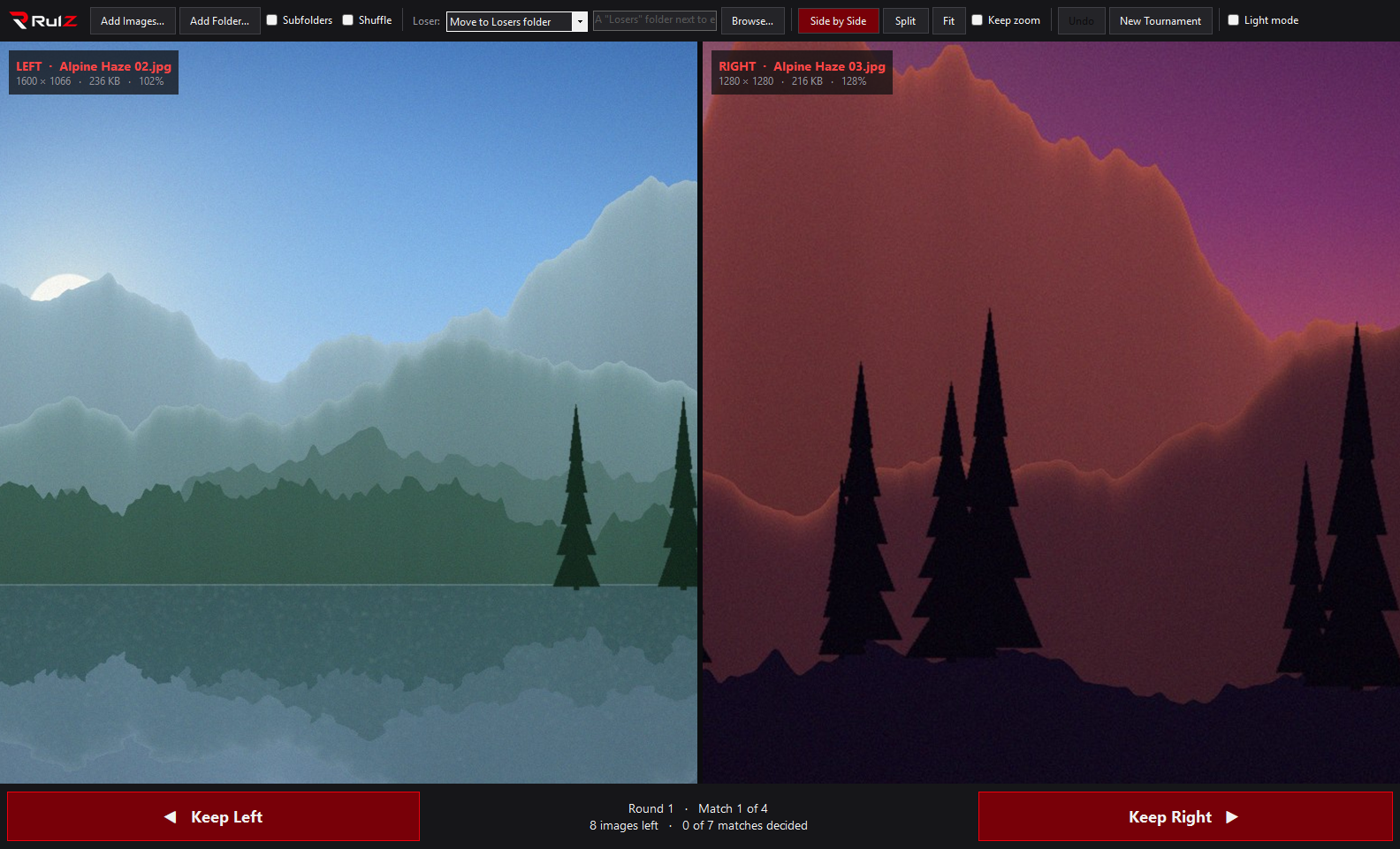
Zooming and panning are synced. Each image is first fitted to its own space, and then both are zoomed by the same amount around the same point. The point is measured as a fraction of the image's width and height, so you always look at the same relative spot in both, even if the images have different sizes or shapes. For example, if you zoom in on the left eye of a portrait in one image, you're looking at the left eye in the other.
Turn on Keep zoom to keep your zoom and position when moving to the next match. It's useful when you're choosing between a burst of similar shots and always want to inspect the same detail.
Each image has a label showing its file name, its size in pixels, its file size, and the current zoom level. The labels read LEFT and RIGHT so you can match them to the Keep Left and Keep Right buttons.