Repository navigation
Training Captioner Quick Start
Five minutes from install to a captioned dataset. This assumes you have done Installation and downloaded a vision model (Models and Backends).
Open Settings (Ctrl+,) ▸ Backend and fill in:
-
llama-server.exe: filled in automatically if a
llama.cppfolder sits next to the app - Model (.gguf): your vision model
-
Vision projector (mmproj): the matching
mmprojfile
On the GPUs tab tick the cards you want and choose Parallel (one model copy per GPU, fastest) or Split (one model spread over all ticked GPUs, for models too big for one card). See Multi-GPU.
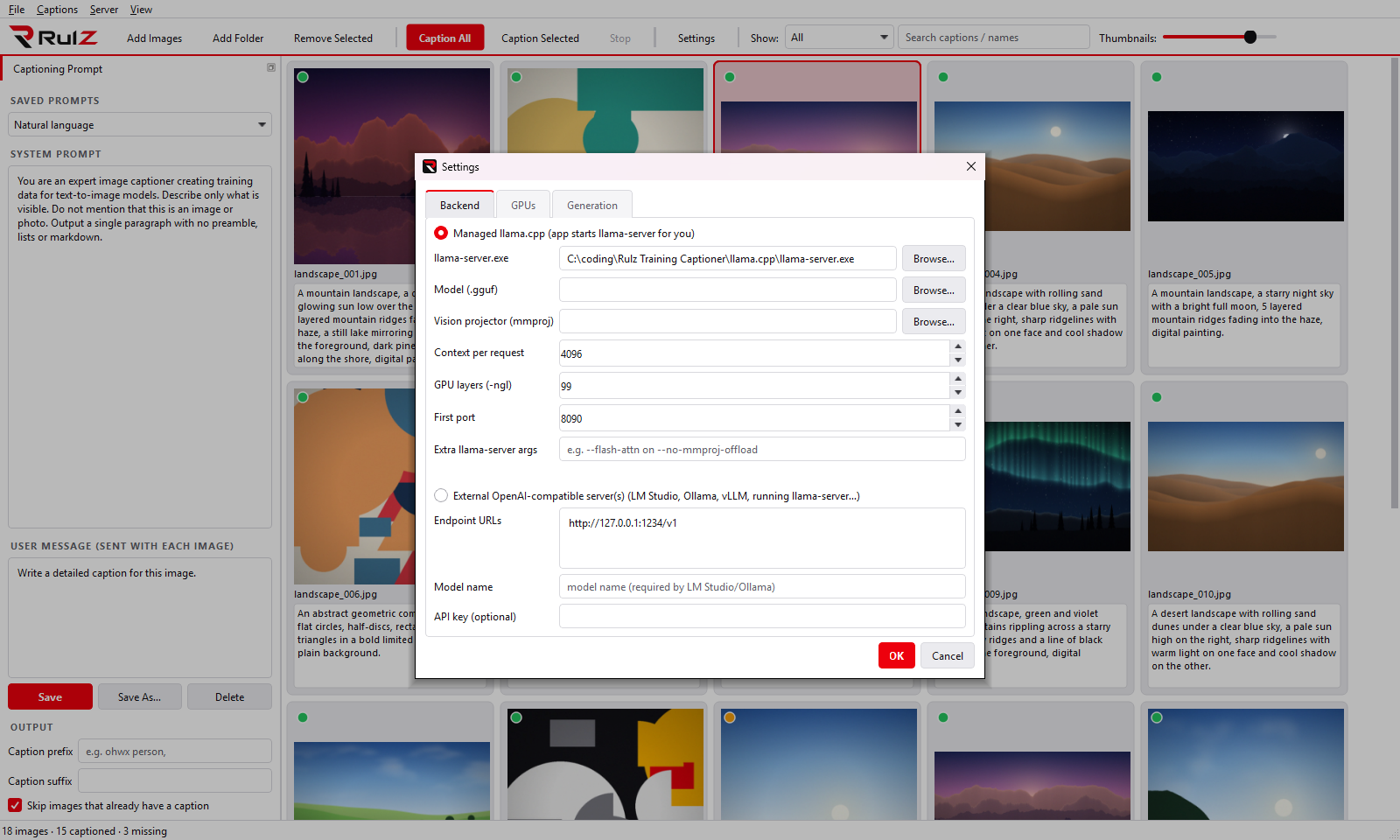
Press OK.
Click Add Folder (Ctrl+Shift+O), Add Images (Ctrl+O), or drag folders and images onto the window. Existing .txt captions are loaded and shown straight away.
In the left panel pick a saved prompt (Natural language, Short caption, Booru tags, Character / person LoRA) or write your own. See Prompts.
Optional: set a caption prefix such as ohwx person, that is put in front of every generated caption.
Press Caption All (Ctrl+Enter). The first run loads the model onto your GPU(s), which takes from a few seconds to a minute (watch View ▸ Log). Captions then appear in the boxes as they finish and are written to disk immediately.
- By default images that already have a caption are skipped. Untick Skip images that already have a caption to redo them.
- Select some images and press Caption Selected to caption (and overwrite) just those.
-
Stop (
Esc) lets the requests already in flight finish, then stops.
Click any caption box to edit it. Use Show: Missing captions to find anything left, or the search box to find a word across all captions. See Using the Grid.
Point your trainer at the same folder. Every image.png now has an image.txt.
The model stays loaded between runs so the next batch starts instantly. Use Server ▸ Stop Servers, or close the app, to release VRAM.