Repository navigation
Image Tournament Getting Started
Windows 10 or 11. Nothing else: the app uses .NET Framework 4.8, which is built into Windows, and it's built with the C# compiler that ships with Windows.
- Download or clone the repository (green Code button, then Download ZIP, and unzip it).
- Double-click
launch.bat. The first time, it builds the app, which takes a few seconds. After that it starts right away.
You can also drop images or folders onto launch.bat to start a tournament with them.
Double-click install.bat. It doesn't need admin rights. It:
- builds the app and copies it to
%LOCALAPPDATA%\Programs\RulZ Image Tournament - adds Start Menu and Desktop shortcuts
- adds a Send to shortcut, so you can right-click images or a folder and choose Send to → RulZ Image Tournament
Run install.bat again to update the installed copy later. To remove everything, run uninstall.bat. It asks before deleting your settings, and it never touches your images or Losers folders.
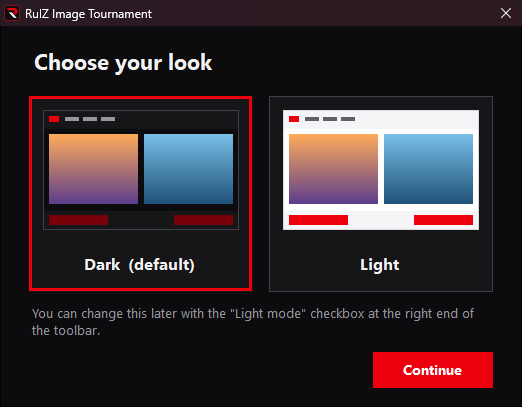
The first time the app starts, it asks you to choose your look, Dark or Light. Closing that window without choosing keeps Dark. You can change it any time with the Light mode checkbox at the right end of the toolbar.
- Add images. Use Add Images… to pick files, Add Folder… to pick a folder, or drag files and folders into the window.
- Decide what happens to losers. The Loser dropdown defaults to Move to Losers folder. See Options and Settings for the other choices.
-
Pick. Two images appear. Click Keep Left or Keep Right, or press
←/→. The other image is dealt with, and the next pair appears. -
Look closer when it's a tough call. Zoom with the mouse wheel, drag to pan, or switch to split view with
V. See Comparing Images. - Finish. When one image is left, it's shown as the Champion. Use Show in Explorer to find it, or New Tournament to start over.
Made a wrong pick? Press Ctrl+Z to undo. If you picked with the default Move to Losers folder, the image is moved back for you.
If you close the app partway through, it offers to resume the next time you start it.