Repository navigation
LLM Suite Loading Models
Press Ctrl+L to open the model picker. Choose a model on the left, adjust its settings on the right, and click Load model.
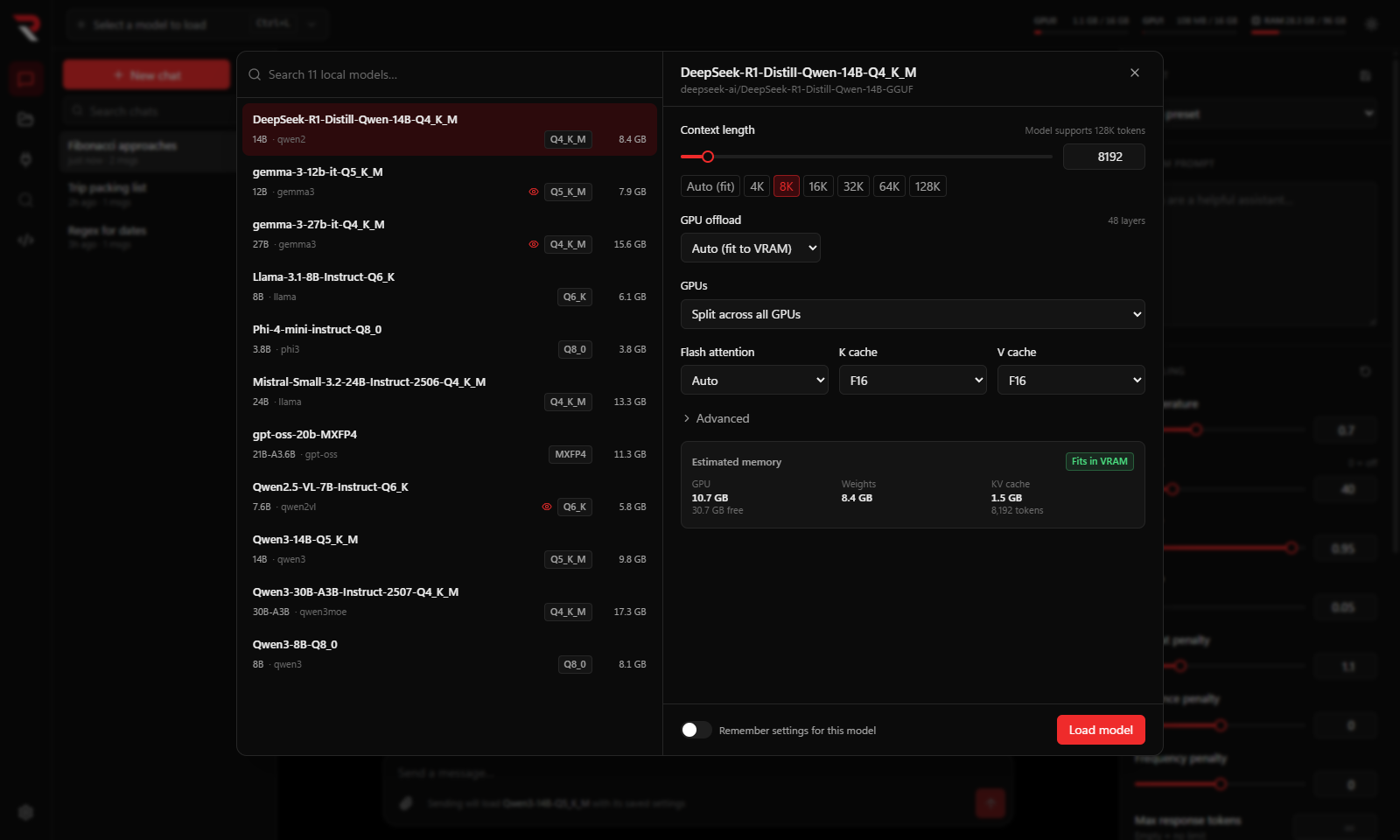
The same settings appear in My Models (as that model's saved defaults) and in Settings → Default load settings (for models without their own).
| Setting | What it does |
|---|---|
| Context length | How many tokens the model can see at once. The slider goes up to the model's trained maximum. Auto (fit) lets llama.cpp choose what fits in memory. Default: 8K. Longer contexts need more memory for the KV cache. |
| GPU offload | Auto fits as many layers as possible into free VRAM; All layers on GPU forces everything onto the GPU; Custom sets an exact layer count. Layers that don't fit run on the CPU, which is slower. |
| GPUs | Split across all GPUs (by free memory), Only GPU n (to keep a model on one card), or Custom split, which gives each GPU a slider. See Splitting a model across GPUs. |
| Flash attention | Auto, On or Off. Auto is right for almost everyone. |
| K cache / V cache | The numeric type of the KV cache. Q8_0 is the default for new models and roughly halves its memory with little quality loss (F16 is full precision); the Save VRAM (Q8_0) and Full precision (F16) buttons set both at once; lower types save more at a cost. A quantized V cache needs flash attention. |
| Vision projector | Shown when the model has an mmproj file. On by default; turn it off to save its memory when you don't need images. Keep vision projector on CPU keeps it loaded but in system memory, saving 0.5–1.5 GB of VRAM at the cost of slower image reading. |
| Speculative decoding | Shown when the model has built-in MTP layers or a draft head, or when any draft file is in your models folder, with its own settings. See Speculative decoding. |
| Setting | What it does |
|---|---|
| CPU threads | Empty means automatic. |
| Batch size / Micro-batch size | How many prompt tokens are processed at once. Larger values read long prompts faster and use more memory. |
| Parallel slots | How many requests share the context at once (default 1). |
| Seed | Empty means random. |
| Memory-map the model file (mmap) | On by default; loads weights lazily from disk. |
| Keep model in RAM (mlock) | Prevents Windows from paging the model out. |
| Chat template override | Path to a Jinja chat template, for models whose built-in one is missing or wrong. |
| Extra llama-server arguments | Anything else, appended last, such as --override-tensor exps=CPU to keep MoE experts on the CPU. |
RulZ always starts llama-server with --jinja (use the model's own chat template), --reasoning-format deepseek (so reasoning arrives separately from the answer), --no-webui and a localhost-only host.
Since 0.9.0, the Sampling defaults section (next to Advanced) sets how this model picks its words when other programs use it through the Local API Server: Temperature, Top K, Top P, Min P, Repeat penalty and Presence penalty. Model makers often publish recommended values; this is where they go. Leave a box empty to keep llama.cpp's default.
- The values are passed to
llama-serverwhen the model loads (--temp,--top-k,--top-p,--min-p,--repeat-penalty,--presence-penalty), so a request that leaves a value out gets yours. Reload the model after changing them. - Override what programs send also replaces the values a request sets. Turn it on for programs that always send their own, such as Claude Code with its temperature. Boxes you leave empty still keep the request's value.
- Save as default so models the API server loads on its own use them too.
- The chat in this app is not affected: it sends its own sampling settings.
Below the settings, an estimate shows what the load is expected to need: the weights, the KV cache for the chosen context and cache types, a small overhead, and the amount that goes on the GPU. It compares that with the VRAM currently free (from nvidia-smi) and shows one of:
- Fits in VRAM
- Partly on CPU (slower) — it fits overall, but some layers will run on the CPU
- Likely out of memory
-
VRAM unknown —
nvidia-smiisn't available
Under the totals, each GPU the model would use gets its own line: its share of the model, the estimated VRAM it needs against the VRAM it has free, and a bar that turns red when that GPU would overflow. Fits in VRAM only appears when every GPU fits on its own, so a split that overloads a smaller card is flagged even if the cards have enough room in total.
The estimate errs on the high side and is a guide, not a guarantee; it never blocks a load. If other programs are using your GPUs, free VRAM is lower than the card's total, and the estimate accounts for that. When loading a model unloads the previous one, the memory that model is using on each GPU counts as free.
With more than one GPU, the GPUs setting decides where the model goes:
- Split across all GPUs (by free memory) — llama.cpp's default: each GPU takes a share in proportion to its free VRAM.
- Only GPU n — the whole model on one card.
- Custom split — one slider per GPU, from 0 to 100%. Moving one slider rescales the others so the total always stays at 100%; with two GPUs they simply trade off. A GPU at 0% isn't used. Next to each slider is that GPU's estimated VRAM against its free VRAM, shown in red when it won't fit.
The custom split is passed to llama.cpp as --tensor-split and is saved with the model's settings like everything else. The model weights, KV cache and draft head are divided by the shares; each GPU in use also needs a fixed amount for its own working buffers, and the vision projector (if any) goes on the first GPU.
Some models ship with a small draft head file next to them (mtp-*.gguf is the common kind; EAGLE-3, DFlash and DSpark heads are recognised too). When a model has one, RulZ passes it to llama.cpp, which uses it to guess several tokens ahead and verifies the guesses in one step. The output is identical; it is only faster when the guesses are right often enough.
- It is on by default when a draft head is found. Turn it off per model with the switch in the load panel.
- Draft tokens per step defaults to 2. In testing on a Gemma 4 26B-A4B model with its MTP head, 2 beat llama.cpp's default of 3, with roughly 60 to 70 percent of the drafted tokens accepted and, on a single GPU, around 45 percent more tokens per second.
- The draft head adds a little VRAM (about 0.2 GB in that case).
- Your results depend on the model, your GPUs and the kind of text. Compare tokens per second in the chat stats with the switch on and off.
Some models carry their MTP layers inside the main model file instead of a separate one. Many Qwen 3.5 and later GGUFs with "MTP" in the name do this. RulZ looks for those layers when it scans the file, and uses them by default. llama.cpp then runs them on the model's own weights, so there is no extra file to load and Draft head placement isn't shown. My Models lists them as Built-in MTP layers in the model's details.
A file only counts if the layers are really there. Some conversions keep the MTP setting but strip the layers out, and those are treated as having none.
With speculative decoding on, Draft model picks which draft to use:
| Choice | What it uses |
|---|---|
| Automatic | What was found with the model: its built-in MTP layers, or else a draft file in the same folder. The label shows which. |
| Built-in MTP layers | The model's own layers (listed only when it has them). |
| A file name | Any draft file anywhere in your models folder, with its folder in brackets. This lets several quantizations of one model share a single head, for example a Q6_K using the mtp-*.gguf that sits next to the Q5_K_M. |
The draft must come from the same base model. A mismatched one fails to load or only slows things down. The choice is saved with the model's settings and the memory estimate follows it. To switch drafting off completely, use the switch above.
With speculative decoding on, a box of settings appears below the switch. Anything left at its default isn't passed to llama.cpp, so its own default applies. The same settings are under Settings → Default load settings for models that have a draft head.
| Setting | What it does | llama-server flag |
|---|---|---|
| Draft tokens per step | Most tokens drafted at once. Default 2; empty uses llama.cpp's 3. | --spec-draft-n-max |
| Minimum draft tokens | Skip drafting when fewer tokens would be proposed. Empty = 0. | --spec-draft-n-min |
| Minimum draft confidence | Stop a draft early once the draft head's confidence drops below this (0–1). Empty = 0. | --spec-draft-p-min |
| Draft sampling | Greedy takes the draft head's top pick; Probabilistic samples it and checks it by rejection sampling. Auto leaves it to llama.cpp. | --spec-draft-sampling |
| Draft head placement | GPU, CPU or Auto. CPU frees its VRAM (and removes it from the estimate) but drafts more slowly. | --spec-draft-ngl |
| Draft K cache / V cache | Numeric type of the draft head's own KV cache. Default Q8_0. |
--spec-draft-type-k / -v
|
Remember settings for this model (bottom of the load panel) saves what you chose as that model's defaults. Reset next to it forgets them.
Other apps can change these saved defaults through the API server. RulZ Coding Agent's Model settings does this, for example. Changes made there show up here the next time you open the load panel.
By default, loading a model unloads the previous one. Turn that off in Settings → Models to keep several loaded; each is a separate process with its own memory. The top bar shows every loaded model with its progress, a log button and an eject button; Ctrl+E ejects them all.
The chat sends messages to the model that is selected in the top bar. The API server can use any loaded model, or load one on demand.
The top bar shows a progress bar based on llama-server's output. If a load fails, an error appears with the most relevant log lines; open the full log with the file icon on that model's chip. See Troubleshooting for common failures.