Repository navigation
Training Captioner Using the Grid
| Action | How |
|---|---|
| Add individual images |
Add Images… (Ctrl+O) |
| Add a folder |
Add Folder… (Ctrl+Shift+O): images directly inside the folder |
| Add a folder and its subfolders | File ▸ Add Folder (with subfolders)… |
| Drag and drop | Drop files or folders on the window. Folders dropped this way include their subfolders. |
Supported formats: JPG, JPEG, PNG, WebP, BMP, GIF, TIF, TIFF. Images already in the list are not added twice, and the list is sorted in natural order (img2 before img10).
Removing images from the list never deletes files on disk.
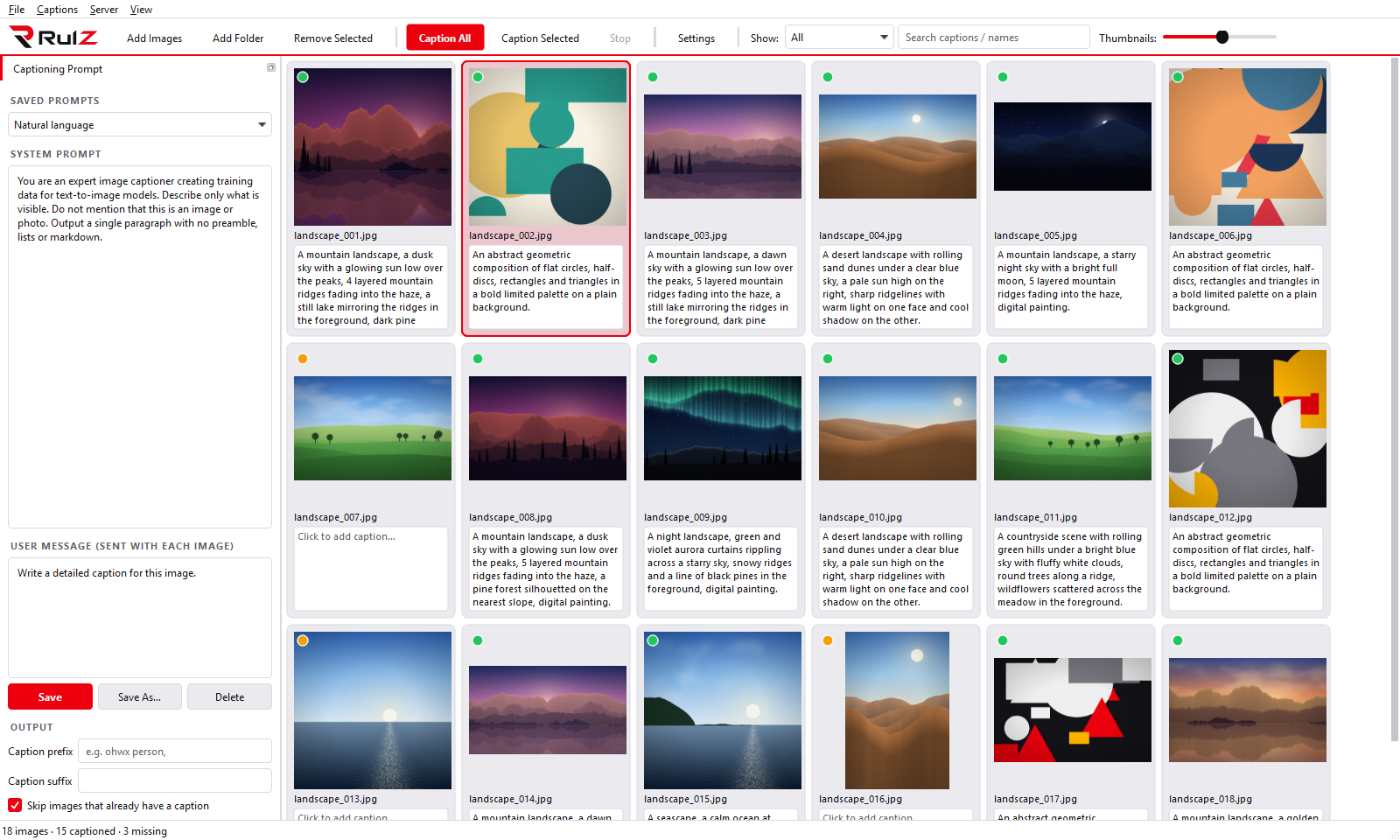
- Thumbnail with a coloured status dot (see below)
- File name
-
Caption box: the contents of the matching
.txtfile
| Colour | Meaning |
|---|---|
| Green | Has a caption |
| Amber | No caption yet |
| Purple | Queued for captioning |
| Blue | Being captioned right now |
| Red | Captioning failed (see View ▸ Log) |
- Click inside the caption box of a card. It turns into a text editor.
- Type, delete or paste.
-
Click anywhere else to finish. The
.txtfile is written at that moment.
Rules:
- If the image has no
.txtyet, one is created as soon as you add text. - Removing text updates the file. If you delete everything, an empty
.txtis left in place (some trainers need the file to exist). - Clicking into an empty box and leaving without typing does not create a file.
-
Escwhile editing cancels the change. -
Enterstarts a new line inside the caption. The single line option in Settings only applies to captions the model generates. - Files are saved as UTF-8.
Edits are made directly in your dataset folder, so there is no separate "save" step and nothing is lost if the app closes.
- Click a card to select it.
Ctrl+click andShift+click select several. -
Caption Selected (
Ctrl+Shift+Enter) captions the selection and overwrites existing captions. -
Remove Selected (
Del) takes them out of the list (files stay on disk).
- Caption selected
- Clear caption(s): empties the caption of every selected image (asks first)
- Show in Explorer: opens the folder with the image highlighted
- Remove from list
The toolbar has:
- Show: All, Missing captions, Captioned
- Search: filters by file name or caption text, as you type
- Thumbnails slider: card size from small to large
Caption All works on what is currently shown. Filter to Missing captions first if you only want to fill gaps (or just leave Skip images that already have a caption ticked).
The status bar shows totals: images, captioned and missing.
| Shortcut | Action |
|---|---|
Ctrl+O |
Add images |
Ctrl+Shift+O |
Add folder |
Del |
Remove selected from list |
Ctrl+Enter |
Caption all |
Ctrl+Shift+Enter |
Caption selected |
Esc |
Stop captioning |
Ctrl+, |
Settings |
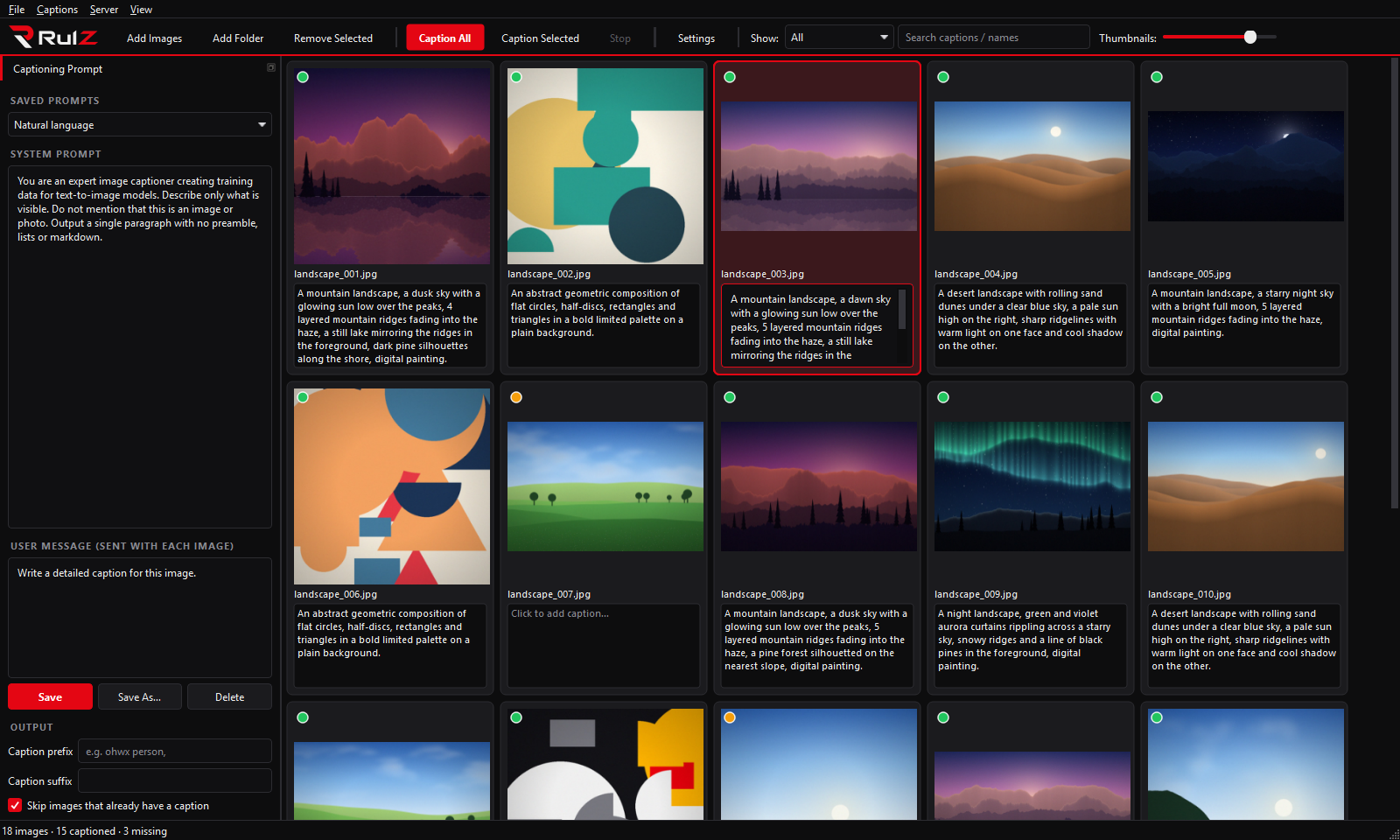
View ▸ Light mode switches between the dark (black and red) and light theme immediately.