Repository navigation
Image Grid Exporting
Click Export Image… (Ctrl+E) to save the grid as one picture.
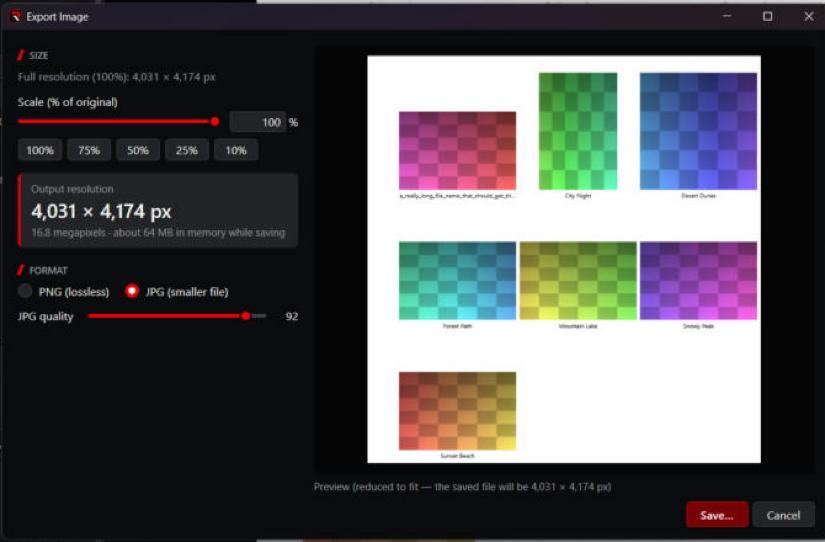
- Full resolution (100%) is the size where every picture keeps its original resolution (each tile is as big as the largest picture).
- Scale (% of original) goes from 1% to 200%. The Output resolution box shows the exact width and height in pixels of the file you'll get.
- Above 100% the pictures are enlarged, so they'll look softer.
| Format | When to use it |
|---|---|
| PNG (lossless) | Best quality, and the only one that keeps a transparent background. Bigger files. |
| JPG (smaller file) | Much smaller files. Set JPG quality with its slider. A transparent background turns white. JPG can't be more than 65,535 pixels wide or tall. |
The preview on the right shows the result. For a large grid it's shrunk to fit, and the note under it says the real size of the saved file.
Click Save… and choose where to save it. While it saves, the window shows its progress. When it's done, the bar at the bottom of the main window says where the file went.
The Export window warns you before you save when:
- the image would be too large to make at all (about 500 million pixels): lower the scale;
- it's very large, so saving may take a while and use a lot of memory;
- a JPG would be too wide or tall, or would lose the transparent background.
If saving fails because the PC ran out of memory, try a lower scale.