Repository navigation
Training Captioner Installation
Clone or download the repository:
git clone https://github.com/speedyrulz/RulZ-AI-Tools-Suite/tree/main/apps/Rulz-Training-Captioner(or use Code ▸ Download ZIP on the GitHub page and unzip it anywhere).
Installing through the RulZ AI Tools Suite launcher also downloads llama.cpp for you.
Double-click run.bat. On the first run it:
- creates a
.venvvirtual environment, - installs PySide6 and requests from
requirements.txt, - starts the app.
After that, run.bat just starts the app. You need Python 3.10 or newer on your PATH (https://www.python.org/downloads/, tick Add python.exe to PATH).
Prefer a terminal?
python -m venv .venv
.venv\Scripts\python -m pip install -r requirements.txt
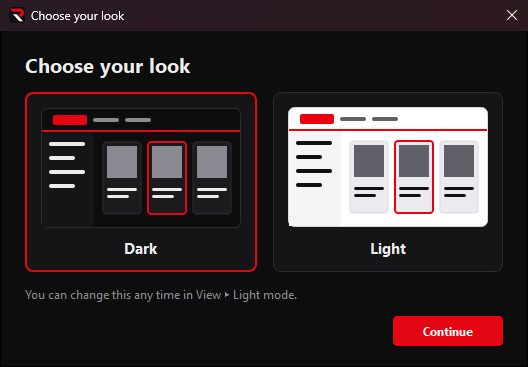
.venv\Scripts\python main.pyThe first time the app opens it asks whether you want the dark (black and red) or light look. The answer is remembered; change it any time with View ▸ Light mode.
The app can start llama-server.exe for you. You supply the binaries:
-
Open the llama.cpp releases and download both:
llama-bXXXX-bin-win-cuda-13.x-x64.zipcudart-llama-bin-win-cuda-13.x-x64.zip
Use the CUDA 13 build for RTX 50-series cards; CUDA 12.4 builds work for older cards. No NVIDIA GPU? A Vulkan or CPU build also works, but untested and slower.
-
Create a folder named
llama.cppnext tomain.pyand unzip both zips into it. The app findsllama.cpp\llama-server.exeautomatically. -
To update later, unzip a newer build over the same folder.
Prefer to keep llama.cpp somewhere else, or already run LM Studio / Ollama? You can browse to any llama-server.exe in Settings ▸ Backend, or use an external server.
See Models and Backends. In short: download a vision GGUF plus its mmproj file and point Settings at them.
| File | Contents |
|---|---|
%APPDATA%\RulzCaptioner\settings.json |
all settings, theme choice, last folder |
%APPDATA%\RulzCaptioner\prompts.json |
your saved prompts |
Set the environment variable RULZ_CAPTIONER_DIR to use a different folder (portable installs, or testing with a clean profile). Delete the folder to reset everything.
Delete the app folder and %APPDATA%\RulzCaptioner. Nothing else is installed system-wide.