Repository navigation
Image Preparer
Cleans up and crops a set of pictures before you use them to train an AI model. Drop in a folder of images, move three sliders, check the result on any picture, and save them all in one go. Or type what you want, such as "face", and crop every picture to it. Everything runs on your own PC; nothing is uploaded.
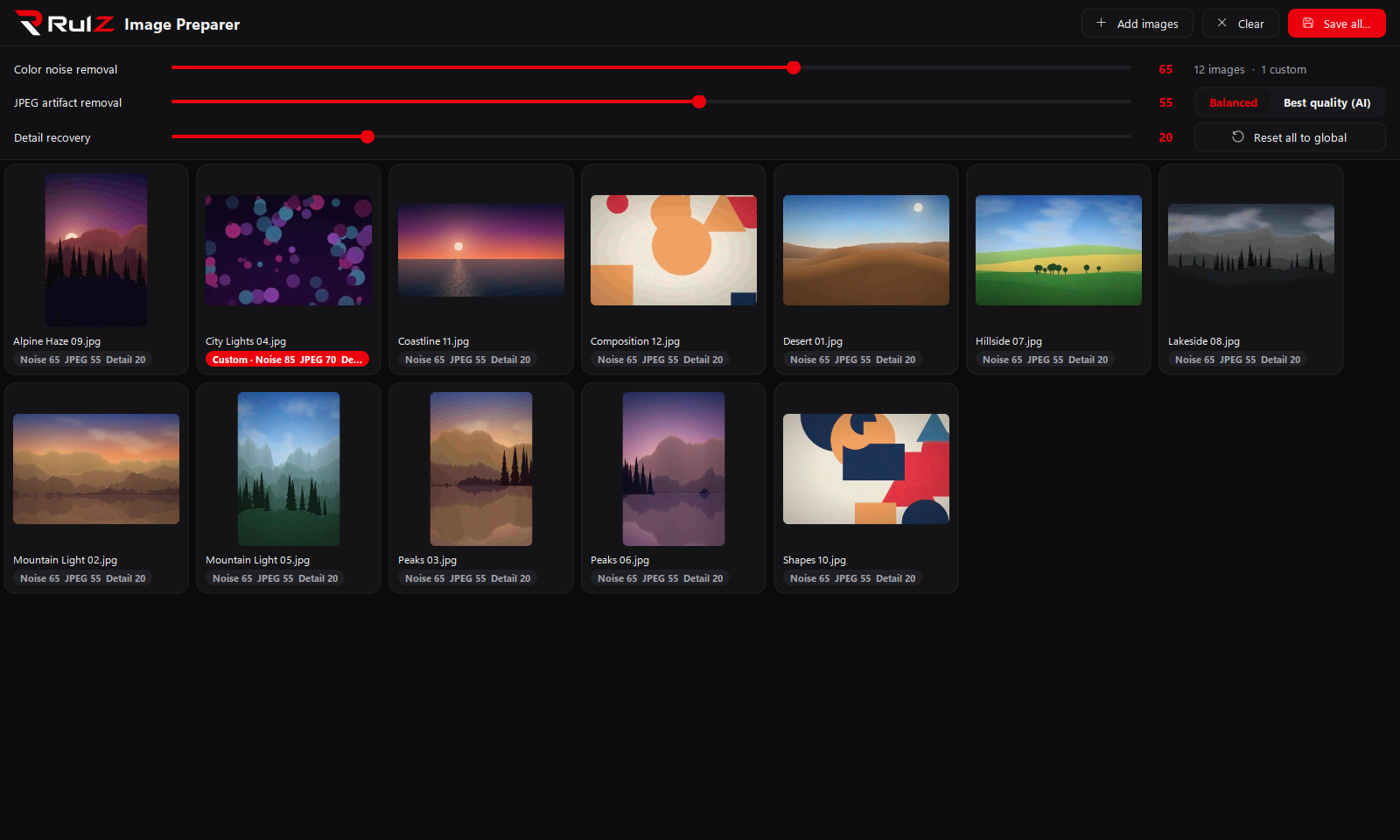
- Color noise removal: gets rid of the colored speckles (red, green and blue blotches) you see in photos taken in low light. Only the color is smoothed, so detail stays sharp.
- JPEG artifact removal: removes the damage JPEG compression leaves behind: little 8×8 squares, halos around edges and blocky color. Pick Balanced (a fast filter) or Best quality (AI) (an AI model that runs on an NVIDIA graphics card and does a much cleaner job).
- Detail recovery: sharpens fine detail back up after the clean-up, without making leftover noise worse.
- One setting for all, or per picture: the sliders on the main screen apply to every picture. Open any picture to give it its own values.
- Before and after: compare the original and the cleaned picture side by side, or with a divider you drag across.
- Shadow areas: paint over a shadow and it's brightened to match the light around it, keeping texture, contrast and color, with the edge blended in.
- Auto crop: type what to crop (a face, a dog, a car) and an AI model (SAM 3.1) finds it in each picture. Preview the crop, then crop and save them all, optionally cleaning them up in the same press.
- Save all: writes every picture, with its own settings, to a folder you choose. Your originals are never changed.
| If you want to… | Read |
|---|---|
| Install it and set up the AI mode | Getting Started |
| Know what each slider does and when to use it | Clean-up Options |
| Compare, fine-tune and save your pictures | Comparing and Saving |
| Brighten shadows in a picture | Shadow Areas |
| Crop pictures to something you describe | Auto Crop |
| Find where settings and files are kept | Settings and Data |
| Fix a problem | Troubleshooting |
- Windows 10 or 11
- Python 3.10 or newer: the launcher installs it for you if it's missing
- About 250 MB of disk space for the app
- Only for Best quality (AI) mode and Auto crop: an NVIDIA graphics card (GeForce 20-series or newer, RTX 50-series included) with an up-to-date driver, and a few GB more for the AI parts (about 3 GB to download, plus 1.7 GB for Auto crop's model). Without a supported card the AI features still run, but very slowly.
- Source code: https://github.com/speedyrulz/RulZ-AI-Tools-Suite/tree/main/apps/RulZ-Image-Preparer
- Full technical README: README
- Report a bug or request a feature: Issues
- License: MIT. The RulZ name and logo are excluded from it (see LOGO-NOTICE). The AI models are by their authors: FBCNN under Apache-2.0, and SAM 3.1 by Meta under the SAM License.
| Version | Highlights |
|---|---|
| 0.4.1 | New Set all to 0 button, on the main screen for the global sliders and in the single-picture view for that picture. Fixed: the percentage on progress bars (Auto crop, Save all, AI setup) was cut off. |
| 0.4.0 | Closing Auto crop gives back about 1.6 GB of graphics memory, and the JPEG clean-up model is released when you switch to Balanced or finish a batch. Pictures open about twice as fast and JPEG thumbnails about six times faster; Crop all cleans only the cropped area (much faster in Best); moving the colour or detail slider no longer re-runs JPEG clean-up. Fixed: the Auto crop preview crashing on an empty mask, and transparent PNG/WebP files ignoring their rotation. |
| 0.3.2 | Auto crop's number boxes (Padding, Top/Bottom/Left/Right, Divisible by, Confidence, Mask threshold) showed nothing and hid what you typed. Fixed. |
| 0.3.1 | All three global sliders start at 0, so pictures are left as they are until you choose a setting (Color noise removal used to start at 50). Values you've set are kept. |
| 0.3.0 | Shadow areas: paint over shadows to brighten them to match their surroundings, keeping texture and contrast, with Shadow lift and Edge blend sliders. |
| 0.2.0 | Auto crop: crop pictures to something you describe, found by SAM 3.1, with every RulZ Mask Intelligent Crop setting, a preview, and optional clean-up in the same press. |
| 0.1.0 | First version in the RulZ AI Tools Suite: color noise removal, JPEG artifact removal (Balanced, or Best quality with AI), detail recovery, global and per-picture settings, side-by-side and slider comparison, and Save all. |