Repository navigation
Installing and Updating Apps
The home page shows a card per app with its screenshot, description and status: installed, update available, or running. Filter by category (or Installed) with the buttons above the cards, or use the search box in the top bar.
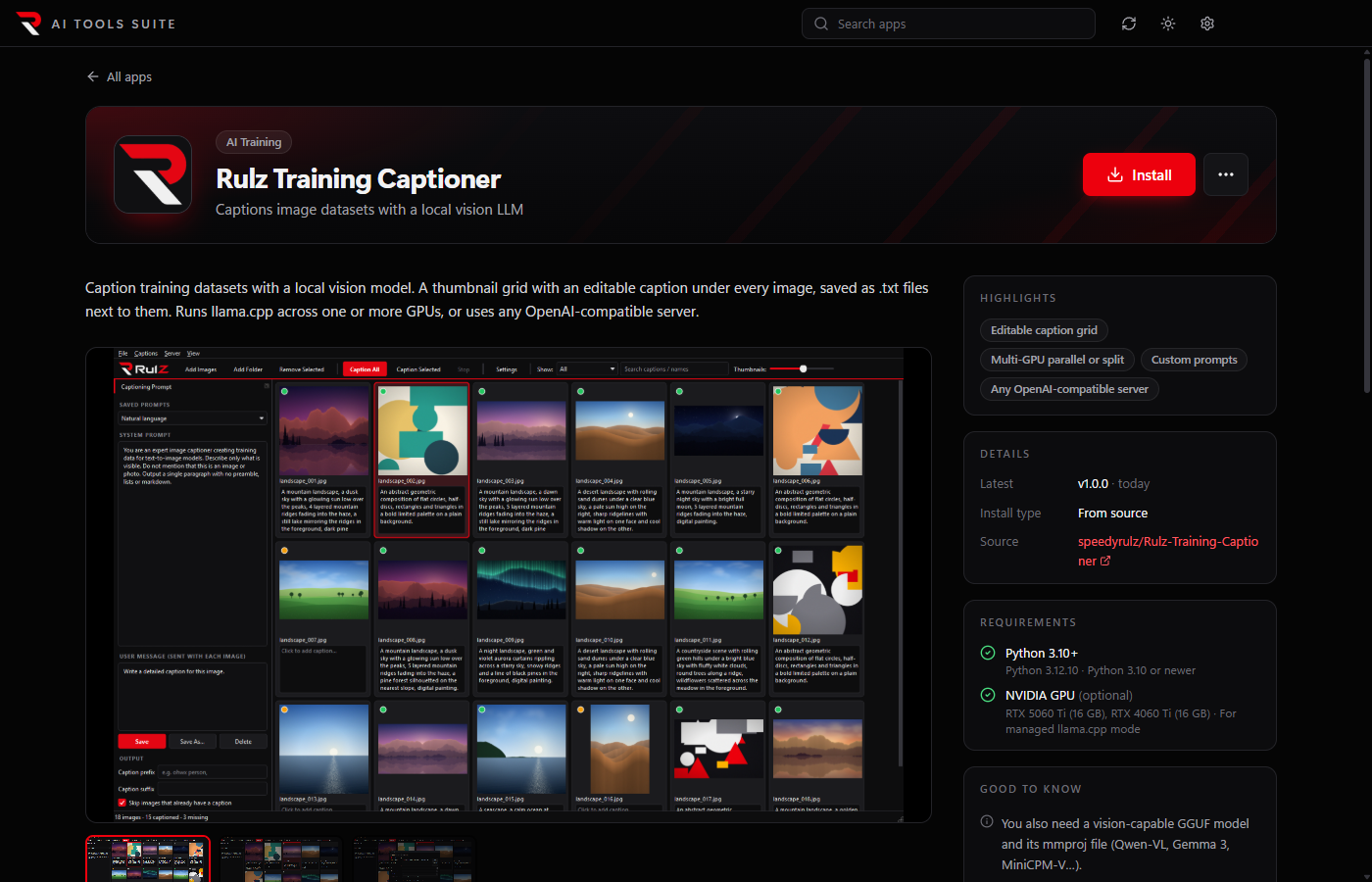
Click a card for the app's page: a screenshot gallery (click for full size, arrow keys to browse), the full README, version details, requirements and shortcuts.
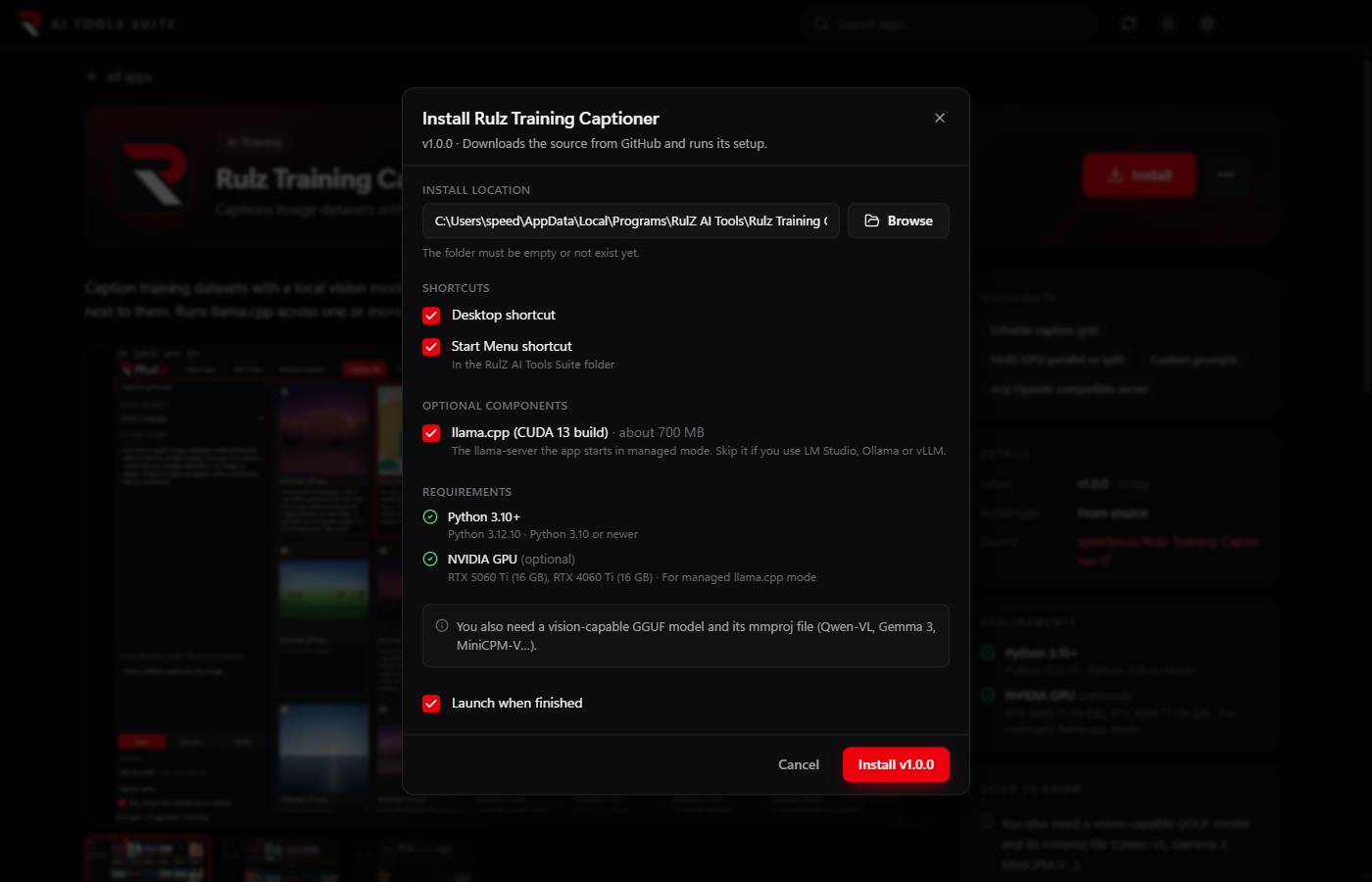
Install asks:
-
Where to put the app. The default is
%LOCALAPPDATA%\Programs\RulZ AI Tools\<app>(change the parent folder in Settings). A folder you pick has to be empty. - Shortcuts. Desktop and Start Menu (the Start Menu ones go in a RulZ AI Tools Suite folder).
- Optional parts, for apps that have them.
Progress, download speed and the setup log show on the card and the app's page; the × next to the progress bar cancels. Missing prerequisites are installed first.
Apps install in one of three ways:
| Kind | What happens |
|---|---|
| Portable zip | The latest release's zip is downloaded and unpacked |
| Setup program | The latest release's installer runs silently |
| From source | The repository is downloaded, then its own setup (for example a Python venv) runs |
Some apps download more during setup: RulZ Image Crawler, for example, fetches its 9.7 GB AI model. If such a download is interrupted, Repair (in the ⋯ menu) picks it up where it stopped.
Others set up their optional extras from inside the app instead: RulZ Image Preparer installs its AI parts (about 3 GB) only the first time you pick its AI mode.
Launch starts the installed app. If Close the launcher when an app is opened is on in Settings, the launcher closes afterwards (it stays open while something is installing).
The launcher checks GitHub for newer versions when it starts (if that setting is on) and when you click Check for updates (the circular arrow in the top bar). Answers are cached for 30 minutes so opening the launcher often doesn't use up GitHub's request limit; the button always asks GitHub again.
When an app has a newer release (or newer commits, for apps installed from source), its card shows Update.
Apps installed from source update with git pull when Git is installed.
New in 1.4.0. When at least one installed app has an update, the top bar shows Update all (N), where N is the number of apps that will be updated. One click updates them all:
- One at a time. Several setup programs running at once tend to get in each other's way, so each update finishes before the next starts. The button shows Updating… until the last one is done.
- A failure doesn't stop the rest. If an app's update fails, you see its error and the launcher moves on to the next app. Each app is tried once per click.
- Cancelling stops the queue. Cancelling the update in progress (the × on its card) also skips the apps still waiting.
- At the end, a message says how many apps were updated, for example Updated 2 of 3 apps if one failed.
Apps that still show Finish setup aren't included; finish their setup first.
Each app's page has a ⋯ menu with:
- Open install folder
- Repair (run setup again) for apps installed from source, or Reinstall for the others
- Locate an existing install…: registers a copy you already have (for example a dev checkout) by picking its program file
- View on GitHub
- The install log
- Uninstall
Uninstall removes the shortcuts and moves the app's folder to the Recycle Bin. Apps with a setup program run their own uninstaller first. Installs the launcher found, or that you located, are only forgotten; their files are never touched.