Repository navigation
HF Manager Getting Started
- Open the RulZ AI Tools Suite launcher and click RulZ Huggingface Manager (under AI Training).
- Click Install. The launcher installs Python first if it's missing, then makes a Python environment in the app's folder and installs the app's two packages (about 110 MB).
- Click Launch. A console window opens and the app opens in your browser at http://localhost:8765. Closing the console window stops the app.
RulZ Huggingface Manager is in launcher version 1.10.0 and later. If you don't see it, update the launcher first (see Settings and Launcher Updates).
Updates show up as an Update button on the app's card. With Git installed the launcher updates it with
git pull; without Git it downloads the new version.
The app is installed in %LOCALAPPDATA%\Programs\RulZ AI Tools\RulZ Huggingface Manager unless you changed the
launcher's install folder. Your settings and token are kept elsewhere, so updating or reinstalling keeps them.
Launching it a second time while it's running just opens the running app in your browser again.
Get the app's folder from the source code
and double-click start-windows.bat. The first run makes a Python environment (.venv) and installs what the
app needs; after that it starts straight away. You need Python 3.10 or newer from
https://www.python.org/downloads/ (tick Add python.exe to PATH when you install it).
In the app's folder run ./start-linux.sh. It keeps its own Python environment (.venv-linux), so the same folder
works from Windows and from WSL, and under WSL it opens your Windows browser. If Ubuntu says the venv module is
missing: sudo apt update && sudo apt install -y python3 python3-venv.
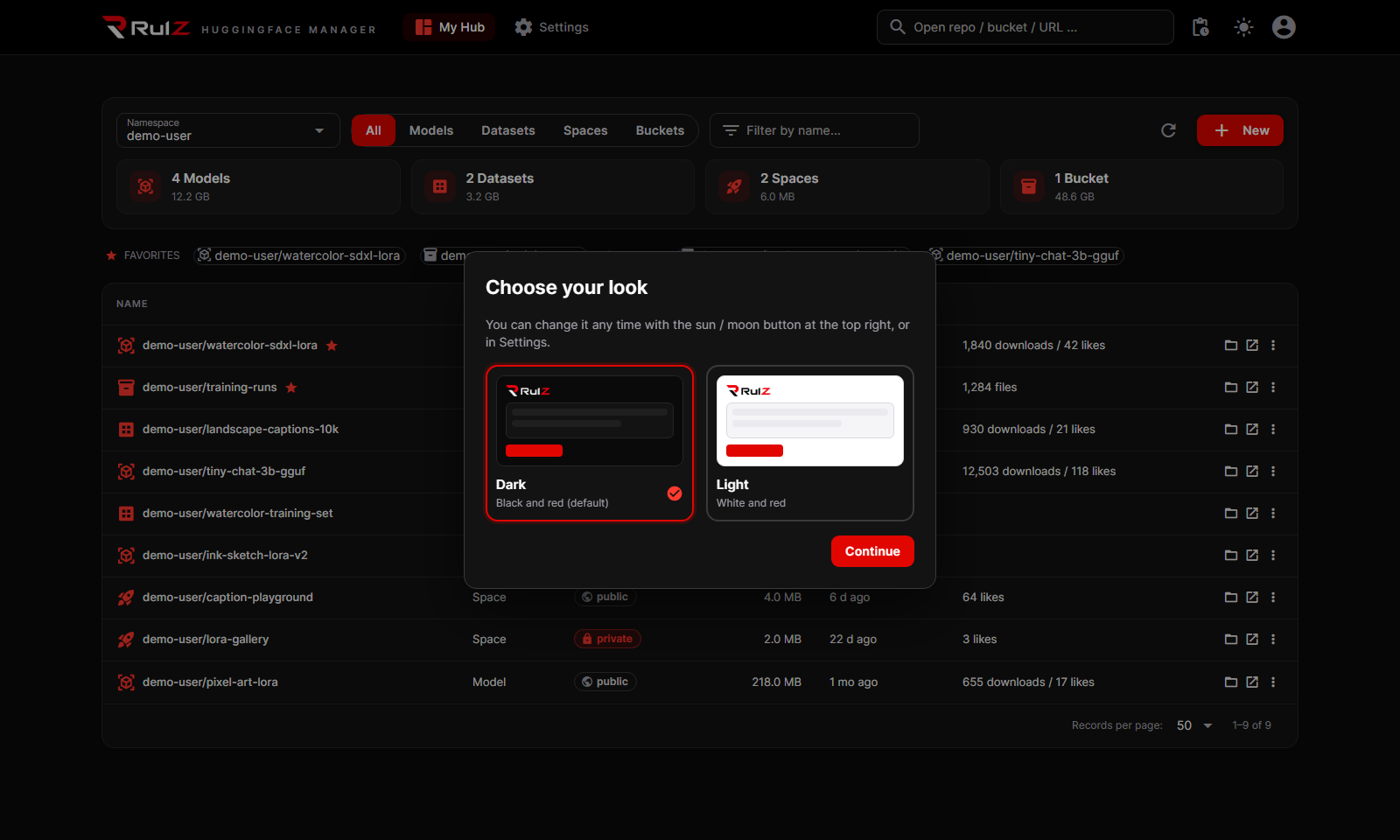
The first time the app opens it asks you to choose your look: Dark (black and red, the default) or Light (white and red). Click one to preview it, then Continue. You can switch any time with the sun / moon button at the top right, or under Settings ▸ Appearance & behaviour.
Without a token you can only browse public repos. To see your own private repos and change anything:
- Create a token at https://huggingface.co/settings/tokens. Choose Write (or a fine-grained token with write permission on your repos). A Read token can browse and download, but uploads, moves, renames and deletes fail.
- In the app click Settings, paste the token and click Save & test. It shows who you are signed in as.
If you already signed in with hf auth login (or set HF_TOKEN), the app uses that automatically, and
Import saves it in the app. Logins made through the browser with recent hf versions are temporary and
expire after a few weeks; Settings shows the date. For something that keeps working, save a regular access token.
- Check the Download folder under Settings (the default is
Downloads\HuggingFace).
- My Hub (the start page) lists everything in your account: see My Hub.
- Click a repo or bucket to open its files: see Working with Files.
- The box at the top (Open repo / bucket / URL…) opens anything directly: type
user/name, paste a huggingface.co link, or anhf://path, and press Enter. - The Activity button (next to the sun / moon) shows running and finished uploads, downloads and moves.