Repository navigation
HF Manager Working with Files
Open a repo or bucket from My Hub (or type its name in the box at the top) to see its files.
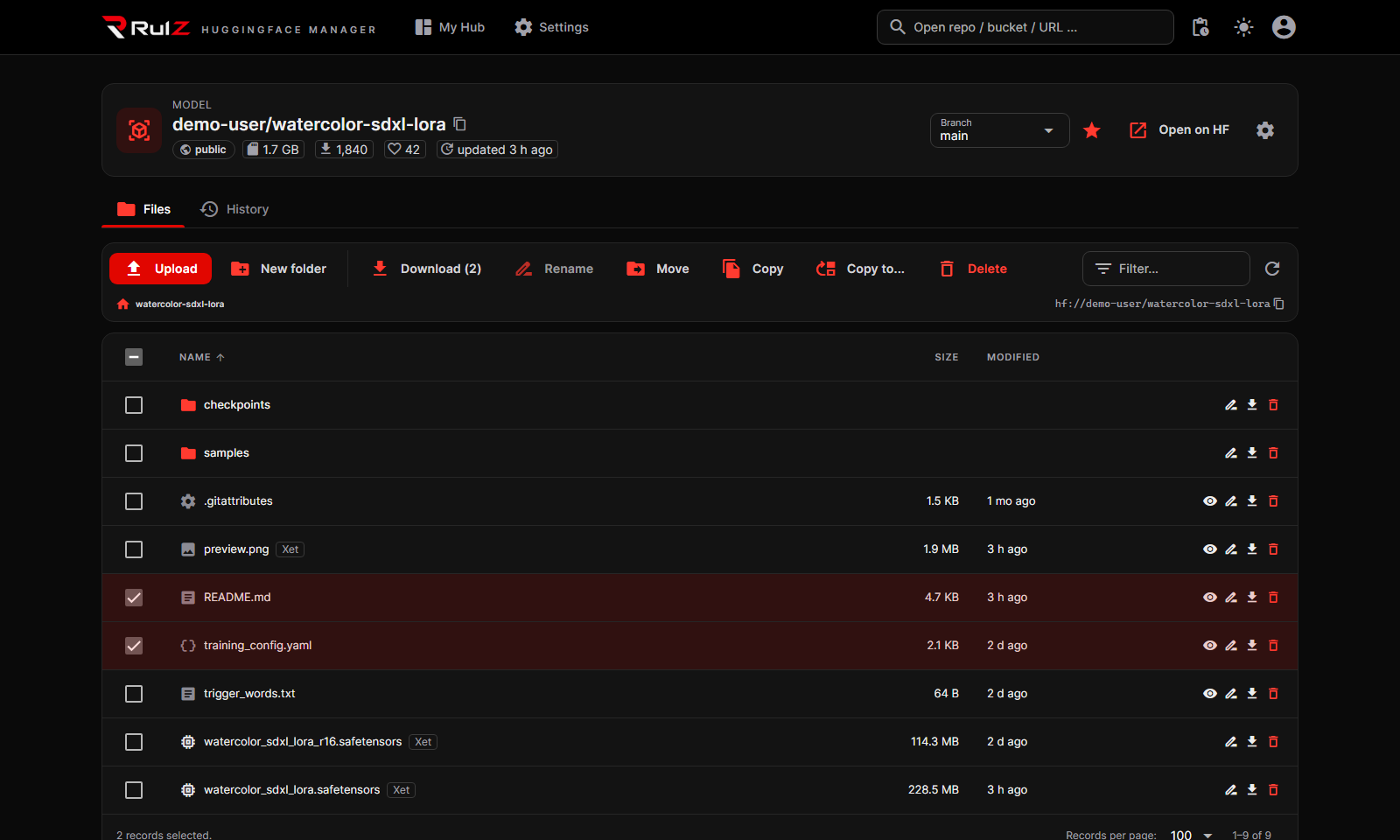
- Click a folder to open it; the path under the toolbar takes you back up (the house is the top level).
- Filter… narrows the list as you type. Click a column heading to sort.
- Tick files and folders to work on several at once. The bottom line shows how many and how big.
- Xet and LFS badges mark large files stored the Hub's way for big files.
- The
hf://path at the right copies the folder's address for thehfcommand line or Python. - At the top: the type, the name (with a copy button), public or private, size and other details. Repos have a Branch picker; the star adds it to your favorites; Open on HF opens it on huggingface.co; the gear has Rename, Change visibility, Create branch, Duplicate and Delete.
Upload offers three ways:
- Files or folders from this computer: pick them in the app's own file browser. Best for big files: they're read straight from disk. Folders keep their structure.
- Drag & drop files: through the browser. Fine for small files.
- Push a whole folder (repos) or Sync a folder (buckets): see below.
Before anything is uploaded you see the list, with files that already exist (and would be replaced) marked. New folder makes a folder to upload into; it appears on the Hub once something is in it.
Tick files or folders (or none, for everything in the current folder) and click Download:
-
To my download folder keeps the repo's folder structure there (
<folder>\models\<owner>\<name>\…). When it's done, the Activity panel has an Open folder button. - Through the browser saves one file, or a zip for several.
Each row also has its own download button.
| Button | What it does |
|---|---|
| Rename | One item. Type subfolder/new-name to move it at the same time. |
| Move / Copy | Pick the destination folder in a folder picker (you can make a new folder there). Folders go with everything inside. |
| Copy to… | Into another repo or bucket. Runs on the Hub whenever it can; bucket-to-repo copies pass through your computer. |
| Delete | Asks first. In a repo old versions stay in its history; in a bucket deleted files are gone. |
In a repo, every action is one commit. You can write the commit message, or tick Open as a pull request to propose the change instead. In a bucket changes apply at once.
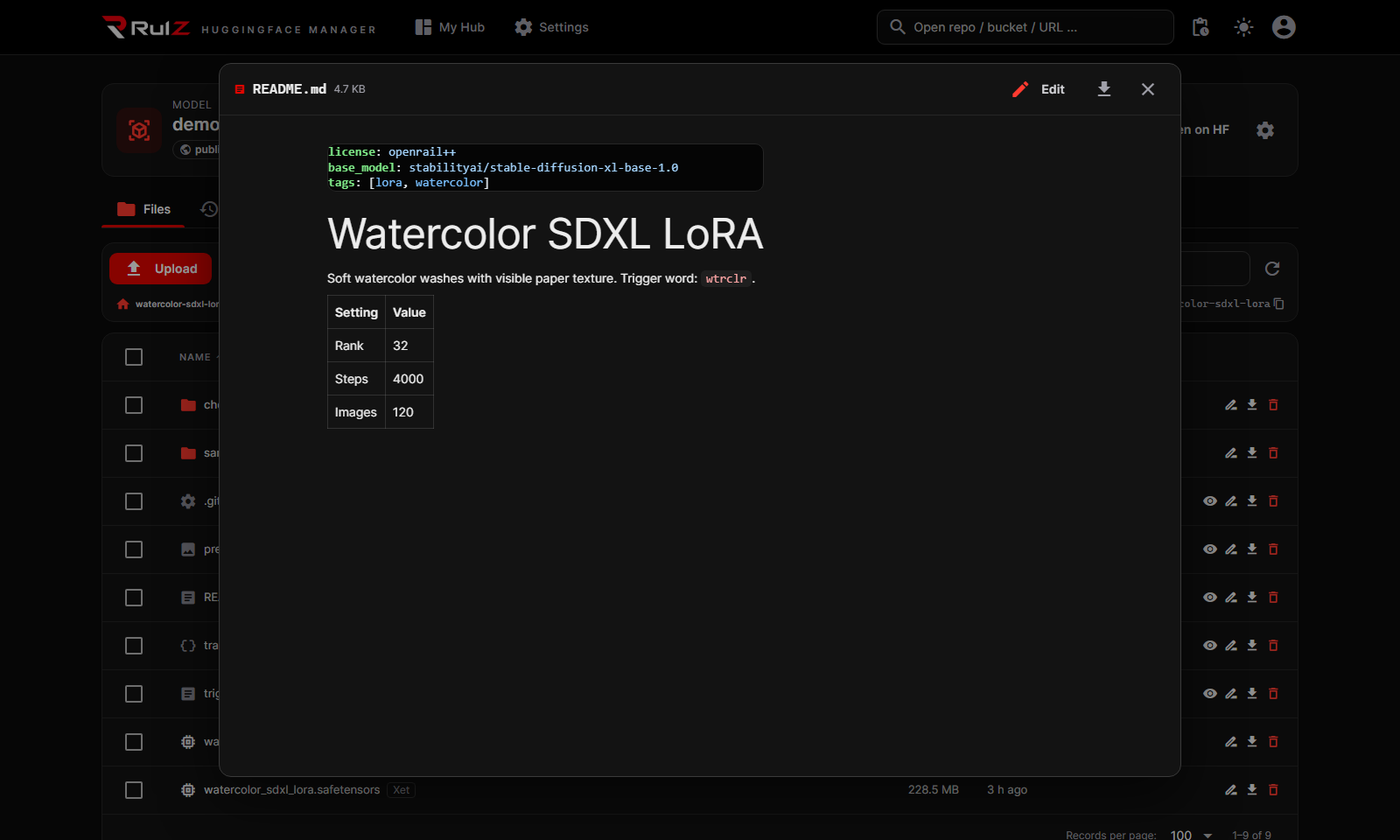
Click a file name (or the eye button) to preview it: text files with colors for code, Markdown as a formatted page, images as pictures. Edit changes a text file in place; Save asks for a commit message (or a pull request).
Switch branches with the Branch picker. The gear menu's Create branch starts one from the branch you're on. The History tab lists the commits; click an id to open it on huggingface.co.
Upload ▸ Sync a folder… (or Download ▸ Sync bucket folder to this computer…) works like rsync:
- Choose the direction, the local folder and the bucket folder. Optional: include or exclude patterns such as
*.safetensorsorlogs/*, and Delete files at the destination that are not in the source to mirror. - Click Preview changes to see exactly what will be uploaded, downloaded or deleted, and how much.
- Click Run sync.
In a repo, Upload ▸ Push a whole folder… uploads a folder in one commit, optionally deleting files on the Hub that are no longer in the folder.
Uploads, downloads, moves and syncs run in the background, so you can keep working. The Activity button at the top right opens the panel (it opens by itself when something starts) with progress, time taken, any error in plain words, and Open folder for finished downloads. Clear finished tidies it up.