Direct Purchase Save Finalize Approve Workflow
Some hospitals require a purchasing officer to prepare a Direct Purchase bill, a supervisor to finalize it, and a separate approver to sign off before stock is added. This optional workflow supports that separation of duties.
By default, Direct Purchase uses a single Settle button that saves the bill and updates stock immediately. When the draft workflow is turned on for your hospital, the page instead walks a bill through three stages: Save Draft, Finalize, and Approve.
An administrator turns this on via Config option Use Save Finalize Approve Workflow for Direct Purchase on the Direct Purchase page (visible to users with the Admin privilege). It is off by default, so existing hospitals keep the single-step Settle button unless they opt in.
- Go to Pharmacy > Direct Purchase.
- Select the Supplier, add items as usual.
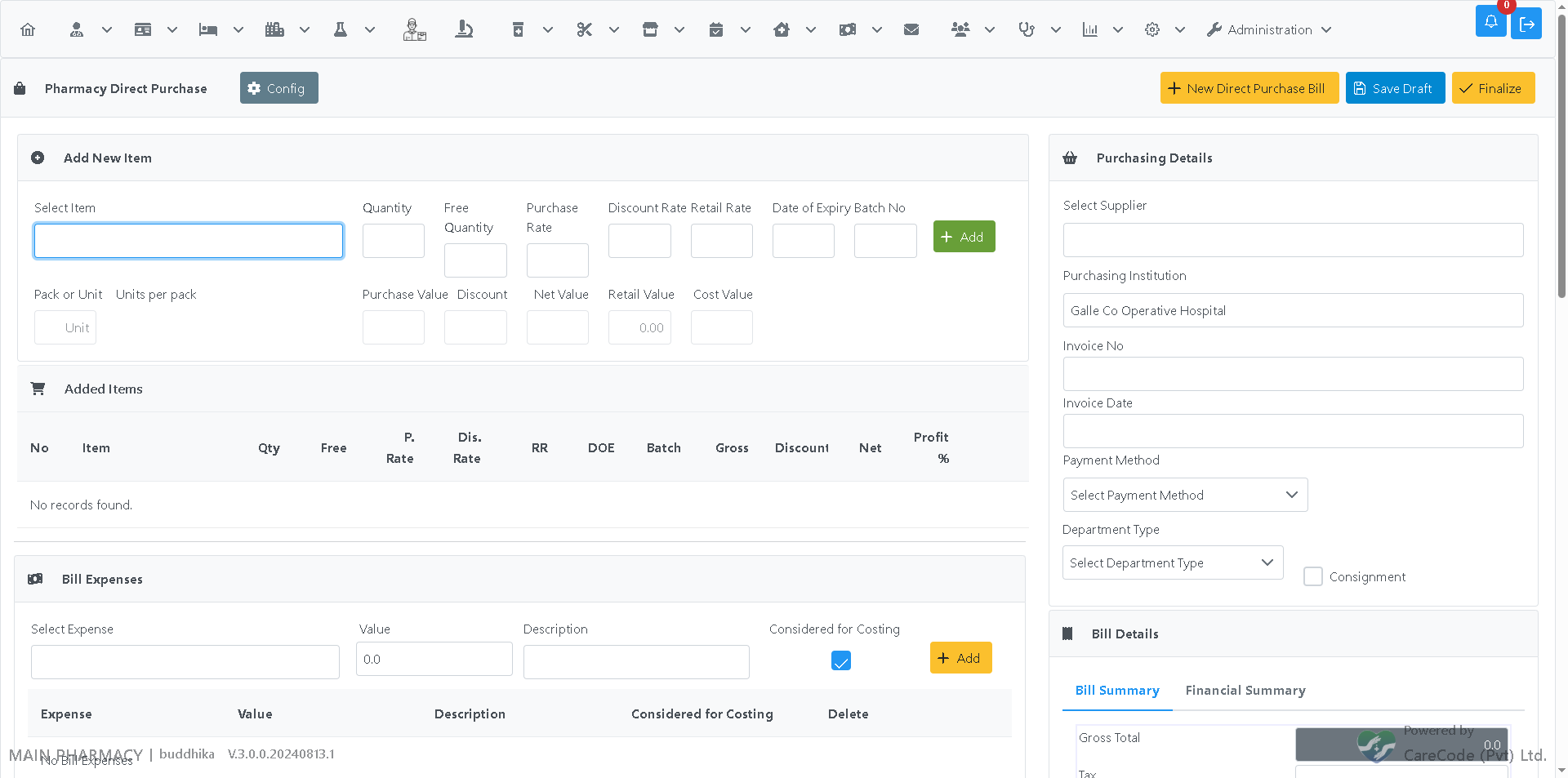
- Click Save Draft.
The bill is saved but stock is not yet updated. You can come back and keep editing the draft.
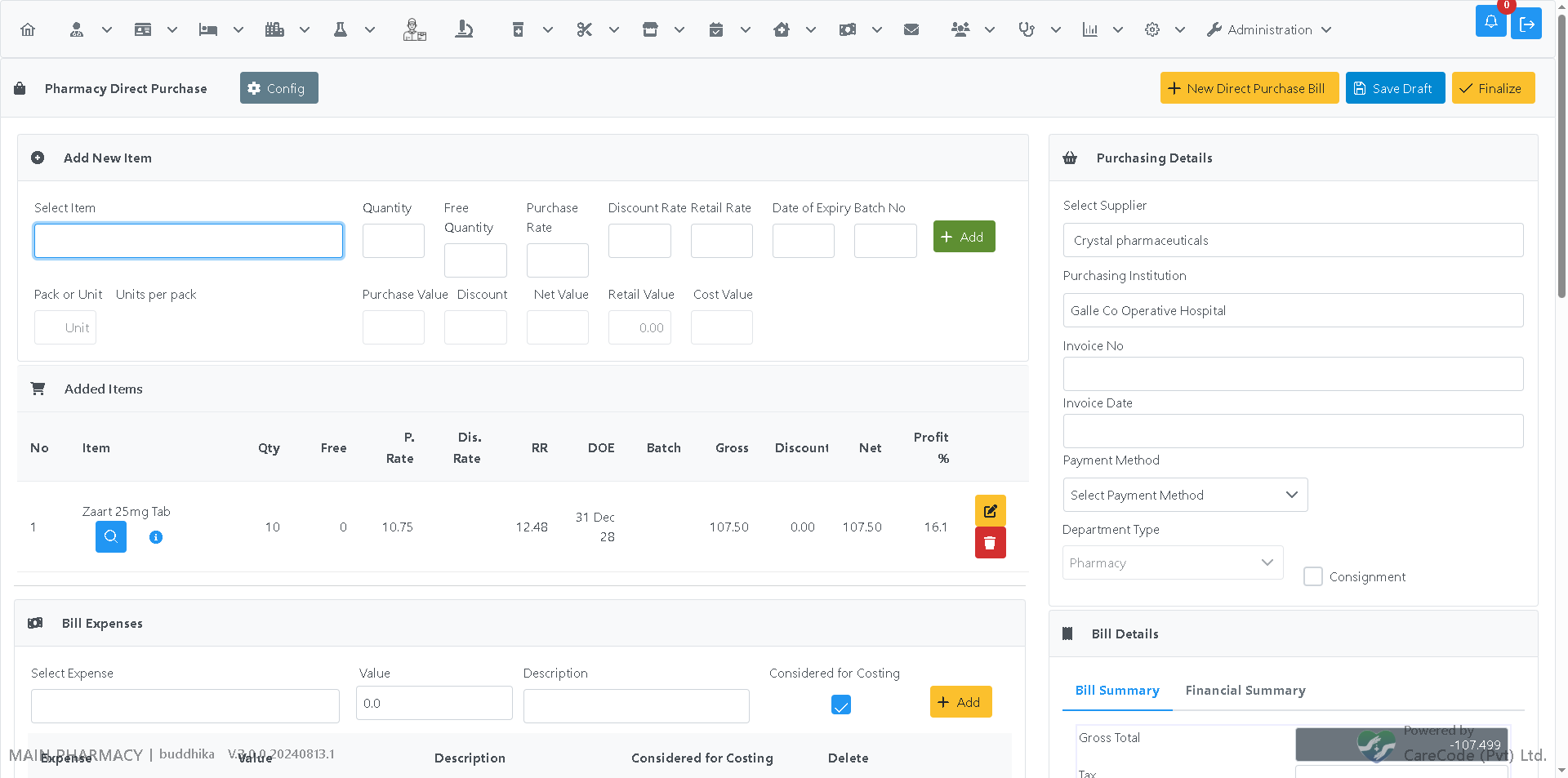
Once the draft is ready to hand off, click Finalize. If you haven't clicked Save Draft first, Finalize saves the current items and supplier for you automatically — you don't need to click Save Draft first.
A finalized bill is locked from further editing on this page and is now waiting for approval.
Finalized bills waiting for approval are listed on the Direct Purchase List - To Approve page (menu: Pharmacy > Procurement > Approve Direct Purchase, requires the PharmacyDirectPurchaseApprove privilege).
- Open the list and find the bill (shows who created it, the supplier, and the value).
- Click Approve to open it for review.
- Check the items and totals shown.
- Click the Approve button on that page.
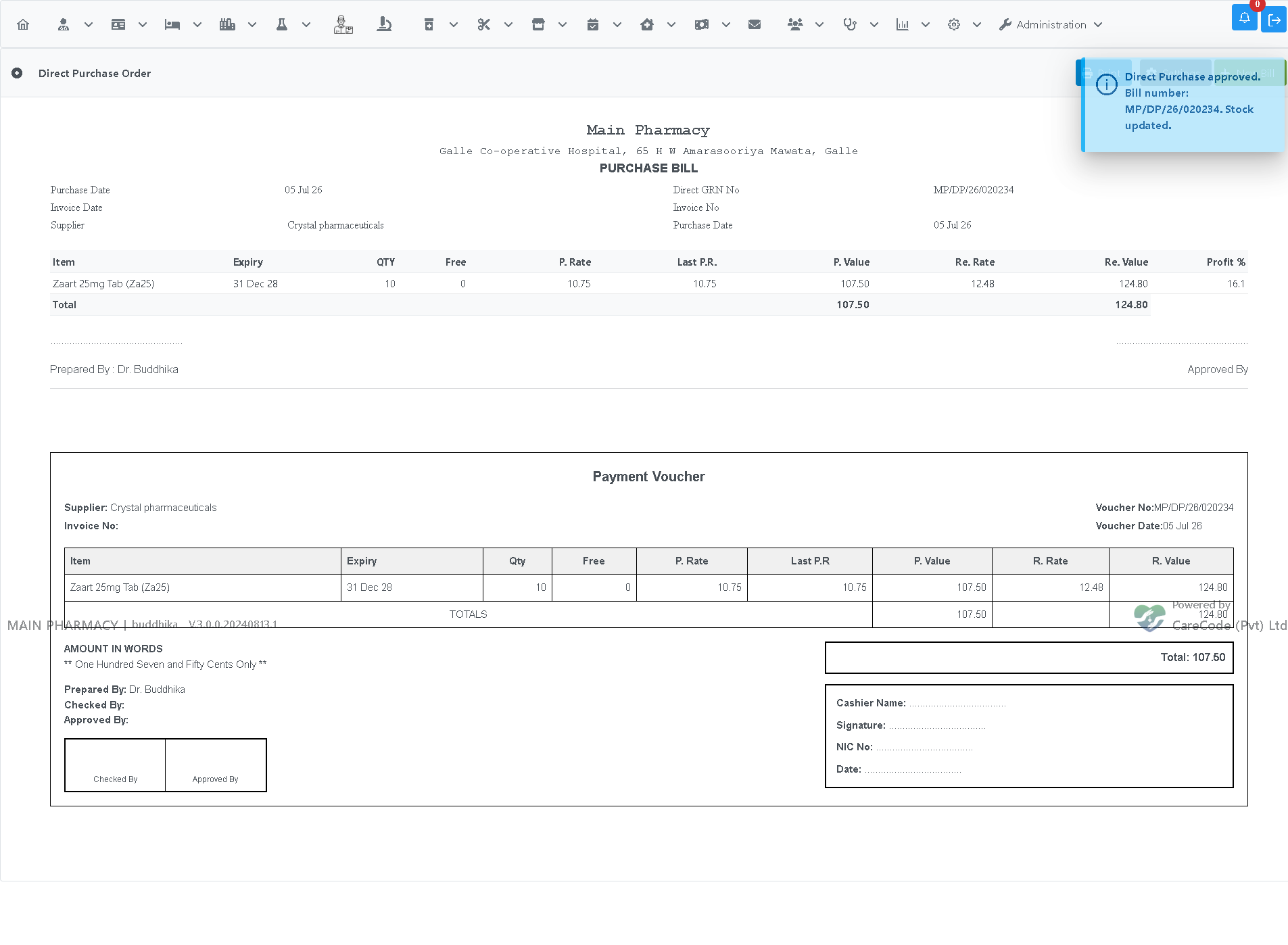
Approving is the step that generates the permanent bill number, updates stock, and creates the payment (if payments are configured for Direct Purchase). This cannot be undone from the UI, so review the bill before confirming.
Save Draft / Finalize buttons on a new bill:
After adding an item:
Direct Purchase List - To Approve:

After approval — bill number generated, stock updated:
| Privilege | Controls |
|---|---|
PharmacyDirectPurchaseSave |
Visibility of the Save Draft button |
PharmacyDirectPurchaseFinalize |
Visibility of the Finalize button |
PharmacyDirectPurchaseApprove |
Access to the Approve Direct Purchase list page and the Approve button |
See Admin: Assigning Privileges to a Role if these privileges are missing from a user's role.