Receive Free Items Not on the Purchase Order (GRN)
Suppliers sometimes include a free promotional item with a delivery that is a different product from anything you ordered — for example, your purchase order contains Tooth Brushes, and the supplier ships a carton of free Tooth Paste with it. This feature lets you add that free item directly on the Goods Receive (GRN) screen, so it enters your stock with its own batch and a selling price, while nothing is added to the amount payable to the supplier.
Use Add Free Item (not in PO) when:
- The supplier's delivery includes a free item that does not appear on the purchase order
- The free item should be sold, so it needs a retail price and a batch with an expiry date
- The supplier invoice value must stay unchanged — the free item costs the hospital nothing
Note: If the supplier gives extra free units of an item that is already on the purchase order, simply enter that amount in the Received Free Qty column of the ordered line. This feature is only for free items that are a different product.
- Navigate to Pharmacy → Purchase Orders → approved POs ready for GRN
- Find the purchase order for the delivery and click Create GRN
- The Goods Receive with Save/Approve screen opens, listing the ordered items
If the feature is enabled (see Configuration), an Add Free Item (not in PO) panel appears below the item list.

- In the Add Free Item (not in PO) panel, type at least 3 letters of the item name in the Item box
- Select the item from the suggestion list
- Click Add Free Item
- A new line appears at the bottom of the item list with the message "Free item added. Enter the received free quantity."
On the new line:
- Enter the number of free units received in Received Free Qty
- Check the Retail Rate — it is pre-filled from the item's last known selling price; adjust it if needed
- Enter the Batch No and Date Of Expiry — these are required, just like ordered items
The following columns are locked on a free item line, because nothing is payable for it:
- Receiving Qty — always 0
- Purchase Rate — always 0
- Discount Rate — always 0
The Line Net Total of the free item stays 0.00, so the bill's Net Total and the Invoice Total you enter remain exactly the supplier's invoice value.

Continue the GRN exactly as usual:
- Fill in Invoice No, Invoice Date, and Invoice Total (the supplier's invoice value — the free item adds nothing to it)
- Click Save, then Finalize
- Approve the GRN from To Approve GRNs as normal
On approval the free item enters stock with its own batch: the stock quantity increases by the free quantity, the batch cost is zero, and the item can be sold at the retail rate you entered.

- "Free item added. Enter the received free quantity." — The line was added successfully; type the free quantity in the new row.
- "Please select an item" — Click Add Free Item only after picking an item from the suggestion list.
- "Adding free items not in the purchase order is not enabled." — The feature is switched off; ask your administrator to enable it (see Configuration below).
- "Please Fill Batch deatail and Sale Price to All Item" — Every line that receives stock, including free item lines, needs a batch number and expiry date before finalizing.
- "Cannot duplicate an ad-hoc free item line" — The duplicate (+) row action is not available for free item lines; add another free item from the panel instead.
- Tip: Verify the pre-filled retail rate before approving — it comes from the item's most recent batch and may be out of date for promotional stock.
-
Tip: Use a batch number that identifies the stock as a free issue (for example, adding
-FREEto the supplier's batch) so it is easy to recognise in stock reports later. - Add the free item on the same GRN as the delivery it arrived with, so the goods receive record matches the physical delivery.
Symptoms: The GRN screen looks the same as before, with no panel below the item list. Cause: The feature is disabled, which is the default. Solution: Ask an administrator to enable the option GRN - Allow Free Items Not in Purchase Order (see Configuration below), then reload the GRN screen.
Symptoms: Fields are locked on the free item line. Cause: Only Received Free Qty, Retail Rate, Wholesale Rate, Date Of Expiry, Batch No, and Comments are editable on a free item line — the quantity and cost columns are intentionally locked at zero. Solution: This is expected. If you need to receive purchased units of the same item, it must be ordered on a purchase order.
The feature is controlled by a single application option, disabled by default:
| Option Key | Type | Default |
|---|---|---|
| GRN - Allow Free Items Not in Purchase Order | Boolean | No |
To enable it:
- Navigate to Administration → Institutions → Manage Application Options
- Click List Application Options and filter the Key column by
Free Items Not in - Click Edit Option, switch the value to On, and click Save
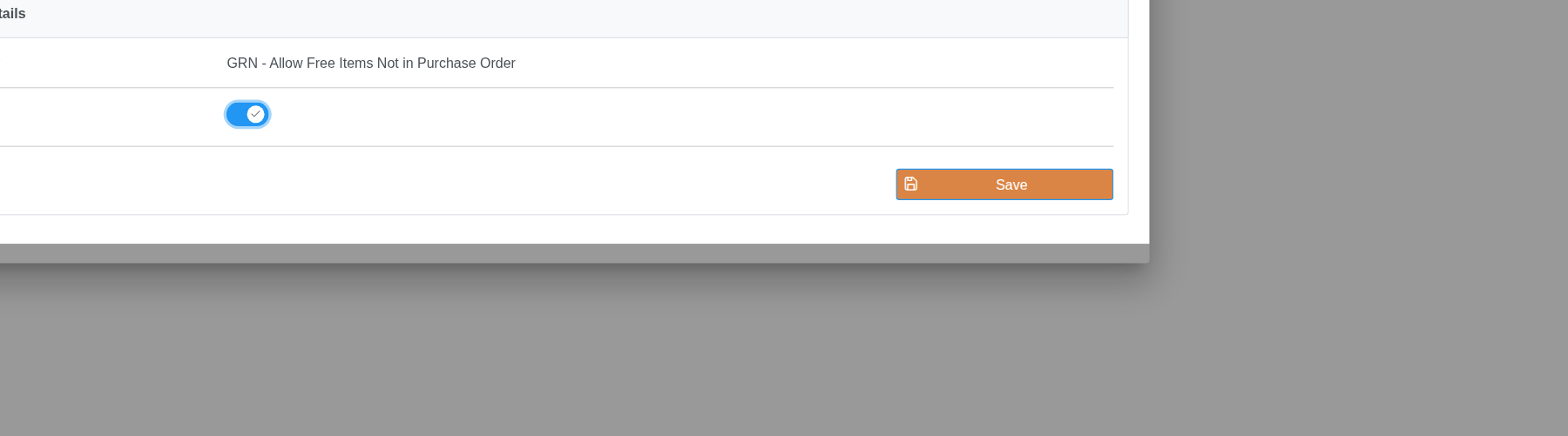
Note: The option takes effect immediately — no restart is needed. When it is off, the GRN screen behaves exactly as before.
Q: Does the free item change what we owe the supplier? A: No. The free item line has a purchase rate of zero and does not change the GRN net total, the invoice total, or the supplier payable.
Q: Can I add more than one free item to a GRN? A: Yes. Repeat the Add Free Item steps for each different free product.
Q: The supplier gave free units of an item that IS on the purchase order. Should I use this feature? A: No — enter those units in the Received Free Qty column of that item's ordered line instead.
Q: How is the free stock valued? A: The batch is created with a zero purchase cost and the retail rate you entered, so sales of the free stock are pure margin and free-item reports show it under free quantity.
Q: Which GRN screen supports this? A: The costing-based Goods Receive with Save/Approve screen (used when costing management is on). The classic non-costing GRN screen does not have this panel.