Role Template User Management
This guide explains how system administrators can manage user privileges, icons, subscriptions, and default login pages efficiently using role templates, instead of editing each user's privileges one by one.
Each user in the system holds their own set of privileges per department — this is what the system checks at runtime. A User Role (Administration → Manage Users → User Roles) is a template: a standard set of privileges, icons, subscriptions, and a default login page that an administrator can stamp onto users.
Key points:
- A user has one role (their "default role"), shown on the Manage User Role & Defaults page.
- Roles do not control anything at runtime. They only make administration fast: you apply a role's template to a user, and from then on the user's own records govern their access.
- User privileges always belong to a department. When you apply a role template you choose which of the user's departments to write into.
- Individual users can still be expanded or narrowed after a template is applied — the template is a starting point, not a cage.
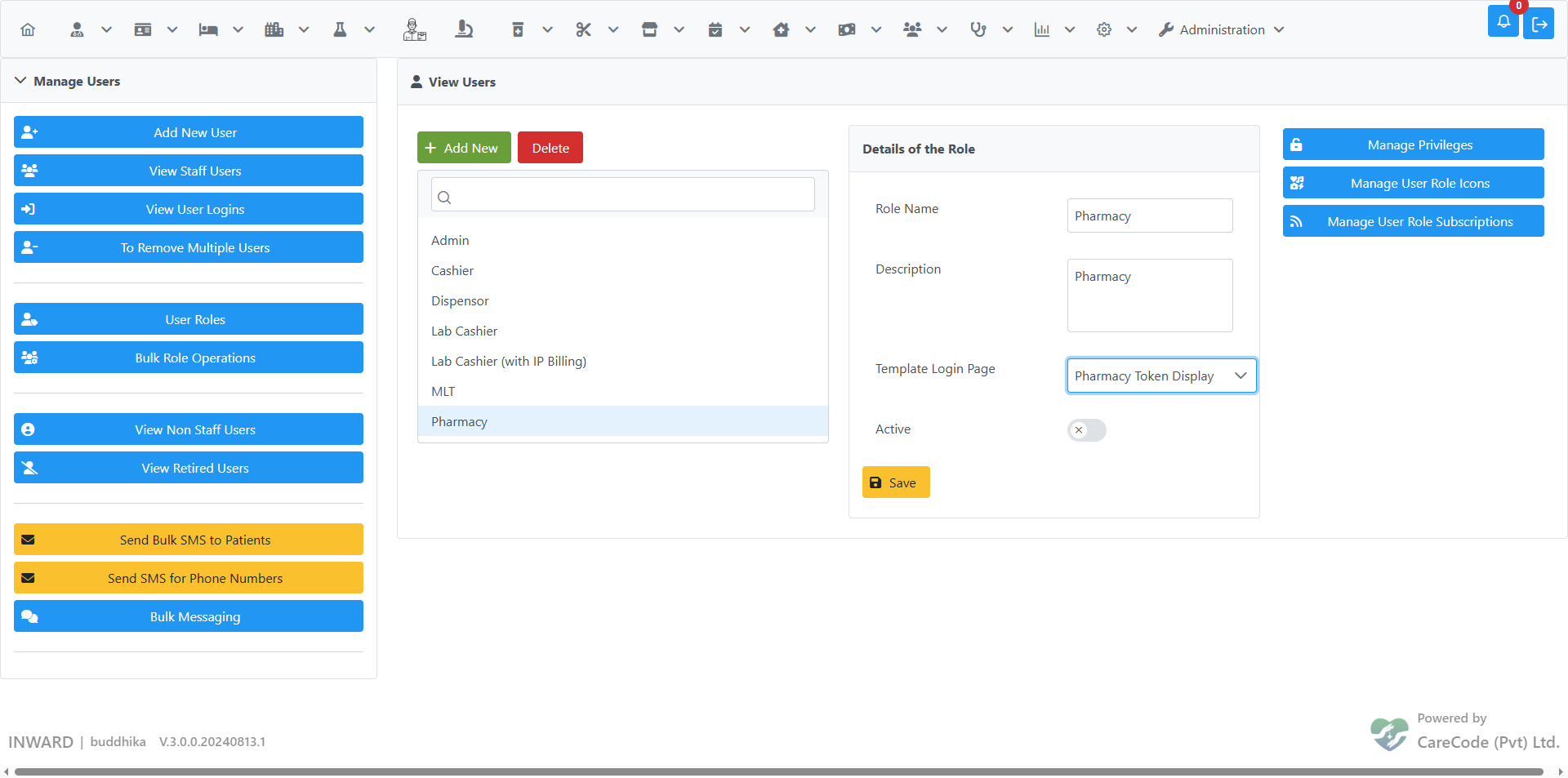
Open Administration → Manage Users → User Roles.
- Select a role from the list (or add a new one).
- Set the Template Login Page — the page users of this role should land on after login (e.g. Pharmacy Token Display for a Pharmacy role). Leave as None if the role shouldn't set one.
- Use Manage Privileges, Manage User Role Icons, and Manage User Role Subscriptions to define the template content.
From Administration → Manage Users → View Staff Users, select a user and click Manage User Role.
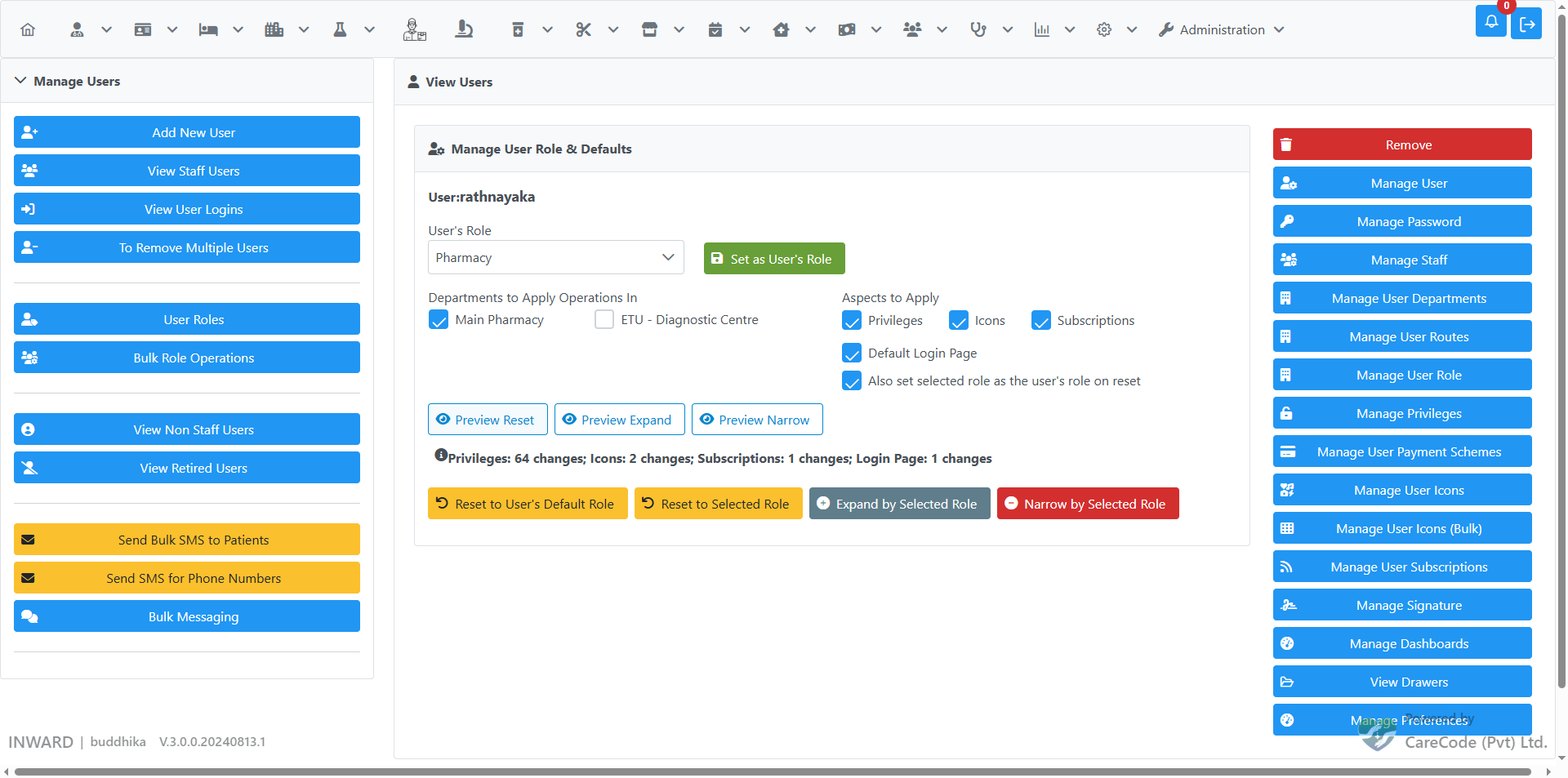
On this page you can:
- Set the user's role — pick a role in the dropdown and click Set as User's Role. This only records the role; it does not change any privileges yet.
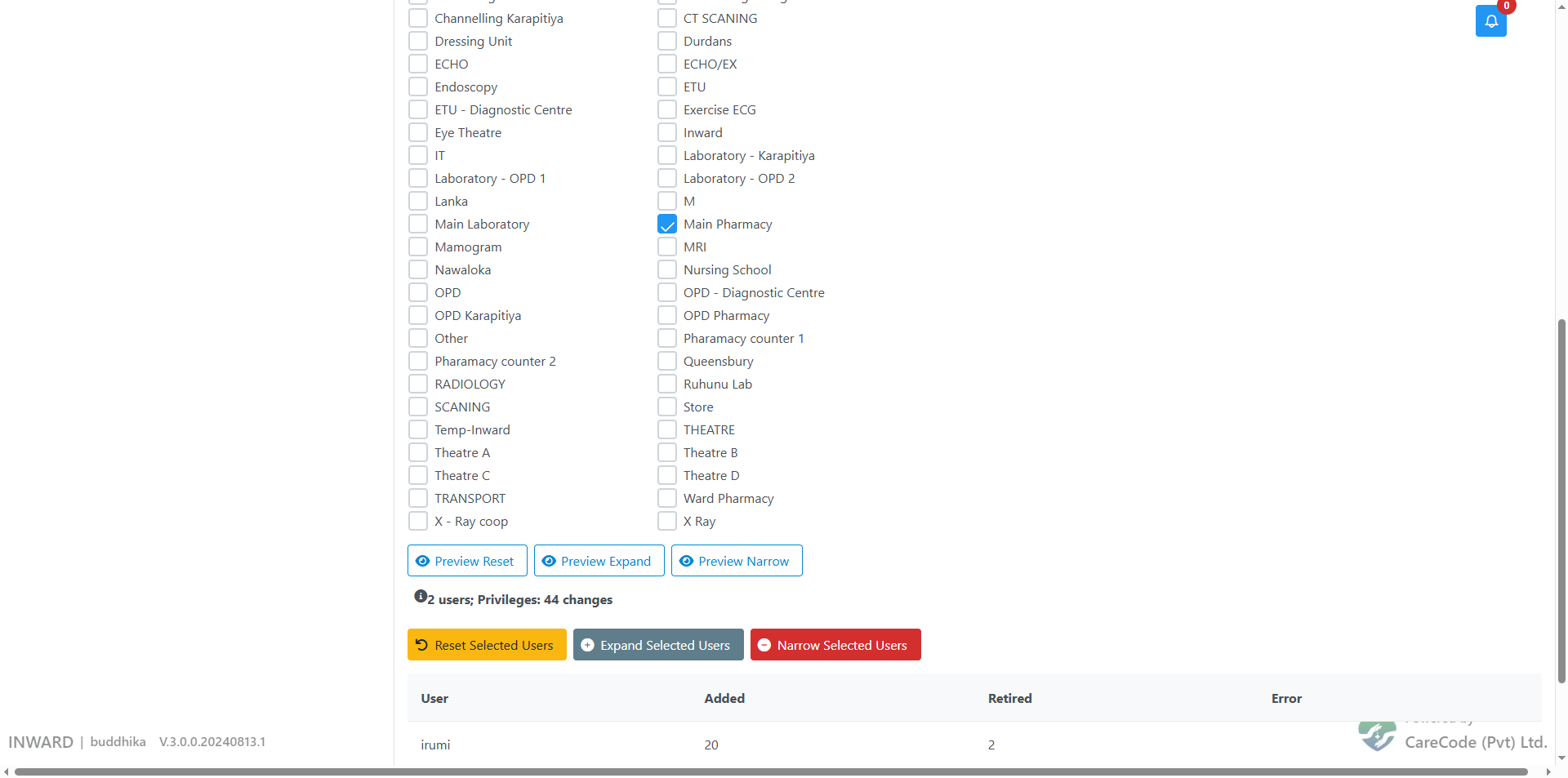
- Choose departments — tick which of the user's departments the operation should write into.
- Choose aspects — Privileges, Icons, Subscriptions, and/or Default Login Page.
- Preview — each operation has a Preview button that shows how many records would change, without changing anything.
Then run one of the four operations:
| Operation | What it does |
|---|---|
| Reset to User's Default Role | Wipes the selected aspects in the selected departments and re-applies the user's own role template. Use after ad-hoc changes have drifted too far. |
| Reset to Selected Role | Same, but using the role selected in the dropdown. By default this also records that role as the user's role (untick the checkbox to keep their old role). |
| Expand by Selected Role | Adds everything in the selected role's template that the user is missing. The user's existing extra records are untouched. |
| Narrow by Selected Role | Removes the user's records that match the selected role's template. Records outside the template remain. |
Every operation asks for confirmation, shows a results table (records added / retired per user), and writes an audit trail.
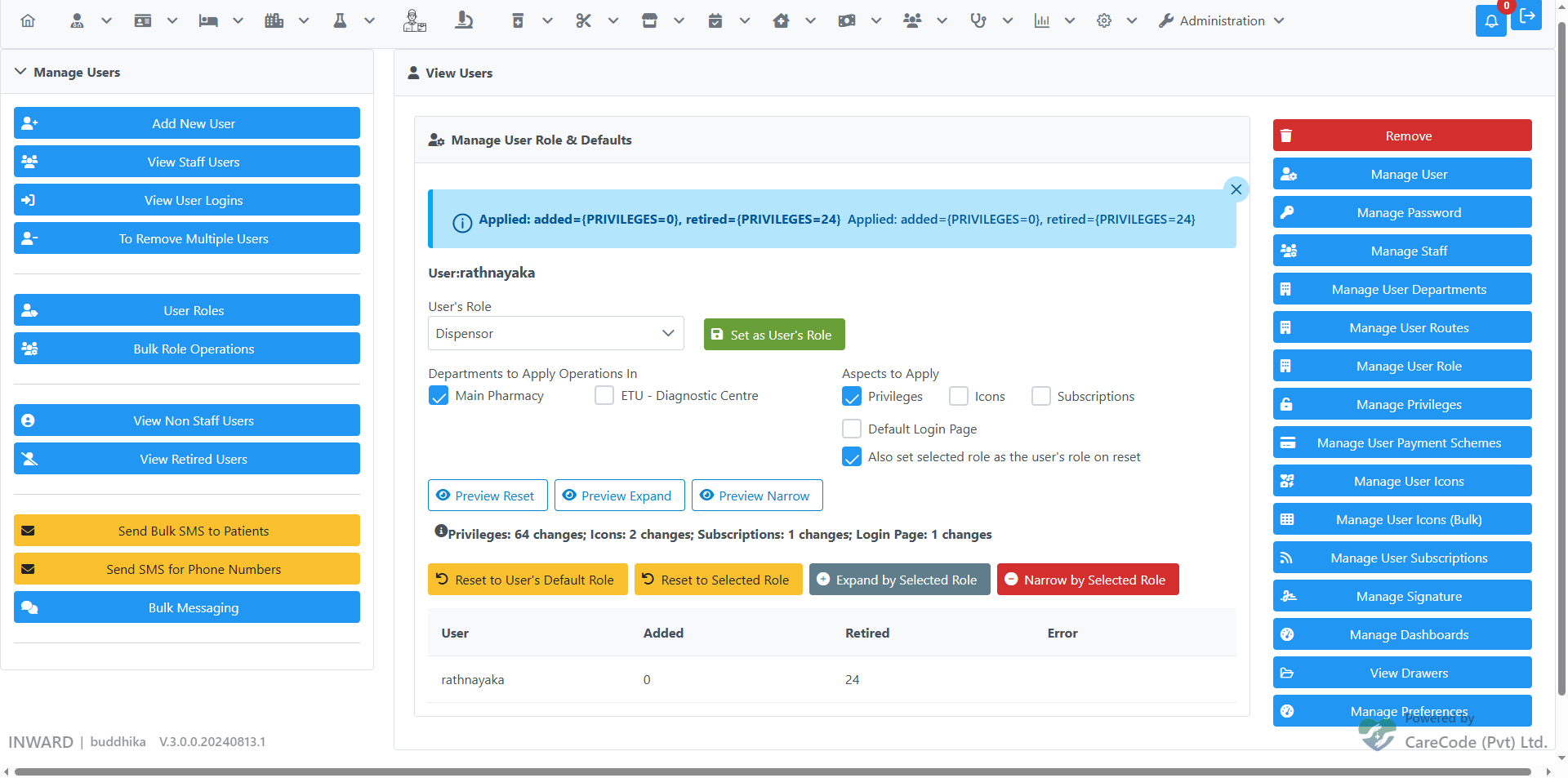
Open Administration → Manage Users → Bulk Role Operations.
- Filter users by role, department, and/or institution in the left panel, then click List Users.
- Tick the users to affect (or click Select All).
- Choose the target role, departments, and aspects — exactly as on the single-user page.
- For Reset, you may leave the role empty: each user is then reset to their own default role.
- Preview first — the preview line shows the number of users and total record changes.
- Run Reset / Expand / Narrow. A per-user results table shows what happened to each user, including any failures (e.g. a user with no default role).
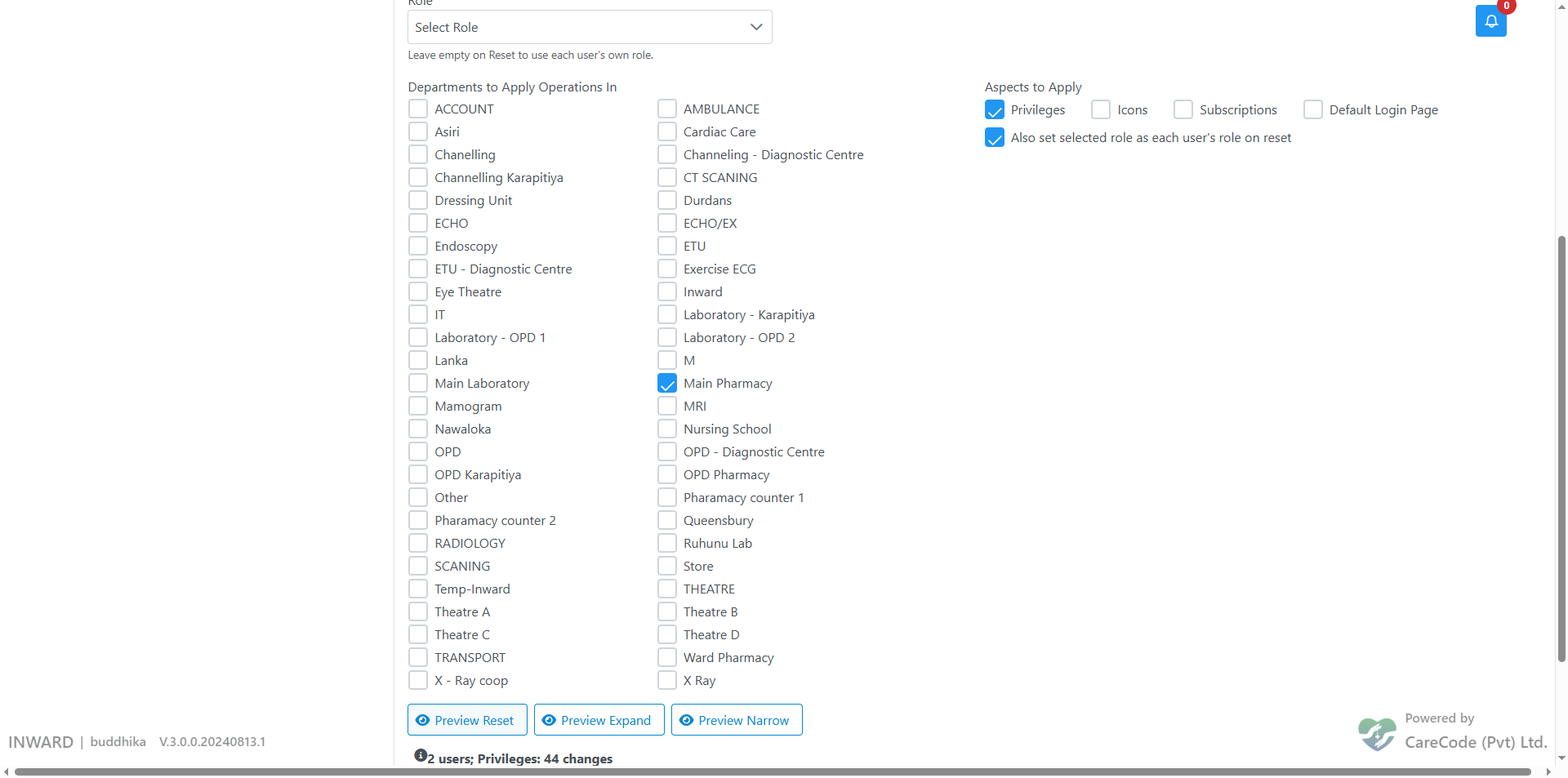
The default login page is now stored per user per department:
- When a user logs in and selects a department, the system first looks for that user's login-page setting for that department, then falls back to the user's old single login-page setting, then to Home.
- The role template's login page is copied to the user+department when you apply a Reset (or Expand, if the user has none) with the Default Login Page aspect ticked.
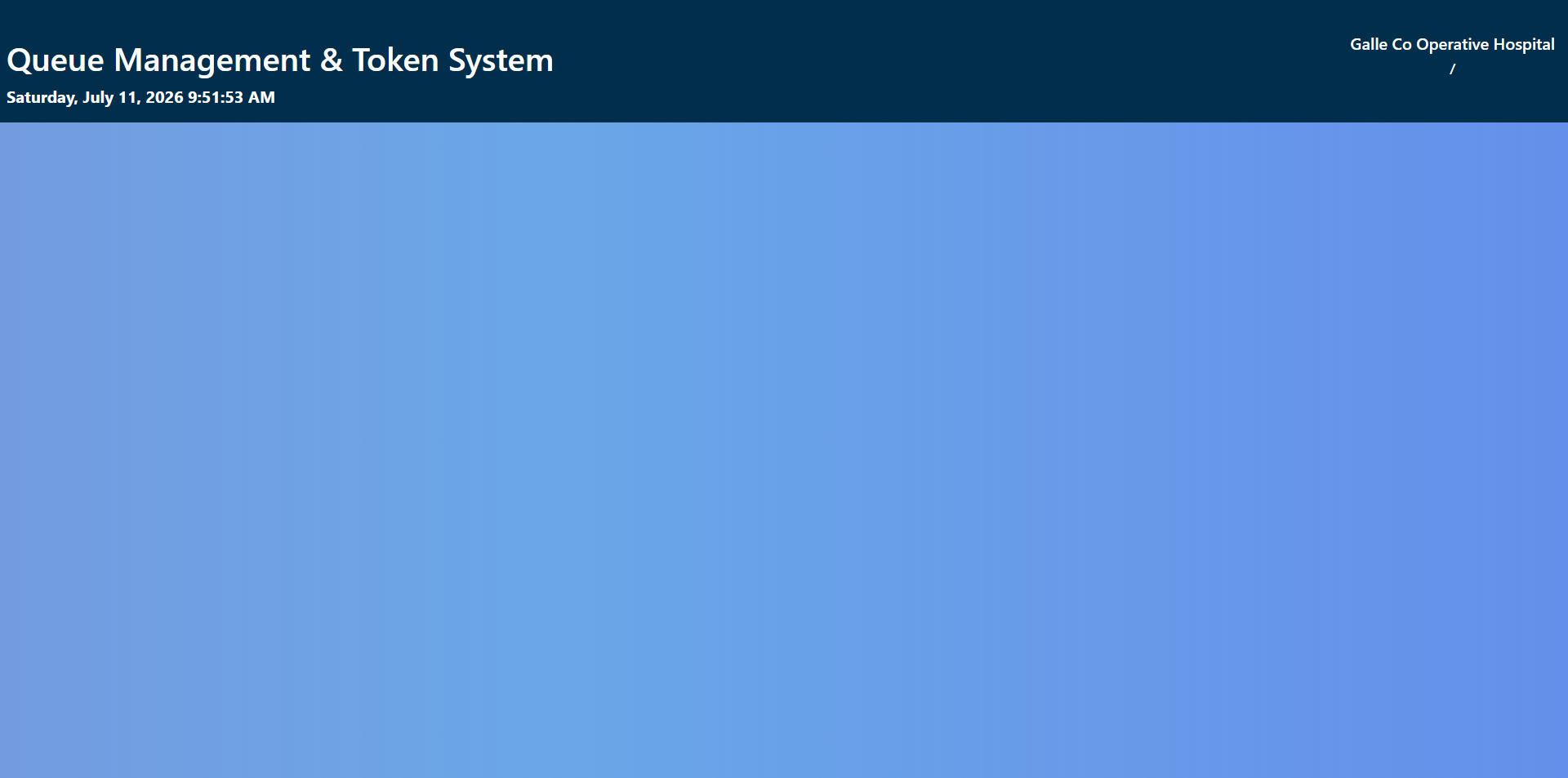
Example: after applying the Pharmacy role template (whose template login page is Pharmacy Token Display) to a user in Main Pharmacy, that user logging into Main Pharmacy lands directly on the token board:
- All operations require the AdminManagingUsers privilege.
- Every apply/reset writes an audit event (who, which role, which departments, how many records changed) and a role-application history row.
- The same operations are available through the REST API (
/api/users/{id}/role/reset|expand|narrow,/api/users/bulk/role-operations) and through the AI Assistant — bulk operations through the API/AI require a preview step before a confirmed execution.