Restrict User Login By IP Address
Some hospitals want certain staff members — for example, cashiers — to only be able to log in to the system while they are physically on-site, using the hospital's known internet connection. This feature lets an administrator restrict an individual user's login to one or more specific IP addresses. Other users (such as managers and administrators) are unaffected and can continue logging in from anywhere.
Use this setting when:
- A cashier or other staff member should only be able to log in from the hospital premises, and must not be able to access the system from home or elsewhere.
- Your hospital has a static IP address for its internet connection and wants to enforce that specific staff use it.
- You do not want this restriction to apply to every user — it is configured individually, per user.
Note: If your hospital does not need this feature, you do not need to configure anything. Leaving Restrict Login By IP unchecked (the default for every user) means login works exactly as before, with no extra IP checks.
- Go to Administration → Manage Users.
- Search for the user in the User Name filter and select their row.
- Click Manage User.
- On the Manage User page, check the Restrict Login By IP checkbox.
- An Allowed IP Addresses field appears.
- Enter the IP address (or addresses) this user is allowed to log in from. Separate multiple addresses with commas, for example:
192.168.1.10,192.168.1.11 - Click Save.
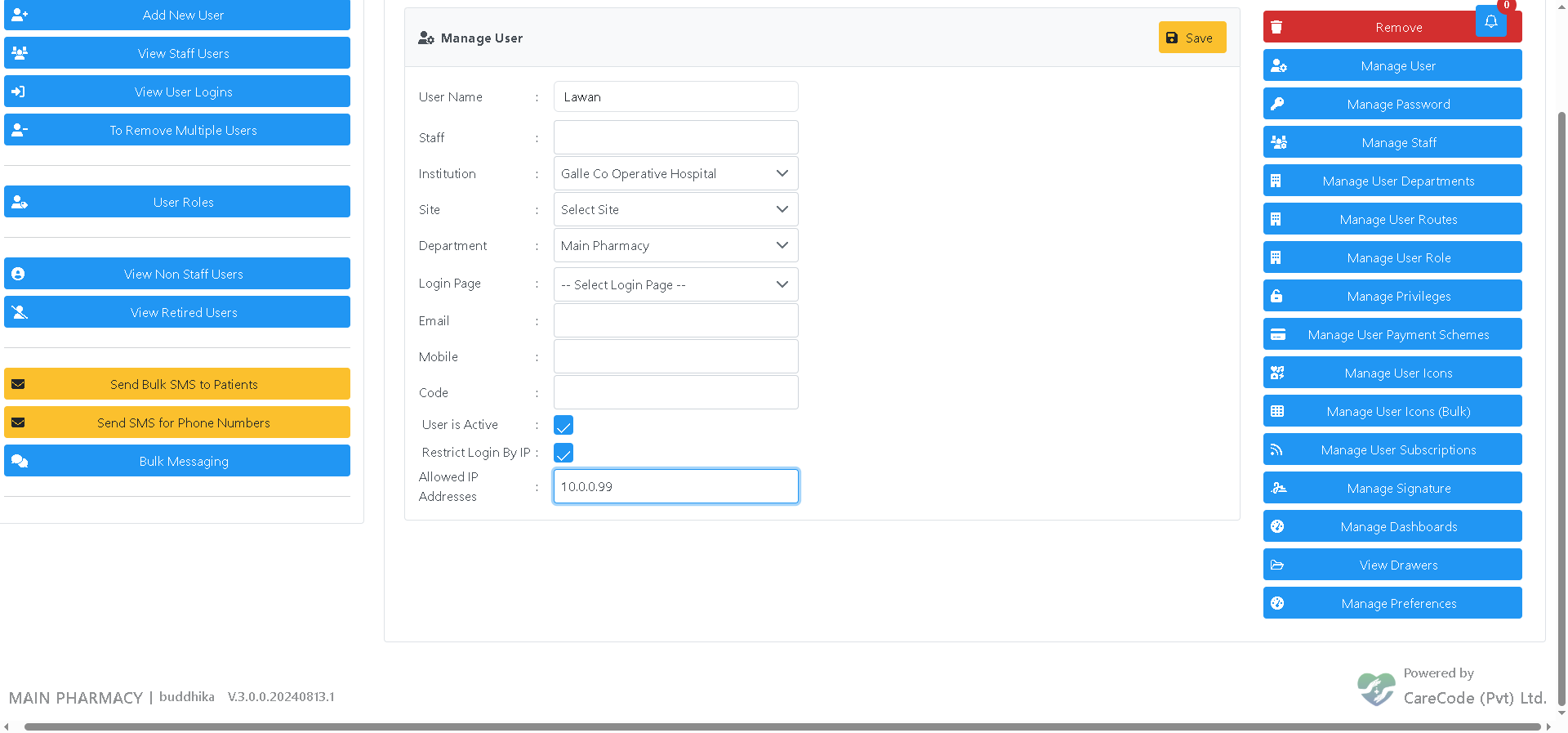
Once saved, this user can only log in successfully when their connection's IP address matches one of the addresses entered here. Any login attempt from a different location will be rejected.
Uncheck Restrict Login By IP and click Save. The user can then log in from any location again, the same as before.
- "Login not allowed from this IP address for this user.": This user has Restrict Login By IP enabled, and the connection is coming from an address that is not in their Allowed IP Addresses list. The login is rejected before the user reaches the department selection screen. Ask an administrator to confirm the correct IP address is configured for this user, or log in from the approved location/network.
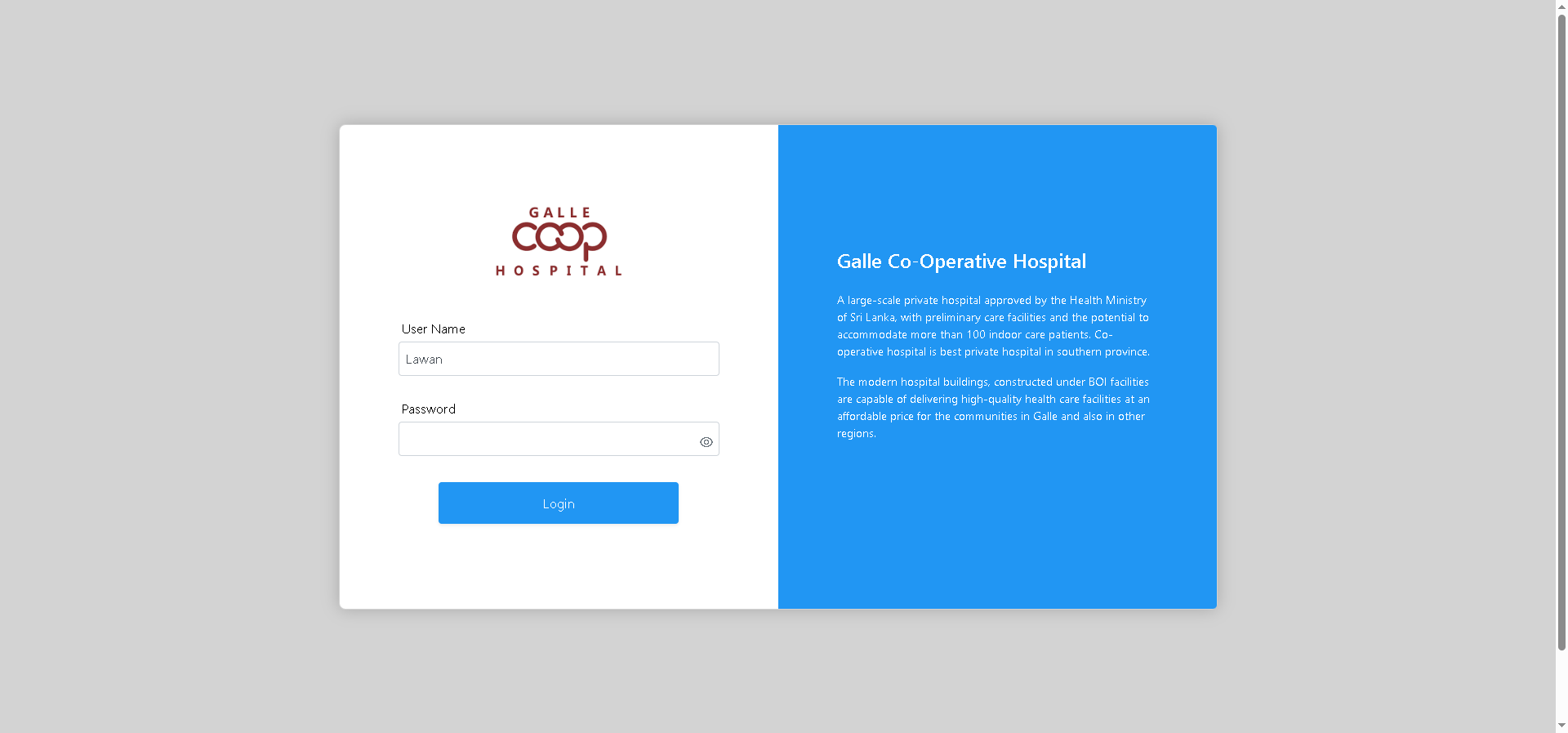
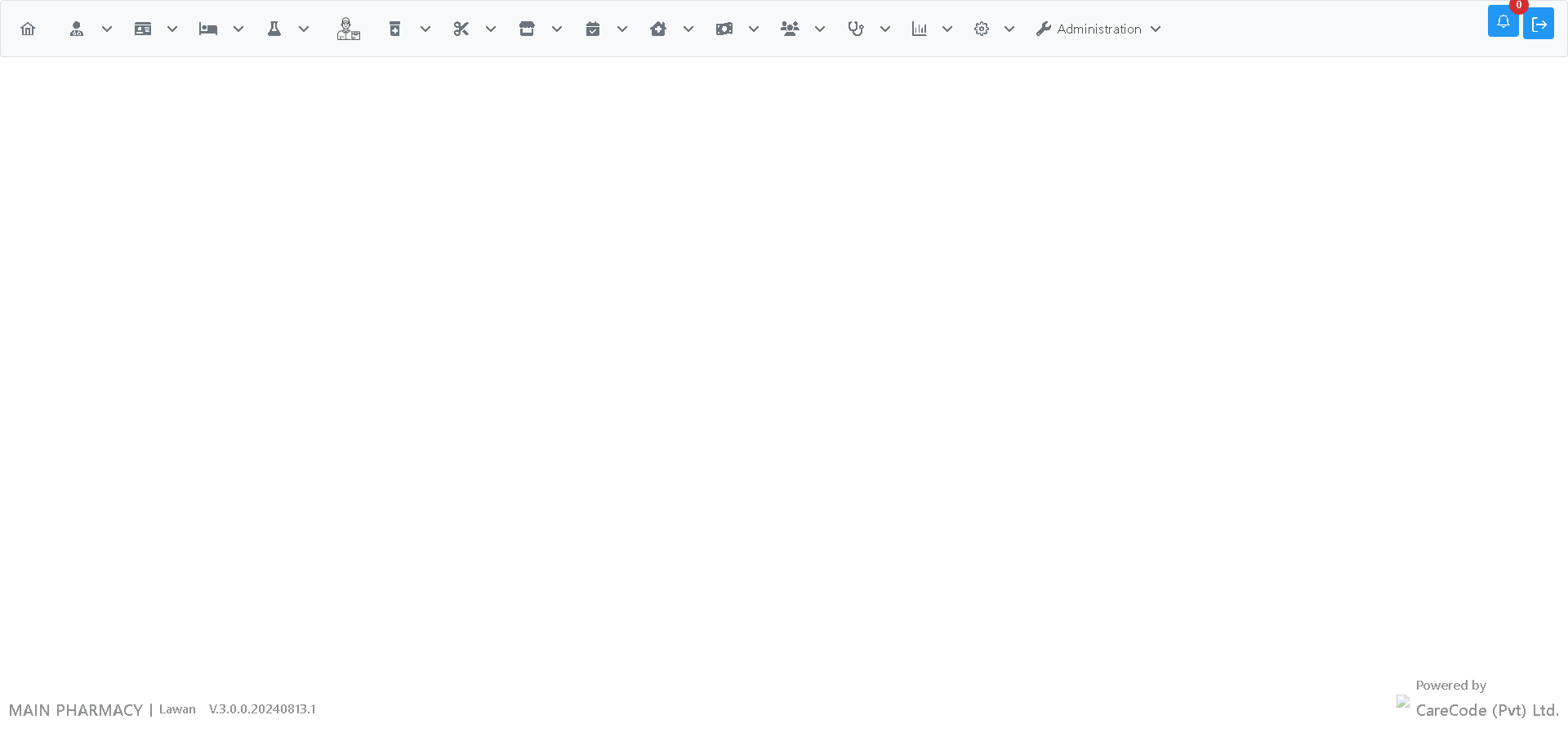
Once the correct IP address is configured, the same user can log in normally and reach their department as usual:
- Only enable this for users who genuinely need to be confined to a specific location, such as cashiers handling cash transactions.
- Do not enable this for users who need to work from multiple locations (e.g. managers, on-call administrators), as they will be locked out from any other location.
- If your hospital's internet provider changes your static IP address, remember to update the Allowed IP Addresses field for every restricted user, or they will be unable to log in.
Symptoms: The user sees "Login not allowed from this IP address for this user." even though they believe they are on the hospital network. Cause: The Allowed IP Addresses field does not contain the IP address currently being used, or the hospital's IP address has changed. Solution: Ask a network administrator to confirm the current public IP address of the hospital's connection, then update the Allowed IP Addresses field for the affected user to match.
This is configured per user on the Manage User page (Administration → Manage Users → select user → Manage User):
| Field | Description |
|---|---|
| Restrict Login By IP | Checkbox. When checked, this user can only log in from an address listed in Allowed IP Addresses. Unchecked by default for all users. |
| Allowed IP Addresses | Comma-separated list of IP addresses this user is permitted to log in from. Only shown/used when Restrict Login By IP is checked. |
This restriction only applies to the main login page used by hospital staff in a web browser.
Q: Does this affect every user in the system? A: No. It is configured individually per user and defaults to off (unrestricted) for everyone.
Q: Can I allow more than one IP address for the same user? A: Yes. Separate multiple addresses with commas in the Allowed IP Addresses field.
Q: What happens if I check the box but leave Allowed IP Addresses empty? A: The user will be unable to log in from any location until at least one valid address is entered, since there is nothing to match against.