Direct Purchase Free Items Without Quantity
Suppliers sometimes deliver an item that is entirely free — the invoice shows zero payable units and only a free quantity for that item (for example, a promotional item, or a top-up on an existing product line where every unit received this time is free). On the Pharmacy → Direct Purchase screen, adding such a line means entering a Quantity of 0 together with a Free Quantity greater than 0.
By default this is blocked — Direct Purchase requires Quantity to be greater than zero for every item line, regardless of Free Quantity. This page explains the application option that lifts that restriction, and when to use it.
This is a different scenario from Receive Free Items Not on the Purchase Order (GRN). That GRN feature adds an extra, unordered free product alongside a purchase order. This Direct Purchase option instead allows the item you already selected to be entered with zero paid quantity when the whole batch received is free.
Enable this option when:
- A supplier occasionally sends items with no chargeable quantity, only a free quantity, on a Direct Purchase invoice
- You need the item to enter stock with its own batch and expiry, at zero purchase cost, exactly like a normal Direct Purchase line
Leave it disabled (the default) if your organisation always expects a positive purchase quantity on every Direct Purchase line — for example, if free units should always be recorded as extra free quantity on top of a paid quantity rather than as a standalone free line.
| Option | Adding an item with Quantity = 0, Free Quantity > 0 |
|---|---|
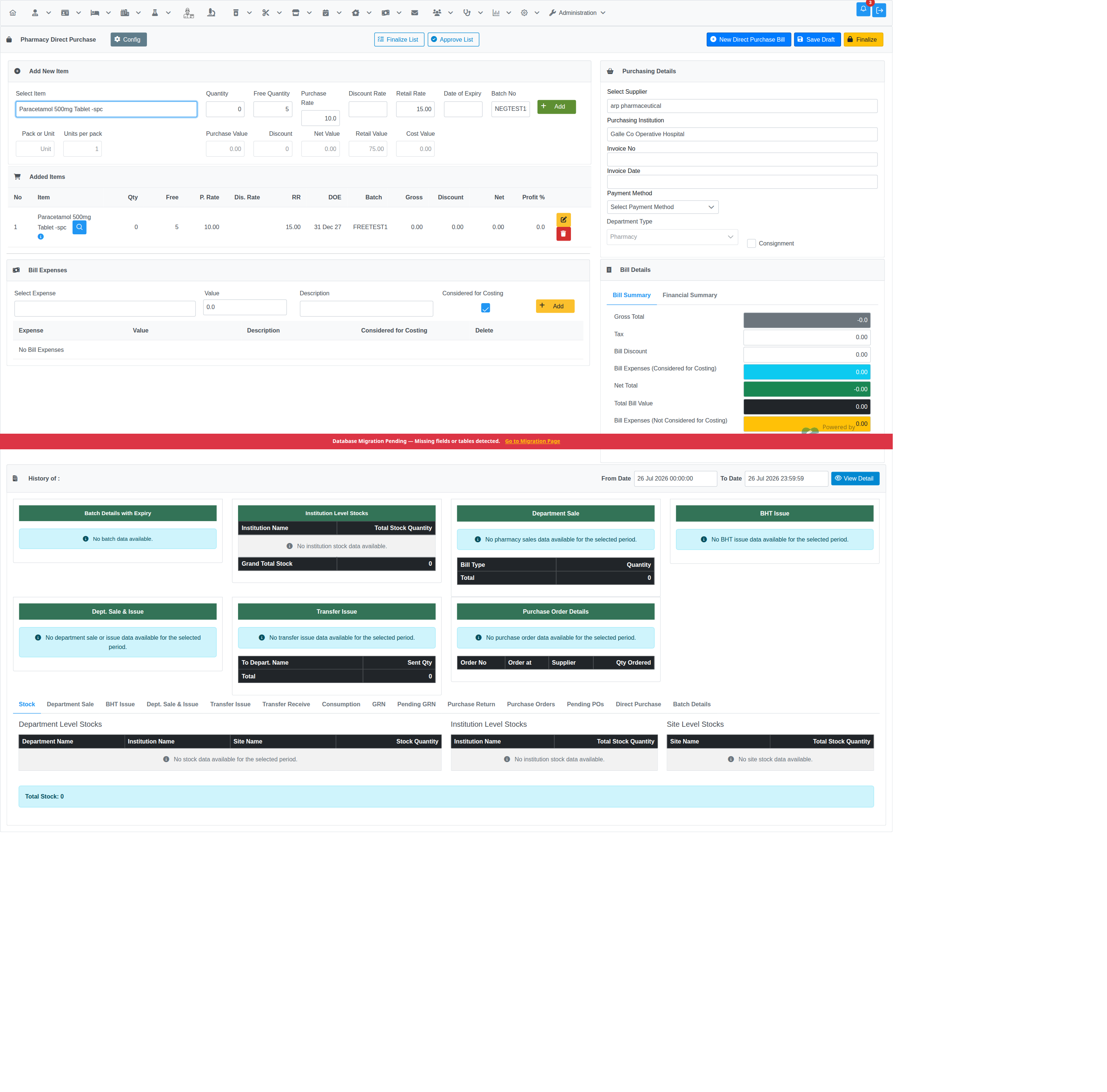
| Disabled (default) | Blocked — "Please enter quantity" |
| Enabled | Allowed — item added with Quantity 0, the entered Free Quantity, and its purchase/retail rates |
With the option enabled, the normal "Quantity must be greater than zero" rule is relaxed to "Quantity or Free Quantity must be greater than zero" — if you leave both at zero, you still get "Please enter quantity or free quantity." Negative quantities are always rejected regardless of this option.

The item saves normally — Save Draft / Finalize (or Settle, depending on your workflow configuration) works exactly as with any other line, and the zero quantity / free quantity are persisted on the bill item.
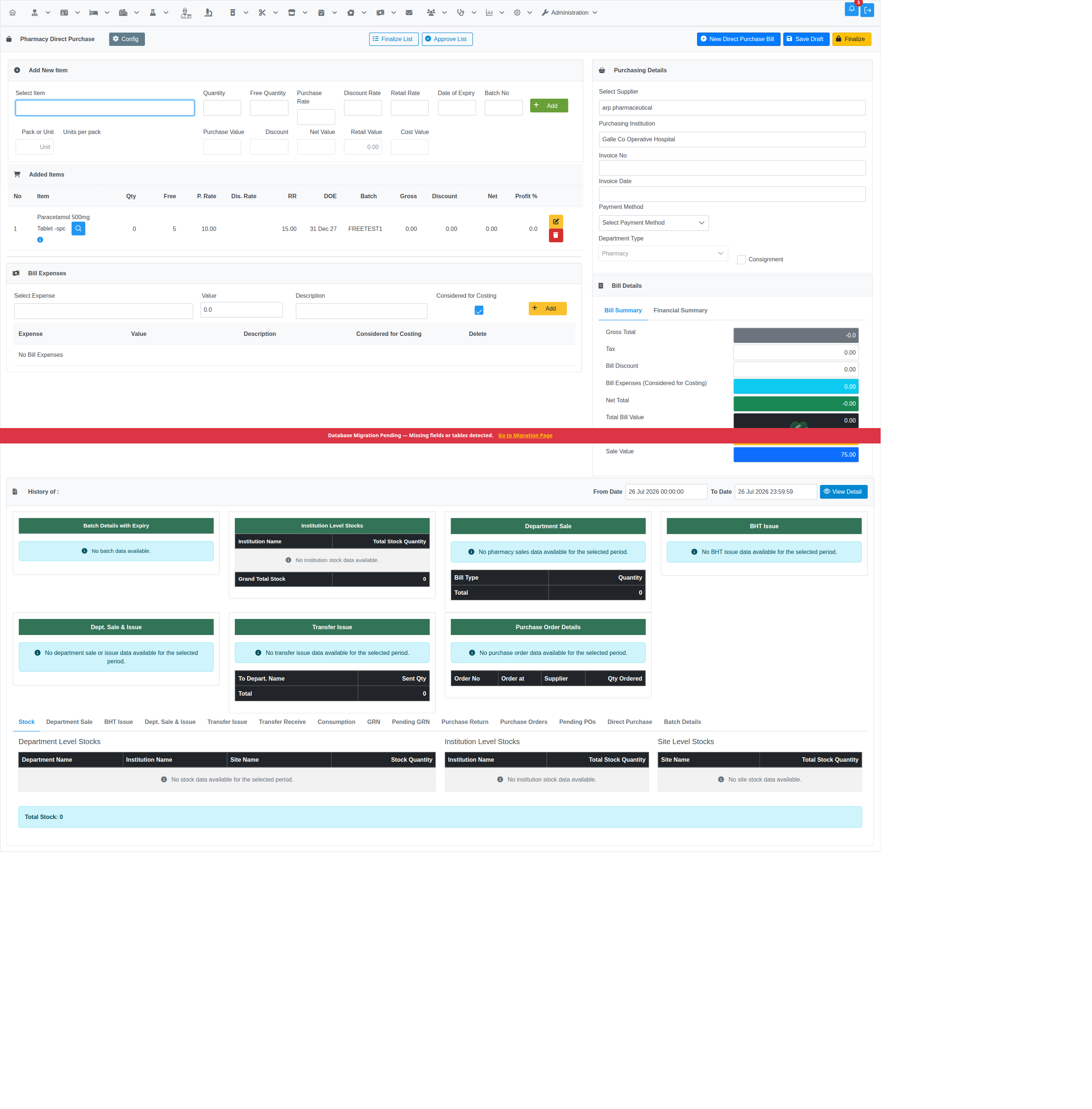
With the option left at its default (disabled), the same entry is rejected until you either enter a paid quantity or ask an administrator to enable the option:
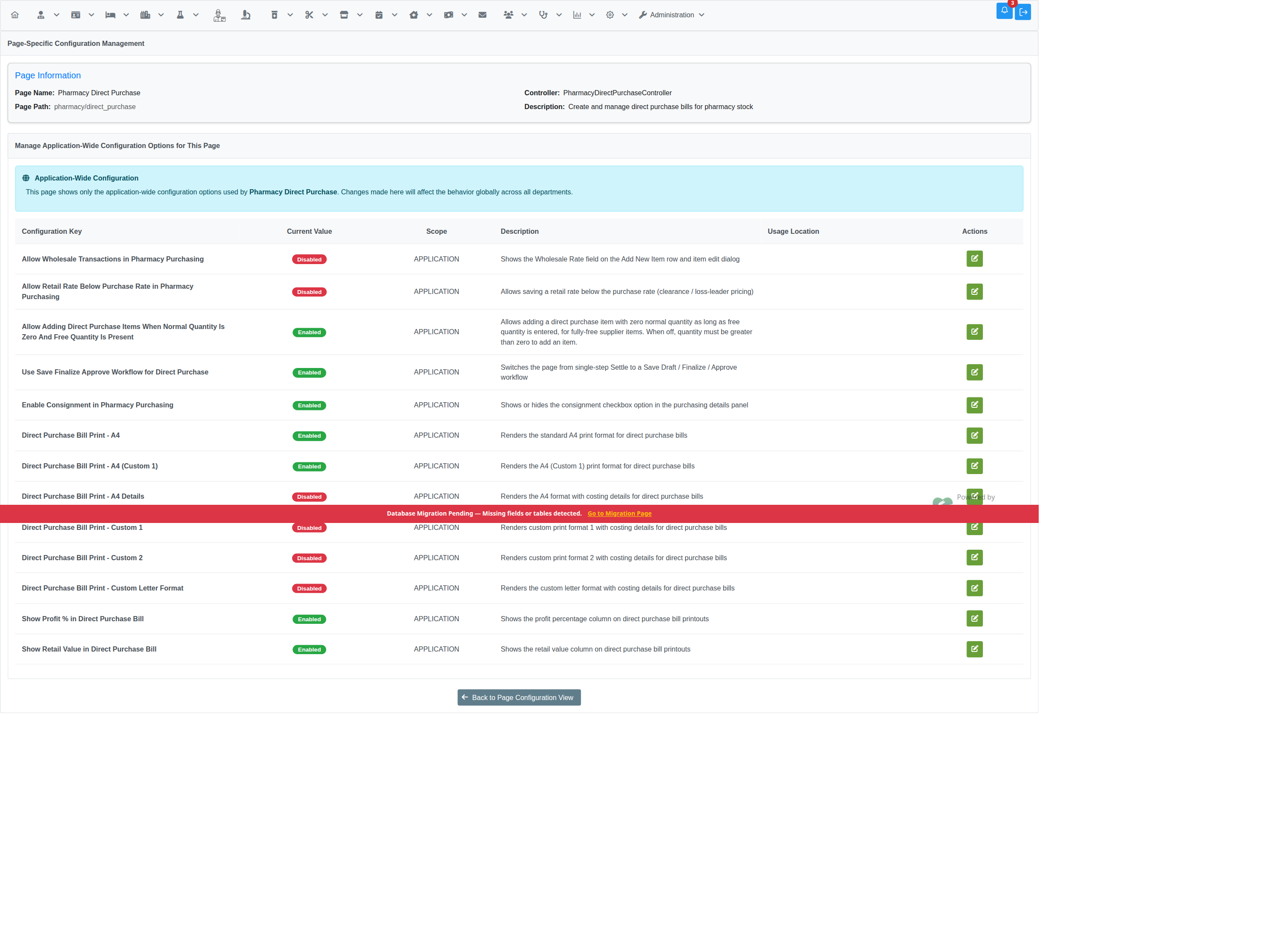
The feature is controlled by a single application-wide option, disabled by default:
| Option Key | Type | Default |
|---|---|---|
| Allow Adding Direct Purchase Items When Normal Quantity Is Zero And Free Quantity Is Present | Boolean | No |
To enable it:
- Open Pharmacy → Procurement → Direct Purchase
- Click the Config button in the page header (visible to users with the Admin privilege) — this opens Page Configuration Management for the Direct Purchase page
- Click Manage Application Configuration
- Find Allow Adding Direct Purchase Items When Normal Quantity Is Zero And Free Quantity Is Present in the list and click Edit Configuration Option
- Switch the value On and click Save

Note: The option takes effect immediately for the next item you add — no restart or redeploy is needed. Turning it back off does not affect items already added to a bill; it only re-applies the quantity check to items added afterwards.