Ordering Requirement Report
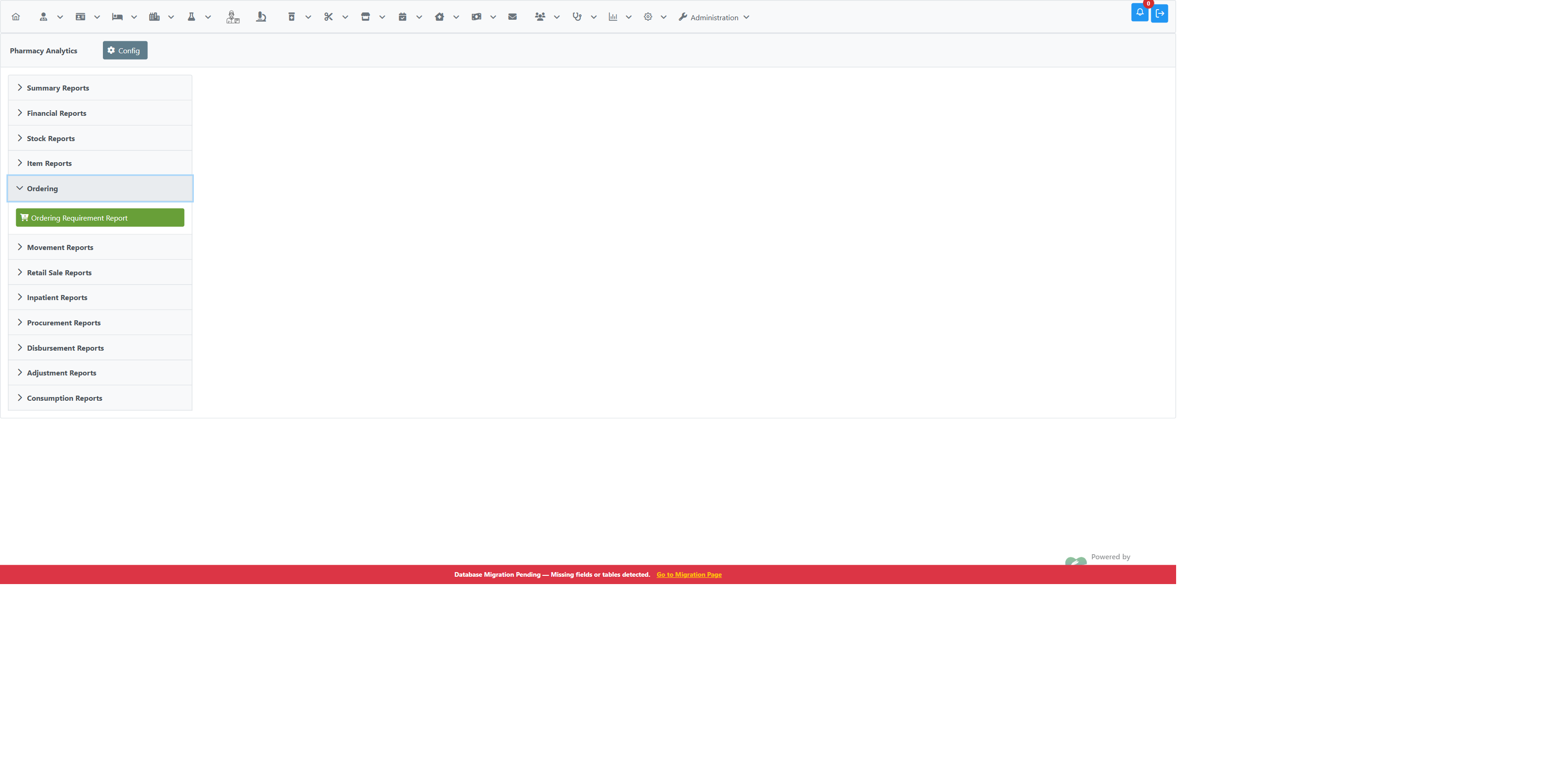
Path: Pharmacy → Analytics → Ordering → Ordering Requirement Report
A read-only report that answers a single question for a pharmacy buyer: what do I need to order, and how much?
For every item in the selected scope it works out how fast the item is being consumed, how long the stock on hand will last, how much stock you should be holding, and therefore how much to order — with an estimated cost and a plain recommendation.
The report does not create purchase orders. Raise the order through the normal Purchase Orders flow once you have decided what to buy.
| Column | Meaning |
|---|---|
| Drug Name | The item |
| Current Balance | Stock on hand right now, in the selected scope |
| Avg Monthly Consumption | How much of the item leaves stock in an average month, measured over the window you selected |
| Stock Cover (Months) | How many months the current balance will last at that rate. Shows - when there was no consumption in the window, because the figure is undefined rather than infinite |
| Target Stock | How much you should be holding — average monthly consumption × target cover |
| Qty to Order | Target Stock − Current Balance, never below zero |
| Est. Cost (Rs.) | Qty to Order × the most recent purchase rate for that item in the selected scope |
| Decision | Urgent Order / Order / No Order |
Three tiles above the table summarise the run: how many items are Urgent Order, how many are Order, and the total estimated cost of everything the report says to buy.
Avg Monthly Consumption = consumption in the window ÷ days in the window × 30.4375
Stock Cover             = Current Balance ÷ Avg Monthly Consumption
Target Stock            = Avg Monthly Consumption × Target Stock Cover
Qty to Order            = Target Stock − Current Balance   (never below zero)
Estimated Cost          = Qty to Order × last purchase rate
30.4375 is the average length of a month (365.25 ÷ 12), so a window of any length converts to a comparable monthly figure.
Consumption is already net of returns. Cancellations and returns are counted alongside the issues they reverse, so an item that was dispensed and then returned does not inflate its own demand.
Consumption means stock actually leaving the department — retail sales, inpatient and theatre issues, transfers issued to other departments, and disposals. Goods received, purchases, transfers received and stock-taking adjustments change your balance but are not demand, so they never affect the average, the target or the quantity to order.
| Decision | When |
|---|---|
| Urgent Order | Stock Cover is below the Urgent Below threshold |
| Order | Stock Cover is below the Target Stock Cover but above the urgent threshold |
| No Order | Stock Cover already meets or exceeds the target |
An item with no consumption in the window is No Order — there is no evidence it is needed.
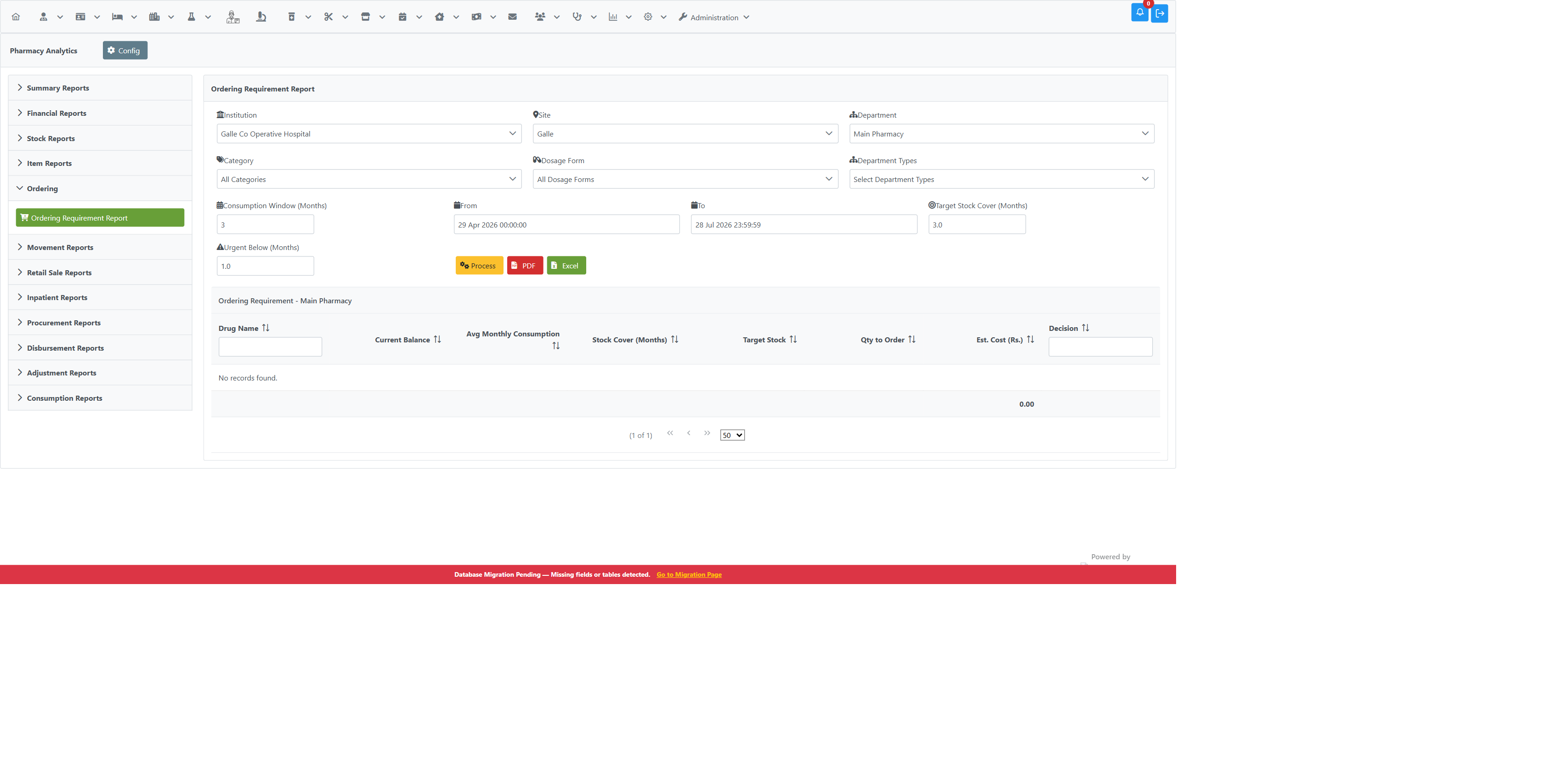
Scope — Institution, Site and Department, plus Category, Dosage Form and Department Types. These behave exactly as they do on the Batch Stock report.
Window and thresholds:
| Input | Purpose |
|---|---|
| Consumption Window (Months) | How far back to measure demand. Changing this moves the From date relative to To |
| From / To | The exact window. Set these directly if you want a specific period rather than a round number of months |
| Target Stock Cover (Months) | How many months of stock you want to hold. Drives Target Stock and the Order threshold |
| Urgent Below (Months) | Cover below this many months is flagged Urgent Order |
The three numeric inputs start from values an administrator sets once (see Configuration); you can change them for a single run without affecting anyone else.
Pick a department. The report is designed to be run for one department at a time, because that is the unit you order for. If you leave Department as All, transfers between departments inside the scope are counted as consumption, which inflates demand — the report shows a notice on screen when this applies.
An item is listed if it currently holds stock in the selected scope or had any movement during the window.
The second half matters: it surfaces items sitting at zero today that were selling well recently. Those are exactly the items you most need to order, and a report showing only current stock would hide them.
- Choose the Institution, Site and Department you are ordering for.
- Narrow by Category, Dosage Form or Department Type if you want.
- Set the consumption window, or the From/To dates directly.
- Adjust Target Stock Cover and Urgent Below if this run needs different thresholds.
- Click Process.
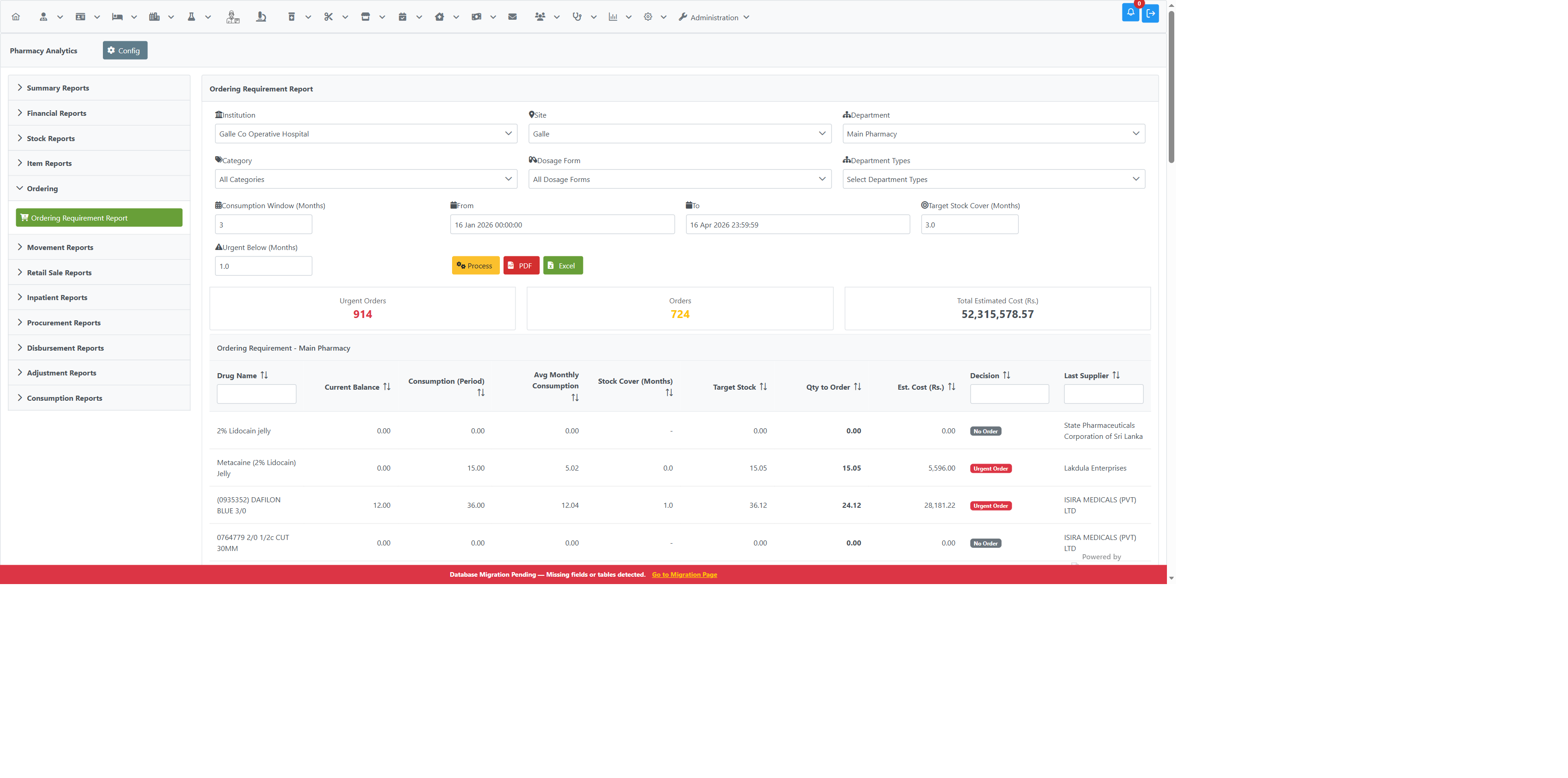
Sort by any column, filter by Drug Name or Decision, and export the whole result with Excel or PDF. The exports carry the active filters in the header so a saved copy stays self-explanatory.
A dash in Stock Cover means the item did not move at all in the window. It is not a fault — there is simply nothing to base a cover figure on.
Estimated Cost of zero on an item you do need to order means no purchase of that item was recorded in the selected scope during the window, so no rate is available to price it. A small marker appears next to the cell. Widen the window or check the item's purchase history.
A very high Stock Cover points at overstock or a lapsed item — worth reviewing even though the report says No Order.
If a warning appears saying some stock movements could not be classified, the figures may understate movement. Report it rather than working around it.
Administrators can set the starting values for every user under Administration → Application Configuration:
| Option | Default |
|---|---|
Pharmacy Ordering - Default Consumption Window Months |
3 |
Pharmacy Ordering - Default Target Cover Months |
3 |
Pharmacy Ordering - Urgent Order Threshold Months |
1 |
Visibility of the tab and the report is controlled by:
| Option | Default |
|---|---|
Pharmacy Analytics - Show Pharmacy Analytics Ordering Tab |
On |
Pharmacy Analytics - Show Ordering Requirement Report |
On |
- Pharmacy Analytics — full report index
- Pharmacy Ordering — purchase order workflows
- Slow / Fast / Non Movement Report — ranking items by movement
- Managing Expiring Items in Pharmacy Inventory