Client Portal Registration
Status: Partially available. Registration (both self-service phone-number and staff-assisted, options 1 and 2 below), login, and password reset are all merged into
development— see GitHub issues #22367 / #22363 / #22370 and pull requests #22372 / #22392 / #22400 — and will appear once your deployment picks up that branch. Password reset by email is intentionally not included yet — see Login and Password Reset below. The other two registration paths (email-OTP, kiosk) are still planned. Tracked under master issue #22359, original ask #398.
The Client Portal lets a patient create their own login account for the HMIS web portal, instead of every portal account having to be set up by hospital staff one at a time. Once registered, a patient logs in with their phone number or email plus a password — the same way hospital staff log in today, but as a separate, patient-only account type that has none of the staff menus or permissions.
Registration is designed around one rule: a portal account always attaches to a person who is already known to the hospital, or becomes known to the hospital at the moment of registration. There is no "create an account for a stranger with no visit history" path — every account traces back to a specific patient record.
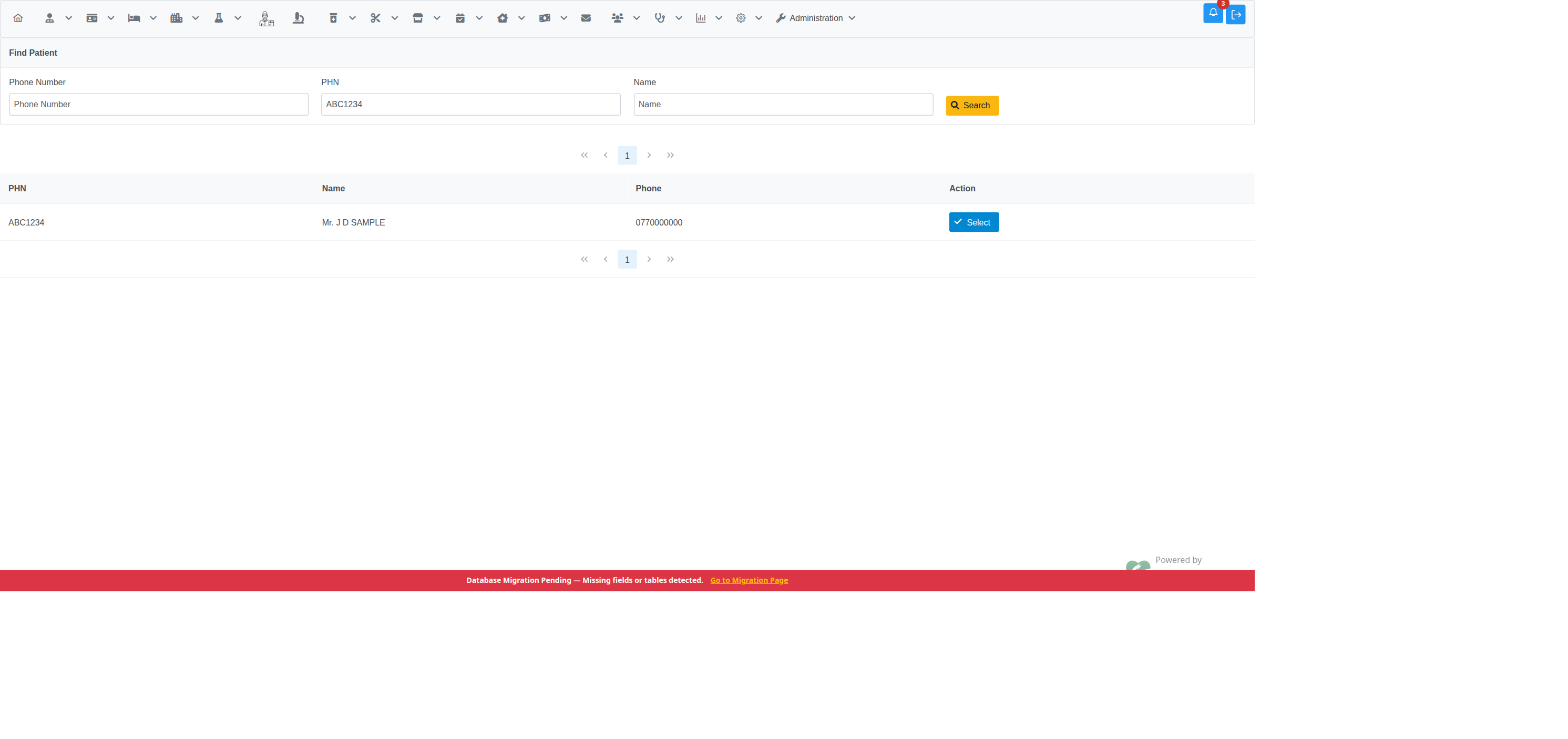
If you're at the hospital or on the phone with a staff member, they can create your portal account for you directly from their own staff login — no OTP needed, because the staff member verifies who you are in person or by phone. Tracked in #22363, pull request #22392.
For staff: this is an internal admin screen, reached via
Administration → Create Client Portal Account (requires the
ClientPortalCreateAccount privilege — see
For Administrators below). Search for the patient by
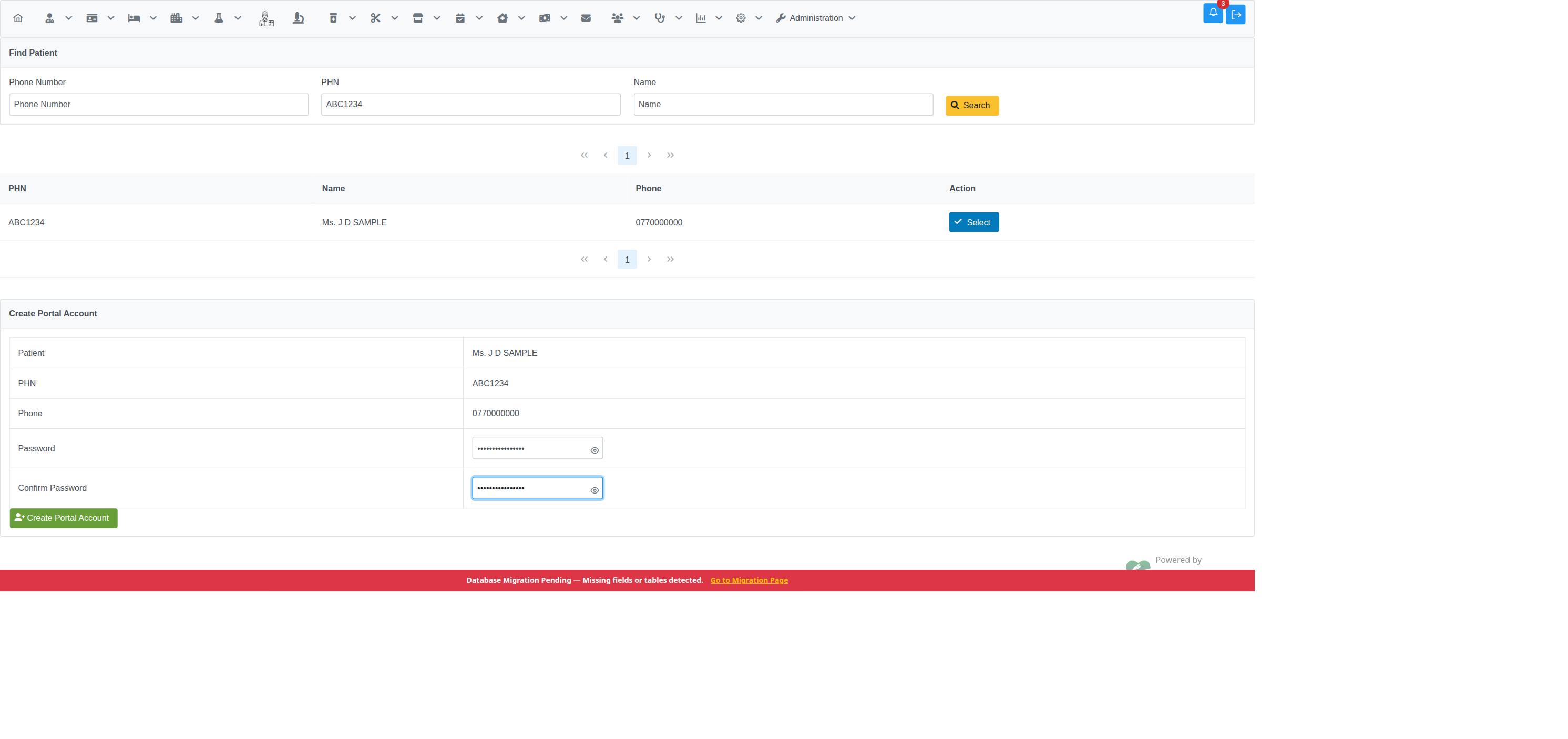
phone number, PHN, or name, select them from the results, then set a
password on their behalf:
| Step 1 — search and select | Step 2 — set password |
|---|---|
 |
 |
| Step 3 — confirmation |
|---|
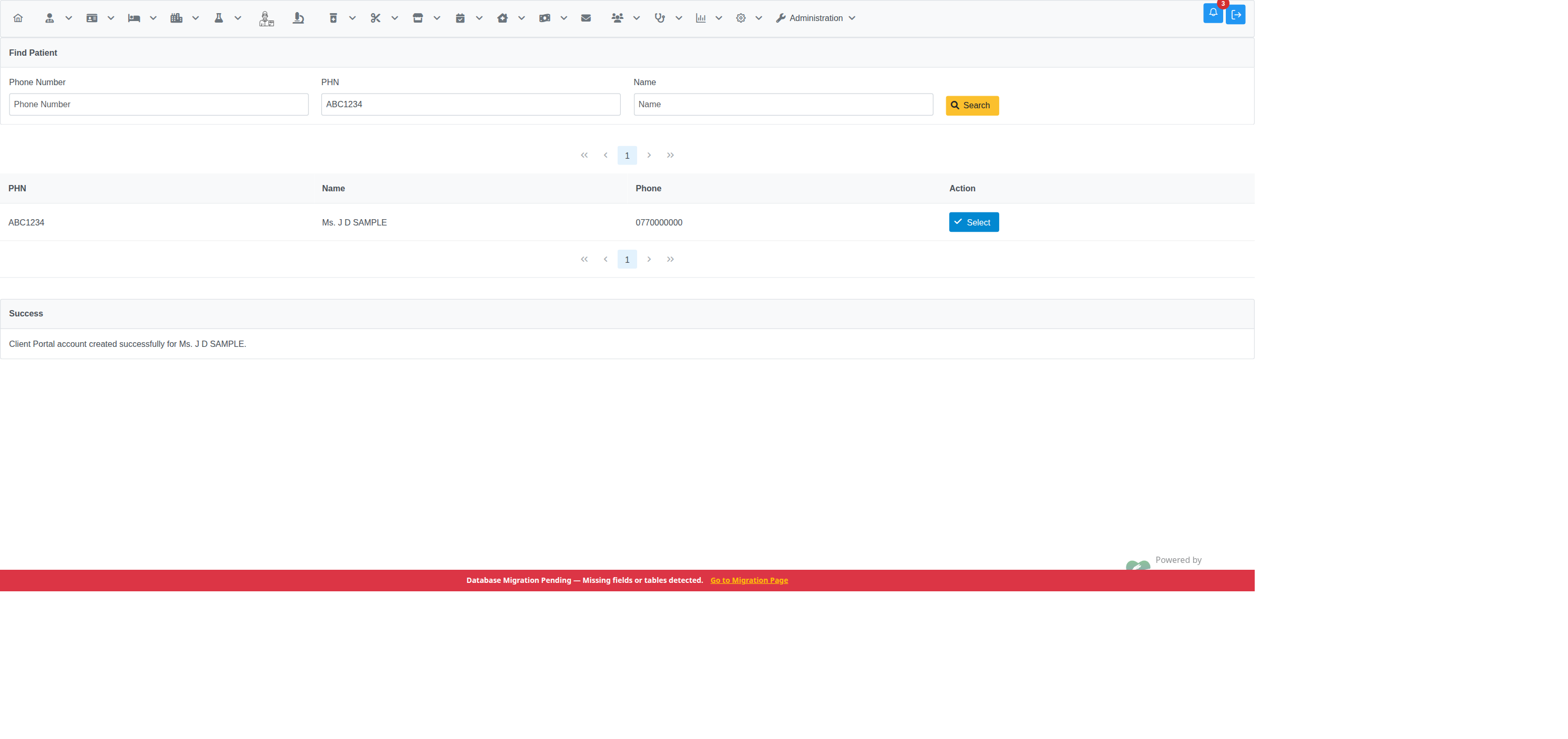 |
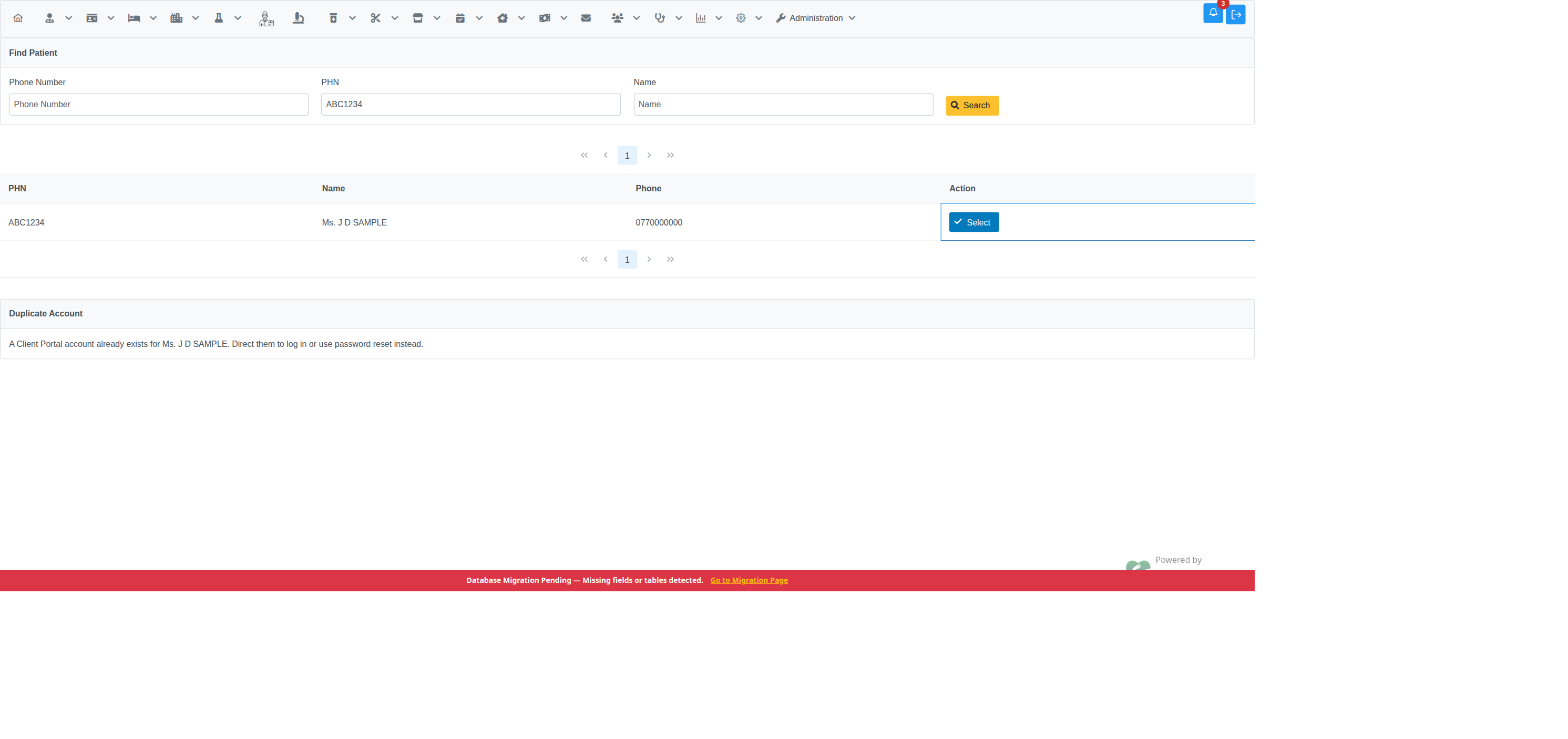
Unlike the phone-OTP path, there's no multi-match picker here — searching directly and picking a row from the results is the disambiguation step, so a shared household phone number isn't a special case for this channel. If the selected person already has an active portal account, the screen blocks creating a second one and points staff to login/password reset instead:
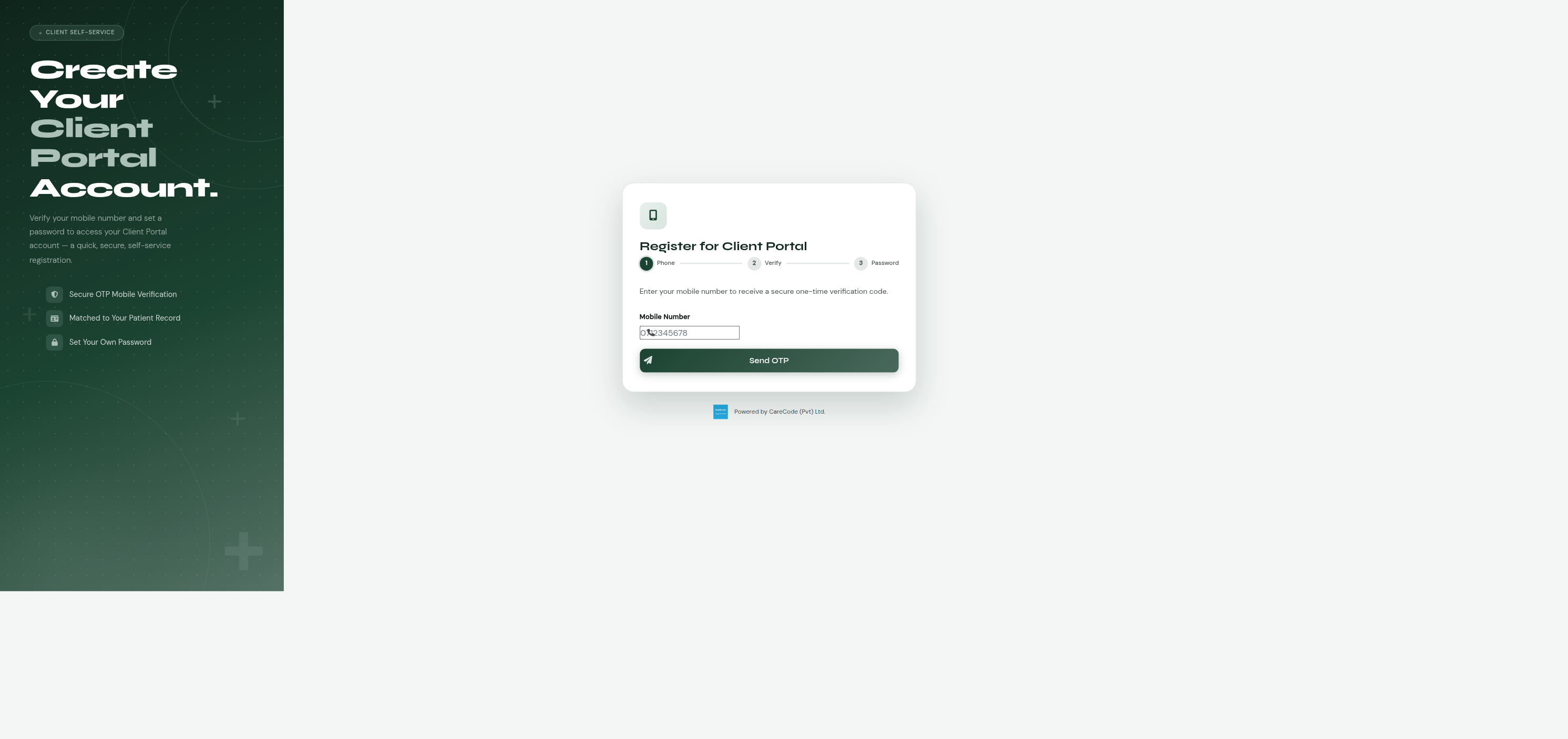
If your phone number is already on file at the hospital (from a previous
visit), you can register from home at /client_portal/register_phone.xhtml:
- Enter your phone number.
- The hospital sends you a one-time code (OTP) by SMS.
- Enter the code to verify it's really your phone.
- Set a password for your new account.
| Step 1 — enter phone number | Step 2 — enter OTP |
|---|---|
 |
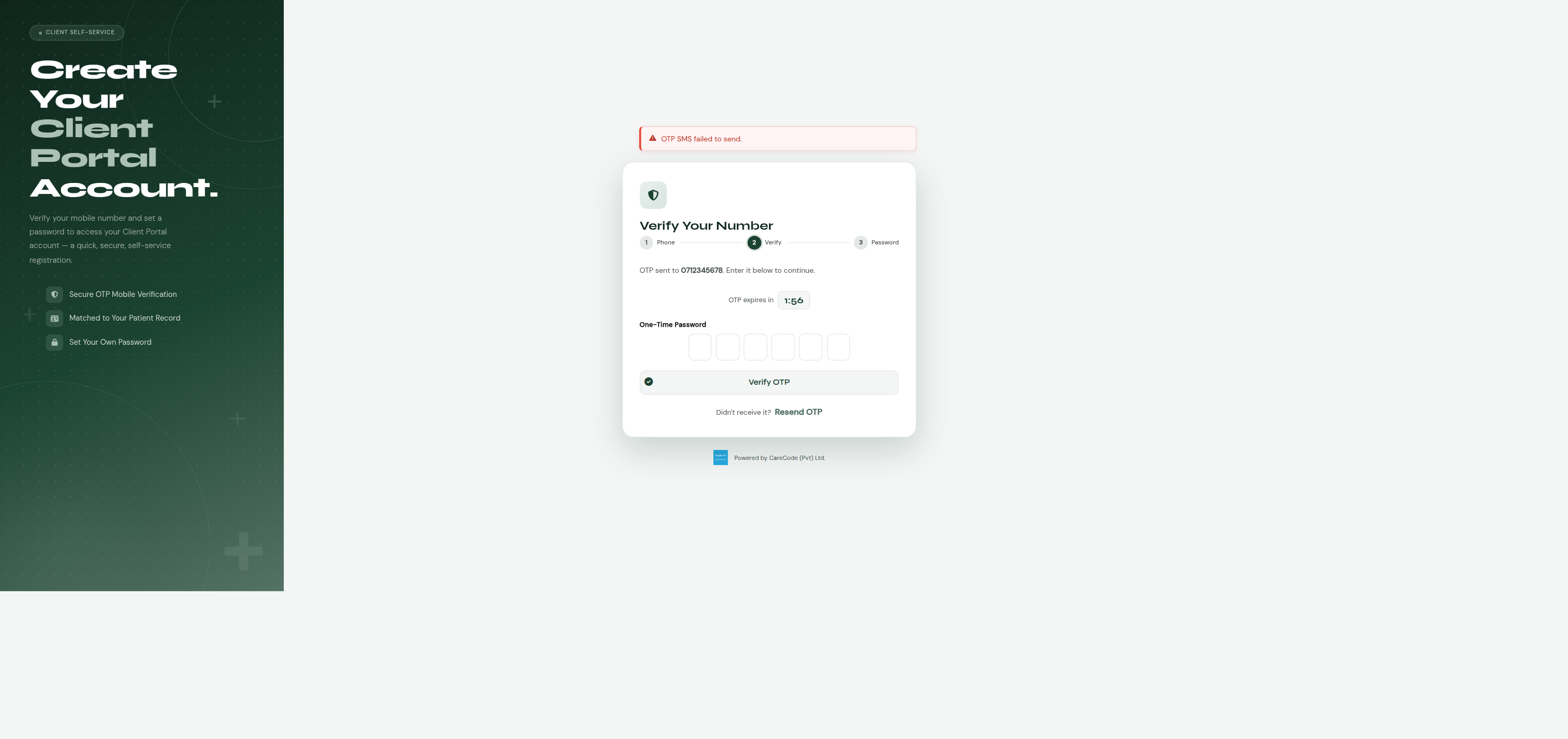 |
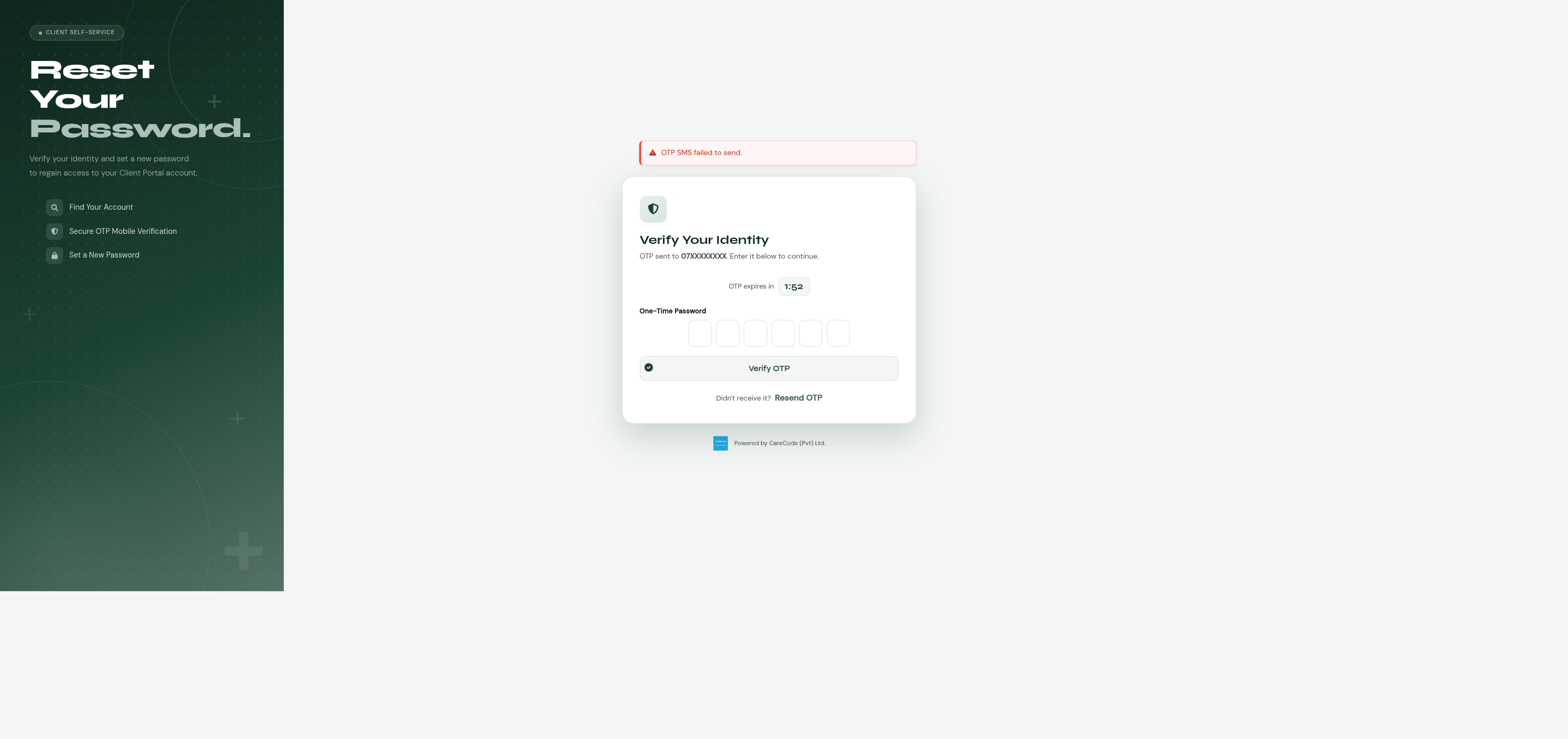
The "OTP SMS failed to send" banner in the screenshot above is a local/dev-only artifact — it appears when no SMS gateway is configured for the environment. On a properly configured deployment the OTP is delivered by SMS and this message doesn't appear. See Troubleshooting below.
If your phone number isn't on file yet, this path won't find you:
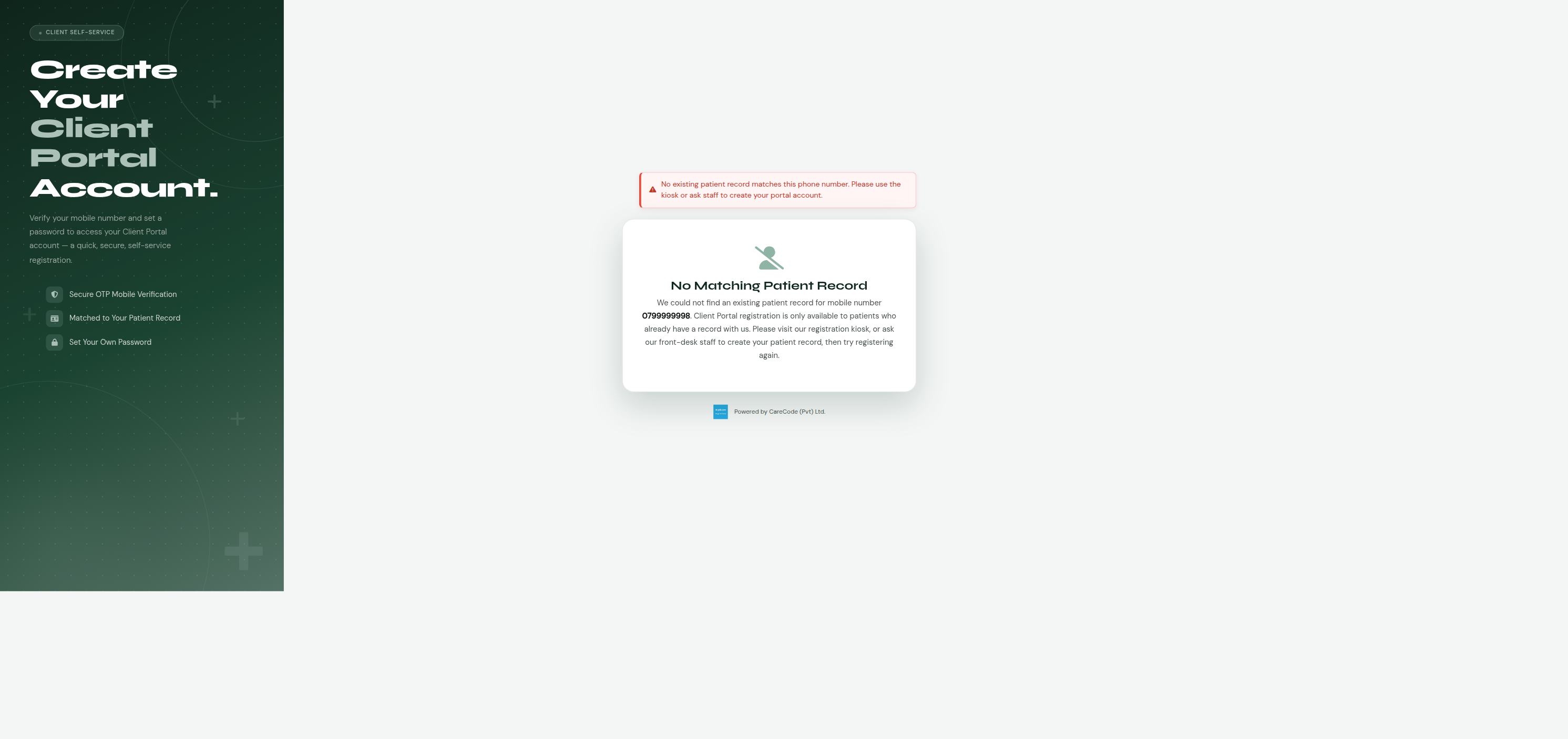
— see the Kiosk option below (once built), or ask staff (option 1, once built).
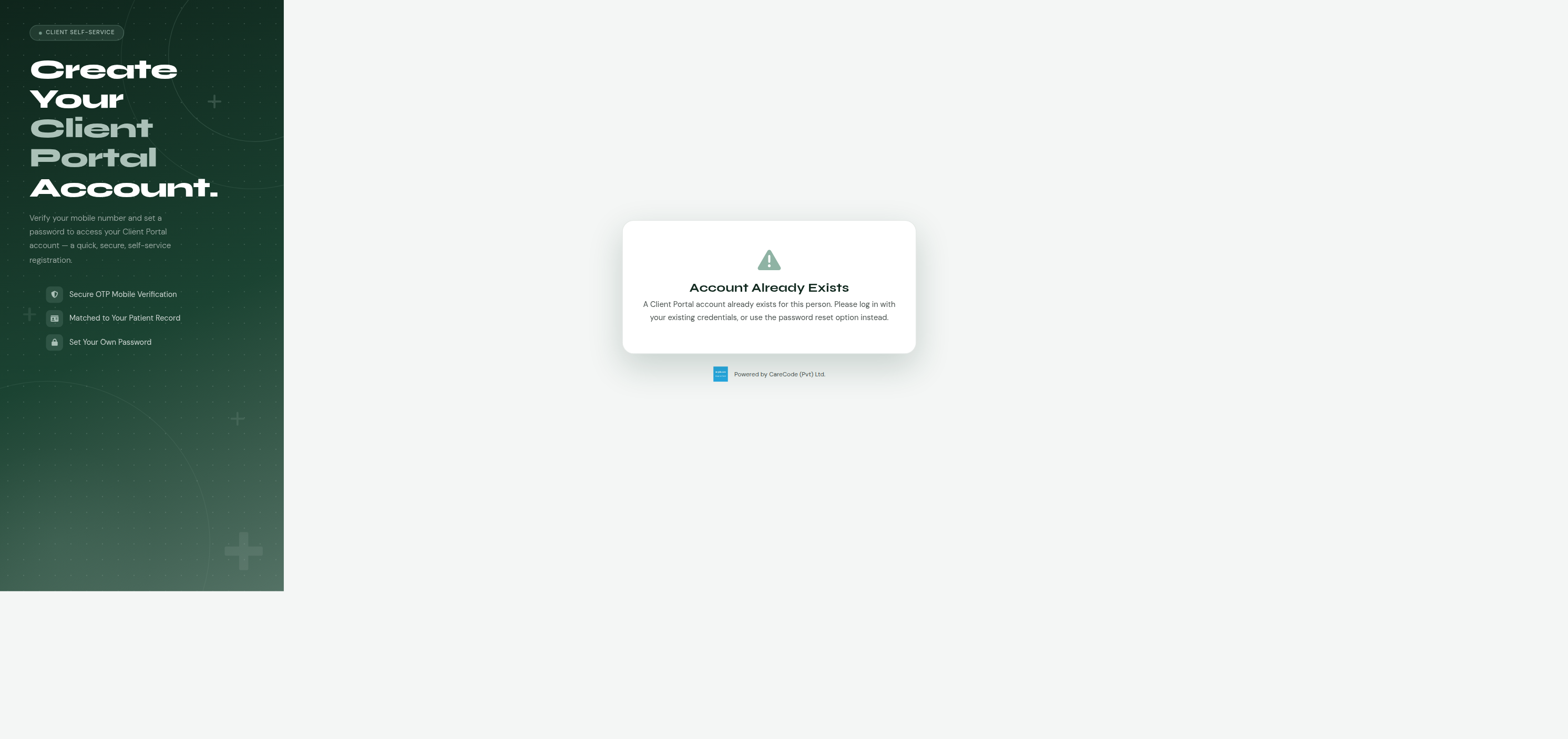
If you already have a portal account for that person, trying to register again shows a message telling you an account already exists instead of creating a duplicate:
Same idea as the phone method, but with an email instead: your email must already be on file, you'll receive a one-time code by email instead of SMS, and you verify it the same way before setting a password. Not built yet — tracked in #22368.
Hospitals will be able to set up a self-service registration terminal in the lobby or reception area (restricted to that terminal's network so it can't be used remotely). The kiosk will still verify you by OTP, but — unlike registering from home — the phone or email you enter won't have to already be on file. If it isn't, the kiosk will be able to create your patient record on the spot as part of registering your account. This will be the only registration path that can sign up someone with no prior hospital visit at all. Not built yet — tracked in #22369.
Many households — especially those with elderly parents or young children — share a single phone number. The phone-registration path (option 2, available now) accounts for this: when you verify a shared phone number by OTP, if more than one patient record is linked to that number, you'll be shown a list of the people registered under it and asked to pick who you are before continuing. The one-time code verifies the phone, not the person — picking yourself from the list is a separate step afterward.
You set a password during registration. Future sign-ins use your phone or email plus that password — the one-time code is only needed at registration, and again if you ever need to reset a forgotten password.
Once the landing page exists (#22371), signing in will show your hospital's name, address, and contact details, along with a welcome message. Features like viewing your bills, appointments, or lab reports are not part of this first version — those will be added in later updates. Until then, logging in shows a simple "you're logged in" confirmation (see below).
Once you have a Client Portal account (via any registration channel above),
sign in at /client_portal/login.xhtml with your phone number or email
plus the password you set at registration:
| Login form | After logging in |
|---|---|
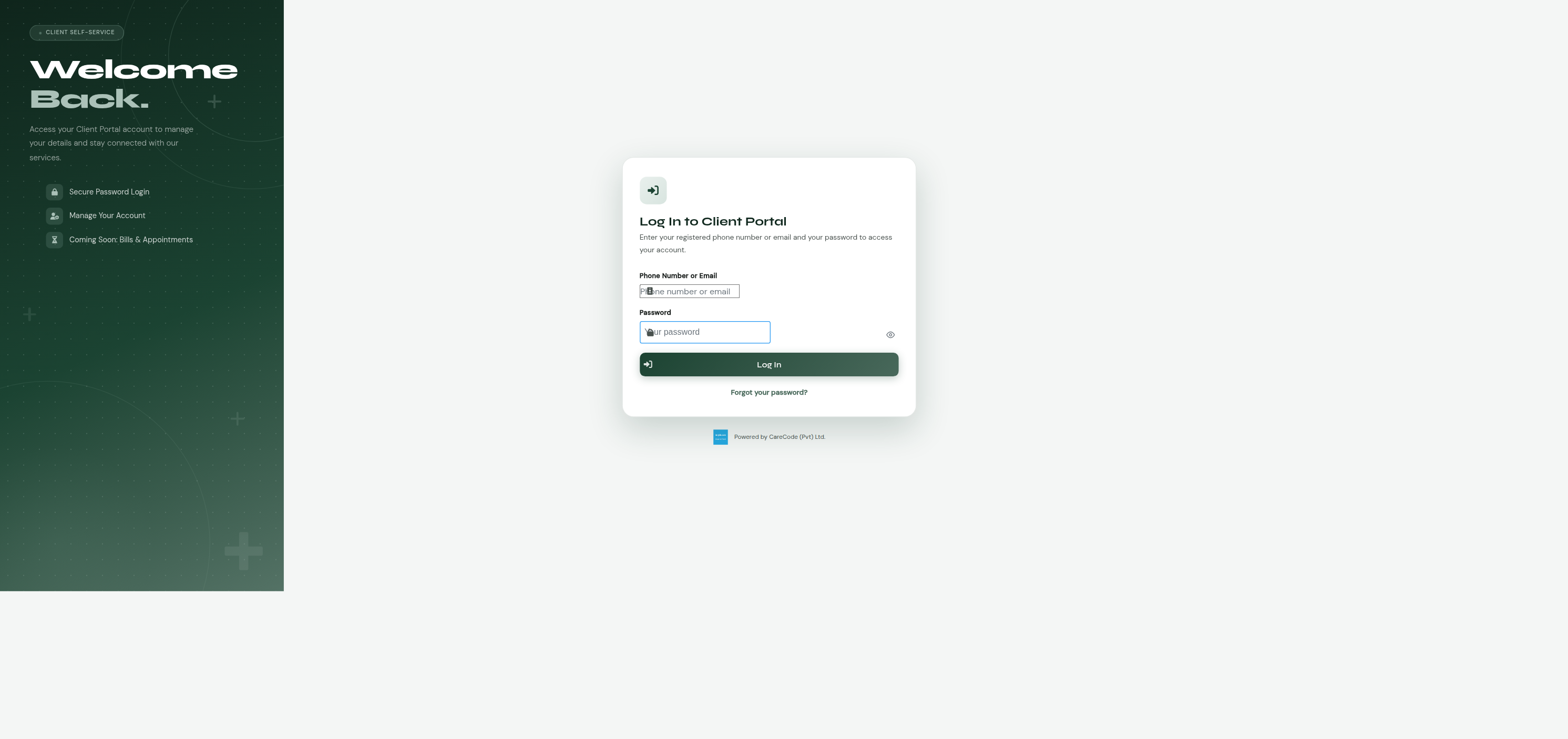 |
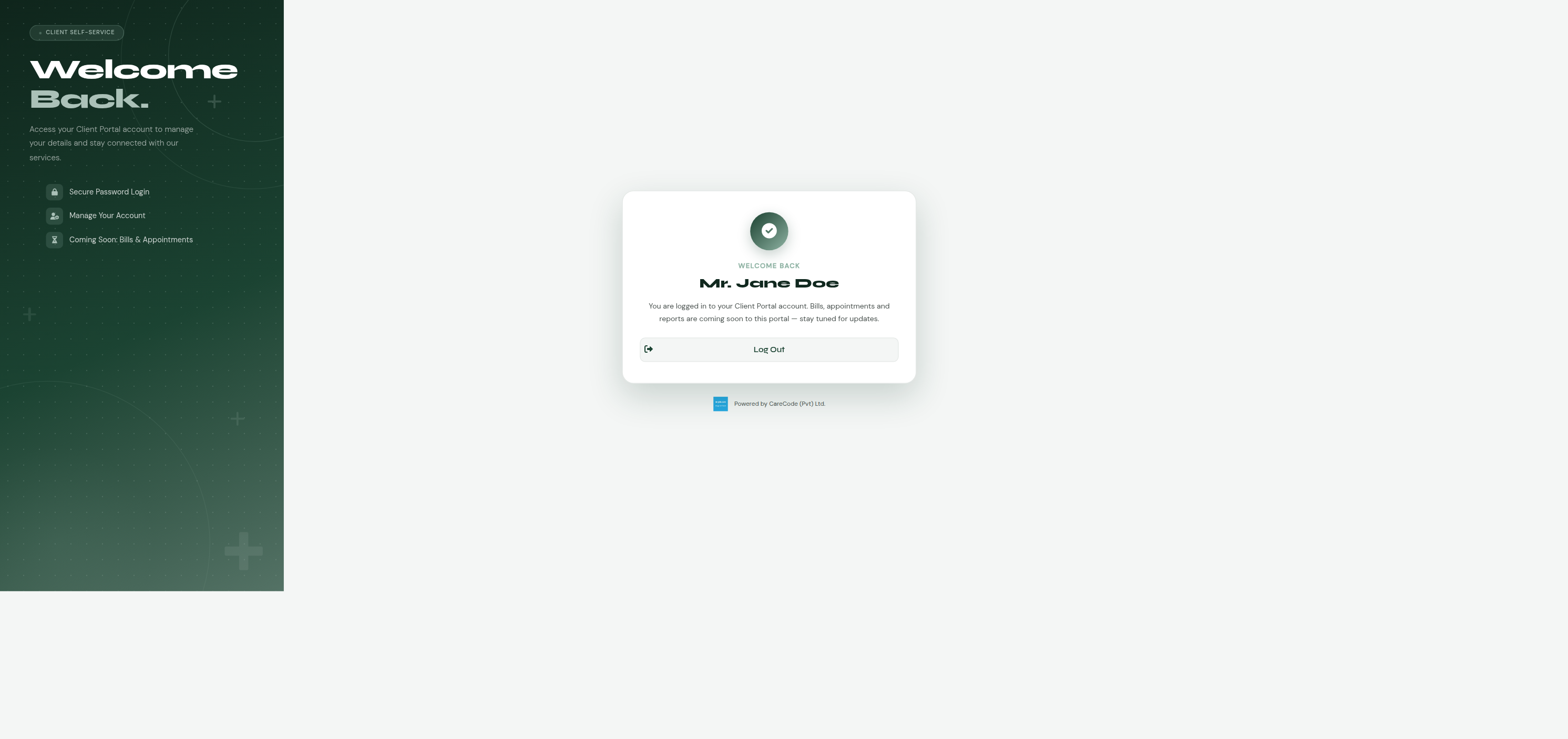 |
There's no landing page yet (#22371 is still planned) — logging in shows a simple confirmation card with your name and a note that bills, appointments, and reports are coming soon, plus a Log Out button.
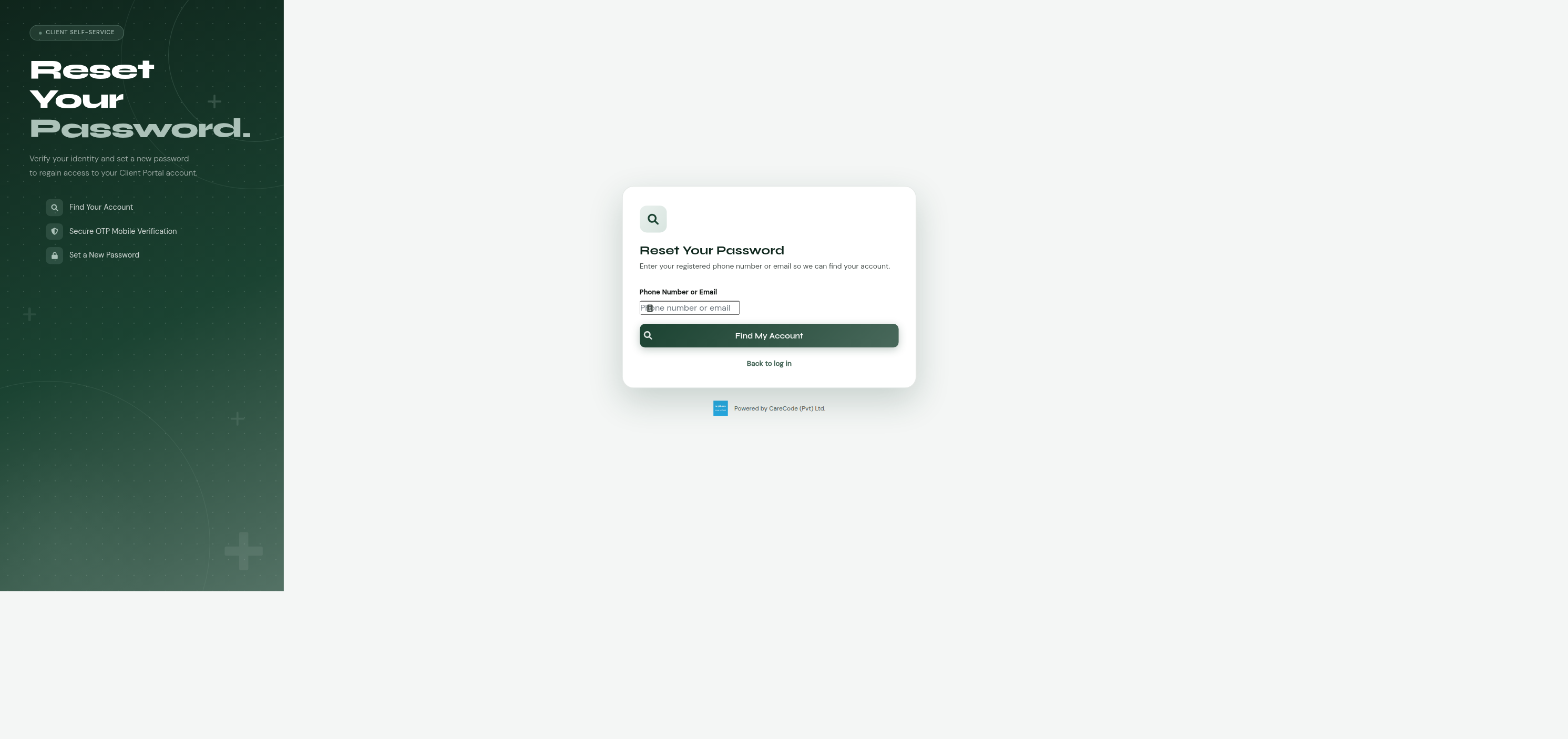
If your phone number is shared with other family members who also have
accounts, or you simply forget your password, use Forgot your
password? on the login page (or go directly to
/client_portal/reset_password.xhtml):
- Enter the phone number or email on your account.
- If more than one account matches (shared household phone), pick which one is yours — same picker pattern as the registration flow.
- The hospital sends a one-time code (OTP) to that phone number.
- Enter the code, then set a new password.
| Enter phone/email | Verify OTP | Reset complete |
|---|---|---|
 |
 |
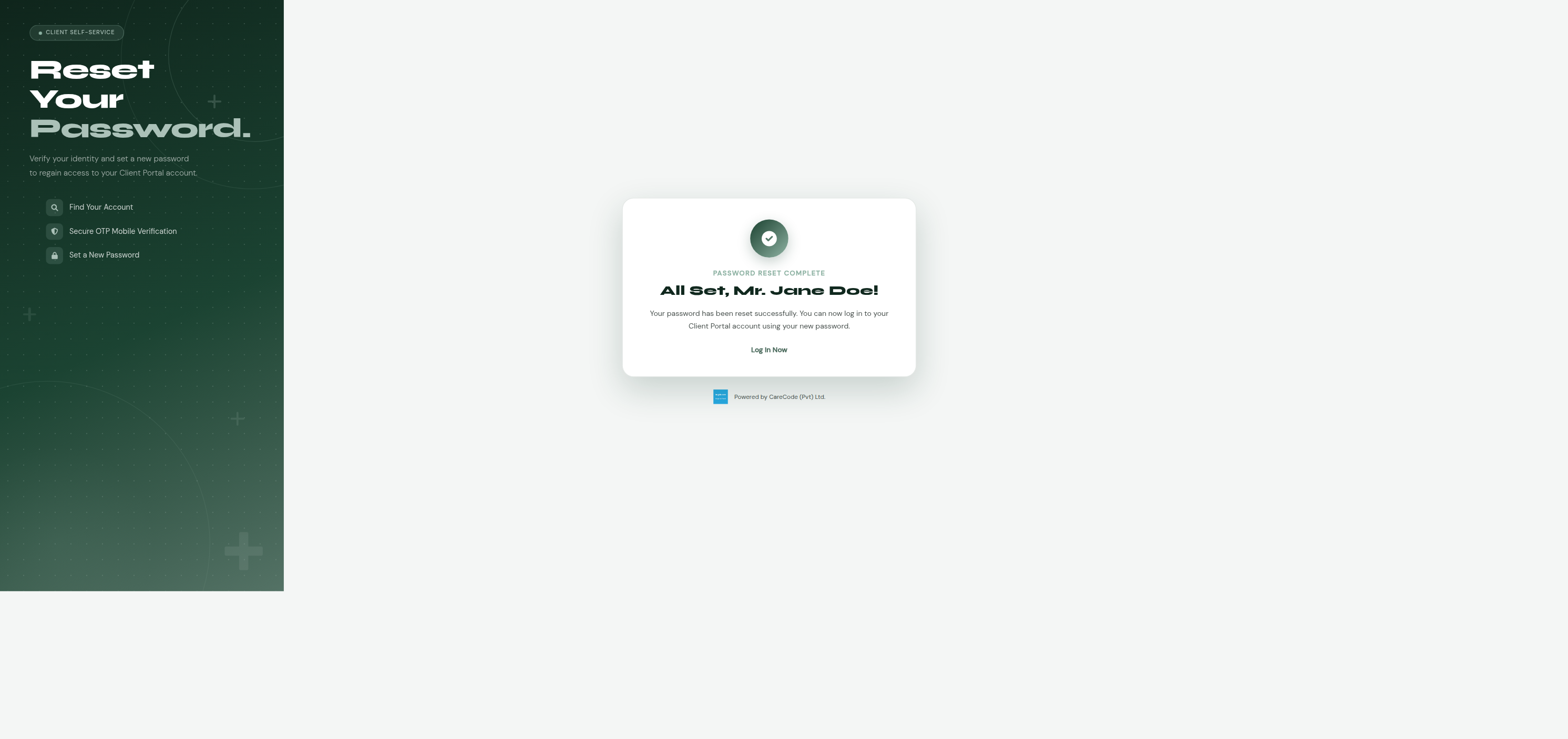 |
Password reset by email is not available yet. If your account's contact on file is a phone number, reset works as described above. If it matches only by email (not currently possible until the email-OTP registration channel, #22368, ships), you'll see a message explaining email reset isn't available yet and to try your phone number, or contact support.
Staff who should be able to create Client Portal accounts on a patient's
behalf need the ClientPortalCreateAccount ("Create Client Portal
Account") privilege, assigned the normal way: Administration → Manage
Users → (select the user) → Manage Privileges → List Privileges, check it
under the Administration section of the privilege tree, then Update
User Privileges. As with any privilege change, the affected staff member
needs to log out and back in for it to take effect (privileges are cached
per session at login).
The phone-registration channel reads these configuration keys (via the usual application configuration screen), all optional with sensible defaults:
| Key | Default | Purpose |
|---|---|---|
Client Portal - OTP Length |
6 | Digits in the generated OTP. Values below 4 or above 12 fall back to the default. |
Client Portal - OTP Timeout Minutes |
2 | How long an OTP stays valid after it's sent. |
Client Portal - Custom SMS Body Message for Send OTP |
(built-in message) | Optional custom SMS template for registration OTPs. Use {otp} as a placeholder for the code. |
Client Portal - Custom SMS Body Message for Password Reset OTP |
(built-in message) | Same idea, for password-reset OTPs — kept as a separate key so the two messages can be worded differently (e.g. "registration code" vs "password reset code"). |
Client Portal - Theme Color |
#1b4332 (forest green) |
Accent color for the registration page. |
Client Portal - Logo URL |
(none — shows a generic icon) | Optional hospital logo shown on the registration page. |
OTP delivery uses the same SMS gateway configuration as the rest of the system (channel-booking OTPs, reminders, etc.) — there's nothing phone-registration-specific to configure for the gateway itself.
- "OTP SMS failed to send" appears for every registration attempt — the environment's SMS gateway isn't configured or is failing. Check the usual SMS gateway configuration keys. The registration flow still lets the patient proceed to the OTP-entry screen even when delivery fails (so the flow is testable without a gateway), so this message alone doesn't block testing — but it does mean no real patient can complete registration until the gateway is fixed.
-
"No Matching Patient Record" — the phone number the patient entered
doesn't match any active
Patientrecord's phone number on file. Ask the patient to confirm the exact number registered with the hospital, or direct them to update their contact details in person. This channel deliberately does not create new patient records — only the (future) kiosk channel will. - "Account Already Exists" — the selected person already has an active portal account. Direct them to log in, or use Forgot your password? if they don't remember their password.
-
A shared household phone number shows the wrong person, or too many
people — this reflects whichever
Patientrecords in the system have that phone number on file; it's not a bug in the picker itself. Data cleanup (correcting phone numbers on stale/duplicate patient records) is the usual fix. - "Incorrect phone/email or password" at login — deliberately generic (doesn't reveal whether the phone/email matched an account at all, to avoid account enumeration). If the patient is sure of their phone/email, direct them to password reset.
- "Email Reset Not Yet Available" at password reset — expected until the email-OTP registration channel (#22368) ships and accounts can have a verified email on file. Direct the patient to reset via phone number instead, or contact support if they only have an email on file.
-
"No Matching Account" at password reset — no active
ClientAccountmatches that phone/email at all (different from "Account Already Exists" during registration, which means an account does exist). Direct them to register instead.
This feature is being built in phases, each with its own GitHub issue and pull request under master issue #22359:
| Phase | Issue | Status |
|---|---|---|
| Foundation (entity, facade, enums, pure utilities) | #398 | Merged — PR #22358 |
| Self-service phone-OTP registration | #22367 | Merged — PR #22372 |
| Staff-assisted registration | #22363 | Built, verified — PR #22392 open |
| Login and password reset | #22370 | Merged — PR #22400 |
| Self-service email-OTP registration | #22368 | Not started |
| Kiosk registration | #22369 | Not started |
| Landing page, default institution, deferred DDL regen | #22371 | Not started |
Key implementation pieces from the phone-OTP channel, reusable by the remaining channels:
-
ClientAccountentity (com.divudi.core.entity.ClientAccount) —@ManyToOnetoPerson, intentionally not@OneToOne(a retired account and a new active one can coexist). -
ClientAccountFacade.createIfNoActiveAccount(personId, newAccount)— locks thePersonrow (PESSIMISTIC_WRITE) for the duration of the check-then-create, preventing two concurrent registrations for the same person from both succeeding. First implementation of this locking pattern; later channels should reuse it rather than re-implementing. -
ClientPortalMatcher.classify(List<Patient>)— pure 0/1/many match classifier (com.divudi.core.util). -
ClientPortalOtpGenerator.generate(int length)— pure OTP code generator. -
ClientPortalPhoneRegistrationController(com.divudi.bean.clientportal,@ViewScoped) — the OTP send/verify/match/register controller for this channel; a template for the email-OTP and kiosk controllers. -
client_portal/register_phone.xhtml— standalone public page (no internal template), matching the pre-existingpatient_portal/portal_login.xhtmlstructural/CSS pattern. -
MessageType.ClientPortalRegistrationOTP— distinct from the pre-existingMessageType.PatientPortalOTPused by channel-booking payments.
Staff-assisted channel (#22363) additions, reusable by remaining channels:
-
ClientPortalStaffRegistrationController(com.divudi.bean.clientportal,@ViewScoped) — no OTP step; multi-criteriaPatientsearch (phone/PHN/name) built as a small dedicated JPQL query rather than reusing the large pre-existingPatientController(OPD-billing-flow-specific, not a good fit here). -
admin/client_portal/staff_assisted_registration.xhtml— template for any internal, staff-facing Client Portal admin screen: uses the normal app template (ui:composition template="/resources/template/template.xhtml"), unlike the standalone public pages (client_portal/register_phone.xhtml,patient_portal/portal_login.xhtml). - New privilege
Privileges.ClientPortalCreateAccount, registered as a sibling under the existingadminNodeinUserPrivilageController.createPrivilegeHolderTreeNodes()— the pattern to follow for any further admin-only Client Portal screens.
Login and password reset (#22370) additions, reusable by remaining channels:
-
ClientPortalSessionController(com.divudi.bean.clientportal,@SessionScoped) — holds the logged-inClientAccount, entirely separate from the staffSessionController. First session-scoped bean in this package; any future client-facing page that needs to know "who's logged in" should inject this rather than creating a parallel mechanism. -
ClientAccountFacade.findByVerifiedPhoneOrEmail(String)— returns all active accounts matching a phone or email exactly (can be more than one for a shared household phone). Login disambiguates by checkingSecurityController.matchPassword(...)against each candidate rather than showing a picker, since only the real account holder knows their own password; password reset shows a picker (same pattern as registration) since there's no password yet to disambiguate by at that point. -
MessageType.ClientPortalPasswordResetOTP— distinct fromClientPortalRegistrationOTPso a phone's registration-OTP and password-reset-OTPSmsrows never cross-match. -
ClientPortalLoginController/ClientPortalPasswordResetController(com.divudi.bean.clientportal,@ViewScoped) — templates for any future auth-adjacent Client Portal controller. -
client_portal/login.xhtml/client_portal/reset_password.xhtml— standalone public pages, same pattern asregister_phone.xhtml. -
Known gap, by design, not a bug: password reset only supports phone/SMS OTP for now. No
ClientAccountcan have a verified email yet (the email-OTP registration channel, #22368, hasn't shipped), so email-based reset would be unreachable/untestable code — building it now would encroach on #22368's scope. If a future account is matched only by email, the reset flow shows an explicit "not available yet" message rather than silently failing.
Design spec and plans:
- Design spec:
docs/superpowers/specs/2026-07-23-client-portal-registration-design.md - Foundation implementation plan:
docs/superpowers/plans/2026-07-23-client-portal-registration-foundation.md - Handover notes for the next phase:
docs/superpowers/handover/2026-07-24-client-portal-registration-handover.md
Known, deliberate gaps (not bugs): the CLIENTACCOUNT table's DDL
regeneration is deferred until all six child issues land (owned by
#22371, so the full schema diff is captured in one pass); OTP
attempt-limiting/cooldown/atomic-consumption hardening was flagged in
code review and deliberately deferred rather than scope-creeping the
phone-OTP PR — see the discussion on PR #22372 for the reasoning.