Inpatient Event History
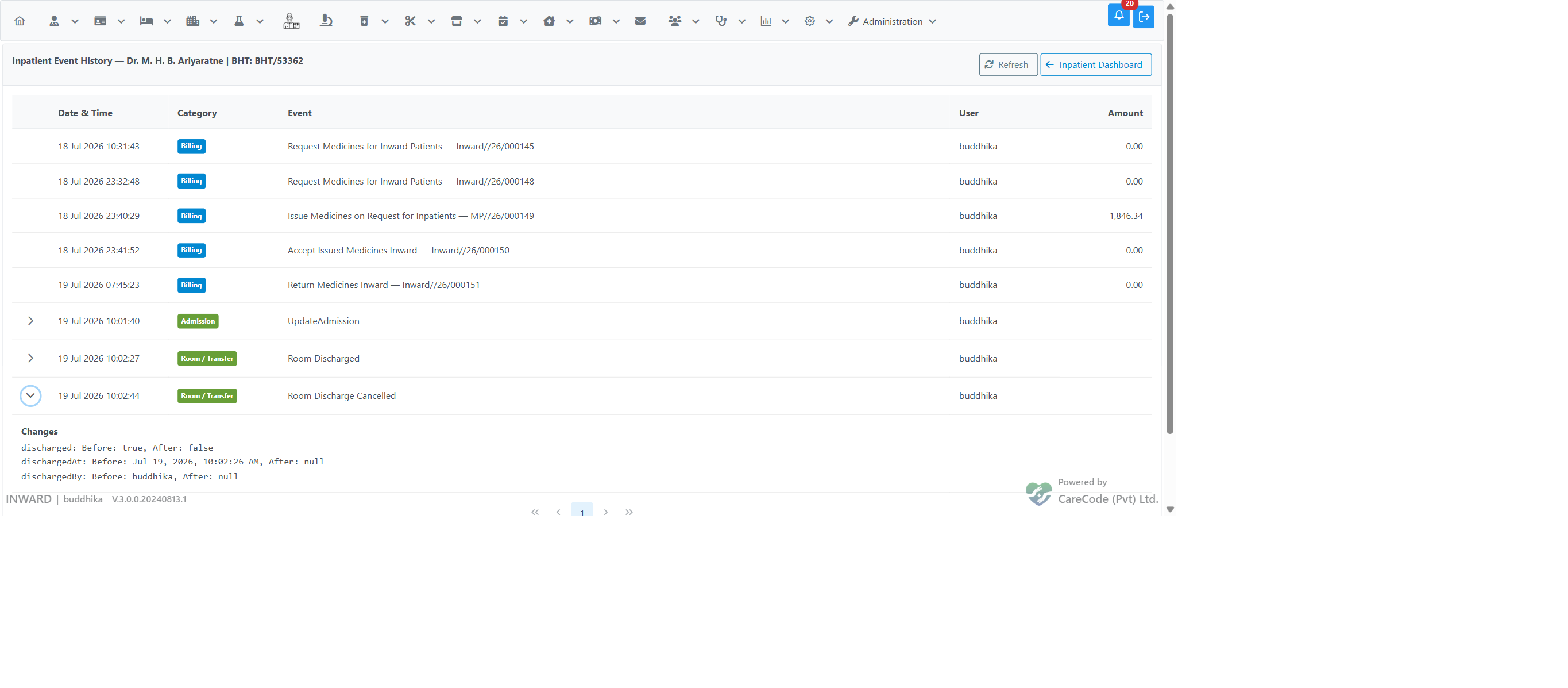
The Event History page shows everything that has happened to an inpatient admission as a single chronological timeline — from admission to final bill settlement. It merges two kinds of events into one story: billing events (services, pharmacy issues, professional fees, deposits, refunds, surgeries, final bill and their cancellations) and non-billing actions (admission edits, room changes and discharges, payment and credit detail changes, discharges and their cancellations, transfers, document uploads, allergy changes, and more), each with the user who performed it and the exact time.
- Answering "who did this and when?" — a discharge was cancelled, a room was changed, a discount appeared on the final bill, a guardian name was edited — the timeline shows the responsible user and timestamp for each action.
- Reviewing an admission before settlement — read the whole story top-to-bottom to confirm the charges, room stays, and adjustments match what actually happened.
- Investigating disputes or complaints — reconstruct the exact sequence of events for a BHT, including actions that were later reversed (both the original action and its cancellation appear as separate rows).
- Audit and supervision — ward managers and administrators can verify that discharges, cancellations, and financial adjustments were done by authorized staff.
- Go to Inpatient > Admissions Search and open the patient's admission.
- On the Inpatient Dashboard, find the Clinical Data column, Reports & Records section.
- Click Event History.
- The timeline opens, oldest event first. Each row shows:
- Date & Time — when the action happened
- Category — a coloured tag: Billing, Admission, Room / Transfer, Discharge, Payment / Credit, Financial, or Other
- Event — what happened (for bills: the bill type and bill number; for actions: the action name)
- User — who did it
- Amount — the bill value (billing rows only)
- For non-billing actions, click the arrow at the left of the row to expand it and see exactly what changed — each field with its value before and after the action.
- Click Refresh to reload the timeline while working, or Inpatient Dashboard to go back.
- Billing rows (blue tag) come from the bills themselves — for example "Issue Medicines on Request for Inpatients — MP//26/000149 … 1,846.34". A cancelled bill stays in the list marked (Cancelled), and the cancellation itself appears as its own row, so nothing disappears from the story.
- Action rows (green tag) are recorded automatically when staff perform an action. For example, if a room discharge was cancelled, expanding the row shows: discharged: Before: true, After: false and the discharge time and user that were cleared.
- Reversed actions always leave both entries: the original action and its cancellation, each with its own user and time.
- "No events recorded for this admission yet." — the admission has no bills and no recorded actions so far (normal for a brand-new admission).
- "You are not authorized to view the event history" — your user account does not have the required privilege. Ask your administrator (see Configuration below).
- "No admission selected" — the page was opened without an admission in context. Go back to Admissions Search, open the patient, and use the Event History button on the dashboard.
- Check the timeline before final bill settlement — a quick top-to-bottom read catches wrong rooms, duplicate service entries, and unexpected discounts before the patient is billed.
- Use it instead of asking around — when something on an admission looks wrong, the timeline usually answers who changed it and when, without having to ask each staff member.
- Expand the row before drawing conclusions — the before/after details often explain an action that looks wrong in the summary line (for example a discharge date correction rather than a cancellation).
- Remember that events recorded before this feature was installed will not appear — the story is complete only for actions performed after the upgrade.
- Access is controlled by the Inward Event History View privilege. Assign it under Administration > User Privileges: select the user and department, then tick Inward > Clinical Data Access > Event History View. See Admin — Inpatient Privileges and Access.
- Users without the privilege do not see the Event History button on the dashboard at all.
- The audit database must include the encounter-link column introduced with this feature. If action rows never appear (only billing rows), ask your system administrator to run Administration > Manage Metadata > Add Missing Fields with the latest schema from the Database Schema DDL Generation Guide.
| Problem | Likely cause | What to do |
|---|---|---|
| Event History button is missing on the dashboard | Your user lacks the Inward Event History View privilege | Ask an administrator to assign it, then log out and log in again |
| Timeline shows bills but no actions (room changes, discharges, edits) | Actions happened before the feature was installed, or the audit database is missing the new column | Actions performed after the upgrade will appear; for the column, see Configuration above |
| An action row shows no expand arrow | Billing rows do not expand — the bill itself is the detail. Only action rows have before/after changes | Open the bill from its own search/report page if you need the full bill content |
| The user column is empty on a row | The action was recorded by a background process, or the user account has been removed | The timestamp and the change details are still valid |
| A recent action is not showing | The page was loaded before the action happened | Click Refresh |
Q: Does the timeline show actions from other departments? A: Yes. Every recorded action and every bill for this BHT is shown regardless of which department performed it — that is the point of the single story.
Q: Can I edit or delete an event from the timeline? A: No. The timeline is a read-only audit record. If an action was wrong, perform the correcting action through the normal workflow — the correction will appear as a new row.
Q: Why do I see both a discharge and a "Discharge Cancelled" row? A: By design. Reversals never erase history; the original action and its reversal are both kept so the full story stays intact.
Q: Do baby admissions have their own timeline? A: Yes. Each BHT has its own event history. Open the baby's admission profile and use its own Event History button.
Q: What is the difference between this page and the bill search pages? A: Bill searches show only bills. Event History shows bills plus all the non-billing actions (edits, room changes, discharges, credit changes, transfers, documents, allergies) merged in time order.
Related pages: Inpatient Admission Profile (Dashboard) · Admin — Inpatient Privileges and Access · Inpatient — Nursing Discharge · Inpatient — Document Upload