Repository navigation
Clip Extractor Clip List
Mark several clips first and export them all in one go, instead of waiting for each export before marking the next. New in 1.7.0.
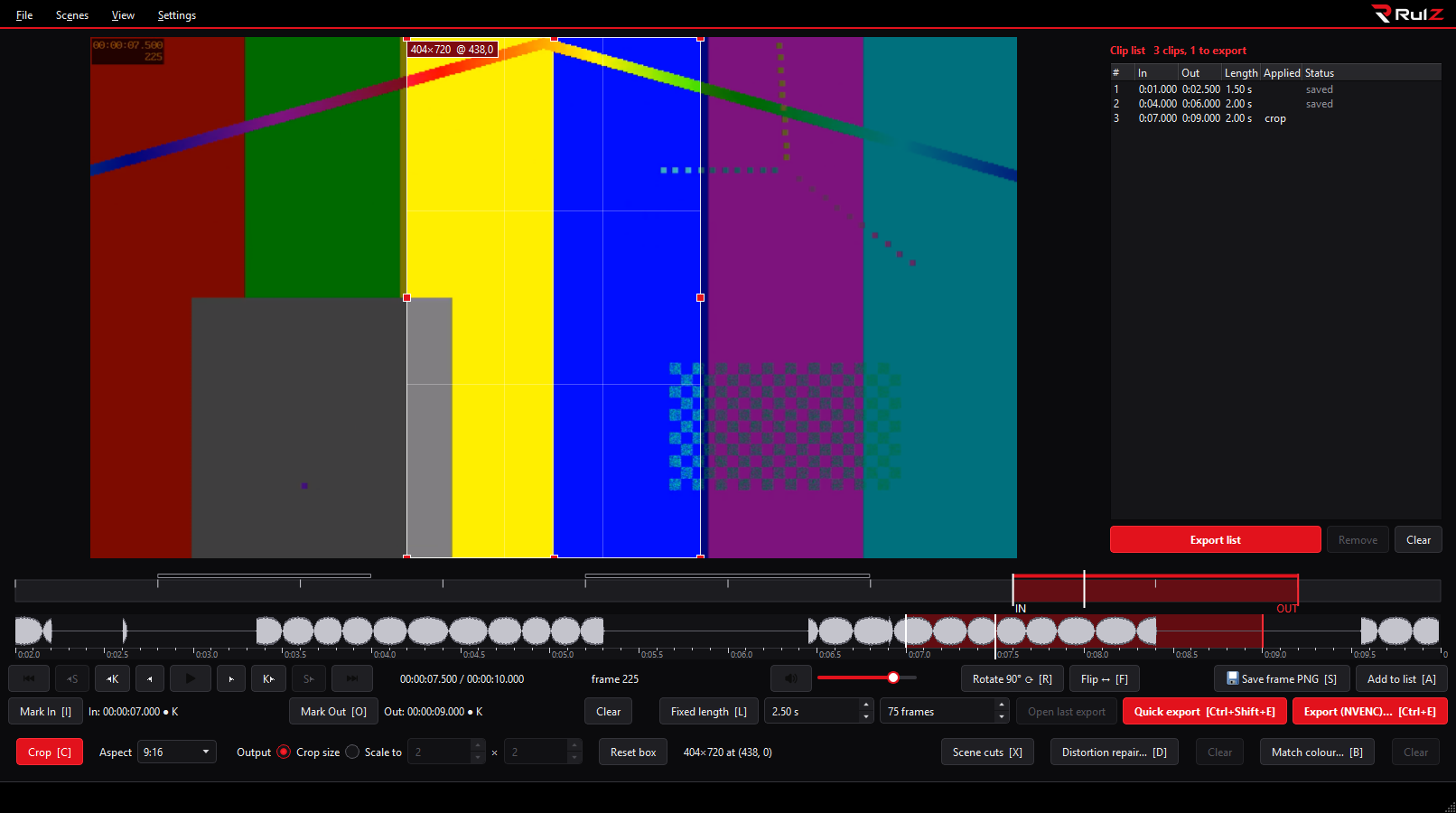
- Select a clip as usual: set In and Out, or turn on Fixed length.
- Press A (or the Add to list button). The clip appears in a list to the right of the video.
- Repeat for every clip you want.
- Press Ctrl+Shift+A (or Export list). The clips are written one after another while you keep working.
Add to list (A) keeps the current selection. Each clip is stored with the picture settings as they are at that moment:
- rotation and flip
- the crop box and the "Scale to" size
- the colour match
- the distortion repair
So you can change any of these for the next clip without touching the clips already listed. For example, add one clip with a crop, move the crop box, and add the next.
Adding a selection that is already in the list does not list it twice. If that clip was already saved, it is put back in line to be exported again.
With Fixed length on, pressing A and then N (Next clip) adds back-to-back clips of the same length.
To list every scene of a video at once, find its scene cuts (X) and press Ctrl+Shift+X.
| Column | Shows |
|---|---|
| # | The clip's place in the list |
| In, Out | Where the clip starts and ends, counted from the video's first frame |
| Length | The clip's length in seconds |
| Applied | What is applied to the picture: "turned" (rotated or flipped), "crop", "colour", "repair". Empty for a plain cut. Hover over a row for the details. |
| Status | Empty while the clip waits, "queued", a percentage while it is being written, "saved" or "failed" |
A strip above the timeline bar shows where the clips are: solid red while a clip waits, outlined once it is saved.
- Double-click a clip to go to it: the In/Out marks (or the fixed-length box) and the playhead move there. This does not bring back the crop, rotation or other settings the clip was added with. To change a listed clip, remove it and add it again.
- Remove takes the selected clips out of the list. Clear empties it, after asking. Exported files are never deleted.
- Right-click a clip for Go to clip, Export again (puts a saved or failed clip back in line) and Remove.
The list is only shown while it has clips in it.
Export list (Ctrl+Shift+A) exports every clip that is not saved yet, one after another, in the background.
- The encode settings are Quick export's (Preferences > Quick export): codec, CQ, preset, audio and frame rate. They are read when you press the button and used for every clip queued by that press.
- A clip is cut losslessly when Quick export is allowed to do that and the clip qualifies (both ends on keyframes, nothing that changes the pixels). Otherwise it is re-encoded with NVENC. See Exporting.
- Files go to the output folder with the usual names.
- The status bar shows which clip is being written ("Exporting clip 2 of 5"), a progress bar and Cancel.
You can keep working while the list exports:
- Mark and add more clips, then press Export list again to queue them.
- Open another video. The export goes on with the first video's clips.
- Quick export and Export wait until the list is done, because one export runs at a time. Export list also waits while a Quick export is running.
Right after opening a large video, Export list may ask you to try again in a moment. The keyframes are still being read then (the status bar says "finding keyframes…"), and the app needs them to tell which clips can be cut losslessly.
A clip that fails is marked "failed" and the rest still export. A message at the end shows the first failure; hover over a failed row to see its own error. The next Export list tries the failed clips again.
Cancel in the status bar stops the clip being written, deletes its partial file and leaves the clips that were not written yet in the list. Clips already saved stay saved. Closing the app does the same.
The list belongs to the video and is saved as you go. Open the video again, also after restarting the app, and its clips are back with their status.
- Lists are stored per user in
%LOCALAPPDATA%\SimpleCut\clip-lists, not next to your videos. - A list is not loaded when the video file has changed since (another size or date), because its times would point at other frames. The status bar says so. The old list is kept in that folder as a
.oldfile the first time you add a clip for the new file. - The same happens when some stored clips can't be read: the readable ones load, the status bar says how many were left out, and the original file is kept as
.old. - Lists of videos that have been gone for 90 days are removed.
- A listed clip can't be edited; remove it and add it again.
- Every clip of one Export list press uses the same encode settings. To export some clips with other settings, export those with the Export dialog instead.
- Running two copies of the app on the same video at the same time is not supported: each copy saves its own version of the list.
- Exporting: lossless vs NVENC, Quick export settings, file names
- Fixed-Length Clips: cut a whole video into equal clips
- Scene Cuts: one clip per scene
- Keyboard Shortcuts