Repository navigation
Trainer Optimizer Ask AI
The Ask AI tab sends what the app knows about your model, and your own results, to a coding assistant on your PC, and shows its answer. Use it for a second opinion on a recommendation or a run.
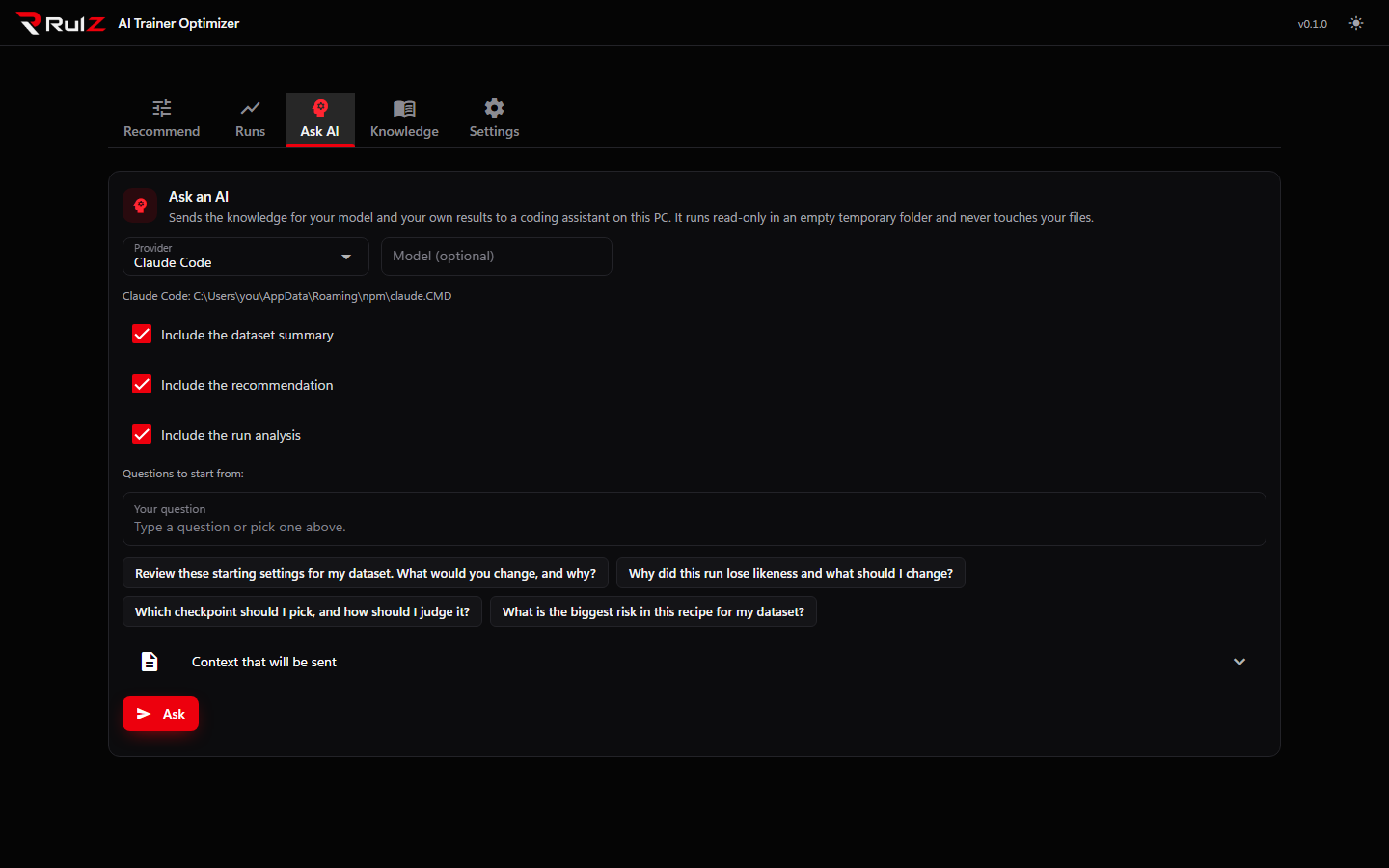
The answer is advice, not an order. The assistant sees only what the app sends, so it knows nothing about your images.
One of these command line tools, installed and signed in once:
| Provider | Install, then sign in |
|---|---|
| Claude Code | Install Claude Code, then run claude once in a terminal and sign in |
| Codex | Install the Codex CLI, then run codex login
|
| Grok Build | Install Grok Build, then run grok once and sign in |
| Antigravity (agy) | Install the Antigravity CLI, then run agy once and sign in |
The app finds each one on your PATH. A provider that isn't found shows (not installed) in the list, and the line
under it says what to do. Each of these tools uses its own account, so its own usage limits apply.
The app can't sign in for you. If a tool is not signed in or is out of quota, the tab says so instead of showing a cryptic error.
- Choose the Provider. Settings has a default provider (or None).
- Optionally type a Model name. Empty uses the tool's own default. It is passed to the tool as
--model(or-mfor Codex and Grok Build), so use a model id that tool accepts, for example one with letters, digits,.,_,:,/and-only. The model is remembered per provider in Settings. - Tick what to include: Include the dataset summary, Include the recommendation, Include the run analysis. Each one is only there if you have made it on the other tabs in this session.
- Type a question, or click one of the starting questions (review the starting settings, why a run lost likeness, which checkpoint to pick, the biggest risk in the recipe).
- Click Ask. It can take a few minutes. The app waits up to ten minutes.
The answer appears below with how long it took and the exact command that ran.
The app writes one file, advisor_context.md, into a fresh temporary folder, runs the tool there, and deletes the
folder afterwards. The tool is told to read that file, answer the question at its end, and not edit or create files.
Each tool is also started in its read-only or planning mode:
| Provider | Command |
|---|---|
| Claude Code | claude -p "<instruction>" --permission-mode plan --output-format text |
| Codex | codex exec --sandbox read-only --skip-git-repo-check "<instruction>" |
| Grok Build | grok -p "<instruction>" --permission-mode plan --output-format plain |
| Antigravity | agy -p "<instruction>" --mode plan --output-format text |
The working folder is empty apart from the context file, so your dataset and run folders are not exposed.
Open Context that will be sent to read it before you ask. It is plain Markdown:
- a short instruction, including what the confidence ratings mean
- the model's knowledge: summary, facts, the base recipe, how to evaluate, known flaws and fixes, open questions, each with its confidence and sources
- optional: the dataset summary (counts, captions, median size, aspect ratios, near-duplicate and small-image counts, trigger word, warnings)
- optional: the recommendation (goals, steps, the settings table, warnings)
- optional: the run analysis (job name, model, whether it finished, a few key settings, the likeness table, the detected findings and the fixes you proposed)
- your question
Your images and captions are not sent. Folder paths are not sent either: where a warning names a file, only the file name is kept.
The text goes to the AI service behind the tool you chose, the same as anything else you type into that tool. Don't ask if you wouldn't use that tool for it.
| Message | What to do |
|---|---|
Not installed (... not found on PATH) |
Install the tool and sign in, then restart this app so it finds it |
| Not signed in | Run the tool once in a terminal and sign in |
| Reports a quota or rate limit | Try again later, or choose another provider |
| Did not finish in time | The ten-minute limit passed. Try a shorter question, or leave out a section |
| Returned no answer | Try again, or use another provider |
The tool's own output is shown under the message.