Repository navigation
Trainer Optimizer Getting Started
- Open the RulZ AI Tools Suite launcher and click RulZ AI Trainer Optimizer (under AI Training).
- Click Install. The launcher installs Python first if it's missing, then makes a Python environment in the app's folder and installs the app's three packages: NiceGUI, PyYAML and Pillow.
- Click Launch. A console window opens and the app opens in your browser at http://localhost:8775. Closing the console window stops the app.
Updates show up as an Update button on the app's card. With Git installed the launcher updates it with
git pull; without Git it downloads the new version.
Your settings are kept in a separate folder (see Where things are kept), so updating or reinstalling keeps them. Launching it a second time while it's running just opens the running app in your browser again.
Get the app's folder from the source code
and double-click start-windows.bat. The first run makes a Python environment (.venv) and installs what the app
needs; after that it starts straight away. You need Python 3.10 or newer from https://www.python.org/downloads/ (tick
Add python.exe to PATH when you install it).
Options go after the file name, for example start-windows.bat --port 9000:
| Option | What it does |
|---|---|
--port 9000 |
Use another port (the default is 8775) |
--no-browser |
Start without opening the browser |
--host 0.0.0.0 |
Listen on your whole network. Not recommended: anyone who can reach it can read your run folders and start the AI helpers |
If port 8775 is busy the app uses the next free one and the console window says which.
In the app's folder run ./start-linux.sh. If Ubuntu says the venv module is missing:
sudo apt update && sudo apt install -y python3 python3-venv.
The first time the app opens it asks you to choose your look: Dark (black and red, the default) or Light (white and red). Click one to preview it, then Continue. You can switch any time with the sun / moon button at the top right, or in Settings.
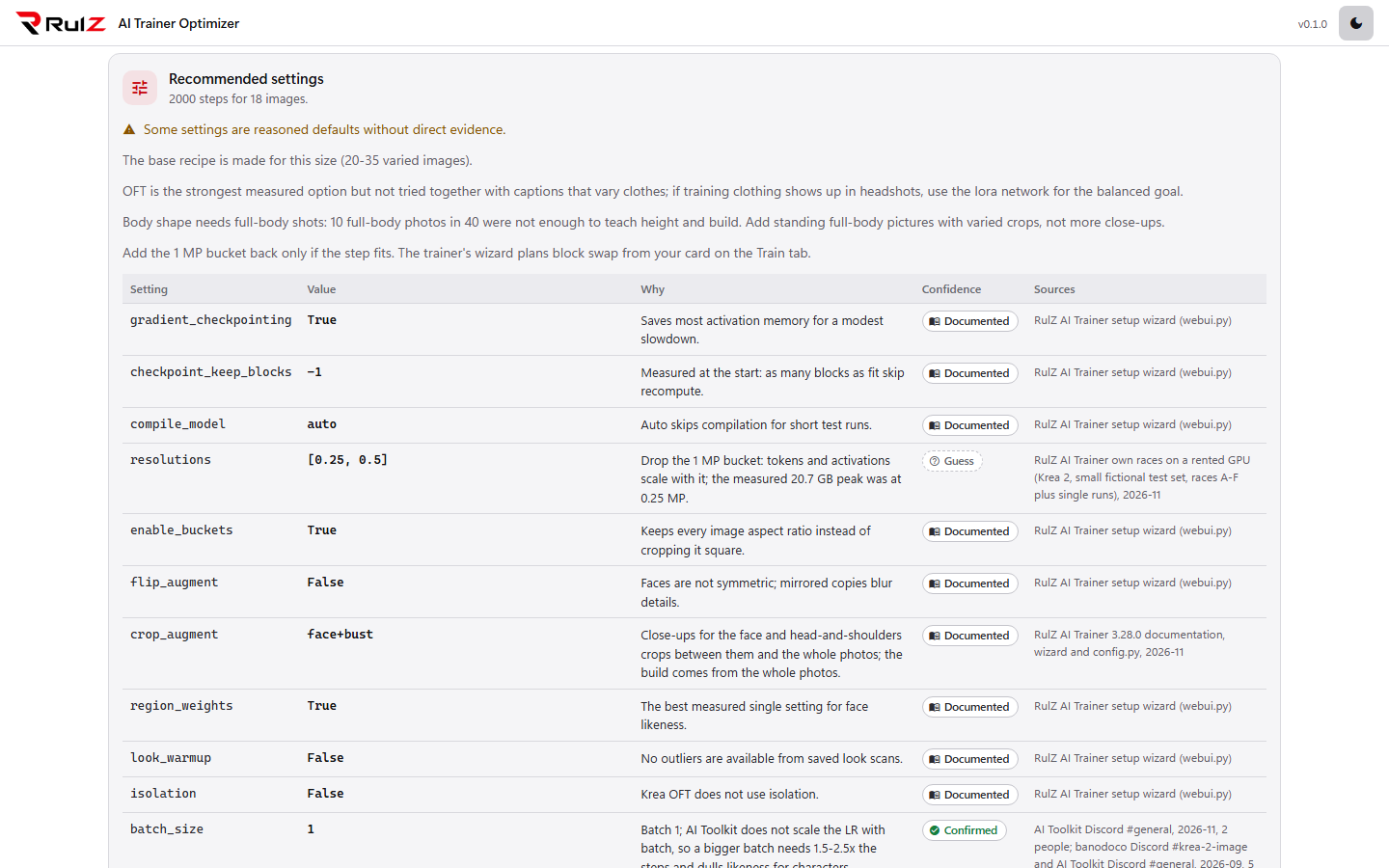
The app has five tabs: Recommend, Runs, Ask AI, Knowledge and Settings.
Open Settings and fill in what you need, then click Save settings. Nothing here is needed to read the Knowledge tab or to get a recommendation.
| Section | What's there |
|---|---|
| RulZ AI Trainer |
RulZ AI Trainer folder: the install this app validates and queues configs in, for example D:\RulzTrainer. Click Check to see whether it is found and which version and Python it uses. Leave it empty and the app looks for a folder called RulzTrainer next to its own folder. The launcher installs every app under one root, so a launcher-installed RulZ AI Trainer is found by itself. Otherwise enter its folder here. The folder must contain rulztrainer\config.py. |
| AI helper | Default provider: Claude Code, Codex, Grok Build, Antigravity (agy) or None. For each provider an optional model name, and whether its command is installed. See Ask AI. |
| Folders |
Export folder: where Save YAML writes configs. Empty means the trainer's configs folder, or Documents\RulZ AI Trainer Optimizer when no trainer is set. Extra folders to search for runs, one per line, for the Runs tab. |
| Knowledge base | How many model files were loaded, and Reload knowledge after you edit one (then reload the browser page). See Knowledge Base. |
The Runs tab always searches the trainer's output folder and the runs pulled from vast.ai instances
(.rulz_vast\runs and .rulz_vast\fleet\runs in your user folder), plus any extra folders you list.
| What | Where |
|---|---|
| Settings (Windows) | %APPDATA%\RulZ-AI-Trainer-Optimizer\settings.json |
| Settings (WSL / Linux) | ~/.config/rulz-ai-trainer-optimizer/settings.json |
| Saved configs | The export folder from Settings |
| The knowledge base | The knowledge folder inside the app's folder |
The settings file also remembers your last model, dataset folders and goals. If it gets damaged the app keeps the
broken copy next to it as settings.json.broken-… and starts with defaults.
Go to Recommendations to get your first set of starting settings.