Repository navigation
Trainer Optimizer Run Analysis
The Runs tab reads a finished (or running) RulZ AI Trainer run, shows what happened, points out the problems the numbers show, and builds a corrected config for the next run.
It only reads the files the trainer wrote. It does not change a run folder.
Under Find runs, click Find runs. The app searches:
- the trainer's
outputfolder (the trainer folder from Settings) - runs pulled from vast.ai instances:
.rulz_vast\runsand.rulz_vast\fleet\runsin your user folder - the extra folders you listed in Settings
- one more folder you type in the box on this tab, for example
D:\Training\output: either a run folder or a folder of runs
In each of those it looks at the folder itself and the folders directly inside it. A folder counts as a run when it
holds a config.yaml and either a status.json or a likeness.jsonl. Pick one in the Run list (you can type to
filter it).
A run from a much older trainer may show less, because older runs wrote fewer files. Damaged or missing files give empty sections, not an error.
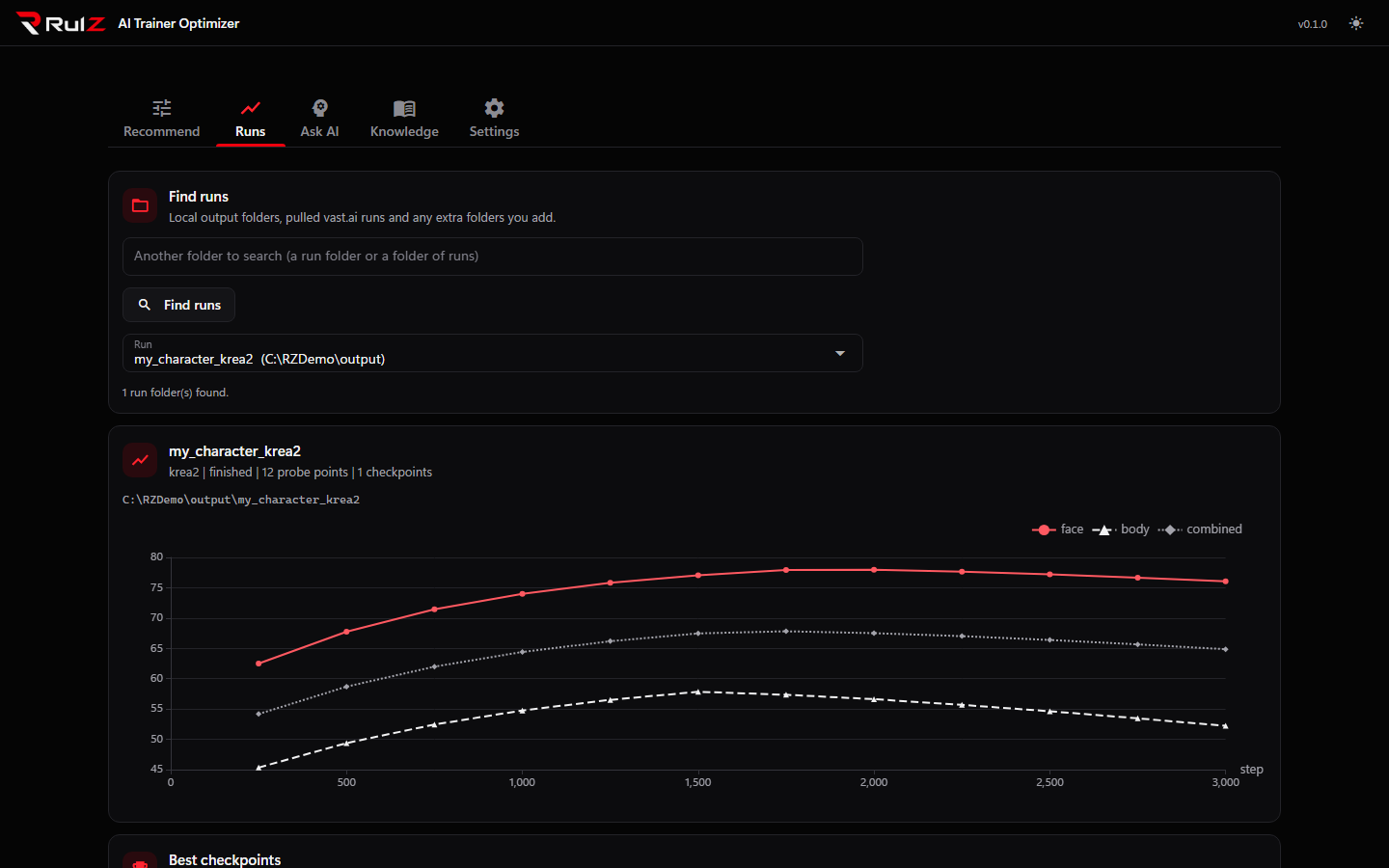
The header shows the job name, the model, whether the run finished (a run that is still going, or stopped early, shows as not finished), and how many probe points and checkpoints were found.
A line chart of face, body and combined likeness against the step. The three lines differ in colour, dash
and marker, so they stay readable in both looks. Hover for the values. Without probes (the trainer's probe_every was
off) the chart is replaced by a note.
The chart uses the trainer's normalised scores where the run has them, and falls back to the raw ones otherwise.
For face, body and combined likeness, the app shows the step with the highest score, the score, and the checkpoint file saved nearest to that step (if one lies within about 5% of the step, or 50 steps). Under it are up to eight probe images saved at that step. If the run did not keep images at exactly that step, the nearest saved step is used, and the app says so. Click an image to enlarge it.
Only images inside a run folder the app has found are ever shown.
The Samples section shows the run's sample images step by step, with the step of the best checkpoint marked, so you can see how the pictures changed around it.
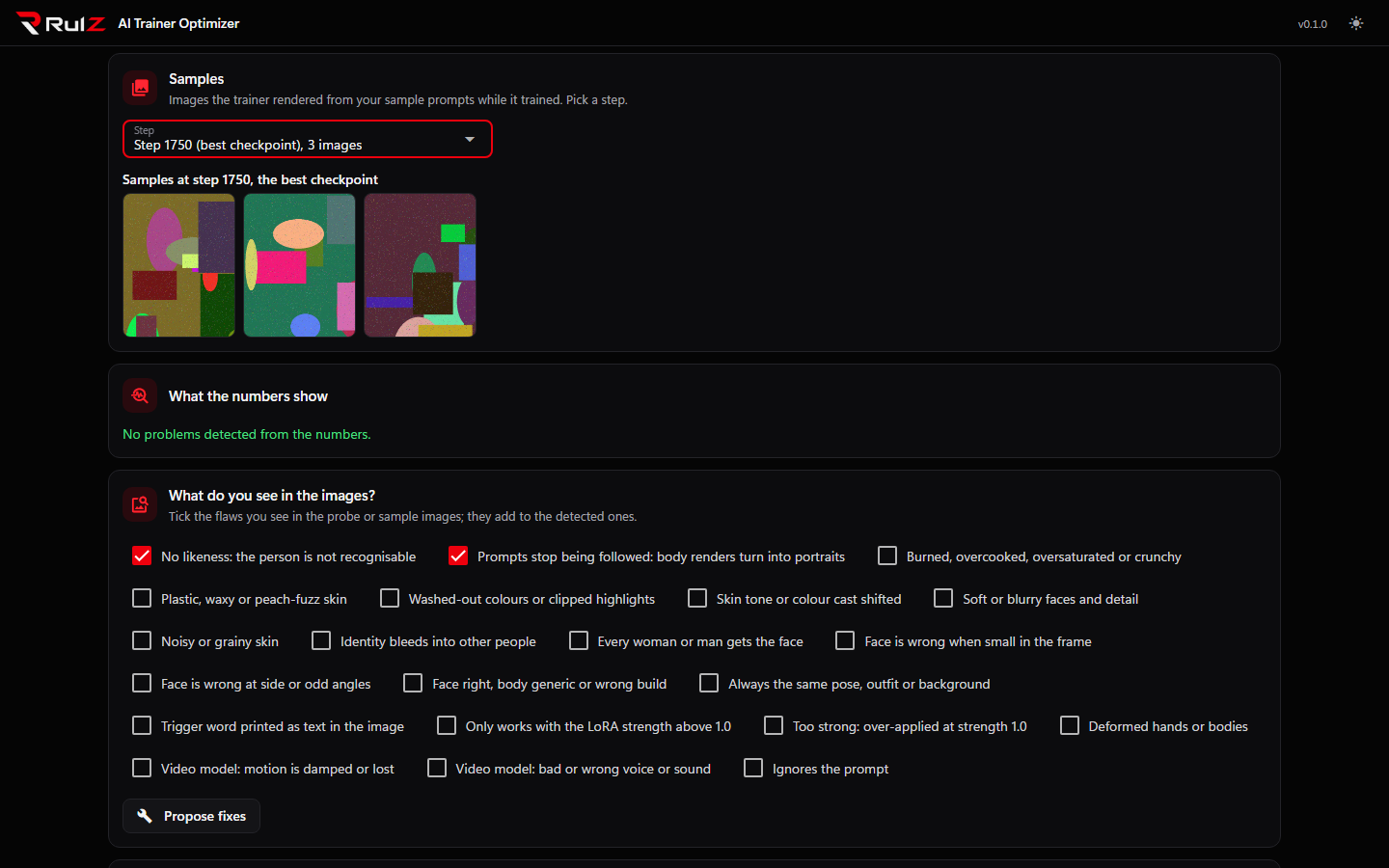
Look at the images before you trust a score. The score is a number from a face and body model; the images tell you whether the person is recognisable and the picture still looks right.
The app checks the run for problems it can measure. Each finding is listed with a severity. Thresholds are on the trainer's normalised likeness scale.
| Finding | When it appears |
|---|---|
no_likeness |
The best combined likeness stayed below 20 |
slow_likeness |
Still rising at the last probe (the best point is in the last 15% of probes and the last one is higher than the one two before) |
peaked_early |
Best likeness came before 70% of the run and the last probe is at least 8 points lower |
likeness_unstable |
A spread of more than 35 points between probe seeds, or a median jump of more than 15 points between neighbouring probes |
lost_framing |
Body probes were missing in at least two probe rounds, or prompt checks kept less than 60% of the framing, or drifted in at least 30% of checks, at the best point |
memorized |
A copy score of 0.6 or more, or a face or body overfit score above 1 |
lr_collapsed |
With an Automagic or Keel optimizer, the learning rate was below 1e-5 for more than half of the logged steps |
out_of_memory |
The run stopped or crawled with an out-of-memory error |
nan_or_diverged |
The loss was not finite or went above 100, the log mentions NaN or divergence, or the trainer skipped steps (shown as a bad problem) |
Two information lines can also show up: no likeness probes in the run (turn on probe_every with face and body
references), and raw score scale (the run has only raw scores, so the thresholds above were skipped).
For a race (several racers in one run), the app analyses the winner, or each racer when there is no winner.
Some flaws the numbers cannot show. Under What do you see in the images? tick the ones you see in the probe or sample images, for example plastic skin, washed colours, identity bleed or the same face for everyone. Hover a label for its description. Ticked flaws are added to the detected ones.
Click Propose fixes. The app takes the detected problems that are warnings or worse, plus everything you ticked, and looks up the fixes in the knowledge base: the model's own fixes first, then the general ones.
Each fix shows the symptom, a confidence chip, the change (for example learning_rate mul 0.5, meaning multiply by 0.5,
or advice such as picking an earlier checkpoint) and the reason. The main fixes start ticked. Untick any you don't want.
When two fixes compete for the same setting, the alternative is shown under the fix it competes with, unticked. Ticking the alternative unticks the other one.
Under Export the next config, give the Job name (it starts as the next version name: <job>_v2, then _v3) and use the same
buttons as on the Recommend tab: Save YAML, Validate, Queue locally, Queue on vast.ai and
Open RulZ AI Trainer. They behave as described in Recommendations,
including what must be running for each queue to start.
The next config is the run's own config.yaml with the ticked fixes applied. Step counts stay rounded to the model's
step size. For Queue on vast.ai the dataset folders named in the config must exist on this PC.
A run is a clue, not proof. One run cannot show whether a fix works, so change one or two things and compare. To ask why a run went wrong, click Ask an AI why this happened (see Ask AI).