Repository navigation
Trainer Optimizer Recommendations
The Recommend tab turns a model, a dataset and a goal into a table of starting settings for a character LoRA in RulZ AI Trainer, and then saves, checks or queues the config.
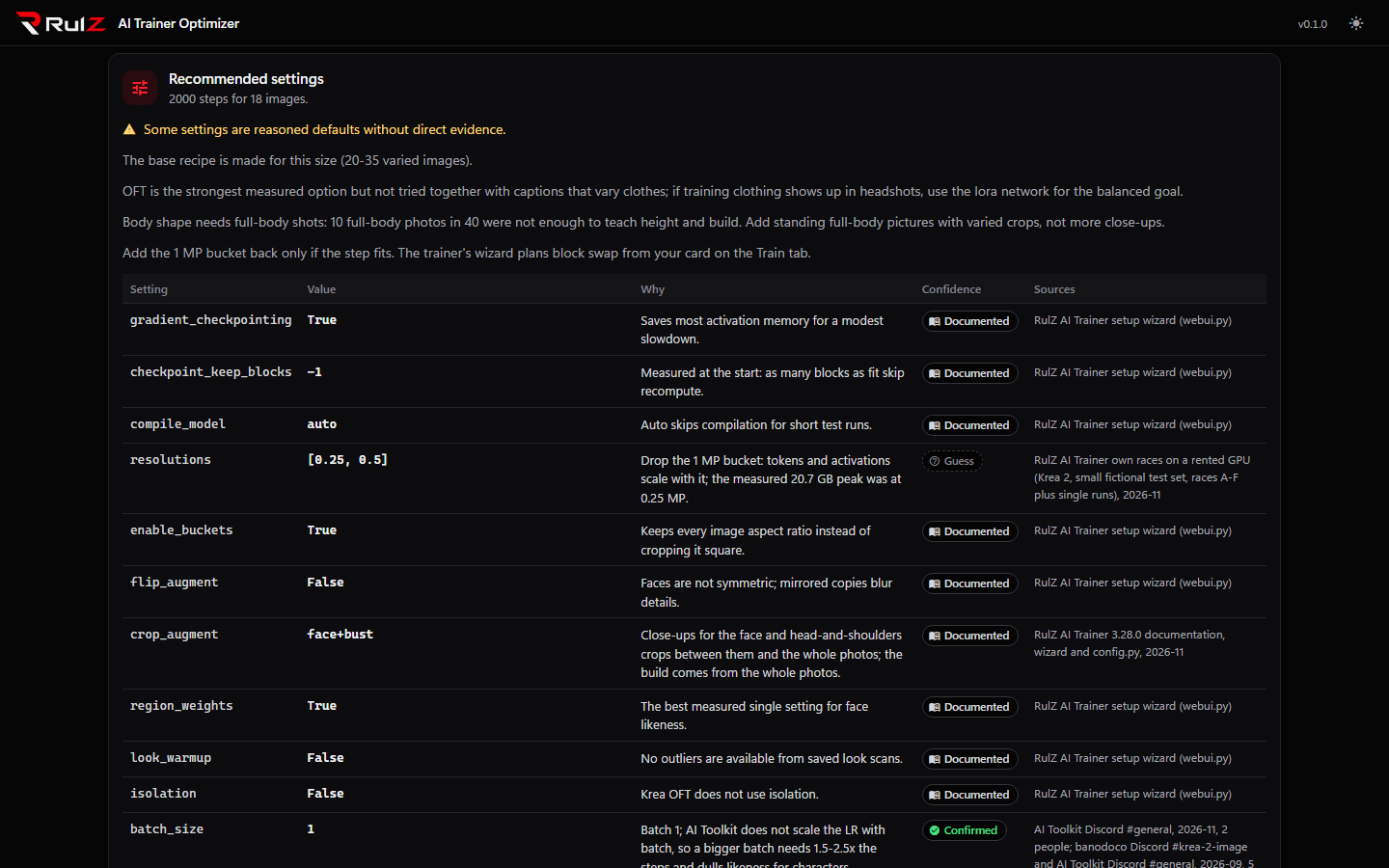
The recommendation is a starting point for one person's character LoRA. Version 0.1.0 has never been checked against a finished training run. Read the confidence rating on each row before you trust it.
Under Model, choose the RulZ AI Trainer model to train on. The model's summary appears under the list, with a Facts section you can open: the things worth knowing about that model, each with a confidence rating.
Some models have variants. MiniMax H3 has FL2VA and Ref2VA, and the variant changes the model path in the config.
How much evidence stands behind each model differs a lot, see Knowledge Base.
Under Dataset:
- Type or paste the folder or folders that hold your images (or clips) and their caption files, one folder per
line, for example
D:\Training\datasets\my_character. - Optionally type the trigger word. If you leave it empty, the app makes one from the first folder's name (lower case, no spaces).
- Click Scan folders.
The scan shows the number of images and videos, how many have a caption file, the median megapixels, the shortest side, near-duplicates, how many images are under 512 px, and the aspect ratios. It looks through each folder and all its sub-folders (hidden ones are skipped). It reads images only to measure them.
It warns you about:
- no images or videos found, or a file it could not read
- images with a side below 512 px
- possible near-duplicate pairs
- a trigger word in the captions that differs from the one you typed
The scan is optional. Without one, the recommendation uses defaults for the dataset size, and no dataset folders are written into the config.
| Goal | Choices |
|---|---|
| What you want | Likeness (the most faithful identity), Balanced (identity that still follows prompts, clothes and scenes, the default) or Quick test (a fast first try) |
| What to cover | Face only or Face and body |
| Where it will train | This PC or vast.ai |
| GPU memory (GB) | The memory of the card you will train on. Detect reads it with nvidia-smi (it only asks the driver, it does not load anything on the card). Type it yourself for vast.ai |
| Base config (optional) | A RulZ AI Trainer config.yaml from an earlier run or the WebUI. Its model and hardware settings (model paths, quantisation, block swap, attention, devices) are kept; the recommendation changes the training settings only. It is ignored, with a warning, if it is for a different model |
Click Recommend settings.
Under Recommended settings you see the number of steps and then the table:
| Column | What it tells you |
|---|---|
| Setting | The key in RulZ AI Trainer's config, such as lora_rank or learning_rate
|
| Value | What the recommendation sets it to |
| Why | The reason, in a sentence or two. It often says what the evidence disagrees on |
| Confidence | How much evidence there is: see below |
| Sources | Where it comes from: the kind of place, the month, and how many people agreed. No names. Settings that come from the trainer's own defaults show RulZ AI Trainer setup wizard |
Above the table you may see warnings (for example that some settings are reasoned defaults without direct evidence) and notes from the rules that matched your dataset. Below it are How to judge the checkpoints (the strength, sampler, steps and CFG to test with, and tips such as saving often because checkpoints are not monotonic) and Open questions, the points nobody has settled.
How the numbers come about: the model's starting recipe is adjusted by rules that look at your image count, goal, focus, GPU memory, target and captions. The step count follows from the number of images, repeats and batch size, within the model's own minimum and maximum. Saving, sampling and likeness probes happen about ten times over the run. Probes are off when no dataset folder was scanned.
Each row and each fact carries one of six ratings. The chip shows a word and an icon, so the rating never depends on colour alone. Hover a chip for its meaning.
| Code | Chip | Meaning |
|---|---|---|
| CONF | Confirmed | Two or more independent sources agree, or numbers or an A-B comparison were shown. |
| MEAS | Measured | Seen in our own RulZ AI Trainer runs. |
| DOC | Documented | From the official model card or the trainer's documentation. |
| REP | Reported | One source says so. |
| DISP | Disputed | Sources disagree. The reason gives both sides. |
| GUESS | Guess | No evidence: a reasoned default. Treat it as a guess. |
Confirmed does not mean certain: it means more than one person saw it. Measured means measured on our runs and our data, which may not match yours.
After you recommend, an Export panel appears. Give the config a Job name (letters, digits, _, . and -).
It starts as your trigger word plus the model id.
| Button | What it does |
|---|---|
| Save YAML | Writes <export folder>/<job>.yaml. Load it in the RulZ AI Trainer WebUI with Config file then Load. The file starts with comment lines naming this app, the trainer version, the model and the date. |
| Validate | Saves the file, then loads it with the trainer's own TrainConfig.load(...).validate(), run with the trainer's own Python, and shows the result. |
| Queue locally | Saves and validates, then adds the run to the trainer's queue (output/_queue.json) through the trainer's own queue code. |
| Queue on vast.ai | Saves, then runs the trainer's scripts/vast/rulz_fleet.py queue add with your dataset folders, so the dataset is copied to the instance and the config's paths point at the copy. Needs your dataset folders to be filled in. |
| Open RulZ AI Trainer | Starts the trainer's run_webui.bat (or run_webui.sh), unless its WebUI already answers on port 7870. |
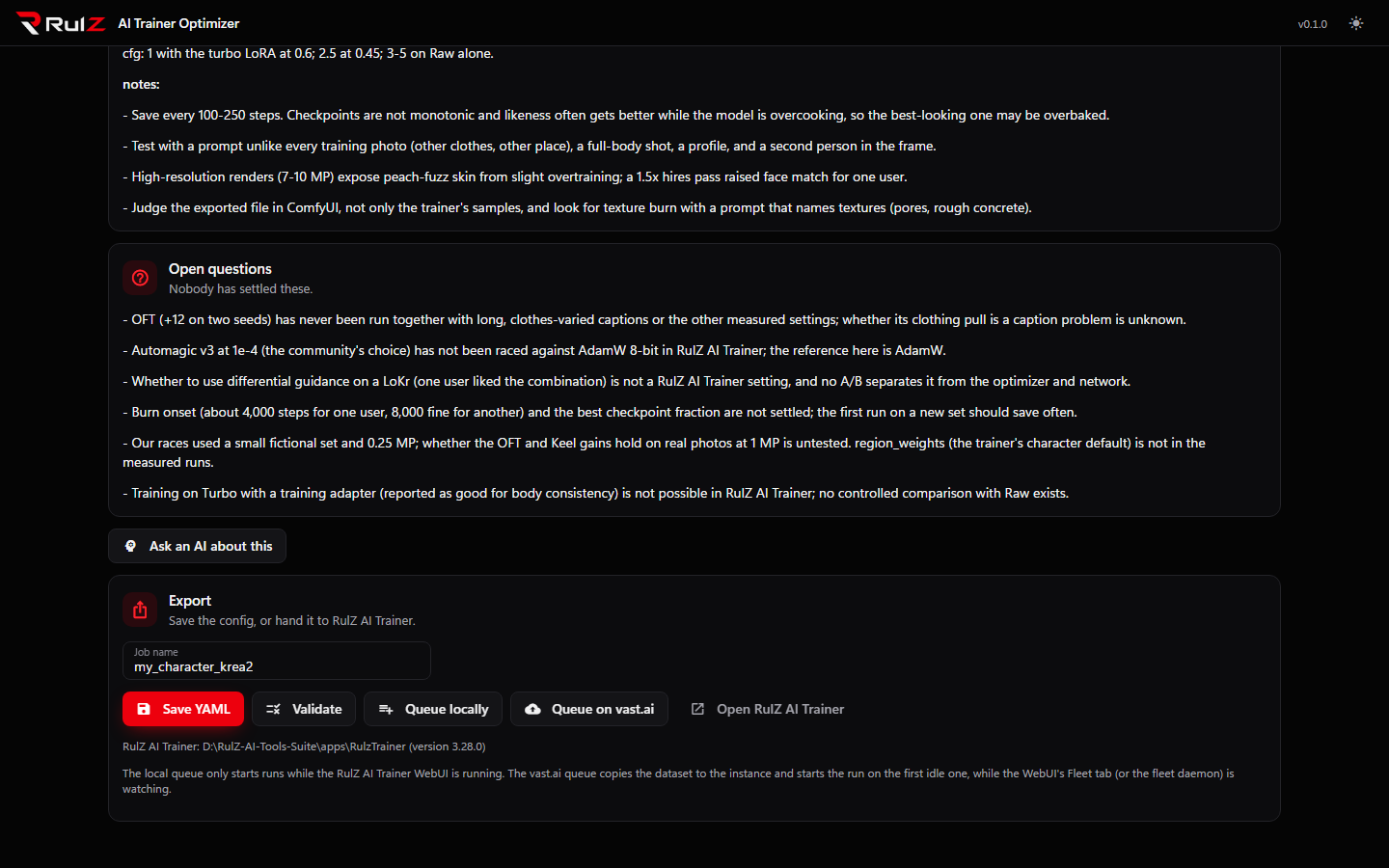
Every button saves the file first. Under the buttons the app shows which trainer it found and its version, and the vast.ai instances the trainer's fleet knows about (number, label, GPU, state).
Queueing only adds the run to a list. Something has to be running to start it.
| Queue | What starts the run |
|---|---|
| Queue locally | The RulZ AI Trainer WebUI must be running. It starts the next run when nothing else is running. Use Open RulZ AI Trainer if it is not open. |
| Queue on vast.ai | The run starts on the first idle instance, but only while something is watching: the Fleet tab of the trainer's WebUI, or python scripts/vast/rulz_fleet.py daemon. At least one instance must be set up in the trainer's fleet. See Cloud and remote. |
If the trainer is not found, the app still saves the YAML and tells you to set the trainer folder in Settings.
The Export panel appears only after Recommend settings. Change the model or scan other folders and the old recommendation is dropped, so press Recommend settings again.
Train with RulZ AI Trainer, then read the result with Run Analysis. To ask an AI about the recommendation, click Ask an AI about this under the table, see Ask AI.