Repository navigation
Windows Sysmon Deployment Guide
Windows Sysmon deployment guide - covering installation, configuration (SwiftOnSecurity, Olaf Hartong configs), and key event IDs for endpoint visibility, threat hunting, and incident response.
Covers: Sysmon installation and update, configuration XML structure, critical event IDs (1/process create, 3/network, 7/image load, 8/CreateRemoteThread, 10/access, 11/file create, 22/DNS), hash algorithms, log forwarding to SIEM, and detection use cases per event type.
Configure Sysmon on Windows endpoints to generate rich process, network, and file telemetry that feeds a SIEM and enables detection of common attacker TTPs.
- Setting up Windows endpoint visibility for a SOC or purple team environment
- Investigating a Windows compromise and auditing what Sysmon events are available
- Tuning Sysmon configuration to reduce noise while preserving detection coverage
- Building SIEM detection rules that reference Sysmon event IDs
System Monitor (Sysmon) is a Windows system service and device driver from Microsoft's Sysinternals suite that logs detailed system activity to the Windows Event Log. It provides visibility into process creation, network connections, file changes, registry modifications, and more-critical telemetry for threat detection and incident response.
This guide covers installing, configuring, and maintaining Sysmon across your environment. Supported Windows versions and command-line options change; consult the current Microsoft Sysmon documentation and the schema printed by the installed binary before deployment.
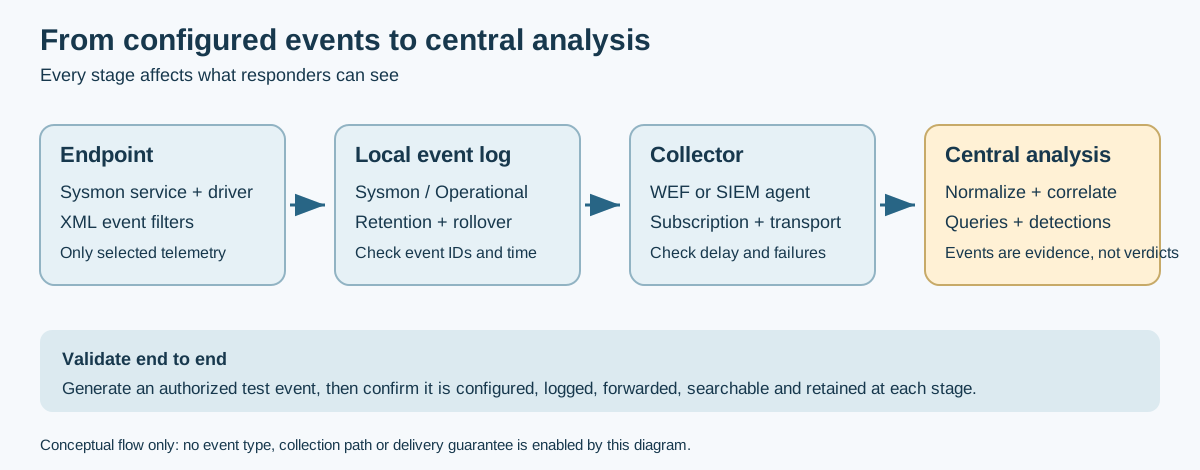
Conceptual flow: Sysmon reports selected telemetry into the Windows event log; a collector forwards it for analysis. This does not imply every event is enabled or successfully collected.
Standard Windows logging misses critical security events. Sysmon fills these gaps:
| Telemetry | What Sysmon can provide | Important limit |
|---|---|---|
| Process creation | Command line, parent context and process GUID (Event ID 1) | Fields depend on OS and configuration |
| Image hashes | Configured hashes for process images | Does not hash every file-creation event |
| Network connections | Process-linked connection metadata (Event ID 3) | Disabled by default; enable and filter deliberately |
| Image and driver loads | Module/driver metadata and signatures (Events 6–7) | Must be configured; image-load volume can be high |
| File and registry activity | Selected event types | Coverage depends on filters and can be incomplete |
| Central analysis | Can be collected by WEC or SIEM agents | Sysmon does not analyze events or guarantee delivery |
| Component | Requirement |
|---|---|
| OS | Current Microsoft documentation lists Windows 11+ clients and Windows Server 2019+ |
| Architecture | x86 or x64 (use appropriate binary) |
| Privileges | Local Administrator |
| Disk Space | ~5 MB (plus log storage) |
- Sysmon Binary: Microsoft Sysinternals
- Configuration File: Choose based on your needs (see Configuration Options below)
Download from the official Sysinternals page:
https://download.sysinternals.com/files/Sysmon.zip
# Create a tools directory
New-Item -ItemType Directory -Path "C:\Tools\Sysmon" -Force

# Download Sysmon
Invoke-WebRequest -Uri "https://download.sysinternals.com/files/Sysmon.zip" -OutFile "C:\Tools\Sysmon\Sysmon.zip"

# Extract the archive
Expand-Archive -Path "C:\Tools\Sysmon\Sysmon.zip" -DestinationPath "C:\Tools\Sysmon" -Forcewinget install Microsoft.Sysinternals.SysmonAlways verify the binary before deployment:
# Check digital signature
Get-AuthenticodeSignature "C:\Tools\Sysmon\Sysmon64.exe"

# Verify it's signed by Microsoft
(Get-AuthenticodeSignature "C:\Tools\Sysmon\Sysmon64.exe").SignerCertificate.Subject
The signer should be CN=Microsoft Corporation.
Sysmon's power comes from its XML configuration file. Choose a configuration based on your environment and expertise.
A well-tuned, community-maintained configuration that balances visibility with noise reduction.
# Download SwiftOnSecurity config
Invoke-WebRequest -Uri "https://raw.githubusercontent.com/SwiftOnSecurity/sysmon-config/master/sysmonconfig-export.xml" -OutFile "C:\Tools\Sysmon\sysmonconfig.xml"
Pros:
- Battle-tested in production environments
- Good noise filtering out of the box
- Well-documented exclusions
- Regular community updates
Best for: General-purpose deployment, SOC environments, beginners
A modular approach allowing granular control over what gets logged.
# Clone the repository
git clone https://github.com/olafhartong/sysmon-modular.git C:\Tools\sysmon-modular

# Or download the merged config directly
Invoke-WebRequest -Uri "https://raw.githubusercontent.com/olafhartong/sysmon-modular/master/sysmonconfig.xml" -OutFile "C:\Tools\Sysmon\sysmonconfig.xml"
Pros:
- Highly customizable
- Modular structure for easy editing
- Maps to MITRE ATT&CK framework
- Includes attack-specific detection rules
Best for: Advanced users, threat hunters, red team detection
Microsoft's Threat Intelligence Center publishes Sysmon schemas and reference
material (ATT&CK-aligned). Note: this repo no longer ships a single ready-to-use
sysmonconfig.xml - use Option 1 or 2 for a deployable config and consult
MSTIC-Sysmon for schema reference:
- Repository: https://github.com/microsoft/MSTIC-Sysmon
Start with a minimal config and build from there:
<Sysmon schemaversion="4.90">
    <HashAlgorithms>md5,sha256,IMPHASH</HashAlgorithms>
    <EventFiltering>
        <!-- Log all process creation -->
        <ProcessCreate onmatch="exclude" />

        <!-- Log all network connections -->
        <NetworkConnect onmatch="exclude" />

        <!-- Log file creation in sensitive locations -->
        <FileCreate onmatch="include">
            <TargetFilename condition="contains">\Downloads\</TargetFilename>
            <TargetFilename condition="contains">\Temp\</TargetFilename>
            <TargetFilename condition="contains">\AppData\</TargetFilename>
        </FileCreate>

        <!-- Log registry persistence locations -->
        <RegistryEvent onmatch="include">
            <TargetObject condition="contains">CurrentVersion\Run</TargetObject>
            <TargetObject condition="contains">CurrentVersion\RunOnce</TargetObject>
        </RegistryEvent>
    </EventFiltering>
</Sysmon>Open an Administrator Command Prompt or PowerShell:
cd C:\Tools\Sysmon

# Install with configuration (64-bit)
sysmon64.exe -accepteula -i sysmonconfig.xml

# For 32-bit systems
sysmon.exe -accepteula -i sysmonconfig.xml| Option | Purpose |
|---|---|
-i [config.xml] |
Install service and driver; optionally load configuration |
-c [config.xml] |
Update or display the active configuration |
-m |
Install the event manifest |
-s |
Print the configuration schema |
-u [force] |
Uninstall the service and driver |
Use the installed binary's -? help and -? config for the exact version. Configure event types and hashes in XML; do not assume a switch enables every event.
# Check service status
Get-Service Sysmon64

# View current configuration
sysmon64.exe -c

# Check driver is loaded
sc query Sysmon64# On a file server, create and share the Sysmon folder
New-Item -ItemType Directory -Path "C:\Deploy\Sysmon" -Force
New-SmbShare -Name "Sysmon$" -Path "C:\Deploy\Sysmon" -ReadAccess "Domain Computers"Copy sysmon64.exe, sysmon.exe, and sysmonconfig.xml to this share.
Create Install-Sysmon.bat:
@echo off
setlocal

set SYSMON_SHARE=\\fileserver\Sysmon$
set SYSMON_LOCAL=C:\Windows\Sysmon

:: Check if already installed
sc query Sysmon64 >nul 2>&1
if %errorlevel%==0 (
    echo Sysmon already installed, updating configuration...
    "%SYSMON_LOCAL%\Sysmon64.exe" -c "%SYSMON_SHARE%\sysmonconfig.xml"
    goto :end
)

:: Create local directory
if not exist "%SYSMON_LOCAL%" mkdir "%SYSMON_LOCAL%"

:: Copy files locally
copy /Y "%SYSMON_SHARE%\Sysmon64.exe" "%SYSMON_LOCAL%\"
copy /Y "%SYSMON_SHARE%\sysmonconfig.xml" "%SYSMON_LOCAL%\"

:: Install Sysmon
"%SYSMON_LOCAL%\Sysmon64.exe" -accepteula -i "%SYSMON_LOCAL%\sysmonconfig.xml"

:end
endlocal- Open Group Policy Management Console
- Create a new GPO:
Sysmon Deployment - Navigate to: Computer Configuration → Policies → Windows Settings → Scripts → Startup
- Add
Install-Sysmon.bat - Link the GPO to target OUs
Create the destination directory before copying. If the remote block reads a UNC share, confirm the target computer can access it; remoting does not automatically forward operator credentials through a second network hop. Otherwise stage files through the remoting session.
$computers = Get-Content "C:\targets.txt"
$sysmonPath = "\\fileserver\Sysmon$"

foreach ($computer in $computers) {
    Invoke-Command -ComputerName $computer -ScriptBlock {
        param($path)

        # Create the destination before copying
        New-Item -ItemType Directory -Path "C:\Windows\Sysmon" -Force | Out-Null
        Copy-Item "$path\Sysmon64.exe" -Destination "C:\Windows\Sysmon\" -Force
        Copy-Item "$path\sysmonconfig.xml" -Destination "C:\Windows\Sysmon\" -Force

        # Install
        Start-Process -FilePath "C:\Windows\Sysmon\Sysmon64.exe" -ArgumentList "-accepteula -i C:\Windows\Sysmon\sysmonconfig.xml" -Wait -NoNewWindow

    } -ArgumentList $sysmonPath

    Write-Host "Installed on $computer" -ForegroundColor Green
}- Create an Application in MECM
-
Installation Program:
sysmon64.exe -accepteula -i sysmonconfig.xml -
Uninstall Program:
sysmon64.exe -u -
Detection Method: Registry key
HKLM\SYSTEM\CurrentControlSet\Services\Sysmon64 - Deploy to target collection
Understanding Sysmon Event IDs is crucial for effective monitoring and threat hunting.
Event IDs identify telemetry types; they are not enabled uniformly and are not findings by themselves. Network Event ID 3 is disabled by default. Confirm each event's filter, platform support, log retention and collector coverage for the installed version before building detections.
| Event ID | Name | Why It Matters |
|---|---|---|
| 1 | Process Create | Full command line capture reveals encoded PowerShell, LOLBins, suspicious arguments |
| 3 | Network Connect | Identifies C2 callbacks, lateral movement, data exfiltration |
| 6 | Driver Load | Detects rootkit installation, vulnerable driver loading |
| 7 | Image Load | DLL side-loading, injection detection |
| 8 | CreateRemoteThread | Potential cross-process thread creation; investigate source, target, access context and corroborating telemetry. The event alone does not prove malicious injection. |
| 10 | Process Access | Credential dumping (LSASS access) |
| 11 | File Create | Malware drops, tool staging, webshells |
| 12/13/14 | Registry Events | Persistence mechanisms, configuration changes |
| 15 | FileCreateStreamHash | Alternate Data Stream abuse (hiding payloads) |
| 17/18 | Pipe Events | Named pipe C2 communication (Cobalt Strike) |
| 22 | DNS Query | DNS-based C2, tunneling, suspicious resolutions |
| 23 | File Delete | Archived file deletion (anti-forensics) |
| 25 | Process Tampering | Process hollowing, herpaderping |
This event captures every process execution with full context:
Event ID: 1
UtcTime: 2024-01-15 14:23:45.123
ProcessGuid: {12345678-1234-1234-1234-123456789abc}
ProcessId: 4532
Image: C:\Windows\System32\WindowsPowerShell\v1.0\powershell.exe
CommandLine: powershell.exe -enc SQBFAFgAIAAoAE4AZQB3AC0ATwBiAGoAZQBjAHQA...
CurrentDirectory: C:\Users\victim\
User: DOMAIN\username
ParentProcessGuid: {12345678-1234-1234-1234-123456789def}
ParentImage: C:\Program Files\Microsoft Office\root\Office16\WINWORD.EXE
ParentCommandLine: "WINWORD.EXE" /n "C:\Users\victim\Downloads\invoice.docm"
Red Flags:
- Encoded PowerShell (
-enc,-e,-encodedcommand) - Office applications spawning cmd.exe or PowerShell
- Processes running from
\Temp\,\Downloads\,\AppData\ - Unusual parent/child relationships
Event ID: 3
UtcTime: 2024-01-15 14:23:47.456
ProcessGuid: {12345678-1234-1234-1234-123456789abc}
ProcessId: 4532
Image: C:\Windows\System32\WindowsPowerShell\v1.0\powershell.exe
User: DOMAIN\username
Protocol: tcp
SourceIp: 192.168.1.100
SourcePort: 49234
DestinationIp: 185.234.72.19
DestinationPort: 443
DestinationHostname: evil-c2-server.com
Red Flags:
- Connections from unexpected processes (notepad.exe, calc.exe)
- Connections to known-bad IPs or unusual geolocations
- Non-browser processes connecting on port 80/443
- High port-count connections (scanning)
Critical for detecting credential theft:
Event ID: 10
SourceImage: C:\Temp\mimikatz.exe
TargetImage: C:\Windows\System32\lsass.exe
GrantedAccess: 0x1010
Red Flags:
- Any non-system process accessing LSASS
-
GrantedAccessvalues:0x1010,0x1410,0x1438(memory read)
Event ID: 22
ProcessId: 4532
QueryName: data.evil-domain.com
QueryResults: 192.168.1.50
Image: C:\Windows\System32\WindowsPowerShell\v1.0\powershell.exe
Red Flags:
- DNS queries from unexpected processes
- High entropy domain names (DGA)
- Unusually long subdomains (DNS tunneling)
- Open PowerShell and run a simple command:
whoami
hostname
ipconfig-
Check Event Viewer:
- Navigate to:
Applications and Services Logs → Microsoft → Windows → Sysmon → Operational - Look for Event ID 1 entries
- Navigate to:
-
PowerShell Query:
Get-WinEvent -FilterHashtable @{
    LogName = "Microsoft-Windows-Sysmon/Operational"
    Id = 1
    StartTime = (Get-Date).AddMinutes(-10)
} | Format-List TimeCreated, Message# Generate a network connection
Invoke-WebRequest -Uri "https://www.google.com" -UseBasicParsing | Out-Null
# Check for Event ID 3
Get-WinEvent -LogName "Microsoft-Windows-Sysmon/Operational" -MaxEvents 50 |
Where-Object { $_.Id -eq 3 } |
Select-Object -First 5 |
Format-List TimeCreated, MessageUse Atomic Red Team to generate realistic attack telemetry:
# Install Atomic Red Team
IEX (IWR 'https://raw.githubusercontent.com/redcanaryco/invoke-atomicredteam/master/install-atomicredteam.ps1' -UseBasicParsing)

# Run a test (T1059.001 - PowerShell)
Invoke-AtomicTest T1059.001 -TestNumbers 1

# Check Sysmon logs for detection
Get-WinEvent -LogName "Microsoft-Windows-Sysmon/Operational" -MaxEvents 20 | Format-Table TimeCreated, Id, Message -Wrap# Update config without reinstalling
sysmon64.exe -c sysmonconfig-new.xmlsysmon64.exe -cBefore deploying, validate your XML:
# Check XML is well-formed
[xml]$config = Get-Content "sysmonconfig.xml"
Write-Host "Configuration is valid XML" -ForegroundColor GreenCreate Update-SysmonConfig.bat:
@echo off
set CONFIG_SHARE=\\fileserver\Sysmon$\sysmonconfig.xml
C:\Windows\Sysmon\Sysmon64.exe -c "%CONFIG_SHARE%"
Schedule via Group Policy Preferences → Scheduled Tasks.
Wazuh automatically collects Sysmon events. Ensure the agent configuration includes:
<!-- In ossec.conf on the Windows agent -->
<localfile>
    <location>Microsoft-Windows-Sysmon/Operational</location>
    <log_format>eventchannel</log_format>
</localfile>Create a subscription for Sysmon events:
<QueryList>
    <Query Id="0" Path="Microsoft-Windows-Sysmon/Operational">
        <Select Path="Microsoft-Windows-Sysmon/Operational">*</Select>
    </Query>
</QueryList>Add to inputs.conf:
[WinEventLog://Microsoft-Windows-Sysmon/Operational]
disabled = 0
renderXml = true
index = sysmonwinlogbeat.event_logs:
- name: Microsoft-Windows-Sysmon/Operational
event_id: 1, 3, 6, 7, 8, 10, 11, 12, 13, 14, 15, 17, 18, 22, 23, 25Increase the default Sysmon log size to prevent rollover:
# Set log to 1 GB
wevtutil sl Microsoft-Windows-Sysmon/Operational /ms:1073741824
Via Group Policy:
- Navigate to: Computer Configuration → Administrative Templates → Windows Components → Event Log Service → Sysmon
- Set Maximum Log Size to desired value
# Export only under approved evidence-retention procedures
$date = Get-Date -Format "yyyy-MM-dd"
wevtutil epl "Microsoft-Windows-Sysmon/Operational" "C:\Logs\Sysmon-$date.evtx"
# Clearing is destructive: verify the export, retention policy and incident status first.
# Do not clear during an active investigation or before confirmed central collection.
# wevtutil cl "Microsoft-Windows-Sysmon/Operational"| Events/Day | Daily Size | Monthly Size |
|---|---|---|
| 10,000 | ~50 MB | ~1.5 GB |
| 100,000 | ~500 MB | ~15 GB |
| 1,000,000 | ~5 GB | ~150 GB |
Tune your configuration to reduce noise and manage storage effectively.
Check service status:
Get-Service Sysmon64Verify driver is loaded:
fltmcLook for the Sysmon driver in the output.
Check for configuration errors:
sysmon64.exe -cIdentify problematic rules:
- Start with a minimal config
- Add rules incrementally
- Monitor resource usage
Common culprits:
- Overly broad
FileCreaterules - Logging all
ImageLoadevents - No exclusions for noisy system processes
Add performance exclusions:
<ProcessCreate onmatch="exclude">
    <Image condition="is">C:\Windows\System32\svchost.exe</Image>
    <Image condition="is">C:\Windows\System32\RuntimeBroker.exe</Image>
</ProcessCreate>Check filter logic:
-
onmatch="include"= whitelist (only log matching) -
onmatch="exclude"= blacklist (log everything except matching)
Verify event types are enabled:
<!-- This logs ALL process creations -->
<ProcessCreate onmatch="exclude" />

<!-- This logs NOTHING (empty include) -->
<ProcessCreate onmatch="include" /># Uninstall and remove driver
sysmon64.exe -u
# Force uninstall if standard fails
sysmon64.exe -u forceIf you've used a custom driver name and forgot it:
# Find the driver
Get-WmiObject Win32_SystemDriver | Where-Object { $_.PathName -like "*sysmon*" }Sysmon does not hide itself from attackers, and renaming its driver is not a substitute for endpoint protection or tamper monitoring. Use approved endpoint controls, restrict administrative access, centrally collect service/configuration events, and alert on unexpected stops or configuration changes. Test hardening against supported update and recovery procedures before broad deployment.
Create an alert for Sysmon service stops (Event ID 4):
Get-WinEvent -LogName "Microsoft-Windows-Sysmon/Operational" |
    Where-Object { $_.Id -eq 4 } |
Select-Object TimeCreated, MessageManage write permissions through endpoint-management and application-control policy. Do not apply an example ACL blindly: installed paths, service identity, update method and recovery requirements vary. Keep the binary and XML configuration versioned, verify their publisher/hash, and test update and rollback on a representative endpoint.
- Sysmon Documentation (Microsoft)
- SwiftOnSecurity Sysmon Config
- Sysmon Modular (Olaf Hartong)
- TrustedSec Sysmon Community Guide
- MITRE ATT&CK Sysmon Mappings
| Action | Command |
|---|---|
| Install | sysmon64.exe -accepteula -i config.xml |
| Update Config | sysmon64.exe -c config.xml |
| View Config | sysmon64.exe -c |
| Uninstall | sysmon64.exe -u |
| Item | Path |
|---|---|
| Event Log | Microsoft-Windows-Sysmon/Operational |
| Event Viewer Path | Applications and Services Logs → Microsoft → Windows → Sysmon → Operational |
| Binary Location |
C:\Windows\Sysmon64.exe (default) |
| Driver | C:\Windows\SysmonDrv.sys |
# Last 10 process creations
Get-WinEvent -LogName "Microsoft-Windows-Sysmon/Operational" -MaxEvents 10 | Where-Object {$_.Id -eq 1}

# Network connections in last hour
Get-WinEvent -LogName "Microsoft-Windows-Sysmon/Operational" -MaxEvents 100 | Where-Object {$_.Id -eq 3 -and $_.TimeCreated -gt (Get-Date).AddHours(-1)}

# LSASS access attempts
Get-WinEvent -LogName "Microsoft-Windows-Sysmon/Operational" | Where-Object {$_.Id -eq 10 -and $_.Message -like "*lsass*"}
Part of the Incident Response & Log Aggregation Branch
- ../../../README.md - IncidentResponse section index
- ../Linux/auditd_syslog.md - Linux equivalent: auditd
- ../Linux/osquery.md - Cross-platform endpoint visibility
- ../../SIEM/splunk.md - Splunk for Sysmon event analysis
- ../../SIEM/wazuh.md - Wazuh for Sysmon log ingestion
📄 Source: IncidentResponse/Endpoint-Visibility/Windows/sysmon.md | ✏️ Suggest an edit | ⬅️ Back to Incident Response