Repository navigation
Disk Forensics Guide Autopsy and KAPE
Disk forensics guide covering evidence acquisition practices, Autopsy (image and logical-source analysis), and KAPE (Kroll Artifact Parser and Extractor - targeted artifact collection and processing). KAPE collection is not a bit-for-bit disk image.
Covers: write-protected or otherwise authorized disk-image acquisition, Autopsy case setup and analysis, KAPE targets/modules for artifact collection and processing, timeline analysis, file carving, hash verification, and reporting. Exact coverage depends on the evidence source, selected collection targets, and configured ingest modules.
Enable IR practitioners to acquire disk evidence correctly and efficiently analyze it with Autopsy or KAPE to identify attacker activity, persistence mechanisms, and data access during an incident.
- Disk forensics during incident response (compromised workstation or server)
- Rapid triage with KAPE before full Autopsy analysis
- Evidence preservation and chain of custody documentation
- Post-incident artifact collection for legal hold
Disk forensics involves the acquisition, analysis, and reporting of data stored on persistent storage media. This guide covers two essential tools: Autopsy (a full-featured forensic platform) and KAPE (Kroll Artifact Parser and Extractor - a rapid triage collection tool).
Together, these tools support targeted artifact triage and deeper image or logical-source analysis. They serve different roles: KAPE selects and processes artifacts; Autopsy analyzes supported evidence sources. Neither tool choice guarantees complete collection or recovery.
| Scenario | Tool | Reason |
|---|---|---|
| Disk-image or logical-source examination | Autopsy | Broad examination; coverage depends on source type and configured ingest modules |
| Rapid triage collection | KAPE | Fast artifact extraction |
| Timeline analysis | Autopsy | Built-in timeline features |
| Live artifact triage | KAPE | Selective collection; method and destinations affect target writes and evidence coverage |
| Malware investigation | Both | KAPE collects, Autopsy analyzes |
| Deleted-file analysis | Autopsy | Results depend on source image, unallocated data, file system, and selected ingest options |
| Registry analysis | Both | Autopsy has viewer, KAPE extracts |
| Browser forensics | Both | Both parse browser artifacts |
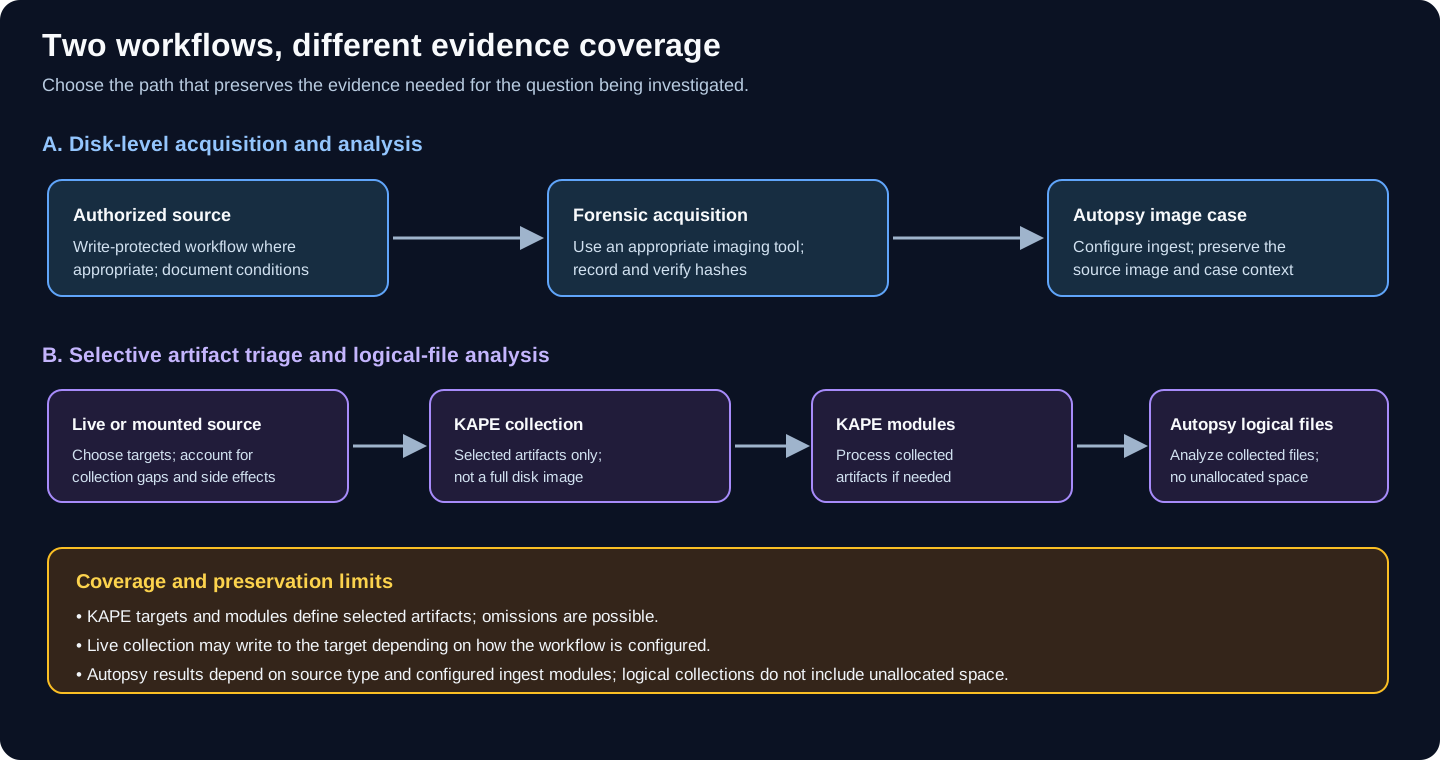
Conceptual workflows. KAPE collects selected artifacts; it does not create a complete disk image. Live collection can change the source depending on how tools, temporary files, and destinations are configured.
Autopsy supports multiple source types, while its selected ingest modules determine which content is analyzed. Logical-file sources do not include unallocated space. See the Autopsy data-source documentation and ingest-module documentation.
KAPE is a triage tool designed to:
- Collect forensic artifacts from live systems or mounted images
- Process collected data using various parsers
- Output results in analysis-ready formats
| Term | Description |
|---|---|
| Target | Defines what files/artifacts to collect |
| Module | Defines how to process collected artifacts |
| TKAPE | Target collection only |
| MKAPE | Module processing only |
| Compound Target | Multiple targets combined |
KAPE is free for non-commercial use. Download from:
# Extract to a dedicated folder
Expand-Archive -Path "kape.zip" -DestinationPath "C:\Tools\KAPE"

# Directory structure
# C:\Tools\KAPE\
# ├── kape.exe
# ├── Targets\
# ├── Modules\
# └── Documentation\KAPE uses community-maintained targets and modules:
# Clone KapeFiles repository for latest targets/modules
git clone https://github.com/EricZimmerman/KapeFiles.git

# Copy to KAPE directory
Copy-Item -Path "KapeFiles\Targets\*" -Destination "C:\Tools\KAPE\Targets" -Recurse -Force
Copy-Item -Path "KapeFiles\Modules\*" -Destination "C:\Tools\KAPE\Modules" -Recurse -ForceMany modules require external tools (Eric Zimmerman tools, etc.):
# Run KAPE's module binary sync
cd C:\Tools\KAPE
.\kape.exe --sync
Or manually download Eric Zimmerman tools:
Targets are YAML files defining what to collect:
Description: Windows Event Logs
Author: Eric Zimmerman
Version: 1.0
Id: 12345678-1234-1234-1234-123456789abc
RecreateDirectories: true
Targets:
    -
        Name: Event Logs
        Category: EventLogs
        Path: C:\Windows\System32\winevt\Logs\
        FileMask: '*.evtx'
Recursive: false| Target | What It Collects |
|---|---|
!SANS_Triage |
Comprehensive IR collection |
KapeTriage |
General triage artifacts |
EventLogs |
Windows Event Logs |
Registry |
Registry hives |
FileSystem |
$MFT, $J, $LogFile |
Antivirus |
AV logs (Defender, etc.) |
WebBrowsers |
All browser artifacts |
CloudStorage |
OneDrive, Dropbox, etc. |
RemoteAdmin |
RDP, TeamViewer, etc. |
PowerShell |
PS history, logs |
Prefetch |
Prefetch files |
Amcache |
Amcache.hve |
SRUM |
System Resource Usage |
RecycleBin |
Deleted files info |
# List all targets
.\kape.exe --tlist

# Search for specific targets
.\kape.exe --tlist | Select-String "Registry"Caution
Account for collection side effects. Some live or remote KAPE workflows can write tool, temporary, or output files to the target, depending on the launch method and destination settings. Before collection, inspect the actual --tdest/--mdest plan and remote-collection procedure, record expected writes, and preserve an appropriate image first when unallocated space or a stable disk state matters. See the KAPE remote collection notes.
kape.exe --tsource <source> --tdest <destination> --target <target_name># Collect SANS triage artifacts from C: drive
.\kape.exe --tsource C: --tdest E:\Cases\Case001\Collection --target !SANS_Triage
# With volume shadow copy support
.\kape.exe --tsource C: --tdest E:\Cases\Case001\Collection --target !SANS_Triage --vss.\kape.exe --tsource C: --tdest E:\Cases\Case001\EventLogs --target EventLogs.\kape.exe --tsource C: --tdest E:\Cases\Case001\Registry --target RegistryHives.\kape.exe --tsource C: --tdest E:\Cases\Case001\Browsers --target WebBrowsers.\kape.exe --tsource C: --tdest E:\Cases\Case001\Collection --target EventLogs,RegistryHives,Prefetch,Amcache# Mount forensic image as E:
# Then collect
.\kape.exe --tsource E: --tdest F:\Cases\Case001\Collection --target !SANS_Triage.\kape.exe --tsource C: --tdest E:\Cases\Case001\Collection --target !SANS_Triage --vss --vhdx Case001_VSSModules process collected artifacts:
Description: Parse Windows Event Logs with EvtxECmd
Category: EventLogs
Author: Eric Zimmerman
Version: 1.0
Id: 87654321-4321-4321-4321-cba987654321
BinaryUrl: https://ericzimmerman.github.io/#!index.md
ExportFormat: csv
Processors:
    -
        Executable: EvtxECmd\EvtxECmd.exe
        CommandLine: -d %sourceDirectory% --csv %destinationDirectory%
ExportFormat: csv| Module | What It Processes |
|---|---|
!EZParser |
Run all EZ tools on artifacts |
EvtxECmd |
Parse Event Logs to CSV |
RECmd |
Parse Registry hives |
PECmd |
Parse Prefetch files |
LECmd |
Parse LNK files |
JLECmd |
Parse Jump Lists |
SBECmd |
Parse ShellBags |
MFTECmd |
Parse $MFT |
AmcacheParser |
Parse Amcache |
AppCompatCacheParser |
Parse Shimcache |
SrumECmd |
Parse SRUM database |
SQLECmd |
Parse SQLite databases |
# List all modules
.\kape.exe --mlist

# Search for specific modules
.\kape.exe --mlist | Select-String "Registry"kape.exe --msource <source> --mdest <destination> --module <module_name>.\kape.exe --msource E:\Cases\Case001\Collection --mdest E:\Cases\Case001\Parsed --module !EZParser.\kape.exe --msource E:\Cases\Case001\Collection --mdest E:\Cases\Case001\Parsed --module EvtxECmd.\kape.exe --msource E:\Cases\Case001\Collection --mdest E:\Cases\Case001\Parsed --module RECmd_AllRegExecutablesFoundOrRun# Collect AND process in one command
.\kape.exe --tsource C: --tdest E:\Cases\Case001\Collection --target !SANS_Triage --mdest E:\Cases\Case001\Parsed --module !EZParserAfter running KAPE, output is organized:
E:\Cases\Case001\
├── Collection\                    # Raw collected artifacts
│   ├── C\                         # Source drive letter
│   │   ├── Windows\
│   │   │   ├── System32\
│   │   │   │   ├── config\        # Registry hives
│   │   │   │   └── winevt\Logs\   # Event logs
│   │   │   └── Prefetch\
│   │   └── Users\
│   │       └── <username>\
│   └── vss\                       # Volume Shadow Copies
│       ├── vss1\
│       └── vss2\
│
└── Parsed\                        # Processed output
    ├── EventLogs\                 # CSV event logs
    ├── Registry\                  # Registry output
    ├── FileSystem\                # $MFT, etc.
    └── ProgramExecution\          # Prefetch, Amcache
KAPE includes a GUI for easier use:
# Launch GUI
.\gkape.exe- Target Selection: Browse and select targets visually
- Module Selection: Browse and select modules
- Options: VSS, VHDX creation, flush settings
- Command Preview: See the command before running
Autopsy is an open-source digital forensics platform that provides:
- Disk image analysis
- File system forensics
- Keyword searching
- Timeline analysis
- Hash filtering
- Reporting
Download from sleuthkit.org/autopsy
Run the installer with default settings. Autopsy includes:
- The Sleuth Kit (forensic tools)
- Java Runtime (bundled)
- Various analysis modules
For large cases, increase Java heap:
- Navigate to Autopsy installation directory
- Edit
etc\autopsy.conf - Modify:
default_options="-J-Xms4g -J-Xmx16g"
Launch Autopsy and select Create New Case
| Field | Example |
|---|---|
| Case Name | IR-2024-001 |
| Base Directory | E:\Cases\ |
| Case Type | Single-user |
| Field | Example |
|---|---|
| Case Number | IR-2024-001 |
| Examiner | John Smith |
| Organization | PNWC |
| Type | Description |
|---|---|
| Disk Image | E01, raw (dd), VHD, VMDK |
| Local Disk | Physical drive |
| Logical Files | Folder of files (like KAPE output) |
| Unallocated Space | Raw unallocated space image |
| XRY Text Export | Mobile device export |
- Select Data Source Type: Disk Image or VM File
- Browse to image file (E01, raw, etc.)
- Configure Time Zone (important for timeline accuracy)
- Select Ingest Modules (see below)
- Select Data Source Type: Logical Files
- Browse to KAPE collection folder
- This allows Autopsy to analyze KAPE-collected artifacts
Ingest modules automatically analyze data as it's added.
| Module | Purpose | Enable? |
|---|---|---|
| Recent Activity | Browser, registry, recent docs | ✅ |
| Hash Lookup | Compare against known hash sets | ✅ |
| File Type Identification | Identify by signature, not extension | ✅ |
| Extension Mismatch | Find disguised files | ✅ |
| Embedded File Extractor | Extract from archives/docs | ✅ |
| Keyword Search | Index for searching | ✅ |
| Email Parser | Parse email files | ✅ |
| Encryption Detection | Find encrypted files | ✅ |
| Interesting Files | Flag suspicious files | ✅ |
| PhotoRec Carver | Recover deleted files | Optional |
| Virtual Machine Extractor | Extract VM disk images | Optional |
| Data Source Integrity | Verify image hash | ✅ |
- Tools → Options → Hash Sets
- Add NSRL (known good) hash set
- Add known malware hash sets
Hash Set Sources:
- NSRL (Known good)
- VirusShare (Known bad)
- Malware Bazaar (Known bad)
- Tools → Options → Keyword Lists
- Add custom lists for:
- IP addresses
- Domain names
- Email addresses
- Malware indicators
- Sensitive data patterns
| Area | Purpose |
|---|---|
| Tree View (Left) | Navigate data sources, results |
| Result Viewer (Top Right) | List of files/items |
| Content Viewer (Bottom Right) | View selected item |
Data Sources
├── [Disk Image Name]
│   ├── File Views
│   │   ├── File Types (by extension)
│   │   ├── Deleted Files
│   │   └── File Size
│   └── Data Artifacts
│       ├── Web History
│       ├── Web Downloads
│       ├── Recent Documents
│       └── Installed Programs
│
├── Views
│   ├── File Types
│   └── Deleted Files
│
├── Results
│   ├── Extracted Content
│   │   ├── Web History
│   │   ├── Web Bookmarks
│   │   ├── Web Cookies
│   │   ├── Web Downloads
│   │   └── Recent Documents
│   ├── Keyword Hits
│   ├── Hashset Hits
│   ├── Email Messages
│   └── Interesting Items
│
└── Tags
    ├── Follow Up
    ├── Notable Item
    └── [Custom Tags]
View All Files:
- Expand Data Sources → [Image] → File Views
- Browse by file type, size, or path
Find Deleted Files:
- Navigate to File Views → Deleted Files
- Or use Views → Deleted Files
File Metadata:
- Select a file
- View File Metadata tab in Content Viewer
- Check: Created, Modified, Accessed, Changed times
Create Search:
- Click Keyword Search (magnifying glass icon)
- Enter search term or regex
- Select Exact Match, Substring, or Regex
- Click Search
Useful Keywords for IR:
-
password,credential,secret -
base64,powershell -enc -
mimikatz,procdump,psexec - IP addresses:
\d{1,3}\.\d{1,3}\.\d{1,3}\.\d{1,3} - Email:
[a-zA-Z0-9._%+-]+@[a-zA-Z0-9.-]+\.[a-zA-Z]{2,}
Generate Timeline:
- Tools → Timeline
- Select time range
- Choose event types to include
Timeline Features:
- Filter by file type, path, event type
- Zoom to specific time periods
- Export events for external analysis
What to Look For:
- Cluster of activity around suspected compromise time
- File creations in unusual locations
- Execution artifacts (prefetch) timing
- Gaps in activity (potential log clearing)
Browser History:
- Results → Extracted Content → Web History
- Review URLs, visit times, visit counts
Downloads:
- Results → Extracted Content → Web Downloads
- Look for suspicious downloads
Cookies:
- Results → Extracted Content → Web Cookies
- Identify sites visited, session information
View Registry:
- Data Artifacts → Operating System Information
- Or navigate to registry files in file system
- Use Application → Registry Viewer in Content Viewer
Key Registry Locations:
| Location | Information |
|---|---|
SAM |
User accounts |
SECURITY |
Security settings |
SOFTWARE |
Installed software, settings |
SYSTEM |
System configuration, services |
NTUSER.DAT |
User-specific settings |
UsrClass.dat |
User shell settings |
View Hash Hits:
- Results → Hashset Hits
- Review files matching known bad hashes
Calculate Hash:
- Right-click file → View File in Directory
- Check MD5/SHA1/SHA256 in File Metadata
Search VirusTotal:
- Right-click file → Search Online
- Opens VirusTotal search for hash
- Right-click item → Add Tag
- Select existing tag or create new
- Common tags:
-
Follow Up- Needs more investigation -
Notable Item- Important finding -
Malware- Confirmed malicious -
Exfiltration- Data theft indicator -
Persistence- Persistence mechanism
-
- Right-click item → Add Comment
- Enter notes about the item
- Comments appear in reports
- Tools → Generate Report
- Select report type:
- HTML Report - Best for sharing
- Excel Report - For data analysis
- KML Report - For geolocation data
- Portable Case - Share case with another analyst
| Option | Description |
|---|---|
| Tagged Results | Only tagged items |
| All Results | Everything found |
| Specific Data Types | Select what to include |
Export Files:
- Right-click file → Extract File(s)
- Choose destination
Export Timeline:
- Tools → Timeline
- File → Export → CSV
Add Custom Ingest Module:
- Tools → Options → Ingest
- Modules can be added via plugins
Autopsy supports Python plugins for custom analysis:
# Example: Custom file analyzer
from org.sleuthkit.autopsy.ingest import IngestModule

class CustomAnalyzer(IngestModule):
    def process(self, file):
        # Custom analysis logic
passFor multi-case correlation:
- Tools → Options → Central Repository
- Enable and configure database
- Correlates artifacts across cases
- Tools → Communications
- Visualize email, call, message relationships
- Useful for understanding connections
1. Create case, add disk image
2. Enable ingest modules (especially hash lookup, interesting files)
3. Check Results → Hashset Hits for known malware
4. Search keywords: malware names, C2 domains
5. Review Extracted Content → Web Downloads
6. Check File Views → Deleted Files for removed malware
7. Timeline analysis around infection time
8. Export malicious files for further analysis
1. Create case, add disk image
2. Enable Recent Activity module
3. Review Web History and Downloads
4. Search keywords: competitor names, project names
5. Check for cloud storage usage (OneDrive, Dropbox)
6. Review USB device history (registry)
7. Check email artifacts
8. Timeline analysis for data access patterns
1. Collect artifacts with KAPE (!SANS_Triage)
2. Process with KAPE modules (!EZParser)
3. Create Autopsy case
4. Add KAPE collection as Logical Files data source
5. Run relevant ingest modules
6. Cross-reference KAPE CSV output with Autopsy findings
7. Generate comprehensive report
# Check Java version
java -version

# Clear cache (Windows)
Remove-Item -Recurse "$env:USERPROFILE\.autopsy"- Increase Java heap in
autopsy.conf - Disable unnecessary ingest modules
- Use SSD for case storage
- Process large images overnight
- Verify image integrity (hash)
- Try different image format
- Check disk space
- Mount image externally and add as logical files
- Verify ingest modules completed (check progress)
- Re-run specific ingest modules
- Check if artifact type is supported
- Manual navigation to known locations
| Command | Purpose |
|---|---|
kape.exe --tlist |
List targets |
kape.exe --mlist |
List modules |
kape.exe --sync |
Download module binaries |
kape.exe --tsource C: --tdest E:\Out --target !SANS_Triage |
Collect triage |
kape.exe --msource E:\Out --mdest E:\Parsed --module !EZParser |
Process artifacts |
| Target | Description |
|---|---|
!SANS_Triage |
Comprehensive collection |
!BasicCollection |
Minimal triage |
EventLogs |
Windows Event Logs |
RegistryHives |
Registry files |
WebBrowsers |
All browsers |
FileSystem |
$MFT, $J, etc. |
| Shortcut | Action |
|---|---|
Ctrl+F |
Find in current view |
Ctrl+Shift+F |
Keyword search |
Ctrl+T |
Add tag |
Ctrl+G |
Generate report |
| Artifact | Path |
|---|---|
| Event Logs | C:\Windows\System32\winevt\Logs\ |
| Registry (System) | C:\Windows\System32\config\ |
| Registry (User) | C:\Users\<user>\NTUSER.DAT |
| Prefetch | C:\Windows\Prefetch\ |
| Amcache | C:\Windows\AppCompat\Programs\Amcache.hve |
| SRUM | C:\Windows\System32\sru\SRUDB.dat |
| Browser (Chrome) | C:\Users\<user>\AppData\Local\Google\Chrome\User Data\ |
| Recent Files | C:\Users\<user>\AppData\Roaming\Microsoft\Windows\Recent\ |
Part of the Incident Response & Log Aggregation Branch
PNWC Fix-DriveAccess helps technicians assess and rescue customer data from Windows volumes with orphaned file-owner SIDs and inaccessible ACLs. Its read-only assessment and copy-to-another-volume approach are useful for a consented repair/recovery job, but this is not forensic acquisition: ownership/permission repair writes metadata to the source and can alter evidence. For investigations, acquire and verify a protected image before applying any ACL changes, follow chain-of-custody procedures and never mistake NTFS permissions for BitLocker decryption.
- ../../../README.md - IncidentResponse section index
- ../Memory/volatility_cheatsheet.md - Memory forensics to pair with disk analysis
- ../LiveData/live_data_collection.md - Live response before disk imaging
- ../../SIEM/splunk.md - SIEM for correlating disk forensics findings
Section Index | Master Index | Legal Notice
📄 Source: IncidentResponse/Digital-Forensics/Disks/autopsy_kape.md | ✏️ Suggest an edit | ⬅️ Back to Incident Response